2A7KO-Y6IP camera
Shenzhen youfeiyang Electronics Co., Ltd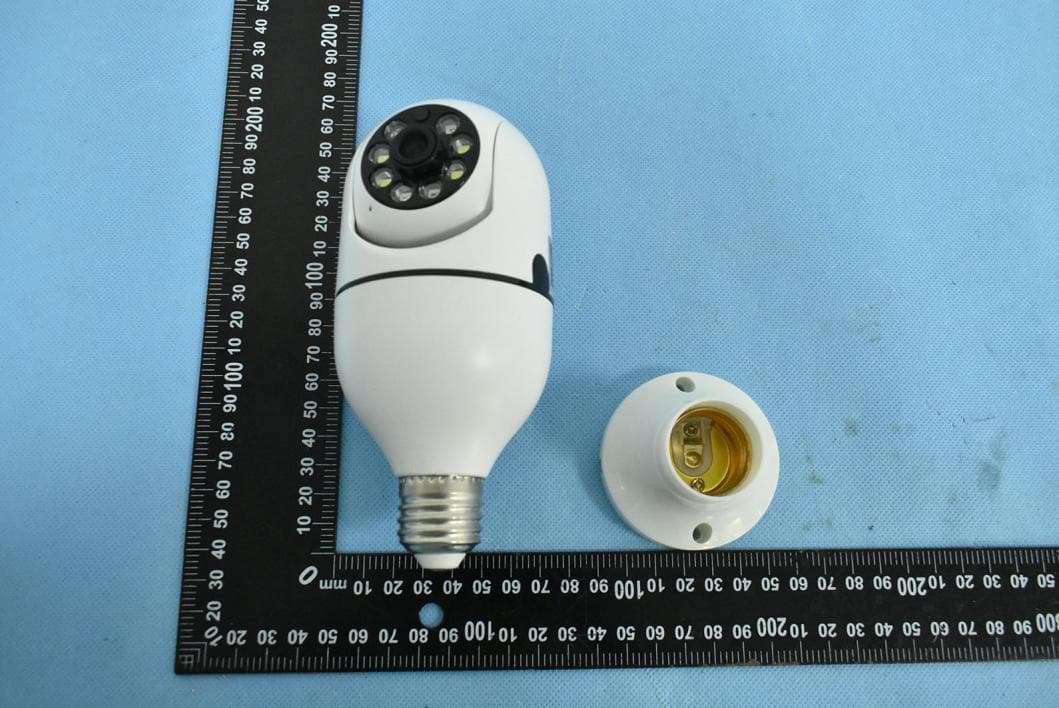
Click to zoom
Application Details
- Equipment Class
- DTS - Digital Transmission System
- Date of Grant
- Jul 18, 2022
- Application Purpose
- Original Equipment
- Date of Application
- Jul 18, 2022
- Equipment Note
- IP camera
- Frequency Range
- 2412.00000000 - 2462.00000000
- Country
- China
Documents & Files
Document Text
Text extracted from the exhibit documents filed with the FCC. Open a document above to read the original.
Users Manual
Cloud IP camera Operation Manual Dear users, you are welcome to choose this product. Before using the product, please read the instruction manual carefully and keep it for later reference 1、Main Function Description 2、How To Download APP Search “YCC365 Plus ”in Apple Store or Android app store and download. Scan the QR code and download. 3、How to Connect Camera Add Device 3.1 Register an account When you use this app at the first time, you need to use your email to register an account, click" Sign Up” and set a password according this procedure, or choose Long in with mobile phone number. If you forget your password, you can reset your password, just click "Forgot password” on the login page. Password should be at least 6 characters and not longer than 26 characters, It should be a combination of letters and numbers. Only support mobile phone number registration in some regions. Please use email to register in other areas. 3.2 Connect the camera Note: Camera only supports 2.4G WIFI before adding devices, make sure your router is 2.4G WIFI, and your phone is connected to 2.4G Wi-Fi. 3.2.1 、Scan code to add Please make your phone connect to the Wi-Fi. Select your own 2.4GWi-Fi and enter your password.(5G network is not supported). Scan the camera lens toward the QR code of the phone,(Align the QR code with camera lens at a distance of 10-20cm)Hear a voice prompt, Click "When you hear a beep or a green light” after hearing the beep, Keep the camera case close as possible to the router, The connection process takes about 1-2minutes,after you will hear welcome to use camera. 3.2.2 Addition by connection to network cable (Only support Lan port device) Click the button in the upper right comer on the app homepage. Choose the device type intelligent camera, choose the addition by connecting to network cable. Plug in the power to the camera, Device network port is connected to the network cable Scan device body QR code, put the QR code on the device body into the box and scan it. Please wait patiently ,The connection process takes about 1-2minutes,after you will hear welcome to use camera. 3.2.3 Addition of AP hotspot Click the button in the upper right comer on the app homepage. Choose the Addition of AP hotspot, Plug in the power to the camera, Wait patiently for the device light to blink or hear a tone, Click Next when done. If you don’t see any tips, try resetting your device, Find the reset button, Long press for at least 5s,click next after prompted. please go to the Wi-Fi list and connect the Wi-Fi in the blue field “CLOUDCAM_XXXX” Select the Wi-Fi that matches the prefix and connect Return to APP after successful connection. After connecting the device successfully click next, Choose your router Wi-Fi ,Enter Wi- Fi password, Click confirm, Addition is successful, then your can preview the screen. 3.3 AP Direct mode (special) Open the YCC365plus app to enter the login interface, click “Local login” . Click the button in the upper right “+” on the app homepage. Click “AP networked device preview” and Click “Next” . Go to Setting Network click your phone connect to “CLOUDCAM_XXXX” network. Network setting set the Wi-Fi has been connected with this device and Click “Next” . Enter user Name: admin Password: 12345 Click “Next”, then your can preview the screen. 4、Function introduction Real-time preview interface A:Parameter Menu B:Video quality C:sound D:Snapshot E:Hold to talk F:Video to the phone G:Full Screen H:Cloud storage I:Alarm recording J:View cloud albums K:more L:Playback 4.1 PTZ/ Preset PTZ By sliding steering wheel or sliding the screen on the live preview can control the camera's rotation . 1、Turn off camera. 2、PTZ reset . 3、Click the presets icon to enter the preset management interface. 4、Light. 5、Shere family . Picture for reference Since different cameras have different functions, the actual display interface shall prevail 4.2 Video playback A: Select "View Playback" at the bottom right corner of the live interface to view the playback video of the camera. B: Switch playback path, you can choose to watch cloud playback/memory card playback. 5 Preferences Click " " in the preview screen check the parameter menu Picture for reference Since different cameras have different functions, the actual display interface shall prevail 6、Split screen to watch(Only for multiple equipment under the same account) Click on the split screen button to realize simultaneous preview of multiple devices Note: More than two machines, with split screen function. 7、How to use a camera on a computer Log In:www.ucloudcam.com Enter your account number and password, click to Login 8 、 Frequently asked questions 1、Can’t add the device? A、 Please make sure the camera has been reset, Press the Reset button until hear the prompt tone. B、 Only support 2.4GHZ Wi-Fi, if your Wi-Fi router is 5GHZ, please switch to 2.4/5GHZ dual mode. C、 Please turn on the GPS service before adding the device on the Android mobil phone , After installation is complete, you will be asked to turn on GPS service when you use the app at the first time, if you choose not to turn on the GPS service, please uninstall and reinstall the app again. D、 Please confirm the camera wasn’t binding by the other account. There are four voice prompts in the progress. 1)“Please configure camera by AP hotspot or scanning code”. 2)Select your Wi-Fi and login with your password, after the device makes a noise like “beep” you will hear this “Please wait for Wi-Fi connecting”. 3)“Please wait for internet connecting” after getting the Internet ip address. 4)“Internet connected welcome to use cloud camera”. A、 If you can’t go to the second step, please check your Wi-Fi channel is not hidden, and the Wi-Fi router can’t be so far from the camera, If this way doesn’t work, please scan the QR code to add the camera. B、 If you can’t go to the third step, please reduce the number of the Wi…
Text truncated - open the document above for the full version.
Cover Letter(s)
Shenzhen youfeiyang Electronics Co., Ltd 1/1 Letter of Authorization Company: Shenzhen youfeiyang Electronics Co., Ltd Address: 6 / F, building a, Sanzhi Industrial Zone, No. 95, Gushu 1st Road, guxing community, Xixiang street, Bao’an District, Shenzhen Product Name: IP camera Model Number: Y6 FCC Identifier:2A7KO-Y6 We authorize LGAI Technological Center S.A., Ronda de la Font del Carme, s/n, 08193 Bellaterra, Spain, to act on our behalf on all matters concerning the above named equipment. Any individual within LGAI Technological Center S.A. is authorized to act on our behalf and take action on the application. We declare that authorize LGAI Technological Center S.A., Ronda de la Font del Carme, s/n, 08193 Bellaterra, Spain, is allowed to forward all information related to the approval project to the Federal Communication Commission and to discuss any issues concerning the approval application. Any and all acts carried out by LGAI Technological Center S.A. on our behalf shall have the same effect as acts of our own. Name: Jade Yang Date: 2022-07-15 Title: Manager Signature of applicant:
Cover Letter(s)
Shenzhen youfeiyang Electronics Co., Ltd 1/1 Office of Engineering Technology Federal Communications Commission 7435 Oakland Mills Road Columbia, MD 21046 Date: 2022-07-15 Subject: Request for Confidentiality FCC ID: 2A7KO-Y6 To Whom It May Concern, Pursuant to the provisions of Sections 0.457 and 0.459 of Commission's rules (47CFR0.457, 0.459), we are requesting the Commission to withhold the following attachment(s) as confidential document from public disclosure. Exhibits Long-Term Confidentiality Short-Term Confidentiality NOTE 2 ID Label/Location No No Attestation Statement No No External Photos No ☐ Block Diagram ☒ ☐ Schematics ☒ ☐ Test Report No No Test Setup Photos No ☐ User’s Manual No ☐ Internal Photos No ☐ Parts List / Tune Up ☐ ☐ RF Exposure Info No No Operational Description ☒ ☐ Cover Letter(s) No No SDR Software / Security Info ☐ No NOTE 1: Long-Term Confidentiality may be permitted under special conditions (See II. LONG-TERM CONFIDENTIALITY, Section 3 of KDB 726920, use last in force) NOTE 2: Short-Term Confidentiality can be requested for a maximum of 180 days from the date of the grant. Above mentioned document contains detailed system and equipment description are considered as proprietary information in operation of the equipment. The public disclosure of above documents might be harmful to our company and would give competitor an unfair advantage in the market. It is our understanding that all measurement test reports, FCC ID label format and correspondent during certification review process cannot be granted as confidential documents and those information will be available for public review once the grant of equipment authorization is issued. Sincerely, Signature: Name: Jade Yang Title: Manager
External Photos
EUT PHOTO(External Photos) ※※※※※ END OF REPORT ※※※※※
ID Label/Location Info
Size: 12*8mm M/N: Y6 FCC ID: 2A7KO-Y6 Label location
Internal Photos
EUT PHOTO(Internal Photos) ANT ※※※※※ END OF REPORT ※※※※※
RF Exposure Info
FCC ID: 2A7KO-Y6 RF Exposure Evaluation Limits The criteria listed in the following table shall be used to evaluate the environment impact of human exposure to radio frequency (RF) radiation as specified in 1.1307(b) Limits for Maximum Permissible Exposure (MPE) Frequency range (MHz) Electric field strength (V/m) Magnetic field strength (A/m) Power density (mW/cm 2 ) Averaging time (minutes) (A) Limits for Occupational/Controlled Exposures 0.3–3.0 614 1.63 *(100) 6 3.0–30 1842/f 4.89/f *(900/f 2 ) 6 30–300 61.4 0.163 1.0 6 300–1500 f/300 6 1500–100,000 5 6 (B) Limits for General Population/Uncontrolled Exposure 0.3–1.34 614 1.63 *(100) 30 1.34–30 824/f 2.19/f *(180/f 2 ) 30 30–300 27.5 0.073 0.2 30 300–1500 f/1500 30 1500–100,000 1.0 30 f = frequency in MHz Friis transmission formula: Pd = (Pout*G)/(4*pi*r 2 ) Where Pd = power density in mW/cm 2 , Pout = output power to antenna in mW; G = gain of antenna in linear scale, Pi = 3.1416; R = distance between observation point and center of the radiator in cm Pd id the limit of MPE, 1 mW/cm 2 . If we know the maximum gain of the antenna and the total power input to the antenna, through the calculation, we will know the distance r where the MPE limit is reached. Test Procedure Software provided by client enabled the EUT to transmit and receive data at lowest, middle and highest channel individually. Test Result of RF Exposure Evaluation wifi 2.4G mode Channel Output power to antenna (dBm) Output power to antenna (mW) Power Density at R=20cm (mW/cm 2 ) Limit (mW/cm 2 ) Result 802.11b 16.67 46.45 0.00924 1.0 PASS 802.11g 16.33 42.95 0.00855 1.0 PASS 802.11n HT20 16.25 42.17 0.00839 1.0 PASS 802.11n HT40 16.25 42.17 0.00839 1.0 PASS Remark: antenna gain=0 dBi
Test Report
Shenzhen DL Testing Technology Co., Ltd. Report No.: DL-20220628004E Test Report Tel: 400-688-3552 Web:www.dl-cert.com Email: [email protected] Page 1 of 59 FCC Part 15C Test Report FCC ID: 2A7KO-Y6 Applicant: Shenzhen youfeiyang Electronics Co., Ltd Address: 6 / F, building a, Sanzhi Industrial Zone, No. 95, Gushu 1st Road, guxing community, Xixiang street, Bao’an District, Shenzhen Manufacturer: Shenzhen youfeiyang Electronics Co., Ltd Address: 6 / F, building a, Sanzhi Industrial Zone, No. 95, Gushu 1st Road, guxing community, Xixiang street, Bao’an District, Shenzhen EUT: IP camera Trade Mark: N/A Model Number: Y6 Date of Receipt: Jun. 20, 2022 Test Date: Jun. 20, 2022 - Jun. 29, 2022 Date of Report: Jun. 29, 2022 Prepared By: Shenzhen DL Testing Technology Co., Ltd. Address: 101-201, Building C, Shuanghuan, No.8, Baoqing Road, Baolong Industrial Zone, Baolong Street, Longgang District, Shenzhen, Guangdong, China Applicable Standards: FCC PART 15 C 15.247 ANSI C63.10:2013 Test Result: Pass Report Number: DL-20220628004E Prepared (Test Engineer): Alisa Song Reviewer (Supervisor): Jack Bu Approved (Manager): Jade Yang This test report is based on a single evaluation of one sample of above mentioned products. It is not permitted to be duplicated in extracts without written approval of Shenzhen DL Testing Technology Co., Ltd. Shenzhen DL Testing Technology Co., Ltd. Report No.: DL-20220628004E Test Report Tel: 400-688-3552 Web:www.dl-cert.com Email: [email protected] Page 2 of 59 Table of Contents Page 1 . SUMMARY OF TEST RESULTS 4 1.1 MEASUREMENT UNCERTAINTY 4 2 . GENERAL INFORMATION 5 2.1 GENERAL DESCRIPTION OF EUT 5 2.2 DESCRIPTION OF TEST MODES 6 2.3 BLOCK DIGRAM SHOWING THE CONFIGURATION OF SYSTEM TESTED 7 2.4 DESCRIPTION OF SUPPORT UNITS(CONDUCTED MODE) 7 2.5 TABLE OF PARAMETERS OF TEST SOFTWARE SETTING 7 2.6 EQUIPMENTS LIST FOR ALL TEST ITEMS 8 3 . EMC EMISSION TEST 9 3.1 CONDUCTED EMISSION MEASUREMENT 9 3.1.1 POWER LINE CONDUCTED EMISSION LIMITS 9 3.1.2 TEST PROCEDURE 9 3.1.3 DEVIATION FROM TEST STANDARD 9 3.1.4 TEST SETUP 10 3.1.5 EUT OPERATING CONDITIONS 10 3.1.6 TEST RESULTS 10 3.2 RADIATED EMISSION MEASUREMENT 13 3.2.1 RADIATED EMISSION LIMITS 13 3.2.2 TEST PROCEDURE 14 3.2.3 DEVIATION FROM TEST STANDARD 14 3.2.4 TEST SETUP 14 3.2.5 EUT OPERATING CONDITIONS 15 3.2.6 TEST RESULTS (BETWEEN 9KHZ – 30 MHZ) 16 3.2.7 TEST RESULTS (BETWEEN 30MHZ – 1GHZ) 17 3.2.8 TEST RESULTS (1GHZ~25GHZ) 19 3.3 RADIATED BAND EMISSION MEASUREMENT 25 3.3.1 TEST REQUIREMENT: 25 3.3.2 TEST PROCEDURE 25 3.3.3 DEVIATION FROM TEST STANDARD 25 3.3.4 TEST SETUP 26 3.3.5 EUT OPERATING CONDITIONS 26 4 . AVERAGE OUTPUT POWER 40 4.1 APPLIED PROCEDURES / LIMIT 40 4.1.1 TEST PROCEDURE 40 4.1.2 DEVIATION FROM STANDARD 40 4.1.3 TEST SETUP 40 4.1.4 EUT OPERATION CONDITIONS 40 Shenzhen DL Testing Technology Co., Ltd. Report No.: DL-20220628004E Test Report Tel: 400-688-3552 Web:www.dl-cert.com Email: [email protected] Page 3 of 59 Table of Contents Page 4.1.5 TEST RESULTS 41 5 . POWER SPECTRAL DENSITY TEST 44 5.1 APPLIED PROCEDURES / LIMIT 44 5.1.1 TEST PROCEDURE 44 5.1.2 DEVIATION FROM STANDARD 44 5.1.3 TEST SETUP 44 5.1.4 EUT OPERATION CONDITIONS 44 5.1.5 TEST RESULTS 45 6 . 6DB BANDWIDTH TEST 48 6.1 APPLIED PROCEDURES / LIMIT 48 6.1.1 TEST PROCEDURE 48 6.1.2 DEVIATION FROM STANDARD 48 6.1.3 TEST SETUP 48 6.1.4 EUT OPERATION CONDITIONS 48 6.1.5 TEST RESULTS 49 7 . ANTENNA REQUIREMENT 52 7.1 STANDARD REQUIREMENT 52 7.2 EUT ANTENNA 52 8 . TEST SEUUP PHOTO 53 9 . EUT PHOTO 55 Shenzhen DL Testing Technology Co., Ltd. Report No.: DL-20220628004E Test Report Tel: 400-688-3552 Web:www.dl-cert.com Email: [email protected] Page 4 of 59 1. SUMMARY OF TEST RESULTS Test procedures according to the technical standards: FCC Part15 (15.247) , Subpart C Standard Section Test Item Judgment Remark 15.207 Conducted Emission PASS 15.247(c) Radiated Spurious Emission PASS 15.205 Band Edge Emission PASS 15.247(b)(1) Average Output Power PASS 15.247(a)(2) 6dB Bandwidth PASS 15.247(d) Power Spectral Density PASS 15.203 Antenna Requirement PASS NOTE: (1)” N/A” denotes test is not applicable in this Test Report 1.1 MEASUREMENT UNCERTAINTY The reported uncertainty of measurement y ± U, where expended uncertainty U is based on a standard uncertainty multiplied by a coverage factor of k=2,providing a level of confidence of approximately 95 %。 No. Item Uncertainty 1 Conducted Emission Test ±2.56dB 2 RF power,conducted ±0.42dB 3 Spurious emissions,conducted ±2.76dB 4 All emissions,radiated(<1G) ±3.65dB 5 All emissions,radiated(>1G) ±4.89dB 6 Temperature ±0.5°C 7 Humidity ±2% Shenzhen DL Testing Technology Co., Ltd. Report No.: DL-20220628004E Test Report Tel: 400-688-3552 Web:www.dl-cert.com Email: [email protected] Page 5 of 59 2. GENERAL INFORMATION 2.1 GENERAL DESCRIPTION OF EUT Product Name: IP camera Trademark N/A Model No.: Y6 Model Difference N/A Operation Frequency: 2412~2462 MHz for 802.11b/g/nHT20 2422~2452 MHz for 802.11nHT40 Channel numbers: 11 Channels for 802.11b/g/n(HT20) 7 channels for 802.11nHT40 Channel separation: 5MHz Modulation technology: 802.11b: DSSS (CCK, DQPSK, DBPSK) 802.11g/n(20): DSSS (CCK, DQPSK,DBPSK)+OFDM (QPSK, BPSK, 16-QAM, 64-QAM) Rate of Transmitter 802.11b: 11/5.5/2/1Mbps 802.11g: 54/48/36/24/18/12/9/6Mbps 802.11n: up to 150Mbps Antenna Type: Internal Antenna Antenna gain: 0 dBi Power supply: 100-240V~ 50/60Hz Note: 1.For a more detailed features description, please refer to the manufacturer’s specifications or the User's Manual. 2.The EUT’s all information provided by client. Shenzhen DL Testing Technology Co., Ltd. Report No.: DL-20220628004E Test Report Tel: 400-688-3552 Web:www.dl-cert.com Email: [email protected] Page 6 of 59 2. Channel List(802.11b/g/nHT20) Channel Frequency (GHz) Channel Frequency (GHz) 01 2.412 07 2.442 02 2.417 08 2.447 03 2.422 09 2.452 04 2.427 10 2.457 05 2.432 11 2.462 06 2.437 Channel List(802.11nHT40) Channel Frequency (GHz) Channel Frequency (GHz) 03 2.422 07 2.442 …
Text truncated - open the document above for the full version.
Test Setup Photos
EUT TEST PHOTO
Contact Information
Applicant
Jade Yang
Technical Contact
Test Firm
Shenzhen DL Testing Technology Co., Ltd.Jade Yang
[email protected]400-688-3552
Technical Specifications
| # | Rule Parts | Frequency Range | Power Output |
|---|---|---|---|
| 1 | 15C | 2.41 GHz - 2.46 GHz | 46.45 mW |
Other Applications from Shenzhen youfeiyang Electronics Co., Ltd
2A7KO-D1
Dec 04, 2025Battery camera
Equipment Class
DTS - Digital Transmission System