2AA8M-SW-CT09000Bluetooth Keyboard
STAR WAVE TECHNOLOGY CO., LTD.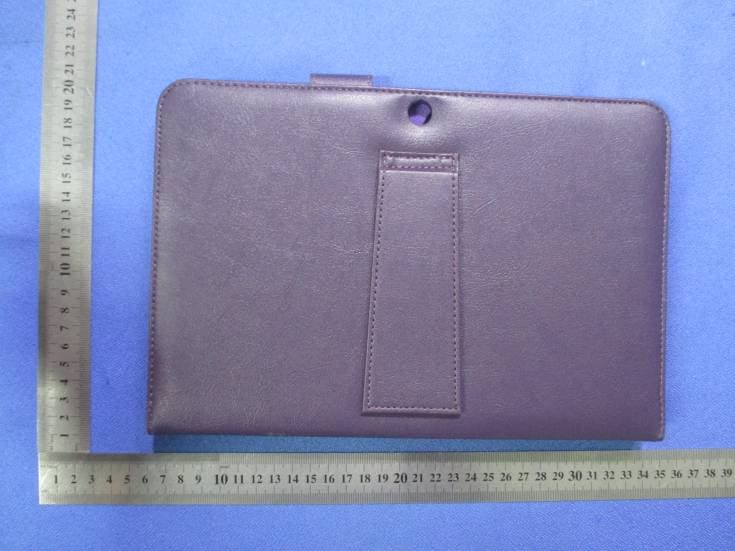
Click to zoom
Application Details
- Equipment Class
- DXX - Part 15 Low Power Communication Device Transmitter
- Date of Grant
- Nov 16, 2014
- Application Purpose
- Original Equipment
- Date of Application
- Nov 16, 2014
- Equipment Note
- Bluetooth Keyboard
- Frequency Range
- 2402.00000000 - 2480.00000000
- Country
- Hong Kong
Documents & Files
Document Text
Text extracted from the exhibit documents filed with the FCC. Open a document above to read the original.
Users Manual
Pairing the Keyboard w ith an Android device: 1. M ove the On/Off Switch on the keyboard to the “ON” position. The Power LED will glow red. 2. Tap the ‘Settings’ icon on your hom e screen. 3. Tap ‘W ireless and Networks’ on the Settings screen. 4. If there is not already a check in the box next to ‘Bluetooth,’ tap the box to turn Bluetooth on and m ake a check appear. 5. Press and hold the Bluetooth Connect B uttonon the keyboard until the Bluetooth LED blinks to show that the keyboard is in pairing m ode. 6. Tap ‘BT Keyboard-RCA10.1’ on the screen. 7. After a few seconds the Bluetooth Pairing Request dialog box appears. Type the code on the keyboard and press the ‘Enter/Return’ key. 8. W hen the pairing process has been successfully com pleted, it will say ‘Connected’ below ‘BT Keyboard- RCA10.1.’ Pairing the K eyboard w ith an iPad or other iOS device: 1. M ove the On/Off Switch on the keyboard to the “ON” position. The Power LED will glow red. 2. Tap the ‘Settings’ icon on your hom e screen. 3. Tap ‘Bluetooth’ on the Settings screen. 2 Pairing the Keyboard w ith a W indow s device: 1. M ove the On/Off Switch on the keyboard to the “ON” position. The Power LED will glow steadily for 1-2 seconds. 2. Tap the ‘Settings’ icon on your ‘Start’ screen. 3. Tap ‘Change PC Settings’ at lower right. 4. Tap ‘Devices’ on the PC settings screen. 5. Press and hold the Bluetooth Connect Buttonon the keyboard until the Bluetooth LED blinks to show that the k eyboard is in pairing m ode. 6. Tap ‘Add a device’ on the PC settings screen. 7. The ‘Searching for devices’ box appears. Tap ‘BT Key- board-RCA10.1.’ 8. After a few seconds, the ‘Enter a passcode’ dialog box appears. Type the passcode on the keyboard and press the ‘Enter/Return’ key. 9. W hen the pairing process has been successfully com pleted, BT Keyboard-RCA10.1 will appear in the ‘Devices’ list. 3 Storage: 1. Turn the keyboard off when not in use to preserve battery power. 2.If the keyboard is to be stored for an extended tim e, store it with the battery half-charged. This will extend battery life. 3.Do not fold or bend the keyboard. Attention: 1. Keep away from sharp objects. 2.Do not place heavy objects on the keyboard. 3.Do not place near heat or m icrowave ovens. 4.Do not force or twist the keyboa rd. 5.Keep away from liquids. 6.Clean the keyboard with a clean, dam p cloth. Connection Troubleshooting: 1. Before you pair the keyboard, m ake sure the device to which you want to connect is turned on and Bluetooth is enabled. 2.Press and hold the Bluetooth Connect Button. The Bluetooth LEDshould flash to indicate the keyboard is in pairing m ode. 3.M ake sure that the keyboard and the device with which you want to connect are within the 30' (10 M eters) effective range. 4.Check the Bluetooth setting on the device with which you want to connect to m ake sure that Bluetooth is turned on. 5.If the device with which you want to connect is already connected to other Bluetooth devices, confirm that there is enough speed to connect to the keyboard. 6.M ake sure that both the keyboard and the device with which you wa nt to connect have sufficient power to operate and are turned on. 7.Type the pairing code/passcode using the Bluetooth keyboard. Please note, there is no visible field in which to type the passkey. 8.The keyboard m ay not respond im m ediately when it is turned back on or a paired device is rebooted because it needs to recreate a pairing code. This process can take up to 25 seconds. 9. For technical support , please call (248) 236-0061 or em ail support+BKCHP10@ pctreasures.com How to Properly Dispose of Batteries This product contains lithium -ion batteries. To properly dispose of expired batteries, view your city’s website or newsletter to find what guidelines, if any, should be followed and to m ake note of their hazardous waste collection days. 4. M ake sure that Bluetooth is turned on. 5. Press and hold th e Bluetooth Connect Buttonon the keyboard until the Bluetooth LED blinks to show that the keyboard is in pairing m ode. 6. Tap ‘BT Keyboard-RCA10.1’ on the screen. 7. After a few seconds the Bluetooth Pairing Request dialog box appears. Type the code on the keyboard and press the ‘Enter/Return’ key. 8. W hen the pairing process has been successfully com pleted, it will say ‘Connected’ to the right of ‘BT K eyboard-RCA10.1.’ 00000_BluetoothKeyboardCaseForHP10_UserGuide_Layout 1 10/17/14 6:04 PM Page 2 Federal Communications Commission (FCC) Statement This device complies with part 15 of the FCC Rules. Operation is subject to the following two conditions: (1) This device may not cause harmful interference, and (2) this device must accept any interference received, including interference that may cause undesired operation. Note: This equipment has been tested and found to comply with the limits for a Class B digital device, pursuant to part 15 of the FCC Rules. These limits are designed to provide reasonable protection against harmful interference in a residential installation. This equipment generates, uses and can radiate radio frequency energy and, if not installed and used in accordance with the instructions, may cause harmful interference to radio communications. However, there is no guarantee that interference will not occur in a particular installation. If this equipment does cause harmful interference to radio or television reception, which can be determined by turning the equipment off and on, the user is encouraged to try to correct the interference by one or more of the following measures: ●Reorient or relocate the receiving antenna. ●Increase the separation between the equipment and receiver. ●Connect the equipment into an outlet on a circuit different from that to which the receiver is connected. ●Consult the dealer or an experienced radio/TV technician for help. Changes or modifications not expressly approved by the party responsible for compliance could void the user's authority to operate this equipment. Note: The manu…
Text truncated - open the document above for the full version.
Cover Letter(s)
STAR WAVE TECHNOLOGY CO., LTD. 3 Building the Second Floor, Fuzhong Industrial Park, Fuyong Town, Bao’an District, Shenzhen, Guangdong, China TEL: +86- 755-66605915 FAX: +86-755- 29608535 DATE 11-10-2014 Equipment Autorisation Division Federal Communications Commission 7435 Oakland Mills Road Columbia, MD 21046 FCC ID: 2AA8M-SW-CT09000 Product Name: Bluetooth Keyboard Request for Confidentiality Pursuant to Sections 0.457 and 0.459 of the commissions rules, we hereby request that the following documents be held confidential: • Schematics • Block diagram • Operation description These materials contain trade secrets and proprietary information and are not customarily released to the public. The public disclosure of this information might be harmful to the company and provide unjustified benefits to our competitors. Dated this 11-10-2014 By: Tony Fu Signature Printed Title: General Manager On behalf of : STAR WAVE TECHNOLOGY CO., LTD. Telephone: +86-755-66605915
ID Label/Location Info
FCC ID Label Information 1. Label location: 2. FCC ID Label: STAR WAVE TECHNOLOGY CO., LTD. Bluetooth Keyboard Model: SW-CT09000-09624 FCC ID: 2AA8M-SW-CT09000 This device complies with part 15 of the FCC Rules. Operation is subject to the following two conditions: (1) This device may not cause harmful interference, and (2) this device must accept any interference received, including interference that may cause undesired operation.
Test Setup Photos
Test Setup Photos of the EUT
Contact Information
Applicant
Tony Fu(General Manger)
Test Firm
Shenzhen CTL Testing Technology Co., Ltd.Tracy Qi
[email protected]86-755-89486194
Technical Specifications
| # | Rule Parts | Frequency Range | Power Output |
|---|---|---|---|
| 1 | 15C | 2.40 GHz - 2.48 GHz | - |
Other Applications from STAR WAVE TECHNOLOGY CO., LTD.
2AA8MIMAC-K131S
Jul 26, 2020Wireless keyboard
Equipment Class
DXX - Part 15 Low Power Communication Device Transmitter