2ACCJH136GSM/UMTS/LTE Mobile phone
TCL Communication Ltd.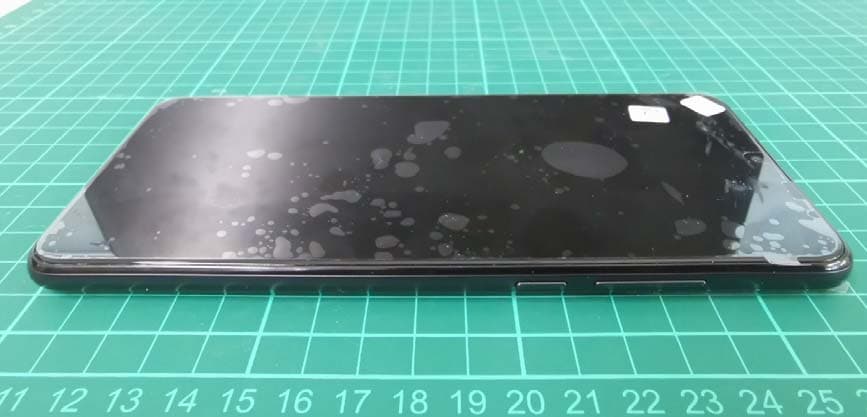
Click to zoom
Application Details
- Equipment Class
- PCE - PCS Licensed Transmitter held to ear
- Date of Grant
- Feb 09, 2021
- Application Purpose
- Original Equipment
- Date of Application
- Feb 07, 2021
- Equipment Note
- GSM/UMTS/LTE Mobile phone
- Frequency Range
- 829.00000000 - 844.00000000
- Company
- TCL Communication Ltd.
- Country
- China
Documents & Files
Document Text
Text extracted from the exhibit documents filed with the FCC. Open a document above to read the original.
Users Manual
Safety and Precautions Printed in China 1 This product meets applicable national SAR limits of 1.6 W/kg. The specific maximum SAR values can be found in the Radio waves section. When carrying the product or using it while worn on your body, either use an approved accessory such as a holster or otherwise maintain a distance of 15 mm from the body to ensure compliance with RF exposure requirements. Note that the product may be transmitting even if you are not making a phone call. PROTECT YOUR HEARING To prevent possible hearing damage, do not listen at high volume levels for long periods. Exercise caution when holding your phone near your ear while the loudspeaker is in use. www.sar-tick.com 2 Safety and use ������������������������� We recommend that you read this chapter carefully before using your phone. The manufacturer disclaims any liability for damage, which may result as a consequence of improper use or use contrary to the instructions contained herein. TRAFFIC SAFETY: Given that studies show that using a phone while driving a vehicle constitutes a real risk, even when the hands-free kit is used (car kit, headset, etc.), drivers are requested to refrain from using their phone when the vehicle is not parked. Check the laws and regulations on the use of wireless phones and their accessories in the areas where you drive. Always obey them. The use of these devices may be prohibited or restricted in certain areas. CONDITIONS OF USE: • You are advised to switch off the phone from time to time to optimize its performance. • Remember to abide by local authority rules of mobile phone use on aircrafts. • If your phone is a unibody device, where the back cover and battery are not removable, disassembling the phone will void your warranty. Disassembling the phone can cause bodily injury if the battery is punctured. • Always handle your phone with care and keep it in a clean and dust-free place. • Do not allow your phone to be exposed to adverse weather or environmental conditions, such as moisture, humidity, rain, infiltration of liquids, dust, sea air, etc. The manufacturer’s recommended operating temperature range is -10°C (14°F) to +45°C (113°F). At over 45°C (113°F), the legibility of the phone’s display may be temporarily impaired. • Do not open, dismantle, or attempt to repair your phone yourself. • Do not drop, throw, or bend your phone. • Use only batteries, battery chargers, and accessories which are recommended by TCL Communication Ltd. and its affiliates and which are compatible with your phone model. TCL Communication Ltd. and its affiliates disclaim any liability for damage caused by the use of other chargers or batteries. • Your phone should not be disposed of in a municipal waste. Please check local regulations for disposal of electronic products. • Remember to make backup copies or keep a written record of all important information stored on your phone. • Some people may suffer epileptic seizures or blackouts when exposed to flashing lights, or when playing video games. These seizures or blackouts may occur even if a person has never experienced them before. If you have experienced seizures or blackouts, or if you have a family history of such occurrences, please consult your doctor before playing video games on your phone or enabling a flashing-lights feature on your phone. • Parents should monitor their children’s use of video games or other features that incorporate flashing lights on the phones. All persons should discontinue use and consult a doctor if any of the following symptoms occur: convulsion, eye or muscle twitching, loss of awareness, orientation, or movements. 3 PRIVACY: Please note that you must respect the laws and regulations in force in your jurisdiction or other jurisdiction(s) where you will use your phone regarding taking photographs and recording sounds with your phone. Pursuant to such laws and regulations, it may be strictly forbidden to take photographs and/or to record the voices of other people or any of their personal attributes, and reproduce or distribute them, as this may be considered to be an invasion of privacy. It is the user's sole responsibility to ensure that prior authorization has been obtained, if necessary, in order to record private or confidential conversations or take a photograph of another person; the manufacturer, the seller or vendor of your phone (including the carrier) disclaim any liability which may result from improper use of the phone. BATTERY: For a non-unibody device: Observe the following precautions: • Do not attempt to open the battery (due to the risk of toxic fumes and burns). • Do not puncture, disassemble, or cause a short circuit in the battery. • Do not burn or dispose of a used battery in household garbage or store it at temperatures above 60°C (140°F). Batteries must be disposed of in accordance with locally applicable environmental regulations. Only use the battery for the purpose for which it was designed. Never use damaged batteries or those not recommended by TCL Communication Ltd. and/ or its affiliates. For a non-unibody device with a non-removable battery: Observe the following precautions: • Do not attempt to eject, replace, or open the battery. • Do not puncture, disassemble, or cause a short circuit in the battery. • Do not burn or dispose of your phone in household garbage or store it at temperature above 60°C (140°F). Phone and battery must be disposed of in accordance with locally applicable environmental regulations. For a unibody device: Observe the following precautions: • Do not attempt to open the back cover. • Do not attempt to eject, replace, or open the battery. • Do not puncture the back cover of your phone. • Do not burn or dispose of your phone in household rubbish or store it at temperature above 60°C (140°F). Phone and battery as a unibody device must be disposed of in accordance with locally applicable environmental regulations. This symbol on your phone, the battery, and the accesso…
Text truncated - open the document above for the full version.
Users Manual
For more information on how to use the phone, please go to tcl.com and download the complete user manual. The website will also provide you with answers to frequently asked questions. 12 Note: This is a user manual for T671H. There may be certain differences between the user manual description and the phone’s operation, depending on the software release of your phone or specific operator services. Help Refer to the following resources to get more FAQ, software, and service information: Consulting FAQ Go to www.tcl.com/global/en/service-support-mobile/faq.html Finding your serial number or IMEI You can find your serial number or International Mobile Equipment Identity (IMEI) on the packaging materials. Alternatively, choose Settings > System > About phone > Status > IMEI information on the phone itself. Obtaining warranty service First follow the advice in this guide or go to www.tcl.com/global/en/service-support- mobile.html. Then check hotlines and repair centre information through www.tcl. com/global/en/service-support-mobile/hotline&service-center.html Viewing legal information On the phone, go to Settings > System > About phone > Legal information. Table of Contents 1 Basics ..........................................................................................................4 1.1 Device overview .....................................................................................4 1.2 Getting started........................................................................................7 1.3 Home screen ..........................................................................................9 1.4 Text input ..............................................................................................16 2 Multimedia applications ...........................................................................19 2.1 Camera ................................................................................................19 2.2 Gallery ..................................................................................................24 2.3 Music ....................................................................................................28 3 Apps and features ....................................................................................29 3.1 Phone ...................................................................................................29 3.2 Contacts ...............................................................................................34 3.3 Messages .............................................................................................37 3.4 Calendar ...............................................................................................39 3.5 Clock ....................................................................................................40 3.6 Calculator .............................................................................................42 3.7 TCL apps ..............................................................................................43 3.8 Other applications ...............................................................................44 3.9 Google applications..............................................................................44 4 Settings ......................................................................................................46 4.1 Wi-Fi .....................................................................................................46 4.2 Bluetooth .............................................................................................47 4.3 SIM card & mobile network ..................................................................48 4.4 Connected devices...............................................................................49 34 4.5 Display .................................................................................................51 4.6 Home screen & lock screen .................................................................52 4.7 Sound & vibration .................................................................................52 4.8 Button & gestures ................................................................................53 4.9 Advanced features ...............................................................................53 4.10 Smart Manager ....................................................................................55 4.11 Security & biometrics ...........................................................................55 4.12 Location ................................................................................................56 4.13 Privacy .................................................................................................56 4.14 Apps .....................................................................................................56 4.15 Storage .................................................................................................56 4.16 TCL Account ........................................................................................57 4.17 Accounts ..............................................................................................57 4.18 Digital Wellbeing & parental controls ...................................................57 4.19 Google ..................................................................................................57 4.20 Accessibility ..........................................................................................57 4.21 System .................................................................................................57 5 Making the most of your phone ..............................................................59 6 Troubleshooting ........................................................................................60 7 Specifications ...........................................................................................66 8 Accessories .......…
Text truncated - open the document above for the full version.
Users Manual
1920 2 Multimedia applications 2.1 Camera .......................................................... Before using the camera, make sure that you remove the protective lens cover to avoid it affecting your picture quality. Launch Camera There are multiple ways to open the Camera app. From the Home Screen From the home screen, touch Camera . From the Lock Screen When the screen is locked, press the Power key once to light up the screen, then swipe left on the camera icon in the lower right corner to open the camera. Using a shortcut key Simply double-press the Power key to open the camera. 1 2 3 4 5 6 7 8 9 10 11 12 13 1 Select filter 2 Flash mode Touch to turn on/off the camera flash WARNING: Keep a safe distance when using the flash. Do not point the flash toward people’s or animals’ eyes. 3 Take a timed photo 4 Take HDR photos 5 Zoom in/out 6 Turn on/off Ultra Wide mode 7 Switch between front/back camera 8 Take a photo 9 Touch to access settings 10 Picture size 11 Pinch fingers together to zoom out, or spread fingers apart to zoom in 12 View the photos or videos you have taken 13 Google Lens Google Lens (1) Google Lens is a free tool that can help you to: • Copy text • Search for similar products • Identity plants and animals • Discover books & media • Scan codes ...and more. (1) Note that Google Lens only works when you are logged in to your Google account. Your phone must also be connected to a network. 2122 To take a photo The screen acts as the viewfinder. First, position the object or landscape in the viewfinder, touch the screen to focus if necessary. Touch to capture. The photo will be automatically saved. You can also touch and hold to take burst shots, the maximum number is 20. To take a video Touch VIDEO to change the camera mode to video. Touch to start video recording. Touch the left part of this icon to take a picture during video recording. Touch the right part of this icon to pause video recording and touch to continue. Touch to stop recording. The video will be automatically saved. Further operations when viewing a photo/video you have taken • Slide left or right to view the photos or videos you have taken. • Touch , then Gmail/Bluetooth/MMS/etc. to share the photo or video. • Touch Back button to return to Camera. Modes and settings Modes Slide left or right to switch between modes. • MORE: By selecting MORE, you can access more modes. These modes can be moved to the main screen by touching . PANO: Touch to turn on the panorama function. Touch the shutter button to start taking a panoramic photo and move the phone steadily along in the direction indicated by the onscreen line. Once the slots are filled, the photo will be automatically saved. If the slots are not fully filled, touch the shutter button again to save the photo. STOP MOTION: Capture a number of photos of a certain scene, then convert them into a speeded-up video. LIGHT TRACE: Capture creative movements of light using a long exposure photograph. SUPER MACRO: Touch to access super macro mode. 4cm is the best macro shooting distance. SLO-MO: Record special occasions and fast moving scenes even in a dark environment, then play them back at a slow frame rate. • AUTO: Auto is the default mode for Camera. • VIDEO: Touch to access video mode. • PORTRAIT: Touch to create a depth of field effect. You can compose an image that highlights your subject while producing a gorgeously blurred background. • PRO: Pro camera mode lets you fine-tune parameters and gives you full control over ISO, WB exposure time, aperture, shutter speed and so on. Settings Touch to set more options: • Photo size: Touch to select photo size. • AI scene detection: Once turned on, the camera will automatically identify the image content of a scene and categorize it accordingly. Many different scene categories are supported. This only works when using the main camera. • Calorie detection (1) : Turn on to detect the calorie content of a captured object. • Smart guideline (1) : Touch to turn on/off. This feature provides AI-powered facial detection and composition guides for portrait shots. It only works when using the main camera. • Volume button function: Touch to customise the Volume button to either Shutter, Zoom or Volume when using camera. • Touch to capture: Touch to turn on/off. When activated, the image will be captured by simply touching the viewfinder screen. • Grid: Touch to turn on/off. It divides the screen into equal parts and helps you take better photos by making it simple to align elements such as the horizon or buildings, to the lines in the grid. • Storage: Touch to choose between phone and SD card storage when an SD card is inserted. The default is phone storage. (1) Only available when the AI scene detection is turned on. 2324 • Save location information: Turn on to tag photos and videos with your location. This option is available when the GPS location service is enabled. • Shutter sound: Touch to turn on/off shutter sound when capturing. • Spirit level: Enable Spirit level to display a guiding line on the viewfinder to help you take better photos. • Watermark: Touch to turn on/off Watermark. • Reset settings: Touch to reset the camera to its factory default settings. Two more options are available when you switch to using the front camera: • Mirror camera: Touch to turn on/off. 2.2 Gallery ........................................................... Gallery acts as a media player for you to view photos and play videos. In addition, a set of further operations to pictures and videos are available for selection. To view the photos you have taken, touch from the Home screen. 1 2 3 4 1 Tap to access more options 2 Explore Explore collects photos into groups making them more easy to find 3 Albums Photos, videos, screenshots, etc. are all automatically grouped in Albums 4 Moments View the photos/videos you have just taken 2526 Working with pictures You can work with pictures by rotating or cropping them, sharing them with friends, s…
Text truncated - open the document above for the full version.
Users Manual
4546 Play Store Serves as the official app store for the Android operating system, allowing users to browse and download applications and games. Applications are either free of charge or at a cost. In Play Store, search for the app you need, download it and then follow the installation guide to install the app. You can also uninstall, update an app, and manage your downloads. Duo A video chat mobile app. With phone numbers verified, users can easily video call people from their contact list. Photos Google Photos stores and backs up your photos and videos. It also automatically analyses photos and organises them into groups, so that you can quickly find the photos you need. Google Pay Google Pay allows you to make contactless payment with your phone, which is the fast, simple and safe way to pay in millions of places - in stores, online, and more. Google Assistant Devices can have a dedicated hardware button for the Google Assistant. • Default — Single press to activate Default mode is the same as launching the Google Assistant by long-pressing on the home button. Files Files displays all data stored on the phone, including both external SD card and internal storage, such as applications, media files downloaded from Google Play Store, YouTube or other locations; Videos, pictures or audios you have captured; other data transferred via Bluetooth, USB cable, etc. 4 Settings ......................................... To go to Settings, swipe up from the Home screen or swipe left and then tap Settings . You can also swipe down from the notification panel and touch . 4.1 Wi-Fi You can connect to the internet when your phone is within range of a wireless network. Wi-Fi can be used on your phone even without a SIM card inserted. To turn Wi-Fi on and connect to a wireless network • Touch Settings > Wi-Fi. • Turn on . • Once Wi-Fi is turned on, detected Wi-Fi networks are listed. • Touch a Wi-Fi network to connect to it. If the network you selected is secured, you are required to enter a password or other credentials (you should contact the network operator for details). When finished, touch CONNECT. To add a Wi-Fi network When Wi-Fi is on, you can add new Wi-Fi networks according to your preference. • Touch Settings > Wi-Fi > Add network. • Enter the name of the network and any required network information. • Touch Connect. To forget a Wi-Fi network The following steps prevent automatic connection to networks which you no longer wish to use. • Turn on Wi-Fi, if it’s not already on. • On the Wi-Fi screen, touch the name of the saved network. • Touch FORGET in the dialog that opens. 4748 4.2 Bluetooth (1) Bluetooth Bluetooth is a short-range wireless communication technology that you can use to exchange data, or connect to other Bluetooth devices for various uses. To turn on Bluetooth • Touch Settings > Bluetooth. • Turn on . Your device name will appear on screen. To rename your device • Touch Settings > Bluetooth. • Touch Device name. • Enter a name, and touch RENAME to confirm. To pair/connect your phone with a Bluetooth device To exchange data with another device, you need to turn Bluetooth on and pair your phone with the Bluetooth device with which you want to exchange data. • Touch Settings > Bluetooth > + Pair new device. • Touch a Bluetooth device you want to pair your phone with in the list. • In the dialog that pops up, touch PAIR to confirm. • If the pairing is successful, your phone will be connected to the device. To unpair from a Bluetooth device • Touch beside the device you want to unpair from. • Touch FORGET to confirm. (1) You are recommended to use TCL Bluetooth headsets, which have been tested and proved compatible with your phone. You can go to https://www.tcl.com for more information about the TCL Bluetooth headset. 4.3 SIM card & mobile network Go to To Settings > SIM card & mobile network > SIM card settings > SIM 1 > Roaming Mode to enable data roaming, set your preferred network type, check the network connection you are using or create a new access point, etc. SIM cards (1) Touch to choose SIM 1 or SIM 2 for connecting to the network, making calls and sending SMS messages. Data usage The first time you turn on your phone with your SIM card inserted, it will automatically configure your network service: 2G, 3G or 4G. If the network is not connected, you can turn on mobile data in Settings > SIM card & mobile network > Data usage. Data saver By enabling Data saver, you can reduce data usage by preventing some apps from sending or receiving data in the background. Mobile data If you do not need to transmit data on mobile networks, turn off Mobile data to avoid incurring significant charges for data use on local operator mobile networks, particularly if you do not have a mobile data agreement. Data usage is measured by your phone, and your operator may count differently. Aeroplane mode Turn on Aeroplane mode to simultaneously disable all wireless connections including Wi-Fi, Bluetooth and more. (1) Dual SIM only. 4950 Hotspot & tethering To share your phone's data connection via Wi-Fi, Bluetooth and USB, or as a mobile hotspot, go to Settings > SIM card & mobile network > Hotspot & tethering to activate these functions. To rename or secure your mobile hotspot When your mobile hotspot is activated, you can rename your phone's Wi-Fi network (SSID) and secure its Wi-Fi network. • Touch Settings > SIM card & mobile network > Hotspot & tethering > Mobile hotspot. • Touch Hotspot name to rename the network SSID or touch Security to set your network security. • Touch OK. The functions above may incur additional network charges from your network operator. Extra fees may also be charged in roaming areas. Private DNS Touch to select private DNS mode. 4.4 Connected devices VPN Virtual private networks (VPNs) allow you to connect to the resources inside a secured local network from outside that network. VPNs are commonly deployed by corporations, schools, and other institutions so that the…
Text truncated - open the document above for the full version.
Cover Letter(s)
TCL Communication Ltd. 5/F, Building 22E, 22 Science Park East Avenue, Hong Kong Science Park, Shatin, NT, Hong Kong Date 2021-02-01 To: Federal Communications Commission, Authorization & Evaluation Division, 7345 Oakland Mills Road Columbia, MD 21046 And American Certification Body, Inc. 6731 Whittier Avenue Suite C110 McLean, VA 22101 To Whom It May Concern: CTTL (Telecommunication Technology Labs,Academy of Telecommunication Research,MIIT) is authorized to act on our behalf, until otherwise notified, for applications to American Certification Body, Inc. (ACB). We certify that we are not subject to denial of federal benefits, which includes FCC benefits, pursuant to Section 5301 of the Anti-Drug Abuse Act of 1988, U.S.C. 862. Further, no party, as defined in 47 CFR1.2002 (b) to the application is subject to denial of federal benefits, that includes FCC benefits. Thank you. Regards, Zhizhou GONG Product Certification Manager TCL Communication Ltd.
Cover Letter(s)
TCL Communication Ltd. 5/F, Building 22E, 22 Science Park East Avenue, Hong Kong Science Park, Shatin, NT, Hong Kong Tel: 0086-755-36611722; Fax: 0086-755-36612000-81722 Statement We, TCL Communication Ltd., states that our device with FCC ID: 2ACCJH136 is a multi-band mobile phone which supports GSM850/900/1800/1900, WCDMA Band 1/2/5/8, LTE Band1/3/5/7/8/20/28 /38/40/41 for cellular network. For connectivity functions, it is capable of 2.4GHz WiFi 11b/11g/11n-HT20/11n-HT40, and Bluetooth 5.0 LE (downward compatible and LE 1M supported in BLE 5.0) , along with FM and NFC. However, LTE band 40 is not available in US market and Canada market, and will be disabled by software. Contact Person: Zhizhou Gong E-mail: [email protected]
Cover Letter(s)
TCL Communication Ltd. 5/F, Building 22E, 22 Science Park East Avenue, Hong Kong Science Park, Shatin, NT, Hong Kong 2021-02-01 Federal Communications Commission Office of Engineering and Technology Equipment Authorization Division 7345 Oakland Mills Road Columbia, Maryland 21046 Subject: Permanent Confidentiality request for FCC ID: 2ACCJH136 To Whom It May Concern, Pursuant to sections 0.457 and 0.459 of CFR 47, the applicant requests permanent confidential treatment of the following information accompanying this application: - Block Diagram - Schematics - Operational Description - BOM list/Tune-Up-Procedure The above materials contain trade secrets and proprietary information not customarily released to the public. The public disclosure of these matters might be harmful to the applicant and provide unjustified benefits to its competitors. Yours Sincerely, Zhizhou GONG Product Certification Manager TCL Communication Ltd.
External Photos
EUT photograph 2ACCJH136 CAC4850000C1 CAC4850000C1 CAC4850002C7 CAC4850002C7 CBA0059BATC5 CBA0059BATC5 CBA0059BATC7 CBA0059BATC7 CBA0059BBTC5 CBA0059BBTC5 CBA0059BBTC7 CBA0059BBTC7 CBA0059BCTC5 CBA0059BCTC5 CBA0064BATC1 CBA0064BATC1 CBA0064BATC5 CBA0064BATC5 CBA0064BBTC5 CBA0064BBTC5 CBA0064BCTC5 CBA0064BCTC5 CDA0000128C1 CDA0000128C2 CCB0069A10C1 CCB0070B10C1 CCB0049A10C1 CCB0049A12C1
Internal Photos
EUT Interior photograph 2ACCJH136 T671H Mobile Phone Disassembly Mobile Phone Disassembly Mobile Phone Disassembly Mobile Phone Disassembly Mobile Phone Disassembly Mobile Phone Disassembly
RF Exposure Info
No.I21Z60056-SEM02 ©Copyright. All rights reserved by CTTL. Page 1 of 163 SAR TEST REPORT No. I21Z60056-SEM02 For TCL Communication Ltd. GSM/UMTS/LTE Mobile phone Model Name: T671H with Hardware Version: PIO2 Software Version: 2B5D FCC ID: 2ACCJH136 Issued Date: 2021-1-28 Note: The test results in this test report relate only to the devices specified in this report. This report shall not be reproduced except in full without the written approval of CTTL. The report must not be used by the client to claim product certification, approval, or endorsement by NVLAP, NIST, or any agency of the U.S.Government. Test Laboratory: CTTL, Telecommunication Technology Labs, CAICT No. 51, Xueyuan Road, Haidian District, Beijing, P. R. China 100191. Tel:+86(0)10-62304633-2512, Fax:+86(0)10-62304633-2504 Email: [email protected], website: www.caict.ac.cn No.I21Z60056-SEM02 ©Copyright. All rights reserved by CTTL. Page 2 of 163 REPORT HISTORY Report Number Revision Issue Date Description I21Z60056-SEM02 Rev.0 2021-1-28 Initial creation of test report No.I21Z60056-SEM02 ©Copyright. All rights reserved by CTTL. Page 3 of 163 TABLE OF CONTENT 1 TEST LABORATORY .................................................................................................................... 5 1.1 TESTING LOCATION ........................................................................................................................................ 5 1.2 TESTING ENVIRONMENT................................................................................................................................. 5 1.3 PROJECT DATA ............................................................................................................................................... 5 1.4 SIGNATURE ..................................................................................................................................................... 5 2 STATEMENT OF COMPLIANCE .................................................................................................. 6 3 CLIENT INFORMATION ................................................................................................................ 8 3.1 APPLICANT INFORMATION .............................................................................................................................. 8 3.2 MANUFACTURER INFORMATION ..................................................................................................................... 8 4 EQUIPMENT UNDER TEST (EUT) AND ANCILLARY EQUIPMENT (AE) ................................. 9 4.1 ABOUT EUT ................................................................................................................................................... 9 4.2 INTERNAL IDENTIFICATION OF …
Text truncated - open the document above for the full version.
Contact Information
Applicant
Annie Jiang
Technical Contact
CTTL, Telecommunication Technology Labs, CAICTXue Zhen
[email protected]86-10-62304633
No. 52, Huayuan Bei Road, Haidian District, · Beijing · China
Test Firm
Telecommunication Technology Labs, CAICTYaqin Shen
Technical Specifications
| # | Rule Parts | Frequency Range | Power Output | Emission | Tolerance |
|---|---|---|---|---|---|
| 18 | 22H | 829 MHz - 844 MHz | 71.90 mW | 8M99W7D | 0.1 ppm |
Other Applications from TCL Communication Ltd.
2ACCJSCD002
Sep 10, 2024USB Connect 5G (NA)
Equipment Class
CXX - Communications Rcvr for use w/ licensed Tx and CBs2ACCJB227
Aug 21, 2024Smart phone
Equipment Class
DTS - Digital Transmission System2ACCJSCD005
Aug 07, 2024TCL LINKPORT IK511
Equipment Class
CXX - Communications Rcvr for use w/ licensed Tx and CBs2ACCJB224
Jul 31, 2024Tablet PC
Equipment Class
DSS - Part 15 Spread Spectrum Transmitter2ACCJB223
Jun 27, 2024Tablet PC
Equipment Class
NII - Unlicensed National Information Infrastructure TX