2ACCJN060GSM/UMTS/LTE mobile phone
TCL Communication Ltd.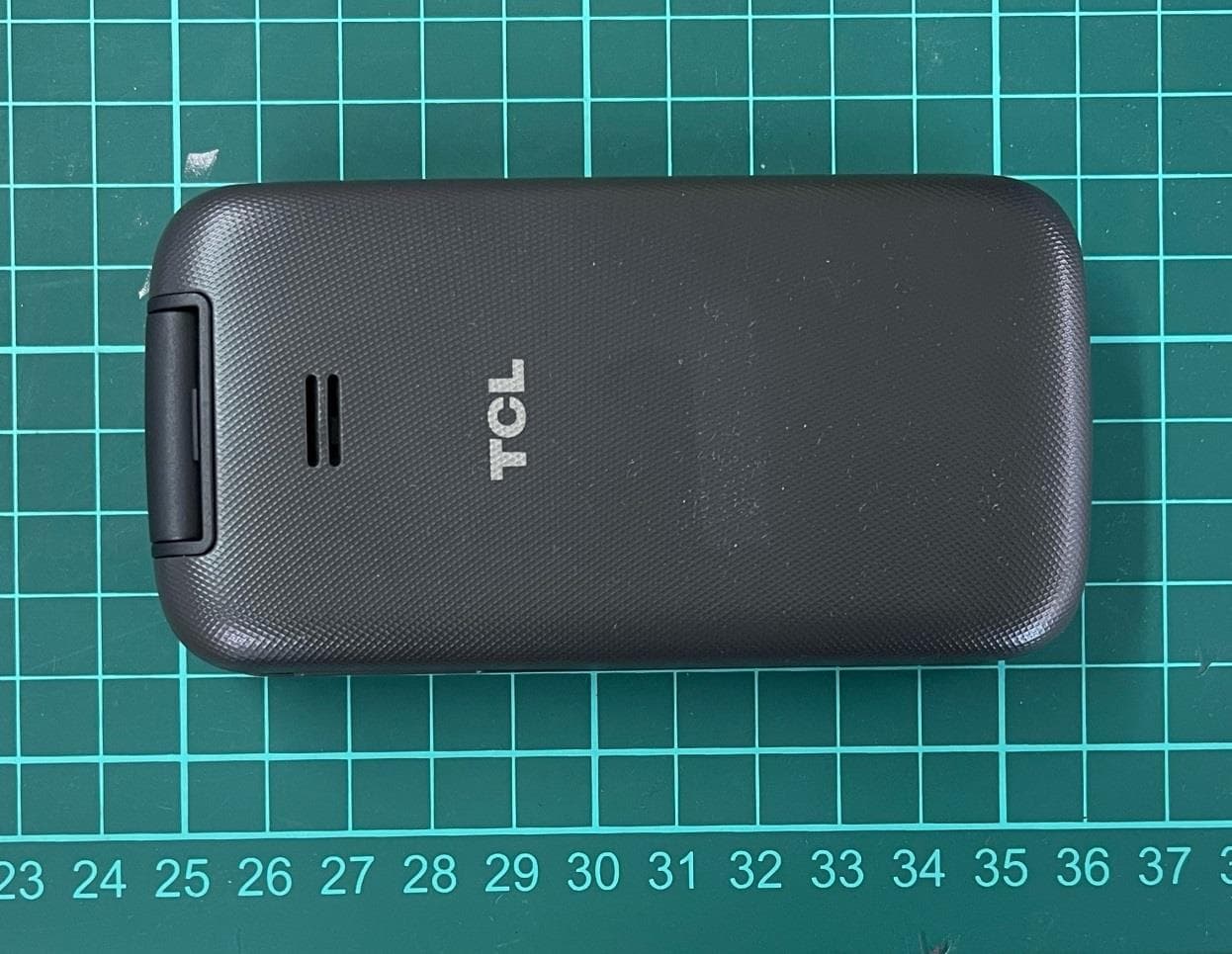
Click to zoom
Application Details
- Equipment Class
- CXX - Communications Rcvr for use w/ licensed Tx and CBs
- Date of Grant
- Feb 17, 2022
- Application Purpose
- Original Equipment
- Date of Application
- Feb 15, 2022
- Equipment Note
- GSM/UMTS/LTE mobile phone
- Frequency Range
- 758.00000000 - 768.00000000
- Company
- TCL Communication Ltd.
- Country
- China
Documents & Files
Document Text
Text extracted from the exhibit documents filed with the FCC. Open a document above to read the original.
Users Manual
Safety and Warranty Information CQF69H1RKAAA TCL FLIP2 TM This device meets applicable national SAR limits of 1.6 W/kg. When carrying the device or using it while worn on your body, either use an approved accessory such as a holster or otherwise maintain a distance of 15 mm from the body to ensure compliance with RF exposure requirements. Note that the product may be transmitting even if you are not using it. To prevent possible hearing damage, do not listen at high volume levels for long periods. Exercise caution when holding your device near your ear while the loudspeaker is in use. The device contains magnets which may interfere with other devices and items (such as credit card, pacemakers, defibrillators, etc.). Please maintain at least 150 mm of separation between your phone and the devices/items mentioned above. Table of contents Safety information ����������������������������������������������������������������������������������������������������1 General information �����������������������������������������������������������������������������������������������11 1 YEAR LIMITED WARRANTY �������������������������������������������������������������������������������13 1 Safety information ������������������������������ We recommend that you read this chapter carefully before using your device. The manufacturer disclaims any liability for damage, which may result as a consequence of improper use or use contrary to the instructions contained herein. • TRAFFIC SAFETY Given that studies show that using a device while driving a vehicle constitutes a real risk, even when the hands-free kit is used (car kit, headset...), drivers are requested to refrain from using their device when the vehicle is not parked. When driving, do not use your device or headphones to listen to music or to the radio. Using a headphone can be dangerous and forbidden in some areas. When switched on, your device emits electromagnetic waves that can interfere with the vehicle’s electronic systems such as ABS anti-lock brakes or airbags. To ensure that there is no problem: - do not place your device on top of the dashboard or within an airbag deployment area, - check with your car dealer or the car manufacturer to make sure that the dashboard is adequately shielded from device RF energy. • CONDITIONS OF USE You are advised to switch off the device from time to time to optimize its performance. Switch the device off before boarding an aircraft. Switch the device off when you are in healthcare facilities, except in designated areas. As with many other types of equipment now in regular use, these devices can interfere with other electrical or electronic devices, or equipment using radio frequencies. Switch the device off when you are near gas or flammable liquids. Strictly obey all signs and instructions posted in a fuel depot, petrol station, or chemical plant, or in any potentially explosive atmosphere. When the device is switched on, it should be kept at least 150 mm from any medical device such as a pacemaker, a hearing aid, or insulin pump, etc. In particular when using the device, you should hold it against the ear on the opposite side of the device, if applicable. 2 To avoid hearing impairment, move the device away from your ear while using the "hands-free" mode because the amplified volume might cause hearing damage. Do not let children use the device and/or play with the device and accessories without supervision. When replacing the cover, note that your device may contain substances that could create an allergic reaction. Always handle your device with care and keep it in a clean and dust- free place. Do not allow your device to be exposed to adverse weather or environmental conditions (moisture, humidity, rain, infiltration of liquids, dust, sea air, etc.). The manufacturer's recommended operating temperature range is 0°C (32°F) to 40°C (104°F). At over 40°C (104°F) the legibility of the device’s display may be impaired, though this is temporary and not serious. Emergency call numbers may not be reachable on all cellular networks. You should never rely only on your phone for emergency calls. Do not open, dismantle, or attempt to repair your device yourself. Do not drop, throw, or bend your device. To avoid any injury, do not use the device if the screen is damaged, cracked, or broken. Do not paint the device. Only use batteries, battery chargers, and accessories which are recommended by TCL Communication Ltd. and its affiliates and are compatible with your device model. TCL Communication Ltd. and its affiliates disclaim any liability for damage caused by the use of other chargers or batteries. Remember to make back-up copies or keep a written record of all important information stored in your device. 3 • PRIVACY Please note that you must respect the laws and regulations in force in your jurisdiction or other jurisdiction(s) where you will use your device regarding taking photographs and recording sounds with your device. Pursuant to such laws and regulations, it may be strictly forbidden to take photographs and/or record the voices of other people or any of their personal attributes, and duplicate or distribute them, as this may be considered to be an invasion of privacy. It is the user's sole responsibility to ensure that prior authorization be obtained, if necessary, in order to record private or confidential conversations or take a photograph of another person. The manufacturer, the seller, vendor, and/or service provider of your device. Disclaim any liability which may result from the improper use of the device. • BATTERY Following air regulation, the battery of your product is not charged. Please charge it first. Before removing the battery from your device, make sure that the device is switched off. Observe the following precautions for battery use: - Do not attempt to open the battery (due to the risk of toxic fumes and burns). - Do not puncture, disassemble, or cause a short-circuit in a battery. - Do…
Text truncated - open the document above for the full version.
Users Manual
E-Mail Email setup (Gmail ™ , Yahoo! ® , etc.) 1. From the Home screen, press OK to open app list. 2. Navigate to Tools > Email > one of the Email providers and press OK to select. 3. Press Right Menu to select Next and set up your email account. 4. Follow the required steps by entering your name, email address, password, and other fields. Once complete, you will be able to access your email account from this device. Note: Press key to enter special characters like the @ symbol. Create and send an email message 1. Press Left Menu to compose a new email from the Inbox screen. 2. Enter recipient(s) email address(es) in the To field, press OK to confirm and add new recipient(s). 3. Type the subject and the content of the message. 4. If necessary, press Right Menu to add Cc/Bcc or add attachment to the message. 5. If you do not want to send the mail right away, press Right Menu and select Save as draft to save a copy. 6. Press Left Menu to send. Text and picture messaging Send a Text Message 1. From the Home screen, press OK to open app list. 2 . Navigate to Message and press OK to select. 3. Press Left Menu to create a new message. 4. Enter the phone number of the recipient in the To bar, or press Right Menu to Select from Contact or Select contact group. 5 . Navigate down to access SMS bar to type in the message. 6. Press OK to send text message. Send a Multimedia Message 1. Repeat steps 1-4 above. 2. Press Right Menu to access Options. 3 . Navigate down to Add Attachment and press OK to select. 4. Select Pictures, Videos, Audio or Contact to attach. 5. Once your image is attached, press OK to send. Quick Start Guide TCL Getting to know your Alcatel SMARTFLIP™Phone setup 1. Remove back cover by gently pulling up on the indentation on the bottom left of the cover. 2. Insert the NANO SIM card by carefully sliding it into the SIM slot with the gold contacts facing down and the slanted corner to the left. 3. Insert the optional microSD TM card into the microSD slot, ensuring that the gold contacts are facing down and the flat edge is facing up. 4. Insert the battery, making sure the gold contacts align. Gently push down on the battery until it clicks into place. 5. Replace the back cover, pressing firmly on the sides to ensure the cover snaps back into place. Personalize Set wallpaper 1. From the Home screen, press OK to open app list. 2 . Navigate to Settings , and press OK to select. 3. Navigate down to Display and press OK to select. 4. Navigate down to Wallpaper and press OK to select. 5. Navigate to select one of the wallpaper, then press the Left Menu to view, or press OK to select. Lock and unlock your screen To create a passcode 1. From the Home screen, press OK to open app list. 2. Navigate to Settings and press OK to select. 3. Navigate down to Phone settings and press OK to select. 4. Navigate down to Security > Screen Lock and press OK to select. 5. Navigate to On, and press OK to enable lock screen with password. 6. Create a 4 digit passcode using the dial pad, press OK to next. 7. Enter this passcode once again and press OK to create. To lock the phone screen Closing the phone will lock the screen. To unlock the phone screen Open the phone and enter your password using the dial pad to unlock the screen. CJB69H1RKAAA Printed in China BC Connectivity Connect your Bluetooth device 1. From the Home screen, press OK to open app list. 2. Navigate to Settings and press OK to select. 3. Highlight Wireless & networks and press OK to select. 4. Navigate down to Bluetooth and press OK to select. 5. Press Left Menu to Turn on to enable Bluetooth. 6. Once your desired Bluetooth device shows in the list, Navigate to the device and press OK to pair. If asked, confirm passkey to complete pairing. 7. Once your device is paired, it will show up in PAIRED DEVICES list in the Bluetooth menu. Connect to a Wi-Fi network 1. Follow steps 1-3 above. 2. Navigate down to Wi-Fi and press OK to select. 3. Press Left Menu to Turn on to enable Wi-Fi. 4. Navigate to the desired Wi-Fi connection and press OK to select. 5. Navigate to Password and use keypad to enter Wi-Fi password. 6. Press OK to Connect. More information On the web Detailed support information including a full user manual and device specifications are available at www.cricketwireless.com/support/devices On the phone • Call Customer Care at 1-855-246-2461 or • Dial 611 from your cell phone Accessories • Battery • Micro USB charger • Cricket SIM card • Quick start guide • Safety information guide • Terms of service For more information about accessories, please visit your local Cricket store or go to www.cricketwireless.com/shop/accessories. Note: Store and online inventories may vary. Product meets FCC Radio Frequency Exposure Guidelines--FCC ID 2ACCJN059. This device complies with Part 15 of the FCC Rules. Operation is subject to the following two conditions: (1) this device may not cause harmful interference, and (2) this device must accept any interference received, including interference that may cause undesired operation. © 2022 Cricket Wireless LLC. All rights reserved. Cricket and the Cricket logo are registered trademarks under license to Cricket Wireless LLC. Alcatel is a trademark of Nokia used under license by TCL Communication Technology Holdings Limited. SMARTFLIP is a trademark of TCL Communication Technology Holdings Limited. © 2022 TCT Mobile Limited. All rights reserved. Camera External screen Headset port Volume keys Status and notification bar Speaker Left Menu Call/Answer key Favoite contacts key Navigation Right Menu Power/Hang Up key Back key Message key OK key Internal screen Micro USB Charging port SIM card SD card Using Navigation Getting Started • Navigate is located above the number pad that frames OK . • Press Up, Down, Left, or Right on the ring to navigate the screen. • To make a selection, press OK . • Shortcuts accessible from the Home screen: ° Navigate up to access Settings. ° Navigate down to access Recent apps…
Text truncated - open the document above for the full version.
Users Manual
Safety and Warranty Information CQF69H0AQAAA TCL FLIP2 TM This device meets applicable national SAR limits of 1.6 W/kg. When carrying the device or using it while worn on your body, either use an approved accessory such as a holster or otherwise maintain a distance of 15 mm from the body to ensure compliance with RF exposure requirements. Note that the product may be transmitting even if you are not using it. To prevent possible hearing damage, do not listen at high volume levels for long periods. Exercise caution when holding your device near your ear while the loudspeaker is in use. The device contains magnets which may interfere with other devices and items (such as credit card, pacemakers, defibrillators, etc.). Please maintain at least 150 mm of separation between your phone and the devices/items mentioned above. Table of contents Safety information ����������������������������������������������������������������������������������������������������1 General information �����������������������������������������������������������������������������������������������11 1 YEAR LIMITED WARRANTY �������������������������������������������������������������������������������13 1 Safety information ������������������������������ We recommend that you read this chapter carefully before using your device. The manufacturer disclaims any liability for damage, which may result as a consequence of improper use or use contrary to the instructions contained herein. • TRAFFIC SAFETY Given that studies show that using a device while driving a vehicle constitutes a real risk, even when the hands-free kit is used (car kit, headset...), drivers are requested to refrain from using their device when the vehicle is not parked. When driving, do not use your device or headphones to listen to music or to the radio. Using a headphone can be dangerous and forbidden in some areas. When switched on, your device emits electromagnetic waves that can interfere with the vehicle’s electronic systems such as ABS anti-lock brakes or airbags. To ensure that there is no problem: - do not place your device on top of the dashboard or within an airbag deployment area, - check with your car dealer or the car manufacturer to make sure that the dashboard is adequately shielded from device RF energy. • CONDITIONS OF USE You are advised to switch off the device from time to time to optimize its performance. Switch the device off before boarding an aircraft. Switch the device off when you are in healthcare facilities, except in designated areas. As with many other types of equipment now in regular use, these devices can interfere with other electrical or electronic devices, or equipment using radio frequencies. Switch the device off when you are near gas or flammable liquids. Strictly obey all signs and instructions posted in a fuel depot, petrol station, or chemical plant, or in any potentially explosive atmosphere. When the device is switched on, it should be kept at least 150 mm from any medical device such as a pacemaker, a hearing aid, or insulin pump, etc. In particular when using the device, you should hold it against the ear on the opposite side of the device, if applicable. 2 To avoid hearing impairment, move the device away from your ear while using the "hands-free" mode because the amplified volume might cause hearing damage. Do not let children use the device and/or play with the device and accessories without supervision. When replacing the cover, note that your device may contain substances that could create an allergic reaction. Always handle your device with care and keep it in a clean and dust- free place. Do not allow your device to be exposed to adverse weather or environmental conditions (moisture, humidity, rain, infiltration of liquids, dust, sea air, etc.). The manufacturer's recommended operating temperature range is 0°C (32°F) to 40°C (104°F). At over 40°C (104°F) the legibility of the device’s display may be impaired, though this is temporary and not serious. Emergency call numbers may not be reachable on all cellular networks. You should never rely only on your phone for emergency calls. Do not open, dismantle, or attempt to repair your device yourself. Do not drop, throw, or bend your device. To avoid any injury, do not use the device if the screen is damaged, cracked, or broken. Do not paint the device. Only use batteries, battery chargers, and accessories which are recommended by TCL Communication Ltd. and its affiliates and are compatible with your device model. TCL Communication Ltd. and its affiliates disclaim any liability for damage caused by the use of other chargers or batteries. Remember to make back-up copies or keep a written record of all important information stored in your device. 3 • PRIVACY Please note that you must respect the laws and regulations in force in your jurisdiction or other jurisdiction(s) where you will use your device regarding taking photographs and recording sounds with your device. Pursuant to such laws and regulations, it may be strictly forbidden to take photographs and/or record the voices of other people or any of their personal attributes, and duplicate or distribute them, as this may be considered to be an invasion of privacy. It is the user's sole responsibility to ensure that prior authorization be obtained, if necessary, in order to record private or confidential conversations or take a photograph of another person. The manufacturer, the seller, vendor, and/or service provider of your device. Disclaim any liability which may result from the improper use of the device. • BATTERY Following air regulation, the battery of your product is not charged. Please charge it first. Before removing the battery from your device, make sure that the device is switched off. Observe the following precautions for battery use: - Do not attempt to open the battery (due to the risk of toxic fumes and burns). - Do not puncture, disassemble, or cause a short-circuit in a battery. - Do…
Text truncated - open the document above for the full version.
Users Manual
AT&T Eco Rating 2.0 only applies to TCL GFLIP2. For limited factors evaluated visit att.com/EcoSpace. Wireless Emergency Alerts is a registered Trademark and Service Mark of CTIA. TCL is a registered trademark of TCL Technology Group Corporation. LTE is a trademark of ETSI. 4G LTE not available everywhere. Contains lithium-ion battery - recycle or dispose of properly. © 2021 AT&T Intellectual Property. All rights reserved. AT&T, the AT&T logo and all other AT&T marks contained herein are trademarks of AT&T Intellectual Property. All other marks are the property of their respective owners. Printed in USA CJB69H0AQAAA Find More Information Manage Your Account with myAT&T • On your phone: OK > My AT&T • On the web: att.com/myATT Compatible device and online account required. Data and messaging rates may apply for app usage. Need More Help? • On the web: att.com/DeviceHowTo Give us a call • 611 from any AT&T wireless phone • 800.331.0500 or prepaid 800.901.9878 Setting Up Email From the Home screen, press OK > Tools > E-Mail . An email wizard will guide you to set up an email account, press Right Menu to continue. 1. Enter your email address of the account you want to setup. 2. Press Right Menu to access Next, enter the password and press Right Menu . 3. You may be prompted to manually setup your email account. Send E-Mail Press Left Menu to compose a new email from the Inbox screen. 1. Enter recipient(s) email address(es) in the To field, press OK to confirm and add new recipient(s). 2. Type the subject and the content of the message. 3. If necessary, press Right Menu to add Cc/Bcc or add attachment to the message. 4. If you do not want to send the mail right away, press Right Menu and select Save as draft to save a copy. 5. Finally, press Left Menu to send. Get Connected Connect to Wi-Fi ® 1. From the Home screen, press OK > Settings > Wireless & network > Wi-Fi. 2. Press Left Menu to turn on or off. 3. Navigate down to Available Networks > press OK to select your preferred network. 4. Navigate down to enter a password, if required > press OK . Use Bluetooth ® 1. From the Home screen, press OK > Settings > Wireless & network > Bluetooth. 2. Press Left Menu to turn on or off. 3. Navigate down to the name of the device to pair > press OK . What else is in the box? - [device name] - USB-C data cable - Wall charger - Pre-installed SIM card - Lithium-ion battery - Safety & warranty information Let's get started 3 Using Navigation Getting Started • Navigate is located above the number pad that frames OK . • Press Up, Down, Left, or Right on the ring to navigate the screen. • To make a selection, press OK . • Shortcuts accessible from the Home screen: ° Navigate up to access Settings. ° Navigate down to access Recent apps. ° Navigate left to access Email providers, such as Gmail, Outlook, and more. ° Navigate right to access Contacts. ° Press OK to access the App tray. Need more help? Go to Apps > myAT&T Capture Life's Moments Take a Picture 1. From the Home screen, press OK > Camera . 2. Press OK to take a photo. Record a Video 1. With the Camera open, press Right Menu > Take video to switch to video mode. 2. Press OK to start/stop recording. Share a Picture or Video 1. From the Home screen, press OK > Gallery . 2. Select a photo or video, press Right Menu > Share to send the picture or video. Call Family & Friends Make a Call 1. From the Home screen, begin dialing a number. 2. Press OK or Place/Answer Call to place the call. 3. To hang up the call, press Power/Hang Up . Set Up Voicemail Box 1. From the Home screen, press OK > Settings > Call settings > Voice mail > Setup. 2. Enter Voicemail number, press OK to save. Call Voicemail 1. From the Home screen, press and hold for at least three seconds. Speed Dial Quickly Set Up Speed Dial 1. From the Home screen, long press a keypad number, 2-9. Voicemail is automatically assigned to 1 and cannot be changed. 2. A window will appear on the screen, press Right Menu to confirm assign an action. 3. Use Navigation to scroll to the one of 2-9 keypad number, press OK to set. 4. Use Navigation to scroll to the desired contact. Press OK to confirm the contact and phone number. 5. When complete, a notification will appear in the status bar: “Speed dial set.” Use Speed Dial 1. From the Home screen, long press the keypad number to dial the assigned contact. Your New Phone Camera Charging Port Headset Jack Volume Left Menu Place/ Answer Call Navigation Power/ Hang Up OK Mic Right Menu Text Messaging Send a Text/Multimedia Message 1. From the Home screen, press OK > Messages . 2. Press Left Menu to create a new message. 3. Enter the phone number of the recipient in the To bar, or press Right Menu > Select from contact or Select contact group. 4. Press Navigate down to access SMS bar to type in the message. 5. Press OK to send. Use En KT9 to Quickly Type Words 1. En KT9 is a default input method. 2. When forming a word, press each key only once for each letter. 3. Once the word of your choice appears, use Navigation to highlight the word. Press 0 to add a space and proceed to the next word. 4. Press to toggle between the other types of input methods: abc, Abc, ABC, 123, or to return to En KT9. OK Down Up Left Right
Cover Letter(s)
TCL Communication Ltd. 5/F, Building 22E, 22 Science Park East Avenue, Hong Kong Science Park, Shatin, http://tclcom.tcl.com Date 2022-02-09 To: Federal Communications Commission, Authorization & Evaluation Division, 7345 Oakland Mills Road Columbia, MD 21046 And American Certification Body, Inc. 6731 Whittier Avenue Suite C110 McLean, VA 22101 To Whom It May Concern: CTTL-Telecommunication Technology Labs, Academy of Telecommunication Research, MIIT is authorized to act on our behalf, until otherwise notified, for applications to American Certification Body, Inc. (ACB). We certify that we are not subject to denial of federal benefits, which includes FCC benefits, pursuant to Section 5301 of the Anti-Drug Abuse Act of 1988, U.S.C. 862. Further, no party, as defined in 47 CFR1.2002 (b) to the application is subject to denial of federal benefits, that includes FCC benefits. Thank you. Regards, Peter Yang Product Certification Manager TCL Communication Ltd.
Cover Letter(s)
TCL Communication Ltd. 5/F, Building 22E, 22 Science Park East Avenue Hong Kong Science Park, Shatin, NT Hong Kong China http://tclcom.tcl.com 2022-02-09 Federal Communications Commission Office of Engineering and Technology Equipment Authorization Division 7345 Oakland Mills Road Columbia, Maryland 21046 Subject: Permanent Confidentiality request for FCC ID: 2ACCJN060 To Whom It May Concern, Pursuant to sections 0.457 and 0.459 of CFR 47, the applicant requests permanent confidential treatment of the following information accompanying this application: - Block Diagram - Schematics - Operational Description - BOM list - Tune-Up-Procedure The above materials contain trade secrets and proprietary information not customarily released to the public. The public disclosure of these matters might be harmful to the applicant and provide unjustified benefits to its competitors. Yours Sincerely, Peter Yang Product Certification Manager TCL Communication Ltd.
Cover Letter(s)
TCL Communication Ltd. 5/F, Building 22E, 22 Science Park East Avenue Hong Kong Science Park, Shatin NT Hong Kong China http://tclcom.tcl.com 2022-02-09 Federal Communications Commission Office of Engineering and Technology Equipment Authorization Division 7345 Oakland Mills Road Columbia, Maryland 21046 Subject: SHORT-TERM Confidentiality request for FCC ID: 2ACCJN060 To Whom It May Concern, Pursuant to Public Notice DA 04-1705 of the Commission’ s policy, in order to comply with the marketing regulations in 47 CFT §2.803 and the importation rules in 47 CFR §2.1204, while ensuring that business sensitive information remains confidential until the actual marketing of newly authorized devices. We are requesting the commission to grant short-term confidentiality request on the following attachment(s) for 180 days after the grant as outlined in Public Notice DA 04-1705. - External Photos - Internal Photos - Test Setup Photos - User manual It is our understanding that all measurement test reports, FCC ID label format and correspondent during certification review process cannot be granted as confidential documents and those information will be available for public review once the grant of equipment authorization is issued. Yours Sincerely, Peter Yang Product Certification Manager TCL Communication Ltd.
Cover Letter(s)
Page 1 of 3 Date: February 11, 2022 To: Federal Communications Commission Authorization and Evaluation Division 7435 Oakland Mills Road Columbia, MD 21046 Subject: Request permission to use Wi-Fi/BT/HAC/GSM/UMTS/LTE partial test results from model T408DL in our applications for model 4058R, 4058C FCC ID: 2ACCJN060 To whom it may concern: We request permission to partially use Wi-Fi /BT/HAC/GSM/UMTS/LTE test results from model T408DL(FCC ID: 2ACCJN059) in our applications for model 4058R, 4058C (FCC ID: 2ACCJN060). Band changes as below. product GSM UMTS LTE T408DL 850/900/1800/1900 B2/4/5 B2/4/5/12/13/25/26/66/71/41HPUE 4058R, 4058C 850/900/1800/1900 B2/4/5 B2/4/5/12(MFBI)/14 Other changes: Page 2 of 3 For the above, we performed full test for SAR/USB, and partially re-used the test results of T408DL for other parts, shown as below. For details, please refer to the relevant test reports. Item Test done on the new model GSM mobile phone FCC certification Part22/24 Spot check power UMTS mobile phone FCC certification Part22/24 Spot check the radiated TCs Spot check power LTE mobile phone FCC certification Part22/24/27 Spot check the radiated TCs LTE FDD14 full testing Spot check power Page 3 of 3 Item Test done on the new model BT LE with EDR FCC certification part15C testing Spot check power WiFi 802.11b/g/n 2.4G FCC certification part15C testing Spot check power SAR Full Testing USB FCC certification part15B testing Full Testing HAC/T-coil GSM850/GSM1900/LTE FDD14 full testing (Zi Xiaogang)
Cover Letter(s)
TCL Communication Ltd. 5/F, Building 22E, 22 Science Park East Avenue, Hong Kong Science Park, Shatin, NT, Hong Kong TEL: 0086-755-36611722 FAX: 0086-755-36612000-81722 Declaration of changes from Initial Initial 4058R to Variant 4058C General: 4058C is a variant product of 4058R: SOFTWARE MODIFICATIONS: Protocol Stack changes: no change MMS/STK/USAT/USIM changes: no change DM/SUPL/VT/FUMO/SWP/HCI: no change Other changes detail: no change HARDWARE MODIFICATIONS: Baseband changes: NO Band changes: NO product GSM UMTS LTE 4058R 850/900/1800/1900 B2/4/5 B2/4/5/12(MFBI)/14 4058C 850/900/1800/1900 B2/4/5 B2/4/5/12(MFBI)/14 Antenna changes: NO PCB Layout changes: NO Main components changes: Base Band Transceiver ASM Power Amplifier Tx SAW Filter Rx SAW Filter(SAW Duplexer) GSM 850 NO NO NO NO NO NO GSM 900 NO NO NO NO NO NO GSM 1800 NO NO NO NO NO NO GSM 1900 NO NO NO NO NO NO Base Band Transceiver ASM Power Amplifier Tx SAW Filter Rx SAW Filter(SAW Duplexer) UMTS FDD II NO NO NO NO NO NO UMTS FDD IV NO NO NO NO NO NO UMTS FDD V NO NO NO NO NO NO Base Band Transceiver ASM Power Amplifier Tx SAW Filter Rx SAW Filter(SAW Duplexer) LTE B2 NO NO NO NO NO NO LTE B4 NO NO NO NO NO NO LTE B5 NO NO NO NO NO NO LTE B12 NO NO NO NO NO NO LTE B14 NO NO NO NO NO NO Antanna AP MODEM Transceiver Balun Band pass filter diplexer Bluetooth NO NO NO NO N/A NO NO wifi NO NO NO NO N/A NO NO FM changes: NO GPS changes: NO Other components changes: NO TP/LCD/ Camera changes: No Other changes detailed: Only the model name is not same because of the different customer requirement MECHANICAL MODIFICATIONS: Use new metal front/back cover or keypad: NO Mechanical shell changes: NO Whole size of EUT: NO Distance of Ear reference point to bottom of handset: NO Other trinkets to change the surface of handset: NO Other changes detailed: APPROVED BY: Project Manager: Li Zexiang Signature: Date: 2022.2.9
Cover Letter(s)
TCL Communication Ltd. 5/F, Building 22E, 22 Science Park East A…
Text truncated - open the document above for the full version.
Contact Information
Applicant
Ting Wang
Technical Contact
CTTL, Telecommunication Technology Labs, CAICTZhen Xue
[email protected]86-10-62304633
No. 52, Huayuan Bei Road, Haidian District · Beijing · China
Test Firm
Telecommunication Technology Labs, CAICTYaqin Shen
Technical Specifications
| # | Rule Parts | Frequency Range | Power Output |
|---|---|---|---|
| 3 | 15B | 758 MHz - 768 MHz | - |
Other Applications from TCL Communication Ltd.
2ACCJSCD002
Sep 10, 2024USB Connect 5G (NA)
Equipment Class
CXX - Communications Rcvr for use w/ licensed Tx and CBs2ACCJB227
Aug 21, 2024Smart phone
Equipment Class
DTS - Digital Transmission System2ACCJSCD005
Aug 07, 2024TCL LINKPORT IK511
Equipment Class
CXX - Communications Rcvr for use w/ licensed Tx and CBs2ACCJB224
Jul 31, 2024Tablet PC
Equipment Class
DSS - Part 15 Spread Spectrum Transmitter2ACCJB223
Jun 27, 2024Tablet PC
Equipment Class
NII - Unlicensed National Information Infrastructure TX