2ACUYLF1Fitness Tracker
Zinc Software Limited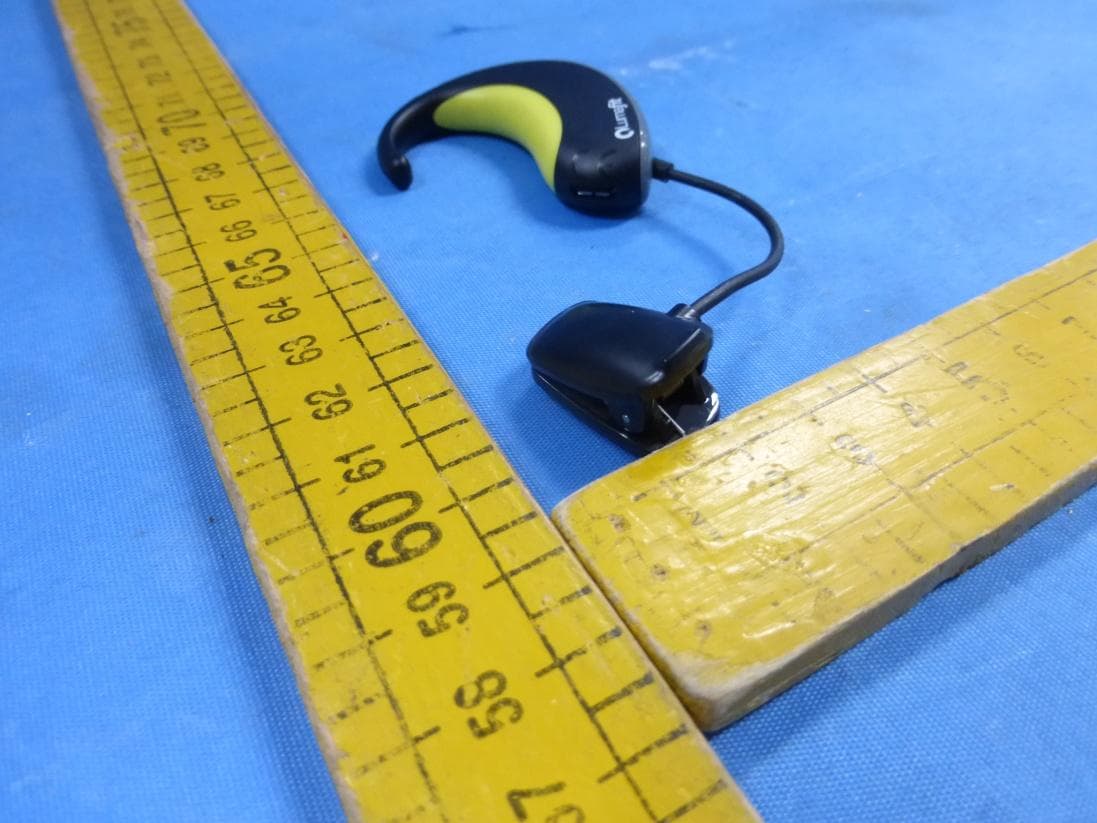
Click to zoom
Application Details
- Equipment Class
- DSS - Part 15 Spread Spectrum Transmitter
- Date of Grant
- Jan 01, 2015
- Application Purpose
- Original Equipment
- Date of Application
- Jan 01, 2015
- Equipment Note
- Fitness Tracker
- Frequency Range
- 2402.00000000 - 2480.00000000
- Company
- Zinc Software Limited
- Country
- Ireland
Documents & Files
Document Text
Text extracted from the exhibit documents filed with the FCC. Open a document above to read the original.
Users Manual
Welcome ____________________________________________________________________________ Welcome to your Lumafit, the ultimate tracker for fitness and wellness. Whether you are doing sit-ups, push-ups, lunges or a session on the treadmill or rowing machine, Lumafit knows what exercise you are doing and how well you are doing it. The Lumafit combines head motion tracking with a medical grade heart monitor to fully understand your workout. Lumafit fitness and wellness tracker has been designed so you can track your exercises, improve your performance and get motivated to become the best you can be. Getting Started ____________________________________________________________________________ What’s included in the box • Lumafit Ear Worn Device • Charging Cable • Carry Pouch How to wear your Lumafit ____________________________________________________________________________ Built with comfort in mind, the Lumafit’s design ensures a secure fit that withstands even the most vigorous of exercises. When first wearing the sensor it is often helpful to use a mirror so you can clearly see how it is fitting. 1: First rotate ear hook over ear from behind (as in picture). Adjust so feels secure and comfortable. 2: Open up clip by applying pressure at the bottom of clip and attach the clip to the ear lobe. 3: Insure earclip so it is horizontal as in picture (as sticking out sideways does not look as good). It’s a good idea to push the base of the clip in towards your head to give best look and feel. 4: Before you begin to exercise it is a good idea to shake your head a little so you are happy that your Lumafit is on securely. 5: First time it is usual to take one or two attempts before you are happy that the Lumafit is on correctly. Android Requirements ____________________________________________________________________________ Software • Android Jellybean OS 4.0 or later • 3/4G or Wifi connection • Bluetooth 2.1+ Hardware • Micro USB port Lumafit LED Indicator ___________________________________________________________________________ The Lumafit indicator LED gives information on the status of the device. Charging Place your sensor into the micro USB lead included in the box, and plug the charger in any USB port. When charging, the LED will stay on constantly for the duration of the charger until full, at which point it will automatically turn off. Powered On / Ready to Connect Pressing the on button for a short tap (around one second) will toggle on and off of the Lumafit. When turned on the LED will initially flash fast for 2 seconds and then flash slowly once every 2 seconds. This indicates the Lumafit is ready for connection. Discoverable Mode Pressing the on button for a long press of 6 seconds will put the Lumafit into discoverable mode. This will allow smartphones and tablets to discover the Lumafit during a Bluetooth search. When put in discoverable mode on the LED will initially flash fast for 2 seconds and then flash more slowly with a double flash every 2 seconds. The Lumafit will stay in discoverable mode for 5 minutes or until it is turned off. Connected When the Lumafit is powered on and a smartphone or tablet connect to the device the LED stays on constantly. Low Battery Indicator When your battery is below 10%, your sensor will alert you with a fast blinking LED. Downloading the Lumafit Apps ___________________________________________________________________________ You will need to use the Lumafit App with your Lumafit device. 1. Click on the Google Play icon on your Android device. 2. In the search toolbox, enter Lumafit Bootcamp. 3: The Lumafit app should appear in the discovered apps list. 4. Click "Install" icon, A new green icon will appear asking "Install App”. Tap once. 5. Once the download is complete you can find Lumafit Virtual Coach your apps. Lumafit Fitness and Wellness Apps ___________________________________________________________________________ The Lumafit device will work with a number of apps that help track fitness and wellness. In the next few months new apps will be released to help automatically track gym sessions and outdoor running sessions. Also available soon will be Lumafit “Zen”, an application that teaches meditation based on realtime date from your heart activity. The first app to be released for the Lumafit is Lumafit Bootcamp. Lumafit Bootcamp App ___________________________________________________________________________ The Lumafit Bootcamp App is an interactive fitness coaching application that puts you through a bootcamp workout tracking your motion and giving instant feedback on your progress. Lumafit tracks individual exercise motions including squats, crunches, push-ups, lunges running on the spot, jumping jacks, side lunges, oblique crunches, ski jumps and even burpees. Perfect for when you cant make the gym and are looking to burn 100 – 200 calories at home. Figure 1: Example Bootcamp Workork Pairing Lumafit with your Android Phone ___________________________________________________________________________ You will need to first pair the Lumafit device with the app. 1. First select Settings from the home screen. Then select Sensor Wizard from the Settings menu. 2. Insure Bluetooth is activated on your Android smartphone or tablet. 3. Insure the Lumafit is first off. Then set the Lumafit into discoverable mode by pressing the power button for 6 seconds. The LED should double flash very two seconds. 4. Now follow the instructions in the pairing wizard. 5. The wizard should find the sensor and pair. 6. When complete press “finish”. Your lumafit is now paired and ready to work with Lumafit apps. Start a Workout From the home screen select “Start Workout” to begin and interactive workout session. Pick from the workout list. Workouts range from easy (level 1) to extremely tough (level 10). Each workout is uses circuits of bootcamp exercises. Interactive Workout Once you have selected a workout press “Start Session”. This will bring you to the workout…
Text truncated - open the document above for the full version.
ID Label/Location Info
1.37 2.4 23.46 ±0.13 0.4 OPEN VDI21 FINISH ON FLAT AREA 0.4mm OFF TANGENT LINES 1.30 + 0.05 0.00 P/L 6.15 5.20 0 1.20 2X 4.70 YY X X Z Z SUBMARINE GATE 1.21 R0.95 1.30 + 0.05 0.00 8.09 SECTION Y-Y R1.70 2X 0.60 2.60 + - 0.05 0.10 0 2.4 2X 3.61 + - 0.150.05 0.46 1.51 4.20 SECTION X-X R0.95 0 2X 2.60 + - 0.050.10 2X 3.9 6.52 0 2.4 1.21 2.0 0 5.15 10.25 SECTION Z-Z 8.71 3X 0.64 DETAIL P SCALE 5 : 1 NOTES: 1) MATERIAL: PC/ABS 2) COLOR: PANTONE PROCESS BLACK 3) TEXTURE: GLOSS FINISH EXCEPT OTHERWISE SPECIFIED 4) ACTUAL PART GEOMETRY CONFORMS TO LATEST 3D MODEL FILE 5) INSPECTION DIMENSIONS AND /OR FEATURES ARE CIRCLED 6) RoHS & REACH COMPLIANT 7) EJECTOR PINS, PARTING LINE, AND GATE LOCATION MUST BE APPROVED BY PCH ENGINEER PRIOR TO MOLD FABRICATION 8) GATE VESTIGE TO BE TRIMMED TO MINIMUM 9) SEE SHEET 2 FOR PRINTING DETAILS LED INNER HOUSING DESIGNER. WEIGHT. FINISH. --- --- --- MATERIAL. A 10 DATEAPP B D E C REVISIONS 9 DESCRIPTION 8 B8/C9 ZONE 76543 F G SHT No. PROJECT 10 H 1 OF 2 DRAFTER GL C UNIT. REV. SIZE. X. = ± 1 .X = ± 0.1 TOLERANCES UNLESS OTHERWISE STATED PCH PART No. mm DATE. 9 N/A SCALE. 87654 .XX= ± 0.05 3 PCH DESCRIPTION: A4 16SEP2014 1 A B D E C F G 1 H 2 2 PCH INTERNATIONAL LTD. THESE DRAWINGS AND SPECIFICATIONS ARE THE PROPERTY OF PCH INTERNATIONAL AND SHALL NOT BE REPRODUCED WRITTEN CONSENT OF PCH INTERNATIONAL LTD. COPIED OR USED IN ANY MANNER WITHOUT THE PRIOR International --- ZEN CLIENT 26NOV13 2 HOLES 1.30 +0.05/-0 WAS 1.30 +/-0.03A REV B 19NOV13 COLOR UPDATE LASER MARKING CHANGEC 16SEP14JAMESLU 0.5 2x 0.4 11.62 7.69 0.0 0.4 3.0 NOTE 10) TEXT LASER-ETCHED 11) FONT ARIAL BOLD 1.1mm HIGH 12) LINE 1 - "MODEL: LF1" LINE 2 - "FCC ID:2ACUYLF1" BOUNDARY BETWEEN GLOSS FINISH & TEXTURE LED INNER HOUSING DESIGNER. WEIGHT. FINISH. --- --- --- MATERIAL. A 10 DATEAPP B D E C REVISIONS 9 DESCRIPTION 8 REVZONE 76543 F G SHT No. PROJECT 10 H 2 OF 2 DRAFTER GL C UNIT. REV. SIZE. X. = ± 1 .X = ± 0.1 TOLERANCES UNLESS OTHERWISE STATED PCH PART No. mm DATE. 9 N/A SCALE. 87654 .XX= ± 0.05 3 PCH DESCRIPTION: A4 16SEP2014 1 A B D E C F G 1 H 2 2 PCH INTERNATIONAL LTD. THESE DRAWINGS AND SPECIFICATIONS ARE THE PROPERTY OF PCH INTERNATIONAL AND SHALL NOT BE REPRODUCED WRITTEN CONSENT OF PCH INTERNATIONAL LTD. COPIED OR USED IN ANY MANNER WITHOUT THE PRIOR International --- ZEN CLIENT 14DEC13 REGULATORY PRINT INTRODUCEDC6 C B CHANGE REGULATORY PRINT INFORMATION. 16SEP14JAMESLU
Internal Photos
BT antenna
Test Report
Report Number: 68.950.14.243.01 EMC_SZ_FR_21.00 FCC Release 2014-03-20 TÜV SÜD Certification and Testing (China) Co., Ltd. Shenzhen Branch Building 12&13, Zhiheng Wisdomland Business Park, Nantou Checkpoint Road 2, Nanshan District, Shenzhen City, 518052, P. R. China Tel. +86 755 8828 6998, Fax: +86 755 8828 5299 Page 1 of 39 FCC - TEST REPORT Report Number : 68.950.14.243.01 Date of Issue: December 8, 2014 Model : LF1 Product Type : Lumafit Applicant : Zinc software Limited Address : 47 SLIEVEBLOOM PARK Drimnagh,Dublin 12,Ireland Production Facility : Suga Electronics (Dongguan) Co., Ltd. Address : No.8 Fulong Road, Qingxi Town 523640 Dongguan City, Guangdong Province, PEOPLE'S REPUBLIC OF CHINA Test Result : Positive Negative Total pages including Appendices : 39 TÜV SÜD Certification and Testing (China) Co., Ltd. Shenzhen Branch is a subcontractor to TÜV SÜD Product Service GmbH according to the principles outlined in ISO 17025. TÜV SÜD Certification and Testing (China) Co., Ltd. Shenzhen Branch reports apply only to the specific samples tested under stated test conditions. Construction of the actual test samples has been documented. It is the manufacturer's responsibility to assure that additional production units of this model are manufactured with identical electrical and mechanical components. The manufacturer/importer is responsible to the Competent Authorities in Europe for any modifications made to the production units which result in non-compliance to the relevant regulations. TÜV SÜD Certification and Testing (China) Co., Ltd. Shenzhen Branch shall have no liability for any deductions, inferences or generalizations drawn by the client or others from TÜV SÜD Certification and Testing (China) Co., Ltd. Shenzhen Branch issued reports. This report is the confidential property of the client. As a mutual protection to our clients, the public and ourselves, extracts from the test report shall not be reproduced except in full without our written approval Report Number: 68.950.14.243.01 EMC_SZ_FR_21.00 FCC Release 2014-03-20 TÜV SÜD Certification and Testing (China) Co., Ltd. Shenzhen Branch Building 12&13, Zhiheng Wisdomland Business Park, Nantou Checkpoint Road 2, Nanshan District, Shenzhen City, 518052, P. R. China Tel. +86 755 8828 6998, Fax: +86 755 8828 5299 Page 2 of 39 1 Table of Contents 1 Table of Contents .................................................................................................................. 2 2 Details about the Test Laboratory ......................................................................................... 3 3 Description of the Equipment Under Test .............................................................................. 4 4 Summary of Test Standards .................................................................................................. 5 5 Summary of Test Results ...................................................................................................... 6 6 General Remarks .................................................................................................................. 7 7 Test Setups ........................................................................................................................... 8 8 Systems test configuration .................................................................................................... 9 9 Technical Requirement ....................................................................................................... 10 9.1 Conducted peak output power ...................................................................................... 10 9.2 20 dB bandwidth and 99% Occupied Bandwidth .......................................................... 12 9.3 Carrier Frequency Separation ...................................................................................... 19 9.4 Number of hopping frequencies .................................................................................... 22 9.5 Dwell Time .................................................................................................................... 24 9.6 Spurious RF conducted emissions ............................................................................... 27 9.7 Band edge testing ......................................................................................................... 31 9.8 Spurious radiated emissions for transmitter .................................................................. 36 10 Test Equipment List ............................................................................................................ 38 11 System Measurement Uncertainty ...................................................................................... 39 Report Number: 68.950.14.243.01 EMC_SZ_FR_21.00 FCC Release 2014-03-20 TÜV SÜD Certification and Testing (China) Co., Ltd. Shenzhen Branch Building 12&13, Zhiheng Wisdomland Business Park, Nantou Checkpoint Road 2, Nanshan District, Shenzhen City, 518052, P. R. China Tel. +86 755 8828 6998, Fax: +86 755 8828 5299 Page 3 of 39 2 Details about the Test Laboratory Details about the Test Laboratory Test Site 1 Company name: TÜV SÜD Certification and Testing (China) Co., Ltd. Shenzhen Branch Building 12&13, Zhiheng Wisdomland Business Park, Nantou Checkpoint Road 2, Nanshan District, Shenzhen City, 518052, P. R. China Telephone: 86 755 8828 6998 Fax: 86 755 8828 5299 Test Site 2 Company name: Audix Technology (shenzhen) Co.,Ltd No. 6, Ke Feng Rd, 52 Block Shenzhen Science and Industry Park, Nantou, Shenzhen, Guangdong, China Telephone: 86 755 2663 9496 Fax: 86 755 2663 2877 Report Number: 68.950.14.243.01 EMC_SZ_FR_21.00 FCC Release 2014-03-20 TÜV SÜD Certification and Testing (China) Co., Ltd. Shenzhen Branch Building 12&13, Zhiheng Wisdomland Business Park, Nantou Checkpoint Road 2, Nanshan District, Shenzhen City, 518052, P. R. China Tel. +86 755 8828 6998, Fax: +86 755 8828 5299 Page 4 of 39 3 Description of the …
Text truncated - open the document above for the full version.
Test Setup Photos
Conducted Emission on AC port Radiated Emission below 1GHz Radiated Emission above 1GHz
Contact Information
Applicant
Stephen Hughes(Mr)
Test Firm
Audix Technology (Shenzhen) Co., Ltd.Smart Tsai
Technical Specifications
| # | Rule Parts | Frequency Range | Power Output |
|---|---|---|---|
| 1 | 15C | 2.40 GHz - 2.48 GHz | 700.00 µW |