Text extracted from the exhibit documents filed with the FCC. Open a document above to read the original.
i321 User Manual Manual de usuario Manual do usuário 2 Device layout Serial No. Name 1 Front Camera 2 Microphone 3 Power Key 4 Volume Key 5 Back Camera 6 Flash 7 Speaker 8 Menu Key 9 Home key 10 Back Key 3 Installing the SIM & Battery Insert the SIM or USIM card(s) provided by the mobile telephone service provider, and the included battery. 1. Remove the back cover. 2. Insert the one or both SIM cards with the golden colored contacts facing downwards and push it into place. 3. Insert the battery 4. Replace the back cover. Charging the Battery Before using the device for the first time you must charge the battery. Connect the USB cable to the USB pow er adaptor and then plug the end of the USB cable into the Micro USB jack. Connect to a power socket to start charging. During charging, the battery level grid of the battery icon flickers till the battery is fully charged and it stops flickering after the charging is complete. Use only company approved chargers, batteries and cables. Unapproved components may cause damage and the warranty shall be void. Turning the device on and off Press and hold the Power button for a few seconds to turn the device on and off. When turning on the device for the first time, follow the on screen instructions to set up your device. Basic Operations Notifications Notification icons appear on the status bar to report missed calls, new messages, calendar events, device status and more. Open the notifications panel, and then view your device’s current status and use the available options. Drag down from the status bar to open the notifications panel. To close the notifications panel, drag up the bar that is at the bottom of the screen. Making or answering a call Touch the phone icon on the Home screen. Make a call by selecting a contact from the contacts tab or by dialing a number To answer an incoming call, drag the answer icon to the right. Drag the answer icon to the left to reject the call. 4 Contacts Touch the contacts icon on the Home screen. You can add new contact information including name, phone numbers email addresses and others. You can also manage the contacts by editing, deleting and sharing the existing contacts. Messages Touch the message icon on the Home screen. Send text messages or multimedia messages with images and videos. Applications Touch the applications icon to open the Application screen. This screen shows all the applications installed on your device. Touch any of the application icons to starting using it. Connecting to networks Your device connects to various networks including Wi-Fi, Bluetooth apart from the Mobile Network. Wi–Fi Network Touch the Settings icon; Select the Wi-Fi option. The Wi-Fi network has to be configured the first time. Select the Wi-Fi network to connect to and enter the network password (if prompted). The network shows ‘Connected’ when it is ready for use. You may now browse the Internet from your device. Bluetooth Touch the Settings icon, Select the Bluetooth option. Select from the list of Bluetooth devices nearby to connect. Both the devices must be ‘Visible’ in order to connect for the first time. Follow the instructions on screen to pair the devices. You can use this option to connect to Bluetooth devices such as headsets or another Bluetooth phone. Connecting to the Computer You can connect your device to a Computer using the USB cable and to transfer music, pictures, and other files betw een your phone and the computer. Gallery Touch the Gallery icon on the Applications screen. You can brow se the photos and videos stored on the phone and SD card of your device. 5 Camera Touch the Camera icon on the Home screen or Application screen. You can now take pictures or videos. You can also modify the camera settings. Clock Touch the Clock icon on the Home screen or Application screen. You can set the alarm, use the stop watch, and timer functions and modify clock and alarm settings. Note: Use the “Date and Time” option in the Settings Menu to change the Date and Time of this device. Music Touch the Music icon on the Home screen or Application screen. You can play the audio files stored on the Phone and its SD card. Browser Touch the Browser icon on the Home screen or Application screen. You can brow se the Internet. A mobile data connection or Wi -Fi connection is required. Play Store Touch the Play Store icon on the Home screen or Application screen to access the Android Play Store. You can download new applications and update existing applications. Please a Google Account is required to access the Google Play Store. You can add an existing account or create a new account either from the Play Store or from the Settings Menu Add Account option. Phone Settings Select the Settings application from the Home Screen or Application Screen. This contains many sections. Various settings of the phone can be view ed and/or modified from here. Wireless and Networks In this section you can manage the following functions: SIM management – Manage the 2 SIM cards usage Wi-Fi – add, configure and delete Wi-Fi Networks Bluetooth – Set Device Visibility, View and Add Devices Data Usage – Manage Mobile data Usage More Settings – Airplane mode, VPN, Tethering and Mobile Network Settings such as APN. 6 Device In this section you can manage the following functions: Call Settings – Voicemail, Call forwarding, barring and waiting Audio Profiles – General, Meeting, Silent and Outdoor You can set the ringtones, volume and notification sounds for each of the profiles Display - Wallpaper, Brightness, screen Rotation, Font Size and lock screen Storage - Default Phone Storage may be toggled between the Phone and SD card. View storage available Battery - Usage and Settings Apps - Applications downloaded, currently running and general application settings Personal Location - Turn on/off, Location access Mode Security - Screen Lock, SIM lock, Device Encryption and other security settings Language - Modify Display Language, Keyboard and inpu…
Text truncated - open the document above for the full version.
GlobalDistributionFZE 508/509,TheBusinessCentreBuilding,AlHamriya–BurDubai,P.O.Box126963,Dubai, U.A.E Tel:+971-4-3548770Fax:+971-4-3548774 FCCConfidentialAuthorization Date:2014-12-19 FEDERALCOMMUNICATIONSCOMMISSION AuthorizationandEvaluationDivision 7435OaklandMillsRoad Columbia,MD21046 ConfidentialityRequestregardingapplicationforcertificationofFCCID:2ADPL-I321 PursuanttoSections0.457and0.459oftheCommission’sRules,weherebyrequestconfidential treatmentofinformationaccompanyingthisapplicationasoutlinedbelow: DetailedCircuitSchematicsofEUT---(Longterm) BlockDiagr am---(Longterm) CircuitDescription---(Longterm) Theabovematerialscontaintradesecretsandproprietaryinformationnotcustomarilyreleasedto thepublic.Thepublicdisclosureofthesematerialsmaybeharmfultotheapplicantandprovide unjustifiedbenefitstoitscompetitors. TheapplicantunderstandsthatpursuanttoSection0.457oftheRules,disclosureofthis applicationandallaccompanyingdocumentationwillnotbemadebeforethedateoftheGrant forthisapplication. SincerelyYours, Signature: Manager Abhay Kumar Singh Tune up procedure---(Long term) Part list---(Long term)
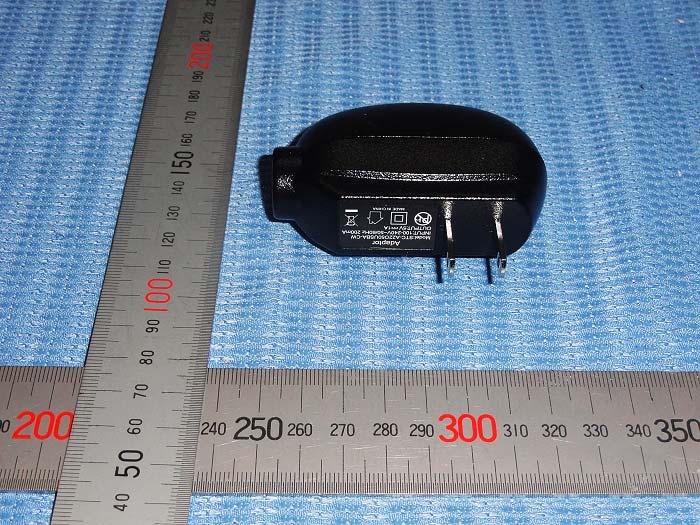
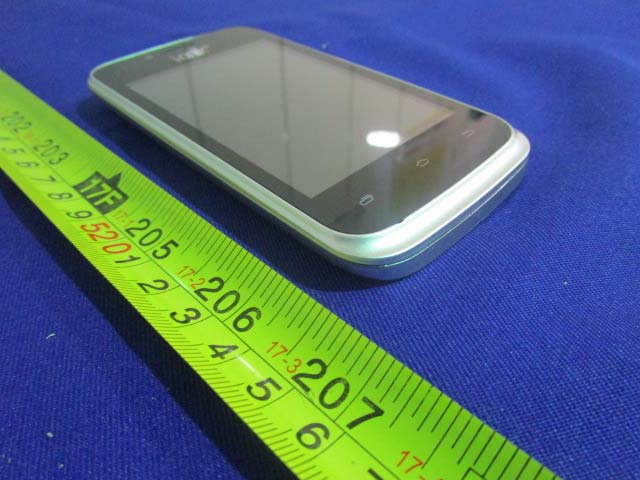
EXHIBIT B - EUT EXTERNAL PHOTOGRAPHS EUT – All View EUT – Top View EUT – Bottom View EUT –Side View EUT –Side View EUT –Adapter View EUT –Adapter Label View
EXHIBIT A - FCC ID LABELING AND LOCATION FCC ID Label Proposed FCC ID Label Location The label shown shall be permanently affixed at a conspicuous location on the device and be readily visible to the user at the time purchase (Labeling requirements per 2.925) Label Here
EXHIBIT C - EUT INTERNAL PHOTOGRAPHS EUT – Uncover View EUT –Battery off View EUT – Uncover View EUT –Uncover View EUT –Uncover View EUT –Main Board Top View EUT –Main Board Bottom View EUT –BT&WIFI RF Chip View EUT –GSM RF Chip View EUT –BT&WIFI ANT View EUT –GSM ANT View EUT –Battery Top View EUT –Battery Bottom View
Note: This test report is prepared for the customer shown above and for the device described herein. It may not be duplicated or used in part without prior written consent from Bay Area Compliance Laboratories Corp. (Dongguan). This report is valid only with a valid digital signature. The digital signature may be available only under the Adobe software above version 7.0. FCC PART 15.247 TEST REPORT For Global Distribution FZE 508/509, The Business Centre Building, A1 Hamriya - Bur Dubai, P.O. Box 126963, Dubai, U.A.E Report Type: Original Report Product Type: SMART MOBILE PHONE Test En gineer: Sevin Li Re port Number: RDG141216002-00A Re port Date: 2014-12-29 Reviewed B y: Sula Huang RF Engineer Test Laboratory: Bay Area Compliance Laboratories Corp. (Dongguan) No.69 Pulongcun, Puxinhu Industrial Zone, Tangxia, Dongguan, Guangdong, China Tel: +86-769-86858888 Fax: +86-769-86858891 www.baclcorp.com.cn FCC ID: 2ADPL-I321 Bay Area Compliance Laboratories Corp. (Dongguan) Report No.: RDG141216002-00A FCC Part 15.247 Page 2 of 66 TABLE OF CONTENTS GENERAL INFORMATION ....................................................................................................................................... 4 PRODUCT DESCRIPTION FOR EQUIPMENT UNDER TEST (EUT) ..................................................................................... 4 OBJECTIVE ................................................................................................................................................................... 4 RELATED SUBMITTAL(S)/GRANT(S) ............................................................................................................................. 4 TEST METHODOLOGY .................................................................................................................................................. 4 TEST FACILITY ............................................................................................................................................................. 4 SYSTEM TEST CONFIGURATION .......................................................................................................................... 5 DESCRIPTION OF TEST CONFIGURATION ...................................................................................................................... 5 EUT EXERCISE SOFTWARE .......................................................................................................................................... 5 EQUIPMENT MODIFICATIONS ....................................................................................................................................... 5 SUPPORT EQUIPMENT LIST AND DETAILS .................................................................................................................... 5 BLOCK DIAGRAM OF TEST SETUP ................................................................................................................................ 5 SUMMARY OF TEST RESULTS ............................................................................................................................... 6 FCC §15.247 (i) & §1.1310 & §2.1093- RF EXPOSURE ............................................................................................... 7 APPLICABLE STANDARD .............................................................................................................................................. 7 FCC §15.203 - ANTENNA REQUIREMENT ............................................................................................................. 8 APPLICABLE STANDARD .............................................................................................................................................. 8 ANTENNA CONNECTOR CONSTRUCTION ...................................................................................................................... 8 FCC §15.207 (a) – AC LINE CONDUCTED EMISSIONS ....................................................................................... 9 APPLICABLE STANDARD .............................................................................................................................................. 9 MEASUREMENT UNCERTAINTY .................................................................................................................................... 9 EUT SETUP .................................................................................................................................................................. 9 EMI TEST RECEIVER SETUP ....................................................................................................................................... 10 TEST PROCEDURE ...................................................................................................................................................... 10 CORRECTED AMPLITUDE & MARGIN CALCULATION ................................................................................................. 10 TEST EQUIPMENT LIST AND DETAILS ......................................................................................................................... 11 TEST RESULTS SUMMARY .......................................................................................................................................... 11 TEST DATA ................................................................................................................................................................ 11 FCC §15.209, §15.205 & §15.247(d) - SPURIOUS EMISSIONS ............................................................................. 14 APPLICABLE STANDARD ............................................................................................................................................ 14 MEASUREMENT UNCERTAINTY .................................................................................................................................. 14 EUT SETUP ..........................…
Text truncated - open the document above for the full version.
| # | Rule Parts | Frequency Range | Power Output |
|---|---|---|---|
| 1 | 15C | 2.40 GHz - 2.48 GHz | 3.40 mW |

Tablet
Equipment Class
DTS - Digital Transmission System