2AT6W-PC280AWireless Gaming Mouse
Shenzhen YongTuo Ecommerce LTD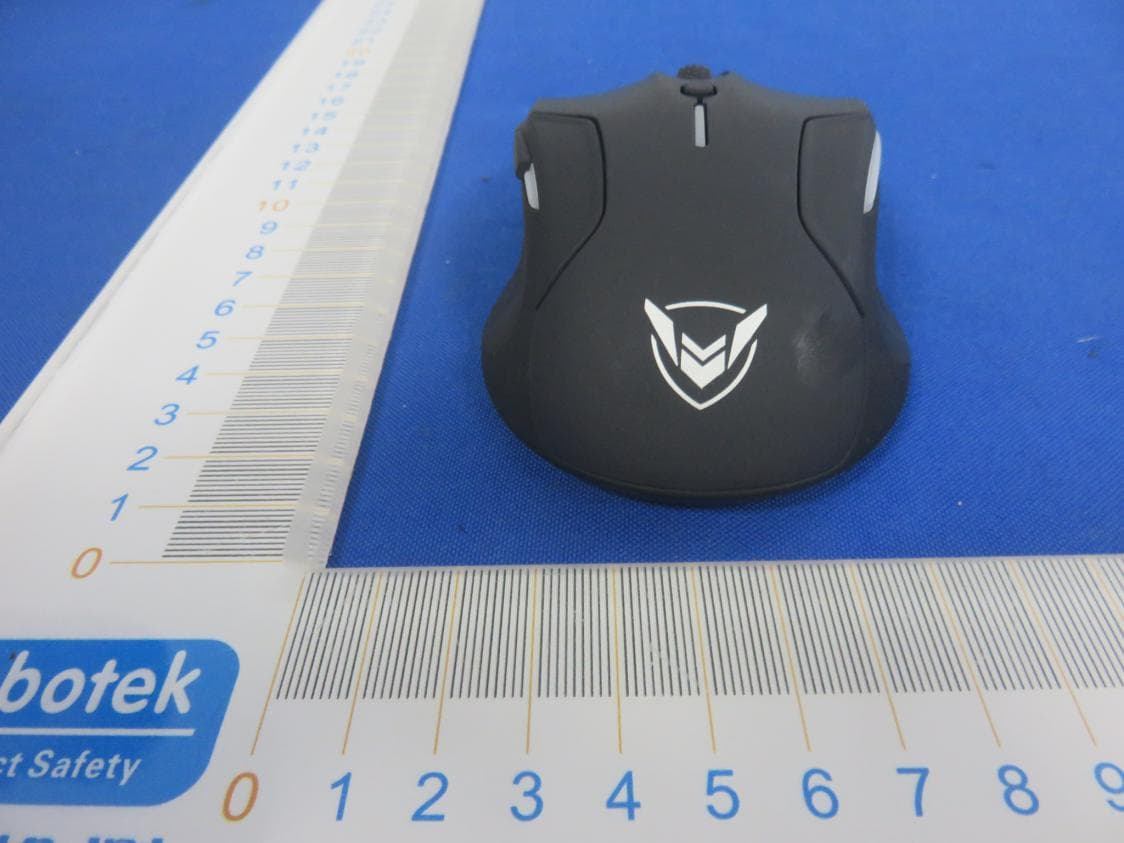
Click to zoom
Application Details
- Equipment Class
- DXX - Part 15 Low Power Communication Device Transmitter
- Date of Grant
- Jun 23, 2020
- Application Purpose
- Original Equipment
- Date of Application
- Jun 23, 2020
- Equipment Note
- Wireless Gaming Mouse
- Frequency Range
- 2403.00000000 - 2480.00000000
- Country
- China
Documents & Files
Document Text
Text extracted from the exhibit documents filed with the FCC. Open a document above to read the original.
Users Manual
WIRELESS GAMING MOUSE User Manual • User Manual• Benutze『handbuch ■ Manuel de l'utiUsation■ Manual de usuario • Manuale Utente • 取衱锐明番 Packing List ■ 示隅. 因门 曰 Mousex1 User Manualx1 Receiver x1 (stored in battery compartment) 曰 ·',' . 0000@ --- gmm ` 06 . la D 1. Left Button 2 Scroll Wheel 3. Right Button 4. DPI Button 5. Forward 6. Backward 7.Switch Instructions 1. Take 2 AA dry batteries into mouse with correct polarity direction, and turn on its switch. 2. Take out USB「ece,verand plug II into computer. 3. It's workable after its driver is installed on computer automatically Features 1. Program Function: Customize button's function and adjust polling rate, lighting mode and DPI value via the prog「am software which can be downloaded from https://ww w.ipictek.com/pageslmouse-driver 2. 6-level AdJustable DPI: 1200 red/2400 blue/3500 green/5000 pu「plef7000yellow/10000white.The default DPI is 1200. Press DPI button to switch cyclically. 01 3. Low battery Indicator. The mouse's indicator light will flash red when runs out of battery. Please「eplacebattery in time to ensure normal use. 4.4 Light M凶es.RGB neon/ single color b「eathing/singcolo「 steady on/ light off. The default light mooe is RGB neon. Long P「essDPI bunon fo『3sto switch light modes. 5. Once the light turns on, the mouse will automatically turn off light to save power when in use. Solutions to Wireless Connection Issues 1. Turn off the mouse and turn it on again 2. Long press left button + sc「oilwheel+ right button for ove「3 seconds and release till the yellow light flashes. 3. It will be workable after its USB receiver is plugged into computer. If the product is still not wo「kableafte『abovesolutions, you could 「epeatthose steps for a few times. If your problem can't get solved yet please oontact our Custome「Servicefor help ([email protected]). Note: 1. Please do not use the mouse on the glass or mirro「 2. Programming software 1s only available on Windows. 3. Forward and Backward button are unavailable on Mac OS. 02 Packliste l•l!! 际�ii 囚 日 曰 Maus x1 Benutzerhandbuch x1 Em pf anger x1 (im Battenefach aufbewahrt) 曰 ·',' j 0000@ 了 ` 00 . la D 1. Linke「Knopf 2 Scroll「ad 3. Rechte「Knopf 4. DPl-Taste 5. Nachvo「ne 6.ROckwarts 7.Schalter Anleitung 1. Nehmen Sie 2 AA - Trockenbatterien mit der「ichtigen Polaritatsrichtung in die Maus und schalten Sie den Sc halter ein 2. Nehmen Sie den USB-Empfanger heraus und schliellen S图hn an den Computer an. 3. Es funktionie兀nachdemder T「eiberautomatisch auf dem Computer 1nstal11ertwurde Eigenschaften 1.P「ogrammfunktion:Passen Sie die Funktion der Taste an und passen Sie die Abf『agerate,den Beleuchtungsmodus und den DPI-Wert Ober die Programmsoftware an, die unter https:/lwww.ipictekcom/pages/mouse-driverherunterge laden werden尥nn 03 2. 6 einstellba「erDPI-Wert: 1200 Rot/ 2400 Blau/ 3500 Grun/ 5000 Lila/ 7000 Gelb/ 10000 Weill. Die Standard - DP I ist 1200. Drue ken Sie die DPI - Taste, um "l)fklisch zu wechseln 3.Niedrige Ba廿erieanzeige.Die Anze1gelampe der Maus blinkt rot, wenn der Akku lee「ist.Bitte ersetzen Sie die Batterie rechtzeitig, um einen normalen Geb「auchzu gewah『leisten 4.4 Lichtmodi. RGB Neon/ einfarbige Atmung / Singfarbe konstant ein / Licht aus. Der Standardlichtmodus ist RGB-Neon. DrOcken Sie die DPI - Taste 3 Sekunden lang, um den Llchtmodus zu wechseln 5. Sebald das Licht eingeschaltet wi『d,schaltet die Maus das Licht automatisch aus, um bei Verwendung Strom zu sparen Losungen fur Probleme mit d『ahtlosen Verbindungen 1. Schalten Sie die Maus aus und wieder ein 2.D「uckens,e die linke Taste+ das Scrollrad + die rechte Taste !anger als 3 Sekunden und !assen Sie sie las, bis das gelbe Licht blinkt 3. Es ist funktionsfahig, nachdem der USB - Empfanger an den Compute「angeschlossenist. Wenn das Produkt nach den oben genannten Losungen immer noch nicht funkt,onsfahig ist, konnen Sie diese Schritte e,nige Male wiederholen. Wenn 1hr Problem noch nicht gelost werden kann, wenden s,e s,ch an unseren Kundend,enst ([email protected]). Hinweis: 1. Bille benutzen Sie die Maus nicht auf dem Glas acer Spiegel. 2, Programmiersoftware 1st nur unterW,ndows ve什ugbar. 3. Die Schaltflache Vorwarts und Ruckwarts ist unte『MacOS nicht verfOgbar. 04 Contenu du coffret 囚 曰勹 Souris x1 Manuel de R皓pteurx1 (stocke dans l'utilisat,on x1 le compart,ment a piles) 曰 ;', 0000@ 了` 00 . la D . 1. Bouton Gauche 2. Molette 3. Bouton Droite 4. Bouton DPI 5. Bouton d'avance 6. Bouton de retour 7. Commutateur Instructions 1 lntroduisez deux pile吟cheAA dans la sou ris avec la pol a rite correcte, puis allumez le commutateur. 2. Ret,rez le recepteur USB et branchez-le su「leportdel'o昢nateur 3. La souris fonctionne「aune fois son pilote installs automatique mentsurl'o「dinateu「 Caracteristiques 1, Fonction du p「ogrammation:pe「sonnalisezla fonction du bouton et ajustez le taux d'interrogation, le mode d'仑clairageet la DPI via le logiciel du programmation qu, peut etre t创敌harge a partir de https:llwww.ipictek.com/pages/mouse-driver 2. 6 niveaux de DPI「eglable:1200 rouge/ 2400 bleu / 3500 vert/ 5000 violet/ 7000 jaune / 10000 blanc. Le DPI pa「defautest 05 1200. Appuyez sur le bouton DPI pou「passercycliquement. 3. lnd,cateur de batterie faible. Le voyant de la souns clignote en rouge lorsque la batterie est epuisee. Veuillez remplacer la batteriepou「uneutilisation no「male 4. 4 modes d'ecla,rage. Neon RGB/Respirat,on monochrome /monochrome stable/ ete1nte. Le mode d绞la1ragepa「defaut est neon RGB. Appuyez longuement sur le bouton DPI pendant 3 secondes pour changer de mode d'eclairage 5. Une fois la lumiere allumee, elle s'eteint automatiquement pou「 缸onomiserde l'energie lorsque la souris est fonctionn铅 Solutions aux problemes de connexion sans fit 1. �teignez la scuris et la reactiver 2. Appuyez longuement sur le bouton gauche+ molette + bouton d「oitpendant plus de 3 secondes et les relachezjusqu'a ce que le voyantjaune clignote 3. II sera fonctionnel une fois son recepteur USB branche sur 际dinateu「. S'il est toujours inutilisable…
Text truncated - open the document above for the full version.
Cover Letter(s)
Shenzhen YongTuo Ecommerce LTD Declaration on Model Differences We, Shenzhen YongTuo Ecommerce LTD 706, 212th Building, Tairan 9th Road Shatoujiedao, Chegongmiao, Futian, Shenzhen, China Declare that the following product(s): Product Name:Wireless Gaming Mouse Model No.:PC280A, PC280B, PC280C FCC ID:2AT6W-PC280A Utilize the identical circuit design, PCB layout, shielding and interface with(PC280A), only the model name different. Therefore this application can be regarded as identical in performance to the submitted test sample. The manufacturer would take all the responsibilities for the above product(s). For and on behalf of Shenzhen,China Authorized personLocation Name:Comoy Xiao Position:Manager Date of issue:2020-06-22 *I hereby declare that I am entitled to sign on behalf of the applicant and that the information supplied is correct and complete.
Cover Letter(s)
ShenzhenYongTuoEcommerceLTD Office of Engineering Technology Federal Communications Commission 7435 Oakland Mills Road Columbia, MD 21046 USA Date: 2020/06/22 Subject; Request for Confidentiality FCC ID: 2AT6W-PC280A To Whom It May Concern, Pursuant to the provisions of the Commission’s rules Title 47 Sections §0.457 and §0.459, we are requesting the Commission to withhold the following attachment(s) as confidential documents from public disclosure indefinitely. These documents contain detailed system and equipment descriptions and are considered as proprietary information in operation of the equipment. The public disclosure of these documents might be harmful to our company and would give competitors an unfair advantage in the market. Schematic Diagram Block Diagram Parts List Operational Description Tune-up Procedure In additional to above mentioned documents, in order to comply with the marketing regulations in Title 47 CFR §2.803 and the importation rules in Title 47 CFR §2.1204, while ensuring that business sensitive information remains confidential until the actual marketing of newly authorized devices, we request Short Term Confidentiality of the following attachment(s); External Photos Test Setup Photos Internal Photos User Manual For 45 days, pursuant to Public Notice DA 04-1705. OR For 180 days pursuant to KDB 726920 D01. It is our understanding that all measurement test reports, FCC ID label format and correspondence during the certification review process cannot be granted as confidential documents and this information will be available for public review once the grant of equipment authorization is issued. Sincerely, Signature: Name:Comoy Xiao Title: Manager
Cover Letter(s)
Shenzhen YongTuo Ecommerce LTD Letter of Authorization Company: Shenzhen YongTuo Ecommerce LTD Address: 706, 212th Building, Tairan 9th Road Shatoujiedao, Chegongmiao, Futian, Shenzhen, China Product Name: Wireless Gaming Mouse Model Number(s): PC280A, PC280B, PC280C Product Description: Wireless Gaming Mouse We authorize MiCOM Labs Inc., 575 Boulder Court, Pleasanton, California 94566, USA, to act on our behalf on all matters concerning the certification of above named equipment. We declare that MiCOM Labs Inc. is allowed to forward all information related to the approval and certification of equipment to the regulatory agencies as required and to discuss any issues concerning the approval application. Any and all acts carried out by MiCOM Labs on our behalf shall have the same effect as acts of our own. Signature: Date: 22/06/2020 Name: Comoy Xiao Title:Manager Company: Shenzhen YongTuo Ecommerce LTD
External Photos
ModelNumber:PC280A
ID Label/Location Info
Label Location:
ID Label/Location Info
Product Name: Wireless Gaming Mouse Model No.: PC280A FCC ID: 2AT6W-PC280A This device complies with Part 15 of the FCC Rules. Operation is subject to the following two conditions: (1) This device may not cause harmful interference, and (2) This device must accept any interference received, including interference that may cause undesired operation.
Internal Photos
ModelNumber:PC280A ANT
Test Report
Report No.: 18220WC00062701FCC ID: 2AT6W-PC280APage 1 of 37 Code:AB-RF-05-a FCC TEST REPORT Client Name: Shenzhen YongTuo Ecommerce LTD Address: 706, 212th Building, Tairan 9th Road Shatoujiedao, Chegongmiao, Futian, Shenzhen, China Product Name: Wireless Gaming Mouse Date: Jun. 22, 2020 Shenzhen Anbotek Compliance Laboratory Limited Report No.: 18220WC00062701FCC ID: 2AT6W-PC280APage 2 of 37 Code:AB-RF-05-a Contents 1. General Information ............................................................................................................................................... 4 1.1. Client Information ....................................................................................................................................... 4 1.2. Description of Device (EUT) ..................................................................................................................... 4 1.3. Auxiliary Equipment Used During Test ................................................................................................... 5 1.4. Description of Test Modes ........................................................................................................................ 5 1.5. List of Channels .......................................................................................................................................... 6 1.6. Description of Test Setup .......................................................................................................................... 7 1.7. Test Equipment List .................................................................................................................................... 8 1.8. Measurement Uncertainty ......................................................................................................................... 9 1.9. Description of Test Facility ........................................................................................................................ 9 2. Summary of Test Results ................................................................................................................................... 10 3. Conducted Emission Test ................................................................................................................................... 11 3.1. Test Standard and Limit .......................................................................................................................... 11 3.2. Test Setup .................................................................................................................................................. 11 3.3. Test Procedure .......................................................................................................................................... 11 3.4. Test Data .................................................................................................................................................... 11 4. Radiated Emission and Band Edge .................................................................................................................. 12 4.1. Test Standard and Limit .......................................................................................................................... 12 4.2. Test Setup .................................................................................................................................................. 13 4.3. Test Procedure .......................................................................................................................................... 14 4.4. Test Data .................................................................................................................................................... 15 5. 20dB Bandwidth Test .......................................................................................................................................... 25 5.1. Test Standard and Limit .......................................................................................................................... 25 5.2. Test Setup .................................................................................................................................................. 25 5.3. Test Procedure .......................................................................................................................................... 25 5.4. Test Data .................................................................................................................................................... 25 6. Antenna Requirement ......................................................................................................................................... 28 6.1. Test Standard and Requirement ............................................................................................................ 28 6.2. Antenna Connected Construction .......................................................................................................... 28 APPENDIX I -- TEST SETUP PHOTOGRAPH ................................................................................................... 29 APPENDIX II -- EXTERNAL PHOTOGRAPH ..................................................................................................... 30 APPENDIX III -- INTERNAL PHOTOGRAPH ..................................................................................................... 33 Report No.: 18220WC00062701FCC ID: 2AT6W-PC280APage 3 of 37 Code:AB-RF-05-a TEST REPORT Applicant: Shenzhen YongTuo Ecommerce LTD Manufacturer: DONGGUAN NEWMEN ELECTRONICS TECHNOLOGY CO., LTD Product Name: Wireless Gaming Mouse Model No.: PC280A, PC280B, PC280C Trade Mark: Pictek Rating(s): DC 3V, 50mA by "AA"*2 battery inside Test Standard(s) : FCC Part15 Subpart C, Paragraph 15.249 Test Method(s): ANSI C63.10: 2013 The device described above is tested by Shenzhen Anbotek Compliance Laboratory Limited to determine the maximum emissi…
Text truncated - open the document above for the full version.
Test Setup Photos
PHOTOSOFTESTSETUP ModelNumber:PC280A Photo of Radiation Emission Test
Contact Information
Applicant
Comoy Xiao(Manager)
Technical Contact
Test Firm
Shenzhen Anbotek Compliance Laboratory LimitedJeff Zhu
Technical Specifications
| # | Rule Parts | Frequency Range | Power Output |
|---|---|---|---|
| 1 | 15C | 2.40 GHz - 2.48 GHz | - |
Other Applications from Shenzhen YongTuo Ecommerce LTD
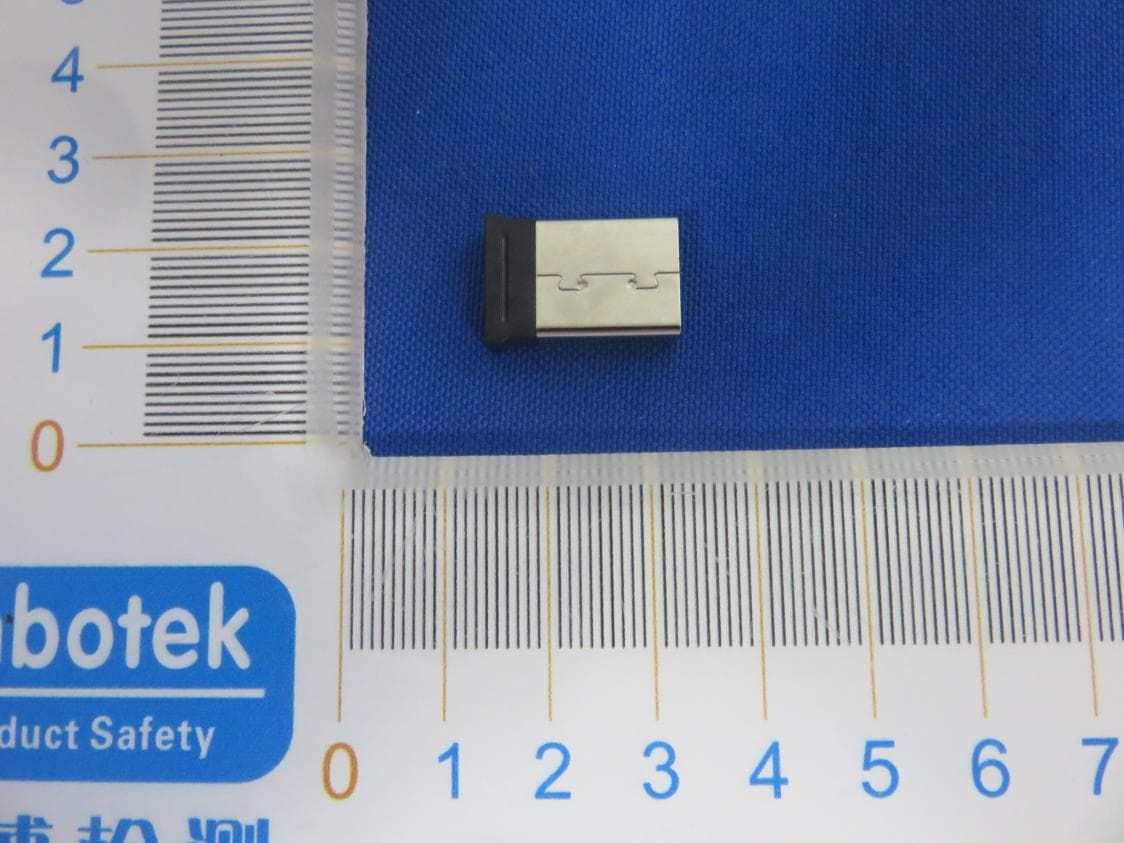
2AT6W-PX012
Jun 23, 2020Dongle
Equipment Class
DXX - Part 15 Low Power Communication Device Transmitter