2BBQE-JAMSTACK2Wireless Guitar Speaker
Jamstack Inc.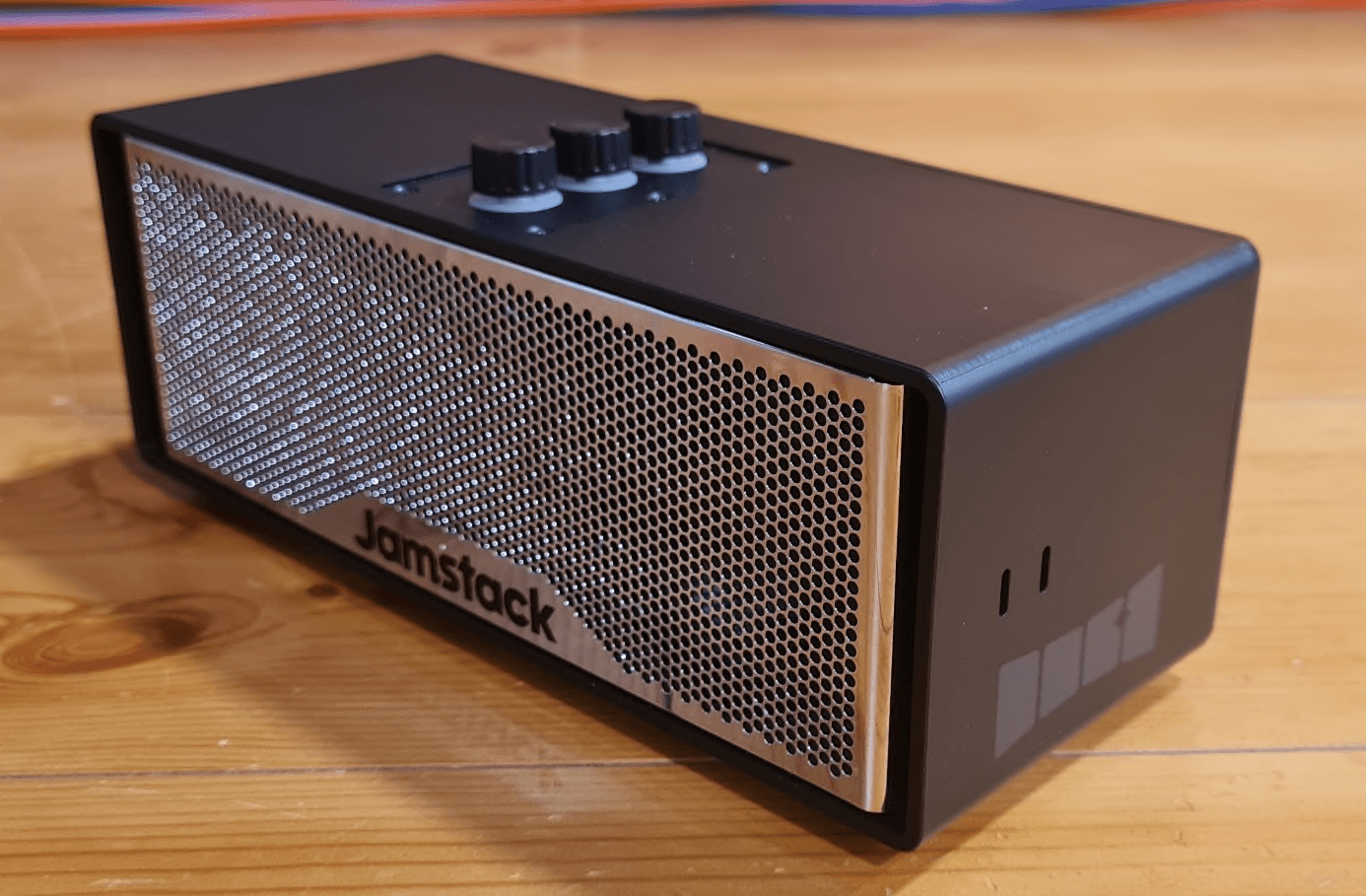
Click to zoom
Application Details
- Equipment Class
- DSS - Part 15 Spread Spectrum Transmitter
- Date of Grant
- Aug 05, 2024
- Application Purpose
- Original Equipment
- Date of Application
- Aug 05, 2024
- Equipment Note
- Wireless Guitar Speaker
- Frequency Range
- 2403.50000000 - 2477.50000000
- Company
- Jamstack Inc.
- Country
- Canada
Documents & Files
Document Text
Text extracted from the exhibit documents filed with the FCC. Open a document above to read the original.
Users Manual
Interface mode will bypass the Jamstack 2's built in effects chain and send clean raw audio into your device. This will work on iPhones, iPads, Android devices, Macs and PC’s. The speaker will only monitor what is coming back over USB. It’s important to note that your instrument will not come out of the speakers unless you turn on monitoring on the software you’re using. Interface mode be used in several ways. 1. Recording your instrument into software such as Garageband. This will allow you to change your effects after you’ve recorded and tweak the sound as long a you like. Note the monitoring switch is on below. 2. Using effects from 3rd party apps like Tonebridge. This will mean your phone is acting as the effect engine. Here’s a map of what’s happening: For our current list of compatible apps, check out our list here. Chapter 10 Interface Mode Recording Interface Modes. 19 Chapter 11 Wireless - SKAA Jam Cast. Jamstack Wireless Transmitters are sold separately The wireless will go into standby and then sleep modes to save the battery. In both cases you can simply wake up the wireless by turning on your transmitter. It just takes longer to wake up. Here’s how that works: By default the unit will switch back and forth between a transmitter and receiver by plugging in or removing something from the ¼” Jack. The cable will not effect the SKAA state if the unit is bonded to a receiver or transmitter. Please refer to the SKAA Receiver Users Guide below for more specific details. Dim amber means its hunting for new unknown transmitters (you can force this with double click) Dim green means it is looking only for the last bonded transmitter Solid colours means bonded (green means its saved) SKAA bond indicator LED is off in transm it mode 20 Chapter 11 21 Chapter 11 SKAA Questions & Answers. 22 Chapter 12 LED Behaviour. 23 Wakeup Shutdown Bluetooth Paired Bluetooth Pairing Mode Bluetooth bond lost SKAA State change (manual) into transmitter SKAA State change (manual) in receiver Wireless transmitter bonded Wireless transmitter bond lost Wireless receiver bonded Effect ‘save’ Charging Wireless receiver bond lost Circles white through each LED All lights immediately off Two blinks on LED #1 Blue Circles Blue through each LED Two simultaneous blinks on LED #1 Blue and LED #3 Red 3 on off, 2, on off, 1 on off, quickly, colour: Purple Single blink LED #1 Purple Blinks on 3, 2, 1, and then double blink on all three: Purple 3, 2, 1, Purple (on and off), and then double blink Red on all three Two blink on LED #1 Purple Two simultaneous blinks on both LED #1 Purple and #3 Red Double blinks selected effect preset colour LED #3 LED #1 pulses battery level colour, solid Green at 100% Control app connected Two blinks on LED #1 Light Blue Control app disconnected Two simultaneous blinks on LED #1 Light Blu e and LED #3 Red The Jamstack 2's LED’s will do their best to tell you when something has changed, connected, or disconnected to it. In general Blue is reserved for Bluetooth streaming, Purple for SKAA and Light Blue for the BLE app connection. If accompanied by a Red LED, that signifies disconnection. Tips & Tricks. Chapter 13 24 For a captivating video, experiment with the camera mode on your phone. Add backing tracks and guitar with the Jamstack Control App, layering your music to create a rich, dynamic sound with looping (we recommend Loopy Pro). Elevate your party where up to five devices take turns DJing, exploring diverse playlists and sharing the love of music. Amplify the groove by inviting a bass player to join the ensemble, taking advantage of the versatile connectivity. To fine-tune your sonic signature, craft a unique effect preset tailored to your style and save it on your Jamstack 2 for instant access and a personalized touch to your set-up. Unleash your musical genius with your Jamstack 2 smart amp. Chapter 14 Visit our support page at jamstack.io and click “support” or email [email protected] for further assistance. Trouble Shooting. 25 The knobs have become unresponsive Using a straightened paper clip, press the reset pin just above and to the right of the USB-C port on the back of the speaker I can't get my speaker to charge If your unit has full drained, and then been left for some time, especially in the cold, this can push the battery into a protection mode, leave it to charge overnight and it should be right back to normal. You may also want to try another cable to make sure that isn’t the source of the issue. I can't get my phone to connect to the app 1. Make sure your phone has Bluetooth turned on in settings 2. In the control app, long press in any previously connected speakers and hit "forget" 3. Look for "Other devices" and re-connect to your speaker My guitar effects are creating feedback and or a noisy signal If you have added effects that increase the gain of your signal, noise will inevitably be generated. To fix this, add a Noise Gate to your effects chain. Increase the threshold amount until the noise goes away when not playing. There are more tips and tricks on our support articles at www.jamstack.io/support. I can't hear my guitar 1. Make sure you’re not in “interface mode”. In the control app go to the Hardware tab>Recording mode>Duet/loop 2 .If possible, check your guitar and cable are ok by plugging it into something else. 3. Make sure the first and second knobs are turned all the way up. 4. In the control app, connect your device and go to the hardware tab 5. On the control app’s hardware, once connected to your amp, go to "All Settings" > "Levels" and make sure all the levels are turned up 6. Go to the "Presets" tab and make sure your "Amp Volume", "Input" and "Output Gains" are all up and that your "Noise gate threshold" isn't too high I can't see the LED's outside 1. In the control app, connect your device and go to the hardware tab 2. Navigate to "All Settings" > "Settings" 3. Here you can increase your LED's brightness I want to reset all of my effects to fa…
Text truncated - open the document above for the full version.
Users Manual
KNOB 1 TURN: Master Volume PUSH AND TURN: Global SKAA volume when additional SKAA speakers are bonded to this Jamstack 2 (including other Jamstack 2s) — this affects volume on this Jamstack and all of the bonded satellite speakers, too." PUSH: Play / Pause Music PUSH X 2: Bluetooth re-pair to familiar device PUSH X 3: Bluetooth pairing to a new or second device LONG PRESS: Shutdown When connected to a STREAMING APP: SINGLE PRESS : Pause DOUBLE PRESS : Next Song TRIPLE PRESS : Go Back COLOURBATTERY LEVEL Red9% Orange10-29% Yellow30-59% Green60+% LED 1 SHOWS BATTERY LIFE Knobs & LEDS. Knob 1 Chapter 3 5 1. KNOB 2 TURN: Adjust guitar output volume PUSH AND TURN: Adjust analog input gain on the pre-amp for the ¼” input PUSH: Initiate and cancel tuner COLOURINPUT LEVEL Red-1 dBFS Yellow-6 dBFS Green-60 dBFS Off LED#2 SHOWS INPUT LEVEL (Red is clipping, Yellow is high, Green is ok) KNOB 3 TURN : Change the Effect Preset PUSH AND TURN : n/a currently PUSH : Load next Effect Preset PUSH X 2 : Go back to previous Effect Preset LONG PRESS : Save current Effect Preset into Current Slot COLOURINPUT LEVEL PurplePreset 1 BluePreset 2 GreenPreset 3 YellowPreset 4 OrangePreset 5 RedPreset 6 LED#3 SHOWS EFFECT PRESETS Knob 2 Knob 3 Chapter 3 6 2. 3. Note: When connected to the control app, and live monitoring a tone, this LED will turn teal Note: The tuner finds the nearest note. Red lights on LED #3 indicate you’re sharp and LED #1 means you’re flat. A middle green LED #2 means you are in tune. Attach charger cable to charge the Jamstack 2. You can also connect from this USB-C port to charge an android phone (not iOS). This is also how you can connect to a smart device or computer for recording. Connect headphones and bypass the speakers. This can be used for a line out, to connect to a PA. This headphone jack also doubles as an extra input for vocals or another instrument. Connect the output jack of any electronic instrument to the Jamstack 2 amp. When in receiver mode, this controls what audio source you're bonded to, and more. When in receiver mode to tell you what its doing. Chapter 4 Inputs & Outputs. USB-C: 3.5mm Headphone/ Line Out and Mic Input: ¼” Instrument Input: SKAA Bond Button: SKAA Bond Indicator LED: 7 HOW DO I... Turn off the Jamstack 2 (JS2)? Short-press knob 1 to power on, long-press knob 1 to power off. Charge my JS2? Connect the USB-C port to your power source using the USB-C-to-USB-C cable and power adapter provided. If you are charging the JS2 while the unit is off, the battery level indicator LED on knob 1 will fade in and out. If you are charging the JS2 while the unit is on, the LED indicator on knob 3 will remain lit. Adjust the Volume? The master volume for the JS2 can be adjusted by turning knob 1. The volume of the instrument input can be adjusted by turning knob 2. The volume of this speaker and all SKAA wireless speakers bonded to this speaker can be adjusted by pushing and turning knob 1. Double-tap (quickly) knob 1 to re-pair to a previously paired device. Triple-tap (quickly) knob 1 to pair to a new device or an additional one (up to 5 at once). Short-press knob 1 to pause music, short-press knob 1 again to play music You can tell your unit how long to wait to fall asleep. The sleep timer is found in the control app. The timer is not active if: You’re bonded to a SKAA wireless transmitter You’re paired to Bluetooth You’re connected to USB-C The timer also resets if you interact with the knobs. Chapter 5 The Basics. Pair my device with Bluetooth? Play or pause my bluetooth-connected music? Change when my unit shuts off? 8 - - - The control app is how you will wirelessly control your Jamstack 2 to access all the built-in effects, and dozens of vital settings. It is very important to keep your speaker’s firmware up to date. Luckily doing this is as simple as connecting your Jamstack 2 to the control app, and hitting “Update now”. Make sure not to completely close the control app (you’re welcome to minimize it) and keep your speaker within 10 feet of your phone until the update is completed. Depending on your phone, this should take less than 10 minutes. Note to Android Users: Due to 3rd party firmware on our Bluetooth chip, you will need to update the firmware in order to connect to your Jamstack 2. This first firmware update will need to be done on another device. You can do this with a Windows PC or Mac computer. It only takes a few minutes. If here is the link to the computer based app just for here. Chapter 5 Play using effects in the app on my phone (Jamstack Control app, Tonebridge, etc)? Go to www.jamstack.io/pages/control-app or scan this QR code with your phone’s camera to download the Jamstack 2 control app from the App Store or Google Play store. Make sure your Jamstack 2 is on, and Bluetooth is enabled on your smartphone. On the control app, go to the “Hardware tab”, look for your Jamstack 2 and hit “Connect ” Update the firmware by clicking the “Update Now” button. It is vital that you update your Jamstack 2 firmware in order to receive the best experience. Please do this FIRST. On the control app, go to the help tab and watch the full control app tutorial. Enjoy the world class effects engine and customize your Jamstack 2 experience! SCAN ME 9 Update my firmware? To pair your first device or re-link back to it, quickly double-tap knob 1. While in Bluetooth pairing mode, The Jamstack 2 will display a blue colour cycling through all 3 LEDs. To exit Bluetooth pairing mode, single-tap any knob. The next time your Jamstack 2 is powered on, it will automatically connect to previously-paired Bluetooth devices. Jamstack 2 can enter pairing mode while already paired to another device. Your JS2 allows you to have up to 5 devices connected. When pairing to an additional device, you would need to close the active streaming app on your device before triple-tapping knob 1 on the JS2 to enter pairing mode. When a streaming app is connected and playing through your Jamstack…
Text truncated - open the document above for the full version.
Users Manual
Unleash Your Creativity A Step-by-Step User Guide for Getting the Most Out of Your Jamstack 2 jamstack.io Table of Contents. What’s in the Box.....................................3 Chapter 1 Chapter 2 Chapter 3 Chapter 4 Chapter 5 Chapter 6 Chapter 7 Chapter 8 Chapter 9 Chapter 10 Chapter 11 Chapter 12 Chapter 13 Chapter 14 Chapter 15 Chapter 16 Main Features & Benefits.....................4 Knob Functions & LEDS......................5,6 Inputs & Outputs.......................................7 The basics - How To’s........................8,9 Bluetooth Pairing....................................10 Setting up you Instrument...................11 Installing the Guitar Bracket.............12 Built in Effects & Control Ap........13-15 Recording Interface Modes........16-19 Wirless - SKAA Jam Cast............20-22 LED Behaviour.........................................23 Tips & Tricks...............................................24 Trouble Shooting....................................25 Optional Accessories.....................26,27 Safety...................................................28-34 What’s in the Box. Chapter 1 3 Hard Case - A super durable hard shell travel case The Jamstack 2 - For all the things USB-C to lightning cable - To connect lightning devices USB-C to USB-C charging and data cable - To connect lightning devices ¼” Cable - To connect your guitar to Jamstack 2's input jack while it's mounted to your guitar Guitar Bracket - To mount the Jamstack 2 on your guitar Hex Key - To adjust and secure your guitar bracket Charging Brick - To charge your Jamstack 2 Phone Mount - To hold your phone on the Jamstack 2 Phone tilt stand - To point your phone at you from a tabletop Carabiner - To clip your hard case onto other bags, like your soft case Stickers - To show your Jamstack pride Replicate your favourite musicians’ guitar tones using our powerful best-in-class effects engine and control app. Access hundreds of effects presets and save them directly into your Jamstack 2 Pair any Bluetooth device to your Jamstack 2 for high fidelity and portable listening experience. Up to 5 devices can be connected simultaneously. Camera Mode, Interface Mode and Duet / Looping Mode allow you to record high quality audio directly into an iPhone, iPad, Mac or PC over a USB connection to the amp. This audio can either include your built-in effects, or bypass them like a typical audio interface so that your recording software can add effects. Record into Mac or PC using your Jamstack 2 as a professional audio interace. Wirelessly connect to the Jamstack 2 for a cable-free experience using our Jamstack 2 transmitter (sold separately) Cast audio out to multiple Jamstack 2's, Jamstack headphones, a PA, or even your home stereo system using our wireless receivers (sold separately) Chapter 2 Deluxe Built-in Effects Engine and Control App Bluetooth Speaker Multiple Recording Modes Two-Way Wireless System Main Features & Benefits Rechargeable lithium-ion battery for over 9 hours of playing your instrument, also works as a power bank to charge USB devices. All-Day Battery Life 4
Attestation Statements
Rev 1/26/2023 Federal Communications Commission Authorization and Evaluation Division 7435 Oakland Mills Road Columbia, MD 21046 USA Date: 7/10/2024 Ref: Attestation Statements Part 2.911(d)(7) Filing FCC ID: 2BBQE-JAMSTACK2 FRN: 0033899931 Jamstack Inc. (“the applicant”) certifies that, as of the date of the filing of the application, Janan Rajeevikaran is our designated U.S. agent for service of process for the above referenced FCC ID. Jamstack Inc. accepts to maintain an agent for no less than one year after the grantee has terminated all marketing and importation or the conclusion of any Commission-related proceeding involving the equipment. Janan Rajeevikaran accepts, as of the date of the filing of the application, the obligation of the designated U.S. agent for service of process for the above referenced FCC ID. Designated U.S. Agent Information: Name: Janan Rajeevikaran Address: 1640 Florida St., San Francisco, CA. 94110-4816 Tel.: 1 (650) 850-9750 Email: [email protected] FRN: US Agent does no other business with the FCC and does not haven FRN. Sincerely, Jamstack Inc. Agent Christopher Prendergast Janan Rajeevikaran (Applicant signature)
Attestation Statements
Rev 1/26/2023 Federal Communications Commission Authorization and Evaluation Division 7435 Oakland Mills Road Columbia, MD 21046 USA Date: 6/3/2024 Ref: Attestation Statements Part 2.911(d)(5)(i) Filing FCC ID: 2BBQE-JAMSTACK2 Jamstack Inc. (“the applicant”) certifies that the equipment for which authorization is sought is not “covered” equipment prohibited from receiving an equipment authorization pursuant to section 2.903 of the FCC rules. Sincerely, Name: Christopher Prendergast Title: President Rev 1/26/2023 Federal Communications Commission Authorization and Evaluation Division 7435 Oakland Mills Road Columbia, MD 21046 USA Date: 6/3/2024 Ref: Attestation Statements Part 2.911(d)(5)(ii) Filing FCC ID: 2BBQE-JAMSTACK2 [Insert applicant name] (“the applicant”) certifies that, as of the date of the filing of the application, the applicant is not identified on the Covered List (as specifically named entity or any of its subsidiaries or affiliates) as an entity producing “covered” equipment. Sincerely, Name: Christopher Prendergast Title: President
Cover Letter(s)
Date 2024-06-05 Federal Communications Commission Equipment Authorization Branch 7435 Oakland Mills Road Columbia, MD 21046 Confidentiality Request regarding application for certification of FCC ID: 2BBQE-JAMSTACK2 Pursuant to Sections 0.457(d)(1)(ii) and 0.459 of the Commission’s Rules, Jamstack Inc. hereby requests permanent confidential treatment of information accompanying this application as outlined below: Schematics Bill of Materials/Parts List Block Diagrams Theory of Operation The above materials contain trade secrets and proprietary information not customarily released to the public. The public disclosure of these materials may be harmful to the applicant and provide unjustified benefits to its competitors. The applicant understands that pursuant to Section 0.457(d)(1)(ii) of the Rules, disclosure of this application and all accompanying documentation will not be made before the date of the Grant for this application. Sincerely, Name: Min Xie Title: Sr. EMC/RF Project Engineer
Cover Letter(s)
Date 03/06/2024 Timco Engineering, Inc. 13146 NW 86 th Drive, Suite 400 Alachua, Florida 32615, USA Dear Sir or Madam, We, Jamstack Inc, hereby authorize Min Xie of Megalab Group Inc., 150 Addison Hall Circle, Aurora, Ontario, L4G 3X8, Canada; 905-752-1925 to act as our agent in all matters relating to applications for equipment authorization, including the signing of all documents relating to these matters. The authorization expires on May 29, 2025. Yours sincerely, Name: Christopher Prendergast Title: President
External Photos
Report No.: ML300393-RF00Issue Date: May 29, 2024 Megalab Group Inc. – 150 Addison Hall Circle, Aurora, Ontario, L4G 3X8, Canada www.megalabinc.com – (905) 752-1925 This report may not be reproduced, except in full, without prior written approval of Megalab Group Inc. Page 1 of 3 Client:Jamstack Inc. Product Name/Model:Guitar Speaker/Jamstack 2 FCC ID:2BBQE-JAMSTACK2 IC:24396-JAMSTACK2 External Photos Figure 1– Front, top and right view Report No.: ML300393-RF00Issue Date: May 29, 2024 Megalab Group Inc. – 150 Addison Hall Circle, Aurora, Ontario, L4G 3X8, Canada www.megalabinc.com – (905) 752-1925 This report may not be reproduced, except in full, without prior written approval of Megalab Group Inc. Page 2 of 3 Figure 2 – Back, top and left view Report No.: ML300393-RF00Issue Date: May 29, 2024 Megalab Group Inc. – 150 Addison Hall Circle, Aurora, Ontario, L4G 3X8, Canada www.megalabinc.com – (905) 752-1925 This report may not be reproduced, except in full, without prior written approval of Megalab Group Inc. Page 3 of 3 Figure 3 – Back view with I/O ports Figure 4 – Bottom view
Internal Photos
Report No.: ML300393-RF00Issue Date: May 29, 2024 Megalab Group Inc. – 150 Addison Hall Circle, Aurora, Ontario, L4G 3X8, Canada www.megalabinc.com – (905) 752-1925 This report may not be reproduced, except in full, without prior written approval of Megalab Group Inc. Page 1 of 8 Client:Jamstack Inc. Product Name/Model:Guitar Speaker/Jamstack 2 FCC ID:2BBQE-JAMSTACK2 IC:24396-JAMSTACK2 Internal Photos Figure 1 – EUT Internal view Report No.: ML300393-RF00Issue Date: May 29, 2024 Megalab Group Inc. – 150 Addison Hall Circle, Aurora, Ontario, L4G 3X8, Canada www.megalabinc.com – (905) 752-1925 This report may not be reproduced, except in full, without prior written approval of Megalab Group Inc. Page 2 of 8 Figure 2 – Main PCB with Transmitter - Top Figure 3 – Main PCB with Transmitter -Top with daughter board removed Transmitter Antenna Connector Report No.: ML300393-RF00Issue Date: May 29, 2024 Megalab Group Inc. – 150 Addison Hall Circle, Aurora, Ontario, L4G 3X8, Canada www.megalabinc.com – (905) 752-1925 This report may not be reproduced, except in full, without prior written approval of Megalab Group Inc. Page 3 of 8 Figure 4 – Main PCB with Transmitter -Bottom Report No.: ML300393-RF00Issue Date: May 29, 2024 Megalab Group Inc. – 150 Addison Hall Circle, Aurora, Ontario, L4G 3X8, Canada www.megalabinc.com – (905) 752-1925 This report may not be reproduced, except in full, without prior written approval of Megalab Group Inc. Page 4 of 8 Figure 4 – Daughter Board - Top Figure 4 – Daughter Board -Bottom Report No.: ML300393-RF00Issue Date: May 29, 2024 Megalab Group Inc. – 150 Addison Hall Circle, Aurora, Ontario, L4G 3X8, Canada www.megalabinc.com – (905) 752-1925 This report may not be reproduced, except in full, without prior written approval of Megalab Group Inc. Page 5 of 8 Figure 4 – LED Board -Top Figure 4 – LED Board -Bottom Report No.: ML300393-RF00Issue Date: May 29, 2024 Megalab Group Inc. – 150 Addison Hall Circle, Aurora, Ontario, L4G 3X8, Canada www.megalabinc.com – (905) 752-1925 This report may not be reproduced, except in full, without prior written approval of Megalab Group Inc. Page 6 of 8 Figure 4 – Knob Board -Top Figure 4 – Knob Board -Bottom Report No.: ML300393-RF00Issue Date: May 29, 2024 Megalab Group Inc. – 150 Addison Hall Circle, Aurora, Ontario, L4G 3X8, Canada www.megalabinc.com – (905) 752-1925 This report may not be reproduced, except in full, without prior written approval of Megalab Group Inc. Page 7 of 8 Figure 4 – Audio Input Board 1 -Top Figure 4 – Audio Input Board 1 -Bottom Report No.: ML300393-RF00Issue Date: May 29, 2024 Megalab Group Inc. – 150 Addison Hall Circle, Aurora, Ontario, L4G 3X8, Canada www.megalabinc.com – (905) 752-1925 This report may not be reproduced, except in full, without prior written approval of Megalab Group Inc. Page 8 of 8 Figure 4 – Audio Input Board 2 -Top Figure 4 – Audio Input Board 2 -Bottom
RF Exposure Info
Report No.: ML300393-RF00Issue Date: May 27, 2024 Megalab Group Inc. – 150 Addison Hall Circle, Aurora, Ontario, L4G 3X8, Canada www.megalabinc.com – (905) 752-1925 This report may not be reproduced, except in full, without prior written approval of Megalab Group Inc. Page 1 of 4 Client:Merry Electronics North America Product Name/Model:Guitar Speaker/Jamstack 2 FCC ID:2BBQE-JAMSTACK2 ReferenceFCC KDB 447498 D04 v01 FCC RF Exposure Where the Device Under Test (DUT) can be shown to meet the requirements for an exemption pursuant to FCC 47 CFR §1.1307(b)(3), an evaluation is not required with respect to the limits on human exposure to RF emissions provided in FCC 47 CFR §1.1310. 1.Determination of Exemption As per 47 CFR §1.1307(b)(3)(i), for single RF sources (i.e., any single fixed RF source, mobile device, or portable device), a single RF source is exempt if: A.1-mW Test Exemption: The available maximum time-averaged power is no more than 1 mW, regardless of separation distance. This exemption may not be used in conjunction with other exemption criteria other than those in paragraph (b)(3)(ii)(A) of this section. Medical implant devices may only use this exemption and that in paragraph (b)(3)(ii)(A); B.SAR-Based Exemption: The available maximum time-averaged power or effective radiated power (ERP), whichever is greater, is less than or equal to the threshold P th (mW) described in the following formula. This method shall only be used at separation distances (cm) from 0.5 centimeters to 40 centimeters and at frequencies from 0.3 GHz to 6 GHz (inclusive). P th is given by: ( ) = ( 20 ⁄ ) ≤20 20 < ≤40 Where = − 60 And ( ) = 2040 0.3 ≤ <1.5 3060 1.5 ≤ ≤6 d = the minimum separation distance (cm) in any direction from any part of the device antenna(s) or radiating structure(s) to the body of the device user. Report No.: ML300393-RF00Issue Date: May 27, 2024 Megalab Group Inc. – 150 Addison Hall Circle, Aurora, Ontario, L4G 3X8, Canada www.megalabinc.com – (905) 752-1925 This report may not be reproduced, except in full, without prior written approval of Megalab Group Inc. Page 2 of 4 C.MPE-Based Exemption: Using Table 1 and the minimum separation distance (R in meters) from the body of a nearby person for the frequency (f in MHz) at which the source operates, the ERP (watts) is no more than the calculated value prescribed for that frequency. For the exemption in Table 1 to apply, R must be at least λ/2π, where λ is the free-space operating wavelength in meters. If the ERP of a single RF source is not easily obtained, then the available maximum time- averaged power may be used in lieu of ERP if the physical dimensions of the radiating structure(s) do not exceed the electrical length of λ/4 or if the antenna gain is less than that of a half-wave dipole (1.64 linear value). Table 1 of § 1.1307(b)(3)(i)(C) - Single RF Sources Subject to Routine Environmental Evaluation RF SourceFrequency (MHz) Threshold ERP (Watts) 0.3-1.341,920 R 2 1.34-303,450 R 2 /f 2 30-3003.83 R 2 300-1,5000.0128 R 2 f 1,500-100,00019.2 R 2 2.RF Exposure Evaluation The DUT is a portable device designed to be used in other than fixed locations and generally used in such a way that the device's radiating structure is within 20 centimeters of the body of the user. The DUT is intended for use on a guitar. During normal operation, the client stated that the minimum separation distance is 20 mm/2 cm to either hand or body. Below are rendering showing the location of the Skaa antenna and the enclosure with scaled 20 mm/ 2 cm (in brown) and 30 mm/3 cm (in green) spheres centered around it. Other than the side, the 20 mm /2 cm sphere does not extrude beyond the enclosure. Report No.: ML300393-RF00Issue Date: May 27, 2024 Megalab Group Inc. – 150 Addison Hall Circle, Aurora, Ontario, L4G 3X8, Canada www.megalabinc.com – (905) 752-1925 This report may not be reproduced, except in full, without prior written approval of Megalab Group Inc. Page 3 of 4 Below is an example of a normal use case of the DUT: Under normal use, a player does not put his hand on the enclosure of the DUT where the antenna is located. The player would not be able to play if the hand rest on the enclosure side containing the antenna. 2.1DUT RF Output Power The maximum peak conducted output power was 19.16 dBm. The DUT is a FHSS transmitter which uses 15 channels for active transmission. The FHSS algorithm cycles through the channels in 272.0 ms with 4.6 ms dwell time per hop (see Section 3.4 in Test report). Thus, in one cycle, the on time is 15 * 4.6 = 69 ms. Thus, the DUT has a source base duty cycle of 69/272 = 25.4%; the DCCF is therefore, -11.9 dB. Alternatively, in 100 ms, the number channels used is 36% of the channels (6 channels); the on time in 100 ms is 6*4.6 ms = 27.6 ms resulting with a source base DCCF of -11.2 dB. The worst-case average conducted power is 19.16 – 11.2 = 8.0 dBm. The DUT uses an antenna with 3.2 dBi gain. The DUT operates from 2403.5 MHz to 2477.3 MHz Report No.: ML300393-RF00Issue Date: May 27, 2024 Megalab Group Inc. – 150 Addison Hall Circle, Aurora, Ontario, L4G 3X8, Canada www.megalabinc.com – (905) 752-1925 This report may not be reproduced, except in full, without prior written approval of Megalab Group Inc. Page 4 of 4 Evaluation Frequency (MHz) Max Average Conducted Power (dBm) Antenna Gain (dBi) Max ERP (dBm) Max ERP (mW) Minimum Separation Distance (cm) 2477.38.03.29.18.12.0 Note: 1.EIRP (dBm) = Conducted power (dBm) + Antenna Gain (dBi) 2.ERP (dBm) = EIRP (dBm) – 2.15 2.2SAR-Based Exemption Threshold P th (mW) for a 2.403 GHz to 2.477 GHz Transmitter with d = 2 cm is given by: = 3060 ( 20 ⁄ ) () = 3060 ( 2 20 ⁄ ) √ . =38.12 Maximum ERP of 8.1 mW is below the threshold of 38.12 mW. According to 47 CFR §1.1307(b)(3)(i)(B), this device complies with t…
Text truncated - open the document above for the full version.
Test Report
Megalab Group Inc. – 150 Addison Hall Circle, Aurora, Ontario, L4G 3X8, Canada www.megalabinc.com – (905) 752-1925 This report may not be reproduced, except in full, without prior written approval of Megalab Group Inc. TRRF_FCC-ICES-247-DTS_v1 RF Test Report Standard(s):FCC Part 15 Subpart 15.247, RSS-247 Issue 3:2023 Unlicensed Intentional Radiators Issued To:Jamstack Inc 2580 Bur Oak Ave Markham, ON L6B 1J5 Canada Product Name:Guitar Speaker Model:Jamstack 2 FCC ID:2BBQE-JAMSTACK2 IC:24396-JAMSTACK2 Report No.ML300393-RF01 Date of Issue:June 24, 2024 Report Prepared By:ReviewedBy: Min Xie, Sr. EMC/RFEngineerAmir Emami, Project Engineer Report No.: ML300393-RF00 Issue Date: June 24, 2024 Client: Jamstack Inc Page 2 of 57 Device Under Test: Guitar Speaker Table of Contents 1. Revision History .................................................................................................................................... 3 2. Summary of Test Results ....................................................................................................................... 4 2.1 Test Verdict .............…
Text truncated - open the document above for the full version.
Contact Information
Applicant
Christopher Prendergast(President)
Test Firm
Megalab Group Inc.Raymond Au
[email protected]905-752-1925
Technical Specifications
| # | Rule Parts | Frequency Range | Power Output |
|---|---|---|---|
| 1 | 15C | 2.40 GHz - 2.48 GHz | 82.00 mW |