2BFDS-DCF100WiFi Smart Camera
Hangzhou Denghong Technology Co.,Ltd.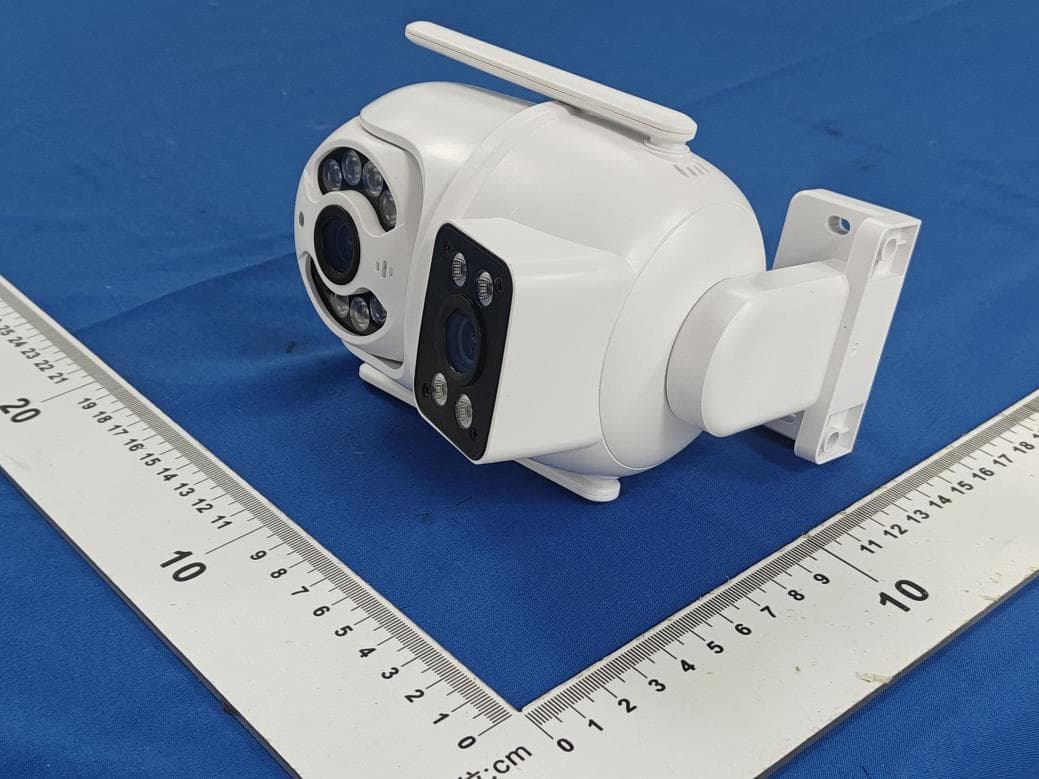
Click to zoom
Application Details
- Equipment Class
- DTS - Digital Transmission System
- Date of Grant
- Apr 15, 2025
- Application Purpose
- Original Equipment
- Equipment Note
- WiFi Smart Camera
- Frequency Range
- 2412.00000000 - 2462.00000000
- Country
- China
Documents & Files
Document Text
Text extracted from the exhibit documents filed with the FCC. Open a document above to read the original.
Users Manual
Bluetooth Network Configuration Enter the homepage of the app, click "+", and select "Add Device". Scan the QR code on the configurationtocomplete. appears,thenclick"Add".Next,selectWi-Fi,entertheWi-Fipassword,andwaitforthenetwork Onthe"SelectNetworkConfigurationMethod"interface,waitforamomentuntil"CloudCam_****" device (please agree to the Bluetooth permission pop-up in the app). Wi-Fi Network Configuration Step Power up the camera, you will hear a voice prompt or see the indicator light flashing. on the device and then select "Wi-Fi Distribution Network". Enter the homepage of the app, click "+", and select "Add Device". Scan the QR code On the "Please power on the camera” interface, check“The above operations have been “The above operations have been completed", and click "Next". Make sure there are no obstructions between the router, the camera, and the mobile completed", and click "Next". On the "Wait for the beep from the camera" interface, check phone, and that the distance between them is within meters. Then click "Next". Wi-Fi Network Configuration Step After selecting the Wi-Fi and entering the Wi-Fi password, click "Next". Hold the mobile phone screen directly in front of the camera lens, keeping a distance of - cm between them. Try to keep the mobile phone steady during the process. Once you hear the voice prompt or see the indicator light change, click on "You hear a tone or indicator light flashes" and wait for the addition to be completed. Wi-Fi Network Configuration Step Power up the camera, you will hear a voice prompt or see the indicator light flashing. and "Wait for the beep from the camera" interface, click "Next". device and then select“Hotspot Distribution Network". On the "Please power on the camera" Enter the homepage of the app, click "+", and select "Add Device". Scan the QR code on the Select the Wi-Fi network to be paired, enter the password, and click "OK". Follow the wizard to find the Wi-Fi network with the prefix "Cloud_xxxx". Once the device is connected to the hotspot, click "Next". Wait for the app to display "Addition Success" to complete device pairing. G Network Configuration Power up the camera, you will hear a voice prompt or see the indicator light flashing. Wait for Wait for the app to display“Addition Success" to complete device pairing. above operations have been completed", and click "Next". completed", and click "Next". On the "Wait for the beep from the camera" interface, check "The device. On the "Please power on the camera" interface, check "The above operations have been Enter the homepage of the app, click "+", and select "Add Device". Scan the QR code on the about to minutes until the device announces "G network connection successful". Ethernet Configuration Connect the network cable to the device's network port. Connect the other end of the network flashing. Enter the homepage of the app, click "+", and select "Add Device". Scan the QR code on the device cable to the router. Power on the camera, you will hear a voice prompt or see the indicator light Wait for the app to display“Addition Success" to complete device pairing. from the camera" interface, check "The above operations have been completed", and click "Next". check "The above operations have been completed", and click "Next". On the "Wait for the beep and then select“NetworkCable Distribution". On the "Please power on the camera" interface, Hotspot Network Configuration 封面 80.00 mm 8 0 . 0 0 m m 封底 Smart Camera User Guide 成品效果图 Name(物料名称) Material(材质) Dimension(尺寸) Printing(刷) Finish(面工艺) _模中性说明书 设计 版本 时间 戚炳炳 ×mm 物料编码 V. g铜版纸 双面印刷 Note(备注) P,折⻚,装订方式:⻛琴折 .. STEP Download APP and install. Scan the QR code below or search for "Eoolii" in major app markets, download STEP Register and log In Open the Eoolii app and register for an account. If you have already registered, please log in directly. STEP Add Device Open the app and tap the "Add Device" button. You can also follow the on-screen instructions or refer to the "Add Device" flow. *Due to APP upgrades and updates, the actual operation may be slightly different from the above description, please follow the instructions in the APP to operate. Quick Configuration This manual is for reference only, and the specific functions are subject to actual conditions FAQ Q: How to store video? A:Cameras support two storage methods: local storage and cloud storage (requires a is within coverage. · Confirm that the purchased camera supports .G & G dual-band Wi-Fi. If not, use ·Re-plug the power supply to restart the device; ·Reconfigure the camera. Lead (Pb) Mercury (Hg) Cadmium (Cd) Hexavalent Chromium (CrM) Polybrominated Biphenyls (PBBs) Polybrominated Diphenyl Ethers (PBDEs) Sheet Metal Part Name Parts Plastic Parts Circuit Board Lens Power Supply Appendix List of Restricted Substances or Elements Identification Illustrate: limit requirement stipulated in the SJ/T - standard; . indicates that the content of restricted substances in all homogeneous materials of this part is below the . indicates that the content of the restricted substance in at least one homogeneous material of the part exceeds the limit requirement stipulated in the SJ/T - standard. After-sales Service Card Product Model Name: Phone Number: Address: Contact: User Name: Code No.: Fax: Postal Code: Inspection Record: Date Fault Phenomenon Repairer be stored cyclically, and online viewing and downloading of historical videos are on the video storage duration, three types of recent days, days, and days can Cloud Storage: The video recorded by the camera is stored in the cloud. Depending Local Storage: Store the video recorded by the camera on a Micro SD card. subscription). supported. Q: Why can't the camera connect to the Wi-Fi network? A: · Please ensure that the Wi-Fi signal of the wireless router connected to the camera .G Wi-Fi with . b/g/n protocol to connect. Q: The ca…
Text truncated - open the document above for the full version.
Attestation Statements
HangzhouDenghongTechnologyCo.,Ltd. U.S.AgentDesignationforServiceofProcess (ApplicantandU.S.AgentareSeparateParties) TO:FederalCommunicationsCommission 7435OaklandMillsRoad Columbia,MD21046 ATTENTION:FCCCertification–Section2.911(d)(7)Information DesignatedU.S.Agent CompanyName:ATHORSTRADINGINC Address:525ROUTE73NSTE104MARLTON,NJ08053 FRN:0036421360 ContactName:ZeshiWu Tel.:6178349181 Email:[email protected] Thisletteristoconfirmthatwe(“theDesignatedU.S.Agent)haveacceptedtheresponsibilitytoactasthe DesignatedU.S.AgentforServiceofProcessasrequiredbysection47CFR2.911(d)(7)onbehalfofthe Applicantnotedbelow. U.S.AgentSignature: Date:2025/04/10 Signedby(PrintedName/Title): TheApplicantacknowledgesthattheymustmaintainanagentfornolessthanoneyearafterterminatingall marketingandimportationORtheconclusionofanyCommission-relatedproceedinginvolvingthe equipment.TheapplicantfurtheracknowledgestheirresponsibilitytoinformtheFCCwheneverthe DesignatedU.S.Agentinformationabovechanges. Applicant Companyname:HangzhouDenghongTechnologyCo.,Ltd. GranteeCode:2BFDS FCCID:2BFDS-DCF100 ContactName:AmisDeng StreetAddress:ParadiseSoftwarePark,No.3Xidomen,XihuDistrict,Hangzhou,Zhejiang,China TelephoneNo:+86-19883899152 Email:[email protected] FRN:0035104280 ApplicantSignature: Date:2025/04/10 Signedby(PrintedName/Title):AmisDeng/Manager
Attestation Statements
HangzhouDenghongTechnologyCo.,Ltd. AttestationStatements NotCoveredEntityApplicant&NotCoveredEquipment To:FederalCommunicationsCommissionDate:Apr.14,25 7435OaklandMillsRoad, Columbia,MD21046,USA Ref:InformationRequiredbySection2.911(d)(5)(i)&(ii) FCCID:2BFDS-DCF100 HangzhouDenghongTechnologyCo.,Ltd.(“theapplicant”)certifiesthat,asofthedateofthefilingof theapplication,theapplicantisnotidentifiedontheCoveredList,establishedpursuantto§1.50002of referencechapter,asanentityproducing“covered”communicationequipment.Theequipmentfor whichauthorizationissoughtisnot“covered”telecommunicationsequipmentandvideosurveillance equipmentproducedbyentitiesidentifiedontheCommission’sCoveredListthatprohibitedfrom receivinganequipmentauthorizationpursuanttosection§2.903oftheFCCrules. Sincerelyyours, ApplicantSignature PrintedName:AmisDeng (Title)Manager Address:ParadiseSoftwarePark,No.3Xidomen,XihuDistrict,Hangzhou,Zhejiang, China Tel/Fax:+86-19883899152 Email: [email protected]
Cover Letter(s)
DifferencesDeclaration Towhomconcern, WecompanyHangzhouDenghongTechnologyCo.,Ltd. Herebydeclares: Theproductmodel(s)HX-O022A-S5,HX-O022B-S6,DCF110,DCF120,DCF130,DCF200,DCF210, DCF220,DCF230,DCD110,DCD111,DCD120,DCD121,DCD210,DCD211,DCD220,DCD410, DCD411,DCD420DBV100,DBV200,DBD100,DBD200,DBD400,DBF100,DBF200,DBF100,DBF101, DBF110,DBF111,DBF120,DBF121,DBV100,DBV110,DCE100,DCE101areidenticalinthePCB layout,electronicschematicandantennawithDCF100,onlydifferentinmodelnamesandcolor. Sincerelyyours, ApplicantSignature (Fullnameofcontactperson)AmisDeng (Title)Manager Address:ParadiseSoftwarePark,No.3Xidomen,XihuDistrict,Hangzhou,Zhejiang,China Tel/Fax:+86-19883899152 Email:[email protected]
Cover Letter(s)
HangzhouDenghongTechnologyCo.,Ltd. 1|Page AttestationStatements To:FederalCommunicationsCommissionDate:Apr.14,25 7435OaklandMillsRoad, Columbia,MD21046,USA Subject:AttestationofCompliancewithFCCCoveredListSoftwareRequirements FCCID:[2BFDS-DCF100] ProductName:[WiFiSmartCamera] Thisletterservesasanattestationthattheequipmentidentifiedabove☐is/☒isnot(selectone)"covered" softwareasdefinedundertheFederalCommunicationsCommission(FCC)CoveredListrequirements,as outlinedinFCC22-84andKDB986446. Specifically,theundersignedcertifiesthattheequipmentforwhichauthorizationissought: 1.Doesnotcontaincybersecurityoranti-virussoftwareproducedorprovidedbyKasperskyLab, Inc.oranyofitssuccessors,assignees,parents,subsidiaries,affiliates,oranyentitythathasrebranded orrelabeledsoftwareproducedbytheaforementionedentities. 2.Doesnothavethecapabilitytostore,run,ordeliveranysoftwareidentifiedontheFCCCoveredList, includingbutnotlimitedtocybersecurityandanti-virussoftware. Tosupportthisattestation,theappendixevaluationdocumentationhasbeenpreparedandisincludedinthe certificationfiling. Thisattestationisbasedonathoroughevaluationofthedevice'sdesign,functionality,andsoftware environment.Theundersignedaffirmsthattheinformationprovidedisaccurateandcompletetothebestof theirknowledge. Sincerelyyours, ApplicantSignature PrintedName:AmisDeng (Title) Manager Address: ParadiseSoftwarePark,No.3Xidomen,XihuDistrict,Hangzhou,Zhejiang, China Tel/Fax: +86-19883899152 Email:[email protected] HangzhouDenghongTechnologyCo.,Ltd. 2|Page EvaluationregardingtotheCoveredListSoftware: Compliance Methodology EvaluationProcessResults Deviceis Inherent compliance ☒ TheChipset(s)usedislimitedtorun theCybersecurityoranti-virus software. Compliance ☒ TheMemoryusedislimitedtorunthe Cybersecurityoranti-virussoftware. Compliance ☒ Thereisstoragecapacitylimitationfor storeorinstalltheCybersecurityor anti-virussoftware. Compliance ☒ Operatingsystemusedislimitedto run,installordelivertheCybersecurity oranti-virussoftware. Compliance Deviceisnot Inherent compliance ☐ EvaluationBasedonSoftware BillofMaterials(SBoM) Seeattached“SBoM“ Note:TheSBoMcontentislimited tothescopeofcoveredlist software(e.g.antivirusand cybersecuritysoftware). ☐ EvaluationBasedonScanfor Softwareonthedevice ☐ EvaluationBasedonFilesystemscan ☐ EvaluationBasedonRunning softwarecheck
Cover Letter(s)
HangzhouDenghongTechnologyCo.,Ltd. (April14,2025) FederalCommunicationsCommission AuthorizationandEvaluationDivision 7435OaklandMillsRoad Columbia,MD21046 Subject:ConfidentialityRequestfor:FCCID:2BFDS-DCF100 PursuanttoSections0.457and0.459oftheCommission’sRules,weherebyrequestpermanent confidentialtreatmentoftheexhibitsaccompanyingthiscertificationapplicationasoutlinedbelow: BlockDiagram Schematics OperationalDescription Theaboveexhibitscontaintradesecretsand/orproprietaryinformationthatarenotpubliclyavailableand materialsthattheApplicanthasspentconsiderableeffortsindeveloping.Publicdisclosureofthesemay beharmfultotheApplicantandgiveanunfairadvantagetocompetitorsonthemarket. Sincerely, (Signature) (Title)Manager Address:ParadiseSoftwarePark,No.3Xidomen,XihuDistrict,Hangzhou,Zhejiang, China Tel/Fax: +86-19883899152 Email: [email protected]
Cover Letter(s)
HangzhouDenghongTechnologyCo.,Ltd. (April14,2025) FederalCommunicationsCommission AuthorizationandEvaluationDivision 7435OaklandMillsRoad Columbia,MD21046 Subject:AgentAuthorizationforFCCID:2BFDS-DCF100 I,theundersigned,herebyauthorize(ShenzhenPSITestingCo.,Ltd.)toactonourbehalfin allmattersrelatingtothisapplicationforequipmentcertification. Anyactcarriedoutby(ShenzhenPSITestingCo.,Ltd.)shallhavethesameeffectasour ownandIacknowledgethatallresponsibilityforcomplyingwiththetermsandconditionsofcertification, asspecifiedbyDERYCOMCERTIFICATIONSERVICES,INC.,stillresideswith(Hangzhou DenghongTechnologyCo.,Ltd.). WecertifythatwearenotsubjecttoadenialoffederalbenefitsthatincludesFCCbenefitspursuantto Section5301oftheAnti-DrugAbuseActof1988,21U.S.C.§862,andthatnopartytotheapplication,as definedin47CFR§1.2002(b),issubjecttoadenialoffederalbenefitsthatincludesFCCbenefits pursuanttothatsection. Sincerely, (Signature) (FullnameofcontactpersonlistedonFCC’swebsite)AmisDeng (Title) Manager Address: ParadiseSoftwarePark,No.3Xidomen,XihuDistrict,Hangzhou,Zhejiang, China Tel/Fax: +86-19883899152 Email:[email protected]
External Photos
Page1of6ReportNo.:psi2504083-C01-R01 AppendixIIexternalphotos FCCID:2BFDS-DCF100 Page2of6ReportNo.:psi2504083-C01-R01 Page3of6ReportNo.:psi2504083-C01-R01 Page4of6ReportNo.:psi2504083-C01-R01 Page5of6ReportNo.:psi2504083-C01-R01 Page6of6ReportNo.:psi2504083-C01-R01 ------End------
ID Label/Location Info
Label&Location WiFiSmartCamera HVIN:DCF100 FCCID:2BFDS-DCF100 IC:33158-DCF100
Internal Photos
Page 1 of 6 ReportNo.:psi2504083-C01-R01 Page1of6 AppendixIIIinternalphotos FCCID:2BFDS-DCF100 ExternalAntenna Page 2 of 6 ReportNo.:psi2504083-C01-R01 Page2of6 Page 3 of 6 ReportNo.:psi2504083-C01-R01 Page3of6 Page 4 of 6 ReportNo.:psi2504083-C01-R01 Page4of6 Page 5 of 6 ReportNo.:psi2504083-C01-R01 Page5of6 Page 6 of 6 ReportNo.:psi2504083-C01-R01 Page6of6 ------End------
RF Exposure Info
FCCID:2BFDS-DCF100 ShenzhenPSITestingCo.,Ltd.Tel:0755-23011775|E-mail:[email protected]|http://www.psi-lab.com Add:1-2/F.,Building5,YudafuIndustrialPark,No.10,XingyeWestRoad,ShajingSubdistrict,Bao'anDistrict,Shenzhen,Guangdong,China PredictionofMPEatagivendistance 1.Limits Thecriterialistedinthefollowingtableshallbeusedtoevaluatetheenvironmentimpactofhuman exposuretoradiofrequency(RF)radiationasspecifiedin1.1307(b) KDBTestMethodology:KDB447498D01v06. 2.TestProcedure Equationfrompage18ofOETBulletin65,Edition97-01 Where: S=powerdensity P=powerinputtotheantenna G=numericgainoftheantennainthedirectionofinterestrelativetoanisotropicradiator R=distancetothecentreofradiationoftheantenna FCCID:2BFDS-DCF100 ShenzhenPSITestingCo.,Ltd.Tel:0755-23011775|E-mail:[email protected]|http://www.psi-lab.com Add:1-2/F.,Building5,YudafuIndustrialPark,No.10,XingyeWestRoad,ShajingSubdistrict,Bao'anDistrict,Shenzhen,Guangdong,China 3.Result Mode Frequency (MHz) Prediction distance (cm) RFoutput power(Max) (dBm) Tune-uppower (Max) MPE (mW/cm 2 ) Limit (mW/cm 2 ) SARTest Exclusion dBmmW 2.4GWIFI2412-24622013.241319.950.01011Yes 2.4GWiFiAntennaGain:maxgain4.06dBi(numeric) ThenSARevaluationisnotrequired.
Test Report
1 东莞市乔木电子科技有限公司 规格书 SPECIFICATIONFORAPPROVAL 客户名称: 客戶项目名称: 客户料号: 物料名称: 乔木料号: 超声波天线(WiFi天线) WIFI2.4/5.8G天线灰色1.13线L:330MM+I-pex 日期: 2024.3.28 版别:A 公司地址:东莞市大朗镇富民南路52号新辉大厦2楼 电话:15014105881手机:15014105881 Email:[email protected] MANUFACTURE SIGNATURE CUSTOMER SIGNATURE CHECKEDBAY: 熊江琴 AUDITORBAY: 吴亚锋 APPROVEDBAY 谭文锋 DATE: 2024.3.28 2 ProductNumber:DF5DBI82564/5-40 ProductName:Antenna Index: 1.RevisionHistory/Page3 2.Specification/Page4 3.CharacteristicsandReliabilityTest/Page5~6 4.Antenna-SParameterTestData/Page7 5.Antenna-RadiationPatternTestData/Page8 6.MechanicalandPackingDrawing/Page9~10 3 ProductNumber:DF5DBI82564/5-40 ProductName:Antenna 1.RevisionHistory RevisionDateChangeNotificationDescription 1.0 2024.3.28 初版 ProductNumber:DF5DBI82564/5-40 ProductName:Antenna 4 2.Specification SamplePhoto A.ElectricalCharacteristics Frequency2400~2500/5150~5850MHz S.W.R.<=2.0 AntennaGain [email protected]@5850 PolarizationLinear Impedance50Ohm B.Material&MechanicalCharacteristics MaterialofRadiator MaterialofPlasticBody: Hinge: Base: CableType 1.13mm 黑色 ConnectorTypeI-pex C.Environmental OperationTemperature-40°C~+65°C StorageTemperature-40°C~+80°C AntennaColorStoragelife <2 year ProductNumber:DF5DBI82564/5-40 ProductName:Antenna 5 3.CharacteristicsandReliabilityTest TestItems測試 項目 TestConditionandProcedure測試方法Requirements要求 Result 結果 C1V.S.W.R. 電壓駐波比 SetDUTonNetworkAnalyzer;makeindividual calibrationtotest 設置網路分析儀參數進行測試 DirectiveDUTspecification 符合待測物規範 PASS C2Insertion Loss插入損 失 SetDUTonNetworkAnalyzer;makeindividual calibrationtotest 設置網路分析儀參數進行測試 DirectiveDUTspecification 符合待測物規範 N/A C3Antenna Gain 天線增益 SetDUTonAntennaChamber;makeindividual calibrationtotest設置天線暗室參數進行測試 DirectiveDUTspecification 符合待測物規範 PASS C4Voltage Breakdown 耐電壓 Testvoltageshouldbeappliedbetweeninsulated portions,orbetweengroundasspecified. 在绝缘部分测试电压,或指定接地面之间 MaxVoltage≥500Vor directivematerial specification 最大電壓 ≥500V 或符合材料規範 N/A C5Insulation Resistance 絕緣阻抗 SetVoltage:500±50V;betweentheinsulated portions,orbetweengroundasspecified. 設置電壓500±50V,在绝缘部份測試或指定接地面之 间 Resistance≥500Mohm ordirectivematerial specification阻抗≥500Mohm 或符合材料規範 N/A C6Contact Resistance 接觸阻抗 AirTemp:26°C;measuredwithtestequipment 室溫26°C,指定量測設備 Directivematerial specification 符合材料規範 N/A M1Vibration 震動 GB/T2423.48-2008 Amplitude:0.03inch(1.5mm);Freq:20to80to20 Hz 3directions;2hoursforeachdirection 振幅 1.5mm ;頻率 20~80~20Hz ; 3 個方向各 2H 1.NoVisualDamage 2.FrequencyTol.≤5% 無明顯外觀不良 ; 頻率偏移 ≤5% PASS M2Random Drop 跌落 GB/T2423.8-1995 Single:Height:1.0Meter;3directions;1timefor eachdirection單支天線,高1m;3個方向各1次 1.Nopartsseparated 、 fracture 2.FrequencyTol.≤5% 產品無脫落、斷裂 ; 頻率偏移 ≤5% PASS ProductNumber:DF5DBI82564/5-40 ProductName:Antenna 6 Packing : Height:0.76Meter;1corner,3edges,6 surface 包裝:高 0.76m ,一角、三棱、六面各一次 PASS Antenna+Machine:Height:0.76Meter;1corner,3 edges,6surface. 整機:高 0.76m ,一角、三棱、六面 各一次 N/A M3SolderabilityGB/T2423.28-2005TinevenlyonfullN/A 可焊性Temp:260±5°C;Duration:5seconds溫度260± 5°C;持續5秒 上錫均勻飽滿 M4 P ullTest 拉力 Holdingwithindividualspecification;forceapplied toaxisofterminal.單獨定義產品端子拉力 DirectiveDUTspecification FrequencyTol.≤5% 符合待測物規範;頻率偏移≤5% PASS M5 T orque Test 扭力 Holdingwithindividualspecification;applied clockwiseandcounterclockwisetotheaxisof terminal 單獨定義產品端子之順時針及逆時針扭力 DirectiveDUTspecification FrequencyTol.≤5% 符合待測物規範;頻率偏移≤5% N/A M6 D imension 尺寸 Inspectionofdimension,color,material,package, surfaceprocess.检查尺寸,颜色,材料,包装,表面處理 DirectiveDUTspecification 符合待測物規範 PASS E1 W aterproof 防水 WithReferencetoIEC60529//IPCodeDefinition 參考IEC60529IP定義 DirectiveDUTspecification 符合待測物規範 N/A E2 SaltSpray鹽 霧 GB/T2423.17-2008 Temp:35°C;RH:≥95%;NaClsolution:≥ 5%;Time:24H 溫度35°C;濕度≥95%;鹽水濃度≥5%;測試24H NoVisualDamage FrequencyTol.≤5% 無明顯外觀不良;頻率偏移≤5% PASS E3Temperature andHumidity Chamber 恒溫恒濕 GB/T2423.3-2006 Temp:80°C/12H;-40°C/12HRH:≥90%;Time: 24H 溫度80°C測試12H轉-40°C測試12H;濕度≥ 90%; 時間24H After2HoursRecovery NoVisualDamage FrequencyTol.≤5% 恢復2H后,無明顯外觀不良;頻 率偏移≤5% PASS ProductNumber:DF5DBI82564/5-40 ProductName:Antenna 7 E4TermalShock 冷熱衝擊 GB/T2423.22-2008 40°C(30minutes)to+80°C(30minutes);Cycles: 24 40°C測試30分轉80°C測試30分為一個週期;共24 週期 After2HoursRecovery NoVisualDamage FrequencyTol.≤5% 恢復2H后,無明顯外觀不良;頻 率偏移≤5% PASS E5Agingtest 老化 GB/T2423.2-2008 Temp:80°C;Time:24hours 溫度80°C,測試24H After2HoursRecovery NoVisualDamage FrequencyTol.≤5% 無明顯外觀不良;頻率偏移≤5% PASS E6HighTemp. 高溫 Temp.270±10°C;Times:120seconds 溫度270±10°C,測試時間120秒 NoVisualDamage 無明顯外觀不良 N/A R1RoHSWithReferencetoIEC62321:2008withflowchart 參考IEC62321測試流程 DirectiveRoHS2011/65/EU 符合RoHS2011/65/EU標準 PASS R2PFOSWithReferencetoUSAEPA3550C:1996byLC/MS 參考USAEPA3550C測試流程 DirectiveRoHS2006/122/EC 符合RoHS2011/65/EU標準 PASS 4.Antenna-SParameterTestData 8 5.Antenna-RadiationPatternTestData 5.15G 5.5 G 5.85 G 2.4G 2.45G 2.5G 9 6.Antenna-RadiationPatternTestData Frequency(GHz) VSWR Ant 2.41.78 2.51.84 5.151.44 5.51.32 5.851.45 Frequency(GHz) Ant PeekGain(dBi)Efficiency 24004.0666.38 25003.7964.47 5.153.5161.64 5.54.0965.7 5.854.6964.53 VSWR(Criterion:2.0:1Max)
Test Report
ShenzhenPSITestingCo.,Ltd.Tel:0755-23011775|E-mail:[email protected]|http://www.psi-lab.comPage 1 of 79 Add:1-2/F.,Building5,YudafuIndustrialPark,No.10,XingyeWestRoad,ShajingSubdistrict,Bao'anDistrict,Shenzhen,Guangdong,China FCCTESTREPORT FCCID:2BFDS-DCF100 OnBehalfof HangzhouDenghongTechnologyCo.,Ltd. WiFiSmartCamera ModelNo.:DCF100 Preparedfor: HangzhouDenghongTechnologyCo.,Ltd. Address: ParadiseSoftwarePark,No.3Xidomen,XihuDistrict, Hangzhou,Zhejiang,China PreparedBy:ShenzhenPSITestingCo.,Ltd. Address: 1-2/F.,Building5,YudafuIndustrialPark,No.10,XingyeWestRoad, ShajingSubdistrict,Bao'anDistrict,Shenzhen,Guangdong,China ReportNumber: psi2504083-C01-R01 DateofReceipt: April08,2025 DateofTest: April08,2025-April11,2025 DateofReport: April14,2025 VersionNumber: V0 Page 2 of 79 ReportNo.:psi2504083-C01-R01 ShenzhenPSITestingCo.,Ltd.Tel:0755-23011775|E-mail:[email protected]|http://www.psi-lab.com Add:1-2/F.,Building5,YudafuIndustrialPark,No.10,XingyeWestRoad,ShajingSubdistrict,Bao'anDistrict,Shenzhen,Guangdong,China TABLEOFCONTENTS DescriptionPage 1.SummaryOfStandardsAndResults...........................................................................................................6 1.1.DescriptionofStandardsandResults...................................................................................................6 2.GeneralInformation.......................................................................................................................................7 2.1.DescriptionofDevice(EUT)..................................................................................................................7 2.2.AccessoriesofDevice(EUT).................................................................................................................8 2.3.TestedSupportingSystemDetails........................................................................................................8 2.4.BlockDiagramofConnectionBetweenEUTandSimulators...............................................................8 2.5.TestModeDescription...........................................................................................................................9 2.6.Softwaretestversionandpowersettinginformation............................................................................9 2.7.TestConditions....................................................................................................................................10 2.8.TestFacility..........................................................................................................................................10 2.9.MeasurementUncertainty...................................................................................................................10 2.10.TestEquipmentList...........................................................................................................................11 3.SpuriousEmission......................................................................................................................................12 3.1.TestLimits............................................................................................................................................12 3.2.BlockDiagramofTestsetup................................................................................................................15 3.3.TestProcedure....................................................................................................................................16 3.4.TestResults.........................................................................................................................................17 4.PowerLineConductedEmission...............................................................................................................26 4.1.TestLimits............................................................................................................................................26 4.2.TestProcedure....................................................................................................................................26 4.3.TestSetup............................................................................................................................................26 4.4.TestResults.........................................................................................................................................27 5.Out-of-bandEmissions...............................................................................................................................30 5.1.TestLimits............................................................................................................................................30 5.2.TestProcedure....................................................................................................................................30 5.3.TestSetup............................................................................................................................................30 5.4.TestResults.........................................................................................................................................30 6.ConductedMaximumOutputPower..........................................................................................................48 6.1.Testlimits.............................................................................................................................................48 6.2.TestProcedure....................................................................................................................................48 6.3.TestSetup............................................................................................................................................48 6.4.TestResults.........................................................................................................................................48 7.PeakPowerSpectralDensity...…
Text truncated - open the document above for the full version.
Test Setup Photos
Page1of2ReportNo.:psi2504083-C01-R01 ShenzhenPSITestingCo.,Ltd.Tel:0755-23011775|E-mail:[email protected]|http://www.psi-lab.com Add:1-2/F.,Building5,YudafuIndustrialPark,No.10,XingyeWestRoad,ShajingSubdistrict,Bao'anDistrict,Shenzhen,Guangdong,China AppendixITestSetupPhoto FCCID:2BFDS-DCF100 SpuriousRadiationEmissionsTest(<1G) SpuriousRadiationEmissionsTest(>1G) Page2of2ReportNo.:psi2504083-C01-R01 ShenzhenPSITestingCo.,Ltd.Tel:0755-23011775|E-mail:[email protected]|http://www.psi-lab.com Add:1-2/F.,Building5,YudafuIndustrialPark,No.10,XingyeWestRoad,ShajingSubdistrict,Bao'anDistrict,Shenzhen,Guangdong,China ConductedemissionTest ------End------
Contact Information
Applicant
Amis Deng
[email protected]Fax: 0755-23571364
Test Firm
Shenzhen PSI Testing Co., Ltd.Simple Guan
Technical Specifications
| # | Rule Parts | Frequency Range | Power Output |
|---|---|---|---|
| 1 | 15C | 2.41 GHz - 2.46 GHz | 21.10 mW |
Other Applications from Hangzhou Denghong Technology Co.,Ltd.
2BFDS-DCS140
Jul 24, 2026Smart Camera
Equipment Class
DTS - Digital Transmission System