A3LCLP325WColor Laser Printer
Samsung Electronics Co Ltd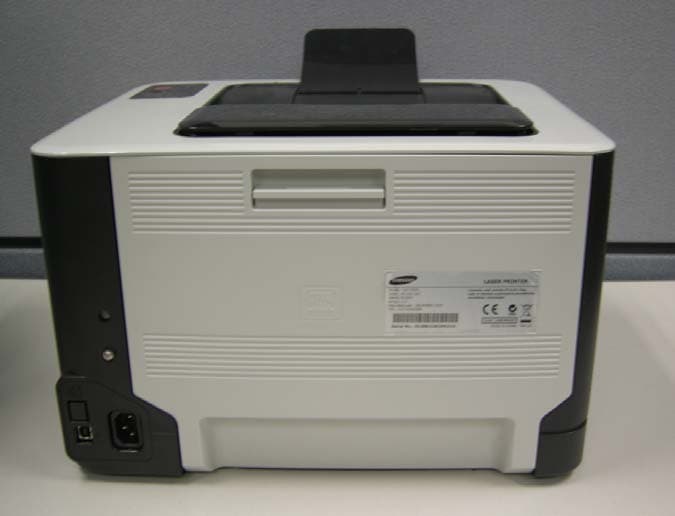
Click to zoom
Application Details
- Equipment Class
- JBP - Part 15 Class B Computing Device Peripheral
- Date of Grant
- Feb 01, 2010
- Application Purpose
- Original Equipment
- Date of Application
- Feb 01, 2010
- Equipment Note
- Color Laser Printer
- Company
- Samsung Electronics Co Ltd
- Country
- United States
Documents & Files
Document Text
Text extracted from the exhibit documents filed with the FCC. Open a document above to read the original.
Users Manual
CLP-320 Series Color Laser Printer User’s Guide imagine the possibilities Thank you for purchasing a Samsung product. Copyright_ 2 copyright © 2010 Samsung Electronics Co., Ltd. All rights reserved. This user’s guide is provided for information purposes only. All information included herein is subject to change without notice. Samsung Electronics is not responsible for any direct or indirect damages, arising from or related to use of this user’s guide. •Samsung and the Samsung logo are trademarks of Samsung Electronics Co., Ltd. •Microsoft, Windows, Windows XP, Windows Vista, Windows 7, and Windows Server 2008 R2 are either registered trademarks or trademarks of Microsoft Corporation. •TrueType, LaserWriter, and Macintosh are trademarks of Apple Computer, Inc. •All other brand or product names are trademarks of their respective companies or organizations. Refer to the 'LICENSE.txt' file in the provided CD-ROM for the open source license information. REV. 1.00 Safety information_ 3 safety information These warnings and precautions are included to prevent injury to you and others, and to prevent any potential damage to your machine. Be sure to read and understand all of these instructions before using the machine. Use common sense for operating any electrical appliance and whenever using your machine. Also, follow all warnings and instructions marked on the machine and in the accompanying literature. After reading this section, keep it in a safe place for future reference. IMPORTANT SAFETY SYMBOLS This section explains the meanings of all icons and signs in the user's guide. These safety symbols are in order, according to the degree of danger. Explanation of all icons and signs used in the user’s guide: WarningHazards or unsafe practices that may result in severe personal injury or death. CautionHazards or unsafe practices that may result in minor personal injury or property damage. Do not attempt. Do not disassemble. Do not touch. Unplug the power cord from the wall socket. Make sure the machine is grounded to prevent electric shock. Call the service center for help. Follow directions explicitly. OPERATING ENVIRONMENT Warning Do not use if the power cord is damaged or if the electrical outlet is not grounded. ŹThis could result in electric shock or fire. Do not bend, or place heavy objects on the power cord. ŹStepping on or allowing the power cord to be crushed by a heavy object could result in electric shock or fire. Do not place anything on top of the machine (water, small metal or heavy objects, candles, lit cigarettes, etc.). ŹThis could result in electric shock or fire. Do not remove the plug by pulling on the cord; do not handle the plug with wet hands. ŹThis could result in electric shock or fire. Safety information_ 4 Caution During an electrical storm or for a period of non-operation, remove the power plug from the ele ctrical outlet. ŹThis could result in electric shock or fire. If the plug does not easily enter the electrical outlet, do not attempt to force it in. ŹCall an electrician to change the electrical outlet, or this could result in electric shock. Be careful, the paper output area is hot. ŹBurns could occur. Do not allow pets to chew on the AC power, telephone or PC interface cords. ŹThis could result in electric shock or fire and/or injury to your pet. If the machine has been dropped, or if the cabinet appears damaged, unplug the machine from all interface connections and request assistance from qualified service personnel. ŹOtherwise, this could result in electric shock or fire. If the machine does not operate properly after these instructions have been followed, unplug the machine from all interface conn ections and request assistance from qualified service personnel. ŹOtherwise, this could result in electric shock or fire. If the machine exhibits a sudden and distinct change in performance, unplug the machine from all interface conn ections and request assistance from qualified service personnel. ŹOtherwise, this could result in ele ctric shock or fire. OPERATING METHOD Caution Do not forcefully pull the paper out during printing. ŹIt can cause damage to the machine. When printing large quantities, the bottom part of the paper output area may get hot. Do not allow children to touch. ŹBurns can occur. Be careful not to put your hand between the machine and paper tray. ŹYou may get injured. When removing jammed paper, do not use tweezers or sharp metal objects. ŹIt can damage the machine. Do not block or push objects into the ventilation opening. ŹThis could result in elevated component temperatures which can cause damage or fire. Do not allow too many papers to stack up in the paper output tray. ŹIt can damage the machine. Be care when replacing paper or removing jammed paper. ŹNew paper has sharp edges and can cause painful cuts. This machine's power interception device is the power cord. ŹTo switch off the power supply, remove the power cord from the el ectrical outlet. If the machine gets overheated, it releases smoke, makes strange noises, or generates an odd odor, imme diately turn off the power switch and unplug the machine. ŹThis could result in electric shock or fire. Safety information_ 5 INSTALLATION / MOVING Warning Do not place the machine in an area with dust, humidity or water leaks. ŹThis could result in electric shock or fire. Caution Before moving the machine, turn the power off and disconnect all cords. Then lift the machine: • If the machine weighs under 20 kg (44.09lb), lift with 1 person. • I f the machine weighs 20 kg (44.09lb) - 40kg (88.18lb), lift with 2 people. • If the machine weighs more than 40 kg (88.18lb), lift with 4 or more people. ŹThe machine could fall, causing injury or machine damage. Do not put a cover over the machine or place it in an airtight location, such as a closet. ŹIf the machine is not well-ventilated, this could result in fire. Do not place the machine on an unstable surface. ŹThe machine could fall, causing injury o…
Text truncated - open the document above for the full version.
Users Manual
Printing_ 61 Sound >Devices and Printers. -For Windows Server 2008 R2, select Control Panel > Hardware >Devices and Printers. 3.Select the your machine’s driver and right-click to open Properties. 4.In printer driver properties, select Device Options. 5.Select necessary options in the Printer Language drop-down list. Adjusting color If you feel the color difference between the printout and monitor, you may change the color setting such as color contrast or color level. The printer driver provides graphic options to adjust the print quality for specific printing needs. 1.To change the print settings from your software application, access Printing Preferences (See "Opening printing preferences" on page 57). 2.Click the Graphics tab. Refer to the online help for each option’s information provided from the Printing Preferences. •Color Mode:You can choose color options between Color or Grayscale. Setting to Color typically produces the best possible print quality for color document. If you want to print a color document in gray scale, select Grayscale. Black Optimization allows you to print in high quality black. If you use this option, it might take longer to print. To adjust color manually, select Advanced in Color Mode. Simply slide the color balance slider in the Levels tab to adjust color, or select Matching tab for driver provided color correction for general image processing. •Advanced:You can set advanced settings by clicking the Advanced button. (PCL driver only) •Font/ Text:SelectDarken Text to print text darker than on a normal document. Use All Text Black to prints solid black, regardless of the color it appears on the screen. •Raster Compression:This option determines the compression level of images for transferring data from computer to a printer. If you set this option to Maximum, the printing speed will be high, but the printing quality will be low. (PCL driver only) •Graphic Controller:It allows you to emphasize edges of texts and fine lines for improving readability and align each color channel registration in color printing mode. -Grayscale Enhancement:It allows users to preserve the details of nature photos, and improve contrast and readability among gray scaled colors, when printing color documents in grayscale. (PCL driver only) -Fine Edge:It allows you to emphasize edges of texts and fine lines for improving readability. •Toner Save:Adjusting this option extends the life of your toner cartridges and reduces your cost per page without a significant reduction in print quality. -You can move the slider from No Saving to Maximum Saving to reduce toner consumption. 3.Click OK or Print until you exit the Print window. Adjusting the sharpness and smoothness Screen options This option affect the resolution and clarity of your color output. The three screen options are Normal,Enhanced and Detailed. 1.To change the print settings from your software application, access Printing Preferences (See "Opening printing preferences" on page 57). 2.Click the Graphics tab then select Advanced in Color Mode. 3.Select the Matching tab. 4.Select necessary options in the Screen. •Printer default:Follows the set value of Screen mode from the printer. •Normal:This mode will generate printouts with smooth tone over the entire page. •Enhanced:This mode will generate printouts with sharp texts and smooth graphic/photo objects in the page. •Detailed:This mode will generate printouts with sharp details over the entire page. 5.SelectOK. CHANGING THE DEFAULT PRINT SETTINGS Most Windows applications will override settings you specify in the printer driver. Change all print settings available in the software application first, and change any remaining settings using the printer driver. 1.Click the Windows Start menu. 2.For Windows 2000, select Settings >Printers. •For Windows XP/Server 2003, select Printers and Faxes. •For Windows Server 2008/Vista, select Control Panel > Hardware and Sound >Printers. •For Windows 7, select Control Panel > Devices and Printers. •For Windows Server 2008 R2, select Control Panel > Hardware > Devices and Printers. 3.Right-click your machine. 4.For Windows XP/Server 2003/Server 2008/Vista, press Printing Preferences. For Windows 7 or Windows Server 2008 R2, from context menus, select thePrinting preferences. IfPrinting preferences item has a Ź mark, you can select other printer drivers connected with the selected printer. 5.Change the settings on each tab. 6.ClickOK. If you want to change the settings for each print job, change it in Printing Preferences. SETTING YOUR MACHINE AS A DEFAULT MACHINE 1.Click the Windows Start menu. 2.For Windows 2000, select Settings >Printers. •For Windows XP/Server 2003, select Printers and Faxes. •For Windows Server 2008/Vista, select Control Panel > Hardware and Sound >Printers. •For Windows 7, select Control Panel > Devices and Printers. •For Windows Server 2008 R2, select Control Panel > Hardware > Devices and Printers. 3.Select your machine. 4.Right-click your machine and select Set as Default Printer. Printing_ 62 For Windows 7 or Windows Server 2008 R2, if Set as default printer item has a Ź mark, you can select other printer drivers connected with the selected printer. PRINTING TO A FILE (PRN) You will sometimes need to save the print data as a file. You can print the document to a file instead of routing it directly to a printer. The document is saved with the printer formating, such as font selection and color specifications, in a .prn file that can be printed on another printer. To save a print job as a file: 1.Check th ePrint to file box at the Print window. 2.ClickPrint. 3.Type in the destination path and the file name, and then click OK. For example c:\Temp\file name. If you type in only the file name, the file is automatically saved in My Documents. The saved folder may differ, depending on your operating system. MACINTOSH PRINTING This section explains how to print using a Macintosh. You need to set the print environment before …
Text truncated - open the document above for the full version.
Block Diagram
1 Samsung Confidential 1 1 Block Diagram of Tissot 3p 3p Main B’d LSU LSU SMPS SMPS Type 2 Type 2 1W 1W HVPS HVPS T1 T1 T2 T2 Charger Charger Supply Supply Deve Deve Bias Bias Fuser Lamp Fuser Lamp Joint Joint CRUM Y CRUM Y CRUM M CRUM M CRUM C CRUM C CRUM Y CRUM Y Fuser Clutch Fuser Clutch Themistor Themistor Pickup Clutch Pickup Clutch T2 Clutch T2 Clutch ITB Cutch ITB Cutch Deve Deve Clutch Clutch Fuser Fuser Sensor ( Sensor ( Deve Deve Home) Home) Sensor (Empty) Sensor (Empty) Sensor (Exit) Sensor (Exit) Waste Toner TX Waste Toner TX Waste Toner RX Waste Toner RX OPE Panel Display OPE Panel Display (LED & Keys) (LED & Keys) BLDC Motor BLDC Motor (Main) (Main) OPC OPC Inner Temp. Inner Temp. ITB Home Sensor ITB Home Sensor Tissot Series Ground Wire Ground Wire Ground Wire(225mm) Ground Wire(225mm) single beam 11p single beam 11p 5p 5p 6p 6p 2p 2p 2p 2p 3p 3p 3p 3p 3p 3p 2p 2p 5p 5p 26p FFC 26p FFC 3p 3p 3p 3p 2p 2p 2p 2p 18p FFC 18p FFC 10p 10p +24V Cover Open S/W +24V Cover Open S/W 2p 2p 2p 2p 7p 7p 2p 2p Sensor ( Sensor ( Regi Regi ) ) PTL LAMP PTL LAMP 2p 2p 4p 4p 4p 4p 4p 4p 4p 4p 4p 4p PLL RAM Controller Local Controller GPIO Image Processor MAC UART I2C Step Motor ADC 8ch PWM 8ch LSU Controller HPVC ARM9 – 360MHz Jupiter5 DDR2 32MB(USB) 256MB (NW & W-less) P. Flash N/W Φ BCM5241 KMLG (NW & W-less) EEPROM 64Kbit Vclk Mclk SCL SDA MAC_TXD[3:0] MAC_RXD[3:0] SA[12:0], BA0,1 DQ[15:0] CKE, nCS0 , nRAS, nCAS, WE DM0~1, nDQS0~1, DQS1, ODT0, nDDR_CLK0, BA0~1 25MHz ※ Flash : USB(2MB) / NW(32MB) DDR : USB(32MB) / NW(256MB) ADDR[24:1 ] DATA[15:0 ] nRD, nWR, nCS USB2.0 SSCG 12MHz USBClock 3p 3p 4p 4p ISP1761 (Wireless ) DATA[15:0 ] ADDR[8:1 ] Regi Regi Clutch Clutch 3p 3p
External Photos
1. Esternal Pictures 1) Front View 2) Rear View 3) Side View(Right) 4) Side View(Left)
ID Label/Location Info
Project No. : LBE093759 COLOR LBP : CLP -325 W -36 /36 - This report must not be reproduced, except in full, without written permission from SEC EMC Laboratory. Label Location Label
Internal Photos
2. Internal Picture 1) Front View 2) Rear View 3. Print Board Assembled(PBA) Pictures 1) Top View of Main Controller (Wireless) 2) Bottom View of Main Controller (Wireless) 3) Top View of Main Controller (Network) 4) Bottom View of Main Controller (Network) 5) Top View of SMPS 6) Bottom View of SMPS 7) Top View of HVPS 8) Bottom View of HVPS 9) Top View of OPE 10) Bottom View of OPE 11) Top View of Wireless LAN 12) Bottom View of Wireless LAN
Operational Description
Project No. : LBE093759 COLOR LBP : CLP -325 W -7/36 - This report must not be reproduced, except in full, without written permission from SEC EMC Laboratory. 3.5 EUT Description The following features describe EUT represented by this report: Item Specification and Description Processor JUPITER5(360Mhz) Standard System memory 256MB DDR2 Resolution Up to 2400X600dpi Class (Default 1200x600 dpi) Optical: 600x600 Dpi Copy Quality mode none Paper Handling Paper Tray(standard) 150 Sheets Power Rating 110~127 VAC, 4.5A, 50/60 Hz Power Consumption Printing simplex : 350Watts Printer Language SPL -C,PCL-6 Interfaces USB2.0 OS compatibility Microsoft Windows: 2000/2003/XP(Include 64bit),Vista MacOS:10.3,10.4 Linux(Printer only)OS:Red Hat 8~9, Fedora Core 1~4 Mandrake 9.2~10.1 SuSE 8.2~9.2 Modes of Operation USB Printing, Network, Wir eless Intended Class for Emissions Class B
Test Report
-1/36 - E E E M M M C C C T T T E E E S S S T T T R R R E E E P P P O O O R R R T T T Project No. LBE09375 9 Issue No. 2 Name of organization Samsung Electronics Co., Ltd. Address 416 Maetan 3-Dong, Yeongtong-Gu , Suwon-Si, Gyeonggi-Do 443 -742 Korea Applicant Date of application December 2, 2009 Type of device Clas s B digital devices, peripherals Equipment authorization Declaration of Conformity Certification Veri fication FCC ID A3L CLP325W Kind of product COLOR LBP CLP -325 W Model No. Variant Model No. CLP -320N,CLP-325N,CLP-320W EUT Manufacturer Samsung Electronics Co., Ltd. 259, Gongdan-Dong, Gumi-City, Gyeongsangbuk-Do , Korea 730 -030 Samsung Electronics ( Shandong) Digital Printing Co., Ltd. 264209, Samsung Road, Weihai Hi-Tech. IDZ, Shandong Province, P.R.China Applied Standards FCC Part 15, Subpart B / ANSI C63.4-2003 Test Period December 2, 2009 ~ December 15 , 2009 Issue date December 17 , 2009 Test result : Complied The equipment under test has found to be compliant with the applied standards. (Refer to the attached test result for more detail.) Tested by : Young Hun Cheong Reviewed by : No Cheon Park This report is the test result about the sphere accredited by KOLAS which signed the Mutual Recognition Arrangement of International Laboratory Accreditation Cooperation. The test results in this report only apply to the tested sample. This report must not be reproduced, except in full, without written permission from SEC EMC Laboratory. 416 Maetan 3-Dong, Yeongtong-Gu , Su won -Si, Gyeonggi-Do, 443-742 Korea Tel: 82 31 277 7752, Fax: 82 31 277 7753 Project No. : LBE093759 COLOR LBP : CLP -325 W -2/36 - This report must not be reproduced, except in full, without written permission from SEC EMC Laboratory. Table of contents 1. Summary of test results 1.1 Emission 2. General Information 2.1 Test facility 2.2 Accreditation and listing 3. Test configuration 3.1 Test Peripherals 3.2 EUT operating mode 3.3 Details of Sampling 3.4 Used cable description 3.5 EUT Description 3.6 Clock Frequencies 3.7 Test configuration and condition 3.8 Measurement uncertainty 4. Result of individual tests 4.1 Conducted disturbance 4.2 Radiated disturbance Appendix – EUT photography Project No. : LBE093759 COLOR LBP : CLP -325 W -3/36 - This report must not be reproduced, except in full, without written permission from SEC EMC Laboratory. 1. Summary of test results 1.1 Emission The EUT has been tested according to the following specifications: Applied Test type Applied standard Result Remarks Conducted Disturbance (Mains Port) Complied Meets Class B Limit Radiated Disturbance FCC Part 15 Subpart B Complied Meets Class B Limit 2. General Information 2.1 Test facility The SEC EMC Laboratory is located on Samsung Electronics Co., Ltd. at 416 Maetan 3-Dong, Yeongtong-Gu, Suwon-Si, Gyeonggi-Do, South Korea . All testing are performed in Semi -anechoic chambers conforming to the site attenuation Characteristics defined by ANSI C63.4, CISPR 22, 16 -1 and 16-2. and Shielded rooms. The SEC EMC Laboratory is operated as testing laboratory in accordance with the requirements of ISO/IEC 17025:2005. Project No. : LBE093759 COLOR LBP : CLP -325 W -4/36 - This report must not be reproduced, except in full, without written permission from SEC EMC Laboratory. 2.2 Accreditation and listing Laboratory Qualifications Remarks KOLAS(Korea Laboratory Accreditation Scheme) Accredited : 124 UKAS(United Kingdom Accreditation Service) Accredited : 4290 Korea Communications Commission Radio Research Agency Accredited : KR0004 FCC(Federal Communications Commission) Accredited : KR0004 National Voluntary Laboratory Accreditation Program Lab Code: 200623-0 Norges Elektriske Materiellkontroll Accredited : ELA 195 VCCI (Voluntary Control Council for Interference by Info rmation Technology Equipment) C-2421,R-2224 China Quality Certification Center 5-053, 5-054 TUV Rhineland H9354285 GOST(GOSTSTANDART) ROSTEST Elektrotechnicky Zkusebni Ustav Reg. No.: 001 IC(Industry Canada) Assigned Code: 5871 Project No. : LBE093759 COLOR LBP : CLP -325 W -5/36 - This report must not be reproduced, except in full, without written permission from SEC EMC Laboratory. 3. Test Setup configuration 3.1 Test Peripherals The cables used for these peripherals are either permanently attached by the peripheral manufacturer or coupled with an assigned cable as defined below. The following is a listing of the EUT and peripherals utilized during the performance of EMC test: 3.2 EUT operating mode To achieve compliance applied standard specification, the following mode(s) were made during compliance testing: Operating Mode 1 Standby Mode Operati ng Mode 2 USB Printing Mode Operating Mode 3 Network Printing Mode Operating Mode 4 Wireless Network Printing Mode 3.3 Details of Sampling Cust omer selected, single unit. Description Model No. Serial No. Manufacturer FCC ID and/or DoC COLOR LBP CLP -325 W - Samsung A3L CLP325W Note book Computer PP18L 27182225373 Dell DoC Adapter LA65NS1-00 CN -0YD637-71615-83C -0A0A Dongguang Lite Power - USB Mouse M-UAE96 LZK61923406 LOGITECH INC. DoC Headset COV140 - COSY DoC Project No. : LBE093759 COLOR LBP : CLP -325 W -6/36 - This report must not be reproduced, except in full, without written permission from SEC EMC Laboratory. 3.4 Used cable description The EUT is configured, installed, arranged and operated in a manner consistent with typical applications. Interface cables/loads/devices are connected to at least one of each type of interface port of the EUT, and where practical, each cable shall be terminated in a device typical of actual usage. The t ype(s) of interconnecting cables to be used and the interface port (of the EUT) to which these were connected; Connected cable Length [m] Shielded [Y/N] Note Power 1.8 No For EUT USB 1.8 Yes EUT to Notebook PC Power 1.8 No For Note PC USB 0.4 Yes EUT to USB Mouse Headset 1.6 No From PC to Headset LAN 5.0 No From EUT to hub Project No. : LBE093759 COLOR LBP : CLP -325 W -7/36 - This …
Text truncated - open the document above for the full version.
Test Setup Photos
Project No. : LBE093759 COLOR LBP : CLP -325 W -11 /36 - This report must not be reproduced, except in full, without written permission from SEC EMC Laboratory. 4.1.3 Photograph of Test Setup Front Rear Project No. : LBE093759 COLOR LBP : CLP -325 W -23 /36 - This report must not be reproduced, except in full, without written permission from SEC EMC Laboratory. 4.2.3 Photograph of Test Setup Front Rear
Contact Information
Applicant
Jenni Chun(General Manager)
Technical Contact
PCTEST Engineering Lab., Inc.Randy Ortanez
[email protected]410-290-6652
6660-B Dobbin Road · Columbia, Maryland · United States
Test Firm
Samsung Electronics Co., Ltd. Global CS CenterPark No cheon
Technical Specifications
| # | Rule Parts | Frequency Range | Power Output |
|---|---|---|---|
| 1 | 15B | - | - |
Other Applications from Samsung Electronics Co Ltd
A3LSMS741B
Aug 05, 2026Portable Handset
Equipment Class
6VL - 15E 6 GHZ Very Low Power DeviceA3LSMX940
Jul 31, 2026BT,BLE Tablet DTS,UNII a,b,g,n,ac,ax,be and digitizer
Equipment Class
DTS - Digital Transmission SystemA3LSMS741U
Jul 30, 2026Portable Handset
Equipment Class
6CD - 15E 6 GHz Low Power Dual ClientA3LSMX840
Jul 27, 2026BT,BLE Tablet DTS,UNII a,b,g,n,ac,ax and Digitizer
Equipment Class
DSS - Part 15 Spread Spectrum TransmitterA3LSMX848U
Jul 27, 2026WCDMA, LTE, 5G NR Tablet BT,BLE, DTS,UNII a b g n ac ax and Digitizer
Equipment Class
JBP - Part 15 Class B Computing Device Peripheral