A3LML3051NDLaser Printer
Samsung Electronics Co Ltd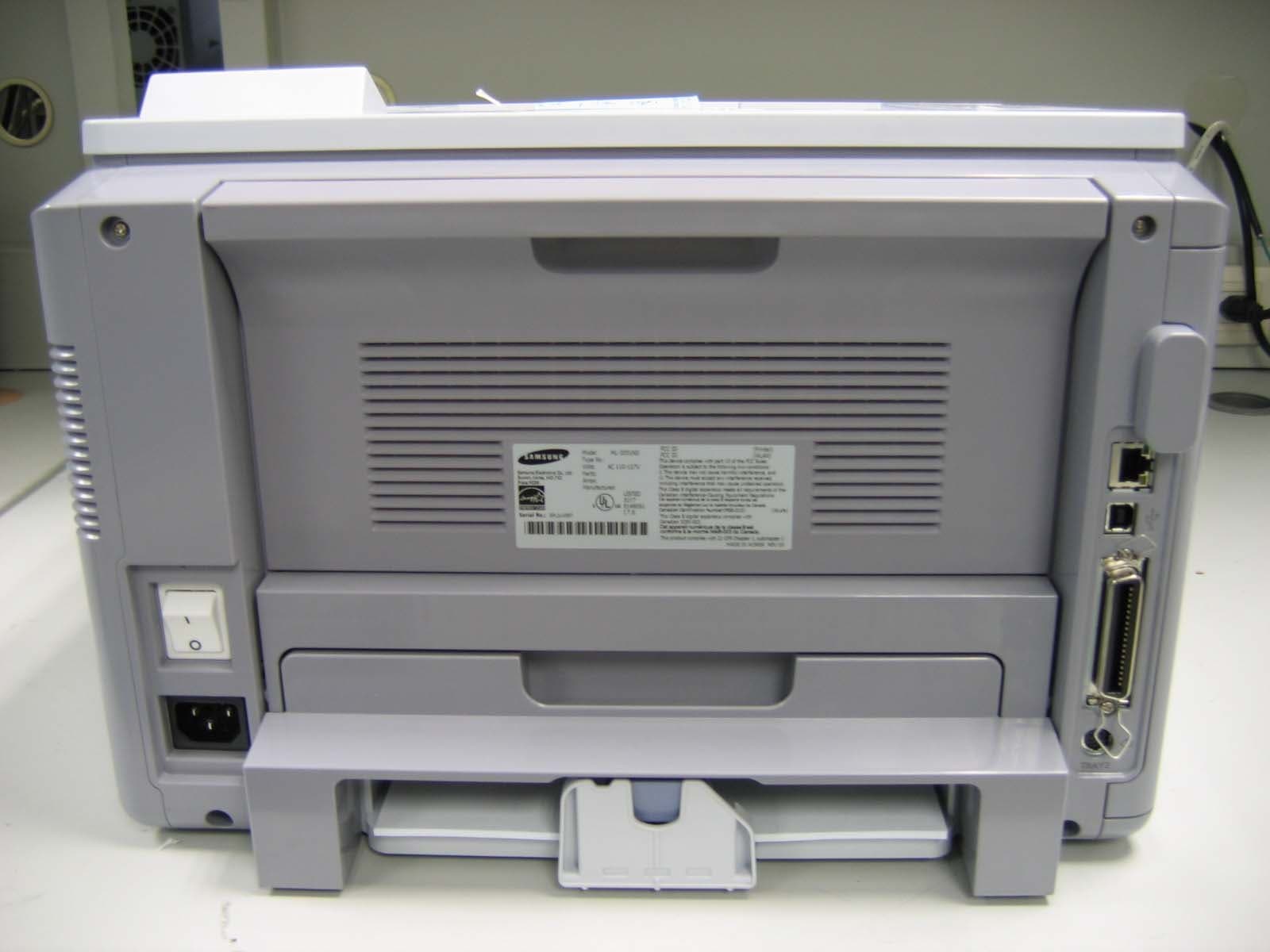
Click to zoom
Application Details
- Equipment Class
- JBP - Part 15 Class B Computing Device Peripheral
- Date of Grant
- Dec 14, 2005
- Application Purpose
- Original Equipment
- Date of Application
- Dec 14, 2005
- Equipment Note
- Laser Printer
- Company
- Samsung Electronics Co Ltd
- Country
- United States
Documents & Files
Document Text
Text extracted from the exhibit documents filed with the FCC. Open a document above to read the original.
Users Manual
This manual is provided for information purposes only. All information included herein is subject to change without notice. Samsung Electronics is not responsible for any changes, direct or indirect, arising from or related to use of this manual. © 2005 Samsung Electronics Co., Ltd. All rights reserved. • ML-3050, ML-3051N, and ML-3051ND are trademarks of Samsung Electronics Co., Ltd. • Samsung and Samsung logo are trademarks of Samsung Electronics Co., Ltd. • Centronics is a trademark of Centronics Data Computer Corporation. • IBM and IBM PC are trademarks of International Business Machines Corporation. • PCL and PCL 6 are trademarks of Hewlett-Packard company. • Microsoft, Windows, Windows 9x, Windows Me, Windows 2000, Windows NT 4.0, Windows XP, and Windows 2003 are registered trademarks of Microsoft Corporation. • PostScript 3 is a trademark of Adobe System, Inc. • UFST® and MicroType™ are registered trademarks of Agfa division of Bayer Corp. • TrueType, LaserWriter, and Macintosh are trademarks of Apple Computer, Inc. • All other brand or product names are trademarks of their respective companies or organizations. ii CONTENTS 1. Introduction Special features ...................................................................................................................................................... 1.1 Printer overview ...................................................................................................................................................... 1.2 Finding more information ........................................................................................................................................ 1.4 2. System setup Using control panel menus (ML-3051N, ML-3051ND only) .......................................................................... 2.1 Menu overview ........................................................................................................................................................ 2.1 Printing a demo page .............................................................................................................................................. 2.6 Changing the display language (ML-3051N, ML-3051ND only) .................................................................... 2.6 Using toner save mode ........................................................................................................................................... 2.7 3. Software overview Supplied software .................................................................................................................................................... 3.1 Printer driver features .............................................................................................................................................. 3.2 System requirements .............................................................................................................................................. 3.2 4. Network setup Introduction ............................................................................................................................................................. 4.1 Supported operating systems ................................................................................................................................. 4.1 Configuring TCP/IP ................................................................................................................................................. 4.1 Configuring EtherTalk ............................................................................................................................................. 4.2 Configuring IPX frame types ................................................................................................................................... 4.2 Setting Ethernet speed ............................................................................................................................................ 4.3 Restoring the network configuration ........................................................................................................................ 4.3 Printing a network configuration page ..................................................................................................................... 4.3 5. Loading print media Selecting print media ............................................................................................................................................... 5.1 Loading paper ......................................................................................................................................................... 5.4 Selecting an output location .................................................................................................................................... 5.8 6. Basic printing Printing a document ................................................................................................................................................ 6.1 Canceling a print job ............................................................................................................................................... 6.1 7. Ordering supplies and accessories Toner cartridges ...................................................................................................................................................... 7.1 Accessories ............................................................................................................................................................. 7.1 How to purchase ..................................................................................................................................................... 7.1 iii 8. Maintenance Printing information page ........................................................................................................................................ 8.1 Cleaning the printer ....................…
Text truncated - open the document above for the full version.
Users Manual
9.9 <Troubleshooting> The printer does not print. (Continued) The printer may be configured incorrectly. Check the printer properties to ensure that all of the print settings are correct. The printer driver may be incorrectly installed. Reinstall the printer driver; See the Software Section. Try printing a test page. The printer is malfunctioning. Check the display message on the control panel to determine if the printer is indicating a system error. Printer selects print materials from the wrong paper source. The paper source selection in the printer properties may be incorrect. For many software applications, the paper source selection is found under the Paper tab within the printer properties. Select the correct paper source. See the Software Section. Paper does not feed into the printer. Paper has not been loaded correctly. Remove paper from the tray and reload it correctly. Check that the paper size guides are set correctly. There is too much paper in the tray. Remove excess paper from the tray. The paper is too thick. Use only paper that meets printer specifications. Print job is extremely slow. The job may be very complex. Reduce the complexity of the page(s) or try adjusting the print quality settings. To adjust the print quality settings, reduce the resolution. If you have set the resolution to 1200 dpi (Best), change it to 600 dpi (Normal). See the Software Section. Change the port setting to the USB or network port to improve print speed. Your printer prints A4-sized paper at 28 ppm and letter- sized paper at 30 ppm. If you use the ML-3051ND, your printer prints A4-sized paper at 19 ipm and letter-sized paper at 21 ipm in the duplex printing mode. ConditionPossible causeSuggested solutions Print job is extremely slow. (Continued) If using Windows 9x/Me, the Spooling Setting may be set incorrectly. From the Start menu, choose Settings and Printers. Right- click the Samsung ML-3050 Series PCL 6 printer icon, choose Properties, click the Details tab, and then choose the Spool Settings button. Select the desired spool setting. The computer may have insufficient random-access memory (RAM). Install more memory in your printer. See page 10.1. Half the page is blank. The page layout is too complex. Simplify the page layout and remove any unnecessary graphics from the document. Install more memory in your printer. See page 10.1. The page orientation setting may be incorrect. Change the page orientation in your application. See the Software Section. The paper size and the paper size settings do not match. Ensure that the paper size in the printer driver settings matches the paper in the tray. Or, ensure that the paper size in the printer driver settings matches the paper selection in the software application settings you use. The paper keeps jamming. There is too much paper in the tray. Remove excess paper from the tray. If printing on special materials, use the multi-purpose tray. An incorrect type of paper is being used. Use only paper that meets printer specifications. If printing on special materials, use the multi-purpose tray. An incorrect output method is being used. Special print materials, such as thick paper, should not be printed using the output tray (face-down). Use the rear cover (face-up) instead. There may be debris inside the printer. Open the front cover and remove the debris. ConditionPossible causeSuggested solutions 9.10 <Troubleshooting> The printer prints, but the text is wrong, garbled, or incomplete. The printer cable is loose or defective. Disconnect and reconnect the printer cable. Try a print job that you have already printed successfully. If possible, attach the cable and printer to another computer and try a print job that you know works. Finally, try a new printer cable. The wrong printer driver was selected. Check the application’s printer selection menu to ensure that your printer is selected. The software application is malfunctioning. Try printing a job from another application. The operating system is malfunctioning. If printing from Windows (any version), exit to a DOS prompt and verify functionality with the following command: At a C:\ prompt, type Dir LPT1, and press OK. (This assumes you are connected to LPT1.) Exit Windows and reboot the computer. Turn the printer off and then back on again. Pages print, but are blank. The toner cartridge is defective or out of toner. Redistribute the toner cartridge. See page 8.3. If necessary, replace the toner cartridge. See page 8.4. The file may have blank pages. Check the file to ensure that it does not contain blank pages. Some parts, such as the controller or the board, may be defective. Contact a service representative. The illustrations print incorrectly in Adobe Illustrator. The setting in the software application is wrong. Select Download as Bit Image in the Advanced Options window of the graphic properties. Print the document again. ConditionPossible causeSuggested solutions Solving print quality problems Dirt inside of the printer or improper paper loading may reduce print quality. See the table below to troubleshoot problems. ConditionSuggested solutions Light or faded print If a vertical white streak or faded area appears on the page: • The toner supply is low. You may be able to temporarily extend the toner cartridge life. See page 8.3. If this does not improve print quality, install a new toner cartridge. • The paper may not meet paper specifications (for example, the paper is too moist or too rough). See page 5.3. • If the entire page is light, the print resolution setting is too light or toner save mode is on. Adjust the print resolution and toner save mode in the printer properties. See the Software Section. • A combination of faded or smeared defects may indicate that the printer needs cleaning. See page 8.1. • The surface of LSU may be dirty. Clean the LSU. See page 8.1. Toner spots • The paper may not meet specifications (for example, the paper is too moist or too rough). See page 5.3. • T…
Text truncated - open the document above for the full version.
External Photos
1. External Pictures 1) Front View 2) Rear View 3) Side View 1 4) Side View 2
Internal Photos
2. Internal Pictures 1) Front View 2) Rear View 3. Print Board Assembled(PBA) Pictures 1) Top View of Main Controller 2) Bottom View of Main Controller 3) Top View of SMPS 4) Bottom View of SMPS 5) Top View of HVPS 6) Bottom View of HVPS 7) Top View of OPE 8) Bottom View of OPE
Test Report
1 of 21 Samsung EMC Laboratory Project No: LBE052612 This report shall not be reproduced except in full, without the written approval of SEC EMC Testing laboratory. EMC Test Report According to FCC Part 15 Subpart B Project No. LBE052612 Equipment under Test Applicant Samsung Electronics Co., Ltd 416 Maetan 3-dong, Yeongtong-Gu, Suwon-Si, Gyeonggi-Do, Korea, 443-742 FCC ID A3LML3051ND Product Name Laser Printer Model Name ML-3051ND Manufacturer 1). Samsung Electronics Co.,Ltd. 259, Gongdan-Dong, Gumi-City, Kyung-Buk, 730-030, Korea Place:M259 2). Shandong Samsung Telecommunications Co., Ltd. Sanxing Road , Weihai Hi-Tech IDZ, Shandong Province, 264209, China Place:M264 Date of Test Nov 17, 2005 ~ Nov 21, 2005 Issued Date Nov 29, 2005 Name/Position Signature Tested by Young Hun. Cheong Test Engineer Reviewed by No Cheon, Park Manager of EMC Lab. Authorized by Seung Kyu, Cha Chief of EMC Lab. 1. This test reports does not constitute an endorsement by NIST/NVLAP or U.S Government. 2. This test report is to certify that the tested device properly complies with the requirements of FCC Rules and Regulations Part 15 Subpart B Unintentional Radiators. All tests necessary to show compliance to the requirements were and these results met the specifications requirement. This laboratory is registered by the NIST/NVLAP, U.S.A. The test reported herein have been performed in accordance with its terms of registration. 3. FCC filing Registration Number : 873282 NVLAP LAB CODE 200623-0 2 of 21 Samsung EMC Laboratory Project No: LBE052612 This report shall not be reproduced except in full, without the written approval of SEC EMC Testing laboratory. Table of Contents 1. General Information 1.1 Basic Information related Product 1.2 Detail Information related Product 1.3 Operating mode and condition 1.4 Test System Details 1.5 Equipment Modifications 1.6 Test Procedure 1.7 Test Configuration 1.8 Applied Standard 1.9 Test Facility 2. Summary of Test Results 3. Description of individual tests 3.1 Conducted Emission 3.2 Radiated Emission 4. Appendix 4.1 Test Photography 4.2 EUT Photography 3 of 21 Samsung EMC Laboratory Project No: LBE052612 This report shall not be reproduced except in full, without the written approval of SEC EMC Testing laboratory. 1. General Information 1.1 Basic Information related Product Applicant Samsung Electronics Co., Ltd Model name ML-3051ND Applicant Address 416 Maetan3- Dong, Yeongtong-Gu, Suwon-Si, Gyeonggi-Do, 443-742, Korea Contact Person Young Hun. Cheong Kind of product Laser Printer Valiant list ML-3051N, ML-3050 Manufacturer 1). Samsung Electronics Co.,Ltd. 259, Gongdan-Dong, Gumi-City, Kyung-Buk, 730-030, Korea Place:M259 2). Shandong Samsung Telecommunications Co., Ltd. Sanxing Road , Weihai Hi-Tech IDZ, Shandong Province, 264209, China Place:M264 New / Alternative / Permissive change Information New 1.2 Detail Information related Product Specification Item Specification and Description Print Speed Black and White : Up to 28 PPM in A4(30 PPM in Letter) Resolution Printer: Up to 1200 x 1200 dpi(effective output) First print out time From Standby Mode Less than 17 seconds From ColdBoot Less than 47 seconds Warm-up time Less than 40 seconds Power Rating 110 ~ 127 VAC, 6.4A, 50/60 Hz Power Consumption Average : 520 W Power Save mode : Less than 11 W 4 of 21 Samsung EMC Laboratory Project No: LBE052612 This report shall not be reproduced except in full, without the written approval of SEC EMC Testing laboratory. Noise Level Printing mode: Less than 54 dBA Standby mode : Less than 39 dBA Warm-up: Less than 50dBA Consumable life Black Toner Cartridge : Approx. 4,000 A4/Letter pages at 5% Coverage Duty cycle (Max. Monthly Volume) Print: 100,000 pages Weight 12.7 kg (including consumables) Package weight 3.1 kg External dimensions (W x D x H) 400 x 435 x 284 mm(15.7 x 17.1 x 11.2 in) Operating Environment Temperature : 10 ~ 32 °C ( 50 ~ 90 °F ) Humidity : 20 ~ 80 % RH Printer Language PCL6, PostScrpript3, IBM ProPrinter, EPSON, SPL Memory 64MB (MAX320MB) Interface USB 2.0 OS compatibility Windows 95/98/Me/NT 4.0/2000/XP/2003. Various Linux OS Mac OS 10.1 ~ 10.4 Operating Frequency Main Source : 12 MHz, Video : 12 MHz, CPU : 100 MHz, SDRAM : 100 MHz, USB Device : 12 MHz, NIC Clock :25 MHz 5 of 21 Samsung EMC Laboratory Project No: LBE052612 This report shall not be reproduced except in full, without the written approval of SEC EMC Testing laboratory. 1.3 Operating Mode and Condition The system was configured for testing in typical fashion use. Cables were attached to each of the available I/O Ports. Where applicable, peripherals were attached to the I/O cables. The mode of operation utilized for testing was selected to best simulate typical EUT use. The EUT is supporting the USB and LAN printing mode. In each test mode, finally we found worst case emission that is above configuration with the worst case components(in the above table). So, the data of the maximum EUT operation, USB printing was reported. - USB Printing Mode (worst emission) - LAN Printing Mode - Standby Mode - Power Input Voltage : AC 110V Frequency : 60Hz 1.4 Test System Details Refer to 1.2 1.5 Equipment Modifications No equipment modifications were required. 6 of 21 Samsung EMC Laboratory Project No: LBE052612 This report shall not be reproduced except in full, without the written approval of SEC EMC Testing laboratory. 1.6 Test Procedure 1.6.1 Conducted Emission EUT was placed on a platform nominal size, 1 m by 1.5 m, raised 80 cm above the conducting ground plane. The rear of tabletop was located 40 cm to the vertical conducting ground plane. The rear of EUT, including peripherals was aligned and flush with rear of tabletop. All other surfaces of tabletop was at least 80cm from any other grounded conducing surface. I/O cables and AC cables that were connected to the peripherals were bundled in center. They were folded back and forth forming a bindle 30 cm to 40 cm long and were handed at a 40cm height to the gr…
Text truncated - open the document above for the full version.
Test Setup Photos
16 of 21 Samsung EMC Laboratory Project No: LBE052612 This report shall not be reproduced except in full, without the written approval of SEC EMC Testing laboratory. 4. Appendix 4.1 Test Photography Pic. 1 Conducted Emission (Front) Pic. 2 Conducted Emission (Rear) 17 of 21 Samsung EMC Laboratory Project No: LBE052612 This report shall not be reproduced except in full, without the written approval of SEC EMC Testing laboratory. Pic. 3. Radiated Emission (Front) Pic. 4. Radiated Emission (Rear)
Contact Information
Applicant
Jenni Chun(General Manager)
Technical Contact
PCTEST Engineering Lab., Inc.Randy Ortanez
[email protected]410-290-6652
6660-B Dobbin Road · Columbia, Maryland · United States
Test Firm
Samsung Electronics Co., Ltd.John Lee
Technical Specifications
| # | Rule Parts | Frequency Range | Power Output |
|---|---|---|---|
| 1 | 15B | - | - |
Other Applications from Samsung Electronics Co Ltd
A3LSMS741B
Aug 05, 2026Portable Handset
Equipment Class
6VL - 15E 6 GHZ Very Low Power DeviceA3LSMX940
Jul 31, 2026BT,BLE Tablet DTS,UNII a,b,g,n,ac,ax,be and digitizer
Equipment Class
DTS - Digital Transmission SystemA3LSMS741U
Jul 30, 2026Portable Handset
Equipment Class
6CD - 15E 6 GHz Low Power Dual ClientA3LSMX840
Jul 27, 2026BT,BLE Tablet DTS,UNII a,b,g,n,ac,ax and Digitizer
Equipment Class
DSS - Part 15 Spread Spectrum TransmitterA3LSMX848U
Jul 27, 2026WCDMA, LTE, 5G NR Tablet BT,BLE, DTS,UNII a b g n ac ax and Digitizer
Equipment Class
JBP - Part 15 Class B Computing Device Peripheral