A3LNP545XLA1WCDMA/LTE/5G NR Laptop + BT/BLE, DTS/UNII a/b/g/n/ac/ax
Samsung Electronics Co Ltd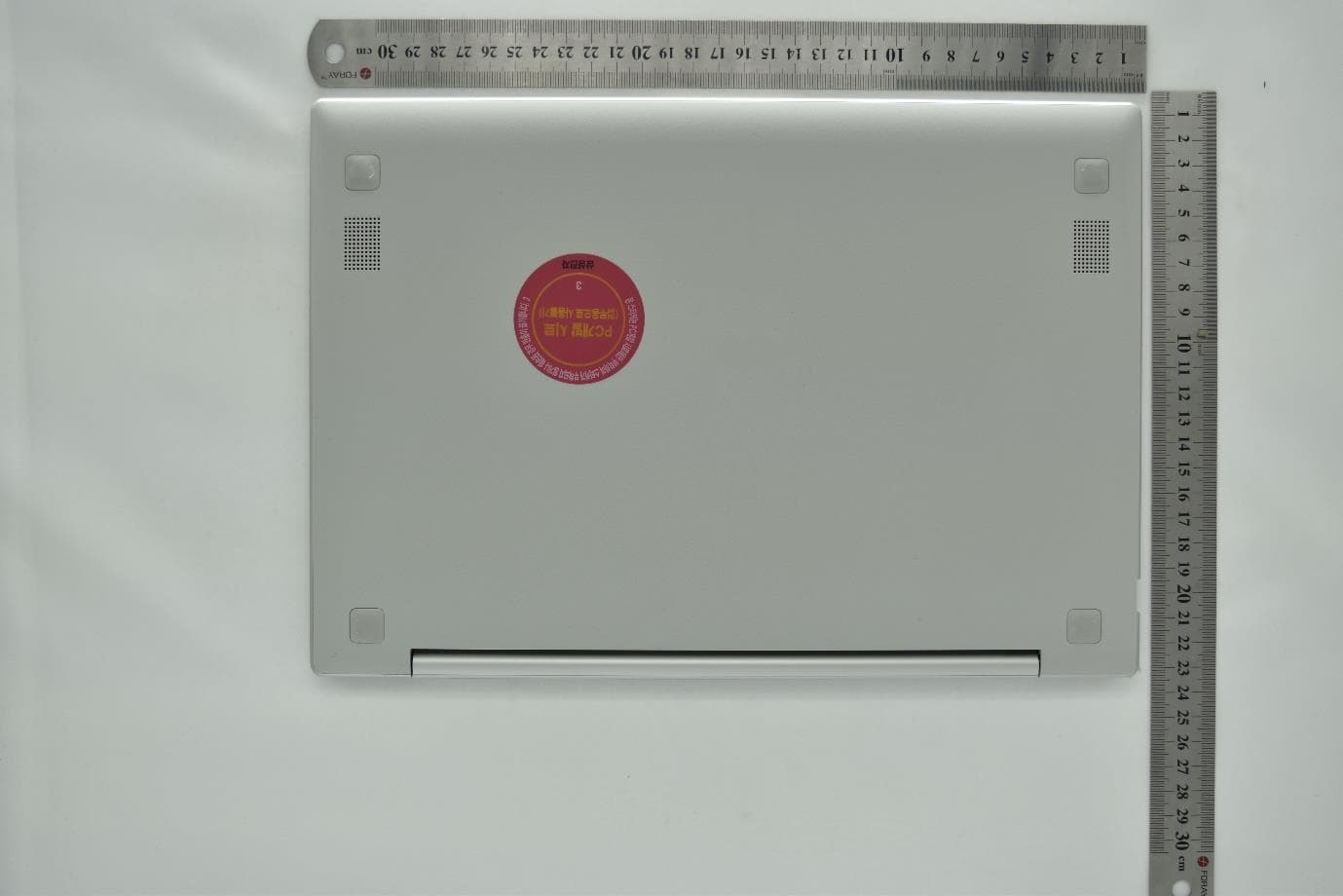
Click to zoom
Application Details
- Equipment Class
- 5GM - Part 30 Mobile Transmitter
- Date of Grant
- Oct 04, 2021
- Application Purpose
- Original Equipment
- Date of Application
- Sep 18, 2021
- Equipment Note
- WCDMA/LTE/5G NR Laptop + BT/BLE, DTS/UNII a/b/g/n/ac/ax
- Frequency Range
- 37000.00000000 - 40000.00000000
- Company
- Samsung Electronics Co Ltd
- Country
- United States
Documents & Files
Document Text
Text extracted from the exhibit documents filed with the FCC. Open a document above to read the original.
Users Manual
www.samsung.com User Manual 2 Getting started 3 About this manual 7 Layout 11 Turning the computer on and off 13 Unlocking the screen 13 Windows Basics 15 Keyboard 17 Touchpad 20 SIM or USIM card (nano-SIM card) tray 21 Cellular data 22 Memory card slot 25 External display 27 Wireless LAN 29 Bluetooth 31 Security slot Applications 32 Using applications 32 Updating applications 33 Samsung Settings 34 Samsung Notes 35 Screen Recorder 37 Samsung Flow 38 Samsung Gallery 38 Samsung Care+ Settings & Upgrade 39 Display brightness 40 Volume 41 BIOS (Setup utility) 47 Battery 49 Windows recovery function Appendix 50 Product specifications 51 Ergonomic tips 55 Safety precautions 65 Important safety information 68 Replacement parts and accessories 71 Regulatory compliance statements 80 WEEE symbol information 82 Samsung package Take-Back program (USA only) Table of contents 3 Getting started About this manual • This user manual is specially designed to detail the computer’s functions and features. • The user manual supplied with the computer may vary depending on the model. • Please read this manual before using the computer to ensure safe and proper use. • Optional accessories, some devices, and software referred to in this manual may not be provided or may not be subject to upgrades. Note that the computer environment referred to in the user manual may not be the same as your environment. • Descriptions are based on the computer’s default settings and the Windows 10 operating system. Available features and additional services may vary depending on the computer or operating system. • This user manual describes procedures for using the touchpad, mouse and touch screen. Instructions for using the touch screen are for models with the touch screen feature. • Images and screenshots are those of the representative model of the series and may differ in appearance from the actual product. • Content may differ from the final product and is subject to change without prior notice. For the latest version of the manual, refer to the Samsung website, www.samsung.com. Getting started 4 Copyright Copyright © 2021 Samsung Electronics Co., Ltd. This manual is protected under international copyright laws. No part of this manual may be reproduced, distributed, translated, or transmitted in any form or by any means, electronic or mechanical, including photocopying, recording, or storing in any information storage and retrieval system. Computer specifications or the contents of this manual may be changed without prior notice due to an upgrade of the computer’s functions. Instructional icons and expressions Warning: situations that could cause injury to yourself or others Caution: situations that could cause damage to the computer or other equipment Note: notes, usage tips, or additional information The path you should follow to carry out an instruction. For example, “select Settings → Devices” indicates that you should select Settings and then Devices. SelectClick the mouse or tap the touchpad or touch screen. Getting started 5 As an ENERGY STAR ® Partner, Samsung has determined that this product meets the ENERGY STAR ® guidelines for energy efficiency. • The ENERGY STAR Program has reduced greenhouse gas emissions and saved energy through voluntary labeling. • Power management setting of this product has been enabled by default, and has various timing settings from 1 minute to 5 hours. • The product can wake with a button press on the chassis from sleep mode. Trademarks • Samsung and the Samsung logo are trademarks or registered trademarks of Samsung Electronics Co., Ltd. • Intel and Core are trademarks or registered trademarks of the Intel Corporation. • Microsoft, MS-DOS, and Windows are trademarks or registered trademarks of the Microsoft Corporation. • Bluetooth ® is a registered trademark of Bluetooth SIG, Inc. worldwide. • Wi-Fi ® , Wi-Fi Direct ™ , Wi-Fi CERTIFIED ™ , and the Wi-Fi logo are registered trademarks of the Wi-Fi Alliance. • Manufactured under license from Dolby Laboratories. Dolby, Dolby Atmos, and the double-D symbol are trademarks of Dolby Laboratories. • All other trademarks and copyrights are the property of their respective owners. Getting started 6 Product capacity representation Storage capacity representation The capacity of the storage device (HDD, SSD) of the manufacturer is calculated assuming that 1 KB = 1,000 Bytes. However, the operating system (Windows) calculates the storage device capacity assuming that 1 KB = 1,024 Bytes. Therefore, the available capacity of the HDD in Windows is smaller than the actual capacity due to the difference in capacity calculation. For example, for an 80 GB HDD, Windows calculates the capacity as 74.5 GB, (80x1,000x1,000x1,000) Bytes/(1,024x1,024x1,024) Bytes = 74.505 GB. In addition, the capacity representation in Windows may be even smaller because some programs may reside in a hidden area of the HDD. Memory capacity representation The available memory capacity in Windows is less than the actual capacity of memory. This is because some memory is required for regular system operations. For example, for 1 GB (= 1,024 MB) memory installed, Windows may report the capacity as 1,022 MB or less. Data precautions Samsung shall not be liable for any data loss. Please take care to avoid losing any important data and back up your data to prevent any such data loss. Operating system and software support If you change the product’s factory OS (Operating System) to another OS or if you install software which is not supported by the product’s original factory OS, you will not receive any technical support, product exchange or refund, and a fee will be charged when requesting a service. Please use your computer with the original factory OS. If you install an OS other than the factory OS, data may be deleted or the computer may not start. * Please use Windows 10 64-bit only for this model. Getting started 7 Front view 7 4 3 2 5 6 1 Layout Leaving the screen idle for ex…
Text truncated - open the document above for the full version.
Users Manual
Settings & Upgrade 40 • To mute or unmute the volume, press and hold the Fn key and press the F6 key. Controlling volume using the taskbar 1 Select on the taskbar. 2 Drag the adjustment bar to the desired volume. Volume adjustment bar Volume Adjust the system volume or sound volume when playing music or video. Controlling volume using the keyboard • To turn down the volume, press and hold the Fn key and press the F7 key. • To turn up the volume, press and hold the Fn key and press the F8 key. Settings & Upgrade 41 Entering the BIOS screen 1 Turn on the computer. 2 Before the Samsung logo appears, press the F2 key several times. • If the computer is password-protected, press the F2 key several times before the password screen appears. • If the password screen or the Windows start screen appears, restart the computer and try again. BIOS (Setup utility) Define a boot password, change the boot priority, or configure the installed chipsets. • Incorrect settings may cause the system to malfunction or crash. • The BIOS setup screens, menus, and items may appear differently depending on the model and BIOS version. • BIOS setup functions are subject to upgrades. Settings & Upgrade 42 NumberName • Setup items • Setup tools – Help: View the help for BIOS set up. – Default: Return to the default settings. – Restore: Cancel changes. – Save: Save settings. – Exit: Exit BIOS setup. • Setup menu – SysInfo: View the basic specifications of the computer. – Advanced: Configure the chipsets and additional functions. – Security: Configure security functions. – Boot: Configure peripherals and boot- related settings. The BIOS setup screen appears only in English. The BIOS screen The BIOS setup screen appears as shown below. You can change BIOS settings using the keyboard or mouse. Settings & Upgrade 43 Setting passwords There are two password settings available: Supervisor Password and User Password. • Supervisor Password (low security level): This password is required when turning on the computer or entering the BIOS setup. • User Password (low security level): This password is required to enter the BIOS setup. This password will be deactivated automatically if the Supervisor Password is disabled. Boot password Setting a password with the BIOS enhances protection against viruses and hacking attacks. • Do not forget your password or expose it to others. • If you forget the Supervisor Password, request assistance from the Samsung Service Center. In this case, a service fee will be charged. • If you forget the User Password, disable the Supervisor Password , and the User Password will also be automatically disabled. Settings & Upgrade 44 5 Enter a password and select Ok. The password can be up to 20 characters. 6 Enter the password again to confirm it and select Ok. 7 Select Save → Ok to save and restart. • To enable the Password On Boot option, set a Supervisor Password and enter the password when starting up the computer. • For some models, if the password entered message appears in the Setup Notice window, select Ok to complete the setup. Setting a boot password 1 Turn on the computer. 2 Before the Samsung logo appears, press the F2 key several times. 3 Access the Security menu. 4 Select a password type (Supervisor Password or User Password ). If you cannot select an item, turn off the computer and turn it on again. Then, press the F2 key several times before the Samsung logo appears to enter the BIOS setup screen. Settings & Upgrade 45 Boot priority Change the boot priority from the BIOS setup. 1 Turn on the computer. 2 Before the Samsung logo appears, press the F2 key several times. 3 Access the Boot menu. 4 Select Boot Device Priority. 5 Select an option menu to open the list. 6 Select an option. 7 Select Save → Ok to save and restart. Select Exit → Ok to restart without saving the changes. Removing a password 1 Turn on the computer. 2 Before the Samsung logo appears, press the F2 key several times. 3 Access the Security menu. 4 Select a password type (Supervisor Password or User Password ). 5 Enter the current password and select Ok. 6 Without entering any characters, select Ok → Ok. 7 Select Save → Ok to save and restart. For some models, to cancel the password, select Cancel in the Setup Notice window.
Users Manual
Settings & Upgrade Using the Battery Calibration Function When charging/discharging the battery repeatedly for a short time only, the battery usage time may be reduced by the difference between the actual battery charge and the remaining charge display. You can make the actual battery charge and the remaining charge display the same by discharging the battery completely using the Battery Calibration function, and then recharging it again. The screen images and terms may differ from the actual product depending on the computer model and driver version. 1 Turn off the computer and then disconnect the adapter. 2 Turn the computer back on, and press the F2 key to enter the Setup screen. 3 Select Advanced → Smart Battery Calibration. 4 The Battery Calibration function is activated and the battery is forcefully discharged. To stop the operation, press the Esc key. This operation requires 3–5 hours depending on the battery capacity and the remaining battery charge. 46 Settings & Upgrade 47 Charging the battery 1 Connect the adapter to the USB Type-C port of the computer. 2 Plug the adapter into an electric socket. Battery Fully charge the battery using the adapter before using the computer for the first time. • Use only Samsung-approved adapters, batteries, and cables. Unapproved adapters or cables can cause the battery to explode or damage the computer. • Incorrectly connecting the charger may cause serious damage to the computer. • This computer is equipped with an internal battery. The battery is not user-serviceable or user-replaceable. • To safely remove or replace the battery, take the device to a Samsung Service Center. You will be charged for this service. • You can use the computer while it is charging, but the battery charging time may increase. If the battery temperature rises too much, the charging may stop as a safety measure. To restore the battery power after cutting it, connect the adapter. Settings & Upgrade 48 Battery status When the adapter is removed, move the cursor over the battery icon on the taskbar to view the current battery charge. Viewing the current battery charge when the computer is turned off Connect the adapter to the computer to view the current battery charge when the computer is turned off. 10:00 2013/7/1 Saving battery power On the taskbar, select → Battery saver. Battery saver mode is activated. Battery saver mode is disabled when the adapter is connected. 3 When the battery is fully charged, the operating status LED turns green. Disconnect the adapter from the computer. Operating status LEDStatus • Red: Charging • Green: Fully charged • Blue: Turned on 4 Unplug the adapter from the electric socket. Do not allow the adapter to make contact with your skin for a long time. A low-temperature burn may result. Settings & Upgrade 49 Windows recovery function If there are performance issues with the computer, reinstall Windows using the recovery function of Windows. Reinstalling Windows will erase all data saved on the computer. Back up applications and personal data to an external storage device before reinstalling Windows. After Windows is reinstalled, you can install the required Samsung apps. 1 Select the Start button () → → Update & Security → Recovery. 2 Select Reset this PC → Get started. 3 Select Keep my files or Remove everything. 50 Appendix Product specifications The system specifications may differ depending on the derived model. For detailed system specifications, refer to the product catalog. ItemSpecification Operating environment • Temperature: -5–40 °C for storage, 10–35 °C when operating • Humidity: 5–90 % for storage, 20–80 % when operating AC/DC rating • Input: 100–240 VAC, 50–60 Hz • Output: (PDO) 5 V, 3 A / 9 V, 2.77 A (PPS) 3.3-5.9 V, 3 A / 3.3-11.0 V, 2.25 A PC rating • 9 VDC, 2.77 A (25 W) • Optional components may not be provided or different components may be provided depending on the model. • The system specifications are subject to change without notice. • For some models, it is not possible to add storage or add or replace memory due to the computer’s design. To replace the storage, contact the Samsung Service Center. You will be charged for this service. • The amount of memory that Windows can use may be smaller than the actual amount of memory available. Appendix 51 • Use an adjustable chair with firm, comfortable support. • Adjust the height of your chair so that thighs are horizontal to the floor and feet are flat on the floor. • The back of the chair should support the lower back. Adjust the backrest to fit your body properly. • Sit back fully in your chair and straighten the back and neck. Avoid leaning forward or craning your neck toward the computer screen. • Avoid using the computer while lying down or on your lap. If the computer’s temperature increases, there is a danger of burn injury. • The instructions in this manual have been prepared so that they can be applied to the range of needs of general users. If the user is not included in the range, the recommendations should be applied according to the user’s needs. • Images may differ from actual products. Ergonomic tips Maintaining proper posture during computer use is very important to prevent physical injury. Improper or prolonged keyboard use may result in repetitive strain injury. Viewing the monitor screen for extended periods of time may result in eye strain. Therefore, please follow these guidelines carefully when setting up and using the computer. Back and neck Appendix 52 • When using the keyboard and touchpad, the shoulders should be relaxed. The upper arm and forearm should form an angle that is slightly greater than a right angle, with the wrist and hand in almost a straight line. • Use a light touch when typing or using the touchpad and keep the hands and fingers relaxed. Avoid rolling the thumbs under your palms or supporting the wrists on the desk while typing. • Use an external keyboard and mouse when using the computer for long periods. When using an extern…
Text truncated - open the document above for the full version.
Cover Letter(s)
Date: November 19, 2020 UL Korea, Ltd. Suwon Laboratory 218 Maeyeong-ro, Yeongtong-gu, Suwon-si, Gyeonggi-do, 16675, Korea To whom it may concern: I, the undersigned, hereby authorize UL Korea, Ltd. Suwon Laboratory, to ac t on our behalf in all manners relating to application for equipment authorization, including signing of all documents relating to these matters. Any and all acts carried out by UL Korea, Ltd. Suwon Laboratory on our behalf shall have the same effect as acts of our own. In authorizing UL Korea as our agent, we still recognize that we are responsible to: a) comply with the relevant provisions of the certification program; b) make all necessary arrangements for the conduct of the evaluation, including provision for examining documentation and access to all areas, records (including internal audit reports) and personnel for the purposes of evaluation (e.g. testing, inspection, assessment, surveillance, reassessment) and resolution of complaints; c) make claims regarding certification only in respect of the scope for which certification has been granted; d) do not use our product certification in such a manner as to bring the Certification Division into disrepute and not make any statement regarding our product certification which the Certification Division may consider misleading or unauthorized; e) upon suspension or cancellation of certification, discontinue use of all advertising matter that contains any reference thereto and return any certification documents as required by the Certification Division; f) use certification only to indicate the products are certified as being in conformity with specified standards; g) endeavor to ensure that no certificate or report nor any part thereof is used in a misleading manner; h) ensure that any reference to our product certification in communication media such as documents, brochures or advertising, complies with the requirements of the Certification Division; i) keep a record of all complaints made known to the us relating to the product’s compliance with requirements of the relevant standard and to make these records available to the when requested; j) take appropriate action with respect to such complaints and any deficiencies found in products or services that affect compliance with the requirements for certification; k) document the actions taken. l) the undersigned, hereby certify that we are not subject to a denial of federal benefits, that includes FCC benefits, pursuant to Section 5301 of the Anti-Drug Abuse Act of 1988, 21 U.S.C. 853(a). This authorization is valid until further written notice from the applicant. Sincerely Yours, Ms. Jenni Chun General Manager Samsung Electronics America, Inc. TEL: +1-973-808-6375 E-mail: [email protected]
Cover Letter(s)
Samsung Electronics Co., Ltd. 129, Samsung-ro, Yeontong-gu, Suwon-si, Gyeonggi-do, 16677, Korea Introduction of referencing test report Basic Additional Model NP545XLA Model NP545XLA FCC ID A3LNP545XLA FCC ID A3LNP545XLA1 We are using test reports for FCC ID A3LNP545XLA to demonstrate compliance for FCC ID A3LNP545XLA1. These two models are electrically identical, they share the same hardware. The difference between the two models is that the A3LNP545XLA1 supports additional LTE and FR-1 5GNR bands that have been enabled through software updates. There are no hardware changes. The data for model A3LNP545XLA is therefore fully representative of model A3LNP545XLA1 for the operating bands they have in common that share the same maximum output power. Additional testing for new bands and for bands with different power settings has been performed on this model for EMC, SAR and Power density. The reports submitted are detailed below: Reference test report Reference test report Additional test report FCC ID A3LNP545XLA FCC ID A3LNP545XLA1 4789893923-E1 FCC Report Part 15B (JBP) (Please refer to the test report – FCC ID: A3LNP545XLA) 4789893923-E2 FCC Report Part 15B Receiver mode (CXX) 4790047184-E1 FCC Report Part 15B Receiver mode(CXX) (LTE and 5GNR bands are added) 4789893923-E3 FCC Report WWAN 4790047184-E2 FCC Report WWAN (LTE and 5GNR bands are added) 4789893923-E4 FCC Report WWAN Uplink CA 4790047184-E3 FCC Report WWAN Uplink CA (LTE Band is added) 4789893923-E5 FCC Report Part 30 mmWave (Please refer to the test report – FCC ID: A3LNP545XLA) 4789893923-E6 FCC Report DTS(b,g,n,ax) WLAN (Please refer to the test report – FCC ID: A3LNP545XLA) 4789893923-E7 FCC Report BLE (Please refer to the test report – FCC ID: A3LNP545XLA) 4789893923-E8 FCC Report BT (Please refer to the test report – FCC ID: A3LNP545XLA) 4789893923-E9 FCC Report UNII(a,n,ac,ax) WLAN (Please refer to the test report – FCC ID: A3LNP545XLA) 4789893923-S2 FCC Report PD Part 0, 1 (Please refer to the test report – FCC ID: A3LNP545XLA) Note. Please refer to the Product Equality Declaration document for detailed changes. Should you have any questions or comments concerning the above, please contact the undersigned. Ms. Jenni Chun General Manager Samsung Electronics America, Inc. TEL: +1-973-808-6375 E-mail: [email protected]
Cover Letter(s)
April 22, 2021 Federal Comm unications Commission 7435 Oakland Mills Road Columbia MD 21046 Subject: FCC ID: Request for Confidentiality A3LNP545XLA1 To Whom It May Concern: Pursuant to the provisions of Sections 0.457 and 0.459 of the Commission’s rules (47 CFR §§ 0. 457, 0.459), we are requesting the Commission to withhold the following attachments as confidential document from public disclosure indefinitely. Schematics Block Diagram Operational Description Antenna Specification Parts List Tune-Up Procedure PED Above mentioned document contains detailed system and equipment description are considered as proprietary information in operation of the equipment. The public disclosure of above documents might be harmful to our company and would give competitor an unfair advantage in the market. In additional to above mentioned documents, pursuant to Public Notice DA 04-1705 of the Commission’s policy, in order to comply with the marketing regulations in 47 CFR §2.803 and the importation rules in 47 CFR §2.1204, while ensuring that business sensitive information remains confidential until the actual marketing of newly authorized devices. We are requesting the commission to grant short-term confidentiality request on the following attachments until 180 days External Photos Internal Photos Test Setup Photos User Manual It is our understanding that all measurement test reports, FCC ID label format and correspondence during certification review process cannot be granted as confidential documents and such information will be available for public review once the grant of equipment authorization is issued. Best Regards Ms. Jenni Chun General Manager Samsung Electronics America, Inc. TEL: +1-973-808-6375 E-mail: [email protected]
External Photos
FCC ID : A3LNP545XLA1 External photo
ID Label/Location Info
Label and Location Model : NP545XLA FCC ID : A3LNP545XLA1 Label Location
Internal Photos
Testing Laboratory TL-637 Internal Photo Applicant : SAMSUNG ELECTRONICS CO., LTD. 129 SAMSUNG-RO, YEONGTONG-GU, SUWON-SI, GYEONGGI-DO, 16677, KOREA Model : NP545XLA FCC ID : A3LNP545XLA1 Date Of Issue: 2021 -09-06 Prepared by: UL Korea, Ltd. 26th floor, 152, Teheran-ro, Gangnam-gu Seoul, 06236, Korea Suwon Test Site: UL Korea, Ltd. Suwon Laboratory 218 Maeyeong-ro, Yeongtong-gu, Suwon-si, Gyeonggi-do, 16675, Korea TEL: (031) 337-9902 FAX: (031) 213-5433 DATE: 2021-09-06 FCC ID: A3LNP545XLA1 Page 3 of 7 UL Korea, Ltd. Suwon Laboratory FORM ID: FCC_15B(04) 218 Maeyeong-ro, Yeongtong-gu, Suwon-si, Gyeonggi-do, 16675, Korea TEL: (031) 337-9902 FAX: (031) 213-5433 UL Korea, Ltd. Confidential This report shall not be reproduced except in full, without the written approval of UL Korea, Ltd. Internal Photo DATE: 2021-09-06 FCC ID: A3LNP545XLA1 Page 4 of 7 UL Korea, Ltd. Suwon Laboratory FORM ID: FCC_15B(04) 218 Maeyeong-ro, Yeongtong-gu, Suwon-si, Gyeonggi-do, 16675, Korea TEL: (031) 337-9902 FAX: (031) 213-5433 UL Korea, Ltd. Confidential This report shall not be reproduced except in full, without the written approval of UL Korea, Ltd. DATE: 2021-09-06 FCC ID: A3LNP545XLA1 Page 5 of 7 UL Korea, Ltd. Suwon Laboratory FORM ID: FCC_15B(04) 218 Maeyeong-ro, Yeongtong-gu, Suwon-si, Gyeonggi-do, 16675, Korea TEL: (031) 337-9902 FAX: (031) 213-5433 UL Korea, Ltd. Confidential This report shall not be reproduced except in full, without the written approval of UL Korea, Ltd. DATE: 2021-09-06 FCC ID: A3LNP545XLA1 Page 6 of 7 UL Korea, Ltd. Suwon Laboratory FORM ID: FCC_15B(04) 218 Maeyeong-ro, Yeongtong-gu, Suwon-si, Gyeonggi-do, 16675, Korea TEL: (031) 337-9902 FAX: (031) 213-5433 UL Korea, Ltd. Confidential This report shall not be reproduced except in full, without the written approval of UL Korea, Ltd. DATE: 2021-09-06 FCC ID: A3LNP545XLA1 Page 7 of 7 UL Korea, Ltd. Suwon Laboratory FORM ID: FCC_15B(04) 218 Maeyeong-ro, Yeongtong-gu, Suwon-si, Gyeonggi-do, 16675, Korea TEL: (031) 337-9902 FAX: (031) 213-5433 UL Korea, Ltd. Confidential This report shall not be reproduced except in full, without the written approval of UL Korea, Ltd.
RF Exposure Info
Measurement Report for Device, FRONT, Custom Band, UID 0 -, Channel 30000000 (30000.0MHz) Device under Test Properties Model, Manufacturer Dimensions [mm] IMEI DUT Type , Device 100.0 x 100.0 x 100.0 Phone Exposure Conditions Phantom Section Position, Test Distance [mm] Band Group, UID Frequency [MHz], Channel Number Conversion Factor 5G Air FRONT, 5.55 Custom Band CW, 0-- 30000.0, 30000000 1.0 Hardware Setup Phantom Medium Probe, Calibration Date DAE, Calibration Date mmWave- 1082 Air--- EUmmWV4 - SN9536_F1-55GHz, 2021-04-24 DAE4 Sn1667, 2021-04-08 Scan Setup 5G Scan Grid Extents [mm] 60.0 x 60.0 Grid Steps [lambda] 0.25 x 0.25 Sensor Surface [mm] 5.55 MAIA N/A Measurement Results 5G Scan Date 2021-08-24 Avg. Area [cm 2 ] 4.00 psPDn+ [W/m 2 ] 45.6 psPDtot+ [W/m 2 ] 46.0 psPDmod+ [W/m 2 ] 46.2 E max [V/m] 156 Power Drift [dB] -0.11 Warning(s) / Error(s) Details 5G Scan Warning(s) Error(s)
RF Exposure Info
Testing Laboratory TL-637 FCC 47 CFR § 2.1093 RF EXPOSURE EVALUATION REPORT (Part 2: Test Under Dynamic Transmission Condition) FOR WCDMA/LTE/5G NR Laptop + BT/BLE, DTS/UNII a/b/g/n/ac/ax MODEL NUMBER: NP545XLA FCC ID: A3LNP545XLA1 REPORT NUMBER: 4790047184-S1V2 ISSUE DATE: 9/16/2021 Prepared for SAMSUNG ELECTRONICS CO., LTD. 129 SAMSUNG-RO, YEONGTONG-GU, SUWON-SI, GYEONGGI-DO, 16677, KOREA Prepared by UL Korea, Ltd. 26th floor, 152, Teheran-ro, Gangnam-gu Seoul, 06236, Korea Suwon Test Site: UL Korea, Ltd. Suwon Laboratory 218 Maeyeong-ro, Yeongtong-gu, Suwon-si, Gyeonggi-do, 16675, Korea TEL: (031) 337-9902 FAX: (031) 213-5433 Report No.: 4790047184-S1V2 Issue Date: 9/16/2021 Page 2 of 65 UL Korea, Ltd. Suwon Laboratory Doc. No.: 1.0(04) This report shall not be reproduced except in full, without the written approval of UL Korea, Ltd. Revision History Rev. Date Revisions Revised By V1 9/6/2021 Initial Issue -- V2 9/16/2021 Revised Sec 5.1 and 6.2 Sunghoon Kim Report No.: 4790047184-S1V2 Issue Date: 9/16/2021 Page 3 of 65 UL Korea, Ltd. Suwon Laboratory Doc. No.: 1.0(04) This report shall not be reproduced except in full, without the written approval of UL Korea, Ltd. Table of Contents Attestation of Test Results .................................................................................................................... 5 1. Introduction ................................................................................................................................. 6 2. Tx Varying Transmission Test Cases and Test Proposal ......................................................... 7 3. SAR Time Averaging Validation Test Procedures .................................................................. 10 3.1. Test sequence determination for validation .............................................................................. 10 3.2. Test configuration selection criteria for validation Smart Transmit feature ................................ 10 3.2.1 Test configuration selection for time-varying Tx power transmission .................................... 10 3.2.2 Test configuration selection for change in call ...................................................................... 11 3.2.3 Test configuration selection for change in technology/band .................................................. 11 3.2.4 Test configuration selection for change in antenna ............................................................... 11 3.2.5 Test configuration selection for change in DSI ...................................................................... 12 3.2.6 Test configuration selection for change in time window ........................................................ 12 3.2.7 Test configuration selection for SAR exposure switching...................................................... 12 3.3. Test procedures for conducted power measurements .............................................................. 13 3.3.1 Time-varying Tx power transmission scenario ...................................................................... 13 3.3.2 Change in call scenario ........................................................................................................ 15 3.3.3 Change in technology and band ........................................................................................... 15 3.3.4 Change in antenna ............................................................................................................... 16 3.3.5 Change in DSI ...................................................................................................................... 17 3.3.6 Change in time window ...........................................................................…
Text truncated - open the document above for the full version.
Contact Information
Applicant
Jenni Chun(General Manager)
Technical Contact
UL Korea Ltd Suwon LaboratoryDaYe Baek
[email protected]82-31-337-9936
218, Maeyeong-ro Yeongtong-gu, · Suwon · South Korea
Test Firm
UL Korea, Ltd.Junwhan Lee
Technical Specifications
| # | Rule Parts | Frequency Range | Power Output | Emission | Tolerance |
|---|---|---|---|---|---|
| 8 | 3 | 37.00 GHz - 40.00 GHz | 652.00 mW | 46M0D7W | 2.5 ppm |
Other Applications from Samsung Electronics Co Ltd
A3LSMU600
Sep 15, 2026Bluetooth Headset
Equipment Class
DTS - Digital Transmission SystemA3LSMA185G
Sep 08, 2026Portable Handset
Equipment Class
CXX - Communications Rcvr for use w/ licensed Tx and CBsA3LSMS741B
Aug 05, 2026Portable Handset
Equipment Class
6VL - 15E 6 GHZ Very Low Power DeviceA3LSMX940
Jul 31, 2026BT,BLE Tablet DTS,UNII a,b,g,n,ac,ax,be and digitizer
Equipment Class
DTS - Digital Transmission SystemA3LSMS741U
Jul 30, 2026Portable Handset
Equipment Class
6CD - 15E 6 GHz Low Power Dual Client