A3LPHASER3200MFPMulti Function Laser Printer
Samsung Electronics Co Ltd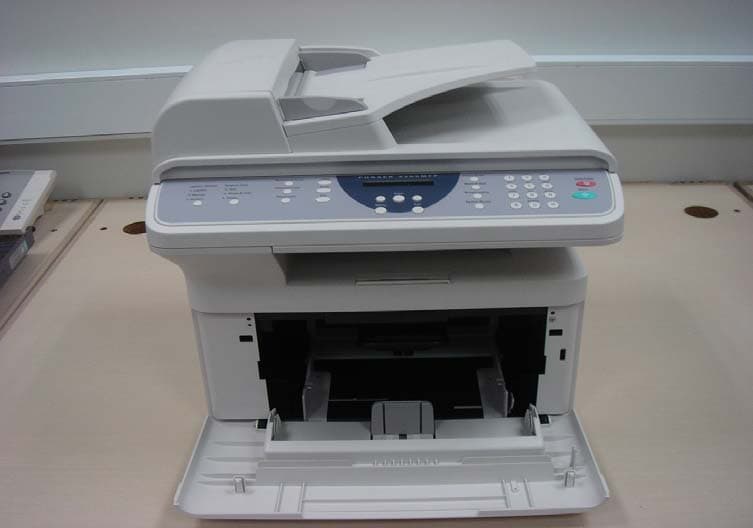
Click to zoom
Application Details
- Equipment Class
- JBP - Part 15 Class B Computing Device Peripheral
- Date of Grant
- Mar 20, 2007
- Application Purpose
- Original Equipment
- Date of Application
- Mar 20, 2007
- Equipment Note
- Multi Function Laser Printer
- Company
- Samsung Electronics Co Ltd
- Country
- United States
Documents & Files
Document Text
Text extracted from the exhibit documents filed with the FCC. Open a document above to read the original.
Users Manual
Phaser 3200MFP User Guide 604E39320 ©2007 by Xerox Corporation. All rights reserved. Copyright protection claimed includes all forms and matters of copyrighted material and information now allowed by statutory or judicial law or hereinafter granted, including without limitations, material generated from the software programs which are displayed on the screen, such as icons, screen displays, looks etc. All Xerox products mentioned in this publication are trademarks of Xerox Corporation. Product names and trademarks of other companies are hereby acknowled ged. The information in this document is correct at the time of publication. Xerox reserves the right at any time to change the information without notice. Changes and technical updates will be added in subsequent editions of the documentation. For the latest information go to www.xerox.com. Table of Contents Xerox Phaser 3200MFPTable of Contents-1 1 Welcome About This Guide . . . . . . . . . . . . . . . . . . . . . . . . . . . . . . . . . . . . . . . . . . . . . . . . . . . . .1-2 Getting to know your machine . . . . . . . . . . . . . . . . . . . . . . . . . . . . . . . . . . . . . . . . . . .1-3 Component location . . . . . . . . . . . . . . . . . . . . . . . . . . . . . . . . . . . . . . . . . . . . .1-3 Control Panel Functions . . . . . . . . . . . . . . . . . . . . . . . . . . . . . . . . . . . . . . . . . . . . . . . .1-5 Special Features . . . . . . . . . . . . . . . . . . . . . . . . . . . . . . . . . . . . . . . . . . . . . . . . . . . . . .1-7 Customer Support . . . . . . . . . . . . . . . . . . . . . . . . . . . . . . . . . . . . . . . . . . . . . . . . . . . . .1-9 Safety Notes . . . . . . . . . . . . . . . . . . . . . . . . . . . . . . . . . . . . . . . . . . . . . . . . . . . . . . . .1-10 WARNING - Electrical Safety Information . . . . . . . . . . . . . . . . . . . . . . . . . . . . 1-11 Laser Safety Information . . . . . . . . . . . . . . . . . . . . . . . . . . . . . . . . . . . . . . . . .1-12 Operational Safety Information . . . . . . . . . . . . . . . . . . . . . . . . . . . . . . . . . . . .1-12 Maintenance Information . . . . . . . . . . . . . . . . . . . . . . . . . . . . . . . . . . . . . . . . .1-13 Ozone Safety Information . . . . . . . . . . . . . . . . . . . . . . . . . . . . . . . . . . . . . . . .1-13 For Consumables . . . . . . . . . . . . . . . . . . . . . . . . . . . . . . . . . . . . . . . . . . . . . .1-14 Radio Frequency Emissions . . . . . . . . . . . . . . . . . . . . . . . . . . . . . . . . . . . . . .1-14 Product Safety Certification . . . . . . . . . . . . . . . . . . . . . . . . . . . . . . . . . . . . . . .1-14 Regulatory Information . . . . . . . . . . . . . . . . . . . . . . . . . . . . . . . . . . . . . . . . . . . . . . . .1-15 CE Mark . . . . . . . . . . . . . . . . . . . . . . . . . . . . . . . . . . . . . . . . . . . . . . . . . . . . .1-15 For Fax Function . . . . . . . . . . . . . . . . . . . . . . . . . . . . . . . . . . . . . . . . . . . . . . .1-15 Environmental Compliance . . . . . . . . . . . . . . . . . . . . . . . . . . . . . . . . . . . . . . .1-19 Illegal Copies . . . . . . . . . . . . . . . . . . . . . . . . . . . . . . . . . . . . . . . . . . . . . . . . . .1-20 Product Recycling and Disposal . . . . . . . . . . . . . . . . . . . . . . . . . . . . . . . . . . .1-23 2 Getting Started Unpacking the machine . . . . . . . . . . . . . . . . . . . . . . . . . . . . . . . . . . . . . . . . . . . . . . . .2-2 Selecting a Location . . . . . . . . . . . . . . . . . . . . . . . . . . . . . . . . . . . . . . . . . . . . .2-3 Clearance Space . . . . . . . . . . . . . . . . . . . . . . . . . . . . . . . . . . . . . . . . . . . . . . . .2-3 Installing the Print Cartridge . . . . . . . . . . . . . . . . . . . . . . . . . . . . . . . . . . . . . . . . . . . . .2-4 Loading Paper. . . . . . . . . . . . . . . . . . . . . . . . . . . . . . . . . . . . . . . . . . . . . . . . . . . . . . . .2-6 Making Connections . . . . . . . . . . . . . . . . . . . . . . . . . . . . . . . . . . . . . . . . . . . . . . . . . . .2-8 Switching On the Machine . . . . . . . . . . . . . . . . . . . . . . . . . . . . . . . . . . . . . . . . . . . . . 2-11 Installing Printer Software . . . . . . . . . . . . . . . . . . . . . . . . . . . . . . . . . . . . . . . . . . . . . .2-12 System Requirements . . . . . . . . . . . . . . . . . . . . . . . . . . . . . . . . . . . . . . . . . . .2-13 Printer Driver Features . . . . . . . . . . . . . . . . . . . . . . . . . . . . . . . . . . . . . . . . . .2-14 Changing the Display Language and Country . . . . . . . . . . . . . . . . . . . . . . . .2-15 Setting the Machine ID . . . . . . . . . . . . . . . . . . . . . . . . . . . . . . . . . . . . . . . . . .2-15 Entering Characters Using the Number Keypad . . . . . . . . . . . . . . . . . . . . . . .2-16 Setting the Date and Time . . . . . . . . . . . . . . . . . . . . . . . . . . . . . . . . . . . . . . . .2-17 Changing the Clock Mode . . . . . . . . . . . . . . . . . . . . . . . . . . . . . . . . . . . . . . . .2-18 Changing the Dial Mode . . . . . . . . . . . . . . . . . . . . . . . . . . . . . . . . . . . . . . . . .2-19 Setting the Paper Size and Type . . . . . . . . . . . . . . . . . . . . . . . . . . . . . . . . . . .2-19 Setting Sounds . . . . . . . . . . . . . . . . . . . . . . . . . . . . . . . . . . . . . . . . . . . . . . . .2-20 Using the Save Modes . . . . . . . . . . . . . . . . . . . . . . . . . . . . . . . . . . . . . . . . . .2-21 Using ControlCentre . . . . . . . . . . . . . . . . . . . . . . . . . . . . . . . . . . . . . . . . . . . . . . . . . .2-22 The Scan Settings Tab . . . . . . . . . . . . . . . . . . . . . . . . . . . . . . . . . . . . . . . . . .2-23 The Phonebook Tab . . . . . . . . . . . . . . . . . . . . . . . . . . . . . . . . . . . . . . . . . . . .2-24 The Printer Tab . . . . . . . . . . . . . . . . . . . . . . . . . . . . . . . . . . . . . . . . . . . . . . . .2-25 The Firmware Update Tab . . . . . . .…
Text truncated - open the document above for the full version.
Users Manual
6Printing Xerox Phaser 3200MFP6-33 NOTE: •It is necessary to claim swap partition of 300 MB or larger when working with large scanned images. •The Linux scanner driver supports the optical resolution at maximum. Please refer to the scanner and copy section of Specifications. See Scanner and Copier Specifications on page 11-3. Software •Linux Kernel 2.4 or higher •Glibc 2.2 or higher •CUPS •SANE Installing the Unified Linux Driver 1.Make sure that you connect your machine to your computer. Turn both the computer and the machine on. 2.When the Administrator Login window appears, type in root in the Login field and enter the system password. NOTE: You must log in as a super user (root) to install the printer software. If you are not a super user, ask your system administrator. 3.Insert the printer software CD-ROM. The CD-ROM will automatically run. If the CD-ROM does not automatically run, click the icon at the bottom of the desktop. When the Terminal screen appears, type in: If the CD-ROM is secondary master and the location to mount is /mnt/ cdrom, [root@localhost root]#mount -t iso9660 /dev/hdc /mnt/cdrom [root@localhost root]#cd /mnt/cdrom/Linux [root@localhost root]#./install.sh NOTE: The installation program runs automatically if you have an autorun software package installed and configured. 6Printing 6-34Xerox Phaser 3200MFP 4.When the welcome screen appears, click Next. 5.When the installation is complete, click Finish. The installation program has added the Unified Driver Configurator desktop icon and Xerox Unified Driver group to the system menu for your convenience. If you have any difficulties, consult the onscreen help that is available through your system menu or can otherwise be called from the driver package windows applications, such as Unified Driver Configurator or Image Manager. Uninstalling the Unified Linux Driver 1.When the Administrator Login window appears, type in root in the Login field and enter the system password. NOTE: You must log in as a super user (root) to install the printer software. If you are not a super user, ask your system administrator. 6Printing Xerox Phaser 3200MFP6-35 2.Insert the printer software CD-ROM. The CD-ROM will automatically run. If the CD-ROM does not automatically run, click the icon at the bottom of the desktop. When the Terminal screen appears, type in: If the CD-ROM is secondary master and the location to mount is /mnt/ cdrom, [root@localhost root]#mount -t iso9660 /dev/hdc /mnt/cdrom [root@localhost root]#cd /mnt/cdrom/Linux [root@localhost root]#./uninstall.sh NOTE: The installation program runs automatically if you have an autorun software package installed and configured. 3.Click Uninstall. 4.Click Next. 5.Click Finish. Using the Unified Driver Configurator Unified Linux Driver Configurator is a tool primarily intended for configuring Printer or MFP devices. Since an MFP device combines the printer and scanner, the Unified Linux Driver Configurator provides options logically grouped for printer and scanner functions. There is also a special MFP port option responsible for the regulation of access to an MFP printer and scanner via a single I/O channel. After installing the Unified Linux driver (see Installing the Unified Linux Driver on page 6-32), the Unified Linux Driver Configurator icon will automatically be created on your desktop. Opening the Unified Driver Configurator 1.Double-click Unified Driver Configurator on the desktop. You can also click the Startup Menu icon and select the Unified Driver Configurator. 6Printing 6-36Xerox Phaser 3200MFP 2.Press each button on the Modules pane to switch to the corresponding configuration window. You can use the onscreen help by clicking Help. 3.After changing the configurations, click Exit to close the Unified Driver Configurator. Printers Configuration Printers configuration has the two tabs; Printers and Classes. Printers Tab You can see the current system’s printer configuration by clicking on the printer icon button on the left side of the Unified Driver Configurator window. You can use the following printer control buttons: • Refresh: renews the available printers list. • Add Printer: allows you to add a new printer. Printers Configuration button Scanners Configuration button Ports Configuration button Shows all installed printers. Switches to Printer Configuration. Shows the status, model name and URI of your printer. 6Printing Xerox Phaser 3200MFP6-37 •Remove Printer: removes the selected printer. • Set as Default: sets the current printer as a default printer. • Stop: stops the printer. • Test: allows you to print a test page to check if the machine is working properly. • Properties: allows you to view and change the printer properties. For details, see Configuring Printer Properties on page 6-39. Classes Tab The Classes tab shows a list of available printer classes. • Refresh : Renews the classes list. • Add Class... :Allows you to add a new printer class. • Remove Class :Removes the selected printer class. Shows the status of the class and the number of printers in the class. Shows all of the printer classes. 6Printing 6-38Xerox Phaser 3200MFP Scanners Configuration In this window, you can monitor the activity of scanner devices, view a list of installed Xerox MFP devices, change device properties, and scan images. • Properties... : Allows you to change the scan properties and scan a document. See Scanning a Document on page 6-42. Ports Configuration In this window, you can view the list of available ports, check the status of each port and release a port in busy state. • Refresh : Renews the available ports list. • Release port :Releases the selected port. Switches to Scanners configuration. Shows all installed scanners. Shows the vendor, model name and type of your scanner. Switches to ports configuration. Shows the port type, device connected to the port and status Shows all available ports. 6Printing Xerox Phaser 3200MFP6-39 Sharing Ports Between Printers and Scanner…
Text truncated - open the document above for the full version.
Block Diagram
MAIN CONTROLLER SRAM 128KB FLASH 16MB SDRAM 64MB SFX336 (CX86710) OPE ADF SCAN MOTOR LCD (16X2) CIS (600dpi Color) PICKUP CLUTCH LSU S/W LSU PLAT MOTOR MAIN MOTOR FAN_SMPS HVPS SMPS FUSER PC HT48C50 LCD/LED DRIVER KEY SCAN SENSOR DRIVER CIS HOME DETECTOR BATTERY DOO-EMPTYDOO-REGDOO-EXIT ADF MOTOR DRIVER (3718 X 2) USB 2.0 LIU COVER OPEN SWITCH 24VS2 P_EMPTY SENSOR ●THV●MHV●OPC●DEV ● SUPPLY● HR(ZENER)●OPC GND INLET & POWER S/W 5V / 24V 24V1 AC PWR FEED SENSOR REAR COVER OPEN S/W RESET THERMISTOR LSU CTL AUDIO PART MAIN MOTOR DRIVER (A3977SLP) PLATEN MOTOR DRIVER (AN44060A) CIS AFE 12V REGULATOR ARM 920T CORE 300MHz 16KB CACHE PLL LVDS Engine Controller UART MAC DMAC CIP4e AC 110V/220V 1.3V DC to DC 3.3V DC to DC LSU_5V 24V SMART DAA (CX20493) SPEAKER 5V 24V1 Phaser Phaser 3200MFP/N , 3200MFP/N , Phaser Phaser 3200MFP/B BLOCK DIAGRAM 3200MFP/B BLOCK DIAGRAM 5V 14P 4P 16P 7P 12P 2P 3P 14P 4P 4P 2P 3P 16P 2P26P 9P 2P 3P CRUM (FUSE) DETECT CRUM 4P Fast Ethernet Transceiver (BCM5241) NIC14P SCX-4725FNONLY USB 2.0 ISP 1582 EXIT_SENSOR 3P
External Photos
1. External Pictures 1) Front View 2) Rear View 3) Side View 1 4) Side View 2 2. Internal Pictures 1) Front View 2) Rear View
ID Label/Location Info
Test Report No. : LBE070618 -25/27- 4.3 Label and Label Location 1) Samsung Electronics Co., Ltd. 2) Samsung Electronics (Shandong) Digital Printing Co., Ltd Test Report No. : LBE070618 -26/27- 3) Weihai Shin Heung Digital Electronics Co., Ltd. Picture 7. Label Test Report No. : LBE070618 -27/27- Picture 8. Label location
Internal Photos
3. Print Board Assembled(PBA) Pictures 1) Top View of Main Controller 2) Bottom View of Main Controller 3) Top View of SMPS 4) Bottom View of SMPS 5) Top View of HVPS 6) Bottom View of HVPS 7) Top View of OPE 8) Bottom View of OPE 9) Top View of Mudular 10) Bottom View of Modular
Operational Description
11 Specifications 11-2Xerox Phaser 3200MFP General Specifications ItemDescription ModelPhaser 3200MFP/B, Phaser 3200MFP/N Automatic document feeder Up to 30 sheets (20 lb, 75 g/m 2 ) ADF document size Width: 5.6 to 8.5 inches (142 to 216 mm) Length: 5.8 to 14 inches (148 to 356 mm) Paper input capacityPaper Tray: 250 multi-pages for plain paper (20 lb, 75 g/m 2 ) Manual Tray: 1 sheet of paper(16 to 40 lb, 60 to 165 g/m 2 ) Paper output capacity100 sheets Paper typePlain paper, Transparencies, Labels, Card stock, Envelopes Consumables1-piece print cartridge system Power requirements110 - 127 VAC, 50/60 Hz, 5.5 A 220 - 240 VAC, 50/60 Hz, 3 A Power consumptionSleep mode: Under 12 W Average: 400 W Noise a a.Sound Pressure Level, ISO7779 Standby mode: Less than 35 dBA Warm up: Less than 49 dBA Copying: Less than 55 dBA Printing: Less than 53 dBA Warm-up timeLess than 20 seconds Operating conditionsTemperature: 50 o F to 89 o F (10 o C to 32 o C) Humidity: 20 % to 80 % RH LCD16 characters x 2 lines Print Cartridge life b b.The number of pages may be affected by operating environment, printing interval, media type, and media size. 2,000/3,000 pages (for starter, 1,500 pages) @ ISO 19752 5 % coverage SET dimension (W x D x H) 17.2 x 14.7x 15.2 in. (438 x 374 x 387 mm) Weight (including consumables) 24.7 lb (11.2Kg) Package weightPaper: 2.9 lb (1.3 Kg) Plastic: 1.1 lb (0.5 Kg) Duty cycle (Monthly)Print: Up to 10,000 pages 11 Specifications Xerox Phaser 3200MFP11-3 Scanner and Copier Specifications ItemDescription CompatibilityTWAIN standard / WIA standard Scanning methodADF and Flat-bed CIS (Contact Image Sensor) module ResolutionOptical: 600 x 600 dpi (Mono and color) Enhanced: 4,800 x 4,800 dpi Effective scanning lengthPlaten: 11.7 inches (297 mm) ADF: 14 inches (356 mm) Effective scanning widthMax. 8.2 inches (208 mm) Color bit depth24 bit Mono bit depth1 bit for Black & White mode 8 bit for Gray mode Copy speed a a.Copy Speed is based on Single Document Multiple Copy. Up to 24 ppm in Letter, A4 First copy out timeStandby mode: 10 seconds Copy resolutionScan: 600 x 300 (Text, Text/Photo) 600 x 600 (Photo using Platen) 600 x 300 (Photo using ADF) Print: 600 x 600 (Text, Text/Photo, Photo) Zoom ratePlaten: 25 ~ 400 % ADF: 25 ~ 100 % Multiple copies1-99 pages Gray scale256 levels 11 Specifications 11-4Xerox Phaser 3200MFP Printer Specifications ItemDescription Printing methodLaser Beam Printing Printing speed a a.Print speed will be affected by operating system used, computing performance, application software, connecting method, media type, media size, and job complexity. Up to 24 ppm in Letter, A4 First print out timeStandby mode: 10 seconds Printer resolutionUp to 1,200 x 1,200 dpi effective output EmulationPCL 6, PS 3 (Phaser 3200MFP/N only) OS CompatibilityWindows 98/Me/2000/XP(32/64bit)/2003(32/64bit)/Vista, Various Linux OS (USB only), Macintosh 10.3 ~ 10.4 (Phaser 3200MFP/N only) Memory64 MB (Non-extendable) InterfaceHigh Speed USB 2.0 Ethernet 10/100 Base TX (Phaser 3200MFP/N only) 11 Specifications Xerox Phaser 3200MFP11-5 Facsimile Specifications ItemDescription CompatibilityITU-T Group 3 Applicable line a a.DSL, Voice Over IP and Digitac converters (convert digital to analogue) are not supported applications. Public Switched Telephone Network (PSTN) or behind PABX Data codingMH/MR/MMR (ECM Mode)/JBIG/JPEG/ECM( Error Correction Mode) Modem speed33.6 Kbps Transmission speedApprox. 3 seconds/page * Transmission time applies to memory transmission of text data with ECM compression using only ITU-T No.1 Chart. Maximum document lengthPlaten: 11.7 in. (297 mm) ADF: 14 in. (356 mm) Paper sizeLetter, A4, Legal, Folio, Executive, B5 ResolutionStandard: 203 x 98 dpi Fine: 203 x 196 dpi Super Fine: 300 x 300 dpi Photo: 203 x 196 dpi Color: 200 x 200 dpi Memory4 MB Halftone 256 levels Auto dialerGroup dialing (up to 200 numbers)
Test Report
-1/27- EMC TEST REPORT Samsung Electronics Co., Ltd. 416 Maetan 3-Dong, Yeongtong-Gu, Suwon-Si,Gyeonggi-Do, 443-742 Korea (Tel: 82 31 277 7752, Fax: 82 31 277 7753) Project No. : LBE070618 Page (1)/(27) 1. Applicant ◦ Name of organization : Samsung Electronics Co., Ltd. ◦ Address : 416 Maetan 3-Dong, Yeongtong-Gu, Suwon-Si, Gyeonggi-Do, 443-742 Korea ◦ Date of application : 2007. 02. 14 2. Purpose for the report : Approval for EMC 3. Kind of product : LASER MFP (Model name :Phaser 3200MFP/N) 4. Date of test : 2007. 02. 14 ~ 2007. 02. 24 5. Applied standard : FCC Part 15, Subpart B 6. FCC ID : A3LPHASER3200MFP 7. Test result : Complied The equipment under test has found to be compliant with the applied standards. (Refer to the attached test result for more detail.) Tested by Name : Young Hun, Cheong Reviewed by Name : No Cheon Park This report is the test result about the sphere accredited by KOLAS which signed the Mutual Recognition Arrangement of International Laboratory Accreditation Cooperation. 2007. 02. 27 Samsung Electornics Co., Ltd. Chief of CS Management Center Test Report No. : LBE070618 -2/27- TEST RESULT Test Report No. : LBE070618 Applicant / Address : Samsung Electronics Co., Ltd. 416 Maetan 3-Dong, Yeongtong-Gu,Suwon-Si,Gyeonggi-Do 443-742 Korea Manufacture / Address : 1) Samsung Electronics Co.,Ltd. 259, Gongdan-Dong, Gumi-City, Gyeongsangbuk-Do, 730-030 Korea 2) Samsung Electronics(Shandong) Digital Printing Co., Ltd. 264209, Samsung Road, Weihai Hi-Tech IDZ, Shandong Province, China 3) Weihai Shin Heung Digital Electronics Co., Ltd. 98, Samsung Road, Weihai Hi-Tech. IDZ, Shandong Province, P.R.China EUT : 1. Product name : LASER MFP 2. Model name : Phaser 3200MFP/N 3. Brand name : XEROX 4. Variant model : Phaser 3200MFP/B Test Method : ANSI C 63.4:2003 Test Result : Complied The equipment under test has found to be compliant with the applied standards Test Lab. : CS Management Center, Samsung Electronics Co., Ltd. Tested by : Young Hun Cheong Reviewed by : No Cheon Park Date of Issue : 2007. 02. 27 Test Report No. : LBE070618 -3/27- Table of contents 1. General information 1.1 Basic information related product 1.2 Detail information related product 1.3 Operating mode and condition 1.4 Equipment modifications 1.5 Test procedure 1.6 Test configuration 1.7 Applied standard 1.8 Test facility 2. Summary of test results 3. Description of individual tests 3.1 Conducted emission 3.2 Radiated emission 4. Appendix 4.1 Test photography 4.2 EUT photography Test Report No. : LBE070618 -4/27- 1. General information 1.1 Basic information related product Applicant Samsung Electronics Co., Ltd. Model name Phaser 3200MFP/N Applicant address 416 Maetan 3-Dong, Yeongtong-Gu,Suwon-Si,Gyeonggi-Do 443-742 Korea Contact person Sangsu, ROH Kind of product LASER MFP FCC ID A3LPHASER3200MFP Valiant model Phaser 3200MFP/B Manufacturer 1) Samsung Electronics Co.,Ltd. 259, Gongdan-Dong, Gumi-City, Gyeongsangbuk-Do, 730-030 Korea 2) Samsung Electronics(Shandong) Digital Printing Co., Ltd. 264209, Samsung Road, Weihai Hi-Tech IDZ, Shandong Province, China 3) Weihai Shin Heung Digital Electronics Co., Ltd. 98, Samsung Road, Weihai Hi-Tech. IDZ, Shandong Province, P.R.China Rated power AC 120 V, 60 Hz New / Alternative / Permissive change information New Test Report No. : LBE070618 -5/27- 1.2 Detail Information related product 1.2.1 Specification Item Specification and Description Remark Processor CHORUSm (ARM920T, 300MHz) - Standard System mem ory 64MB (not expandable) - Resolution Up to 1200 x 1200 dpi effective output - Copy Quality mode Text : 600x300dpi (ADF, Platen) Text/Photo : 600x300dpi (ADF, Platen) Photo : 600x300dpi (ADF), 600X600 (Platen) - Paper Handling ADF : Up to 30 Sheets Tray : Up to 250 Sheets Manual Tray: 1 sheet - Power Rating 110~127 VAC, 5.5A, 50/60 Hz - Power Consumption Power save mode : Less than 13.5 Watts Stand by mode : Less than 70 Watts Printing : Less than 400 Watts ADF Copy mode : Less than 320 Watts - Printer Language PCL6, PS3(SCX-4725FN only), SPL(for Linux only) - PC Interfaces USB2.0, Ethernet 10/100 Base Tx - OS compatibility Windows 98/Me/NT4.0/2000/XP/2003 Server Various Linux OS(via USB interface only) Mac OS 10.3 ~ 10.4(SCX-4725FN only) - Modes of Operation USB Printing, Network Printing, ADF Scan, ADF Copy, Fax RX, Fax TX - Intended Class for Emi ssions Class B - Operating Frequency Main Clock = 12MHz CPU Internal Clock = 300MHz Video Clock = 22.5035MHz USB Clock = 12MHz SDRAM Clock = 100MHz CIS = 4.167MHz Network Clock = 25MHz Test Report No. : LBE070618 -6/27- 1.3 Operating mode and condition The system was configured for testing in typical fashion use. Cable were attached to each of the availabl e I/O port. Where applicable, peripherals were attached to the I/O cables. This EUT is supporting the USB, Parallel and Copy printing. In each test mode, finally we found worst case emission that is above configuration with the Worst case components(in the above table). So, the data of the maximum EUT operation, Network printing(duplex mode) was reported. - Operating Mode - Standby Printing Mode - COPY Mode (worst emission) - Test Voltage : 120 V, 60 Hz 1.4 Equipment modifications No equipment modifications were required. Test Report No. : LBE070618 -7/27- 1.5 Test procedure 1.5.1 Conducted emission EUT was placed on a platform nominal size, 1 m by 1.5 m, raised 80 cm above the conducting ground plane. The rear of tabletop was located 40 cm to the vertical conducting ground plane. The rear of EUT, including peripherals was aligned and flush with rear of tabletop. All other surfaces of tabletop was at least 80 cm from any other grounded conducting surface. I/O cables and AC cables that were connected to the peripherals were bundled in center. They were folded back and forth forming a bindle 30 cm to 40 cm long and were handed at a 40 cm height to the ground plane. Each EUT current-carrying power lead, except the ground(safety) lead, were individually connected throu…
Text truncated - open the document above for the full version.
Test Setup Photos
Test Report No. : LBE070618 -22/27- 4. Appendix 4.1 Test photography Picture 1. Conducted Emission (Front) Picture 2. Conducted Emission (Rear) Test Report No. : LBE070618 -23/27- Picture 3. Radiated emission (Front) Picture 4. Radiated emission (Rear)
Contact Information
Applicant
Jenni Chun(General Manager)
Technical Contact
PCTEST Engineering Lab., Inc.Randy Ortanez
[email protected]410-290-6652
6660-B Dobbin Road · Columbia, Maryland · United States
Test Firm
samsung electro-mechanicsLIM HWAN
Technical Specifications
| # | Rule Parts | Frequency Range | Power Output |
|---|---|---|---|
| 1 | 15B | - | - |
Other Applications from Samsung Electronics Co Ltd
A3LSMS741B
Aug 05, 2026Portable Handset
Equipment Class
6VL - 15E 6 GHZ Very Low Power DeviceA3LSMX940
Jul 31, 2026BT,BLE Tablet DTS,UNII a,b,g,n,ac,ax,be and digitizer
Equipment Class
DTS - Digital Transmission SystemA3LSMS741U
Jul 30, 2026Portable Handset
Equipment Class
6CD - 15E 6 GHz Low Power Dual ClientA3LSMX840
Jul 27, 2026BT,BLE Tablet DTS,UNII a,b,g,n,ac,ax and Digitizer
Equipment Class
DSS - Part 15 Spread Spectrum TransmitterA3LSMX848U
Jul 27, 2026WCDMA, LTE, 5G NR Tablet BT,BLE, DTS,UNII a b g n ac ax and Digitizer
Equipment Class
JBP - Part 15 Class B Computing Device Peripheral