A3LSCX4720FMulti Function Printer
Samsung Electronics Co Ltd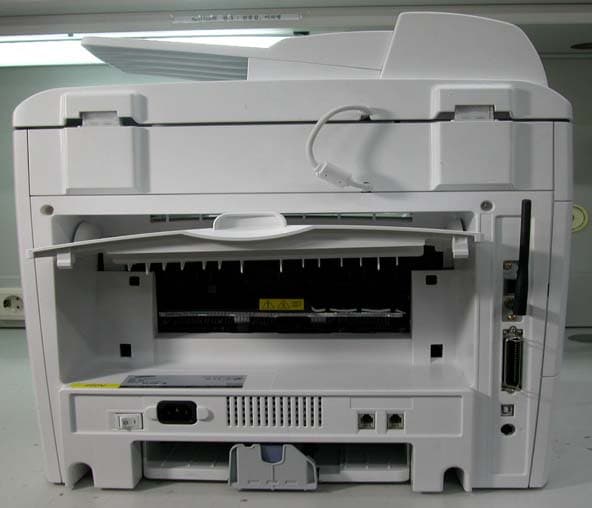
Click to zoom
Application Details
- Equipment Class
- JBP - Part 15 Class B Computing Device Peripheral
- Date of Grant
- Jun 13, 2004
- Application Purpose
- Original Equipment
- Date of Application
- Jun 13, 2004
- Equipment Note
- Multi Function Printer
- Company
- Samsung Electronics Co Ltd
- Country
- United States
Documents & Files
Document Text
Text extracted from the exhibit documents filed with the FCC. Open a document above to read the original.
Users Manual
i About the User’s Guide This Laser MFP User’s Guide provides information you need for setting up your machine and installing the supplied software. It also provides all of the detailed instructions for using your machine as a printer, a scanner, a copier, and a facsimile, and information for maintaining and troubleshooting the machine. This guide also provides the basic description of the multi-function application, Samsung SmarThru. SmarThru allows you to scan and edit images and to scan for copying. SmarThru also lets you access scanned images that you can then email from your computer. The User’s Guide shows you how to use a USB flash drive with your machine for scanning and saving documents, and printing documents stored on the USB flash drive. This manual is provided for information purposes only. All information included herein is subject to change without notice. Samsung Electronics is not responsible for any changes, direct or indirect, arising from or related to use of this manual. © 2004 Samsung Electronics Co., Ltd. All rights reserved. • SCX-4520, SCX-4720F, and Samsung logo are trademarks of Samsung Electronics Co., Ltd. • Centronics is a trademark of Centronics Data Computer Corporation. • IBM and IBM PC are trademarks of International Business Machines Corporation. • PCL and PCL 6 are trademarks of Hewlett-Packard company. • Microsoft, Windows, Windows 9x, Window Me, Windows 2000, Windows NT 4.0 and Windows XP are registered trademarks of Microsoft Corporation. • All other brand or product names are trademarks of their respective companies or organizations. ii CONTENTS Chapter 1: INTRODUCTION Special Features ........................................................... 1.2 Understanding Component Locations ............................... 1.5 Front View .............................................................. 1.5 Rear View ............................................................... 1.6 Control Panel Functions ............................................ 1.7 Chapter 2: GETTING STARTED Unpacking .................................................................... 2.2 Selecting a Location ................................................. 2.4 Installing the Toner Cartridge ......................................... 2.5 Loading Paper .............................................................. 2.7 Making Connections .................................................... 2.11 Turning the Machine On ............................................... 2.14 Changing the Display Language .................................... 2.15 Setting the Machine ID (SCX-4720F Only) ...................... 2.16 Entering Characters Using the Number Keypad .......... 2.17 Setting the Date and Time (SCX-4720F Only) ................. 2.19 Changing the Clock Mode ....................................... 2.20 Setting the Paper Size and Type ................................... 2.20 Setting Sounds (SCX-4720F Only) ................................. 2.21 Speaker, Ringer, Key Sound, and Alarm Sound .......... 2.21 Speaker Volume .................................................... 2.22 Using the Save Modes ................................................. 2.23 Toner Save Mode .................................................. 2.23 Toll Save Mode (SCX-4720F Only) ........................... 2.23 Power Save Mode .................................................. 2.24 Scan Lamp Save Mode ........................................... 2.25 About Samsung Software ............................................. 2.26 Printer Driver Features ........................................... 2.27 Installing Samsung Software in Windows ....................... 2.28 System Requirements ............................................ 2.28 Installing Samsung Software ................................... 2.29 Installing Samsung SmarThru ................................. 2.32 Repairing Software ...................................................... 2.33 Removing Software ..................................................... 2.35 Uninstalling the MFP Driver ..................................... 2.35 Uninstalling Samsung SmarThru .............................. 2.36 Using the Printer Setting Utility ..................................... 2.37 iii Chapter 3: PAPER HANDLING Selecting Print Materials ................................................. 3.2 Paper Type, Input Sources, and Capacities .................. 3.2 Guidelines for Paper and Special Materials .................. 3.3 Loading Paper .............................................................. 3.4 In the Standard Tray ............................................... 3.4 In the Multipurpose Tray .......................................... 3.6 Using the Manual Feed Mode ..................................... 3.8 Selecting an Output Location ........................................ 3.10 Printing to the Front Output Tray (Face down) ........... 3.10 Printing to the Rear Output Slot (Face up) ................ 3.11 Chapter 4: PRINTING TASKS Printing a Document in Windows ..................................... 4.2 Canceling a Print Job ................................................ 4.3 Printer Settings ............................................................ 4.4 Layout tab .............................................................. 4.5 Paper Tab ............................................................... 4.6 Graphic Tab ............................................................ 4.8 Extras Tab ............................................................ 4.10 About Tab ............................................................ 4.11 Printer Tab ........................................................... 4.11 Using a Favorite Setting ......................................... 4.12 Using Help ............................................................ 4.12 Printing Multiple Pages on One Sheet of Paper ................ 4.13 Printing Posters .......................................…
Text truncated - open the document above for the full version.
Users Manual
FAXING (SCX-4720F ONLY) 7.9 7 Selecting the Paper Tray After loading the print material for fax output, you have to select the paper tray you will use for the fax job. 1Press Menu on the control panel. The first available menu, item “Paper Setting,” appears on the top line of the display. 2Press the scroll button ( or ) until “Fax Tray” appears on the bottom line of the display. 3Press Enter. 4Press the scroll button ( or ) until the paper tray you want appears on the display. You can select Tray1, Tray2, Tray1/2, or Auto. If you do not install the optional Tray 2, the Tray2 and Tray1/2 menu item will not appear on the display. 5Press Enter to save the selection. 6To return to Standby mode, press Stop/Clear. Adjusting the Document Resolution The default document settings produce good results when using typical text-based documents. However, if you send documents that are of a poor quality, or contain photographs, you can adjust the resolution to produce a higher quality fax. 1Press Resolution on the control panel. 2By pressing Resolution or the scroll button ( or ), you can choose from Standard, Fine, Super Fine, Photo Fax, and Color Fax. FAXING (SCX-4720F ONLY) 7.10 3When the mode you want to use displays, press Enter to make your selection. The document types recommended for the resolution settings are described in the table below: NOTES: • For memory transmission, Super Fine mode is not available. The resolution setting is automatically changed to Fine. • When your machine is set to Super Fine resolution and the fax machine with which you are communicating does not support Super Fine resolution, the machine transmits using the highest resolution mode supported by the other fax machine. Mode Recommended for: StandardDocuments with normal sized characters. Fine Documents containing small characters or thin lines or documents printed using a dot-matrix printer. Super Fine Documents containing extremely fine detail. Super Fine mode is enabled only if the machine with which you are communicating also supports the Super Fine resolution. See the notes below. Photo Fax Documents containing shades of gray or photographs. Color Fax Documents with colors. Sending a color fax is enabled only if the machine with which you are communicating supports color fax reception and you send the fax manually. In this mode, memory transmission is not available. FAXING (SCX-4720F ONLY) 7.11 7 Sending a Fax Automatically 1Load the document(s) face up into the ADF. OR Place a single document face down on the document glass. For details about loading a document, see page 7.6. 2Adjust the document resolution to suit your fax needs (see page 7.9). If you need to change the darkness, see page 7.3. 3Enter the remote fax phone number using the number keypad. You can use one-touch keypad, speed dial, or group dial numbers. For details about storing a number, see “Automatic Dialing” on page 7.19. 4Press Start. 5When a document is placed on the document glass, the display shows “Another Page?” on the top line after the document is scanned into the memory. If you have the next page, remove the scanned page and place the next page on the glass and select “1.Yes.” Repeat as necessary. After all of the pages are scanned, select “2.No” when the display shows “Another Page?.” 6The number is dialed and then the machine begins sending the fax when the receiving fax machine is ready. NOTE: When you want to cancel a fax job, press Stop/Clear at any time while sending. FAXING (SCX-4720F ONLY) 7.12 Sending a Fax Manually 1Load the document(s) face up into the ADF. OR Place a single document face down on the document glass. For details about loading a document, see page 7.6. 2Adjust the document resolution to suit your fax needs (see page 7.9). If you need to change the darkness, see page 7.3. 3Press On Hook Dial. You hear a dial tone. 4Enter the receiving fax machine’s number using the number keypad. You can use one-touch keypad, speed dial, or group dial numbers. For details about storing a number, see “Automatic Dialing” on page 7.19. 5When you hear a high-pitched fax signal from the remote fax machine, press Start. NOTE: When you want to cancel a fax job, press Stop/Clear at any time while sending. Redialing the Last Number To redial the number you last called: Press Redial/Pause. When a document is loaded in the ADF (Automatic Document Feeder; see page 7.6), the machine automatically begins to send. For a document placed on the document glass, the display asks if you want to load another page. Select “1.Yes” to add. Otherwise, select “2.No.” FAXING (SCX-4720F ONLY) 7.13 7 Confirming Transmission When the last page of your document has been sent successfully, the machine beeps and returns to Standby mode. When something goes wrong while sending your fax, an error message appears on the display. For a list of error messages and their meanings, see page 9.12. If you receive an error message, press Stop/Clear to clear the message and try to send the document again. You can set your machine to print a confirmation report automatically each time sending a fax is completed. For further details, see the MSG Confirm item on page 7.4. Automatic Redialing When the number you have dialed is busy or there is no answer when you send a fax, the machine automatically redials the number every three minutes, up to seven times according to the factory default settings. When the display shows “Retry Redial ?,” press Enter to redial the number without waiting. To cancel the automatic redialing, press Stop/Clear. To change the time interval between redials and the number of redial attempts. See page 7.3. FAXING (SCX-4720F ONLY) 7.14 Receiving a Fax About Receiving Modes •In Fax mode, the machine answers an incoming fax call and immediately goes into the fax reception mode. •In Tel mode, you can receive a fax by pressing On Hook Dial (you can hear a fax tone from the sending machine) and then pressing Start on the control panel of your machine. You ca…
Text truncated - open the document above for the full version.
Block Diagram
Rocky2 Block Diagram MAIN SPGPm ARM946ES CACHE(16K*2) SDRAM Control ROM Control DMA Control PVC GEU/HCT/gCODEC I/O I/F Engine Control IEEE1284/USB2.0 MAIN MOTOR DRIVER A3977SLR Reset THERM. 26P 2P 600 DPI, COLOR CCD MAIN MOTOR FLATEN MOTOR FAST SRAM (128 KByte) CIP4 Image Processer AFE I/F I/O PORT Motor Control DMA Control RTC JPEG Codec CIP4 AFE FLATEN MOTOR DRIVER TEA3718 X 2EA CCD DRIVING PART USB host NETWORK ADF UNIT P-REGI, P-DET, P-POS SENSOR ADF MOTOR DRIVER TEA3718 X 2EA FLAT COVER SENSOR OPE ● MICOM ● LCD/LED Drive ●KeyScan LCD, 16*2 LINES 14P 3P FUSER 2P AC PWR INLET & POWER S/W SMPS COVE EXIT MPE SEN FEED PAPER SEN +5V +24V +24VS AC 110 +12V BootROM(2MBx2ea) NETWORKINTERFACE CARD SCF(Option) SDRAM(32MB) MEMORY DIMM DRAM Backup logic PCL6(2MB x 2ea) PS3(2MB x 2ea) 3P MODEM SFM336 33.6KBPS AUDIO Drv. Smart DAA CX20493 LINE EXT. PHON E LSU 11P PTL MAIN CLUTCH 2P 3P MP CLUTCH 4P CARTRIDGE IN 4P USB Driver NET2272 IEEE1284 USB 2.0
External Photos
ٛ. External Pictures 1) Front View 2) Rear View 3) Side View 1 4) Side View 2 2. Internal Pictures 1) Front View 2) Rear View
ID Label/Location Info
<SCX-4720F Label - Korea> <SCX-4720F Label - China> <Label Location Photo>
Internal Photos
1. Internal Pictures 1) Top View of Main Controller 2) Bottom View of Main Controller 3) Top View of V1(SMPS + HVPS) 4) Bottom View of V1 (SMPS + HVPS) 5) Top View of SCF Board 6) Bottom View of SCF Board 7) Top View of LIU Board 8) Bottom View of LIU Board 9) Top View of RAM DIMM Module 10) Bottom View of RAM DIMM Module 11) Top View of ROM DIMM Module 12) Bottom View of ROM DIMM Module 13) Top View of Network Card 14) Bottom View of Network Card
Test Report
1 of 20 Samsung EMC Testing and Certification Laboratory Project No: LBE041175 This report shall not be reproduced except in full, without the written approval of SEC EMC Testing laboratory. EMC Test Report According to FCC Part 15 Subpart B Project No. LBE041175 Equipment under Test Multi Function Printer Applicant Samsung Electronics Co. Ltd; 416 Maetan3-Dong, YeoungTong-Gu, Suwon City, Gyeonggi-Do, Korea, 443-742 FCC ID A3LSCX4720F Product Name Multi Function Printer Model Name SCX-4720F Variant Model SCX-4520, WorkCentre PE120i, WorkCentre PE120 Manufacturer - Samsung Electronics Co., Ltd. 259, Gongdan-Dong, Gumi-City, Kyung-Buk, 730-030, Korea - Shandong Samsung Telecommunications Co. Ltd. Sanxing Road, Weihai Hi-Tech, IDZ shandong Province, 264209, China Date of Test May 31, 2004 Issued Date June 01, 2004 Name/Position Signature Tested by Kyeong Dong, KIM Test Engineer Reviewed by No Cheon, Park Manager of EMC Lab. Authorized by Kyu Baek, Chung Chief of EMC Lab. 1. This test reports does not constitute an endorsement by NIST/NVLAP or U.S Government. 2. This test report is to certify that the tested device properly complies with the requirements of FCC Rules and Regulations Part 15 Subpart B Unintentional Radiators. All tests necessary to show compliance to the requirements were and these results met the specifications requirement. This laboratory is registered by the NIST/NVLAP, U.S.A. The test reported herein have been performed in accordance with its terms of registration. NVLAP LAB CODE 200623-0 2 of 20 Samsung EMC Testing and Certification Laboratory Project No: LBE041175 This report shall not be reproduced except in full, without the written approval of SEC EMC Testing laboratory. Table of Contents 1. General Information 1.1 Basic Information Related Product 1.2 Detail Information Related Product 1.3 Operating Mode and Test Condition 1.4 Test System Details 1.5 Equipment Modifications 1.6 Test Procedure 1.7 Test Configurations 1.8 Applied Standards 1.9 Test Facility 2. Summary of Test Results 3. Description of individual tests 3.1 Conducted Emission 3.2 Radiated Emission 4. Appendix 4.1 Test Photography 4.2 EUT Photography 3 of 20 Samsung EMC Testing and Certification Laboratory Project No: LBE041175 This report shall not be reproduced except in full, without the written approval of SEC EMC Testing laboratory. 1. General Information 1.1 Basic Information related Product Applicant Samsung Electronics Co. Ltd; Model name SCX-4720F Applicant Address Samsung Electronics Co. Ltd; 416 Maetan3- Dong, Yeoungtong-Gu, Suwon City, Gyeonggi-Do, Korea, 443-742 Contact Person Gwang Hyun, Jo Kind of product Multi Function Printer Valiant list SCX-4520, WorkCentre PE120i, WorkCentre PE120 Manufacturer - Samsung Electronics Co., Ltd. 259, Gongdan-Dong, Gumi-City, Kyung-Buk, 730-030, Korea - Shandong Samsung Telecommunications Co. Ltd. Sanxing Road, Weihai Hi-Tech, IDZ shandong Province, 264209, China New / Alternative / Permissive change Information This report is original report # 1.2 Detail Information related Product Specification General Specification Consumables 1-piece toner cartridge system Power consumption Sleep mode : 19W Average : 400W Warm-up Time Less than 30 seconds Toner Cartridge Life 5,000 pages (for starter, 3,000 pages) @ ISO 19752 5% Coverage Power requirements 110~127 VAC, 50/60Hz, 5.0A (FCC) 220~240 VAC, 50/60Hz, 2.6A (CE) Set Dimension (W x D x H) 440 x 435 x 457 mm 4 of 20 Samsung EMC Testing and Certification Laboratory Project No: LBE041175 This report shall not be reproduced except in full, without the written approval of SEC EMC Testing laboratory. Weight Net : 13 Kg( including consumables) Gross : 21 Kg (including consumables, accessories and package) Scanner and Copier Specifications Compatibility TWAIN standard Scanning method ADF and Flat-bed Color CCD(Charge Coupled Device) module Scan resolution 600 x 1200 dpi(Mono and color) Enhanced : 4800 x 4800 dpi (USB) Scan Speed 27 seconds (Text mode), 75 seconds (Gray mode) 150 seconds (Color mode) Copy Speed Letter : Up to 22 pages per minute A4 : Up to 20 pages per minute Copy resolution Scan : 600 x 300 dpi(Text, Mixed)/ 600 x 600 dpi(Photo) Print : 600 x 600 dpi (Text, Mixed, Photo) Printer Specifications Printing method Laser Beam Printing Printing speed Letter : Up to 22 pages per minute A4 : Up to 20 pages per minute Print resolution 600 x 600 dpi (1200 x 600 dpi) Emulation PCL6 Compatible PC interface Compatible with USB 2.0 Specifications and IEEE1284 Parallel Memory 32MB(Max. 160MB) First printing time Standby mode : 12 seconds Power save mode : 54 seconds Options Ethernet 10/100 Base TX(Internal), Ethernet 10/100 Base TX + 802.11b Wireless LAN (Internal) Facsimile Specifications (For the SCX-4720F) Compatibility ITU-T Grounp 3 Modem speed 33.6 Kbps Resolution Standard : 203 x 98 dpi Fine : 203 x 196 dpi Super Fine : 300 x 300 dpi/203 x 392 dpi User Memory 4MB(320 pages) Applicable line Public Switched Telephone Network (PSTN) or behind PABX 5 of 20 Samsung EMC Testing and Certification Laboratory Project No: LBE041175 This report shall not be reproduced except in full, without the written approval of SEC EMC Testing laboratory. Operating Frequency Wireless LAN 2.4GHz Video Clock : 19.61374 MHz CPU clock : 12MHz SDRAM Clock : 60MHz CCD Clock : 8 MHz Modem Clock : 28.224 MHz 6 of 20 Samsung EMC Testing and Certification Laboratory Project No: LBE041175 This report shall not be reproduced except in full, without the written approval of SEC EMC Testing laboratory. 1.3 Operating Mode and Test Condition The system was configured for testing in typical fashion use. Cable were attached to each of the available I/O port. Where applicable, peripherals were attached to the I/O cables. This EUT have Wireless Printing server function so Host PC link to EUT and transfer print file formation "H" character document continuously. 1.4 Test System Details 1.5 Equipment Modifications No equipment modifications were required. 7 …
Text truncated - open the document above for the full version.
Test Setup Photos
17 of 20 Samsung EMC Testing and Certification Laboratory Project No: LBE041175 This report shall not be reproduced except in full, without the written approval of SEC EMC Testing laboratory. 4. Appendix 4.1 Test Photography Pic. 1 Conducted Emission (Front) Pic. 2 Conducted Emission (Rear) 18 of 20 Samsung EMC Testing and Certification Laboratory Project No: LBE041175 This report shall not be reproduced except in full, without the written approval of SEC EMC Testing laboratory. Pic. 3 Radiated Emission (Front) Pic. 4 Radiated Emission (Rear)
Contact Information
Applicant
Jenni Chun(General Manager)
Technical Contact
PCTEST Engineering Lab., Inc.Randy Ortanez
[email protected]410-290-6652
6660-B Dobbin Road · Columbia, Maryland · United States
Test Firm
SAMSUNG ELECTRONICS CO., LTD.No Cheon Park
Technical Specifications
| # | Rule Parts | Frequency Range | Power Output |
|---|---|---|---|
| 1 | 15B | - | - |
Other Applications from Samsung Electronics Co Ltd
A3LSMS741B
Aug 05, 2026Portable Handset
Equipment Class
6VL - 15E 6 GHZ Very Low Power DeviceA3LSMX940
Jul 31, 2026BT,BLE Tablet DTS,UNII a,b,g,n,ac,ax,be and digitizer
Equipment Class
DTS - Digital Transmission SystemA3LSMS741U
Jul 30, 2026Portable Handset
Equipment Class
6CD - 15E 6 GHz Low Power Dual ClientA3LSMX840
Jul 27, 2026BT,BLE Tablet DTS,UNII a,b,g,n,ac,ax and Digitizer
Equipment Class
DSS - Part 15 Spread Spectrum TransmitterA3LSMX848U
Jul 27, 2026WCDMA, LTE, 5G NR Tablet BT,BLE, DTS,UNII a b g n ac ax and Digitizer
Equipment Class
JBP - Part 15 Class B Computing Device Peripheral