A3LSF565PRMulti Function Printer
Samsung Electronics Co Ltd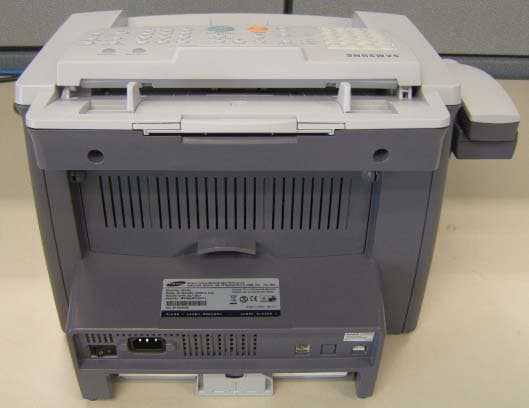
Click to zoom
Application Details
- Equipment Class
- JBP - Part 15 Class B Computing Device Peripheral
- Date of Grant
- Jan 22, 2008
- Application Purpose
- Original Equipment
- Date of Application
- Jan 22, 2008
- Equipment Note
- Multi Function Printer
- Company
- Samsung Electronics Co Ltd
- Country
- United States
Documents & Files
Document Text
Text extracted from the exhibit documents filed with the FCC. Open a document above to read the original.
Users Manual
About the User’s Guides Your machine comes with the two user’s guides: This Laser MFP User’s Guide provides information you need for setting up your machine and installing the supplied software. It also provides all of the detailed instructions for using your machine as a printer, a scanner, a copier and a facsimile and information for maintaining and troubleshooting the machine. The SmarThru 3 User’s Guide provides the basic description about using the multi-function application. Samsung SmarThru allows you to scan and edit images, and to scan for copying, faxing and sending an e-mail on your computer. You can also find a brief description on the automatic text recognition program, AnyPage. This manual is provided for information purposes only. All information included herein is subject to change without notice. Samsung Electronics is not responsible for any direct or indirect damages, arising from or related to use of this manual. © 2007 Samsung Electronics Co., Ltd. All rights reserved. • SF-565PR and Samsung logo are trademarks of Samsung Electronics Co., Ltd. • PCL and PCL 6 are trademarks of hewlett-packard Company. • IBM and IBM PC are trademarks of International Business Machines Corporation. • Microsoft, Windows, Windows 2000, Windows XP and Windows Vista are registered trademarks of Microsoft Corporation. • All other brand or product names are trademarks of their respective companies or organizations. ii Contact SAMSUNG WORLD WIDE If you have any comments or questions regarding Samsung products, contact the SAMSUNG customer care center. CountryCustomer Care Center Web Site ARGENTINE0800-333-3733www.samsung.com/ar AUSTRALIA1300 362 603www.samsung.com/au BELGIUM02 201 2418www.samsung.com/be BRAZIL0800-124-421 4004-0000 www.samsung.com/br CANADA1-800-SAMSUNG (7267864)www.samsung.com/ca CHILE800-726-7864 (SAMSUNG)www.samsung.com/cl CHINA800-810-5858 010- 6475 1880 www.samsung.com.cn COLOMBIA01-8000-112-112www.samsung.com/co COSTA RICA0-800-507-7267www.samsung.com/latin CZECH REPUBLIC844 000 844www.samsung.com/cz Distributor pro ýeskou republiku : Samsung Zrt., þeska organizaþní složka Vyskoþilova 4, 14000 Praha 4 DENMARK70 70 19 70www.samsung.com/dk ECUADOR1-800-10-7267www.samsung.com/latin EL SALVADOR800-6225www.samsung.com/latin ESTONIA800-7267www.samsung.ee KAZAHSTAN8-800-080-1188www.samsung.kz FINLAND030-6227 515www.samsung.com/fi FRANCE3260 SAMSUNG or 08 25 08 65 65 (€ 0,15/min) www.samsung.com/fr GERMANY01805 - 121213 (€ 0,14/min) www.samsung.de GUATEMALA1-800-299-0013www.samsung.com/latin HONG KONG3698 4698www.samsung.com/hk HUNGARY06-80-SAMSUNG (7267864)www.samsung.com/hu INDIA3030 8282 1800 110 011 www.samsung.com/in/ INDONESIA0800-112-8888www.samsung.com/id ITALIA800-SAMSUNG(7267864)www.samsung.com/it JAMAICA1-800-234-7267www.samsung.com/latin iii JAPAN0120-327-527www.samsung.com/jp LATVIA800-7267www.samsung.com/lv/index.htm LITHUANIA8-800-77777www.samsung.com/lt LUXEMBURG0032 (0)2 201 24 18www.samsung.lu MALAYSIA1800-88-9999www.samsung.com/my MEXICO01-800-SAMSUNG (7267864)www.samsung.com/mx NETHERLANDS0900 20 200 88 (€ 0,10/min)www.samsung.com/nl NORWAY815-56 480www.samsung.com/no PANAMA800-7267www.samsung.com/latin PHILIPPINES1800-10-SAMSUNG (7267864)www.samsung.com/ph POLAND0 801 801 881www.samsung.com/pl PORTUGAL80 8 200 128www.samsung.com/pt PUERTO RICO1-800-682-3180www.samsung.com/latin REP. DOMINICA1-800-751-2676www.samsung.com/latin Republic of Ireland0818 717 100www.samsung.com/uk RUSSIA8-800-200-0400www.samsung.ru SINGAPORE1800-SAMSUNG (7267864)www.samsung.com/sg SLOVAKIA0800-SAMSUNG (726786)www.samsung.com/sk SOUTH AFRICA0860 726 7864 (SAMSUNG)www.samsung.com/za SPAIN902 10 11 30www.samsung.com/es SWEDEN0771-400 200www.samsung.com/se Switzerland0800-7267864www.samsung.com/ch/ TAIWAN0800-329-999www.samsung.com/tw THAILAND1800-29-3232 02-689-3232 www.samsung.com/th TRINIDAD & TOBAGO1-800-7267-864www.samsung.com/latin U.A.E800-SAMSUNG (7267864)www.samsung.com/mea U.K0870 SAMSUNG (7267864)www.samsung.com/uk U.S.A1-800-SAMSUNG (7267864)www.samsung.com UKRAINE8-800-502-0000www.samsung.com/ur UZBEKISTAN8-800-120-0400www.samsung.com.uz VENEZUELA0-800-100-5303www.samsung.com/latin VIETNAM1 800 588 889www.samsung.com/vn CountryCustomer Care Center Web Site iv CONTENTS Chapter 1: CONTENTS Chapter 1: GETTING STARTED Unpacking .................................................................... 1.2 Selecting a Location ................................................. 1.4 Understanding the Component Location ........................... 1.5 Front View .............................................................. 1.5 Rear View ............................................................... 1.5 Control Panel Functions ............................................ 1.6 Attaching Accessories .................................................... 1.8 Document Output Support ........................................ 1.8 Handset and Handset Cradle ..................................... 1.9 Installing the Toner Cartridge ....................................... 1.10 Loading Paper ............................................................ 1.12 Making Connections .................................................... 1.15 Turning the Machine On ............................................... 1.18 About Samsung Software ............................................. 1.19 Printer Driver Features ........................................... 1.20 Installing Samsung Software in Windows ....................... 1.21 System Requirements ............................................ 1.21 Installing Samsung Software ................................... 1.22 Installing Samsung SmarThru ................................. 1.24 Repairing Software ...................................................... 1.27 Removing Software ..................................................... 1.28 Uninstalling the MFP Driver ..................................... 1.28 Uninstalling Samsung SmarThru .............................…
Text truncated - open the document above for the full version.
Users Manual
FAXING 6.4 Auto ReductionWhen receiving a document as long as or longer than the paper loaded in the paper tray, the machine can reduce the size of the document to fit the size of paper loaded in the machine. Select On if you want to automatically reduce an incoming page. With this feature set to Off, the machine cannot reduce the document to fit onto one page, the document is divided and printed in actual size on two or more pages. Discard Size When receiving a document as long as longer than the paper installed in your machine, you can set the machine to discard any excess at the bottom of the page. If the received page is outside the margin you set, it will print on two sheets of paper at the actual size. When the document is within the margin and the Auto Reduction feature is turned on, the machine reduces the document to fit it onto the appropriate sized paper and discard does not occur. If the Auto Reduction feature is turned off or fails, the data within the margin will be discarded. Settings range from 0 to 30 mm. Receive CodeThe Receive Code allows you to initiate fax reception from an extension phone plugged into the EXT jack on the back of the machine. If you pick up the extension phone and hear fax tones, enter the Receive Code. The Receive Code is preset to 9 at the factory. Settings range from 0 to 9. See page 6.13 for more information about using the code. DRPD ModeYou can receive a call using the Distinctive Ring Pattern Detection (DRPD) feature which enables a user to use a single telephone line to answer several different telephone numbers. In this menu, you can set the machine to recognize the ring patterns to answer. See page 6.13 OptionDescription FAXING6.5 6 Sending a Fax Loading a Document 1Pull the document input support all the way out. Fold out the extender, if necessary. 2Load the documents up to 20 pages face down into the ADF and adjust the document guides to the document size. For detailed guidelines for preparing an original document, see page 4.2. 3Adjust the document resolution, referring to page 6.6. FAXING 6.6 Adjusting the Document Resolution The default document settings produce good results when setting typical text based documents. However, if you send documents that are of a poor quality, or contain photographs, you can adjust the resolution to produce a higher quality fax. 1Press Resolution on the control panel. 2By pressing Resolution or the scroll button (W or X), you can choose from Standard, Fine, Super Fine and Photo. The document types recommended for the resolution settings are described in the following table below: NOTES: • For the memory transmission, Super Fine mode is not available. The resolution setting is automatically changed to Fine. • When your machine is set to Super Fine resolution and the remote fax machine does not support the Super Fine resolution, the machine transmits using the highest resolution mode supported by the remote fax machine. Mode Recommended for: StandardDocuments with normal-sized characters. Fine Documents containing small characters or thin lines or documents printed using a dot-matrix printer. Super Fine Documents containing extremely fine detail. Super Fine mode is enabled only if the remote machine also supports the Super Fine resolution. See the notes below. Photo Documents containing shades of gray or photographs. FAXING6.7 6 Sending a Fax Automatically 1Load the document(s) face down into the ADF. For details about loading a document, see page 6.5. 2Adjust the document resolution to suit your fax needs. See page 6.6. If you need to change the darkness, see page 6.3. 3Enter the remote fax phone number using the number keypad. You can use the one-touch keypad or speed or group dial numbers. For details about storing a number, see page 6.9. 4Press Start Copy/Fax. The document is scanned into memory, the number is then dialed and the documents sent when the remote machine is ready. NOTE: When you want to cancel the fax job, press Stop/Clearat any time while sending the fax. FAXING 6.8 Sending a Fax Manually 1Load the document(s) face down into the ADF. For details about loading a document, see page 6.5. 2Adjust the document resolution to suit your fax needs. See page 6.6. If you need to change the darkness, see page 6.3. 3Press On Hook Dial or lift the handset. You hear a dial tone. 4Enter the remote fax machine’s fax number using the number keypad. You can use the one-touch keypad or speed or group dial numbers. For details about storing a number, see page 6.9. 5When you hear a high-pitched fax signal from the remote fax machine, press Start Copy/Fax. NOTE: When you want to cancel the fax job, press Stop/Clear at any time while sending the fax. Redialing the Last Number To redial the last number you dialed: Press Redial/Pause. If a document is loaded in the ADF, the machine automatically begins to send. FAXING6.9 6 Confirming Transmission When the last page of your document has been sent successfully, the machine beeps and returns to Standby Mode. When something goes wrong while sending your fax, an error message appears on the display. For a listing of error messages and their meanings, see page 9.8. If you receive an error message, press Stop/Clear to clear the message and try to send the document again. You can set your machine to print a confirmation report automatically each time sending a fax is completed. For further details, see the MSG Confirm item on page 6.3. Automatic Redialing When the number you have dialed is busy or there is no answer when you send a fax, the machine automatically redials the number every three minutes up to seven times by the factory default settings. When the display shows “Retry Redial ?,” press Enter to redial the number without waiting. To cancel the automatic redialing, press Stop/Clear. To change the time interval between redials and the number of redial attempts. See page 6.3. FAXING 6.10 Receiving a Fax About Receiving Modes •In Fax mode, the machine answers an i…
Text truncated - open the document above for the full version.
Block Diagram
ELECTRONICS ■ SF-560R/565PR H/W Block Diagram AC 110V / 220V 26P FAN 2P MHV SUPPLY DEV THV COVER S/W +24VS +5V/-5V/+24V INLET & POWER S/W HVPS SMPS EXIT SENSOR MP EMP. SENSOR FEED SENSOR P_EMP.SENSOR OPC GND MAIN HR(Zener) USB 1.1 THERM. FUSER AC PWR 2P 2P LD CTL. LSU 11P CIS 200dpi,Mono MAIN MOTOR DRIVER (A3978SLP) MAIN MOT. MAIN SOL. MP SOL. PTL 4P 3P 2P2P 4P 8P LCD(16x2) HT48C50 LCD/LED DRIVER KEY SCAN SENSOR DRIVER OPE 14P P_DET.SENSOR P_SCAN. SENSOR SCAN MOTOR MODULAR JACK. HOOK S/W 6P HOOK Handset S3C46Q0X ARM9TDMI GEU P1284 USB 1.1 ITU I/O I/F DMAC PVC UART*2 MEMORY I/F CACHE(4K) Image Processor RESET SDRAM 8MB FLASH MEMORY (2MB) BACKUP (Batt.) CIS SIG. AFE SCAN MOTOR DRIVER (STA471) LINE Ext. PHONE 6P MODEM Si2435 AUDIO PART Voice Codec Si3000 2P 5P 6P 14P DAA Si3108 sCrum SF - 565PR Only CY25811 CY25814 Main CLK 10.00Mhz Video CLK 14.7456Mhz Modem CLK4.9152Mhz RTC CLK 32.768 khz
External Photos
SF-565PR Printer_Front SF-565PR Printer_Right SF-565PR Printer_Left SF-565PR Printer_Rear SF-565PR Printer_Top
ID Label/Location Info
Project No. : LBE072753 PLAIN PAPER FAX: SF-565PR - 26/26- This report must not be reproduced, except in full, without written permission from SEC EMC Laboratory. (Inside #3) ( Label )
Internal Photos
SF-565PR Internal Printer_Front SF-565PR Internal Printer_Right SF-565PR Internal Printer_Left SF-565PR Internal Printer_Rear SF-565PR Main PBA_Top SF-565PR Main PBA_Bottom SF-565PR OPE PBA_Top SF-565PR OPE PBA_Bottom SF-565PR SMPS + HVPS PBA_Top SF-565PR SMPS + HVPS PBA_Bottom
Operational Description
Project No. : LBE072753 PLAIN PAPER FAX: SF-565PR - 7/26- This report must not be reproduced, except in full, without written permission from SEC EMC Laboratory. 3.5 EUT Description The following features describe EUT represented by this report: Item Specification
Test Report
-1/26- E E E M M M C C C T T T E E E S S S T T T R R R E E E P P P O O O R R R T T T Project No. LBE072753 Revision No. None Name of organization Samsung Electronics Co., Ltd. Address 416 Maetan 3-Dong, Yeongtong-Gu, Suwon-Si, Gyeonggi-Do 443-742 Korea Applicant Date of application 2007.08.20 Type of device Class B personal computers and peripherals Equipment authorization Declaration of Conformity Certification Verification FCC ID A3LSF565PR Kind of product PLAIN PAPER FAX SF-565PR Model No. Variant Model No. SF-560R EUT Equipment Under Test Manufacturer Samsung Electronics(Shandong)Digital Printing Co., Ltd. Sanxing Road, Weihai Hi-Tech IDZ,Shandong Province 264209,CHINA Applied Standards FCC Part 15, Subpart B / ANSI C63.4-2003 Issue date 2007.09.03 Test result : Complied The equipment under test has found to be compliant with the applied standards. (Refer to the attached test result for more detail.) Tested by : Sang Kyu, Seo Reviewed by : No Cheon, Park This report is the test result about the sphere accredited by KOLAS which signed the Mutual Recognition Arrangement of International Laboratory Accreditation Cooperation. The test results in this report only apply to the tested sample. This report must not be reproduced, except in full, without written permission from SEC EMC Laboratory. SEC EMC Laboratory 416 Maetan 3-Dong, Yeongtong-Gu, Suwon-Si, Gyeonggi-Do, 443-742 Korea Tel: 82 31 277 7752, Fax: 82 31 277 7753 Project No. : LBE072753 PLAIN PAPER FAX: SF-565PR - 2/26- This report must not be reproduced, except in full, without written permission from SEC EMC Laboratory. Table of contents 1. Summary of test results 1.1 Emission 2. General Information 2.1 Test facility 2.2 Accreditation and listing 3. Test configuration 3.1 Test Peripherals 3.2 EUT operating mode 3.3 Details of Sampling 3.4 Used cable description 3.5 EUT Description 3.6 Clock Frequencies 3.7 Operating mode condition 3.8 Measurement uncertainty 4. Result of individual tests 4.1 Conducted disturbance 4.2 Radiated disturbance Appendix – EUT photography Project No. : LBE072753 PLAIN PAPER FAX: SF-565PR - 3/26- This report must not be reproduced, except in full, without written permission from SEC EMC Laboratory. 1. Summary of test results 1.1 Emission The EUT has been tested according to the following specifications: Applied Test type Applied standardResult Remarks Conducted Disturbance Complied Meets Class B Limit Minimum margin is 5.8 dB at 0.2839 MHz Radiated Disturbance FCC Part 15 Subpart B Complied Meets Class B Limit Minimum margin is 4.3 dB at 393.209 MHz 2. General Information 2.1 Test facility The SEC EMC Laboratory is located on Samsung Electronics Co., Ltd. at 416 Maetan 3-Dong, Yeongtong-Gu, Suwon-Si, Gyeonggi-Do, South Korea. All testing are performed in Semi-anechoic chambers conforming to the site attenuation Characteristics defined by ANSI C63.4, CISPR 22, 16-1 and 16-2. and Shielded rooms. The SEC EMC Laboratory is operated as testing laboratory in accordance with the requirements of ISO/IEC 17025:1995. Project No. : LBE072753 PLAIN PAPER FAX: SF-565PR - 4/26- This report must not be reproduced, except in full, without written permission from SEC EMC Laboratory. 2.2 Accreditation and listing Laboratory Qualifications Remarks KOLAS(Korea Laboratory Accreditation Scheme) Accredited : 124 Radio Research Laboratory Accredited : KR0004 FCC(Federal Communications Commission) Accredited : KR0004 National Voluntary Laboratory Accreditation Program Lab Code: 200623-0 Norges Elektriske Materiellkontroll Accredited : ELA 195 VCCI (Voluntary Control Council for Interference by Information Technology Equipment) C-2421,R-2224 China Quality Certification Center 5-053, 5-054 TUV Rhineland H9354285 GOST(GOSTSTANDART) ROSTEST Elektrotechnicky Zkusebni Ustav Reg. No.: 001 IC(Industry Canada) Assigned Code: 5871 Project No. : LBE072753 PLAIN PAPER FAX: SF-565PR - 5/26- This report must not be reproduced, except in full, without written permission from SEC EMC Laboratory. 3. Test Setup configuration 3.1 Test Peripherals The following is a listing of the EUT and peripherals utilized during the performance of EMC test: Description Model No. Serial No. Manufacturer FCC ID PLAIN PAPER FAX SF-565PR - Samsung A3LSF565PR Note PC SQ-20 L30991CX300026B DoC AC Adapter AD-4212A CNBA44XXXXXXS E3831L0241 Dongguan Samsung SEM - USB Mouse M-UAE96 LZK61923444 Logitech DoC Serial Mouse 37964 0988578 Microsoft C3KMS1 Telephone SP-F201 B2DG 709186 Samsung DoC 3.2 EUT operating mode To achieve compliance applied standard specification, the following mode(s) were made during compliance testing: Operating Mode 1 Stand-by Operating Mode 2 Copy Operating Mode 3 USB Printing Operating Mode 4 FAX TX Operating Mode 5 FAX RX 3.3 Details of Sampling Customer selected, single unit. Project No. : LBE072753 PLAIN PAPER FAX: SF-565PR - 6/26- This report must not be reproduced, except in full, without written permission from SEC EMC Laboratory. 3.4 Used cable description The EUT is configured, installed, arranged and operated in a manner consistent with typical applications. Interface cables/loads/devices are connected to at least one of each type of interface port of the EUT, and where practical, each cable shall be terminated in a device typical of actual usage. The type(s) of interconnecting cables to be used and the interface port (of the EUT) to which these were connected; Connected cable Length [m] Shielded [Y/N] Note Power 1.8 No - USB 1.8 Yes From PC to Mouse Serial 2.0 Yes From PC to Mouse Tel Line 2.0 No From PC to Telephone Project No. : LBE072753 PLAIN PAPER FAX: SF-565PR - 7/26- This report must not be reproduced, except in full, without written permission from SEC EMC Laboratory. 3.5 EUT Description The following features describe EUT represented by this report: Item Specification Project No. : LBE072753 PLAIN PAPER FAX: SF-565PR - 8/26- This report must not be reproduced, except in full, without written permission from SEC EMC Laboratory. 3…
Text truncated - open the document above for the full version.
Test Setup Photos
Project No. : LBE072753 PLAIN PAPER FAX: SF-565PR - 10/26- This report must not be reproduced, except in full, without written permission from SEC EMC Laboratory. 4.1.2 Photograph of the test Configuration - Mains Port (Front) (Rear) Project No. : LBE072753 PLAIN PAPER FAX: SF-565PR - 18/26- This report must not be reproduced, except in full, without written permission from SEC EMC Laboratory. 4.2.2 Photograph of the test Configuration (Front) (Rear)
Contact Information
Applicant
Jenni Chun(General Manager)
Technical Contact
PCTEST Engineering Lab., Inc.Randy Ortanez
[email protected]410-290-6652
6660-B Dobbin Road · Columbia, Maryland · United States
Test Firm
PCTEST Engineering Laboratory, Inc.Randy Ortanez
Technical Specifications
| # | Rule Parts | Frequency Range | Power Output |
|---|---|---|---|
| 1 | 15B | - | - |
Other Applications from Samsung Electronics Co Ltd
A3LSMS741B
Aug 05, 2026Portable Handset
Equipment Class
6VL - 15E 6 GHZ Very Low Power DeviceA3LSMX940
Jul 31, 2026BT,BLE Tablet DTS,UNII a,b,g,n,ac,ax,be and digitizer
Equipment Class
DTS - Digital Transmission SystemA3LSMS741U
Jul 30, 2026Portable Handset
Equipment Class
6CD - 15E 6 GHz Low Power Dual ClientA3LSMX840
Jul 27, 2026BT,BLE Tablet DTS,UNII a,b,g,n,ac,ax and Digitizer
Equipment Class
DSS - Part 15 Spread Spectrum TransmitterA3LSMX848U
Jul 27, 2026WCDMA, LTE, 5G NR Tablet BT,BLE, DTS,UNII a b g n ac ax and Digitizer
Equipment Class
JBP - Part 15 Class B Computing Device Peripheral