A3LSMG925KORMulti-band GSM/UMTS/LTE Phone with WLAN, Bluetooth, RFID, and ANT+
Samsung Electronics Co Ltd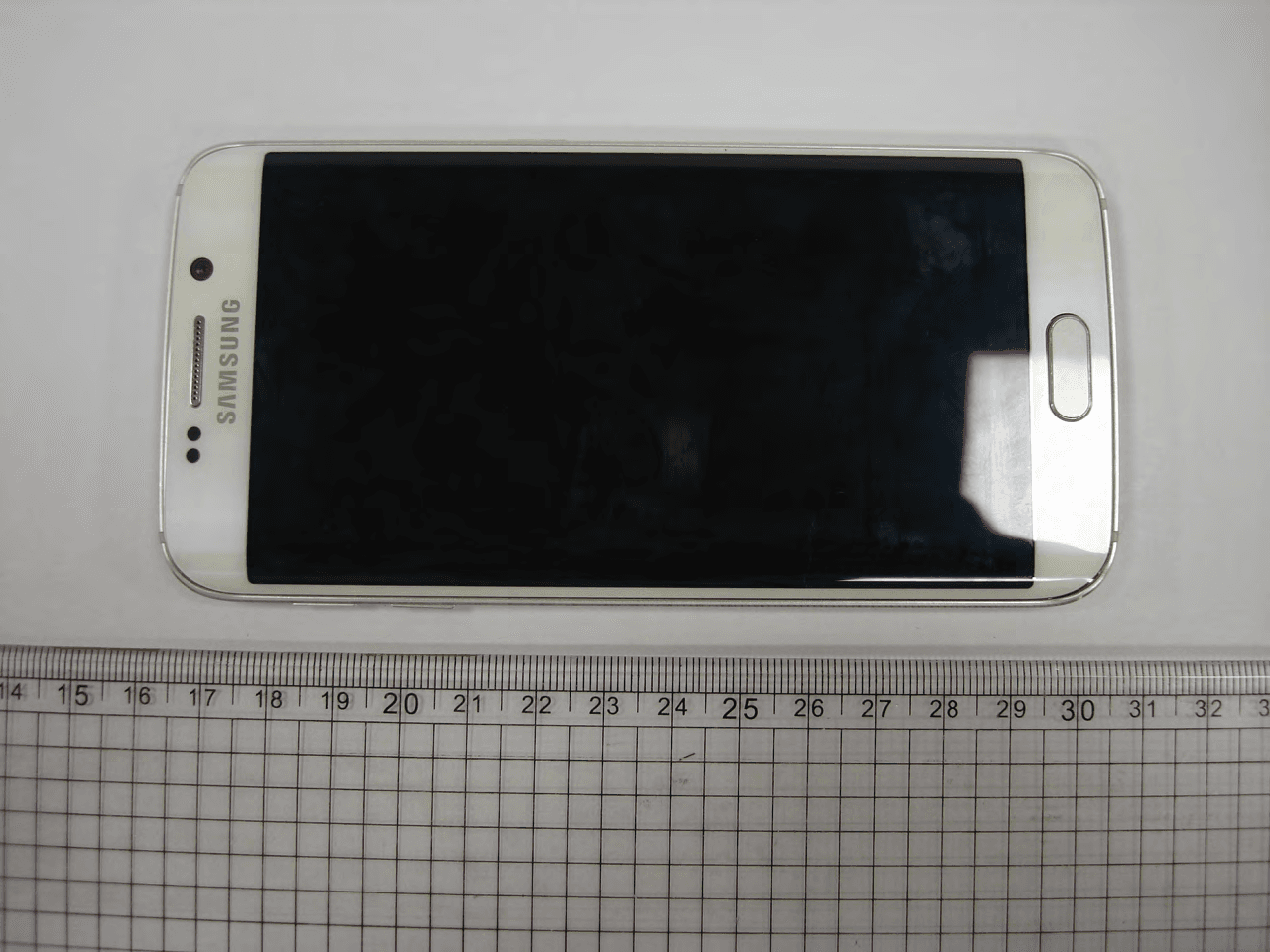
Click to zoom
Application Details
- Equipment Class
- DSS - Part 15 Spread Spectrum Transmitter
- Date of Grant
- Mar 02, 2015
- Application Purpose
- Original Equipment
- Date of Application
- Mar 02, 2015
- Equipment Note
- Multi-band GSM/UMTS/LTE Phone with WLAN, Bluetooth, RFID, and ANT+
- Frequency Range
- 2402.00000000 - 2480.00000000
- Company
- Samsung Electronics Co Ltd
- Country
- United States
Documents & Files
Document Text
Text extracted from the exhibit documents filed with the FCC. Open a document above to read the original.
Users Manual
www.samsung.com User Manual English (EU). 01/2015. Rev.1.0 Draft Manual: The Manual is preliminary and some features discussed may not be applicable or complete and are not final. (i.e. Model Names and Items such as battery, SIM Card, Softkey discussion .etc) SM-G925S SM-G925K SM-G925L DRAFT, Not FINAL 2 Table of Contents Basics 4 Read me first 5 Package cont ents 6 Device layout 8 SIM or USIM card 11 Battery 15 Turning the device on and off 16 Touchscreen 19 Home screen 25 Lock screen 27 Notification panel 30 Entering te xt 33 Screen capture 33 Opening apps 34 Multi window 38 Device and data management 44 Connecting to a TV 46 Emergency mode Settings 47 Introduction 47 Wi-Fi 49 Bluetooth 51 Tethering and Mobile hotspot 52 Flight mode 52 Data usage 53 Mobile networks 53 More 58 Sound and notification 58 Display 59 Motions & gestures 59 Applications 60 Wallpaper 60 Themes 60 Lock screen & security 65 Privacy & saf ety 68 Easy mode 68 Accessibilit y 69 Accounts 70 Backup and reset 70 Language and input 71 Battery 71 Storage 72 Date and time 72 User manual 72 About device Applications 73 Installing or uninstalling apps 74 Phone 77 Contacts 79 Messages 80 Internet 81 Email DRAFT, Not FINAL Table of Contents 3 82 Camera 98 Gallery 99 Smart Manager 100 S Planner 102 S Health 105 S Voice 106 Music 107 Video 107 Voice Recor der 110 My Files 110 Memo 111 Clock 112 Calculator 113 Google apps 115 Microsoft apps Appendix 116 Accessibility 131 Troubleshooting 136 Removing the battery (non-removable type) DRAFT, Not FINAL 4 Basics Read me first Please read this manual before using the device to ensure safe and proper use. • Descriptions are based on the device’s default settings. • Some content may differ from your device depending on the region, service provider, model specifications, or device’s software. • Content (high quality content) that requires high CPU and RAM usage will affect the overall performance of the device. Apps related to the content may not work properly depending on the device’s specifications and the environment that it is used in. • Samsung is not liable for performance issues caused by apps supplied by providers other than Samsung. • Samsung is not liable for performance issues or incompatibilities caused by edited registry settings or modified operating system software. Attempting to customise the operating system may cause the device or apps to work improperly. • Software, sound sources, wallpapers, images, and other media provided with this device are licensed for limited use. Extracting and using these materials for commercial or other purposes is an infringement of copyright laws. Users are entirely responsible for illegal use of media. • You may incur additional charges for data services, such as messaging, uploading and downloading, auto-syncing, or using location services depending on your data plan. For large data transfers, it is recommended to use the Wi-Fi feature. • Default apps that come with the device are subject to updates and may no longer be supported without prior notice. If you have questions about an app provided with the device, contact a Samsung Service Centre. For user-installed apps, contact service providers. • Modifying the device’s operating system or installing softwares from unofficial sources may result in device malfunctions and data corruption or loss. These actions are violations of your Samsung licence agreement and will void your warranty. DRAFT, Not FINAL Basics 5 • Depending on the region or model, some devices are required to receive approval from the Federal Communications Commission (FCC). If your device is approved by the FCC, you can view the FCC ID of the device. To view the FCC ID, tap Apps → Settings → About device. Instructional icons Warning: situations that could cause injury to yourself or others Caution: situations that could cause damage to your device or other equipment Notice: notes, usage tips, or additional information Package contents Check the product box for the following items: • Device • Quick start guide • The items supplied with the device and any available accessories may vary depending on the region or service provider. • The supplied items are designed only for this device and may not be compatible with other devices. • Appearances and specifications are subject to change without prior notice. • You can purchase additional accessories from your local Samsung retailer. Make sure they are compatible with the device before purchase. • Use only Samsung-approved accessories. Using unapproved accessories may cause the performance problems and malfunctions that are not covered by the warranty. • Availability of all accessories is subject to change depending entirely on manufacturing companies. For more information about available accessories, refer to the Samsung website. DRAFT, Not FINAL Basics 6 Device layout Microphone Microphone Loud speaker Back key Multipurpose jack Front camera Speaker Power key Touchscreen Recents key Headset jack Home key (Fingerprint recognition sensor) LED indicator Proximity/Light sensor SIM card tray Main antenna Infrared port Flash Volume key NFC antenna/Wireless charging coil Rear camera Microphone GPS antenna DRAFT, Not FINAL Basics 7 • Do not cover the antenna area with your hands or other objects. This may cause connectivity problems or drain the battery. • Using a Samsung-approved screen protector is recommended. Unapproved screen protectors may cause the sensors to malfunction. • Do not allow water to contact the touchscreen. The touchscreen may malfunction in humid conditions or when exposed to water. Keys KeyFunction Power • Press and hold to turn the device on or off. • Press to turn on or lock the screen. Recents • Tap to open the list of recent apps. • Tap and hold to launch the split screen view. Home • Press to turn on the screen while the screen is locked. • Press to return to the Home screen. • Press and hold to launch Google. Back • Tap to return to the previous screen. V…
Text truncated - open the document above for the full version.
Users Manual
Settings 51 Unpairing Bluetooth devices 1 Tap Bluetooth on the Settings screen. The device displays the paired devices in the list. 2 Tap next to the device name to unpair. 3 Tap Unpair. Tethering and Mobile hotspot Use the device as a mobile hotspot to share the device’s mobile data connection with other devices when the network connection is not available. Connections can be made via Wi-Fi, USB, or Bluetooth. On the Settings screen, tap Tethering and Mobile hotspot. You may incur additional charges when using this feature. • Mobile hotspot: Use the mobile hotspot to share the device’s mobile data connection with computers or other devices. • Bluetooth tethering: Use Bluetooth tethering to share the device’s mobile data connection with computers or other devices via Bluetooth. • USB tethering: Use USB tethering to share the device’s mobile data connection with a computer via USB. When connected to a computer, the device is used as a wireless modem for the computer. Using the mobile hotspot Use your device as a mobile hotspot to share your device’s mobile data connection with other devices. 1 On the Settings screen, tap Tethering and Mobile hotspot → Mobile hotspot. DRAFT, Not FINAL Settings 52 2 Tap the switch to activate it. The icon appears on the status bar. Other devices can find your device in the Wi-Fi networks list. To set a password for the mobile hotspot, tap MORE → Configure hotspot and select the level of security. Then, enter a password and tap SAVE. 3 On the other device’s screen, search for and select your device from the Wi-Fi networks list. 4 On the connected device, use the device’s mobile data connection to access the Internet. Flight mode This disables all wireless functions on your device. You can use only non-network services. On the Settings screen, tap Flight mode. Data usage Keep track of your data usage amount and customise the settings for the limitation. On the Settings screen, tap Data usage. • Mobile data: Set the device to use data connections on any mobile network. • Set mobile data limit: Set a limit for mobile data usage. To change the monthly reset date for the monitoring period, tap → Change cycle. Limiting data usage 1 On the Settings screen, tap Data usage and tap the Set mobile data limit switch to activate it. 2 Drag the limit adjustment bar upwards or downwards to set the limit. 3 Drag the warning adjustment bar upwards or downwards to set a data usage alert level. The device will alert you when the warning level is reached. DRAFT, Not FINAL Settings 53 Mobile networks Configure your mobile network settings. On the Settings screen, tap Mobile networks. • Data roaming: Set the device to use data connections when you are roaming. • Access Point Names: Set up access point names (APNs). • Network mode: Select a network type. • Network operators: Search for available networks and manually register a network. More Customise settings to control other features. On the Settings screen, tap More. • NFC: Change settings for using the NFC feature. Refer to NFC for more information. • Printing: Configure settings for printer plug-ins installed on the device. You can search for available printers or add one manually to print files. Refer to Printing for more information. • MirrorLink: Use the MirrorLink feature to control your device’s MirrorLink apps on the vehicle’s head unit monitor. Refer to MirrorLink for more information. • Download booster: Set the device to download files larger than 30 MB, faster via Wi-Fi and mobile networks simultaneously. Refer to Download booster for more information. • VPN: Set up and connect to virtual private networks (VPNs). • Default messaging app: Select the default app to use for messaging. DRAFT, Not FINAL Settings 54 NFC Your device allows you to read near field communication (NFC) tags that contain information about products. You can also use this feature to make payments and buy tickets for transportation or events after downloading the required apps. The device contains a built-in NFC antenna. Handle the device carefully to avoid damaging the NFC antenna. Using the NFC feature Use the NFC feature to send images or contacts to other devices, and read product information from NFC tags. If you insert a SIM or USIM card that has a payment feature, you can use the device to make payments conveniently. 1 On the Settings screen, tap More → NFC, and then tap the switch to activate it. 2 Place the NFC antenna area on the back of your device near an NFC tag. The information from the tag appears. Ensure that the device’s screen is unlocked. Otherwise, the device will not read NFC tags or receive data. DRAFT, Not FINAL Settings 55 Making payments with the NFC feature Before you can use the NFC feature to make payments, you must register for the mobile payment service. To register or get more information about the service, contact your service provider. 1 On the Settings screen, tap More → NFC, and then tap the switch to activate it. 2 Touch the NFC antenna area on the back of your device to the NFC card reader. To set the default payment app, tap Tap and pay and select an app. The payment services list may not include all available payment apps. Sending data Allow data exchange when your device’s NFC antenna touches the other device’s NFC antenna. 1 On the Settings screen, tap More → NFC, and then tap the switch to activate it. 2 Tap Android Beam and tap the switch to activate it. 3 Select an item and touch the other device’s NFC antenna to your device’s NFC antenna. 4 When Touch to beam. appears on the screen, tap your device’s screen to send the item. If both devices try to send data simultaneously, the file transfer may fail. DRAFT, Not FINAL Settings 56 Printing Configure settings for printer plug-ins installed on the device. You can connect the device to a printer via Wi-Fi or Wi-Fi Direct, and print images or documents. Some printers may not be compatible with the device. Adding printer plug-ins Add printer plug-ins for print…
Text truncated - open the document above for the full version.
Attestation Statements
SAMSUNG ELECTRONICS CO., LTD 129, Samsung-ro,Yeongtong-gu Suwon-si,Gyeonggi-do, 443-742 Korea Feb. 4, 2015 Federal Communicatio ns Commission 7435 Oakland Mills Road Columbia, MD 21046 To Whom It May Concern: SUBJECT : e-Label FCC ID : A3LSMG925KOR We hereby provide the following attestations according to CFR 2.925 and FCC KDB 784748 D02: At the time of purchase, the FCC ID is readily and physically visible to the purchaser on the exterior package per 2.925(d). The FCC ID will be readily legible without the aid of magnification according to 2.925(a). The literature in the package describes how to access the electronic display to find the FCC ID per 2.925(e) and FCC KDB 784748. The user will be able to access this information within a maximum of 3 steps. We, Samsung have programmed the e-label and it is not able to be modified by any third party. The FCC ID will be able to survive normal shipping and handling so it is visible for inspection at the time of import. Should you have any questions or comments concerning the above, please contact the undersigned. Sincerely, Seoung Ho Park Senior Manager SAMSUNG ELECTRONICS CO .,LTD Telecommunicati on Netw ork Business Mobile Communicati on Division Regulato ry Compliance Group.
Cover Letter(s)
SAMSUNG ELECTRONICS AMERICA, INC. American QA Lab 19 Chapin Rd, Building D. Pine Brook, NJ 07058 Date: Feb. 3, 2015 Federal Communications Commission Authorization and Evaluation Division 7435 Oakland Mills Road, Columbia, MD 21046 RE: Request of Confidentiality for FCC ID: A3LSMG925KOR To Whom It May Concern: Pursuant to Sections 0.457 and 0.459 of the Commission’s Rules (CFR 47), and Section 552 (b) (4) of the Freedom of Information Act, SAMSUNG ELECTRONICS CO.,LTD. hereby requests confidentiality and treatment of certain information accompanying this application. The materials contain trade secrets and proprietary information not customarily released to the public. The public disclosure of these matters might be harmful to the Applicant and provide unjustified benefits to its competitors. We are also hereby request Short-Term Confidentiality for 180 days after the grant as outlined in Public Notice DA 04-1705. This provision will give SAMSUNG ELECTRONICS CO.,LTD. temporary confidentiality of commercially sensitive information prior to product release. The requested Permanent and Short-Term Confidential exhibits are listed as follows: PERMANENT AND SHORT-TERM CONFIDENTIAL LIST ExhibitDescription 1 Block Diagram 2 Operational Description 3 Schematics PERMANENT 4 External Photos 5 Internal Photos 6 Test-Setup Photos SHORT-TERM 7 Users Manual The Applicant understands that pursuant to Rule 0.457, disclosure of this application and all accompanying documentations, where applicable, will not be made public before the date of the Grant for this application. Sincerely, CHANHO, YOUN General Manager American QA Lab SAMSUNG Electronics America INC.
ID Label/Location Info
Description of E-label on the A3LSMG925KOR Feb. 3, 2015 FCC ID :A3LSMG925KOR This model is applied E-label, please find description of E-label below. 1.FCC ID(E-label) : App ->Setting -> About device 2. FCC ID on the Quick Start Guide The FCC has granted an Equipment Authorisation for this model device based on the compliance of all reported SAR levels with the FCC RF exporsure quidelines. This device has a FCC ID number: A3LSMG925KOR[Model Number:SM-G925S]and the specific SAR information for this device can be found at the following FCC website:www.fcc.gov/oet/ea/. The SAR information for this device can also be found on Samsung’s website:www.samsung.com/sar. 3. Instruction of E-label on the User manual(online manual) Description of E-label on the A3LSMG925KOR Feb. 3, 2015 FCC ID : A3LSMG925KOR This model is applied E-label, please find description of E-label below. 1.FCC ID(E-label) : App ->Setting -> About device 2.FCC ID on the Quick Start Guide The FCC has granted an Equipment Authorisation for this model device based on the compliance of all reported SAR levels with the FCC RF exporsure quidelines. This device has a FCC ID number: A3LSMG925KOR[Model Number:SM-G925K]and the specific SAR information for this device can be found at the following FCC website:www.fcc.gov/oet/ea/. The SAR information for this device can also be found on Samsung’s website:www.samsung.com/sar. 3. Instruction of E-label on the User manual(online manual) Description of E-label on the A3LSMG925KOR Feb. 4, 2015 FCC ID : A3LSMG925KOR This model is applied E-label, please find description of E-label below. 1.FCC ID(E-label) : App ->Setting -> About device 2. FCC ID on the Quick Start Guide The FCC has granted an Equipment Authorisation for this model device based on the compliance of all reported SAR levels with the FCC RF exporsure quidelines. This device has a FCC ID number: A3LSMG925KOR[Model Number:SM-G925L]and the specific SAR information for this device can be found at the following FCC website:www.fcc.gov/oet/ea/. The SAR information for this device can also be found on Samsung’s website:www.samsung.com/sar. 3. Instruction of E-label on the User manual(online manual)
Test Report
FCC ID: A3LSMG925KOR FCC Pt. 15.247 BLUETOOTH TEST REPORT (CERTIFICATION) Reviewed by: Quality Manager Test Report S/N: Test Dates: EUT Type: Page 1 of 50 0Y1412292342.A3L 12/30/2014-1/15/2015 Portable Handset © 2015 PCTEST Engineering Laboratory, Inc. V 2.0 01/16/2015 Applicant Name: Date of Testing: Samsung Electronics Co., Ltd. 12/30/2014-1/15/2015 129, Samsung-ro, Maetan dong, Test Site/Location: Yeongtong-gu, Suwon-si PCTEST Lab. Columbia, MD, USA Gyeonggi-do 443-742, Korea Test Report Serial No.: 0Y1412292342.A3L FCC ID: A3LSMG925KOR APPLICANT: Samsung Electronics Co., Ltd. Application Type: Certification Model(s): SM-G925S, SM-G925K, SM-G925L EUT Type: Portable Handset Max. RF Output Power: 13.4 mW (11.27 dBm) Peak Conducted Frequency Range: 2402 – 2480MHz (Bluetooth for US) Type of Modulation: GFSK, /4-DQPSK, 8DPSK FCC Classification: FCC Part 15 Spread Spectrum Transmitter (DSS) FCC Rule Part(s): Part 15 Subpart C (15.247) Test Procedure(s): DA 00-705, KDB648474 D03 v01r02 This equipment has been shown to be capable of compliance with the applicable technical standards as indicated in the measurement report and was tested in accordance with the measurement procedures specified in DA 00-705. Test results reported herein relate only to the item(s) tested. I attest to the accuracy of data. All measurements reported herein were performed by me or were made under my supervision and are correct to the best of my knowledge and belief. I assume full responsibility for the completeness of these measurements and vouch for the qualifications of all persons taking them. PCTEST ENGINEERING LABORATORY, INC. 7185 Oakland Mills Road, Columbia, MD 21046 USA Tel. 410.290.6652 / Fax 410.290.6654 http://www.pctestlab.com MEASUREMENT REPORT FCC PART 15.247 Bluetooth FCC ID: A3LSMG925KOR FCC Pt. 15.247 BLUETOOTH TEST REPORT (CERTIFICATION) Reviewed by: Quality Manager Test Report S/N: Test Dates: EUT Type: Page 2 of 50 0Y1412292342.A3L 12/30/2014-1/15/2015 Portable Handset © 2015 PCTEST Engineering Laboratory, Inc. V 2.0 01/16/2015 TABLE OF CONTENTS FCC PART 15.247 MEASUREMENT REPORT .................................................................................................. 3 1.0 INTRODUCTION ...................................................................................................................................... 4 1.1 SCOPE ........................................................................................................................................................... 4 1.2 PCTEST TEST LOCATION ............................................................................................................................ 4 2.0 PRODUCT INFORMATION ..................................................................................................................... 5 2.1 EQUIPMENT DESCRIPTION......................................................................................................................... 5 2.2 DEVICE CAPABILITIES ................................................................................................................................. 5 2.3 TEST CONFIGURATION ............................................................................................................................... 5 2.4 EMI SUPPRESSION DEVICE(S)/MODIFICATIONS ...................................................................................... 5 3.0 DESCRIPTION OF TEST ........................................................................................................................ 6 3.1 EVALUATION PROCEDURE ......................................................................................................................... 6 3.2 AC LINE CONDUCTED EMISSIONS ............................................................................................................. 6 3.3 RADIATED EMISSIONS ................................................................................................................................ 7 3.4 ENVIRONMENTAL CONDITIONS ................................................................................................................. 7 4.0 ANTENNA REQUIREMENTS .................................................................................................................. 8 5.0 TEST EQUIPMENT CALIBRATION DATA .............................................................................................. 9 6.0 TEST RESULTS .................................................................................................................................... 10 6.1 SUMMARY ................................................................................................................................................... 10 6.2 20DB BANDWIDTH MEASUREMENT ......................................................................................................... 11 6.3 OUTPUT POWER MEASUREMENT ........................................................................................................... 17 6.4 BAND EDGE COMPLIANCE ....................................................................................................................... 27 6.5 CARRIER FREQUENCY SEPARATION ...................................................................................................... 30 6.6 TIME OF OCCUPANCY ............................................................................................................................... 31 6.7 NUMBER OF HOPPING CHANNELS .......................................................................................................... 32 6.8 CONDUCTED SPURIOUS EMISSIONS ...................................................................................................... 33 6.9 RADIATED SPURIOUS EMISSION MEASUREMENTS – ABOVE 1GHZ ................................................... 37 6.10 RADIATED RESTRICTED BAND EDGE MEASUREMENTS .................................................................. 43 6.11 RADIATED SPURIOU…
Text truncated - open the document above for the full version.
Test Setup Photos
Samsung Electronics Co., Ltd. FCC ID: A3LSMG925KOR Model: SM-G925S Test Set-Up Photos EUT Type: Portable Handset Page 1 of 3 © 2015 PCTEST Engineering Laboratory, Inc. V 2.0 01/16/2015 TEST SETUP PHOTOGRAPHS Samsung Electronics Co., Ltd. FCC ID: A3LSMG925KOR Model: SM-G925S Test Set-Up Photos EUT Type: Portable Handset Page 2 of 3 © 2015 PCTEST Engineering Laboratory, Inc. V 2.0 01/16/2015 Samsung Electronics Co., Ltd. FCC ID: A3LSMG925KOR Model: SM-G925S Test Set-Up Photos EUT Type: Portable Handset Page 3 of 3 © 2015 PCTEST Engineering Laboratory, Inc. V 2.0 01/16/2015
Contact Information
Applicant
Jenni Chun(General Manager)
Technical Contact
PCTEST Engineering Lab., Inc.Randy Ortanez
[email protected]410-290-6652
6660-B Dobbin Road · Columbia, Maryland · United States
Test Firm
PCTEST Engineering Laboratory, Inc.Randy Ortanez
Technical Specifications
| # | Rule Parts | Frequency Range | Power Output |
|---|---|---|---|
| 1 | 15C | 2.40 GHz - 2.48 GHz | 13.00 mW |
Other Applications from Samsung Electronics Co Ltd
A3LSMS741B
Aug 05, 2026Portable Handset
Equipment Class
6VL - 15E 6 GHZ Very Low Power DeviceA3LSMX940
Jul 31, 2026BT,BLE Tablet DTS,UNII a,b,g,n,ac,ax,be and digitizer
Equipment Class
DTS - Digital Transmission SystemA3LSMS741U
Jul 30, 2026Portable Handset
Equipment Class
6CD - 15E 6 GHz Low Power Dual ClientA3LSMX840
Jul 27, 2026BT,BLE Tablet DTS,UNII a,b,g,n,ac,ax and Digitizer
Equipment Class
DSS - Part 15 Spread Spectrum TransmitterA3LSMX848U
Jul 27, 2026WCDMA, LTE, 5G NR Tablet BT,BLE, DTS,UNII a b g n ac ax and Digitizer
Equipment Class
JBP - Part 15 Class B Computing Device Peripheral