A3LST10RNotebook Computer
Samsung Electronics Co Ltd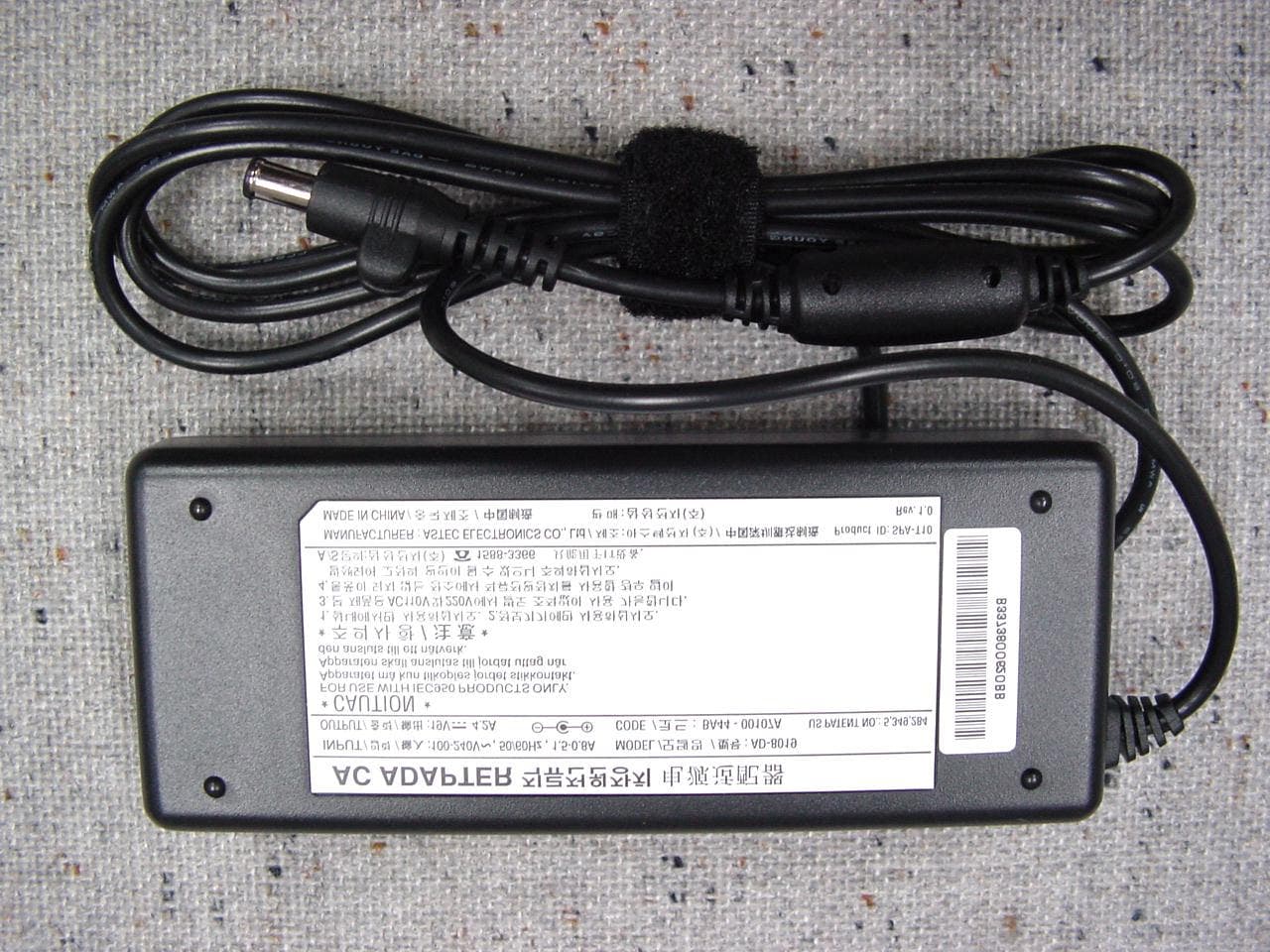
Click to zoom
Application Details
- Equipment Class
- JBC - Part 15 Class B Computing Device/Personal Computer
- Date of Grant
- Jun 24, 2002
- Application Purpose
- Original Equipment
- Date of Application
- Jun 24, 2002
- Equipment Note
- Notebook Computer
- Company
- Samsung Electronics Co Ltd
- Country
- United States
Documents & Files
Document Text
Text extracted from the exhibit documents filed with the FCC. Open a document above to read the original.
Users Manual
Notices i Notices No part of this publication may be reproduced, stored in a retrieval system, or transmitted, in any form or by any means, mechanical photocopying, recording or otherwise, without the prior written permission of the manufacturer. The information within this manual is subject to change without notice. The manufacturer shall not be held liable for technical or editorial errors or omissions contained in herein; nor for incidental or consequential damages resulting from the furnishing, performance or use of this material. Microsoft Windows is a registered trademark of the Microsoft Corporation. Product names mentioned herein are for identification purposes only, and may be trademarks and/or registered trademarks of their respective companies. Macrovision Statement If your computer has a DVD drive and an analog TV Out port, the following paragraph applies: This product incorporates copyright protection technology that is protected by method claims of certain U.S. patents and other intellectual property rights owned by Macrovision Corporation and other rights owners. Use of this copyright protection technology must be authorized by Macrovision Corporation, and is intended for home and other limited viewing uses only unless otherwise authorized by Macrovision Corporation. Reverse engineering or disassembly is prohibited. Copyright2001 All rights are reserved Maverick Plus - Notices & Safety - English.fm Page i Friday,August 17,2001 10:21 AM ii Users Manual Important Safety Information Safety Instructions Your system is designed and tested to meet the latest standards for safety of information technology equipment. However, to ensure safe use of this product, it is important that the safety instructions marked on the product and in the documentation are followed. Always follow these instructions to help guard against personal injury and damage to your system. i Setting Up your System •Read and follow all instructions marked on the product and in the documentation before you operate your system. Retain all safety and operating instructions for future use. •Do not use this product near water or a heat source such as a radiator. •Set up the system on a stable work surface. •The product should be operated only with the type of power source indicated on the rating label. •Ensure that the electrical outlet you are using to power your equipment is easily accessible in case of fire or short circuit. •If your computer has a voltage selector switch, make sure that the switch is in the proper position for your area. •Openings in the computer case are provided for ventilation. Do not block or cover these openings. Make sure you provide adequate space, at least 6 inches (15 cm), around the system for ventilation when you set up your work area. Never insert objects of any kind into the computer ventilation openings. •Ensure that the fan vents on the bottom of the casing are clear at all times. Do not place the computer on a soft surface, doing so will block the bottom vents. •If you use an extension cord with this system, make sure that the total ampere rating on the products plugged into the extension cord does not exceed the extension cord ampere rating. Notices & Safety - English.fm Page ii Thursday, October 11, 2001 8:45 AM Important Safety Information iii Care During Use •Do not walk on the power cord or allow anything to rest on it. •Do not spill anything on the system. The best way to avoid spills is to not eat or drink near your system. •Some products have a replaceable CMOS battery on the system board. There is a danger of explosion if the CMOS battery is replaced incorrectly. Replace the battery with the same or equivalent type recommended by the manufacturer. Dispose of batteries according to the manufacturer’s instructions. If the CMOS battery requires replacement insure that a qualified technician performs the task •When the computer is turned off, a small amount of electrical current still flows through the computer. To avoid electrical shock, always unplug all power cables, remove the battery and modem cables from the wall outlets before cleaning the system. •Unplug the system from the wall outlet and refer servicing to qualified personnel if: –The power cord or plug is damaged. –Liquid has been spilled into the system. –The system does not operate properly when the operating instructions are followed. –The system was dropped or the casing is damaged. –The system performance changes. Replacement Parts and Accessories Use only replacement parts and accessories recommended by manufacturer. To reduce the risk of fire, use only No. 26 AWG or larger telecommunications line cord. Do not use this product in areas classified as hazardous. Such areas include patient care areas of medical and dental facilities, oxygen rich environments, or industrial areas. Notices & Safety - English.fm Page iii Thursday, October 11, 2001 8:45 AM iv Users Manual Battery Disposal Do not put rechargeable batteries or products powered by non-removable rechargeable batteries in the garbage. Contact the Samsung Helpline for information on how to dispose of batteries that you cannot use or recharge any longer. Follow all local regulations when disposing of old batteries. Maverick Plus - Notices & Safety - English.fm Page iv Friday, August 17, 200110:21 AM Federal Communications Commission (FCC) v Federal Communications Commission (FCC) This device complies with Part 15 of the FCC Rules. Operation is subject to the following two conditions:(1) this device may not cause harmful interference, and (2) this device must accept any interference received, including interference that may cause undesired operation. This equipment has been tested and found to comply with the limits for a Class B digital device pursuant to Part 15 of the FCC Rules. These limits are designed to provide reasonable protection against harmful interference in a residential installation. This equipment generate uses and can radiate radio frequ…
Text truncated - open the document above for the full version.
Users Manual
Multi Media Functions/Equipment 33 Multi Media Functions/Equipment Media Player You can play video and audio CD files with the Windows Media Player, as well as watching TV, video and listening to the radio through internet. The on-board audio hardware and software of your computer enable the computer to play audio/video compact discs. The instructions to play a video CD-ROM are the same as the instructions for the audio CD below. If you wish to do so, you can attach external speakers to the Headphone jack. Playing a Audio/Multimedia CD To play an CD follow the instructions below: 1.Insert a compact disc into your CD-ROM drive. 2.Press the button on the CD-ROM drive to open the CD-ROM device. 3.Insert a CD, label side up. 4.Carefully push the tray in to close the drive tray. The Windows Media Player button appears on the taskbar if not already there, and the music begins to play. If the disk does not play click Start > Programs > Accessories > Entertainment > Windows Media Player. CD LED On: A LED on the drive tray is on when the computer is reading from a CD. Do not remove a disc when this LED is on. Removing the Audio/Multimedia CD To remove the CD follow the instructions below: 1.Click Start > Programs > Accessories > Entertainment > Windows Media Player to open the Windows Media Player window, if not already open. 2.Click Stop in the Windows Media Player window or simply close the Windows media player. 3.Press the button on your CD-ROM drive. The drive tray opens and you can remove the CD from the CD-ROM drive. 4.For more information on playing compact discs, see the Help menu in the Windows Media Player window. Matrix II Plus (Windows 2000) - English.fm Page 33 Monday, November 19, 2001 2:04 PM 34 Users Manual Dolby Digital & Dolby Theater System Your computer supports Dolby Digital & Dolby Theater System through a SPDIF connector, located next to the volume control wheel on the left side of the computer. You must have a 3.5 mm (mono)- to RCA cable to use this port. Volume Control Using the Wheel Volume Control Simply turn the wheel located on the left side of the computer. Using the Keyboard Changing the volume with your keyboard. Use <Fn+F9> to decrease the volume or <Fn+F10> to increase the volume. Using the Volume Control Icon Double-Click icon in the active program tray. The Volume Control window pops up. Use this window to adjust the volume. You can pop up a simple volume slider by a single click icon. Wheel Volume Control Matrix II Plus (Windows 2000) - English.fm Page 34 Monday, November 19, 2001 3:12 PM Using the Battery 35 Using the Battery Your computer uses a smart rechargeable Lithium-ion (Li-ion) battery pack for power when the AC adapter is not attached to an electrical outlet. The smart battery gives a accurate measurement of the current battery capacity which helps extend operating time by enabling effective power management in operating systems that take advantage of the accurate information supplied by the battery. Charging the Battery Your computer’s battery starts charging automatically when you connect the power to the computer and to an electrical outlet. If the computer is off, the battery charges faster than if the computer’s power is on. Approximate charging times for the Li-Ion battery are •3 hours with the computer off. •6 hours with the computer on. While the battery is charging normally, the battery charge light on the computer is red. When the battery is fully charged, the light changes to green. When you use a new battery pack for the first time or use a battery after a long period of storage, the initial battery life is shorter than normal. Normal battery life resumes after a few discharge-recharge cycles. Follow these rules for charging your battery: •A battery normally discharges power when not used for long periods of time. Be sure to recharge the battery every two months when it is not in use. •Make it a practice to discharge your battery fully before recharging the battery. This can help extend the life of the battery. •Do not attempt to charge the battery in temperatures of under 5 o C or over 35 o C All batteries eventually wear out and lose the ability to hold a charge. You may need to replace your battery pack after a year of average usage. Matrix II Plus (Windows 2000) - English.fm Page 35 Monday, November 19, 2001 2:04 PM 36 Users Manual Safely Using the Battery Follow these guidelines to safely use the battery: •Turn off your computer and unplug it if you accidentally: –Expose the equipment to liquid. –Drop, jar, or damage the computer. •Use only approved battery chargers. •Do not disassemble the battery, heat it above 100°C, or burn it. The battery used in this computer may cause a fire or chemical burn if mistreated. •Your computer's rechargeable battery may be considered hazardous waste. If you replace your battery with a new one: –Keep the old battery out of the reach of children. –Dispose of the old battery promptly. –Make sure that you follow all local requirements when you dispose of the old battery. Removing the Battery Your computer comes with the battery pack inserted in the computer. To remove the battery from the computer: 1.Turn the computer’s power off. 2.Close the LCD panel, and turn the computer over so that the bottom of the unit faces up. 3.Slide the battery compartment cover straight up and off the computer. 4.Grasp the tab on the battery and pull the battery out of the compartment. Matrix II Plus (Windows 2000) - English.fm Page 36 Monday, November 19, 2001 2:04 PM Using the Battery 37 Installing the Battery To install the battery pack: 1.With the computer’s power off, close the LCD panel and turn the computer over so the bottom of the unit faces up. 2.Slide the battery compartment cover straight up and off the computer. Insert the battery into the battery compartment, ensuring the correct orientation so that the battery fits in its slot properly. 3.Slide the battery pack into the compartment. Make sure the battery is f…
Text truncated - open the document above for the full version.
ID Label/Location Info
FCC ID Label Configuration and Location Label Configulation Location of Label
Test Report
Page 1 of 17 Project No. : LBE020200 Product : Notebook PC Model No. : T10 FCC ID : A3LST10R 1. This test reports shall not be reproduced except in full, without the written approval of SEC EMC Testing laboratory. 2. This test reports does not constitute an endorsement by NIST/NVLAP or U.S Government. 3. This test report is to certify that the tested device properly complies with the requirements of FCC Rules and Regulations Part 15 Subpart B Unintentional Radiators. All tests necessary to show compliance to the requirements were and these results met the specifications requirement. Date of test : June 3, 2002 ~ June 4, 2002 Issued Date : June 8, 2002 Tested by: Il Kweon, BAE / Test Engineer Reviewed by: Yang Soo, KIM / Manager of EMC Lab. Authorised by: Kyu Baek, CHUNG / Chief of EMC Lab. This laboratory is registered by the NIST/NVLAP, U.S.A. The test reported herein have been performed in accordance with its terms of registration. EMI TEST REPORT According to FCC Part 15 Subpart B/Class B NVLAP Code: 200447 Page 2 of 17 Project No. : LBE020200 Table of Contents 1. General Information 1.1 Product Description 1.2 Configuration of EUT and peripherals 1.3 Used Cable Description 1.4 System Block Diagram of Test Configuration 1.5 Test Facility 2. System Test Configuration 2.1 Configuration of Radiated and Conducted Interference Measurement 2.2 Operation Environment 2.3 Test Procedure 3. Conducted Emission Test Data 4. Radiated Emission Test Data 5. Label Configuration and Location 6. Test Equipment Used Distribution This test report has been made available as follows: CS Management Center, EMC Laboratory 1 original Computer Division 1 copy This report shall not be reproduced except in full, without the written approval of SEC EMC Testing laboratory. Page 3 of 17 Project No. : LBE020200 1. General Information Applicant : Samsung Electronics Co., Ltd. CS Management Center EMC Test Laboratory Tel.: +81-(0)31-200-2135 Fax.: +81-(0)31-200-2189 Full Address :416 Maetan 3 Dong, Paldal-Ku, Suwon City, Kyungki Do, Korea, 442-742 Kind of Product :Notebook PC FCC ID:A3LST10R Project Name :Matrix III Plus Model & Variant Names : Transport GX3 (Brand Name: Micronpc) ST10 (Brand Name: Samsung) Samsung T10 (Brand Name: Samsung) Test Report Produced by : Il Kweon BAE / Test Engineer This report shall not be reproduced except in full, without the written approval of SEC EMC Testing laboratory. Page 4 of 17 Project No. : LBE020200 1.1 Product Description 1) Justification The system was configured for testing in typical fashion use. Cable were attached to each of the available I/O Ports. Where applicable, peripherals were attached to the I/O cables. The mode of operation utilized for testing was selected to best simulate typical EUT use. The system was pre-tested using the below additional components, and we found worst emission level for the components, were selected as the final components for the test. - Samsung, SN-124Q - Samsung, SN-124P - Teac, CD-233E - Matsushita, UJDA-330A - Toshiba, SD-C2502 - Toshiba, SD-R2102 - Matsushita, UJDA-710 And then the system was tested with the configuration of (A), (B), (C), (D) below (A) CPU Pentium IV 2.0GHz, LCD 15.0" without Docking Station(SMD-830E) (B) CPU Pentium IV 2.0GHz, LCD 15.0" with Docking Station (C) CPU Pentium IV 1.9GHz, LCD 14.1" without Docking Station (D) CPU Pentium IV 1.9MHz, LCD 14.1" with Docking Station In each test mode, Finally we found worst case emission that is above (A) configuration with the Worst case components(in the above table). So, the DATA of the maximum(worst case) EUT operation was reported. Further details of cabling and configuration are shown in the test system configuration. This report shall not be reproduced except in full, without the written approval of SEC EMC Testing laboratory. DVD_CDRW_ComboWorst Case DVD DVD_CDRW_Combo CD-RW ComponentBrand and Model NameRemark CD-ROM CD-ROM CD-ROM Page 5 of 17 Project No. : LBE020200 2) Operating Frequency : 2.0GHz(CPU Speed), 100MHz(Host Clock), 133MHz(SDRAM Clock), 8M(Finger print) 33.3MHz(PCI Clock), 14.318MHz(Ref), 49.512MHz(Audio Clock), 25M(Network) 183MHz(Video Memory Clock), 12.288MHz(Audio Bit Clock), 24.576MHz(Audio C24) 10MHz(Micom Clock), 48MHz(USB Clock), 54MHz(15.0"LCD Clock), 66.6(Hub) 65MHz(14.1" LCD Clock) 3) Description of Testing operating mode LCD Screen external Monitor television floppy disk drive a: hard disk drive c: flash memory drive e: LPT1 to printer COM4 to modem Digital Camcorder Input DVD (drive d:) playing, audio to headphone and digital speakers 4) Tested Resolution : 1400 X 105060Hz32bits 1024 X 76860Hz32bits 1280 X 102485Hz32bits 640 X 48060Hz32bits 5) Manufacturer : SAMSUNG Electronics Co., Ltd. This report shall not be reproduced except in full, without the written approval of SEC EMC Testing laboratory. Operating Mode Operating section of EUT Audio Output Read / Write "H" Pattern display & Tested Video modeResolutionsRefresh rates TV Monitor Colors LCD(15.0") LCD(14.1") Ext. Monitor Page 6 of 17 Project No. : LBE020200 6) Assemble Parts ItemSpecificationRemark CPUIntel Pentium4, 2.0GHz Intel NetBurst micro architecture 400 MHz system bus 512KB advanced transfer cache Main MemorySamsung, M470L3224BT0-CB0 direct DDR channel 64bit 256 MB memory * 2ea Graphic ATI, Mobility M7-CSP32SEC, K40263238A-GC45 Contollerintergrated LVDS,TMDS,TV encoder, DDR static and dynamic power management Flat SEC, LCD 15" TFT, LTN150P3-L01Worst Case Panel Upto 1400x1050 Pixels; 16-bit 64k colors Dispay SEC, LCD 14.1" TFT, LTN141XF-L03optional Upto 1024x768 Pixels FDDCitizen, W1D 3.5", 1.44MB, 3 mode support HDDToshiba, MK4018GAP, 40GB, 4200RPM PCMCIASamsung, SCF-48M, 48MBSN : CEB201ASM9947 DVD-COMBOMatsushita, UJDA-710 CD 24X, DVD 8X, CDRW 4X Speed AC AdapterASTECH, AD-8019, 80-Watts, 2 pin MODEMSEC, SFM-3100LW, 56KBPS LAN10/100 Base-T Ethernet support Wireless LANAgere, MPCI3A-20/R, 11MBPS, 019492/BRuby Input DevicesKeyboard, 19mm pitch, 2.5mmH travel lengthKorean, US, U…
Text truncated - open the document above for the full version.
Test Setup Photos
Page 10 of 17 Project No. : LBE020200 2. System Test Configuration 2.1 Configuration of Radiated and Conducted Interference Measurement * Cabling was taken into consideration and test data was taken under worse case conditions. 1)Conduction(Front View) 2)Conduction(Rear View) This report shall not be reproduced except in full, without the written approval of SEC EMC Testing laboratory. Page 11 of 17 Project No. : LBE020200 3) Radiation(Front View) 4) Radiation(Rear View) This report shall not be reproduced except in full, without the written approval of SEC EMC Testing laboratory.
Contact Information
Applicant
Jenni Chun(General Manager)
Technical Contact
Rhein Tech laboratories, Inc.Desmond Fraser
[email protected]703 689 0368
360 Herndon Parkway · Herndon, Virginia · United States
Test Firm
Rhein Tech Laboratories, Inc.Rick McMurray
Technical Specifications
| # | Rule Parts | Frequency Range | Power Output |
|---|---|---|---|
| 1 | 15B | - | - |
Other Applications from Samsung Electronics Co Ltd
A3LSMS741B
Aug 05, 2026Portable Handset
Equipment Class
6VL - 15E 6 GHZ Very Low Power DeviceA3LSMX940
Jul 31, 2026BT,BLE Tablet DTS,UNII a,b,g,n,ac,ax,be and digitizer
Equipment Class
DTS - Digital Transmission SystemA3LSMS741U
Jul 30, 2026Portable Handset
Equipment Class
6CD - 15E 6 GHz Low Power Dual ClientA3LSMX840
Jul 27, 2026BT,BLE Tablet DTS,UNII a,b,g,n,ac,ax and Digitizer
Equipment Class
DSS - Part 15 Spread Spectrum TransmitterA3LSMX848U
Jul 27, 2026WCDMA, LTE, 5G NR Tablet BT,BLE, DTS,UNII a b g n ac ax and Digitizer
Equipment Class
JBP - Part 15 Class B Computing Device Peripheral