AK8PCG4A1LLaptop with WLAN
Sony Group Corporation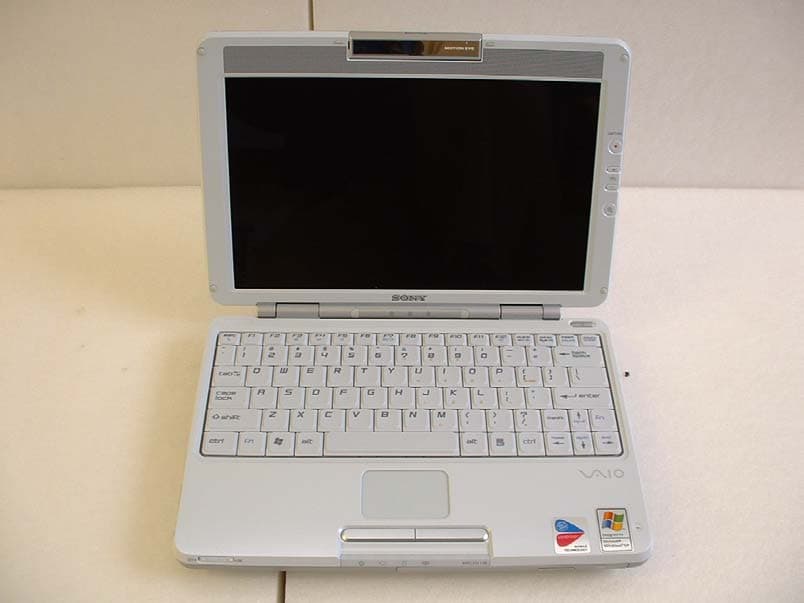
Click to zoom
Application Details
- Equipment Class
- DTS - Digital Transmission System
- Date of Grant
- Jan 06, 2004
- Application Purpose
- Original Equipment
- Date of Application
- Jan 06, 2004
- Equipment Note
- Laptop with WLAN
- Frequency Range
- 2412.00000000 - 2462.00000000
- Company
- Sony Group Corporation
- Country
- Japan
Documents & Files
Document Text
Text extracted from the exhibit documents filed with the FCC. Open a document above to read the original.
Users Manual
VAIO® Computer Quick Start PCG-TR3 Series Fuji3.book Page 1 Monday, December 15, 2003 6:34 PM VAIO® Computer Quick Start 2 Shortcut Menu +F1Displays the VAIO Help and Support Center window. +TabSwitches the selected button on the taskbar. +DDisplays the desktop. +EDisplays the My Computer window. +FDisplays the Search Results window, where you can find a file or folder. This is the equivalent of selecting Search from the Start menu. +Ctrl+FDisplays the Search Results - Computers window, where you can locate other computers. This is the equivalent of selecting Search, and then Computer from the Start menu. +MMinimizes all displayed windows. Shift++MReturns all minimized windows to their previous size. +RDisplays the Run window. This is the equivalent of selecting Run from the Start menu. Fn++InsertDisplays the System Properties window. This is the equivalent of selecting Control Panel, and then System from the Start menu. Fn+F3Toggles the built-in speakers off and on. Fn+F4Together with the or keys, it increases volume. Together with the or keys, it decreases volume. Fn+F5Together with the or keys, it increases brightness. Together with the or keys, it decreases brightness. Fn+F7Toggles the display between the computer screen (LCD), a connected external display, and both the LCD and an external display. Fn+F12Puts the system into Hibernate mode, a power management state. To return the system to normal operating mode, press the power button. Fn+EscPuts the system into Standby mode, a power management state. To return the system to the active state, press any key or the power button. Fuji3.book Page 2 Monday, December 15, 2003 6:34 PM 3 Contents Notice to Users ............................................5 Setting Up ..................................................15 Unpacking Your Computer .......................................15 Locating Controls and Ports ......................................17 Getting Started ..........................................23 Turning On Your Computer ......................................23 Using the Touch Pad .................................................26 Registering Your Computer ......................................27 Locating Your VAIO Computer User Guide ............28 Setting Up A Dial-Up Connection ............................30 Turning Off Your Computer .....................................31 VAIO Recovery Wizard Utility...................33 Troubleshooting ........................................35 Support Options.........................................................38 Fuji3.book Page 3 Monday, December 15, 2003 6:34 PM VAIO® Computer Quick Start 4 Fuji3.book Page 4 Monday, December 15, 2003 6:34 PM 5 Notice to Users © 2004 Sony Electronics Inc. All rights reserved. This manual and the software described herein, in whole or in part, may not be reproduced, translated, or reduced to any machine-readable form without prior written approval. SONY ELECTRONICS INC. PROVIDES NO WARRANTY WITH REGARD TO THIS MANUAL, THE SOFTWARE, OR OTHER INFORMATION CONTAINED HEREIN AND HEREBY EXPRESSLY DISCLAIMS ANY IMPLIED WARRANTIES OF MERCHANTABILITY OR FITNESS FOR ANY PARTICULAR PURPOSE WITH REGARD TO THIS MANUAL, THE SOFTWARE, OR SUCH OTHER INFORMATION. IN NO EVENT SHALL SONY ELECTRONICS INC. BE LIABLE FOR ANY INCIDENTAL, CONSEQUENTIAL, OR SPECIAL DAMAGES, WHETHER BASED ON TORT, CONTRACT, OR OTHERWISE, ARISING OUT OF OR IN CONNECTION WITH THIS MANUAL, THE SOFTWARE, OR OTHER INFORMATION CONTAINED HEREIN OR THE USE THEREOF. Sony Electronics Inc. reserves the right to make any modification to this manual or the information contained herein at any time without notice. The software described herein is governed by the terms of a separate user license agreement. This product contains software owned by Sony and licensed by third parties. Use of such software is subject to the terms and conditions of license agreements enclosed with this product. Some of the software may not be transported or used outside the United States. Software specifications are subject to change without notice and may not necessarily be identical to current retail versions. Updates and additions to software may require an additional charge. Subscriptions to online service providers may require a fee and credit card information. Financial services may require prior arrangements with participating financial institutions. The International ENERGY STA R ® O ff i c e Equipment Program is an international program that promotes energy saving through the use of computers and other office equipment. The program backs the development and dissemination of products with functions that effectively reduce energy consumption. It is an open system in which business proprietors can participate voluntarily. The targeted products are office equipment such as computers, displays, printers, facsimiles and copiers. Their standards and logos are uniform among participating nations. ENERGY STA R i s a U . S . registered mark. As an ENERGY STAR® Partner, Sony Corporation has determined that this product meets the ENERGY STA R ® guidelines for energy efficiency. Fuji3.book Page 5 Monday, December 15, 2003 6:34 PM VAIO® Computer Quick Start 6 Sony, Click to DVD, DVgate Plus, Handycam, i.LINK, Mavica, MagicGate™ Memory Stick, Memory Stick, Memory Stick PRO, PictureGear Studio, SonicStage, VAIO, and the VAIO logo are trademarks of Sony Corporation. Microsoft, Windows Media, Windows, Windows NT, and the Windows logo are registered trademarks of Microsoft Corporation. Intel, SpeedStep, and Pentium are trademarks or registered trademarks of Intel Corporation. PS/2 is a registered trademark of IBM. Acrobat Reader, Photoshop, Photoshop Elements, and Premiere are trademarks of Adobe Systems Incorporated. PowerPanel is a trademark of Phoenix Technologies Ltd. This product incorporates copyright protection technology that is protected by method claims of certain U.S. patents and other intellectual property rights owned by Macro…
Text truncated - open the document above for the full version.
Users Manual
Intel(R) PRO/Wireless 2200BG User's Guide Your Intel(R) PRO/Wireless 2200BG Network Connection adapter works with either 802.11b or 802.11g wireless standard. Operating at 2.4 GHz frequency at speeds of up to 54 Mbps you can now connect your computer to high-capacity existing 802.11b networks using multiple access points within large or small environments, and also to high-speed 802.11g networks. Your wireless adapter maintains automatic data rate control according to access point location to achieve the fastest possible connection. All your wireless client connections can be easily managed by the Intel(R) PROSet for Wireless utility. Using the Intel(R) PROSet for Wireless Profile Wizard, you can create profiles automatically to suite your specific connection requirements. Enhanced security measures using 802.1x, WPA encryption and authentication, and 128-bit WEP encryption is standard for both 802.11b and 802.11g. Introduction to Wireless Networking Software Installation Using Intel(R) PROSet for Wireless Connecting to a Network Security Overview Setting up Connection Security Troubleshooting Specifications Glossary Customer Support Safety and Regulatory Notices Warranty Adapter Registration Information in this document is subject to change without notice. (c) 2000–2003 Intel Corporation. All rights reserved. Intel Corporation, 5200 N.E. Elam Young Parkway, Hillsboro, OR 97124-6497 USA The copying or reproducing of any material in this document in any manner whatsoever without the written permission of Intel Corporation is strictly forbidden. Intel(R) is a trademark or registered trademark of Intel Corporation or its subsidiaries in the United States and other countries. Other trademarks and trade names may be used in this document to refer to either the entities claiming the marks and names or their products. Intel disclaims any proprietary interest in trademarks and trade names other than its own. Microsoft and Windows are registered trademarks of Microsoft Corporation. *Other names and brands may be claimed as the property of others. Intel Corporation assumes no responsibility for errors or omissions in this document. Nor does Intel make any commitment to update the information contained herein. September 2003 Back to Contents Page Wireless LAN Overview: Intel(R) PRO/Wireless 2200BG User's Guide About Wireless LAN Technology l Choosing a WLAN l Configuring a WLAN l Identifying a WLAN l Surveying the Site of Your WLAN l Factors Affecting Range A wireless network connects computers without using network cables. Computers use radio communications to send data between each other. You can communicate directly with other wireless computers, or connect to an existing network through a wireless access point. When you set up your wireless adapter, you select the operating mode for the kind of wireless network you want. You can use your wireless adapter to connect to other similar wireless devices that comply with the 802.11 standard for wireless networking. Choosing a Wireless LAN Wireless LANs can operate with or without access points, depending on the number of users in the network. Infrastructure mode uses access points to allow wireless computers to send and receive information. Wireless computers transmit to the access point, the access point receives the information and rebroadcasts it to other computers. The access point can also connect to a wired network or to the Internet. Multiple access points can work together to provide coverage over a wide area. Peer-to-Peer mode, also called Ad Hoc mode, works without access points and allows wireless computers to send information directly to other wireless computers. Ad Hoc Mode is only supported in 802.11b and 802.11g networks. You can use Peer-to-Peer mode to network computers in a home or small office or to set up a temporary wireless network for a meeting. Configuring a Wireless LAN There are three basic components that must be configured for an 802.11 wireless LAN to operate properly: l Network Name: Each wireless network uses a unique Network Name to identify the network. This name is called the Service Set Identifier (SSID). When you set up your wireless adapter, you specify the SSID. If you want to connect to an existing network, you must use the name for that network. If you are setting up your own network you can make up your own name and use it on each computer. The name can be up to 32 characters long and contain letters and numbers. l Profiles: When you set up your computer to access a wireless network, the wireless client manager creates a profile for the wireless settings that you specify. If you want to connect to another network, you can scan for existing networks and make a temporary connection, or create a new profile for that network. After you create profiles, your computer will automatically connect when you change locations. l Security: The 802.11 wireless networks use encryption to help protect your data. Wired equivalent privacy (WEP) uses a 64-bit or 128-bit shared encryption key to scramble data. Before a computer transmits data, it scrambles the data using the secret encryption key. The receiving computer uses this same key to unscramble the data. If you are connecting to an existing network, use the encryption key provided by the administrator of the wireless network. If you are setting up your own network you can make up your own key and use it on each computer. m Wi-Fi Protected Access (WPA) is a security enhancement that strongly increases the level of data protection and access control to a WLAN. WPA mode enforces 802.1x authentication and key-exchange to strengthen data encryption. WPA utilizes its Temporal Key Integrity Protocol (TKIP). TKIP provides important data encryption enhancements that include a per-packet key mixing function, a message integrity check (MIC) named "Michael", an extended initialization vector (IV) with sequencing rules, and a also re-keying mechanism. Using these improvement enhanceme…
Text truncated - open the document above for the full version.
External Photos
FCC ID : AK8PCG4A1L External Photo Sony Corporation Front Back FCC ID : AK8PCG4A1L External Photo Sony Corporation Right Left FCC ID : AK8PCG4A1L External Photo Sony Corporation Open back Cover closed
RF Exposure Info
Test report No. : 24DE0026-HO-5 Page : 1 of 88 Issued date : December 19, 2003 FCC ID : AK8PCG4A1L UL Apex Co., Ltd. Head Office EMC Lab. 4383-326 Asama-cho, Ise-shi, Mie-ken 516-0021 JAPAN Telephone: +81 596 24 8116 Facsimile: +81 596 24 8124 MF058b(10.04.03) SAR EVALUATION REPORT Report No. : 24DE0026-HO-5 Applicant : Sony Corp. Type of Equipment : Notebook Personal Computer Model No. : PCG-4A1L FCC ID : AK8PCG4A1L Test standard : FCC47CFR 2.1093 FCC OET Bulletin 65, Supplement C Test Result : Complied Max SAR Measured : 0.0491W/kg( Body, 2462MHz ) 1. This test report shall not be reproduced except full or partial, without the written approval of UL Apex Co., Ltd. 2. The results in this report apply only to the sample tested. 3. This equipment is in compliance with above regulation. We hereby certify that the data contain a true representation of the SAR profile. 4. The test results in this test report are traceable to the national or international standards. Date of test : December 08 and 09, 2003 Tested by : Miyo Ikuta Head Office EMC Lab. Approved by : Tetsuo Maeno Site Manager of Head Office EMC Lab. Test report No. : 24DE0026-HO-5 Page : 2 of 88 Issued date : December 19, 2003 FCC ID : AK8PCG4A1L UL Apex Co., Ltd. Head Office EMC Lab. 4383-326 Asama-cho, Ise-shi, Mie-ken 516-0021 JAPAN Telephone: +81 596 24 8116 Facsimile: +81 596 24 8124 CONTENTS PAGE SECTION 1 : Client information ................................................................................................................. 3 SECTION 2 : Equipment under test (E.U.T.) ............................................................................................. 4 SECTION 3 : Requirements for compliance testing defined by the FCC ................................................ 5 SECTION 4 : Dosimetry assessment setup .................................................................................................. 5 SECTION 5 : Test system specifications...................................................................................................... 9 SECTION 6 : Test setup of EUT ................................................................................................................ 10 SECTION 7 : Measurement uncertainty ................................................................................................... 13 SECTION 8 : Simulated tissue liquid parameter...................................................................................... 14 SECTION 9 : System validation data ........................................................................................................ 16 SECTION 10 : Evaluation procedure ........................................................................................................ 17 SECTION 11 : Exposure limit .................................................................................................................... 18 SECTION 12 : SAR Measurement results................................................................................................. 19 SECTION 13 : Equipment & calibration information ............................................................................. 23 SECTION 14 : References........................................................................................................................... 24 APPENDIX 1 : Photographs of test setup................................................................................................ 25 APPENDIX 2 : SAR Measurement data .................................................................................................. 32 APPENDIX 3 : Validation Measurement data ........................................................................................64 APPENDIX 4 : System Validation Dipole (D2450V2,S/N: 713)............................................................. 67 APPENDIX 5 : Dosimetric E-Field Probe Calibration (ET3DV6,S/N: 1685) ...................................... 76 Test report No. : 24DE0026-HO-5 Page : 3 of 88 Issued date : December 19, 2003 FCC ID : AK8PCG4A1L UL Apex Co., Ltd. Head Office EMC Lab. 4383-326 Asama-cho, Ise-shi, Mie-ken 516-0021 JAPAN Telephone: +81 596 24 8116 Facsimile: +81 596 24 8124 SECTION 1 : Client information Company Name : Sony Corp. Brand Name : SONY Address : 6-7-35, Kita-Shinagawa, Shinagawa-ku, Tokyo 141-0001, Japan Telephone Number : +81-3-5795-8033 Facsimile Number : +81-3-5795-8346 Contact Person : Kaoru Ichimura Test report No. : 24DE0026-HO-5 Page : 4 of 88 Issued date : December 19, 2003 FCC ID : AK8PCG4A1L UL Apex Co., Ltd. Head Office EMC Lab. 4383-326 Asama-cho, Ise-shi, Mie-ken 516-0021 JAPAN Telephone: +81 596 24 8116 Facsimile: +81 596 24 8124 SECTION 2 : Equipment under test (E.U.T.) 2.1 Identification of E.U.T. Applicant : Sony Corp. Type of Equipment : Notebook Personal Computer Model No. : PCG-4A1L Serial No. : 1200009 Country of Manufacture : JAPAN Receipt Date of Sample : November 18 ,2003 Condition of EUT : Engineering prototype Battery option : Only one model with EUT Category Identified : Portable device 2.2 Product Description Tx Frequency : 2412MHz~2462MHz Modulation : OFDM , DSSS Rating : DC 3.1V ~ 3.46 V Max.Output Power Tested : 17.3 dBm Peak Conducted Antenna Type : lambda/4-Monopole Antenna Position of Antenna : See photograph of following Sub Antenna (Left Antena) Main Antenna (Right Antena) Test report No. : 24DE0026-HO-5 Page : 5 of 88 Issued date : December 19, 2003 FCC ID : AK8PCG4A1L UL Apex Co., Ltd. Head Office EMC Lab. 4383-326 Asama-cho, Ise-shi, Mie-ken 516-0021 JAPAN Telephone: +81 596 24 8116 Facsimile: +81 596 24 8124 SECTION 3 : Requirements for compliance testing defined by the FCC The US Federal Communications Commission has released the report and order “Guidelines for Evaluating the Environmental Effects of RF Radiation", ET Docket No. 93-62 in August 1996. The order requires routine SAR evaluation prior to equipment authorization of portable transmitter devices, including …
Text truncated - open the document above for the full version.
Test Report
Test report No. : 24DE0026-HO-1 Page : 11 of 57 Issued date : December 16, 2003 FCC ID : AK8PCG4A1L UL Apex Co., Ltd. Head Office EMC Lab. 4383-326 Asama-cho, Ise-shi, Mie-ken 516-0021 JAPAN Telephone : +81 596 24 8116 Facsimile : +81 596 24 8124 MF060b(10.04.03) APPENDIX 1: Photographs of test setup Conducted Emission Front Rear Test report No. : 24DE0026-HO-1 Page : 12 of 57 Issued date : December 16, 2003 FCC ID : AK8PCG4A1L UL Apex Co., Ltd. Head Office EMC Lab. 4383-326 Asama-cho, Ise-shi, Mie-ken 516-0021 JAPAN Telephone : +81 596 24 8116 Facsimile : +81 596 24 8124 MF060b(10.04.03) Spurious Emission (Radiated) Front Rear
Test Setup Photos
Test report No. : 24DE0026-HO-1 Page : 11 of 57 Issued date : December 16, 2003 FCC ID : AK8PCG4A1L UL Apex Co., Ltd. Head Office EMC Lab. 4383-326 Asama-cho, Ise-shi, Mie-ken 516-0021 JAPAN Telephone : +81 596 24 8116 Facsimile : +81 596 24 8124 MF060b(10.04.03) APPENDIX 1: Photographs of test setup Conducted Emission Front Rear Test report No. : 24DE0026-HO-1 Page : 12 of 57 Issued date : December 16, 2003 FCC ID : AK8PCG4A1L UL Apex Co., Ltd. Head Office EMC Lab. 4383-326 Asama-cho, Ise-shi, Mie-ken 516-0021 JAPAN Telephone : +81 596 24 8116 Facsimile : +81 596 24 8124 MF060b(10.04.03) Spurious Emission (Radiated) Front Rear
Contact Information
Applicant
Kazuyuki Hori(Chief EMC/RF Compliance Specialist)
Technical Contact
UL Apex Co., LtdHironobu Shimoji
[email protected]81-596-24-8116
4383-326 Asama-cho · Ise-shi, Mie-ken · Japan
Test Firm
UL Apex Co., Ltd.Tetsuya Hashimoto
Technical Specifications
| # | Rule Parts | Frequency Range | Power Output |
|---|---|---|---|
| 1 | 15C | 2.41 GHz - 2.46 GHz | 54.00 mW |
Other Applications from Sony Group Corporation
AK8WW81782
Aug 21, 2026Radio Equipment
Equipment Class
DSS - Part 15 Spread Spectrum TransmitterAK8CFIZCP2
Aug 03, 2026Wireless Controller
Equipment Class
DSS - Part 15 Spread Spectrum TransmitterAK8OEV321MUH
Apr 14, 2026LCD Monitor
Equipment Class
JAD - Part 15 Class A Digital DeviceAK8OEV431MUH
Apr 14, 2026LCD Monitor
Equipment Class
JAD - Part 15 Class A Digital DeviceAK8OEV271MUH
Apr 14, 2026LCD Monitor
Equipment Class
JAD - Part 15 Class A Digital Device