AK8PCG571ZNotebook Computer with WLAN and Bluetooth
Sony Group Corporation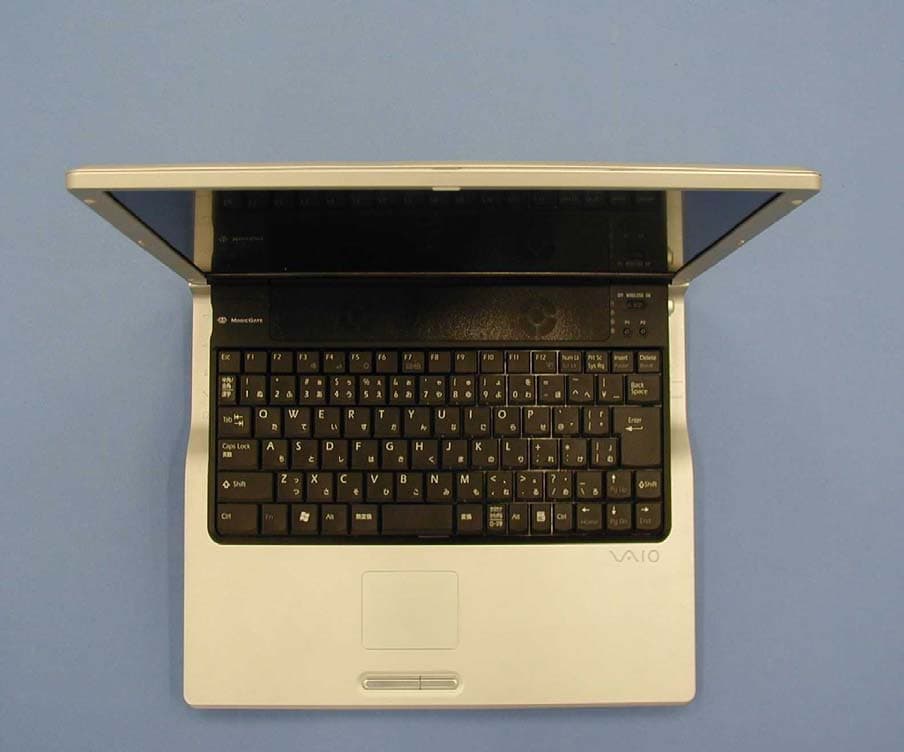
Click to zoom
Application Details
- Equipment Class
- DTS - Digital Transmission System
- Date of Grant
- May 27, 2003
- Application Purpose
- Original Equipment
- Date of Application
- May 27, 2003
- Equipment Note
- Notebook Computer with WLAN and Bluetooth
- Frequency Range
- 2412.00000000 - 2462.00000000
- Company
- Sony Group Corporation
- Country
- Japan
Documents & Files
Document Text
Text extracted from the exhibit documents filed with the FCC. Open a document above to read the original.
Users Manual
VAIO® Computer Quick Start PCG-Z1A Series Ventana_QuickStart.book Page 1 Friday, January 31, 2003 5:24 PM Ventana_QuickStart.book Page 2 Friday, January 31, 2003 5:24 PM 3 Contents Notice to Users ............................................5 Setting Up ..................................................15 Unpacking Your Computer .......................................16 Applying Ergonomics ...............................................18 Locating Controls and Ports ......................................19 Getting Started ..........................................25 Turning On Your Computer ......................................26 Using the Touch Pad .................................................30 Registering Your Computer ......................................31 Locating Your VAIO Computer User Guide ............32 Setting Up A Dial-Up Connection ............................33 Turning Off Your Computer .....................................34 Expanding Your Computing Power .........37 Upgrading Memory ...................................................38 Locating Preinstalled Programs ................................38 Using the Application Recovery and System Recovery CDs ..............................39 Application and System Recovery CDs ....................40 Ventana_QuickStart.book Page 3 Friday, January 31, 2003 5:24 PM VAIO® Computer Quick Start 4 Using Your Recovery CDs ....................................... 40 Caring for Your Computer........................47 Storing Your Computer ............................................ 48 Using Cables and Connections ................................. 48 Cleaning Your Computer .......................................... 49 Handling the LCD Screen ......................................... 49 Troubleshooting........................................51 Troubleshooting Your Computer .............................. 52 Support Options ........................................................ 57 Index...........................................................59 Ventana_QuickStart.book Page 4 Friday, January 31, 2003 5:24 PM 5 Notice to Users © 2003 Sony Electronics Inc. All rights reserved. This manual and the software described herein, in whole or in part, may not be reproduced, translated, or reduced to any machine-readable form without prior written approval. SONY ELECTRONICS INC. PROVIDES NO WARRANTY WITH REGARD TO THIS MANUAL, THE SOFTWARE, OR OTHER INFORMATION CONTAINED HEREIN AND HEREBY EXPRESSLY DISCLAIMS ANY IMPLIED WARRANTIES OF MERCHANTABILITY OR FITNESS FOR ANY PARTICULAR PURPOSE WITH REGARD TO THIS MANUAL, THE SOFTWARE, OR SUCH OTHER INFORMATION. IN NO EVENT SHALL SONY ELECTRONICS INC. BE LIABLE FOR ANY INCIDENTAL, CONSEQUENTIAL, OR SPECIAL DAMAGES, WHETHER BASED ON TORT, CONTRACT, OR OTHERWISE, ARISING OUT OF OR IN CONNECTION WITH THIS MANUAL, THE SOFTWARE, OR OTHER INFORMATION CONTAINED HEREIN OR THE USE THEREOF. Sony Electronics Inc. reserves the right to make any modification to this manual or the information contained herein at any time without notice. The software described herein is governed by the terms of a separate user license agreement. This product contains software owned by Sony and licensed by third parties. Use of such software is subject to the terms and conditions of license agreements enclosed with this product. Some of the software may not be transported or used outside the United States. Software specifications are subject to change without notice and may not necessarily be identical to current retail versions. Updates and additions to software may require an additional charge. Subscriptions to online service providers may require a fee and credit card information. Financial services may require prior arrangements with participating financial institutions. The International ENERGY STA R ® O ff i c e Equipment Program is an international program that promotes energy saving through the use of computers and other office equipment. The program backs the development and dissemination of products with functions that effectively reduce energy consumption. It is an open system in which business proprietors can participate voluntarily. The targeted products are office equipment such as computers, displays, printers, facsimiles and copiers. Their standards and logos are uniform among As an ENERGY STAR® Partner, Sony Corporation has determined that this product meets the ENERGY STA R ® guidelines for energy efficiency. Ventana_QuickStart.book Page 5 Friday, January 31, 2003 5:24 PM VAIO® Computer Quick Start 6 participating nations. ENERGY STAR i s a U .S. registered mark. Sony, DVgate, Handycam, i.LINK, Mavica, MagicGate™ Memory Stick, Memory Stick, MovieShaker, VAIO, and the VAIO logo are trademarks of Sony Corporation. Microsoft, Windows Media, Windows, Windows NT, and the Windows logo are registered trademarks of Microsoft Corporation. Intel, SpeedStep, and Pentium are trademarks or registered trademarks of Intel Corporation. PS/2 is a registered trademark of IBM. Acrobat Reader, Photoshop, Photoshop Elements, and Premiere are trademarks of Adobe Systems Incorporated. PowerPanel is a trademark of Phoenix Technologies Ltd. i.LINK is a trademark of Sony used only to designate that a product contains an IEEE 1394 connection. The i.LINK connection may vary, depending on the software applications, operating system, and compatible i.LINK devices. All products with an i.LINK connection may not communicate with each other. Please refer to the documentation that came with your compatible i.LINK device for information on operating conditions and proper connection. Before connecting compatible i.LINK PC peripherals to your system, such as a CD-RW or hard disk drive, confirm their operating system compatibility and required operating conditions. All other trademarks are trademarks of their respective owners. End User / Product Activation Requirements Certain software product(s) included with this computer may include features such …
Text truncated - open the document above for the full version.
Users Manual
N Sony Notebook User GuidePCG-Z series Sony Notebook User Guide Read this first 1 nN Read this firstNotice© 2003 Sony Corporation. All rights reserved. This manual and the software described herein, in whole or in part, may not be reproduced, translated, or reduced to any machine-readable form with out prior written approval. Sony Corporation provides no warranty with regard to this manu al, the software, or other inform ation contained herein and hereb y expressly disclaims any implied warranties or merchantability or fitness for any particular purpose with regard to this manual, the software or such other information. In no event shall Sony Corporation be liable for any incidental, consequential, or special damages, whether based on tort, contract, or otherwis e, arising out of or in connection with this manual, the software, or other informa tion contained herein or the use thereof.Macrovision: This product incorporates copyright protection techno logy that is protected by method claims of certain U.S. paten ts and other intellectual property rights owned by Macrovision Corporation and other rights ow ners. Use of this copyright protection technology must be authorised by Macrovision Corporation, and is intended for home and other limited viewing uses only unless otherwise authorised by Macrovision Corporation. Reverse engineering or disassembly is prohibited. Sony Corporation reserves the right to make any modification to th is manual or the information contained herein at any time wit hout notice. The software described herein is governed by the terms of a separate user licence agreement. Sony Notebook User Guide Read this first 2 nN TrademarksSony, DVgate, Hotkey Utility, BlueSpace NE, ISP Selector, MovieS haker, PictureGear Studio, Network Smart Capture, SonicStage, S ony Notebook Setup, Sony Style Imaging, UI Design Selector, VAIO Ed it Components, Memory Stick, the Memory Stick logo, VAIO and the VAIO logo are trademarks of Sony Corporation. The Windows, Windows XP Professional and Windows XP Home Ed ition logos are registered trademarks of Microsoft Corporation. i.LINK is a trademark of Sony used to designate that a product contains an IEEE1394-connection.Adobe, Adobe Photoshop Elements, Adobe Premiere and Adobe Acrobat Reader are trademarks of Adobe Systems Incorporated.WinDVD for VAIO is a trademark or registered trademark of InterVideo Inc.QuickTime and the QuickTime logo are trademarks used under licen ce. QuickTime is registered in the U.S. and other countries. RealOne Player is a trademark or registered trademark of RealNetworks, Inc. in the U.S. and other countries. PowerPanel is a trademark of Phoenix Technologies Ltd.Symantec Norton AntiVirus is a trademark of Symantec Corporation.EverQuest is a registered trademark of Sony Computer Entertainment America IncAll other names of systems, products and services are trademar ks of their respective owners. In the manual, the ™ or ® marks are not specified.All other trademarks are tradema rks of their respective owners. Specifications are subject to change without notice. Sony Notebook User Guide Read this first 3 nN E NERGY S TAR ® As an E NERGY S TAR ® Partner, Sony has determined that this product meets the E NERGY S TAR ® guidelines for energy efficiency. The International E NERGY S TAR ® Office Equipment Program is an international program that promotes energy saving through the use of computers and their office equipment. The program backs the development and dissemination of products with functions that effectively reduce energy consumption. It is an open system in which business proprietors can participate voluntarily. The targ eted products are office equipment such as computers, displays, prin ters, facsimiles and copiers. Their standards and logos are unif orm among participating nations.E NERGY S TAR is a U.S. registered mark. Sony Notebook User Guide Read this first 4 nN Safety informationOwner's recordThe serial number and model number are located on the bottom of your Sony notebook. Record the serial number and the model number and refer to them if you call VAIO-Link. Sony Notebook User Guide Read this first 5 nN WarningsGeneral❑ Opening the unit, for whatever reason, could lead to damages that are not covered by the guarantee. ❑ To avoid electrical shock, do not open the cabinet. Refer servicing to qualified personnel only. ❑ To prevent fire or shock hazard, do not expose your VAIO notebook to rain or moisture. ❑ Avoid using the modem during a severe electrical storm. ❑ Do not use the modem or a telephone to report a gas leak in the vicinity of the leak. ❑ To change the backup battery, please contact your nearest Sony Service Centre. ❑ Before you connect peripherals, turn off the computer and all peripherals. ❑ Connect the power cord only after connecting all cables. ❑ Turn on the computer only after turning off all peripherals. ❑ Do not move your computer while the system is in Standby mode. ❑ The magnetic properties of some objects can have seri ous consequences for your hard disk drive. They can erase the data on the hard disk drive and cause the computer to malfunct ion. Do not place your computer near or on any objects which emit magnetic fields, mainly: ❑ TV sets ❑ Speakers ❑ Magnets ❑ Magnetic bracelets. Audio/video ❑ Audio and picture distortion may occur if this e quipment is positioned in close proximity to any equipment emitting el ectromagnetic radiation. Sony Notebook User Guide Read this first 6 nN Connectivity ❑ Never install modem or telephone wiri ng during a severe lightning storm. ❑ Never install telephone jacks in wet locations unless th e jack is specifically designed for wet locations. ❑ Be cautious when installing or modifying telephone lines. ❑ Use your notebook only with the supplied AC adapter. To disconnect your notebook completely from mains voltage, unplug the AC adapter. ❑ Please make sure that the sock et outlet is easily accessible. ❑ Never touch uninsulated telephone wire or ter…
Text truncated - open the document above for the full version.
Users Manual
Intel(R) PRO/Wireless LAN Mini PCI Adapter User's Guide [Preliminary Draft] The Intel(R) PRO/Wireless LAN Mini PCI Adapter is a wireless device that operates at 5 and 2.4 GHz. This adapter operates with high-capacity networks using multiple access points within large or small environments. Using the Intel(R) PROSet Windows utility you can configure, manage wireless local area network (WLAN) management tasks, adapter switching functions, and connections. Wireless LAN General Information About Wireless LAN Technology Adapter Setup and Configuration Software Installation Using PROSet Connecting to a Network Security Overview Setting Up Security Troubleshooting Specifications Glossary Support and Warranty Customer Support Software License Safety and Regulatory Notices Limited Warranty Legal Notices Copyright © 2002 Intel Corporation. All rights reserved. Intel Corporation, 5200 N.E. Elam Young Parkway, Hillsboro, OR 97124-6497 Intel Corporation assumes no responsibility for errors or omissions in this document. Nor does Intel make any commitment to update the information contained herein. Intel, Itanium, and Pentium are trademarks or registered trademarks of Intel Corporation or its subsidiaries in the United States and other countries. *Other names and brands may be claimed as the property of others. Back to Contents About Wireless LAN Technology • Choosing a WLAN • Configuring a WLAN • Identifying a WLAN • Surveying the Site of Your WLAN • Factors Affecting Range • Stronger Security A wireless network connects computers without using network cables. Computers use radio communications to send data between each other. You can communicate directly with other wireless computers, or connect to an existing network through a wireless access point. When you set up your wireless adapter, you select the operating mode for the kind of wireless network you want. You can use your Intel(R) PRO/Wireless adapter to connect to other similar wireless devices that comply with the 802.11 standard for wireless networking. Choosing a Wireless LAN Mode Wireless LANs can operate with or without access points, depending on the number of users in the network. Infrastructure mode uses access points to allow wireless computers to send and receive information. Wireless computers transmit to the access point, the access point receives the information and rebroadcasts it to other computers. The access point can also connect to a wired network or to the Internet. Multiple access points can work together to provide coverage over a wide area. Peer-to-Peer mode, also called Ad Hoc mode, works without access points and allows wireless computers to send information directly to other wireless computers. You can use Peer-to-Peer mode to network computers in a home or small office or to set up a temporary wireless network for a meeting. Configuring a Wireless LAN There are three basic components that must be configured for a wireless LAN to operate properly: • Network Name—Each wireless network uses a unique Network Name to identify the network. This name is called the Service Set Identifier (SSID). When you set up your wireless adapter, you specify the SSID. If you want to connect to an existing network, you must use the name for that network. If you are setting up your own network you can make up your own name and use it on each computer. The name can be up to 32 characters long and contain letters and numbers. • Profiles—When you set up your computer to access a wireless network, Intel(R) PROSet creates a profile for the wireless settings that you specify. If you want to connect to another network, you can scan for existing networks and make a temporary connection, or create a new profile for that network. After you create profiles, your computer will automatically connect when you change locations. • Security—The 802.11 wireless networks use encryption to help protect your data. Wired equivalent privacy (WEP) uses a 64-bit or 128-bit shared encryption key to scramble data. Before a computer transmits data, it scrambles the data using the secret encryption key. The receiving computer uses this same key to unscramble the data. If you are connecting to an existing network, use the encryption key provided by the administrator of the wireless network. If you are setting up your own network you can make up your own key and use it on each computer. Identifying a Wireless Network Depending on the size and components of a wireless LAN, there are many ways to identify a wireless LAN: • The Network Name or Service Set Identifier (SSID)—Identifies a wireless network. All wireless devices on the network must use the same SSID. • Extended Service Set Identifier (ESSID)—A special case of SSID used to identify a wireless network that includes access points. • Independent Basic Service Set Identifier (IBSSID)—A special case of SSID used to identify a network of wireless computers configured to communicate directly with one another without using an access point. • Basic Service Set Identifier (BSSID)—A unique identifier for each wireless device. The BSSID is the Ethernet MAC address of the device. • Broadcast SSID—An access point can respond to computers sending probe packets with the broadcast SSID. If this feature is enabled on the access point, any wireless user can associate with the access point by using a blank (null) SSID. Surveying the Site of Your Wireless LAN Conducting a site survey for your wireless LAN is the most crucial step in the process of setting up a wireless network. It greatly reduces the amount of troubleshooting you will have to do once you have the wireless LAN set up and ready for connection testing. To conduct a site survey, you will need the following tools: • An access point (or laptop computer) that is set up to be the transmitter. It should be mounted near and at the same height as the designated location of your wireless LAN. • A laptop that will act as the mobile receiver. It must contain your site survey soft…
Text truncated - open the document above for the full version.
Users Manual
Calexico I (802.11b) Compliance Guidelines Wireless Networking Division Regulatory and Safety Notices User Documentation Guidelines for OEMs and Integrators Calexico I (802.11b) Note: Due to the evolving state of regulations and standards in the wireless LAN field (IEEE 802.11 and similar), the information provided herein is subject to change. Intel Corporation assumes no responsibility for errors or omissions in this document. Nor does Intel make any commitment to update the information contained herein. Created: 09/25/02 Last Updated: 01/24/03 Page 1 1/24/2003 Calexico I (802.11b) Compliance Guidelines Revision History Date Changes 09/25/02 Created document 10/03/02 Corrected errors in document, added 3 additional Mini PCI models, genericized product references to refer to “LAN Mini PCI Adapters” 10/08/02 Added Annex II under 1999/5/EC for 2.4 GHz products (PS) 12/18/02 Added “Information for the OEM” page 1 and additional text for OEM integrators page 4 (TL) 12/20/02 Added End Product Label: FCC ID “XXXXXXXX’ info. 01/20/03 Renamed document to emphasize “guidelines”; added “purpose of document” text; removed dual-band product models and information; added notified body numbers; updated information for France, Belgium, and the Netherlands; deleted all country/regional coverage for which information has not become available (exceptions are FCC, Canada, Europe); added copyright, disclaimer, and trademark information. 01/24/03 Added additional disclaimer text to emphasize provisional nature of document. Copyright © 2003, Intel Corporation. All rights reserved. Disclaimer: If this pre-release document is supplied under the terms of a non-disclosure agreement with Intel Corporation, it may not be copied or disclosed except in accordance with the terms of that agreement. Intel Corporation assumes no responsibility for errors or omissions in this document. Nor does Intel make any commitment to update the information contained herein. Intel is a registered trademark of Intel Corporation. Other product and corporate names may be trademarks of other companies and are used only for explanation and to the owners' benefit, without intent to infringe. Page 2 1/24/2003 Calexico I (802.11b) Compliance Guidelines Intel® PRO/Wireless LAN 2100 Mini PCI Adapters Safety and Regulatory Notices User Documentation Guidelines for OEMs and Integrators Purpose of This Document This document is provided for the information of original equipment manufacturers (OEMs), system integrators, and others who manufacture and distribute systems or products that incorporate a version of the Intel PRO/Wireless LAN 2100 (single-band) Mini PCI adapter. The purpose of the document is to provide safety and regulatory information pertaining to the Intel products of reference and guidance as to what information must be communicated by the OEM/integrator to the end user of the products. As new approval information becomes available over the course of the worldwide approvals process, additional guidelines will be developed as required. Note: This document should not be distributed directly to end users of the Intel products of reference. The format and content of the regulatory information supplied to the end user is the responsibility of the OEM or integrator, and not of Intel. The information in this document applies to the following products: Single-band wireless LAN adapters (802.11b only) Intel® PRO/Wireless LAN 2100 3B Mini PCI Adapter (model WM3B2100) Intel® PRO/Wireless LAN 2100 3A Mini PCI Adapter (model WM3A2100) Information for OEMs and Integrators The following statement must be included with all versions of this document supplied to an OEM or integrator, but should not be distributed to the end user. • This device is intended for OEM integrators only. • This device cannot be co-located with any other transmitter. • Please refer to the full Grant of Equipment document for other restrictions. This device is intended for OEM integrators only. This device cannot be co-located with any other transmitter. This device is intended only for OEM integrators under the following conditions: 1) The antenna must be installed such that 20 cm is maintained between the antenna and users. For laptop installations, the antenna must be installed to ensure that the proper spacing is maintained in the event the users places the device in their lap during use (i.e. positioning of antennas must be placed in the upper portion of the LCD panel only to ensure 20 cm will be maintained if the user places the device in their lap for use) and 2) The transmitter module may not be co-located with any other transmitter or antenna. As long as the 2 conditions above are met, further transmitter testing will not be required. However, the OEM integrator is still responsible for testing their end-product for any additional compliance requirements required with this module installed (for example, digital device emissions, PC peripheral requirements, etc.). IMPORTANT NOTE: In the event that these conditions can not be met (for example certain laptop configurations or co-location with another transmitter), then the FCC authorization is no longer considered valid and the FCC ID can not be used on the final product. In these circumstances, the OEM integrator will be responsible for re-evaluating the end product (including the transmitter) and obtaining a separate FCC authorization. Page 3 1/24/2003 End Product Labeling Calexico I (802.11b) Compliance Guidelines This transmitter module is authorized only for use in devices where the antenna may be installed such that 20 cm may be maintained between the antenna and users (for example access points, routers, wireless ASDL modems, certain laptop configurations, and similar equipment). The final end product must be labeled in a visible area with the following: "Contains TX FCC ID: XXXXXXXXXXXXXXX," where XXXXXXXXXXXXXXX is replaced by the FCC ID on the module being integrated. RF Exposure Manual Information That Must …
Text truncated - open the document above for the full version.
Users Manual
Intel Mini PCI Wireless Card Specification Revision 1.0c July 2, 2002 Intel Confidential Page 1 of 13 Intel Mini PCI Wireless Card Specification (Supplement to Mini PCI Specification) Lonnie McAlister Intel Mini PCI Wireless Card Specification Revision 1.0c July 2, 2002 Intel Confidential Page 2 of 13 THIS SPECIFICATION IS PROVIDED "AS IS" WITH NO WARRANTIES WHATSOEVER, INCLUDING ANY WARRANTY OF MERCHANTABILITY, NONINFRINGEMENT, FITNESS FOR ANY PARTICULAR PURPOSE, OR ANY WARRANTY OTHERWISE ARISING OUT OF ANY PROPOSAL, SPECIFICATION OR SAMPLE. Intel disclaims all liability, including liability for infringement of any proprietary rights, relating to use of information in this specification. No license, express or implied, by estoppel or otherwise, to any intellectual property rights is granted herein. This document is an intermediate draft for comment only and is subject to change without notice. Readers should not design products based on this document. Copyright © Intel Corporation (appropriate year). *Third-party brands and names are the property of their respective owners. Intel Mini PCI Wireless Card Specification Revision 1.0c July 2, 2002 Intel Confidential Page 3 of 13 Table of Contents 1. DOCUMENT REVISION HISTORY................................................................................. 4 2. R EFERENCES.............................................................................................................. 4 3. PURPOSE.................................................................................................................... 4 4. B ACKGROUND OF THIS MINI PCI SPECIFICATION ADDENDUM.................................. 4 5. M INI PCI V1.0 DEFINED FUNCTION-SPECIFIC CONNECTORS.................................. 5 6. MINI PCI SYSTEM CONNECTOR PINS....................................................................... 5 6.1 Sparks/Calexico Mini PCI Pinout Deviation to System Connector Pins:..................... 6 6.1.1 LEDs.................................................................................................................... 6 6.2 Other Deviations on the Mini PCI edge connector................................................... 7 7. LED INDICATORS AND SWITCH.................................................................................. 7 7.1 WLAN LINK Indicator............................................................................................ 7 7.2 WLAN Activity Indicator......................................................................................... 8 7.3 Radio Transmitter Disable Switch........................................................................... 8 7.4 Spectrum Indication Control Signal......................................................................... 9 7.5 Bluetooth Coexistence........................................................................................ 10 8. MECHANICAL............................................................................................................ 10 8.1 PCB Card Design................................................................................................ 10 8.2 Antenna Connection............................................................................................ 11 Intel Mini PCI Wireless Card Specification Revision 1.0c July 2, 2002 Intel Confidential Page 4 of 13 1. Document Revision History Revision Date Comments 0.1 Dec 28, 2001 First draft 0.8 Jan. 08, 2002 Released to Engineering 0.85 Feb. 11, 2002 • Updated for OEM customizations: • Added antenna mechanical tolerances for type 3A and type 3B card. • 0.90 11 March 11, 2002 Updated pinout table Updated LED configuration (again) 0.95 March 14, 2002 Updated Mini PCI edge connector deviations section. Simplified LED function description. 0.99 March 18, 2002 Draft release. Need Dual LED circuit implementation yet. 1.0 April 12, 2002 Updated LED reference circuit. Updated H/W Kill switch implementation 1.0b May 20, 2002 Updated edge connector pin-out for Bluetooth co-existence Updated manufacturing bevel design requirements 2. References This addendum is based upon the Mini PCI Specification, Revision 1.0, October 25 th , 1999. Additional information can be found in the PCI 2.2 specification. 3. Purpose This document is intended for PC OEM customers designing for a wireless Mini PCI solution the opportunity to review Intel’s Calexico Mini PCI pin out connections, mechanical requirements, and custom interfaces and be able to design their platform(s) to support the Calexico Mini PCI card. 4. Background of this Mini PCI Specification Addendum The Mini PCI specification is an industry-standard specification whose intent is to provide system/platform designers and card designers with the ability to use a standards-based interface to design to while still providing some flexibility/options in system and card designs. The original Mini PCI specification did achieve its goal but at the time only LAN and modem technologies were envisioned for this form-factor. Since the release of the first Mini PCI specification, wireless technology has appeared in the market and is now appearing on Mini PCI cards, which introduces unique challenges to both the system and card manufacturers. The purpose of this document is to define the “custom” pinout configuration used by Calexico to achieve the proper performance and unique feature set that Intel is providing with this generation of wireless Mini PCI card. Intel Mini PCI Wireless Card Specification Revision 1.0c July 2, 2002 Intel Confidential Page 5 of 13 5. Mini PCI v1.0 Defined Function-Specific Connectors The MPCI specification defines function-specific connectors on the MPCI card for Wired LAN and Modem functionality. • The function-specific LAN connector. This is a 14-pin connector. • The function-specific Modem connector. This is a 2-pin connector. After reviewing next generation board layouts as well as the customer drive for more and more capability while driving smalle…
Text truncated - open the document above for the full version.
Contact Information
Applicant
Kazuyuki Hori(Chief EMC/RF Compliance Specialist)
Technical Contact
UL Apex Co., Ltd.Hironobu Shimoji
[email protected]81-596-24-6717
4383-326 Asama-cho, · Ise-shi, Mie-ken · Japan
Test Firm
UL Apex Co., Ltd.Tetsuya Hashimoto
Technical Specifications
| # | Rule Parts | Frequency Range | Power Output |
|---|---|---|---|
| 1 | 15C | 2.41 GHz - 2.46 GHz | 40.00 mW |
Other Applications from Sony Group Corporation
AK8WW81782
Aug 21, 2026Radio Equipment
Equipment Class
DSS - Part 15 Spread Spectrum TransmitterAK8CFIZCP2
Aug 03, 2026Wireless Controller
Equipment Class
DSS - Part 15 Spread Spectrum TransmitterAK8OEV321MUH
Apr 14, 2026LCD Monitor
Equipment Class
JAD - Part 15 Class A Digital DeviceAK8OEV431MUH
Apr 14, 2026LCD Monitor
Equipment Class
JAD - Part 15 Class A Digital DeviceAK8OEV271MUH
Apr 14, 2026LCD Monitor
Equipment Class
JAD - Part 15 Class A Digital Device