AK8PSP2001Play Station Portable
Sony Group Corporation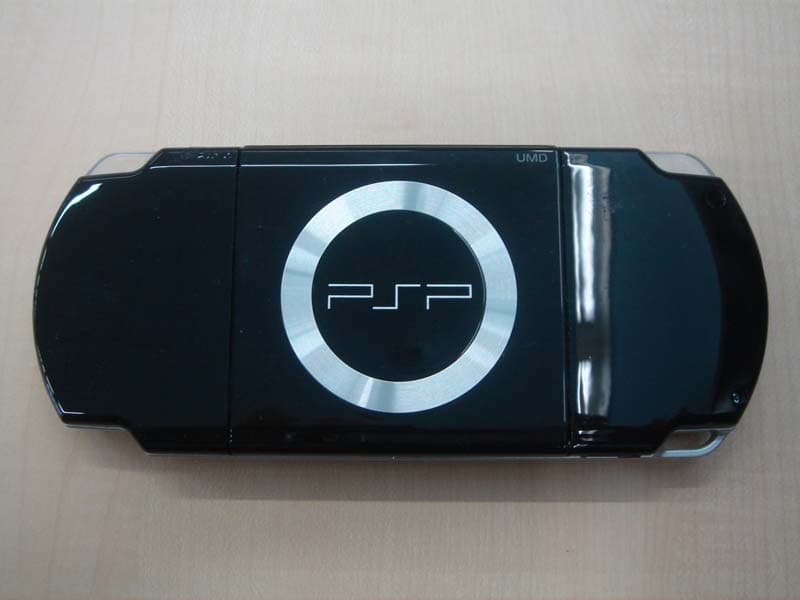
Click to zoom
Application Details
- Equipment Class
- DTS - Digital Transmission System
- Date of Grant
- Jul 10, 2007
- Application Purpose
- Original Equipment
- Date of Application
- Jul 10, 2007
- Equipment Note
- Play Station Portable
- Frequency Range
- 2412.00000000 - 2462.00000000
- Company
- Sony Group Corporation
- Country
- Japan
Documents & Files
Document Text
Text extracted from the exhibit documents filed with the FCC. Open a document above to read the original.
Users Manual
PSP-2001 3-218-749-11(1) PSP-2001 3-218-749-11(1) US/FR/ES Quick Reference Aide-mémoire Referencia rápida PSP-2001 3-218-749-11(1) US/FR/ES This docume ( page 25 Using the home menu Introduction GAME Playing games VIDEO Playing video MUSIC Playing music PHOTO Displaying images NETWORK Connecting to the Internet SETTINGS Adjusting PSP ® system settings Busy icon: This icon is displayed when a page is loading. Directional b Used t categorie Home Returns to th Select to disp button: Category 1 Select a category using the left or right button. 2 Select an item using the up or down button. 3 Press the button to confi rm the selected item. Item Icons displayed in the home menu vary depending on the system software version. 2 ) US/FR/ES DE IT NL PT PSP-2001 3-218-749-11(1) US/FR/ES US FR ES HOMESELECTSTART VOL This document describes basic operations of the PSP ® system. For detailed instructions, refer to the online user's guide ( page 25): http://manuals.playstation.net/document/ Busy icon: age is loading. Directional buttons: Used to select categories/items button: Cancels selected operations button: Confi rms selected items Home button: Returns to the home menu Select an icon, and then press the button to display the options menu. While playing content, press the button to display the control panel. button: Displays the options menu/control panel IconsOptions menuControl panel Category eft or right or down m the 3 PSP-2001 3-218-749-11(1) US/FR/ES 01 Checking the package contents Preparation Check that you have all of the following items. If any items are missing, contact our technical support line at 1-800-345-7669 for assistance. Additional items may be included with certain models of this product. Please check against the contents listed on the product package. PSP ® (PlayStation ® Portable) system Battery pack AC adaptor AC power cord Printed materials P O W E R H O L D S E L E C T H OME V O L S T A R T About the The PSP ® sy following: • Safety and Before usin It contains s system, trou information • Quick Refe This docum operations • User's Gui (http://manu This online contains de system soft 4 ) US/FR/ES DE IT NL PT PSP-2001 3-218-749-11(1) US/FR/ES FR US ES Preparation Checking the package contents ents listed aptor wer cord About the PSP ® system documentation The PSP ® system documentation includes the following: • Safety and Support Before using the product, carefully read this document fi rst. It contains safety information related to the use of the PSP ® system, troubleshooting, specifi cations and other information. • Quick Reference (this document) This document contains information on basic hardware operations of the PSP ® system. • User's Guide (http://manuals.playstation.net/document/) This online document is accessed through the Internet and contains detailed information related to the use of the PSP ® system software ( page 25). 5 PSP-2001 3-218-749-11(1) US/FR/ES 02 Preparing the PSP ® system for use Preparation Charging the battery Before using the PSP ® system for the fi rst time after purchase, you must follow these steps to charge the battery. Caution • The socket-outlet shall be installed near the equipment and shall be easily accessible. • Do not plug the AC power cord for the PSP ® system into an electrical outlet until you have made all other connections. Notice Before inserting the battery pack, fi nd the serial and model numbers listed within the battery compartment and make a record of the numbers for future reference. 1 Remove the battery cover. While holding down the release button, slide the battery cover in the direction of the arrow. 2 1 Release button 2 Insert the battery pack. Align the bottom surface of the battery pack with the system to attach the battery. 1 2 Align the tabs of the battery cover with the system and snap it in place. 4 3 3 Attach battery The po orang has b e will tur fully c HOME 6 ) US/FR/ES DE IT NL PT PSP-2001 3-218-749-11(1) US/FR/ES FR US ES Preparation Preparing the PSP ® system for use with the ystem and 3 Attach the AC adaptor to charge the battery. The power indicator lights up in orange, indicating that charging has begun. The power indicator will turn off when the battery is fully charged. Power indicator To electrical outlet HOMESELECTSTART VOL 2 1 3 Initial setup 1 Slide the power/hold switch up. Power/hold switch P O W ER HO L D S T A RT S E LE C T The power indicator lights up in green, and the initial setup screen is displayed. 2 Follow the on-screen instructions to make the initial settings. When you have completed initial setup, the home menu ( page 2) is displayed. • See "Using the on-screen keyboard" ( page 26) for information on entering characters. • Settings made during initial setup can be changed later in (Settings). See the user's guide ( page 25) for details. 7 PSP-2001 3-218-749-11(1) US/FR/ES HOMESELECTSTART VOL Using the Press and rele Press for more than one seco *1 : The tone c Also, the t gameplay *2 : To clear m Using the Press and rele Press for more than one seco Press for more than fi ve seco *1 : The high e PSP ® syst *2 : To turn th e system bu 03 Part names and functions Preparation System WLAN switch (top) Power/hold switch (right side) ( page 10) Hold indicator ( page 10) Power indicator ( page 10) LCD screen L button Directional buttons Memory Stick Duo™ access indicator ( page 13) WLAN access indicator Lights up when using the wireless LAN feature Analog stick Strap holder Home button Displays the home menu Volume - button Volume + button Start button Select button R button button button button button Sound button ( page 9) Display button ( page 9) H O M E USB connector (top) Left speaker Right speaker 8 ) US/FR/ES DE IT NL PT PSP-2001 3-218-749-11(1) US/FR/ES FR US ES Using the sound button Press and release Each time you press the button, the tone changes among HEAVY POPS JAZZ UNIQUE OFF. *1 Press for more than one second The sound is muted. *2 *1 : The tone can be changed only when using…
Text truncated - open the document above for the full version.
Users Manual
PSP-1001 3-218-749-11(1) US/FR/ES Opérations de base Sortie vidéo vers un téléviseur 08 Les images vidéo du système PSP ® peuvent être reproduites sur un téléviseur en utilisant un câble de sortie vidéo (vendu séparément). Vous pouvez visionner une UMD™VIDEO ou une vidéo enregistrée sur un support Memory Stick Duo™. Sélectionnez un câble adapté au téléviseur choisi. Avis Les images des jeux vidéo ne peuvent être reproduites que si le téléviseur et le câble de raccordement utilisés prennent en charge l'affi chage à l'écran en mode progressif. De plus, il est possible que les images vidéo ne puissent pas être transmises au téléviseur pour certaines fonctions, autres que les jeux. Pour plus de détails, reportez-vous au mode d'emploi ( page 55). Types de câbles de sortie vidéo Type de câbleConnecteur d'entrée du téléviseur Câble AV Composant Connecteurs VIDEO IN Composant YLRPR/CRPB/CB COMPONENT VIDEO INAUDIO IN Câble AV*Connecteur VIDEO IN (composite) VIDEOL-AUDIO-R * La vidéo progressive ne peut pas être reproduite. Sortie ve 1 Raccor à l'aide séparé Exemple téléviseu r CO Connec IN Com Téléviseur 2 Réglez le télév Sélectionn 48 ) US/FR/ES DE IT NL PT PSP-1001 3-218-749-11(1) US/FR/ES US FR ES Opérations de base Sortie vidéo vers un téléviseur e sortie n support nent en ransmises page 55). LRPR/CR DEO INAUDIO IN L-AUDIO-R Sortie vers un téléviseur 1 Raccordez le système PSP ® au téléviseur à l'aide d'un câble de sortie vidéo (vendu séparément). Exemple : Lors du raccordement du système PSP ® à un téléviseur avec connecteurs d'entrée vidéo composant COMPONENT VIDEO IN AUDIO IN L R Y P B/CB PR/CR Connecteurs VIDEO IN Composant Téléviseur Câble AV Composant (vendu séparément) 2 Réglez le paramètre d'entrée vidéo pour le téléviseur. Sélectionnez les connecteurs d'entrée utilisés. 3 Mettez le système PSP ® sous tension ( page 40), puis maintenez la touche écran de la face avant du système enfoncée pendant 5 secondes au moins. Les images vidéo du système PSP ® apparaissent sur le téléviseur. Effacement de la sortie vidéo Pour effacer la sortie vidéo, appuyez de nouveau sur la touche écran. Conseil Vous pouvez changer la sortie vidéo ou régler les paramètres dans (Paramètres de l'écran connecté) sous (Paramètres). 49 PSP-1001 3-218-749-11(1) US/FR/ES Création Vous pouvez connexion à données de paramètres l'environne m instructions réseau la pl nécessaire m 1 Sélecti sous d'accue 2 Sélecti appuye 3 Sélecti appuye Avertissement Éteignez l'interrupteur WLAN dans les endroits bondés, par exemple à l'intérieur d'un train. Si une personne située à proximité utilise un stimulateur cardiaque, il est possible que les ondes radio affectent son fonctionnement. Exemple de confi guration réseau Les connexions de l'équipement réseau et les méthodes de confi guration varient selon l'équipement utilisé. Point d'accès ou routeur sans fi l Périphérique réseau, par exemplve un modem DSL ou un modem câble Exemple de confi guration réseau courante Ligne Internet PC Éléments nécessaires Les éléments suivants sont normalement nécessaires pour confi gurer le système en vue de sa connexion à un réseau. • Un abonnement à un fournisseur de services Internet • Un périphérique réseau, tel qu'un modem DSL ou un modem câble • Un point d'accès au réseau local sans fi l ou un routeur à large bande sans fi l • Les paramètres du point d'accès (SSID, clé WEP, clé WPA, etc. défi nis lors de la confi guration du point d'accès) Conseils • Un point d'accès est un périphérique utilisé pour la connexion à un réseau sans fi l. • Un routeur à large bande sans fi l est un périphérique qui regroupe les fonctions d'un routeur et d'un point d'accès. Un routeur est obligatoire si vous connectez en même temps un PC et le système PSP ® à la même ligne Internet. • SSID, les clés WEP et WPA sont des types d'informations de réseau sans fi l. Elles peuvent être requises pour la connexion à un point d'accès ou à un routeur. Ces informations sont généralement défi nies dans le point d'accès ou le routeur à l'aide d'un PC. Pour plus de détails, reportez-vous aux instructions qui accompagnent le point d'accès ou le routeur. • L'utilisateur supporte les frais liés au service Internet. Réseau Réglage des paramètres réseau 09 50 ) US/FR/ES DE IT NL PT PSP-1001 3-218-749-11(1) US/FR/ES US FR ES Réseau Réglage des paramètres réseau 4 Sélectionnez "Scan", puis appuyez sur la touche droite. Conseil Lorsque vous utilisez un point d'accès qui prend en charge la confi guration automatique, sélectionnez "Automatique", puis suivez les instructions affi chées pour effectuer automatiquement les réglages requis. Pour plus d'informations sur les points d'accès compatibles avec une confi guration automatique, veuillez contacter le revendeur du point d'accès. Création d'une nouvelle connexion réseau Vous pouvez défi nir les paramètres réseau pour la connexion à un point d'accès ainsi qu'enregistrer les données de connexion réseau sur le système. Les paramètres réseau peuvent varier selon l'environnement réseau et l'équipement utilisé. Les instructions suivantes s'appliquent à la confi guration réseau la plus courante, mais ne sont pas nécessairement valables pour toutes les installations. 1 Sélectionnez (Paramètres réseau) sous (Paramètres) à partir du menu d'accueil, puis appuyez sur la touche . 2 Sélectionnez "Mode infrastructure", puis appuyez sur la touche . 3 Sélectionnez "Nouvelle connexion", puis appuyez sur la touche . nécessaires connexion à vices em DSL ou fil ou un , clé WEP, ation du our la hérique qui nt d'accès. n même gne Internet. formations pour la Ces le point us de détails, nent le point nternet. 51 PSP-1001 3-218-749-11(1) US/FR/ES 9 Sélecti et régle Facile Personnalisée Si vous sé instruction nécessair Réseau Réglage des paramètres réseau 5 Sélectionnez le point d'accès souhaité, puis appuyez sur la touche . Un SSID est un code ou un nom affecté au point d'accès. Si vous ne savez pas quel SSID utiliser ou si celui-ci n'est pas affi ché, contactez la p…
Text truncated - open the document above for the full version.
Users Manual
TM model name1[PSP-2001] [3-218-748-11(1)] masterpage:Right filename[G:\FM\SCE\0606\PSP_SS_US\3218748111_PSP(PlayStationPortable)\01U S\01EN01COV.fm] Safety and Support Sécurité et support technique Seguridad y soporte técnico PSP-2001 3-218-748-11(1) US FR ES 01PSP-1001 EN.book Page 1 Wednesday, June 6, 2007 6:03 PM masterpage:Left filename[G:\FM\SCE\0606\PSP_SS_US\3218748111_PSP(PlayStationPortable)\01U S\01EN02WAR.fm] 2 WARNINGS model name1[PSP-2001] [3-218-748-11(1)] To avoid electrical shock, do not open the cabinet. Refer servicing to qualified personnel only. Use the supplied AC adaptor only. If you use other types, it may cause fire, electrical shocks or a malfunction. Caution Use of controls or adjustments or performance of procedures other than those specified herein may result in hazardous radiation exposure. The use of optical instruments with this product will increase eye hazard. This appliance is classified as a CLASS 1 LASER product under IEC60825-1: 2001. WARNINGS For customers in the U.S.A. and Canada For customers in the U.S.A. If you have questions about this product, call our technical support line at 1-800-345-7669, or write to: Sony Computer Entertainment America Consumer Services/Technical Support PO Box 5888, San Mateo, CA 94402-0888 U.S.A. This device complies with Part 15 of the FCC Rules. Operation is subject to the following two conditions: (1) this device may not cause harmful interference, and (2) this device must accept any interference received, including interference that may cause undesired operation. Declaration of Conformity Trade Name : Model No. : Responsible Party : Address : Telephone No. : SONY PSP-2001 Sony Electronics Inc. 16530 Via Esprillo, San Diego, CA 92127 U.S.A 858-942-2230 01PSP-1001 EN.book Page 2 Wednesday, June 6, 2007 6:03 PM 3 WARNINGS model name1[PSP-2001] [3-218-748-11(1)] masterpage:Right filename[G:\FM\SCE\0606\PSP_SS_US\3218748111_PSP(PlayStationPortable)\01U S\01EN02WAR.fm] US NOTE: This equipment has been tested and found to comply with the limits for a Class B digital device, pursuant to Part 15 of the FCC rules. These limits are designed to provide reasonable protection against harmful interference in a residential installation. This equipment generates, uses, and can radiate radio frequency energy and, if not installed and used in accordance with the instructions, may cause harmful interference to radio communications. However, there is no guarantee that interference will not occur in a particular installation. If this equipment does cause harmful interference to radio or television reception, which can be determined by turning the equipment off and on, the user is encouraged to try to correct the interference by one or more of the following measures: – Reorient or relocate the receiving antenna. – Increase the separation between the equipment and receiver. – Connect the equipment into an outlet on a circuit different from that to which the receiver is connected. – Consult the dealer or an experienced radio/TV technician for help. You are cautioned that any changes or modifications not expressly approved in this manual could void your authority to operate this equipment. FCC Radiation Exposure Statement This transmitter complies with FCC radiation exposure limit set forth for an uncontrolled environment. To comply with the FCC RF exposure compliance requirements, no change to the antenna or the device is permitted. Any changes to the antenna or the device could result in the device exceeding the RF exposure requirements and void user authorization to operate the equipment. In addition, this transmitter must not be co-located or operating in conjunction with any other antenna or transmitter. This Class B digital apparatus complies with Canadian ICES-003. The term "IC" before the equipment certification number only signifies that the Industry Canada technical specifications were met. Operation is subject to the following two conditions: (1) this device may not cause interference, and (2) this device must accept any interference, including interference that may cause undesired operation of the device. IC Radiation Exposure Statement This transmitter complies with IC radiation exposure limit set forth for an uncontrolled environment. To comply with the IC RF exposure compliance requirements, no change to the antenna or the device is permitted. Any changes to the antenna or the device could result in the device exceeding the RF exposure requirements and void user authorization to operate the equipment. In addition, this transmitter must not be co-located or operating in conjunction with any other antenna or transmitter. For customers in Canada 01PSP-1001 EN.book Page 3 Wednesday, June 6, 2007 6:03 PM masterpage:Left filename[G:\FM\SCE\0606\PSP_SS_US\3218748111_PSP(PlayStationPortable)\01U S\01EN02WAR.fm] 4 WARNINGS model name1[PSP-2001] [3-218-748-11(1)] A very small percentage of individuals may experience epileptic seizures or blackouts when exposed to certain light patterns or flashing lights. Exposure to certain patterns or backgrounds on a screen or when playing video games may trigger epileptic seizures or blackouts in these individuals. These conditions may trigger previously undetected epileptic symptoms or seizures in persons who have no history of prior seizures or epilepsy. If you, or anyone in your family, has an epileptic condition or has had seizures of any kind, consult your physician before playing. IMMEDIATELY DISCONTINUE use and consult your physician before resuming gameplay if you or your child experience any of the following health problems or symptoms: • dizziness, • altered vision, • eye or muscle twitches, • loss of awareness, • disorientation, • seizures, or • any involuntary movement or convulsion. RESUME GAMEPLAY ONLY ON APPROVAL OF YOUR PHYSICIAN. Use and handling of video games to reduce the likelihood of a seizure • Use in a well-lit area and keep the screen a safe distance from your face. • Avoid…
Text truncated - open the document above for the full version.
Users Manual
41 Supports compatibles model name1[PSP-2001] [3-218-748-11(1)] masterpage:Right filename[G:\FM\SCE\0607\PSP_US\3218748111_PSP(PlayStationPortable)\02FR\01 FR03PRE.fm] Avant l'utilisation FR Les types de supports répertoriés ci-dessous peuvent être utilisés dans le système PSP ®. Au sein de ce manuel, le terme "Memory Stick Duo™" est utilisé pour tous les types de supports Memory Stick™ figurant dans le tableau ci-dessous. *1 Il est compatible avec MagicGate™ *2 Compatible avec le transfert de données à grande vitesse sur une interface parallèle. *3 Avant de pouvoir utiliser un support Memory Stick Micro™, vous devez d'abord l'insérer dans un adaptateur au format M2 Duo. Si le Memory Stick Micro™ est inséré directement dans le système, il risque de ne pas pouvoir être éjecté. Conseils • Les Memory Stick™ de format standard ne peuvent pas être utilisés avec le système. • Les performances de tous les supports Memory Stick™ ne sont pas garanties. • Si un Memory Stick Duo™ est formaté dans un périphérique autre que le système PSP ®, par exemple à l'aide d'un PC, il est possible que le système ne le reconnaisse pas. Si c'est le cas, accédez à (Paramètres système) "Formatage Memory Stick™" et reformatez le Memory Stick Duo™. L'UMD™ contient un code de région affecté à chaque région de vente. Ce système peut lire les logiciels UMD™ marqués du code de région "ALL" ou "1". Supports compatibles TypeLogo UMD™ Memory Stick Duo™ (non compatible MagicGate™) MagicGate™ Memory Stick Duo™ *1 Memory Stick Duo™ (compatible MagicGate™) *1 *2 Memory Stick PRO Duo™ *1 *2 Memory Stick PRO-HG Duo™ *1 *2 Memory Stick Micro™ (M2™) *1 *2 *3 UMD™ 01FR03PRE.fm Page 41 Thursday, June 7, 2007 6:10 PM masterpage:Left filename[G:\FM\SCE\0606\PSP_SS_US\3218748111_PSP(PlayStationPortable)\02F R\01FR03PRE.fm] 42 Supports compatibles model name1[PSP-2001] [3-218-748-11(1)] Transfert de données parallèle (transfert de données à grande vitesse) Le transfert de données parallèle est une technologie de transfert de données à grande vitesse permettant d'utiliser simultanément plusieurs connecteurs d'entrée/sortie de données sur le Memory Stick™ (interface parallèle). Le système PSP ® prend en charge le transfert de données parallèle 4 bits. Toutefois, le temps nécessaire à la lecture/ écriture varie selon le support utilisé. Limite de taille de fichier Les caractéristiques du système de fichiers utilisé sur le support Memory Stick™ limitent la taille des fichiers qui peuvent être enregistrés ou lus à moins de 4 Go par fichier. MagicGate est un terme qui désigne une technologie de protection de droits d'auteurs développée par la Sony Corporation. Memory Stick™ 01PSP-1001 EN.book Page 42 Wednesday, June 6, 2007 6:03 PM 43 Avant de demander une assistance model name1[PSP-2001] [3-218-748-11(1)] masterpage:Right filename[G:\FM\SCE\0607\PSP_US\3218748111_PSP(PlayStationPortable)\02FR\01 FR04TRS.fm] Guide de dépannage FR Consultez cette section si vous rencontrez des difficultés lors de l'utilisation du système PSP®. Pour plus d'informations sur le dépannage, visitez www.us.playstation.com/support. Si le problème persiste, contactez notre ligne d'assistance technique au 1-800-345-7669. Le système n'est pas sous tension. ,La charge de la batterie est peut-être épuisée. Chargez la batterie. ,Vérifiez que le bloc-batterie est correctement inséré. La batterie ne se charge pas ou ne se recharge pas complètement. ,Lorsque vous utilisez l'adaptateur AC, vérifiez que ce dernier et le cordon d'alimentation sont correctement insérés dans le système et dans la prise électrique. ,Lorsque vous utilisez le câble USB, vérifiez que ce dernier est entièrement inséré dans le système et le périphérique USB et si le périphérique USB est sous tension. ,La batterie risque de ne pas charger efficacement ou le chargement peut durer plus longtemps en fonction des conditions d'utilisation ou des facteurs environnementaux rencontrés durant le chargement. Pour plus de détails, reportez-vous à la section "À propos de la batterie" (page 38). ,Vérifiez que tant les connecteurs du système (comme le connecteur USB) que celui de l'adaptateur AC ou du câble USB sont propres. Sinon, essuyez le connecteur avec un chiffon sec et doux. ,Lorsque vous utilisez l'adaptateur AC, vérifiez que vous utilisez l'adaptateur AC adapté à ce produit. ,Lorsque vous utilisez le câble USB, il est possible que le système ne puisse se recharger s'il est connecté à certains périphériques USB. Pour plus de détails, consultez la section "À propos de la batterie" (page 38). La charge de la batterie ne dure pas longtemps. ,La charge peut être épuisée plus rapidement en fonction de la méthode de stockage, des conditions d'utilisation ou des facteurs environnementaux. Pour plus de détails, reportez-vous à la section "À propos de la batterie" (page 38). L'écran s'assombrit soudainement. ,Si "Arrêt automatique du rétroéclairage" est sélectionné sous (Paramètres gestion de l'alimentation), le rétroéclairage de l'écran LCD se désactive automatiquement lorsque le système reste inactif pendant une durée déterminée. ,Si "Veille automatique" est sélectionné sous (Paramètres gestion de l'alimentation), le système passe automatiquement en mode veille lorsqu'il reste inactif pendant une durée déterminée. L'écran est sombre et difficile à voir. ,Utilisez la touche écran située à l'avant du système pour régler la luminosité. Guide de dépannage Avant de demander une assistance Problèmes d'alimentation, de batterie et de charge Écran 01FR04TRS.fm Page 43 Thursday, June 7, 2007 3:33 PM masterpage:Left filename[G:\FM\SCE\0606\PSP_SS_US\3218748111_PSP(PlayStationPortable)\02F R\01FR04TRS.fm] 44 Avant de demander une assistance model name1[PSP-2001] [3-218-748-11(1)] Des pixels noirs ou constamment allumés ne disparaissent pas de l'écran. ,Les écrans LCD sont fabriqués à l'aide d'une technologie de haute précision, mais dans certains cas, des pixels noirs (sombres) ou encore des pixels constamment allumés peuvent ap…
Text truncated - open the document above for the full version.
Cover Letter(s)
貴社レターヘッド上へ印刷下さい。 Request for Confidentiality June 14, 2007 American Telecommunications Certification Body, Inc. 6731 Whittier Avenue Suite C110 McLean, VA 22101 RE : Certification Application FCC ID : AK8PSP2001 Please be advised that the following information is to be held confidential on behalf of Sony Corporation:, referring to the FCC rules 0.457 and 0.459: • Block Diagram • Schematics • Theory of Operation The application contains technical information which Sony Corporation deems to be trade secrets and proprietary. If made public, the information might be used to the disadvantage of the applicant in the market place. Thank you for your attention to this matter. _________________________________ Hitoshi Tanabe Product Quality Office Customer Satisfaction Global Head Office Sony Corporation
External Photos
Internal Photo Sony Corporation Model:PSP-2001 FCC ID: AK8PSP2001 IC Number: 409B-PSP2001 Front View Rear View Internal Photo Sony Corporation Model:PSP-2001 FCC ID: AK8PSP2001 IC Number: 409B-PSP2001 Top View Bottom View Internal Photo Sony Corporation Model:PSP-2001 FCC ID: AK8PSP2001 IC Number: 409B-PSP2001 Right View Left View
ID Label/Location Info
Illustration of Label Location of Label
Internal Photos
Internal Photo Sony Corporation Model:PSP-2001 FCC ID: AK8PSP2001 IC Number: 409B-PSP2001 Front View of WLAN Module (SWU-GNG310) Rear View of WLAN Module (SWU-GNG310) Internal Photo Sony Corporation Model:PSP-2001 FCC ID: AK8PSP2001 IC Number: 409B-PSP2001 Front View of Antenna (HFS36-SO01) Rear View of Antenna (HFS36-SO01) Internal Photo Sony Corporation Model:PSP-2001 FCC ID: AK8PSP2001 IC Number: 409B-PSP2001 Antenna WLAN Module Location of WLAN Module and Antenna
RF Exposure Info
Test report No. : 27JE0092-HO-D-R1 Page : 1 of 76 Issued date : June 8, 2007 Revised date : June 22, 2007 FCC ID : AK8PSP2001 UL Japan, Inc. Head Office EMC Lab. 4383-326 Asama-cho, Ise-shi, Mie-ken 516-0021 JAPAN Telephone : +81 596 24 8116 Facsimile : +81 596 24 8124 SAR TEST REPORT Test Report No. : 27JE0092-HO-D-R1 Applicant : Sony Computer Entertainment Inc. Type of Equipment : PSP Model No. : PSP-2001 FCC ID : AK8PSP2001 Test standard : FCC47CFR 2.1093 FCC OET BULLETIN 65, SUPPLEMENT C Test Result : Complied Max. SAR Value : 0.141W/kg (Body, 2437MHz) 1. This test report shall not be reproduced except full or partial, without the written approval of UL Japan, Inc. 2. The results in this report apply only to the sample tested. 3. This equipment is in compliance with the above standard. We hereby certify that the data contain a true representation of the SAR profile. 4. The test results in this test report are traceable to the national or international standards. 5. Original test report number for this report is 27JE0092-HO-D. Date of test: _____________________________ Tested by: _____________________________ Hisayoshi Sato EMC Services Approved by : _____________________________ Hironobu Shimoji Assistant Manager of EMC Services NVLAP LAB CODE: 200572-0 This laboratory is accredited by the NVLAP LAB CODE 200572-0, U.S.A. The tests reported herein have been performed in accordance with its terms of accreditation. *As for the range of Accreditation in NVLAP, you may refer to the WEB address, http://uljapan.co.jp/emc/nvlap.htm MF060b (26.04.07) May 25, 2007 Test report No. : 27JE0092-HO-D-R1 Page : 2 of 76 Issued date : June 8, 2007 Revised date : June 22, 2007 FCC ID : AK8PSP2001 UL Japan, Inc. Head Office EMC Lab. 4383-326 Asama-cho, Ise-shi, Mie-ken 516-0021 JAPAN Telephone : +81 596 24 8116 Facsimile : +81 596 24 8124 CONTENTS PAGE SECTION 1: Client information ............................................................................................................ 3 SECTION 2: Equipment under test (E.U.T.)........................................................................................ 3 2.1 Identification of E.U.T.................................................................................................3 2.2 Product Description ....................................................................................................4 SECTION 3 : Test standard information .............................................................................................. 5 3.1 Requirements for compliance testing defined by the FCC...................................................5 3.2 Exposure limit...........................................................................................................6 SECTION 4 : Test result......................................................................................................................... 7 4.1 Result of Max. SAR value............................................................................................7 4.2 Test Location ............................................................................................................7 SECTION 5 : Operation of E.U.T. during testing ................................................................................8 5.1 Confirmation before SAR testing ...................................................................................8 5.2 Confirmation after SAR testing.....................................................................................8 5.3 Operating modes for SAR testing..................................................................................8 5.4 Test setup of EUT ....................................................................................................10 SECTION 6 : Test surrounding ........................................................................................................... 11 6.1 Measurement uncertainty................................................................................................11 SECTION 7 : Confirmation before/after testing ................................................................................ 12 7.1 Conducted power before.................................................................................................12 SECTION 8 : Measurement results ...................…
Text truncated - open the document above for the full version.
Contact Information
Applicant
Kazuyuki Hori(Chief EMC/RF Compliance Specialist)
Test Firm
UL Japan, Inc. Yokowa EMC Lab.Masamichi Ishii
Technical Specifications
| # | Rule Parts | Frequency Range | Power Output |
|---|---|---|---|
| 1 | 15C | 2.41 GHz - 2.46 GHz | 16.41 mW |
Other Applications from Sony Group Corporation
AK8WW81782
Aug 21, 2026Radio Equipment
Equipment Class
DSS - Part 15 Spread Spectrum TransmitterAK8CFIZCP2
Aug 03, 2026Wireless Controller
Equipment Class
DSS - Part 15 Spread Spectrum TransmitterAK8OEV321MUH
Apr 14, 2026LCD Monitor
Equipment Class
JAD - Part 15 Class A Digital DeviceAK8OEV431MUH
Apr 14, 2026LCD Monitor
Equipment Class
JAD - Part 15 Class A Digital DeviceAK8OEV271MUH
Apr 14, 2026LCD Monitor
Equipment Class
JAD - Part 15 Class A Digital Device