C3K1008Wireless Optical Mouse 2.0
Microsoft Corporation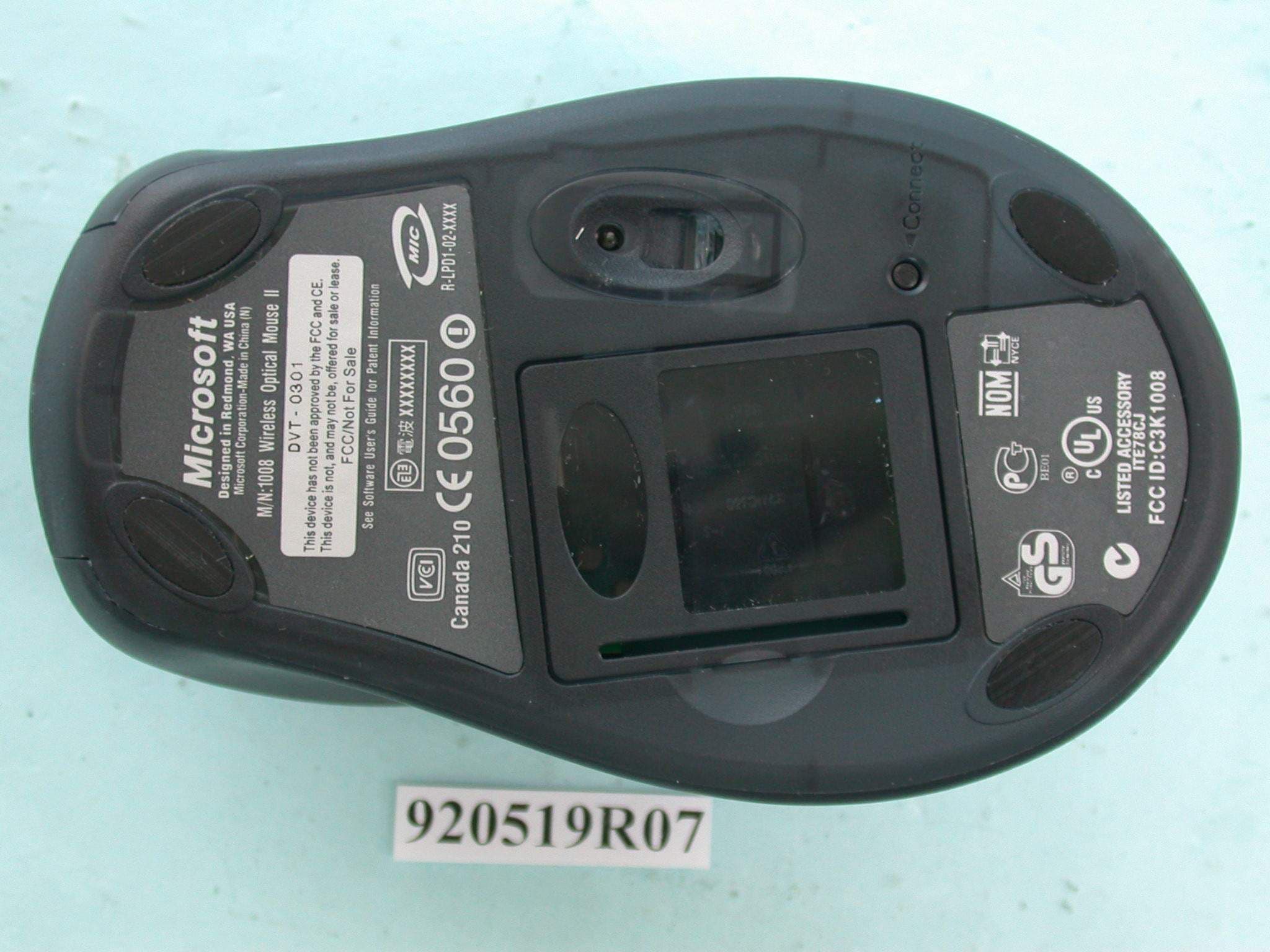
Click to zoom
Application Details
- Equipment Class
- DXX - Part 15 Low Power Communication Device Transmitter
- Date of Grant
- Jul 08, 2003
- Application Purpose
- Original Equipment
- Date of Application
- Jul 08, 2003
- Equipment Note
- Wireless Optical Mouse 2.0
- Frequency Range
- 27.14500000 - 27.14500000
- Company
- Microsoft Corporation
- Country
- United States
Documents & Files
Document Text
Text extracted from the exhibit documents filed with the FCC. Open a document above to read the original.
Users Manual
1 0403 Part Number X09-50622 Welcome! Setting up your Microsoft ® mouse takes a few simple steps, and then you can enjoy the freedom and convenience of wireless technology. Note In this Getting Started guide, “mouse” refers to both mouse and trackball products. Install IntelliPoint Software IntelliPoint software enables the unique features of your mouse and provides battery status and wireless signal quality information. Note If you do not already have a mouse, you can connect the receiver before installation so you can use your mouse during IntelliPoint Setup. About Your Rights and Obligations The software with this product is licensed, not sold. You must either agree to the license contract in the software Setup screens or promptly return the entire product for a refund, excluding the return costs. After you install the software, you may consult the license and the Limited Warranty for the product at any time by looking in the ”Legal Information” section of the software User’s Guide. You may also print a copy for your records. To install IntelliPoint software (Microsoft Windows ® operating system) 1. Insert the Microsoft IntelliPoint compact disc into the computer’s CD drive. If Setup does not start automatically, do the following: 1. Click the Start button, and then click Run. 2. Type [drive]:setup. For example, if your CD drive is drive E, type e:setup. 2. Follow the Setup Wizard instructions on your screen. Depending on your operating system version, you may be asked to restart your computer before Setup can begin. 3. After installation is complete, restart your computer if prompted to do so. 2 If your mouse has a Universal Serial Bus (USB) connector, it can be used with a Macintosh computer. To install IntelliPoint software (Macintosh) • Insert the Microsoft IntelliPoint compact disc into the computer’s CD drive, double-click the IntelliPoint Installer icon, and then follow the on-screen instructions. After installation is complete, restart your computer if prompted to do so. Insert the Batteries Whenever you insert batteries, always make sure both of them are new. Alkaline batteries are recommended, and two alkaline batteries are included in the package. Note To preserve battery life, the mouse automatically enters power saving mode when not in use, so there is no need for a power switch. 1. Turn the mouse upside down, and then remove the battery compartment cover. 2. Insert the batteries, making sure to properly orient the positive (+) and negative (–) ends as specified by the battery compartment labels. 3. Close the battery compartment cover. Important Before boarding any aircraft, remove the batteries from the wireless mouse. The wireless mouse can emit radio frequency (RF) energy, similar to a cellular telephone, whenever batteries are installed and the mouse is activated either by touch or button press. Position the Wireless Mouse and Receiver For optimum performance, position the receiver so that it is at least 8 inches (20 cm) away from the mouse and any items that might cause interference, such as computer monitors, large metal objects (including metal furniture), desktop fans, or fluorescent lights. The mouse may work up to 6 feet (1.8 m) away from the receiver, but this distance varies depending on positioning, nearby items causing interference, and other factors. 3 Connect the Receiver to the Computer The connection procedure depends on the type of computer you are using and the connectivity supported for your mouse as specified on the package. A USB connection is recommended for a Windows-based computer. Important Use an adapter plug only if it is included with your Microsoft mouse. USB Connection (Windows or Macintosh) • With your computer turned on, plug the rectangular USB connector into your computer’s USB port. PS/2 Connection (Windows) 1. Shut down and turn off your computer. 2. If your mouse cable has a round PS/2 connector, plug it into your computer’s round PS/2 mouse port. Or, if your mouse has a USB-to-PS/2 adapter, attach it to the Universal Serial Bus (USB) connector, and then plug it into your computer’s round PS/2 mouse port. 3. Turn on your computer. USB Connection PS/2 Connection PS/2 to USB Adapter 4 Test the Mouse Try using the mouse. If it does not work as expected, make sure the following procedures were completed as specified earlier in these instructions: • New batteries are inserted correctly • The receiver is properly connected to the computer • The receiver and mouse are properly positioned If the mouse is still not working, try changing the channel. Changing the wireless connection channel is useful if you are experiencing interference. To change the wireless connection channel • Press the button on the bottom of the wireless mouse. If changing the channel does not solve the problem, you may need to reconnect the mouse to the receiver. To reconnect the mouse to the receiver 1. Make sure that the mouse and receiver are positioned as specified earlier in these instructions. 2. Press the button on the top of the wireless receiver. The receiver light blinks to indicate that it is in “connect” mode. 3. Press the button on the bottom of the mouse. If reconnecting the mouse to the receiver does not solve the problem, refer to the User’s Guide installed with IntelliPoint software. Important Before using this product, read about the potential for radio interference in the topic titled “Radio and TV interference regulations” in the User's Guide installed with IntelliPoint software. 5 Read the User’s Guide The User’s Guide is your complete product manual, and it is installed with IntelliPoint software. It contains important product information in a searchable format, including: • Microsoft mouse and IntelliPoint software feature descriptions and instructions. • Troubleshooting topics and Product Support Services information. • End-User License Agreement (EULA), Limited Warranty, and regulatory information. To open the User’s Guide • Windows: Click the S…
Text truncated - open the document above for the full version.
Cover Letter(s)
Microsoft Corporation One Microsoft Way, Redmond WA 98052-6399, U.S.A Tel: +1 425 706-2697 E-mail: [email protected] April 20, 2003 Federal Communications Commission Authorization and Evaluation Division 7435 Oakland Mills Road Columbia, Maryland 21046 To whom it may concern, We, the undersigned, Microsoft Corporation hereby authorize KYE, to act on our behalf, as our agent, in the following matters related to the FCC approval of our products: FCC ID:C3K1007 FCC ID:C3K1008 report submittal, related correspondence, the signing of all documents relating to these matters, and any other lawful activity necessary to obtain such certification. Any act carried out by KYE within the scope of this authorization shall have the same affect as our own. This authorization shall expire on April 20, 2004. Sincerely, Stephen Stegner EMC/Safety Engineer Microsoft Corporation
Cover Letter(s)
Microsoft Corporation One Microsoft Way, Redmond WA 98052-6399, U.S.A Tel: +1 425 706-2697 E-mail: [email protected] April 20, 2003 Federal Communications Commission Authorization and Evaluation Division 7435 Oakland Mills Road Columbia, Maryland 21046 To whom it may concern, We hereby respectfully request that under the provision of 47 CFR 0.459, the documents listed below and attached with this application for certification for FCC ID: C3K1007 and C3K1008 be provided with confidential status. • Schematics • Block Diagrams • Bill of Materials Any exhibit / information for which we have requested confidentiality, but which may not be accorded such treatment by the FCC, should be returned to us. The documents listed above contain trade secrets that are treated as confidential by us. Substantial competitive harm to us could result should they be made available to the public. Sincerely, Stephen Stegner EMC/Safety Engineer Microsoft Corporation
External Photos
Page 1 ANNEX PHOTOGRAPHS OF EUT Page 2
ID Label/Location Info
R3 12 6 4 LISTE D AC CES SO R Y ITE 78 CJ BE0 1 C anada 210 FCC ID: C 3 K1008 Microsoft Corporation - Made in China (N) PN X08-XXXXX Product ID 55083-576- XXXXXXX See Software User's Guide for Patent Information Model: 1008 C MII ID: 2003D Z ZZ xxxxxxxx Designed in Redmond, WA USA R-LDP1-02-XXXX R3 126 4 LI STE D AC CES SOR Y ITE 7 8CJ BE0 1 C anada 210 FCC ID: C 3 K1008 Microsoft Corporation - Made in China (N) PN X08-XXXXX Product ID 55083-576- XXXXXXX See Software User's Guide for Patent Information Wireless Optical Mouse 2.0 Model: 1008 C MII ID: 2003D Z ZZ xxxxxxxx Designed in Redmond, WA USA R-LDP1-02-XXXX Wireless Optical Mouse 2.0
Internal Photos
Page 3 Page 4 Page 5
Operational Description
FCC ID: C3K1008 ADT No.920519R07 Operational Description The transmitter of the EUT (Wireless Optical Mouse 2.0) is powered by 1.5V Battery. The transmitter use printed antenna. The output power of this device is very low. Under normal use condition, the transmitter and the receiver are quite close, so high EIRP power is neither necessary nor allowed because of interference.
Test Report
FCC ID: C3K1008 Report No.: RF920519R07 1 Issued: June 11, 2003 FCC TEST REPORT REPORT NO.: RF920519R07 MODEL NO.: 1008 RECEIVED: May 19, 2003 TESTED: May 21 ~ 22, 2003 APPLICANT:Microsoft Corporation ADDRESS: One Microsoft Way, Redmond, WA 98052-6399, U.S.A. ISSUED BY:Advance Data Technology Corporation LAB LOCATION:47 14th Lin, Chia Pau Tsuen, Linkou Hsiang, Taipei, Taiwan, R.O.C. This test report consists of 15 pages in total. It may be duplicated completely for legal use with the approval of the applicant. It should not be reproduced except in full, without the written approval of our laboratory. The client should not use it to claim product endorsement by NVLAP or any U.S. government agencies. The test results in the report only apply to the tested sample. Lab Code: 200102-0 0528 ILAC MRA FCC ID: C3K1008 Report No.: RF920519R07 2 Issued: June 11, 2003 Table of Contents 1CERTIFICATION..............................................................................................3 2SUMMARY OF TEST RESULTS .....................................................................4 3GENERAL INFORMATION..............................................................................5 3.1GENERAL DESCRIPTION OF EUT ................................................................5 3.2DESCRIPTION OF TEST MODES ..................................................................6 3.3GENERAL DESCRIPTION OF APPLIED STANDARDS .................................6 3.4DESCRIPTION OF SUPPORT UNITS ............................................................6 4TEST PROCEDURE AND RESULT ................................................................7 4.1CONDUCTED EMISSION MEASUREMENT...................................................7 4.2RADIATED EMISSION MEASUREMENT........................................................7 4.2.1 LIMITS OF RADIATED EMISSION MEASUREMENT .....................................7 4.2.2 TEST INSTRUMENT .......................................................................................8 4.2.3 TEST PROCEDURE........................................................................................9 4.2.4 TEST SETUP.................................................................................................10 4.2.5 EUT OPERATING CONDITION.....................................................................10 4.2.6 TEST RESULT (A) ......................................................................................... 11 4.2.7 TEST RESULT (B) .........................................................................................12 4.2.8 TEST RESULT (C).........................................................................................13 5PHOTOGRAPHS OF THE TEST CONFIGURATION ....................................14 6INFORMATION ON THE TESTING LABORATORIES ..................................15 FCC ID: C3K1008 Report No.: RF920519R07 3 Issued: June 11, 2003 1 CERTIFICATION PRODUCT NAME : Wireless Optical Mouse 2.0 BRAND NAME : Microsoft ® MODEL NO. : 1008 APPLICANT : Microsoft Corporation STANDARDS : 47 CFR Part 15, Subpart C (15.227) ANSI C63.4-1992, Canada RSS-210 We, Advance Data Technology Corporation, hereby certify that three samples of the designation have been tested in our facility from May 21, 2003 to May 22, 2003. The test record, data evaluation and Equipment Under Test (EUT) configurations represented herein are true and accurate accounts of the measurements of the sample's EMC characteristics under the conditions herein specified. FCC ID: C3K1008 Report No.: RF920519R07 4 Issued: June 11, 2003 2 SUMMARY OF TEST RESULTS The EUT has been tested according to the following specifications: APPLIED STANDARD: 47 CFR Part 15, Subpart C STANDARD PARAGRAPH TEST TYPERESULTREMARK 15.207Conducted Emission TestN/A Power supply is 1.5VDC from batteries 15.227Radiated Emission TestPASS Minimum passing margin is –17.30dB at 162.50MHz NOTE: The receiver part to communicate with the EUT has been verified to comply with FCC Part 15, Subpart B, Class B (DoC). The test report can be provided upon request. FCC ID: C3K1008 Report No.: RF920519R07 5 Issued: June 11, 2003 3 GENERAL INFORMATION 3.1 GENERAL DESCRIPTION OF EUT PRODUCTWireless Optical Mouse 2.0 MODEL NO.1008 POWER SUPPLY1.5V for Mouse from AA Battery x 2 MODULATION TYPEFSK CARRIER FREQUENCY OF EACH CHANNEL 27.145MHz BANDWIDTH OF EACH CHANNEL NA NUMBER OF CHANNEL1 ANTENNA TYPEprinted antenna DATA CABLENA I/O PORTSNA ASSOCIATED DDVCESNA NOTE: 1. The EUT is the transmitter part of a wireless mouse. 2. Three identical samples were tested at Microsoft’s request. The serial numbers are M-DV- 089, M-DV-207 and M-DV-205. 3. Miata Configuration Information: Configuration #:Comments: Combi DV phase unit with EMC fixes for formal report ManufacturerComponent typePart no.RDVsion noDescriptionBOM (if known) KYEMouse TransmitterK630C345 STOptical SensorAviatorASICK130C081 MicrosoftFirmwareDV1Transmitter KYEReceiverCombi ReceiverK630D027 MotorolaMicro-controllerMC68HC908JB8CombiK130D005 MicrosoftFirmwareV52Combi Receiver YCCableDouble-braid BizlinkCable Ji HawCable TCT, ExpressTX PCB9Silver Through HoleK023C107 RX RF MC3361 PCB6Single SideK023C101 TCT, Express RX MOD MC68 PCB4Silver Through HoleK023C102 KYEPCB AssemblyCombi Receiver (DV)K000D008 KYEPCB AssemblyTransmitterK000C143 ToyoplasRX TOP CaseX01-03216DV1ABS-HB ToyoplasRX Bottom CaseX01-02955DV1ABS-HB ToyoplasRX Light PipeX-01-02957DV1PC ToyoplasRX KEY ButtonX01-02956DV1ABS-HB MerrichTX Top ASSYDV1ABS-HBK590C449 MerrichTX CH ShaftDV1ABS-HBK516C051 MerrichTX Top Cover PlateDV1ABS-HBK580C028 MerrichTX Bottom CaseDV1ABS-HBK512C310 MerrichTX Battery DoorDV1ABS-HBK517C112 MerrichTX Pirelli ASSYDV1ABS & PC & RubberK580C024 JHCommunication adapterX03-97009AUSB to PS/2 adapterK550C007 4. For more detailed features description of the EUT, please refer to the manufacturer's specifications or the User's Manual. FCC ID: C3K1008 Report No.: RF920519R07 6 Issued: June 11, 2003 3.2 DESCRIPTION OF TEST MODES…
Text truncated - open the document above for the full version.
Test Setup Photos
FCC ID: C3K1008 Report No.: RF920519R07 14 Issued: June 11, 2003 5 PHOTOGRAPHS OF THE TEST CONFIGURATION RADIATED EMISSION TEST
Contact Information
Applicant
Hasnain Syed(SR. DIR EMC/SI&RF COMPLIANCE)
Technical Contact
Advance Data Technology Corp.Ellis Wu
[email protected]+866 3 327 0910
13-1, Lane 19, 3rd., Street · Taoyuan · Taiwan
Test Firm
Bureau Veritas CPS (H.K.) Ltd. Taoyuan BranchRichard Chen
Technical Specifications
| # | Rule Parts | Frequency Range | Power Output |
|---|---|---|---|
| 1 | 15C | 27.145 MHz - 27.145 MHz | - |
Other Applications from Microsoft Corporation
C3K2147
Aug 28, 2026Wireless input device
Equipment Class
DTS - Digital Transmission SystemC3K2148
Aug 12, 2026Portable Computing Device
Equipment Class
DXX - Part 15 Low Power Communication Device TransmitterC3K2149
Aug 12, 2026Portable Computing Device
Equipment Class
DXX - Part 15 Low Power Communication Device TransmitterC3K2152
Aug 11, 2026Wireless Accessory
Equipment Class
DTS - Digital Transmission SystemC3K2150
Aug 06, 2026Portable Computing Device
Equipment Class
DXX - Part 15 Low Power Communication Device Transmitter