C3K1498Microsoft Wireless Mouse
Microsoft Corporation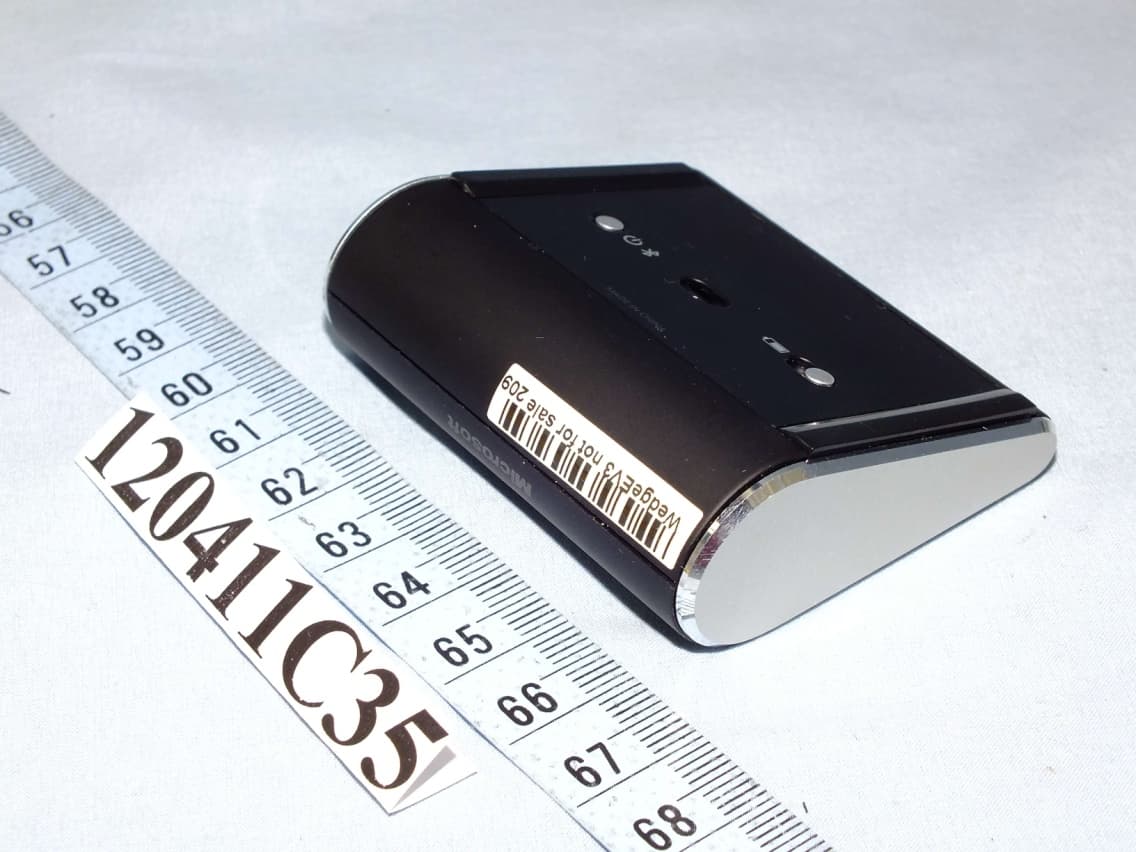
Click to zoom
Application Details
- Equipment Class
- DSS - Part 15 Spread Spectrum Transmitter
- Date of Grant
- May 13, 2012
- Application Purpose
- Original Equipment
- Date of Application
- May 09, 2012
- Equipment Note
- Microsoft Wireless Mouse
- Frequency Range
- 2402.00000000 - 2480.00000000
- Company
- Microsoft Corporation
- Country
- United States
Documents & Files
Document Text
Text extracted from the exhibit documents filed with the FCC. Open a document above to read the original.
Users Manual
www.microsoft.com/hardware www.microsoft.com/hardware english - en français - fr italiano - it español - es العربية - ar türkçe - tr Ελληνικά - EL português - pt www.microsoft.com/hardware/downloads 1 2 3 1 2 3 i On the underside of the device, press the battery door release button, insert one AA alkaline battery (positive side fi rst), and slide the door shut. The BlueTrack Technology ® light on the underside of the device turns on and fl ashes. Connect the device to your computer: a. Press and hold the power/Connect button on the underside of the device for 3 to 5 seconds. A small light on the back of the device blinks green and red alternately, to show that the device is discoverable to other Bluetooth devices within 6 minutes. b. WinDoWs ® 8: On your computer, press the Windows key, type Control panel, select Control panel from the search results, and then select add devices and printers. WinDoWs 7: On your computer, from the start menu, select Control panel, and in Category view, locate hardware and sound, and then select add a device. c. When the mouse is listed, select it, and follow the instructions. When the device is successfully connected, download the Microsoft Device Center software to access all the features of your new device. (www.microsoft.com/hardware/downloads) To turn the device on or off, press and release the power/Connect button quickly (less than 2 seconds). A small green light on the back of the device turns on when the device is on. www.microsoft.com/hardware/support www.microsoft.com/hardware/productguide 1 2 3 i On the underside of the device, press the battery door release button, insert one AA alkaline battery (positive side first), and slide the door shut. The BlueTrack Technology ® light on the underside of the device turns on and flashes. Connect the device to your computer: a. Press and hold the power/Connect button on the underside of the device for 3 to 5 seconds. A small light on the back of the device blinks green and red alternately, to show that the device is discoverable to other Bluetooth devices within 6 minutes. b. Win DoWs ® 8: On your computer, press the Windows key, type Control panel, select Control panel from the search results, and then select add devices and printers. Win DoWs 7: On your computer, from the start menu, select Control panel, and in Category view, locate hardware and sound, and then select add a device. c. When the mouse is listed, select it, and follow the instructions. When the device is successfully connected, download the Microsoft Device Center software to access all the features of your new device. (www.microsoft.com/hardware/downloads) To turn the device on or off, press and release the power/Connect button quickly (less than 2 seconds). A small green light on the back of the device turns on when the device is on. www.microsoft.com/hardware/support en www.microsoft.com/hardware/downloads 1 2 3 1 2 3 i Sous le périphérique, appuyez sur le bouton d’ouverture du compartiment à pile, insérez une pile alcaline AA (en l’enfonçant du côté positif), et fermez le couvercle en le faisant glisser. Le faisceau lumineux BlueTrack Technology ® situé sous le périphérique s’allume et clignote. Connectez le périphérique à votre ordinateur : a. Appuyez pendant 3 à 5 secondes sur le bouton d’alimentation/ de connexion situé sous le périphérique. Une diode située à l'arrière du périphérique clignote en vert et rouge pour indiquer que le périphérique est détectable par d’autres périphériques Bluetooth dans les 6 minutes. b. WinDoWs ® 8 : appuyez sur la touche Windows du clavier de votre ordinateur, tapez Panneau de confi guration et sélectionnez successivement Panneau de confi guration dans les résultats de la recherche, puis ajouter des périphériques et des imprimantes. WinDoWs 7 : dans le menu Démarrer de votre ordinateur, sélectionnez Panneau de confi guration, puis, dans la vue Catégorie, recherchez Matériel et audio et sélectionnez ajouter un périphérique. c. Une fois la souris répertoriée, sélectionnez-la, puis suivez les instructions. Lorsque le périphérique est correctement connecté, téléchargez le logiciel Microsoft Device Center pour profi ter de toutes les fonctionnalités de votre nouveau périphérique. (www.microsoft.com/hardware/downloads) Pour allumer ou éteindre le périphérique, appuyez brièvement (moins de 2 secondes) sur le bouton d’alimentation/de connexion et relâchez-le. Une diode verte s’allume à l'arrière du périphérique lorsque celui-ci est allumé. www.microsoft.com/hardware/support www.microsoft.com/hardware/productguide 1 2 3 i Sous le périphérique, appuyez sur le bouton d’ouverture du compartiment à pile, insérez une pile alcaline AA (en l’enfonçant du côté positif), et fermez le couvercle en le faisant glisser. Le faisceau lumineux BlueTrack Technology ® situé sous le périphérique s’allume et clignote. Connectez le périphérique à votre ordinateur : a. Appuyez pendant 3 à 5 secondes sur le bouton d’alimentation/ de connexion situé sous le périphérique. Une diode située à l'arrière du périphérique clignote en vert et rouge pour indiquer que le périphérique est détectable par d’autres périphériques Bluetooth dans les 6 minutes. b. Win DoWs ® 8 : appuyez sur la touche Windows du clavier de votre ordinateur, tapez Panneau de configuration et sélectionnez successivement Panneau de configuration dans les résultats de la recherche, puis ajouter des périphériques et des imprimantes. Win DoWs 7 : dans le menu Démarrer de votre ordinateur, sélectionnez Panneau de configuration, puis, dans la vue Catégorie, recherchez Matériel et audio et sélectionnez ajouter un périphérique. c. Une fois la souris répertoriée, sélectionnez-la, puis suivez les instructions. Lorsque le périphérique est correctement connecté, téléchargez le logiciel Microsoft Device Center pour profiter de toutes les fonctionnalités de votre nouveau périphérique. (www.microsoft.com/hardware/downloads) Pour allumer ou éteindre le périphérique, appuyez brièvemen…
Text truncated - open the document above for the full version.
Users Manual
Product Guide Important safety and health information Guia do produto Informações importantes sobre saúde e segurança Guide produit Informations importantes relatives à la sécurité et à la santé Εγχειρίδιο χρήσης του προϊόντος Σημαντικές πληροφορίες σχετικά με την ασφάλεια και την υγεία Guida del prodotto Informazioni importanti sulla sicurezza e sulla salute Manual do Produto Informações de segurança e saúde importantes Guía del producto Información importante sobre seguridad y salud מוצר מדריך ובריאות בטיחות בנושא חשוב מידע X173167902mnl.indd 173167902mnl.indd 112/9/2011 1:03:08 PM12/9/2011 1:03:08 P CONTENTS English .................................................................. 1 Português (Brasil) ............................................ 4 Français ................................................................ 7 Ελληνικά ...........................................................10 Italiano ...............................................................13 Português .........................................................16 Español...............................................................19 עברית ...................................................................22 X173167902mnl.indd 273167902mnl.indd 212/9/2011 1:03:08 PM12/9/2011 1:03:08 P 1 Product Guide Read this guide for important safety and health information that apply to the Microsoft ® device that you have purchased. Battery-Powered Devices These precautions apply to all products that use rechargeable or disposable batteries. Improper use of batteries may result in battery fluid leakage, overheating, or explosion. Released battery fluid is corrosive and may be toxic. It can cause skin and eye burns, and is harmful if swallowed. To reduce the risk of injury: ● Keep batteries out of reach of children. ● Do not heat, open, puncture, mutilate, or dispose of batteries in fire. ● Do not mix new and old batteries or batteries of different types (for example, carbon-zinc and alkaline batteries). ● Do not allow metal objects to touch the battery terminals on the device; they can become hot and cause burns. ● Remove the batteries if they are worn out or before storing your device for an extended period of time. Always remove old, weak, or worn-out batteries promptly and recycle or dispose of them in accordance with Local and National Disposal Regulations. ● If a battery leaks, remove all batteries, taking care to keep the leaked fluid from touching your skin or clothes. If fluid from the battery comes into contact with skin or clothes, flush skin with water immediately. Before inserting new batteries, thoroughly clean the battery compartment with a damp paper towel, or follow the battery manufacturer’s recommendations for cleanup. Disposable (non-rechargeable) batteries only: ● Caution Risk of explosion if battery is replaced by an incorrect type. Use and replace only with correct size and type (alkaline, zinc-carbon, or zinc-chloride) of batteries. Headset Devices Extended exposure to high volumes when using a headset may result in temporary or permanent hearing loss. To prevent damage to your headset, avoid sitting or stepping on the headset, its cable, or the cable connector. Warning: The earphones contained within this product may attract dangerous objects like staples and paper clips. Take care to avoid harm that may occur from the retention of dangerous objects on the earphones. Wireless Devices Before boarding any aircraft or packing a wireless device in luggage that will be checked, remove the batteries from the wireless device or turn the wireless device off (if it has an on/off switch). Wireless devices can transmit radio frequency (RF) energy, much like a cellular telephone, whenever batteries are installed and the wireless device is turned on (if it has an on/off switch). All Devices Do Not Attempt Repairs Do not attempt to take apart, open, service, or modify the hardware device or power supply.Doing so could present the risk of electric shock or other hazard. Any evidence of anyattempt to open and/or modify the device, including any peeling, puncturing, or removal of any of the labels, will void the Limited Warranty. EN X173167902mnl.indd 173167902mnl.indd 112/9/2011 1:03:08 PM12/9/2011 1:03:08 P 2 Choking Hazard This device may contain small parts which may be a choking hazard to children under 3. Keep small parts away from children. Usage and Cleaning Use in accordance with these instructions: ● Do not use near any heat sources. ● Only use attachments/accessories specified by Microsoft. ● Clean only with dry cloth. ● Do not allow this product to become wet. To reduce the risk of fire or shock, do not expose this product to rain or other types of moisture. Adhesive Mounting Some devices use adhesive tape to mount components in your workspace. DO NOT mount on antiques, heirlooms, or other valuable or irreplaceable items. After mounting, removing the adhesive may damage the cosmetic coating and/or leave an adhesive residue. Laser and LED Specifications Caution Use of controls or adjustments, or performance of procedures other than those specified herein may result in hazardous radiation exposure. CLASS 1 LASER PRODUCT IEC 60825-1:2007-03 Laser Devices This device complies with International Standard IEC 60825-1:2007-03 for a Class 1 laser product. This device also complies with 21 CFR 1040.10 and 1040.11 except for deviations pursuant to Laser Notice No. 50, dated June 24, 2007. Class 1 LED product Optical (LED) Mouse This product has been evaluated to comply with International Standard (IEC 60825-1:2001-08) and IEC 62471 (2006-07) This product uses LEDs that are considered Class 1 (IEC 60825-1:2001-08). Regulatory Information Not intended for use in machinery, medical or industrial applications. Any changes or modifications not expressly approved by Microsoft could void the user’s authority to operate this device. This product is for use with NRTL Listed (UL, CSA, ETL, etc.), and/or IEC/EN 60950-1 complia…
Text truncated - open the document above for the full version.
Cover Letter(s)
Microsoft Corporation Tel 425-882 8080 One Microsoft Way Fax 425 936 7329 Redmond, WA 98052-6399 http://www.microsoft.com/ Microsoft Corporation is an equal opportunity employer. Microsoft April 20, 2012 Federal Communications Commission Authorization and Evaluation Division 7435 Oakland Mills Road Columbia, Maryland 21046 Confidentiality Request FCC ID: C3K1498 Pursuant to Sections 0.457 and 0.459 of the Commission’s Rules, the Applicant hereby requests confidential treatment of information accompanying this Application as outlined below: Schematics Block Diagram Operational Description The above materials contain trade secrets and proprietary information not customarily released to the public. The public disclosure of these matters might be harmful to the Applicant and provide unjustified benefits to its competitors. The Applicant understands that pursuant to Rule 0.457, disclosure of this Application and all accompanying documentation will not be made before the date of the Grant for this application. Sincerely , ------------------------------------------------------------------------------ Bill Huang Compliance Engineer, EMC and Safety Safety, Compliance, & Sustainability Tel: 86-755-86118714 Fax:86-755-26651121 Email:[email protected]
Cover Letter(s)
April 20, 2012 Federal Communications Commission Authorization and Evaluation Division 7435 Oakland Mills Road Columbia , Maryland 21046 Subject: Short-term confidentiality request regarding application for certification of FCC ID: C3K1498 TO WHOM IT MAY CONCERN Pursuant to DA 04-1705 of the Commission’s public notice, we request short- term confidential treatment for the following information until Sep, 1 st , 2012 in order to ensure sensitive business information remains confidential until the actual marketing of the device: • External Photos • Test Setup Photos • User’s Manual • Internal Photos Sincerely, ------------------------------------------------------------------------------ Bill Huang Compliance Engineer, EMC and Safety Safety, Compliance, & Sustainability Tel: 86-755-86118714 Fax:86-755-26651121 Email:[email protected]
Cover Letter(s)
Microsoft Corporation Tel 425-882 8080 One Microsoft Way Fax 425 936 7329 Redmond, WA 98052-6399 http://www.microsoft.com/ Microsoft Corporation is an equal opportunity employer. Microsoft May 10, 2012 Federal Communications Commission Authorization and Evaluation Division 7435 Oakland Mills Road Columbia, Maryland 21046 Power of Attorney To whom it may concern: We, the undersigned Microsoft ® Corporation hereby authorize Bureau Veritas Consumer Product Service (Hong Kong) Limited, Taoyuan Branch of Taiwan to act on our behalf in all matters relating to all processes required in the FCC Part 15C approval and any communication needed with the national authority. Any and all acts carried out by BV CPS Taoyuan on our behalf shall have the same effects as acts of our own. This authorization is limited to the following products: Wireless Mouse; Model No:1498 FCC ID: C3K1498 If you have any questions regarding the authorization, please don’t hesitate to contact us. Thank you! Sincerely, ------------------------------------------------------------------------------ Bill Huang Compliance Engineer, EMC and Safety Safety, Compliance, & Sustainability Tel: 86-755-86118714 Fax:86-755-26651121 Email:[email protected] Microsoft Corporation Tel 425-882 8080 One Microsoft Way Fax 425 936 7329 Redmond, WA 98052-6399 http://www.microsoft.com/ Microsoft Corporation is an equal opportunity employer.
External Photos
Page 1 CONSTRUCTION PHOTOS OF EUT Page 2
ID Label/Location Info
FCC ID: C3K1498 Location:
Internal Photos
Page 3 Page 4 Page 5 Page 6 Page 7 Page 8
RF Exposure Info
Report No.: SA120411C35 1 Report Format Version 4.0.0 RF EXPOSURE REPORT (FOR BLUETOOTH) REPORT NO.: SA120411C35 MODEL NO.: 1498 FCC ID: C3K1498 RECEIVED: Apr. 11, 2012 TESTED: Apr. 14 ~ Apr. 16, 2012 ISSUED: Apr. 19, 2012 APPLICANT: Microsoft Corporation ADDRESS: One Microsoft Way, Redmond WA 98052-6399, U.S.A ISSUED BY: Bureau Veritas Consumer Products Services (H.K.) Ltd., Taoyuan Branch LAB ADDRESS: No. 47, 14th Ling, Chia Pau Vil., Lin Kou Dist., New Taipei City, Taiwan ( R.O.C. ) TEST LOCATION: No. 19, Hwa Ya 2nd Rd, Wen Hwa Tsuen, Kwei Shan Hsiang, Taoyuan Hsien 333, Taiwan, R.O.C. This test report consists of 5 pages in total. It may be duplicated completely for legal use with the approval of the applicant. It should not be reproduced except in full, without the written approval of our laboratory. The client should not use it to claim product, certification, approval or endorsement by any government agency. The test results in the report only apply to the tested sample. Report No.: SA120411C35 2 Report Format Version 4.0.0 Table of Contents RELEASE CONTROL RECORD ................................................................................................ 3 1. CERTIFICATION ......................................................................................................... 4 2. REDUCED CONDITION FOR SAR ............................................................................. 5 3. MAXIMUM MEASURED POWER OF EUT ................................................................. 5 4. CONCLUSION ............................................................................................................. 5 Report No.: SA120411C35 3 Report Format Version 4.0.0 RELEASE CONTROL RECORD ISSUE NO. REASON FOR CHANGE DATE ISSUED SA120411C35 Original release Apr. 19, 2012 Report No.: SA120411C35 4 Report Format Version 4.0.0 1. CERTIFICATION PRODUCT: Microsoft Wireless Mouse MODEL NO.: 1498 BRAND: Microsoft APPLICANT: Microsoft Corporation TESTED: Apr. 14 ~ Apr. 16, 2012 TEST SAMPLE: ENGINEERING SAMPLE STANDARDS: FCC Part 2 (Section 2.1093) FCC OET Bulletin 65, Supplement C (01-01) IEEE C95.1 The above equipment (model: 1498) has been tested by Bureau Veritas Consumer Products Services (H.K.) Ltd., Taoyuan Branch, and found compliance with the requirement of the above standards. The test record, data evaluation & Equipment Under Test (EUT) configurations represented herein are true and accurate accounts of the measurements of the sample’s EMC characteristics under the conditions specified in this report. PREPARED BY : , DATE :Apr. 19, 2012 Ivy Lin / Specialist APPROVED BY : , DATE :Apr. 19, 2012 Gary Chang / Technical Manager Report No.: SA120411C35 5 Report Format Version 4.0.0 2. REDUCED CONDITION FOR SAR When output power is ≤ 60/f(GHz) mW, SAR evaluation is not required. 3. MAXIMUM MEASURED POWER OF EUT Maximum measured transmitter power: Pout (dBm) Pout (mW) Bluetooth Conducted Power 3.420 2.198 EIRP Power 4.010 2.518 *Note: The antenna type is PIFA, printed on PCB with 0.59dBi gain. 4. CONCLUSION No SAR evaluation is required since output power of EUT is less than threshold of SAR.
Test Report
Report No.: RF120411C35 1 Report Format Version 4.2.0 FCC TEST REPORT REPORT NO.: RF120411C35 MODEL NO.: 1498 FCC ID: C3K1498 RECEIVED: Apr. 11, 2012 TESTED: Apr. 14 ~ Apr. 16, 2012 ISSUED: Apr. 19, 2012 APPLICANT: Microsoft Corporation ADDRESS: One Microsoft Way, Redmond WA 98052-6399, U.S.A ISSUED BY: Bureau Veritas Consumer Products Services (H.K.) Ltd., Taoyuan Branch LAB ADDRESS: No. 47, 14th Ling, Chia Pau Vil., Lin Kou Dist., New Taipei City, Taiwan ( R.O.C. ) TEST LOCATION: No. 19, Hwa Ya 2nd Rd, Wen Hwa Tsuen, Kwei Shan Hsiang, Taoyuan Hsien 333, Taiwan, R.O.C. This test report consists of 47 pages in total. It may be duplicated completely for legal use with the approval of the applicant. It should not be reproduced except in full, without the written approval of our laboratory. The client should not use it to claim product, certification, approval or endorsement by TAF or any government agency. The test results in the report only apply to the tested sample. Report No.: RF120411C35 2 Report Format Version 4.2.0 Table of Contents RELEASE CONTROL RECORD ................................................................................................ 4 1. CERTIFICATION ......................................................................................................... 5 2. SUMMARY OF TEST RESULTS ................................................................................. 6 2.1 MEASUREMENT UNCERTAINTY .............................................................................. 6 3. GENERAL INFORMATION .......................................................................................... 7 3.1 GENERAL DESCRIPTION OF EUT ............................................................................ 7 3.2 DESCRIPTION OF TEST MODES .............................................................................. 8 3.2.1 TEST MODE APPLICABILITY AND TESTED CHANNEL DETAIL .............................. 9 3.3 DESCRIPTION OF SUPPORT UNITS ....................................................................... 11 3.3.1 CONFIGURATION OF SYSTEM UNDER TEST ........................................................ 11 3.4 GENERAL DESCRIPTION OF APPLIED STANDARDS ........................................... 12 4. TEST TYPES AND RESULTS ................................................................................... 13 4.1 RADIATED EMISSION AND BANDEDGE MEASUREMENT .................................... 13 4.1.1 LIMITS OF RADIATED EMISSION AND BANDEDGE MEASUREMENT ................. 13 4.1.2 TEST INSTRUMENTS .............................................................................................. 14 4.1.3 TEST PROCEDURES ............................................................................................... 15 4.1.4 DEVIATION FROM TEST STANDARD ..................................................................... 15 4.1.5 TEST SETUP ............................................................................................................ 16 4.1.6 EUT OPERATING CONDITIONS .............................................................................. 16 4.1.7 TEST RESULTS ........................................................................................................ 17 4.2 NUMBER OF HOPPING FREQUENCY USED ......................................................... 32 4.2.1 LIMIT OF HOPPING FREQUENCY USED ............................................................... 32 4.2.2 TEST SETUP ............................................................................................................ 32 4.2.3 TEST INSTRUMENTS .............................................................................................. 32 4.2.4 TEST PROCEDURES ............................................................................................... 32 4.2.5 DEVIATION FROM TEST STANDARD ..................................................................... 32 4.2.6 TEST RESULTS ........................................................................................................ 32 4.3 DWELL TIME ON EACH CHANNEL ......................................................................... 34 4.3.1 LIMIT OF DWELL TIME USED .................................................................................. 34 4.3.2 TEST SETUP ............................................................................................................ 34 4.3.3 TEST INSTRUMENTS .............................................................................................. 34 4.3.4 TEST PROCEDURES ............................................................................................... 34 4.3.5 DEVIATION FROM TEST STANDARD ..................................................................... 34 4.3.6 TEST RESULTS ........................................................................................................ 35 4.4 CHANNEL BANDWIDTH ........................................................................................... 37 4.4.1 LIMITS OF CHANNEL BANDWIDTH ........................................................................ 37 4.4.2 TEST SETUP ............................................................................................................ 37 4.4.3 TEST INSTRUMENTS .............................................................................................. 37 4.4.4 TEST PROCEDURE ................................................................................................. 37 4.4.5 DEVIATION FROM TEST STANDARD ..................................................................... 37 4.4.6 EUT OPERATING CONDITION ................................................................................ 37 Report No.: RF120411C35 3 Report Format Version 4.2.0 4.4.7 TEST RESULTS ........................................................................................................ 38 4.5 HOPPING CHANNEL SEPARATION ........................................................................ 39 4.5.…
Text truncated - open the document above for the full version.
Test Setup Photos
1 PHOTOGRAPHS OF THE TEST CONFIGURATION RADIATED EMISSION TEST
Contact Information
Applicant
Hasnain Syed(SR. DIR EMC/SI&RF COMPLIANCE)
Technical Contact
Bureau Veritas CPS (H.K.) Ltd. Taoyuan BranchGary Chang
[email protected]886-3-3183232
No. 19, Hwa Ya 2nd Rd., Kwei Shan Hsiang · Taoyuan Hsien · Taiwan
Non-Technical Contact
Bureau Veritas CPS (H.K.) Ltd. Taoyuan BranchNatacha Chen
[email protected]886-3-3183232
Test Firm
Bureau Veritas CPS (H.K.) Ltd. Taoyuan BranchRichard Chen
Technical Specifications
| # | Rule Parts | Frequency Range | Power Output |
|---|---|---|---|
| 1 | 15C | 2.40 GHz - 2.48 GHz | 2.00 mW |
Other Applications from Microsoft Corporation
C3K2147
Aug 28, 2026Wireless input device
Equipment Class
DTS - Digital Transmission SystemC3K2148
Aug 12, 2026Portable Computing Device
Equipment Class
DXX - Part 15 Low Power Communication Device TransmitterC3K2149
Aug 12, 2026Portable Computing Device
Equipment Class
DXX - Part 15 Low Power Communication Device TransmitterC3K2152
Aug 11, 2026Wireless Accessory
Equipment Class
DTS - Digital Transmission SystemC3K2150
Aug 06, 2026Portable Computing Device
Equipment Class
DXX - Part 15 Low Power Communication Device Transmitter