D8K-CAPTEL2400CapTel 2400i
Ultratec Inc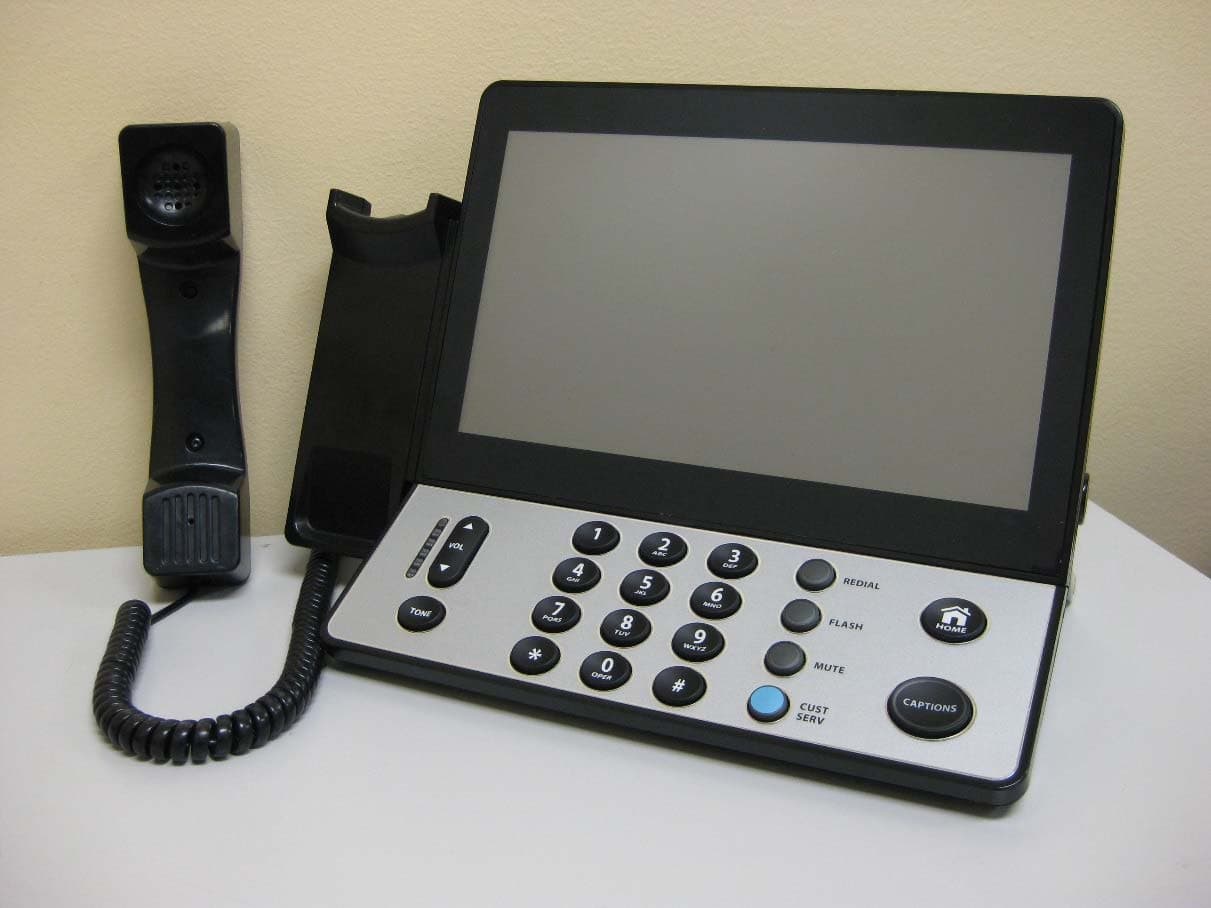
Click to zoom
Application Details
- Equipment Class
- DTS - Digital Transmission System
- Date of Grant
- Sep 29, 2013
- Application Purpose
- Original Equipment
- Date of Application
- Sep 29, 2013
- Equipment Note
- CapTel 2400i
- Frequency Range
- 2412.00000000 - 2462.00000000
- Company
- Ultratec Inc
- Country
- United States
Documents & Files
Document Text
Text extracted from the exhibit documents filed with the FCC. Open a document above to read the original.
Users Manual
CapTel ® 2400i User ManUal 305-019350 9/13 Physical Dimensions Size: 12.56" wide × 9.54" tall × 3.64" deep (Dimensions with the stand folded against the phone.) Weight: 3 lbs. 2.3 oz. Power AC Adapter: 6 VDC, 2 A (barrel is negative) Adapter is UL listed. Dial Pad Large keys: 0.67" × 0.56" Display 10.1" Backlit, graphical LCD color display 1024 × 600 pixels Resistive touch panel Function Buttons Volume Tone Redial Flash Mute Customer Service speed dial Home Captions Controls Conversation: Amplification when Captions on: 0–40dB gain when Captions off: 0–18dB gain Tone : low, medium, high Ringer Ringer Volume: off, low, medium, high (0–90dB at 1 meter) Ringer Tone: low, medium, high Indicator Lights Mute Volume Levels (1 through 12) Captions on/off Handset Type: HAC (Hearing Aid Compatible) Dialing Phone Book (100 entries) Favorites (10 entries) Speed Dial (4 entries) Redial (Last number dialed) Captions 3 Caption font sizes • Small 0.22" • Medium 0.26" • Large 0.36" Adjustable colors for background, font, and corrections Connections Telephone line: requires RJ11 connection (can be standard analog line, VOIP, DSL with filter, FIOS. Does not support digital PBX system unless analog port available). 3.5 mm Neckloop/Headset 2.5 mm Headset with microphone Ethernet or WiFi wireless network AC Power Approvals ACTA Product-Labeling Number: US:D8KTE00BCAP2400 FCC ID: D8K-CAPTEL2400 FCC approved: Part 15B FCC Wireless info: Pending REN = 0.0B Conversation Memory 360,000 characters (minimum of 10 hours of conversation) Caller ID History Info saved for last 100 calls Answering Machine 100 recordable messages (5 minute maximum per message) Recordable greeting Selectable number of rings before answer CapTel 2400i Specifications CapTel Acceptable Use Policy The CapTel phone is intended for use by people with hearing loss. People who do not need captioning support should only use CapTel with the CAPTIONS feature turned off. Customer Service: 888-269-7477 CONgRATULATIONS 1 Congratulations on Choosing CapTel! Welcome to the Captioned Telephone – CapTel! With CapTel, you can see captions of everything people say over the phone, letting you enjoy calls with confidence. Your CapTel phone is designed to be easy to use. It works just like any other phone, you can dial on the number keypad and listen on the handset. Or, you can use the easy touch screen display to make and answer calls. Whatever works best for you. If you ever have any questions, please refer to this guide to learn: • How to start using your CapTel 2400i • How your CapTel 2400i works • How to get help when you have questions We want the CapTel phone to be enjoyable and convenient for you. As you use your new phone, we welcome your questions and comments. If we can help, please call. Thanks again for choosing the CapTel captioned telephone. Sincerely, CapTel Customer Service 1-888-269-7477 www.CapTel.com 2 TABLE OF CONTENTS Customer Service: 888-269-7477 Overview – How CapTel Works ...........................................4 Section 1: Getting Started ...................................................5 What is in the box ......................................................................................5 Overview of CapTel 2400i phone .........................................................6 Using a headset or neckloop (optional) .......................................... 11 S etting up your CapTel 2400i ..............................................................12 getting help ...............................................................................................22 Section 2: Making and Answering Calls .....................23 Dialing a phone number directly .......................................................24 Answering an incoming call ................................................................26 Turning captions on/off during a call ...............................................27 A djusting the volume ............................................................................ 27 A djusting the Tone Control .................................................................. 28 C ustomizing the Tone setting .............................................................29 Knowing what sounds are on the line .............................................30 Section 3: Viewing Captions ............................................31 Turning captions on/off during a call ...............................................32 Viewing corrections ................................................................................ 33 R eviewing captions during a call ....................................................... 34 R eviewing captions after hanging up .............................................. 35 Saving conversation captions .............................................................36 Erasing captions ....................................................................................... 37 Chang ing the captions font size ........................................................ 38 Changing the color of the captions ..................................................39 Setting how captions scroll across the Display Screen ..................41 Adjusting the brightness of the Display Screen ........................... 42 Section 4: Call History .........................................................44 Reviewing previous calls .......................................................................45 Reviewing captions from a previous call ........................................ 46 Dialing fr om Call History ....................................................................... 47 Erasing previous calls .............................................................................48 Table of ConTenTs Customer Service: 888-269-7477 TABLE OF CONTENTS 3 Section 5: Answering Machine .......................................49 About the Answering Machine ...........................................................50 Turning Answer…
Text truncated - open the document above for the full version.
Users Manual
24 MAKINg AND ANSWERINg CALLS Customer Service: 888-269-7477 Dialing a Phone Number Directly Like with any other phone, you can dial the phone number of the person you want to call. 1. Before you dial, press CAPTIONS (CAPTIONS button) to turn captions on (blue light around CAPTIONS button is on). 2. Lift the handset. 3. Use the dialing keypad OPER to dial the phone number of the person you wish to call. 4. As you dial, the display screen shows the status as your CapTel phone connects to the captioning service. Contacts Favorites Call History Dial Number Dial: 1-333-555-6852 waiting for captions Customer Service: 888-269-7477 MAKINg AND ANSWERINg CALLS 25 555-8539 Call Time: 00:02:56May 13 1:36 pm Font Size hello this is Tina's ower shop how may I help you? okay and where would you like them delivered? great you said you wanted roses any particular color? 5. Listen or watch the display screen to know when someone answers. Begin your conversation as you normally would. Captions will appear on the display screen as the other party speaks. When you are finished with your call, hang up the handset. Talk back and forth as you normally would, reading the captions as you go. You don’t have to wait for the captions to finish appearing on screen before you answer. To see captions, press the CAPTIONS button (blue light on around the button) at any time during the call. You can also place a call to someone listed in your Contacts, Favorites, Call History, or Speed Dial settings. You need to have entries saved in Contacts before you can use these features. See Contacts on page 59 for instructions. TIP NOTE TIP 26 MAKINg AND ANSWERINg CALLS Customer Service: 888-269-7477 Answering an Incoming Call 1. When the phone rings, the display lights up to let you know there is an incoming call. (If you have Caller ID service, the caller’s name and phone number will appear.) 2. Lift up the handset to answer the call. 3. If you would like captions, press CAPTIONS (CAPTIONS button) to turn captions on (blue light around CAPTIONS button is on). When you are finished with your conversation, hang up the phone as you normally would. If you answer on an extension telephone and want to get captions, just pick up the CapTel handset, press any of the number keys and press the CAPTIONS button. Your CapTel phone will connect to the Captioning Service, and you will see captions on the display. send to answering machine Incoming Call 13335552652 Corner Pharmacy ignore Unavailable Call Time: 00:00:16June 22 10:49 am (CapTel CA# C6430) (F) Hello this is corner pharmacy calling your prescription is ready to be picked up Font Size TIP Customer Service: 888-269-7477 MAKINg AND ANSWERINg CALLS 27 Turning Captions On/Off During a Call You can turn captions on/off at any time during your call by pressing CAPTIONS (CAPTIONS button). When the blue light around the CAPTIONS button is lit, you will see captions of everything the other party says. To turn captions off, press CAPTIONS (CAPTIONS button) again. The blue light around the CAPTIONS button goes off. Adjusting the Volume You can increase the volume of the person’s voice coming through the handset, up to a 40dB gain from min/max when the CAPTIONS button is on. (If captions are turned off, the maximum volume is 18dB gain). Watch the lights next to the VOL bar to see what level the volume is set to. • To increase the volume, press on the VOL button. • To decrease the volume, press on the VOL button. The maximum volume setting on captioned calls is extremely loud. People who do not need amplification should not use the phone at its highest volume setting. The volume level automatically returns to a mid-range setting whenever the phone is hung up. To save your volume setting so that it will be used during every captioned call, see Saving Conversation Volume on page 71. NOTE 28 MAKINg AND ANSWERINg CALLS Customer Service: 888-269-7477 Adjusting the Sound – Tone You can adjust the Tone of the handset sound to a frequency range that is easiest for you too hear. Use the tone setting to emphasize HIgH, MEDIUM, or LOW frequency sound ranges. You can even customize the sound frequency to match your own audiogram. The setting will remain in effect until you change it again. You can adjust the Tone setting anytime during, before, or after a call. To adjust the Tone setting: 1. Press TONE (TONE button) on the CapTel keypad. 2. The display shows what the current setting is: LOW, MED, HIgH, or CUSTOM. 3. Press the Tone setting repeatedly to cycle through the different settings. To test how the Tone setting will sound, lift the handset and press on the display screen. You will hear a recording of first a man’s and then a woman’s voice, letting you check if the setting makes it easier to hear. Experiment with the different Tone settings to find the range that works best. You can also use a headset or neckloop to enhance the sound quality. Please see page 11 for instructions. accept cancel lift the handset and press play button to test the tone setting Tone Control Touch low, med, or high to select desired tone lowmediumhigh custom This tone setting will help you hear medium-pitched voices TIP NOTE Customer Service: 888-269-7477 MAKINg AND ANSWERINg CALLS 29 Customizing the Tone Setting CapTel 2400i lets you personalize the Tone setting to enhance the frequency ranges that you hear best. For example, you can adjust the tone settings to match your own personal audiogram. CapTel lets you listen to test each setting as you make changes, to find the optimal customized hearing level. To customize the Tone setting: 1. With the handset hung up, press TONE (TONE button). 2. On the display screen, touch custom (Custom). 3. Touch and drag the blue circles on the frequency chart to adjust the various sound levels. As you make changes, test the sound quality by touching (play) while listening over the handset. If you have a personal audiogram, adjust the blue circles to match the shape of your audiogram to gi…
Text truncated - open the document above for the full version.
Users Manual
38 VIEWINg CAPTIONS Customer Service: 888-269-7477 Changing the Captions Font Size You can adjust the font size of the conversation captions to make them easier to read. Changing the font size only applies to conversation captions. The font size and style for your CapTel menu options always remains the same. To change the font size of the captions: 1. With the handset hung up, touch (Settings). 2. Touch (Display). 3. Touch (Font Size). 4. The display screen shows what the current font size setting is. Touch the setting that you want: “small”, “medium”, or “large”. The display screen shows an example of each font size that you select. 5. When you have selected the font size, touch accept cancel (Accept) to save your change or accept cancel (Cancel) to exit. 6. When you are done, press HOME (HOME button) to exit. EXAMPLE CAPTIONS Walt sells imported clothes for men. He Claims he likes this line of work. Nicole knows where Walt works. It is that new place with coats in the window. William asked if we will come with him and Nicole Font Size accept cancel mediumlargesmall NOTE Customer Service: 888-269-7477 VIEWINg CAPTIONS 39 Changing the Color of the Captions You can change the color of the captions font and background color on the display screen to a color combination that you prefer. You need to set the conversation colors before or after a call. You cannot change the captions colors during a live captioned call. Changing the font color applies only to conversation captions. The font size and style for your CapTel 2400i menu always stays the same. To change the font and background colors: 1. On the display screen, touch (Settings). 2. Touch (Display). 3. Touch (Display Colors). EXAMPLE CAPTIONS Walt sells imported clothes for men. He claims he likes this line of work. Nicole knows where Walt works. It is that new place accept cancel Background Captions Color Options Corrections NOTE 40 VIEWINg CAPTIONS Customer Service: 888-269-7477 4. The display screen shows you an example of how the colors are currently set. To change the Captions color: 1. Make sure Captions (Captions) is highlighted (blue). 2. In the Color Options table, touch the color you that you would like the captions to appear. As you select your color, CapTel shows you an example of how the captions will look. To change the Background color: 1. Touch Background (Background) to highlight (blue). 2. In the Color Options table, touch the color you that you would like the background to appear. As you select your color, CapTel shows you an example of how the background will look. To change the Corrections color: 1. Touch Corrections (Corrections) to highlight (blue). 2. In the Color Options table, touch the color you that you would like the corrections to appear. As you select your color, CapTel shows you an example of how the corrections will look. 5. When you have selected the color combination that you prefer, touch accept cancel (Accept) to save or accept cancel (Cancel) to exit. 6. When you are done, press HOME (HOME button) to exit. If you have difficulty reading the captions, you may try different color combinations to create higher contrast between the captions color and the background color. TIP Customer Service: 888-269-7477 VIEWINg CAPTIONS 41 Setting how Captions Scroll Across the Display Screen You can control how the captions appear on the display screen: either appearing word-by-word across the screen as each word is captioned or by smooth scrolling one line at a time in a continuous movement. The default setting is smooth scrolling. To change the way captions scroll across the screen: 1. On the display screen, touch (Settings). 2. Touch (General Settings). 3. Touch (Smooth Scrolling). 4. Touch the scrolling option that you prefer. Line-by-Line Scrolling: captions appear word-by-word across the screen as they are captioned Smooth Scrolling: captions appear one line at a time in a continuous motion 5. Once you have made your selection, press HOME (HOME button) to exit. Save Captions OnLine by Line ScrollingFlasher Settings Save Volume On Keypad Lights On English General Settings Back select scrolling style smooth scrollingline by line 42 VIEWINg CAPTIONS Customer Service: 888-269-7477 Adjusting the Brightness of the Display Screen You can adjust the brightness of your CapTel 2400i display screen to make it easier to read in well-lit or dimly-lit environments. You need to adjust the brightness of the Display Screen before or after a call. You cannot set the display screen brightness during a live captioned call. To adjust the brightness of the Display Screen: 1. On the display screen, touch (Settings). 2. Touch (Display). 3. Touch (Brightness) 4. Touch and drag the slide bar to adjust the brightness to the setting that you would like. Sliding left makes the display screen dimmer. Slide right to make the display screen brighter. 5. When the brightness is set, touch accept cancel (Accept) to save or accept cancel (Cancel) to exit. 6. Press HOME (HOME button) to exit. After 60 seconds of non-use, the CapTel display screen will start becoming more dim and gradually go completely dark as an energy-saving measure. To re-illuminate the screen, simply touch the display screen or any button on the dialing keypad. BrightnessLine by Line ScrollingFont Size Screen Timeout Night Mode Display Settings Back adjust display brightness minmax accept cancel NOTE NOTE Customer Service: 888-269-7477 VIEWINg CAPTIONS 43 getting Help If you have any questions as you use your new CapTel 2400i, we’re here to help. Use any of these ways to contact us: Pick up the handset and press (CUST SERV) to automatically speed dial directly to our helpful Customer Service team. If you are in an office setting, you may need to dial a number such as “9” first to get an outside line first and then press (CUST SERV). (Available 24 hours a day, 7 days a week. Customer Service is closed on major holidays.) Help materials are also available online at our website.…
Text truncated - open the document above for the full version.
Users Manual
Customer Service: 888-269-7477 ANSWERINg MACHINE 51 Playing Your Answering Machine Messages 1. The display screen lets you know when you have unread messages waiting. 2. Touch (Ans Machine). 3. Select and touch the call you want to review from the Answering Machine list on the left of the display. 4. Information about the call you selected appears on the rightof the display. 5. Touch (PLAY), then lift the CapTel handset to listen to your message. Or touch (speaker) to play messages aloud. If you need Captions, press CAPTIONS (CAPTIONS button). You can listen to the message and read the captions on the display. 6. When you are done listening/reading messages, you can: • Touch (Call) to place a call to this person. • Touch (Delete) to erase the Answering Machine message and captions. • Touch re-caption (re-caption) to get new captions of this message. • Touch (PLAY) to play the message/captions again. Unavailable 5/27/132:42 PM (Recording) Hi dad sorry I missed you please give me a call back when you get home talk to you soon Back 0:200:27 re-caption play prevnext Font Size deletecall 52 ANSWERINg MACHINE Customer Service: 888-269-7477 Erasing Answering Machine Messages To erase an individual Answering Machine message: 1. The display screen lets you know when you have unread messages waiting. 2. Touch (Ans Machine). 3. Select and touch the call you want to review from the Answering Machine list on the left side of the display. 4. Information about the call you selected appears on the right side of the display. 5. Touch (PLAY) to listen to your message and see the captions. 6. To delete the message, touch (Delete). The display asks you to confirm you want to delete the message. Touch yes no (yes) to delete or touch yes no (no) to cancel. When you are finished erasing your messages, press HOME (HOME button) to exit. Answering Machine today 11:38 AM today 11:32 AM 2/15/13 4:23 PM 2/15/13 2:56 PM 2/14/13 6:42 PM 555-4681 1-321-555-9876 John S. Mary Cell 555-2369 previous next callplay delete Mary Cell 1-321-555-6712 2/15/13 2:56 PM 0:01:14 Customer Service: 888-269-7477 ANSWERINg MACHINE 53 Deleting All Messages In addition to erasing Answering Machine messages one at a time as you play them, you can also erase all your saved Answering Machine messages at one time. To delete all your Answering Machine messages: 1. From the display screen, touch (Settings). 2. Touch (Answering Machine). 3. Touch (Delete All Messages). 4. The display asks you to confirm you want to delete ALL messages. Touch yes no (yes) to delete or touch yes no (no) to cancel. 5. Press HOME (HOME button) to exit. Back Answering Machine Answering Machine onGreeting Message Delete All MessagesSet Ring Count External Speaker o 54 ANSWERINg MACHINE Customer Service: 888-269-7477 Recording a Personal greeting You can record a personal greeting for the CapTel 2400i to use whenever the answering machine takes messages. If you do not want to record a personal greeting, the Answering Machine will use a pre-recorded greeting that says: “Hello. No one is available to take your call. Please leave a message after the tone.” To record a personal greeting: 1. From the display screen, touch (Settings). 2. Touch (Answering Machine). 3. Touch (Greeting Message). 4. Touch (record new greeting) to record your personal message. Back Answering Machine answering machine onGreeting Message no saved messagesset ring count external speaker o greeting message play greeting message record new greeting use default greeting Back Customer Service: 888-269-7477 ANSWERINg MACHINE 55 Back Answering Machine answering machine onGreeting Message no saved messagesset ring count external speaker o record new greeting message press to stop recording recording your greeting message Back 5. Lift the CapTel handset and touch (start recording). 6. Speaking into the CapTel handset, record the personal greeting you would like the Answering Machine to use. When you are finished recording, touch (stop recording). To hear the greeting that is currently being used, lift the handset and touch (play greeting message). You will be able to hear the greeting in the CapTel handset. 6. If you are not satisfied with your personal greeting, you can re-record it. Just repeat steps 4–6 above. 8. When you are satisfied with your personal greeting, touch accept cancel (Accept). Hang up the CapTel handset. 9. Press HOME (HOME button) to exit. TIP 56 ANSWERINg MACHINE Customer Service: 888-269-7477 Captioning Messages from an External Answering Machine In addition to the built-in answering machine that comes with your CapTel phone, you can also see captions of voice messages that are left on an external answering machine (a separate answering machine, not the one built into the CapTel phone). To get captions of your external answering machine messages: 1. Touch (Ans Machine). 2. Touch (Caption External Answering Machine). 3. Lift the CapTel handset and place it next to your external answering machine speaker. Make sure the mouth-piece of the handset is next to the speaker of your answering machine. While you do this, your CapTel phone connects to the captioning service. 4. Press the PLAY button on your external answering machine, so that the messages are played aloud. 5. If you need captions, press CAPTIONS (CAPTIONS button). The display will show captions of the messages as they are played. While checking messages, you may operate your answering machine the same way you normally do, using features such as play, re-play, delete, or save messages. When you are done listening/reading captions, hang up the CapTel handset. NOTE caption external ans machine ** lift handset to start ** place handset microphone next to your answering machine speaker Back Customer Service: 888-269-7477 ANSWERINg MACHINE 57 Setting the Ring Count You can set the approximate number of times the CapTel will ring before the Answering Machine answers the call. The default setting is four (4) rings, but you can set it…
Text truncated - open the document above for the full version.
Users Manual
62 CONTACTS Customer Service: 888-269-7477 Editing an Existing Contact To make changes to a contact in your list: 1. From the display screen, touch (Contacts). 2. Under the Contacts list on the left side of display, find and touch the name of the contact you wish to edit. Touch and drag the scroll bar to see contacts further down the list. Information about the contact you selected appears on the right side of the display. Touch (Next/Prev) to move up/down 5 entries at a time. 3. On the right side of the display, touch (Edit) to go to the Add/Edit Contact screen. 4. Touch the field that you want to change, then use the on-screen keyboard to type in the new information. Touch the next field you want to edit, or move between fields by touching (return) or Tab (tab). Touch to erase the entire contents of a line. 5. When you are finished editing the contact, touch save (Save). The new contact information will be saved in your contact list. 6. When you are finished, press HOME (HOME button) to exit. You can add a photograph of your contact person to each entry. Pictures can be entered at the CapTel website, then synced to your phone. Instructions are online at www.CapTel.com. Add / Edit Contact First: Last: favorite speed dial save cancel Q WE R TY U I O P Numbers Space A SD F GH J K L Z X C V B N M Tab Home: Work: Mobile: Mary Johnson 1-608-238-5400 <touch to enter home number> <touch to enter work number> TIP TIP Customer Service: 888-269-7477 CONTACTS 63 Removing a Contact To remove a single contact from your list: 1. From the display screen, touch (Contacts). 2. Under the Contacts list on the left side of the display, find and touch the name of the contact you wish to remove . Touch and drag the scroll bar to see contacts further down the list. TIP: Touch (Next/Prev) to move up/down 5 entries at a time. 3. On the right side of the display, touch (Delete) to remove the person from your contacts. 4. CapTel asks you to confirm you want to delete the contact. Touch accept cancel (Accept) to remove the contact or accept cancel (Cancel) to exit. 5. When you are finished, press HOME (HOME button) to exit. To remove all contacts: 1. From the display screen, touch (Contacts). 2. On the right side of display, touch (delete all contacts). 3. The display asks you to confirm that you want to erase all contacts. Touch accept cancel (Accept) to erase all contacts or accept cancel (Cancel) to exit. 4. When you are finished, press HOME (HOME button) to exit. Contacts Mary Cell Best Buy Corner Pharmacy John S. Mary Cell Movie Line 1-321-555-6712 remove favorite add to speed dial editdelete Work previoussync contactsadd new next delete contact? Mary Cell press accept to delete this contact accept cancel TIP 64 CONTACTS Customer Service: 888-269-7477 Adding a Photo to a Contact You can add a photo to any entry in your contact list. This makes it especially easy to dial by photo. Adding a photo to someone in your contact list is easy, but it takes two steps: Step 1: Enter the photo you want to use at the CapTel website. Step 2: Sync your contact list to download the photo to your phone. To learn more, follow the instructions at https://mycontacts.CapTel.com Contacts Mary Cell Best Buy Corner Pharmacy John S. Mary Cell Movie Line 1-321-555-6712 remove favorite add to speed dial editdelete Work prevsync add new next sync your contacts? your saved contacts will not be a ected during the sync process press accept to start the sync process Your CapTel Phone ESN is: XX0D02000XX accept cancel Customer Service: 888-269-7477 CONTACTS 65 Adding a Contact to Speed Dial You can set up to four (4) Contacts to be added to Speed Dial. Speed Dial entries appear every time you lift the CapTel handset, for quick one-touch dialing. You can even add photos to your Speed Dial entries for easy dialing by photo. To add a Contact to Speed Dial: 1. From the display screen, touch (Contacts). 2. In the Contacts list on the left side of the display, find and touch the name of the person you want to add to Speed Dial. Touch and drag the scroll bar to see contacts further down the list. Touch (Next/Prev) to move up/down 5 entries at a time. 3. On the right side of display, touch (Add to Speed Dial). 4. If there are multiple phone numbers for this contact, the display asks which phone number (mobile, home, or work) you want to make a speed dial. Touch the number(s) you want, then touch accept cancel (Accept). A little graphic appears by the person’s name to indicate they have been added to Speed Dial. 5. When you are finished, press HOME (HOME button) to exit. Now, when you pick up the handset, this contact will appear automatically on the display screen. Simply touch the person’s image to dial. You can add a photograph of your contact person to each Speed Dial entry. Pictures can be entered at the CapTel website, then synced to your phone. Instructions are online at www.CapTel.com. TIP TIP Contacts Favorites Call History Mary JohnsonJoe Smith VeronicaCorner Pharmacy Dial Number Speed Dials 66 FAVORITES Customer Service: 888-269-7477 This section tells you how to set your most frequently called Contacts as “favorites”, for quick dialing and dialing by photo. seCTiOn 7 favorites TopiCs N About Favorites N Adding a Contact to Favorites N Dialing Favorites N Removing a Contact from Favorites Customer Service: 888-269-7477 FAVORITES 67 About Favorites Favorites let you dial select numbers at a touch of a button. You can select any entries in your contact list to be included in your favorites list. You can save up to 100 favorites. To add someone to your Favorites list, they must first be entered into your Contacts list. If you want to edit one of your Favorite’s information, you must edit their entry in your Contacts list. See Adding a New Contact on page 60. Adding a Contact to Favorites To add a person from your Contact list to Favorites: 1. From the display screen, touch (Contacts). 2. In the Contacts list on the left of the display, find a…
Text truncated - open the document above for the full version.
Contact Information
Applicant
Randy Nelson
Technical Contact
Test Firm
LS Research, LLCRyan Urness
Technical Specifications
| # | Rule Parts | Frequency Range | Power Output |
|---|---|---|---|
| 1 | 15C | 2.41 GHz - 2.46 GHz | 990.80 mW |
Other Applications from Ultratec Inc
D8K7IB-ST1
Feb 12, 1989DSC - Part 15 Security/Remote Control Transmitter
Equipment Class
DSC - Part 15 Security/Remote Control TransmitterD8K7IB-SM1
Jan 25, 1989DSC - Part 15 Security/Remote Control Transmitter
Equipment Class
DSC - Part 15 Security/Remote Control TransmitterD8K7IB-IT2
Dec 26, 1988JBP - Part 15 Class B Computing Device Peripheral
Equipment Class
JBP - Part 15 Class B Computing Device PeripheralD8K7IBMINICOM
Dec 23, 1986JBP - Part 15 Class B Computing Device Peripheral
Equipment Class
JBP - Part 15 Class B Computing Device PeripheralD8K7IBITMODEM
Mar 20, 1986JBP - Part 15 Class B Computing Device Peripheral
Equipment Class
JBP - Part 15 Class B Computing Device Peripheral