E8HKG-0708Wireless Keyboard
Chicony Electronics Co Ltd
Click to zoom
Application Details
- Equipment Class
- DXX - Part 15 Low Power Communication Device Transmitter
- Date of Grant
- Sep 06, 2007
- Application Purpose
- Original Equipment
- Date of Application
- Sep 06, 2007
- Equipment Note
- Wireless Keyboard
- Frequency Range
- 2402.00000000 - 2478.00000000
- Company
- Chicony Electronics Co Ltd
- Country
- Taiwan
Documents & Files
Document Text
Text extracted from the exhibit documents filed with the FCC. Open a document above to read the original.
Users Manual
CHAPTER 2: Setting Up and Getting Started 16 Using the keyboard and mouse Using the keyboard Installing batteries Before using your keyboard, you must install the two batteries that came with your computer. To install the keyboard batteries: 1Turn the keyboard over, then open the battery cover. 2Insert two AA batteries according to the diagram inside the battery compartment, then close the battery cover. 3Re-sync the keyboard by following the instructions in “Syncing the keyboard and mouse” on page 21. 8512563.book Page 16 Wednesday, August 15, 2007 2:30 PM www.gateway.com 17 Using the keyboard FeatureDescription Function keysPress these keys to start program actions. Each program uses different function keys for different purposes. See the program documentation to find out more about the function key actions. Navigation keysPress these keys to move the cursor to the beginning of a line, to the end of a line, up the page, down the page, to the beginning of a document, or to the end of a document. Multimedia controls Press these keys to play your audio files and to adjust the volume. Wrist restWhile typing, you can rest your wrist on this acrylic surface. Main keyboardPress these keys to type numbers, letters, and to format text. Directional keysPress these keys to move the cursor up, down, right, or left. Numeric keypadPress these keys to type numbers when the numeric keypad (NUMLOCK) is turned on. IndicatorsShow if your N UMLOCK, CAPSLOCK, or SCROLLLOCK keys are activated. Press the corresponding key to activate the function. Function keysNavigation keys Main keyboardDirectional keysNumeric keypad Multimedia controls Wrist rest 8512563.book Page 17 Wednesday, August 15, 2007 2:30 PM CHAPTER 2: Setting Up and Getting Started 18 Storing your keyboard You can move your keyboard out of the way by standing it upright and sliding it against your computer. Using the mouse Mouse components Scroll stripe (functions as a scroll wheel) Left button Right button 8512563.book Page 18 Wednesday, August 15, 2007 2:30 PM www.gateway.com 19 Installing batteries Before using your mouse, you must install the two batteries that came with your computer. To install the mouse batteries: 1Turn the mouse over, then remove the battery cover by prying it up using a thin, stiff object (such as your fingernail). 2Insert two AA batteries according to the diagram inside the battery compartment, then replace the battery cover. 3Re-sync the mouse by following the instructions in “Syncing the keyboard and mouse” on page 21. Controlling the mouse The mouse is a device that controls the pointer movement on the computer display. This illustration shows the standard mouse. As you move the mouse, the pointer (arrow) on the display moves in the same direction. Pry up here 8512563.book Page 19 Wednesday, August 15, 2007 2:30 PM CHAPTER 2: Setting Up and Getting Started 20 You can use the left and right buttons on the mouse to select objects on the display. You can use the scroll stripe (the stripe between the left and right mouse buttons) on the mouse to move through a document. This feature is not available in all programs. For more information about how to adjust the double-click speed, pointer speed, right-hand or left-hand configuration, and other mouse settings, see the “Customizing” chapter in your online User Guide. For instructions on how to clean the mouse, see “Cleaning the mouse” on page 61. To...Do this... Move the pointer on the computer display Move the mouse around. If you reach the edge of your mouse pad and need to move the mouse farther, lift the mouse and place it in the middle of the mouse pad, then continue moving the mouse. Select an object on the computer display Position the pointer over the object. Quickly press and release the left mouse button. This is called clicking. Start a program or open a file or folder Position the pointer over the object. Quickly press and release the left mouse button twice. This is called double-clicking. Access a shortcut menu or find more information about an object on the display. Position the pointer over the object. Quickly press and release the right mouse button once. This is called right-clicking. Move an object on the computer display. Position the pointer over the object. Press the left mouse button and hold it down. Move (drag) the object to the appropriate part of the computer display. Release the button to drop the object where you want it. This is called clicking and dragging. 8512563.book Page 20 Wednesday, August 15, 2007 2:30 PM www.gateway.com 21 Syncing the keyboard and mouse Your wireless keyboard and mouse are synced with your computer at the factory. If for some reason the computer does not seem to be able to detect the mouse and keyboard, try the following: •Insert a stiff wire (such as a straightened paper clip) into the wireless sync button hole on the top of your computer (to the left of the Web cam’s mini USB port), then press the sync button on the bottom of your mouse and keyboard. •Press the power button. Your computer restarts, and your keyboard and mouse re-synchronize. •Replace the batteries with new ones, then re-sync the mouse and keyboard. For instructions on changing batteries, see “Changing keyboard batteries” on page 56 and “Changing mouse batteries” on page 57. Sync button (mouse) Sync button (computer) Sync button (mouse) 8512563.book Page 21 Wednesday, August 15, 2007 2:30 PM www.gateway.com 25 Using the remote control The Media Center remote control is an optional accessory. Your Media Center remote control lets you record and play back media on your computer. It also lets you turn your computer on and off. Power Record Rewind Skip to previous Media Center mode Back Menu navigation Volume Record from video input Play from video input Pause Stop Fast forward Skip to next Info Select Channel CD/DVD mode Closed Captions and subtitles Mute Program guide 8512563.book Page 25 Wednesday, August 15, 2007 2:30 PM CHAPTER 2: Setting Up and Ge…
Text truncated - open the document above for the full version.
External Photos
Page 1 CONSTRUCTION PHOTOS OF EUT
ID Label/Location Info
FCC ID: E8HKG-0708 FCC LABEL LOCATION The label will be permanently affixed at a conspicuous location on the device. Label
Internal Photos
Page 2 Page 3 Page 4 Page 5
Operational Description
FCC ID: E8HKG-0708 Report No.: RF960809A12 Operational Description The transmitter of the EUT (Wireless Keyboard) is powered by 3.0Vdc batteries. The type of antenna is Strip antenna. The output power of this device is very low. Under normal use condition, the transmitter and the receiver are quite close, so high EIRP power is neither necessary nor allowed because of interference.
Test Report
Report No.: RF960809A12 1 Report Format Version 2.0.6 FCC TEST REPORT REPORT NO.: RF960809A12 MODEL NO.: KG-0708 RECEIVED: Aug. 27, 2007 TESTED: Aug. 27 ~ Sep. 3, 2007 ISSUED: Sep. 5, 2007 APPLICANT: Chicony Electronics Co., Ltd. ADDRESS: No. 25, Wu-Gong 6th Rd., Wu Ku Industrial Park, Taipei Hsien, Taiwan, R.O.C. ISSUED BY: Advance Data Technology Corporation LAB LOCATION: No. 47, 14th Ling, Chia Pau Tsuen, Lin Kou Hsiang 244, Taipei Hsien, Taiwan, R.O.C. This test report consists of 22 pages in total. It may be duplicated completely for legal use with the approval of the applicant. It should not be reproduced except in full, without the written approval of our laboratory. The client should not use it to claim product endorsement by TAF, A2LA or any government agencies. The test results in the report only apply to the tested sample. Report No.: RF960809A12 2 Report Format Version 2.0.6 Table of Contents 1. CERTIFICATION..........................................................................................3 2. SUMMARY OF TEST RESULTS..................................................................4 2.1 MEASUREMENT UNCERTAINTY...............................................................4 3. GENERAL INFORMATION..........................................................................5 3.1 GENERAL DESCRIPTION OF EUT............................................................5 3.2 DESCRIPTION OF TEST MODES..............................................................6 3.2.1 CONFIGURATION OF SYSTEM UNDER TEST.........................................6 3.2.2 TEST MODE APPLICABILITY AND TESTED CHANNEL DETAIL:.............7 3.3 GENERAL DESCRIPTION OF APPLIED STANDARDS.............................8 3.4 DESCRIPTION OF SUPPORT UNITS........................................................8 4. TEST TYPES AND RESULTS......................................................................9 4.1 CONDUCTED EMISSION MEASUREMENT..............................................9 4.2 RADIATED EMISSION MEASUREMENT...................................................9 4.2.1 LIMITS OF RADIATED EMISSION MEASUREMENT.................................9 4.2.2 TEST INSTRUMENTS..............................................................................10 4.2.3 TEST PROCEDURES...............................................................................11 4.2.4 DEVIATION FROM TEST STANDARD.....................................................11 4.2.5 TEST SETUP ...........................................................................................12 4.2.6 EUT OPERATING CONDITIONS..............................................................12 4.2.7 TEST RESULTS........................................................................................13 4.3 BAND EDGES MEASUREMENT..............................................................17 4.3.1 LIMITS OF BAND EDGES MEASUREMENT............................................17 4.3.2 TEST INSTRUMENTS..............................................................................17 4.3.3 TEST PROCEDURE.................................................................................17 4.3.4 DEVIATION FROM TEST STANDARD.....................................................17 4.3.5 EUT OPERATING CONDITION................................................................17 4.3.6 TEST RESULTS........................................................................................17 5. PHOTOGRAPHS OF THE TEST CONFIGURATION.................................20 6. INFORMATION ON THE TESTING LABORATORIES...............................21 7. APPENDIX A – MODIFICATIONS RECORDERS FOR ENGINEERING CHANGES TO THE EUT BY THE LAB......................................................22 Report No.: RF960809A12 3 Report Format Version 2.0.6 1. CERTIFICATION PRODUCT: Wireless Keyboard BRAND NAME: Gateway MODEL NO.: KG-0708 APPLICANT: Chicony Electronics Co., Ltd. TESTED: Aug. 27 ~ Sep. 3, 2007 TEST SAMPLE: ENGINEERING SAMPLE STANDARDS: FCC Part 15, Subpart C (Section 15.249) ANSI C63.4-2003 The above equipment has been tested by Advance Data Technology Corporation, and found compliance with the requirement of the above standards. The test record, data evaluation & Equipment Under Test (EUT) configurations represented herein are true and accurate accounts of the measurements of the sample’s EMC characteristics under the conditions specified in this report. PREPARED BY : , DATE: Sep. 5, 2007 ( Annie Chang / Senior Specialist ) TECHNICAL ACCEPTANCE : , DATE: Sep. 5, 2007 Responsible for RF ( Jamison Chan / Senior Engineer ) APPROVED BY : , DATE: Sep. 5, 2007 ( Ken Liu / Deputy Manager ) Report No.: RF960809A12 4 Report Format Version 2.0.6 2. SUMMARY OF TEST RESULTS The EUT has been tested according to the following specifications: APPLIED STANDARD: FCC Part 15, Subpart C (Section 15.249) STANDARD SECTION TEST TYPE AND LIMIT RESULT REMARK 15.207 Conducted Emission Test N/A Power supply is 3Vdc from batteries 15.209 15.249 15.249 (d) Radiated Emission Test Band Edge Measurement Limit: 50dB less than the peak value of fundamental frequency or meet radiated emission limit in section 12.209 PASS Minimum passing margin is –8.05dB at 2390.000MHz 2.1 MEASUREMENT UNCERTAINTY Where relevant, the following measurement uncertainty levels have been estimated for tests performed on the EUT as specified in CISPR 16-4-2: This uncertainty represents an expanded uncertainty expressed at approximately the 95% confidence level using a coverage factor of k=2. Measurement Frequency Uncertainty 30MHz ~ 1GHz 3.75 dB Radiated emissions 1GHz ~ 40GHz 2.89 dB Report No.: RF960809A12 5 Report Format Version 2.0.6 3. GENERAL INFORMATION 3.1 GENERAL DESCRIPTION OF EUT EUT Wireless Keyboard MODEL NO. KG-0708 FCC ID E8HKG-0708 POWER SUPPLY 3Vdc from batteries MODULATION TYPE GFSK FREQUENCY RANGE 2402MHz ~ 2478MHz NUMBER OF CHANNEL 77 ANTENNA TYPE Strip antenna with -0.33dBi gain DATA CABLE N/A I/O PORTS N/A ASSOCIATED DEVICES N/A NOTE: 1…
Text truncated - open the document above for the full version.
Test Setup Photos
1 PHOTOGRAPHS OF THE TEST CONFIGURATION RADIATED EMISSION TEST
Contact Information
Applicant
T. S. Chen(Manager)
Technical Contact
Advance Data Technology Corporation (Lin Kou)Ken Liu
[email protected]886-2-2605-2180
No.47, 14 Ling, Chia Pau Tsuen, Lin Kou Hsiang · Linkou, Taipei · Taiwan
Non-Technical Contact
Advance Data Technology CorporationAnnie Chang
[email protected]886-2-2605-2180
Test Firm
Bureau Veritas CPS (H.K.) Ltd. Taoyuan BranchRichard Chen
Technical Specifications
| # | Rule Parts | Frequency Range | Power Output |
|---|---|---|---|
| 1 | 15C | 2.40 GHz - 2.48 GHz | - |
Other Applications from Chicony Electronics Co Ltd
E8HWBS23B5LUB
Sep 19, 2023USI Rechargeable Active Pen
Equipment Class
DXX - Part 15 Low Power Communication Device Transmitter
E8HRG-2308
Sep 19, 2023Dongle
Equipment Class
DXX - Part 15 Low Power Communication Device Transmitter
E8HMG-2308
Sep 19, 2023Gaming Mouse
Equipment Class
DXX - Part 15 Low Power Communication Device Transmitter
E8HKC-2227
Feb 01, 2023Gaming Keyboard
Equipment Class
DTS - Digital Transmission System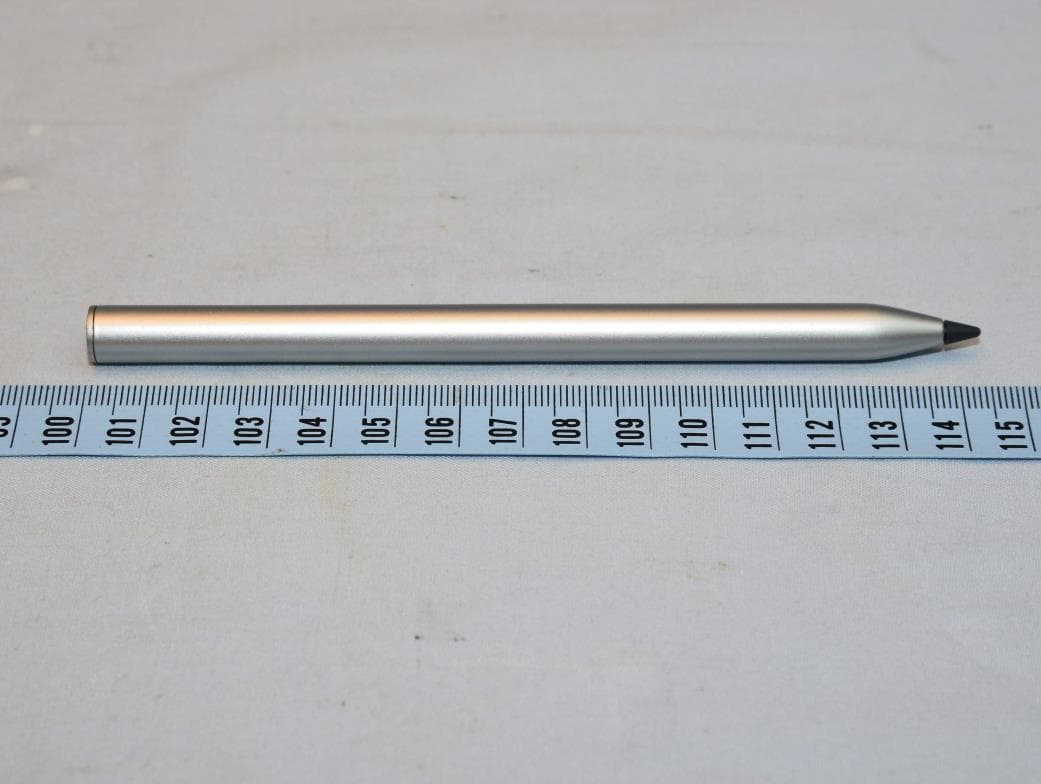
E8HTPA-C002P
Aug 09, 2021HP Wireless Rechargeable USI Pen
Equipment Class
DXX - Part 15 Low Power Communication Device Transmitter