E8HKT1253Bluetooth Wireless Keyboard
Chicony Electronics Co Ltd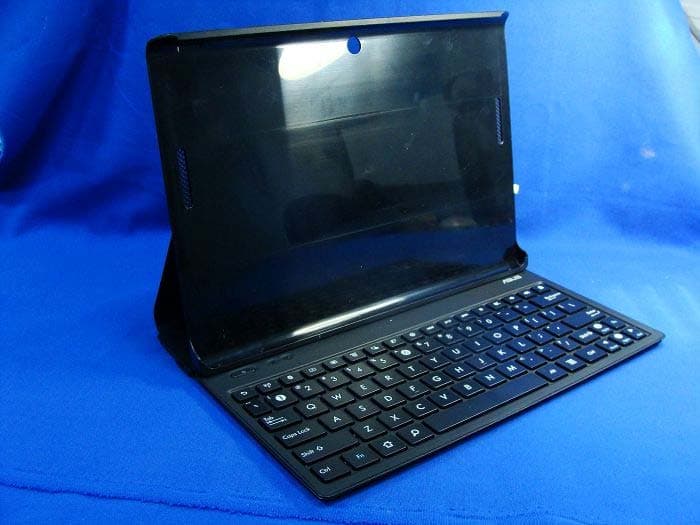
Click to zoom
Application Details
- Equipment Class
- DSS - Part 15 Spread Spectrum Transmitter
- Date of Grant
- Mar 06, 2013
- Application Purpose
- Original Equipment
- Date of Application
- Feb 25, 2013
- Equipment Note
- Bluetooth Wireless Keyboard
- Frequency Range
- 2402.00000000 - 2480.00000000
- Company
- Chicony Electronics Co Ltd
- Country
- Taiwan
Documents & Files
Document Text
Text extracted from the exhibit documents filed with the FCC. Open a document above to read the original.
Users Manual
ENGLISH Folio Key WARNING! Keep your Folio Key away from electromagnetic devices, especially navigational aids and transmission devices such as antennas and routers. Q8015 / First Edition / December 2012 Getting to know your ASUS Folio Key 1 2 3 4 5 Soft touch button Press this button before using your tablet with the Folio Key. Cradle The cradle secures the tablet in place when the Folio Key is used as a stand. Power/Pairing button and LED indicators • Press this key to power on your Folio Key. • To pair the tablet with the keyboard, press and hold the Power/ Pairing button for 3 seconds. Wait for the LED to turn white and select ASUS Folio Key on your Tablet PC. • To power off your Folio Key, press and hold the Power/Pairing button for more than 3 seconds. Micro USB port Use this port to charge the Folio Key's battery pack. Function keys These keys perform different tasks on your Tablet PC. Keyboard Special Keyboard Functions Press to return to previous page. Toggles the internal wireless LAN ON or OFF.. Toggles the internal Bluetooth ON or OFF. Decrease display brightness. Increase display brightness. Toggles the ambient light sensor ON or OFF. Captures the screen image. Launches the web browser. Launches the Settings screen. Returns to the previous track on the music playlist. Starts playing music from your playlist. Resumes or pauses the current playback. Fast forward or skip to the next track during music playback. Stop playing music from your playlist. Press <FN> and the arrow keys to scroll up and down or scroll to the start and end of a document or web page. Mute speakers. Decreases speaker volume. Increases speaker volume. Locks the ASUS Pad and places the system into sleep mode. Return to Home Screen. Browse files stored in the ASUS Pad or search the Internet. Displays the Properties menu. Provides the same function as on the tablet interface. + Setting up your Folio Key 1. Place the Folio Key on a flat stable surface. 2. Align your Tablet PC with the cradle on the Folio Key. 3. Firmly insert your Tablet PC into the cradle and press the soft touch button. 4. Slide the cradle forward towards the mark on the keyboard. Make sure the cradle is securely fixed on the keyboard via the magnets. 5. Press the Power/Pairing key to power on your Folio Key. Press the Power/Pairing key a second time for 3 seconds to pair the keyboard and the Tablet PC via Bluetooth. • Bluetooth discovery will run for 2 minutes. The LED indicators will flash white while pairing is in progress. • If the LED indicators flash red, recharge the batteries of the Folio Key using the Micro USB port. 6. Make sure your Tablet PC’s Bluetooth feature is on. Select ASUS Folio Key to complete Bluetooth pairing. T-CHINESES-CHINESE FRANÇAISDEUTSCH IMPORTANT! Install the latest firmware from http://support.asus.com before using the Folio Key. NOTE: To disconnect the Tablet PC from the cradle, hold the upper portion of the tablet with both hands and gently pull the tablet from the cradle. Faire connaissance avec votre Folio Key 1. Bouton souple : appuyez sur ce bouton avant d’utiliser votre tablette avec le Folio Key. 2. Socle : le socle sécurise la tablette en place lorsque le Folio Key est utilisé comme pied de support. 3. Bouton Marche/Arrêt/Jumelage et indicateurs lumineux • Appuyez sur ce bouton pour allumer le Folio Key. • Appuyez sur ce bouton pendant environ 3 secondes pour jumeler la tablette au clavier. Patientez le temps que le voyant lumineux s’allume de couleur blanche et sélectionnez ASUS Folio Key sur votre tablette tactile. • Appuyez sur ce bouton pendant plus de 3 secondes pour éteindre le Folio Key. 4. Port micro USB : utilisez cette interface de connexion pour recharge la batterie du Folio Key. 5. Touches de fonction : ces touches permettent d’exécuter certaines commandes sur votre tablette tactile. 6. Clavier Configurer le Folio Key 1. Placez le Folio Key sur une surface plate et stable. 2. Alignez votre tablette tactile avec le socle du Folio Key. 3. Insérez fermement la tablette dans le socle et appuyez sur le bouton souple. REMARQUE : Pour retirer la tablette du socle, prenez en main la partie supérieure de la tablette tactile et désengagez-la délicatement du socle. 4. Faites glisser le socle vers le symbole représentant une flèche du clavier. Assurez-vous que le socle est bien sécurisé au clavier par le biais des aimants. 5. Appuyez sur le bouton Marche/Arrêt/Jumelage pour allumer le Folio Key. Appuyez une seconde fois, pendant environ 3 secondes, pour jumeler la tablette au clavier par le biais d’une connexion Bluetooth. • Les voyants lumineux du clavier clignoteront de couleur blanche pour indiquer que le processus de jumelage est en cours. • Si les voyants lumineux clignotent de couleur rouge, rechargez la batterie du Folio Key par le biais du port micro USB. 6. Vérifiez que la fonctionnalité Bluetooth de votre tablette est bien activée. Sélectionnez ASUS Folio Key pour terminer le processus de jumelage. AVERTISSEMENT ! Maintenez votre Folio Key à distance d’appareils électromagnétiques, tout spécialement les dispositifs de navigation et de transmission tels que les antennes ou les routeurs. IMPORTANT ! Si nécessaire, rendez-vous sur le site Web http:\\support.asus.com pour télécharger le dernier firmware, et ce avant d’utiliser le Folio Key. Ihr neues ASUS Folio Key 1. Soft-Touch-Taste: Drücken Sie diese Taste, bevor Sie Ihr Tablet mit dem Folio Key benutzen. 2. Gerätehalter -Die Halterung sichert das Tablet, wenn der Folio Key als Ständer genutzt wird. 3. Ein/Aus-/Kopplungstaste und LED-Anzeigen • Mit dieser Taste schalten Sie Ihr Folio Key ein. • Zum Koppeln des Tablets mit der Tastatur halten Sie die Ein/Aus-/Kopplungstaste 3 Sekunden lang gedrückt. Warten Sie, bis die LED weiß leuchtet, wählen Sie dann ASUS Folio Key am Tablet-PC aus. • Zum Abschalten Ihres Folio Key halten Sie die Ein/Aus-/Kopplungstaste mindestens 3 Sekunden lang gedrückt. 4. Mikro USB-Anschluß - Über diesen Anschluss laden …
Text truncated - open the document above for the full version.
External Photos
Report No.: 132133R-RFUSP43V01 Page : 1 of 9 Attachment 2 : EUT Detailed Photographs (1) EUT Photo (2) EUT Photo Report No.: 132133R-RFUSP43V01 Page : 2 of 9 (3) EUT Photo (4) EUT Photo
ID Label/Location Info
Chicony Electronics Co., Ltd. FCC ID.: E8HKT1253 No.25 Wu-Gong 6th Rd. Wugu Dist., New Taipei City 248, Taiwan, R.O.C. Tel : 886 2 2298-8120 The FCC ID and will be placed on the equipment as shown in the photograph below.
ID Label/Location Info
Chicony Electronics Co., Ltd. No.25 Wu-Gong 6th Rd. Wugu Dist., New Taipei City 248, Taiwan, R.O.C. Tel : 886 2 2298-8120 IC Label The IC Label will be placed on the equipment as shown in the photograph below.
Internal Photos
Report No.: 132133R-RFUSP43V01 Page : 3 of 9 (5) EUT Photo (6) EUT Photo Report No.: 132133R-RFUSP43V01 Page : 4 of 9 (7) EUT Photo (8) EUT Photo Report No.: 132133R-RFUSP43V01 Page : 5 of 9 (9) EUT Photo (10) EUT Photo Report No.: 132133R-RFUSP43V01 Page : 6 of 9 (11) EUT Photo (12) EUT Photo Report No.: 132133R-RFUSP43V01 Page : 7 of 9 (13) EUT Photo (14) EUT Photo Report No.: 132133R-RFUSP43V01 Page : 8 of 9 (15) EUT Photo (16) EUT Photo Report No.: 132133R-RFUSP43V01 Page : 9 of 9 (17) EUT Photo
RF Exposure Info
Report No. 132133R-RFUSP43V01 Page: 1 of 3 RF Exposure Evaluation declaration Product Name Bluetooth Wireless Keyboard Model No. FOLIO KEY FCC ID E8HKT1253 Applicant Chicony Electronics Co., Ltd. Address No.25 Wu-Gong 6th Rd. Wugu Dist., New Taipei City 248, Taiwan, R.O.C. Date of Receipt Feb. 05, 2013 Date of DeclarationFeb. 20, 2013 Report No. 132133R-RFUSP43V01 The declaration results relate only to the samples calculated. The declaration shall not be reproduced except in full without the written approval of QuieTek Corporation. This report must not be used to claim product endorsement by NVLAP any agency of the U.S. Government Report No. 132133R-RFUSP43V01 Page: 2 of 3 1. RF Exposure Evaluation 1.1. Limits According to FCC 1.1310: The criteria listed in the following table shall be used to evaluate the environment impact of human exposure to radio frequency (RF) radiation as specified in 1.1307(b) LIMITS FOR MAXIMUM PERMISSIBLE EXPOSURE (MPE) Frequency Range (MHz) Electric Field Strength (V/m) Magnetic Field Strength (A/m) Power Density (mW/cm 2 ) Average Time (Minutes) (A) Limits for Occupational/ Control Exposures 300-1500 -- -- F/300 6 1500-100,000 -- -- 5 6 (B) Limits for General Population/ Uncontrolled Exposures 300-1500 -- -- F/1500 6 1500-100,000 -- -- 1 30 F= Frequency in MHz Friis Formula Friis transmission formula: Pd = (Pout*G)/(4*pi*r 2 ) Where Pd = power density in mW/cm 2 Pout = output power to antenna in mW G = gain of antenna in linear scale Pi = 3.1416 R = distance between observation point and center of the radiator in cm Pd id the limit of MPE, 1 mW/cm 2 . If we know the maximum gain of the antenna and the total power input to the antenna, through the calculation, we will know the distance r where the MPE limit is reached. 1.2. Test Procedure Software provided by client enabled the EUT to transmit and receive data at lowest, middle and highest channel individually. The temperature and related humidity: 18°Cand 78% RH. Report No. 132133R-RFUSP43V01 Page: 3 of 3 1.3. Test Result of RF Exposure Evaluation Product : Bluetooth Wireless Keyboard Test Item : RF Exposure Evaluation Test Site : No.3 OATS Antenna Gain Antenna Gain: The maximum Gain measured in fully anechoic chamber is –0.99dBi in logarithm scale. 1Mbps (GFSK) Output Power Into Antenna & RF Exposure Evaluation Distance (-0.99dBi): Channel Frequency (MHz) Output Power to Antenna (mW) Power Density at R = 20 cm (mW/cm2) 00 2402.00 1.6711 0.000265 38 2441.00 1.7022 0.000270 79 2480.00 1.7338 0.000275 Power density in column 4 is much lower than the limit (1 mW/cm 2 ).
Test Report
Report No. 132133R-RFUSP43V01 Page: 1 of 51 FCC Test Report Product Name Bluetooth Wireless Keyboard Model No. FOLIO KEY FCC ID. E8HKT1253 Applicant Chicony Electronics Co., Ltd. Address No.25 Wu-Gong 6th Rd. Wugu Dist., New Taipei City 248, Taiwan, R.O.C. Date of Receipt Feb. 05, 2013 Issued Date Feb. 20, 2013 Report No. 132133R-RFUSP43V01 Report Version V1.0 The Test Results relate only to the samples tested. The test report shall not be reproduced except in full without the written approval of QuieTek Corporation. This report must not be used to claim product endorsement by NVLAP any agency of the U.S. Government Report No. 132133R-RFUSP43V01 Page: 2 of 51 Test Report Certification Issued Date: Feb. 20, 2013 Report No.: 132133R-RFUSP43V01 Product Name Bluetooth Wireless Keyboard Applicant Chicony Electronics Co., Ltd. Address No.25 Wu-Gong 6th Rd. Wugu Dist., New Taipei City 248, Taiwan, R.O.C. Manufacturer Chicony Electronics Co., Ltd. Model No. FOLIO KEY FCC ID. E8HKT1253 EUT Rated Voltage DC 3.7V (Power by Battery) EUT Test Voltage AC 120V/60Hz Trade Name ASUS Applicable Standard FCC CFR Title 47 Part 15 Subpart C: 2012 ANSI C63.4: 2003, ANSI C63.10: 2009 Test Result Complied The Test Results relate only to the samples tested. The test report shall not be reproduced except in full without the written approval of QuieTek Corporation. This report must not be used to claim product endorsement by NVLAP any agency of the U.S. Government Documented By : (Senior Adm. Specialist / Leven Huang ) Tested By : ( Assistant Engineer / Nowal Kuo ) Approved By : (Manager / Vincent Lin ) Report No. 132133R-RFUSP43V01 Page: 3 of 51 TABLE OF CONTENTS Description Page 1. GENERAL INFORMATION ...............................................................................................................5 1.1. EUT Description............................................................................................................................5 1.2. Operational Description ................................................................................................................7 1.3. Tested System Details....................................................................................................................8 1.4. Configuration of Tested System ....................................................................................................8 1.5. EUT Exercise Software .................................................................................................................8 1.6. Test Facility ...................................................................................................................................9 2. CONDUCTED EMISSION ................................................................................................................10 2.1. Test Equipment............................................................................................................................10 2.2. Test Setup ....................................................................................................................................10 2.3. Limits ..........................................................................................................................................11 2.4. Test Procedure .............................................................................................................................11 2.5. Uncertainty ..................................................................................................................................11 2.6. Test Result of Conducted Emission.............................................................................................12 3. PEAK POWER OUTPUT ..................................................................................................................14 3.1. Test Equipment............................................................................................................................14 3.2. Test Setup ....................................................................................................................................14 3.3. Limit ............................................................................................................................................14 3.4. Test Procedure .............................................................................................................................14 3.5. Uncertainty ..................................................................................................................................14 3.6. Test Result of Peak Power Output...............................................................................................15 4. RADIATED EMISSION .....................................................................................................................16 4.1. Test Equipment............................................................................................................................16 4.2. Test Setup ....................................................................................................................................16 4.3. Limits ..........................................................................................................................................17 4.4. Test Procedure .............................................................................................................................18 4.5. Uncertainty ..................................................................................................................................18 4.6. Test Result of Radiated Emission................................................................................................19 5. RF ANTENNA CONDUCTED TEST................................................................................................23 5.1. Test Equipment........................................................................................................…
Text truncated - open the document above for the full version.
Test Setup Photos
Report No.: 132133R-RFUSP43V01 Page : 1 of 3 Attachment 1: EUT Test Setup Photographs Front View of Conducted Test Back View of Conducted Test Report No.: 132133R-RFUSP43V01 Page : 2 of 3 Front View of Radiated Test Back View of Radiated Test Report No.: 132133R-RFUSP43V01 Page : 3 of 3 Front View of Radiated Test (Horn) Back View of Radiated Test (Horn)
Contact Information
Applicant
T. S. Chen(Manager)
Technical Contact
QuieTek CorporationVincent Lin
[email protected]886-2-8601-3788
No.5-22, Ruishukeng, Linkou Dist., · Taiwan
Non-Technical Contact
QuieTek CorporationSabina Chen
Test Firm
DEKRA TESTING AND CERTIFICATION CO., LTD. LinKouMirenda Liao
Technical Specifications
| # | Rule Parts | Frequency Range | Power Output |
|---|---|---|---|
| 1 | 15C | 2.40 GHz - 2.48 GHz | 1.70 mW |
Other Applications from Chicony Electronics Co Ltd
E8HWBS23B5LUB
Sep 19, 2023USI Rechargeable Active Pen
Equipment Class
DXX - Part 15 Low Power Communication Device Transmitter
E8HRG-2308
Sep 19, 2023Dongle
Equipment Class
DXX - Part 15 Low Power Communication Device Transmitter
E8HMG-2308
Sep 19, 2023Gaming Mouse
Equipment Class
DXX - Part 15 Low Power Communication Device Transmitter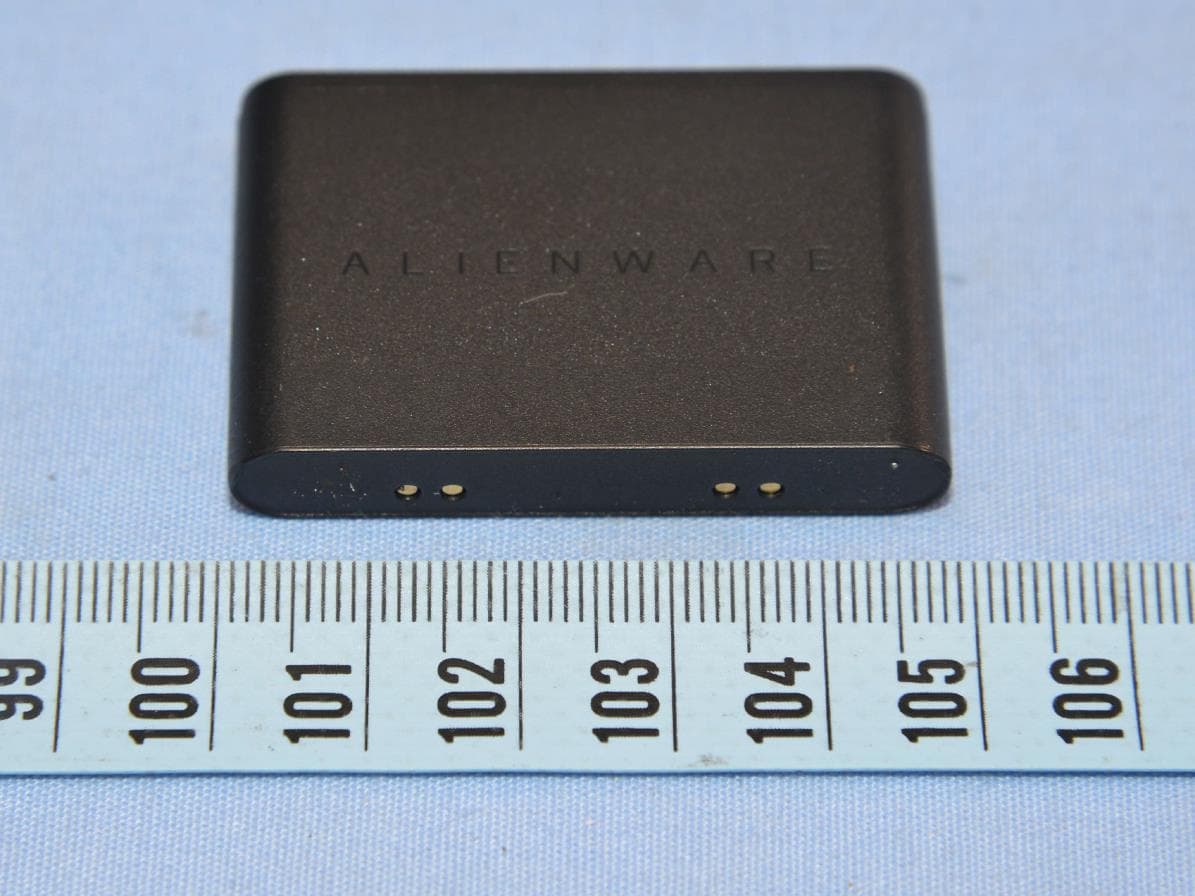
E8HKC-2227
Feb 01, 2023Gaming Keyboard
Equipment Class
DTS - Digital Transmission System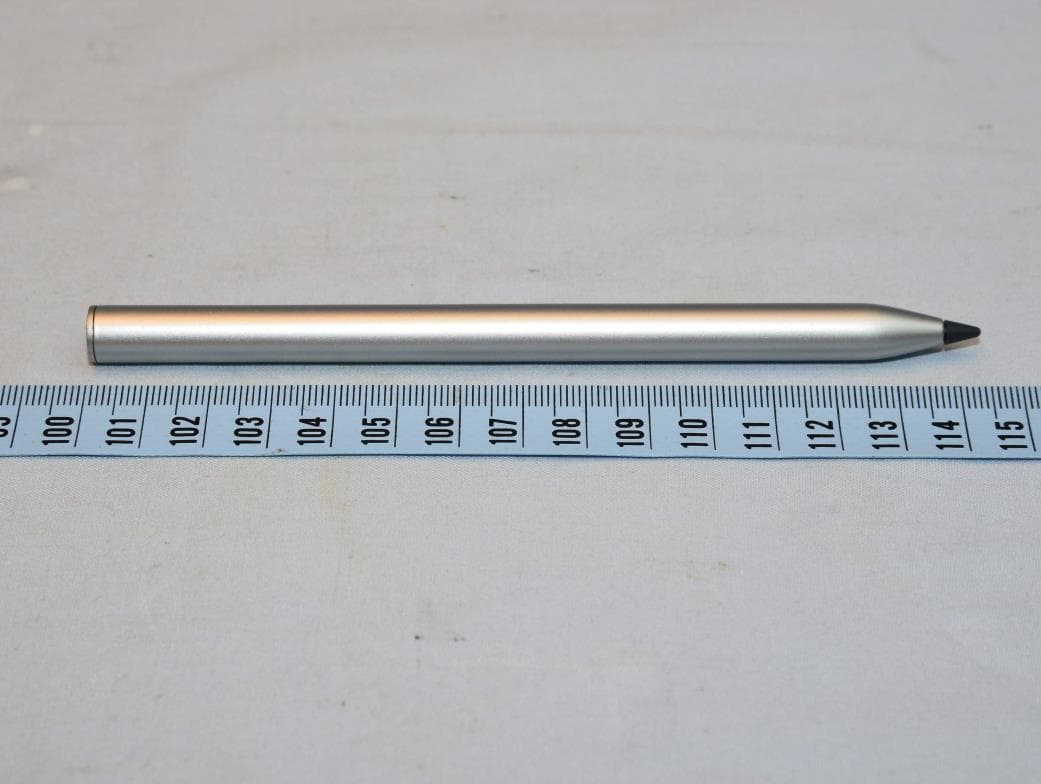
E8HTPA-C002P
Aug 09, 2021HP Wireless Rechargeable USI Pen
Equipment Class
DXX - Part 15 Low Power Communication Device Transmitter