EJE-WL002662205ANHMW WLAN IN PORTABLE LIFEBOOK T SERIES
Fujitsu Client Computing Limited (FCCL)
Click to zoom
Application Details
- Equipment Class
- DTS - Digital Transmission System
- Date of Grant
- Jun 02, 2011
- Application Purpose
- Original Equipment
- Date of Application
- Jun 02, 2011
- Equipment Note
- 62205ANHMW WLAN IN PORTABLE LIFEBOOK T SERIES
- Frequency Range
- 5755.00000000 - 5795.00000000
- Country
- Japan
Documents & Files
Document Text
Text extracted from the exhibit documents filed with the FCC. Open a document above to read the original.
Users Manual
User’s Guide Learn how to use your Fujitsu LIFEBOOK T731 Tablet PC Guide d’utilisation Découvrez comment utiliser votre PC Tablette LIFEBOOK Fujitsu T731 User’s Guide Learn how to use your Fujitsu LIFEBOOK T731 Ta b l e t P C Claw T731 UG.book Page 1 Wednesday, May 25, 2011 3:50 PM Copyright and Trademark Information Fujitsu America, Inc. has made every effort to ensure the accuracy and comp leteness of this document; however, as ongoing devel opment efforts are continually improving the capabilities of our pr oducts, we cannot guarant ee the accuracy of the contents of this do cument. We disclaim liability for errors, omissions, or future changes. Fujitsu, the Fujitsu logo, and LIFEBOOK are registered trademarks of Fujitsu Limited. Intel, Intel Core, Centrino, vPro, and Intel Centrino Pro are trademarks or registered trademarks of Intel Corporation or its s ubsidiaries in the United States and other countries.Microsoft, OneNote, and Windows are either re gistered trademarks or trademarks of Micr osoft Corporation in the United States an d/or other countries.Bluetooth is a trademark of Bluetooth SIG, Inc., USA. PowerDirector, PowerDVD, MakeDisc, and Y ouCam are trademarks of CyberLink Corp. OmniPass is a trademark of Softex, Inc.Google and Picasa are trademarks or regist ered trademarks of Google Incorporated. Roxio is a trademark of Sonic Solutions.Energy Star and the Energy Star mark are registered U.S. marks.Adobe, Acrobat, and Acrobat Reader are either a registered trademarks or trademarks of Adobe Systems Incorporated in the United States and/or other countries.Norton and Norton Internet Security are tradem arks or registered trademarks of Symant ec Corporation in the United States and ot her countries.All other trademarks mentioned herein are the propert y of their respective owners. © Copyright 2011 Fujitsu America, Inc. All rights reserved. No part of this publication may be copied, reproduced, or translated, without prior writ ten consent of Fujits u. No part of this publication may be stored or transmitted in any electronic form without the written consent of Fujitsu. B6FJ-7081-0 2 ENZ0-00 Claw T731 UG.book Page 2 Wednesday, May 25, 2011 3:50 PM W ARNING H ANDLING THE CORD ON THIS PRODUCT WILL EXPOSE YOU TO LEAD , A CHEMICAL KNOWN TO THE S TATE OF C ALIFORNIA TO CAUSE BIRTH DEFECTS OR OTHER REPRODUCTIVE HARM . W ASH HANDS AFTER HANDLING . U SER G UIDE FOR W IRELESS B ROADBAND C ONNECTION I F YOU HAVE THE OPTIONAL W IRELESS WAN (WWAN) DEVICE INSTALLED IN YOUR NOTEBOOK , THE WWAN U SER ’ S G UIDE IS LOCATED AT : HTTP :// SOLUTIONS . US . FUJITSU . COM / WWW / CONTENT / SUPPORT / MOBILE / SUPPORT _ NOTICES P LEASE CLICK “3G M INI -C ARD G OBI 3000 R EGULATORY AND S AFETY I NFORMATION ” TO OPEN THE FULL USER GUIDE CONTAINING WARNINGS AND PRECAUTIONS ASSOCIATED WITH RF SAFETY WHEN USING THE WWAN DEVICE . DECLARATION OF CONFORMITY according to FCC Part 15 Responsible Party Name: F ujitsu America, Inc. Address: 1250 E. Arques Avenue, Sunnyvale, CA 94085 Telephone: (408) 746-6000 Declares that product: Ba se Model Configuration: LIFEBOOK T731 Tablet PC Complies with Part 15 of the FCC Rules. This device complies with Part 15 of the FCC rules. Operations are subject to the following two conditions: (1) This device may not cau se harmful interferenc e, (2) This device must acce pt any interference received, including interference that may cause undesired operation. Claw T731 UG.book Page 3 Wednesday, May 25, 2011 3:50 PM IMPORTANT SAFETY INSTRUCTIONS This unit requires an AC adapter to operate. Use only UL Listed I.T.E. Class II Adapters with an output rating of 19 VDC, with a current of 4.22 A (80 W).When using your Tablet PC equipm ent, basic safety precautions s hould always be followed to reduc e the risk of fire, electric sh ock and injury to persons, including the following: • CAUTION - HOT SURFACE: The bottom of this Tablet PC computer can become hot when used for long periods of time. When using this Tablet PC, take ca ution to limit long term or continuous use whil e resting it on exposed skin, such as the lap. • CAUTION - REPLACEABLE BATTERIES: Risk of explosion if battery is replaced with an incorrect t ype. Dispose of used batteries in accordance with manufacturer’s instructions. • Do not use this product near water for example, near a bathtub, washbowl, kitchen sink or laundry tub, in a wet basement or nea r a swimming pool. • Use only the power cord and batter ies indicated in this manual. Do not dispose of batteries in a fire. They may explode. Check with local codes for possible special disposal instructions. SAVE THESE INSTRUCTIONS For Authorized Repair Technicians Only D ANGER OF EXPLOSION IF L ITHIUM ( CLOCK ) BATTERY IS INCORRECTLY REPLACED . R EPLACE ONLY WITH THE SAME OR EQUIVALENT TYPE RECOMMENDED BY THE MANUFACTURER . D ISPOSE OF USED BATTERIES ACCORDING TO THE MANUFACTURER ’ S INSTRUCTION . F OR CONTINUED PROTECTION AGAINST RISK OF FIRE , REPLACE ONLY WITH THE SAME TYPE AND RATING FUSE . + AC adapter output polarity: Claw T731 UG.book Page 4 Wednesday, May 25, 2011 3:50 PM Recycling your battery Over time, the batteries that r un your mobile computer will begin to hold a char ge for a shorter amount of time; this is a natu ral occurrence for all batteries. When this occurs, you may want to replace the battery with a fresh one*. If you replace it, it is important that you dispose of the old battery properly because batteries contain materials that could cause environm ental damage if disposed of improperly. Fujitsu is very concerne d with environmental pr otection, and has enlisted the services of the Rechargeable Battery Recycling Corporation (RBRC)**, a non-profit public service organization dedicated to pr otecting our environment by recycling old batteries at no cost to you.RBRC has drop-off points at tens of thousands of locations throughout the United States and Canada. To find the location nearest you, go to www.RBRC.org or call 1-800-…
Text truncated - open the document above for the full version.
Users Manual
135 - Care and Maintenance Increasing Battery Life • Power your Tablet PC through the AC or optional auto/airline adapter whenever possible. • If your tablet runs on battery power all day, connect it to an AC adapter overnight to rechar ge it. • Keep brightness to the lowest level comfortable. • Set the power management for maximum battery life. • Put your Ta blet PC in Sleep mode when it is turned on and you are not actually using it. • Limit your media drive access. • Disable the Media Player auto insert notification function. • Eject ExpressCards when not in use. Media Care Caring for your Media (DVD/CD/CD-R/BD) Media discs are precision devices and will f unction reliably if given reasonable care. • Always store your media disc in its case when it is not in use. • Always handle discs by the edges and avoid touching the surface. • Avoid storing any media disc s in extreme temperatures . • Do not bend or scratch media disc s or set heavy objects on them. • Do not spill liquids on media discs. • Do not get dust on media discs. • Never write on the label surface with a ballpoi nt pen or pencil. Always use a felt pen. • If a disc is subjected to a sudden change in te mperature, condensation may form on the surface. Wi pe moisture off with a soft, li nt free cloth and let it dry at room temperatur e. DO NOT use a hair dryer or heater to dry media discs. • If a disc is dirty, use only a DVD /CD cleaner or wipe it with a cl ean, soft, lint free cloth starting from the inner edge and wiping to the outer edge. Claw T731 UG.book Page 135 Wednesday, May 25, 2011 3:50 PM 136 - Care and Maintenance Caring for your Optical Drive Your optical drive is durable but you must treat it with car e. Please pay attenti on to the following points: • The drive rotates the compact disc at a very high speed. Do not carry it around or subject it to shock or vibration with the power on. • Avoid using or storing the drive where it will be exposed to extreme temperatures. • Avoid using or storing the driv e where it is damp or dusty . • Avoid using or storing the drive near magnets or devi ces that generate strong magnetic fields. • Avoid using or storing the drive where it will be subjec ted to shock or vibration. • Do not disassemble or di smantle the optical drive. • Use of a commercially available lens cleaner is recommended for maintenance of your drive. Express Cards Caring for your Cards Express Cards are durable, but you mu st treat them with care. The documentation supplied with your card will provide specific information, but you sh ould pay attention to the following points: • To keep out dust and dirt, store car ds in their protective sleeves wh en they are not installed in your LIFEBOOK T ablet PC. • Avoid prolonged exposure to direct sunlight or excessive heat. • Keep the cards dry. • Do not flex or bend the cards, and do not place heavy objects on top o f them. • Do not force cards into the slot. • Avoid dropping cards, or subjecting them to excessive vibration. Claw T731 UG.book Page 136 Wednesday, May 25, 2011 3:50 PM 137 Chapter 6 System Specifications Specifications This section provides the hardware and environmental specifications fo r your Fujitsu LIFEBOOK Tablet PC. Specifications of particular configurations will vary. Configuration LabelThe configuration label located on the bottom of your Ta blet PC contains specific information regarding the options you’ve chosen for your Ta blet PC. Following is an example configuration label. T731, i5-2520M, 12.1 WXGA, W7Pro, 320G, 4GB Configuration P/N: A4XXXXXXXXXXXXX FPC P/N: FPCXXXXXX Hard Drive Part Number Processor Model # Memory Operating System Screen Size/Type Configuration ID Claw T731 UG.book Page 137 Wednesday, May 25, 2011 3:50 PM 138 - Specifications MicroprocessorNew 2nd Generation Intel® Core™ Pro cessor (Refer to the system labe l to determine the speed of your processor).Chipset • Mobile Intel® QM67 Express • Platform Control Hub (PCH) Memory System Memory • DDR3-1333 MHz SDRAM dual-channel memory module. • Two DIMM slots; upgradeable to 8 GB of total memory (4 GB x 2). Cache Memory Up to 4MB L3 cache on-die (depending upon CPU)VideoBuilt-in color flat-panel TFT active matrix LED backlit display with simultan eous display capability. Video Color and Resolution 12.1" Wide XGA display • Internal: 1280 x 800 pixel resolution, 16M colors • External: 1920 x 1200 pixel resolution, 16M colors • Simultaneous: 1280 x 800, 16M colors Video RAM Intel(R) HD 3000 Graphics with dynamic frequency. Automatically distributes perfor mance to CPU and graphics applications that need an extra boost up to approximately 20%. Claw T731 UG.book Page 138 Wednesday, May 25, 2011 3:50 PM 139 - Specifications DigitizerDepending upon the configuration of your system, one of two di gitizer options is included: • Active digitizer (uses act ive stylus input), or, • Dual Digitizer, consisting of active digitizer and capacitive touch pa nel (uses active stylus input and two finger touch input). A udio • Realtek codec ALC269 with High Definition (HD) audio. • Headphones: St ereo headphone jack, 3.5 mm, 1 V rms or less, minimum impedance 32 Ohms • Microphone: S tereo microphone jack, 3.5 mm, 100 mV p-p or less, minimum impedance 10K Ohms • Two built-in speakers, 25 mm x 16 mm, 0.6 W • Two built-in digital microphones Mass Stora ge Device Options Hard Drive Serial ATA, 2.5”, 9.5 mm, shock-mounted with Shock Sens or utility. Capacity and speed of the hard drive are determined by system configuration.Modular Bay DevicesOne of the following devi ces is pre-installed: • Dual-Layer Multi-Format DVD Writer • Blu-ray Triple Writer • Modular Bay Battery • Weight Saver Claw T731 UG.book Page 139 Wednesday, May 25, 2011 3:50 PM 140 - Specifications FeaturesIntegrated Pointing Device Touchpad cursor control buttons, with scroll strip built-inCommunications • Gigabit LAN : Intel 82579LM 10/100/1000 Gigabit Ethernet LAN • WLAN: Optional integrated Intel Centrino Adva nced-N 6205 (a/b…
Text truncated - open the document above for the full version.
Users Manual
69 - Boutons Sécurité/PC Tablette du LIFEBOOK Définition du mot de passe de superviseur Vous devez détenir un mot de passe de superviseur avant de paramétrer tout mot de passe d’utilisateur. Le mot de passe de superviseur permet de contourner le mot de passe d’utilisateur. 1Allez au menu Démarrer. 2Cliquez sur Exécuter. 3Entrez : C:\Program Files\Fujitsu\Security Panel Application\Supervisor\FJSECS.EXE, puis appuyez sur [Entrée]. 4Suivez les instructions affichées à l’écran pour définir le mot de passe de superviseur. Définition du mot de passe d’utilisateur 1Allez au menu Démarrer. 2Cliquez sur Tous les programmes. 3Cliquez sur Application Tableau de sécurité -> Application Tableau de sécurité. 4Suivez les instructions affichées à l’écran pour définir le mot de passe d’utilisateur. Utilisation de votre tableau de sécurité LIFEBOOK La fonction de verrouillage de sécurité est activée à la mise sous tension du système, de même qu’à sa reprise depuis le mode Sommeil ou Veille prolongée. Il faut toujours utiliser les boutons du tableau de sécurité pour entrer le mot de passe d’utilisateur. Votre système n’entamera la séquence d’amorçage qu’après l’entrée du mot de passe de superviseur ou d’utilisateur. VOUS POUVEZ CHANGER OU SUPPRIMER LE MOT DE PASSE DE SUPERVISEUR OU D’UTILISATEUR EN RÉPÉTANT LES ÉTAPES PRÉCÉDENTES. 70 - Boutons Sécurité/PC Tablette du LIFEBOOK Lorsque le système est hors tension 1Mettez le système sous tension. 2Lorsque le voyant de sécurité clignote, entrez le mot de passe puis appuyez sur le bouton [Entrée] (par exemple : si le mot de passe est 22222, appuyez d’abord cinq fois sur le bouton 2, puis sur le bouton [Entrée]. Le PC Tablette démarrera normalement. Lorsque le système est en veille prolongée 1Appuyez sur le commutateur veille/reprise. 2Lorsque le voyant de sécurité clignote, entrez le mot de passe, puis appuyez sur le bouton [Entrée] ; l’ordinateur doit alors reprendre son fonctionnement normal. Entrée d’un mot de passe incorrect Après trois échecs successifs de saisie d’un mot de passe de superviseur ou d’utilisateur, le système émet des bips pendant environ une minute. Si le mot de passe entré durant cet intervalle (pendant les bips) est valide, le signal sonore s’arrête et le PC Tablette reprend son fonctionnement normal. Si aucun mot de passe n’est saisi, ou si un mot de passe incorrect est à nouveau saisi, le système retourne à son état précédent (mode Sommeil ou Hors tension) et le voyant de sécurité s’éteint. Pour réactiver le portable après un échec de la saisie du mot de passe, vous devez appuyer sur le commutateur veille/reprise, puis saisir un mot de passe valide. 71 - Boutons Sécurité/PC Tablette du LIFEBOOK Mises en garde Ouverture et fermeture du couvercle de l’écran Par défaut, le fait de fermer le couvercle met automatiquement votre système en mode Sommeil. Pour changer le mode par défaut lorsque le couvercle est fermé : 1Ouvrez le Panneau de configuration, sélectionnez Options d'alimentation. (Dans Windows XP : Cliquez sur l’onglet Avancés). 2Dans le panneau de gauche, cliquez sur Choisir ce que fait la fermeture du couvercle. 3Sélectionnez l'action désirée pour Lorsque je ferme le couvercle, puis cliquez sur le bouton [Sauvegarder les changements] ou [Appliquer] (selon le système d'exploitation). Fonctionnement avec une batterie faible Si la batterie de votre PC Tablette est faible, le fait d’enfoncer le commutateur veille/reprise active simplement le voyant de sécurité. Votre portable ne se déverrouille pas et le voyant de sécurité s’éteint après une minute. Pour revenir au fonctionnement normal, branchez d’abord une source d’alimentation à l’ordinateur. Vous pouvez alors le déverrouiller. Désinstallation/réinstallation de l’application de sécurité Deux méthodes peuvent être utilisées pour désinstaller l’application Tableau de sécurité : •Supprimez les mots de passe et désinstaller l’application. Cette méthode désactive toutes les fonctions de sécurité. •Désinstaller l’application Tableau de sécurité avec le mot de passe toujours actif. Si cette option est choisie, plus aucune modification du mot de passe ne sera possible. N’OUBLIEZ PAS LE MOT DE PASSE D’UTILISATEUR DÉFINI DANS L’APPLICATION TABLEAU DE SÉCURITÉ. S INON, VOUS NE POURREZ PLUS UTILISER L’ORDINATEUR. LE MOT DE PASSE DE SUPERVISEUR PERMET TOUTEFOIS DE CONTOURNER LE MOT DE PASSE D’UTILISATEUR. 72 - Boutons Sécurité/PC Tablette du LIFEBOOK Désinstallation de l’application Tableau de sécurité Cette opération est utile lorsque l’utilisateur ne veut aucune protection par mot de passe et ne veut donner à personne l’utilitaire de définition de mot de passe sur son ordinateur. Dans ce cas, si des mots de passe (superviseur, utilisateur ou les deux) sont définis, les mots de passe doivent être effacés AVANT de supprimer l’application. Pour effacer les mots de passe, suivez la même procédure qu’à la section « DÉFINITION DES MOTS DE PASSE », mais sélectionnez cette fois l’option Supprimer ; ensuite, entrez le mot de passe actuel, puis cliquez sur le bouton Suivant. Cliquez sur Oui à la demande de confirmation. Suppression de l’application Tableau de sécurité avec des mots de passe encore actifs L’utilisation de cette fonction ne permettra aucune modification du mot de passe. Utilisateur : 1Cliquez sur Démarrer -> Panneau de configuration. 2Dans le panneau de configuration, ouvrez Programmes et fonctions. 3Dans la liste, sélectionnez Tableau de sécurité / Utilisateur, puis cliquez sur Désinstaller/Modifier. 4Lorsque la boîte « Contrôle du compte utilisateur » apparaît, cliquez sur Continuer. Superviseur : 1Cliquez sur Démarrer -> Panneau de configuration. 2Dans le Panneau de configuration, cliquez sur Ajouter ou supprimer des propriétés de programme. 3Dans la liste, sélectionnez Tableau de sécurité / Superviseur, puis cliquez sur Désinstaller/Modifier. 4Lorsque la boîte « Contrôle du compte utilisateur » apparaît, cliquez sur Continuer. LA SUPPRESSION DES APPLICATIONS NE SUPPRIME PAS LE MOT D…
Text truncated - open the document above for the full version.
Cover Letter(s)
FUJITSU LIMITED 1-1, Kamikodanaka 4-chome, Nakahara-ku, Kawasaki 211-8588, Japan Tel : +81-44-754-3885 Federal Communications Commission Authorization and Evaluation Division 1435 Oakland Mills Road Columbia, MD 21046 AUTHORITY TO ACT AS AGENT & FORM 731 SIGNATORY I appoint EMC Technologies Pty Ltd to act as agent, on our behalf in this application for equipment authorization. I certify that the exhibits submitted properly describe the device or system for which equipment authorization is sought. I also certify that each unit manufactured, imported or marketed, as defined in the Commission’s regulations, will have affixed to it a label identical to that submitted for approval with this application. In addition, I authorize Mr. Chris Zombolas, Technical Director of EMC Technologies Pty Ltd to sign the Form 731 and Mr. Chieu Huynh (Senior EMC Test Engineer) to be listed as the technical and non-technical contact for this application. Sincerely, ____________________________ Name: Tsuyoshi Uchihara Title: Engineer Date: 8 th April 2011
Cover Letter(s)
FUJITSU LIMITED 1-1, Kamikodanaka 4-chome, Nakahara-ku, Kawasaki 211-8588, Japan Tel : +81-44-754-3885 Federal Communications Commission Authorization and Evaluation Division Confidentiality Request regarding application for certification of FCC ID: (EJE-WL0026). Pursuant to FCC DA 04-1705, this application includes a request for short term confidentiality for the following exhibits: Internal Photos Location Photos External Photos Test Setup Photos User Manual As the above information contains proprietary information which would be benefit to our competitors, we request that these exhibits be held from public view for 180 days from the issue date of the grant of approval. In addition, pursuant to Sections 0.457 and 0.459 of the Commission’s Rules, we hereby request confidential treatment of information accompanying this application as outlined below: Operational Description Block Diagram Schematics Antenna Details The above materials contain trade secrets and proprietary information not customarily released to the public. The public disclosure of these materials may be harmful to the applicant and provide unjustified benefits to its competitors. The applicant understands that pursuant to Section 0.457 of the Rules, disclosure of this application and all accompanying documentation will not be made before the date of the Grant for this application. Sincerely, _____________________________ Tsuyoshi Uchihara Title : Engineer Date: 14 th April 2011
Cover Letter(s)
EMC Technologies Pty Ltd, 176 Harrick VIC 3043 Australia Ph: +613 9365 1000 Fax: +613 9331 7455 www.emctech.com.au EMC Technologies Pty Ltd ABN 82 057 105 549 176 Harrick Road, Keilor Park Victoria Australia 3042 Ph: + 613 9365 1000 Fax: + 613 9331 7455 email: [email protected] To: Federal Communications Commission Attention: Certification Manager No. of pages: 1 From: Chieu Huynh Date: 6 th May 2011 EMC Ref: M110358_FCC_62205ANHMW Subject: FCC APPROVAL – FCC ID: EJE-WL0026 Please receive FCC application for FCC ID: EJE-WL0026 for review. The EUT is a Fujitsu LifeBook T Series, Model: T731 / TH701 with Intel Centrino Advanced-N 6205 (Taylor Peak 802.11a/b/g/n 2x2), Model: 62205ANHMW. The Taylor Peak 2x2 WLAN module was originally certified by INTEL as a modular approval under FCC ID: PD962205ANH (Canada ID: 1000M-62205ANH). The other transmitter installed in the T731 / TH701 LifeBook is Broadcom Bluetooth Module, Model: BCM92070MD_REF6. The Bluetooth module was originally certified by Broadcom as a modular approval under FCC ID: QDS-BRCM1043 (Canada ID: 4324A-BRCM1043). This Bluetooth preapproved module, is not co-located as the WLAN and Bluetooth antennas are >5cms apart. RF exposure and labeling will be addressed by Fujitsu according to FCC multi-transmitter and modular procedures. The intention of this application is to FCC certify Intel Centrino Advanced-N 6205 (Taylor Peak 802.11a/b/g/n 2x2), Model: 62205ANHMW installed in Fujitsu LifeBook T Series, Model: T731 / TH701. Documents submitted for composite submission (DTS and NII): Test Reports: SAR and EMC Appendixes: Measurement Instrumentations, Photographs, Operational Description, Block Diagram, Antenna Details, Schematics, Labelling Details and User Manual FCC Forms: Confidentiality Letter and Form 731 Signatory & Agent Authorization Letter Others Attachments: RF Exposure Information, FCC DOC, FCC Part 15B, Intel FCC 15C, FCC 15E and FCC 15E DFS Test Reports. EMC Technologies Pty Ltd is acting as agent for Fujitsu Ltd during this product approval. The FCC ID for this composite application is EJE-WL0026 Regards ______________ Chieu Huynh Senior EMC Engineer EMC Technologies Pty Ltd
Cover Letter(s)
Intel Corporation 100 Center Point Circle Columbia, SC 29210 August 27, 2010 American TCB 6731 Whittier Avenue Suite C110 McLean, VA 22101 USA Subject: Model 62205ANHMW Wireless Lan PCIe Card FCC ID’s: PD962205ANH and PD962205ANH; IC: 1000M-62205ANH Gentlemen: Please be advised that the Model 62205ANHMW Wireless Lan PCIe card is manufactured for the global market but when marketed in North America under FCC ID’s PD962205ANH or PD962205ANHU and IC: 1000M-62205ANH the EEPROM will be programmed at the factory to only operate and actively scan on these specific channels: Channels 1-11, 2412-2462MHz 802.11b mode Channels 1-11, 2412-2462MHz 802.11g mode Channels 1-11, 2412-2462MHz 802.11n mode (20MHz channel) Channels 3-9, 2422-2452MHz 802.11n mode (40MHz channel) The following channels will be programmed at the factory to passively scan and will only listen and cannot send a probe request to initiate communication on these specific channels. Ad-hoc mode is always disabled on these passive channels. Channels 12 &13, 2467 & 2472MHz 802.11b mode Channels 12 &13, 2467 & 2472MHz 802.11g mode Channels 12 &13, 2467 & 2472MHz 802.11n mode (20/40MHz channel) Channels 36-48, 5180-5240MHz 802.11a mode Channels 36-48, 5180-5240MHz 802.11n mode (20 MHz channel) Channels 38-46, 5190-5230MHz 802.11n mode (40MHz channel) Channels 52-64, 5260-5320MHz 802.11a mode Channels 52-64, 5260-5320MHz 802.11n mode (20 MHz channel) Channels 54-62, 5270-5310MHz 802.11n mode (40MHz channel) Channels 100-140, 5500-5700MHz 802.11a mode Channels 100-140, 5500-5700MHz 802.11n mode (20 MHz channel) Channels 102-134, 5510-5670MHz 802.11n mode (40MHz channel) Channels 149-165, 5745-5825 802.11a mode Channels 149-165, 5745-5825MHz 802.11n mode (20 MHz channel) Channels151-159, 5755-5795 802.11n mode (40MHz channel) This information when programmed into the EEPROM will not be accessible and can not be changed by the end user. If you have any questions please do not hesitate to contact us at 803-216-2344. Sincerely, Steven C. Hackett Wireless Regulatory Engineer
External Photos
FCC ID: EJE-WL0026 (IC: 337J-WL0026) ______________________________________________________________________ EMC Technologies Pty. Ltd., 176 Harrick Road, Keilor Park, VIC, 3042, Australia. Phone: +61 3 9365 1000 Fax: +61 3 9331 7455 www.emctech.com.au APPENDIX B1 EXTERNAL PHOTOS FCC ID: EJE-WL0026 (IC: 337J-WL0026) ______________________________________________________________________ EMC Technologies Pty. Ltd., 176 Harrick Road, Keilor Park, VIC, 3042, Australia. Phone: +61 3 9365 1000 Fax: +61 3 9331 7455 www.emctech.com.au APPENDIX B1 EXTERNAL PHOTOS
Internal Photos
FCC ID: EJE-WL0026 (IC: 337J-WL0026) ______________________________________________________________________ EMC Technologies Pty. Ltd., 176 Harrick Road, Keilor Park, VIC, 3042, Australia. Phone: +61 3 9365 1000 Fax: +61 3 9331 7455 www.emctech.com.au APPENDIX B3 LOCATION PHOTOS Antenna Locations WLAN Location
Internal Photos
FCC ID: EJE-WL0026 (IC: 337J-WL0026) ______________________________________________________________________ EMC Technologies Pty. Ltd., 176 Harrick Road, Keilor Park, VIC, 3042, Australia. Phone: +61 3 9365 1000 Fax: +61 3 9331 7455 www.emctech.com.au APPENDIX B4 INTERNAL PHOTOS FCC ID: EJE-WL0026 (IC: 337J-WL0026) ______________________________________________________________________ EMC Technologies Pty. Ltd., 176 Harrick Road, Keilor Park, VIC, 3042, Australia. Phone: +61 3 9365 1000 Fax: +61 3 9331 7455 www.emctech.com.au APPENDIX B4 INTERNAL PHOTOS
RF Exposure Info
Report No.M110361_FCC_62205ANHMW_SAR_2.4Page 1 of 75 This document must not be copied or reproduced, except in full without the written permission of the Manager, EMC Technologies Pty Ltd. The certificate on page 3 may be reproduced in full. www.emctech.com.au SAR Test Report Report Number: M110361_FCC_62205ANHMW_SAR_2.4 Test Sample:Portable TABLET Computer Radio Modules: WLAN INTEL CENTRINO ADVANCED-N 6205(TAYLOR PEAK) 11A/B/G/N 62205ANHMW & Bluetooth BCM92070MD_REF6 Host PC Model Number:T731, TH701 PC System FCC ID: EJE-WL0026 PC System IC: 337J-WL0026 Date of Issue:13 th May 2011 EMC Technologies Pty Ltd reports apply only to the specific samples tested under stated test conditions. It is the manufacturer’s responsibility to assure that additional production units of this model are manufactured with identical electrical and mechanical components. EMC Technologies Pty Ltd shall have no liability for any deductions, inferences or generalisations drawn by the client or others from EMC Technologies Pty Ltd issued reports. This report shall not be used to claim, constitute or imply product endorsement by EMC Technologies Pty Ltd. EMC Technologies Pty Ltd ABN 82 057 105 549 176 Harrick Road Keilor Park Victoria Australia 3042 Ph: + 613 9365 1000 Fax: + 613 9331 7455 email: [email protected] Report No.M110361_FCC_62205ANHMW_SAR_2.4Page 2 of 75 This document must not be copied or reproduced, except in full without the written permission of the Manager, EMC Technologies Pty Ltd. The certificate on page 3 may be reproduced in full. www.emctech.com.au CONTENTS 1.0GENERAL INFORMATION ............................................................................................................. 3 2.0INTRODUCTION.............................................................................................................................. 4 3.0TEST SAMPLE TECHNICAL INFORMATION ............................................................................... 4 3.1DUT (WLAN) Details............................................................................................................... 4 3.2DUT (Bluetooth) Details .......................................................................................................... 7 3.3DUT (Notebook PC) Details.................................................................................................... 8 3.4Test Sample Accessories ....................................................................................................... 9 3.4.1Battery Types ...................................................................................................................... 9 4.0TEST SIGNAL, FREQUENCY AND OUTPUT POWER ................................................................. 9 4.1Battery Status ......................................................................................................................... 9 5.0DETAILS OF TEST LABORATORY ............................................................................................. 10 5.1Location ................................................................................................................................ 10 5.2Accreditations ....................................................................................................................... 10 5.3Environmental Factors .......................................................................................................... 10 6.0DESCRIPTION OF SAR MEASUREMENT SYSTEM................................................................... 11 6.1Probe Positioning System..................................................................................................... 11 6.2E-Field Probe Type and Performance .................................................................................. 11 6.3Sy…
Text truncated - open the document above for the full version.
Contact Information
Applicant
Mr. Tsuyoshi Uchihara(Engineer)
Technical Contact
EMC TECHNOLOGIES PTY LTDCHIEU HUYNH
[email protected]+61393651000
176 HARRICK ROAD, KEILOR PARK · MELBOURNE, VIC · Australia
Non-Technical Contact
EMC TECHNOLOGIES PTY LTDCHIEU HUYNH
[email protected]+61393651000
Test Firm
EMC Technologies Pty. Ltd.Chris Zombolas
Technical Specifications
| # | Rule Parts | Frequency Range | Power Output |
|---|---|---|---|
| 4 | 15C | 5.75 GHz - 5.79 GHz | 120.00 mW |
Other Applications from Fujitsu Client Computing Limited (FCCL)
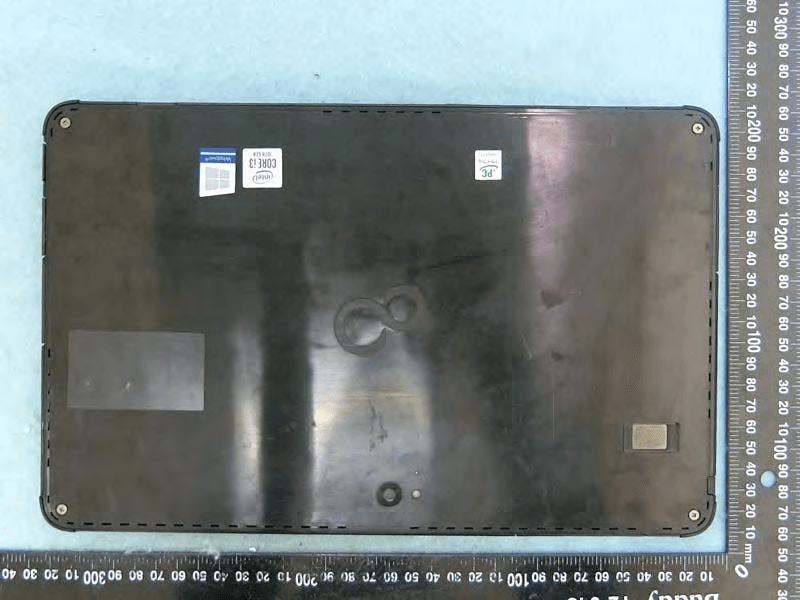
EJE-KST001
May 13, 2020Tablet Computer
Equipment Class
DXX - Part 15 Low Power Communication Device Transmitter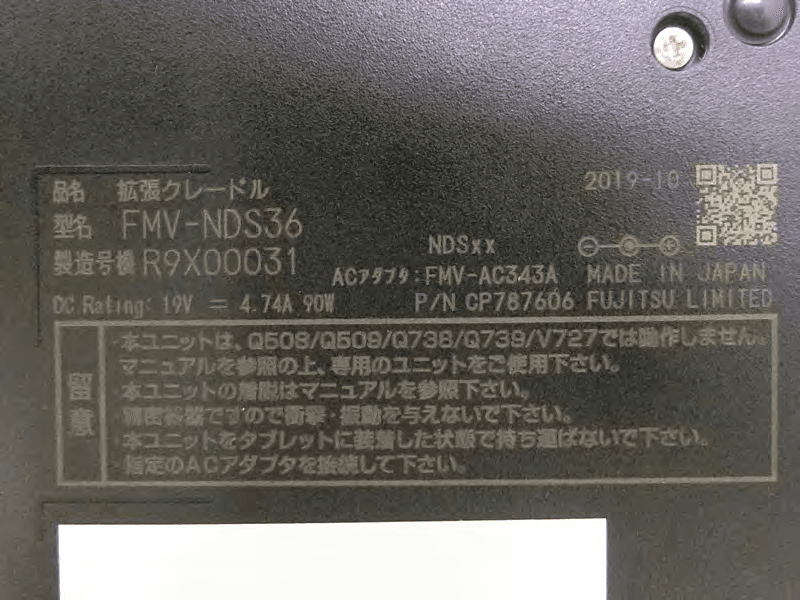
EJE-KSC001
May 13, 2020Port Replicator
Equipment Class
DXX - Part 15 Low Power Communication Device Transmitter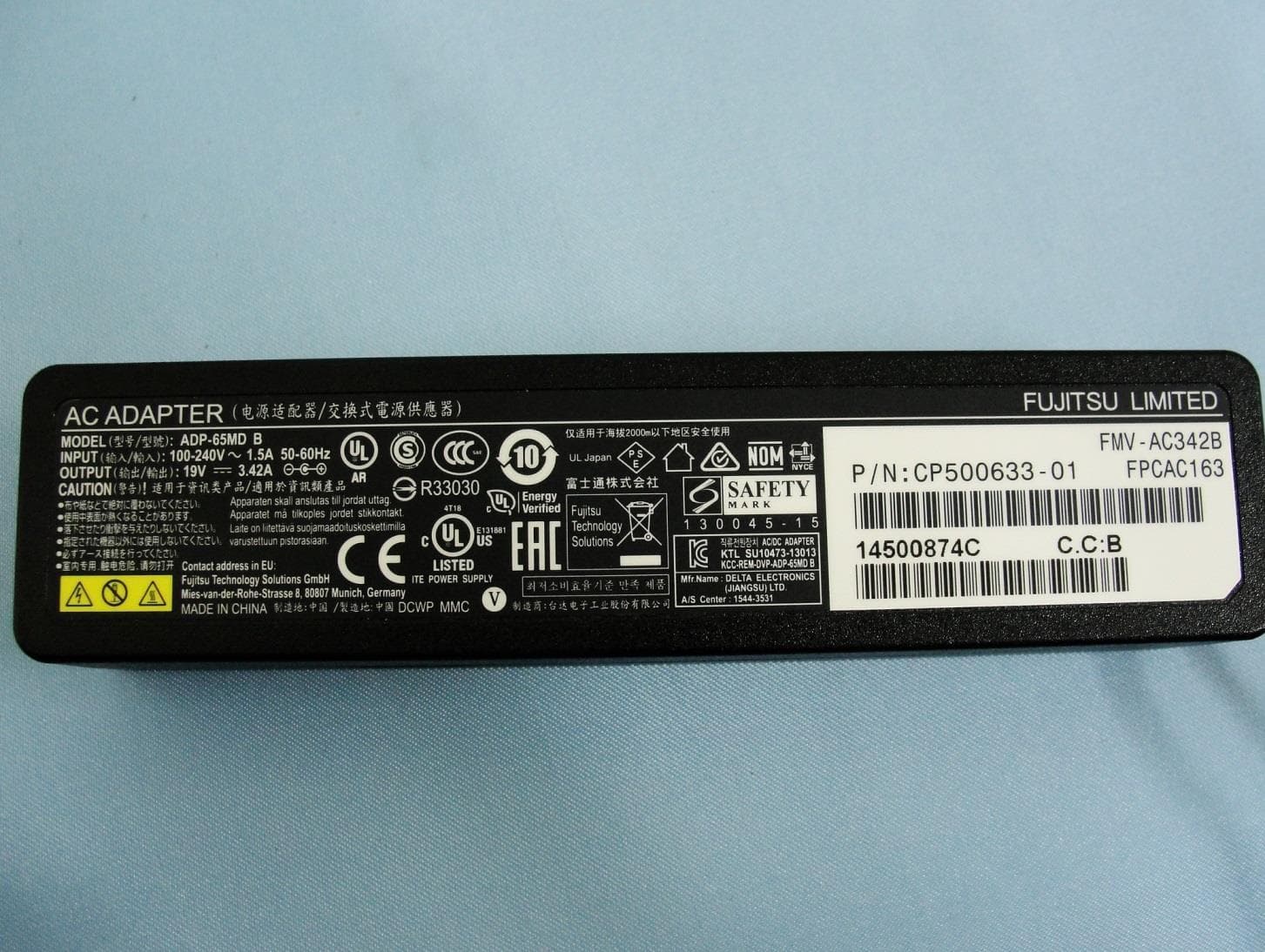
EJE-WB0099
Jan 27, 2016STYLISTIC Q series
Equipment Class
DSS - Part 15 Spread Spectrum Transmitter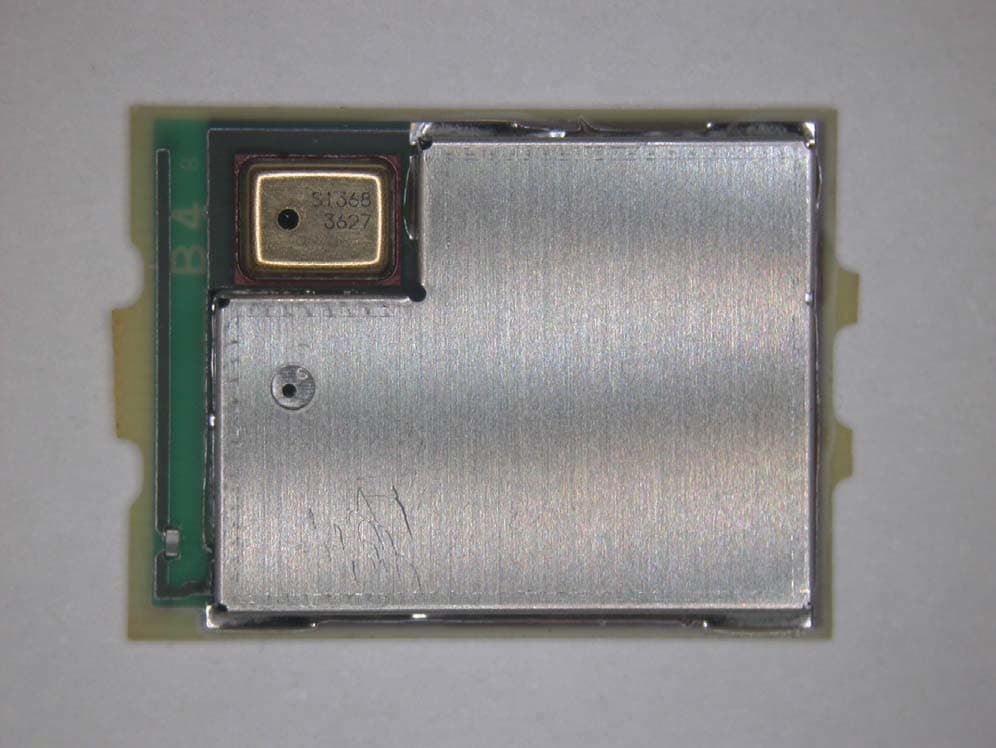
EJE-BT0004
Dec 06, 2015Ubiquitous-warecore module
Equipment Class
DTS - Digital Transmission System
EJE-WB0097
Nov 12, 2015FUJITSU STYLISTIC Q736
Equipment Class
DTS - Digital Transmission System