FSUGMZGMWireless Mouse
KYE SYSTEMS CORP.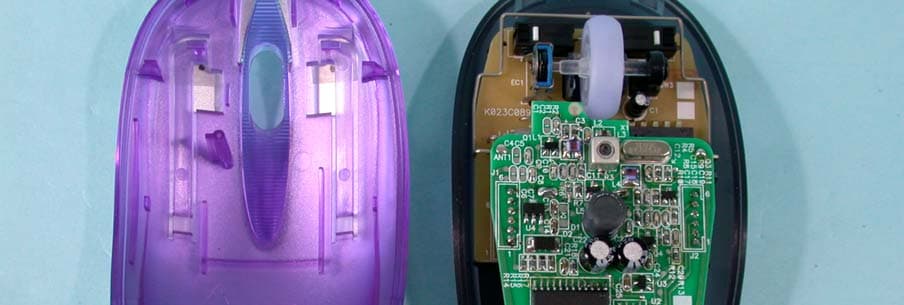
Click to zoom
Application Details
- Equipment Class
- DXX - Part 15 Low Power Communication Device Transmitter
- Date of Grant
- Jan 29, 2003
- Application Purpose
- Original Equipment
- Date of Application
- Jan 29, 2003
- Equipment Note
- Wireless Mouse
- Frequency Range
- 27.04500000 - 27.04500000
- Company
- KYE SYSTEMS CORP.
- Country
- Taiwan
Documents & Files
Document Text
Text extracted from the exhibit documents filed with the FCC. Open a document above to read the original.
Users Manual
Hardware Installation 1. You can connect the receiver to a USB port of a PC. 2. Install two AA rechargeable batteries in the mouse and two AA rechargeable batteries in the keyboard. 3. Turn on your computer. 4. After you open Windows, please press the button on the receiver first (RB) and then press the button under the mouse (MB) and keyboard (KB) for ID channel setting. You only have six seconds to press the receiver, the channel button on the keyboard (KB), then the receiver button again and the channel button on the mouse (MB). So you press RB, KB, RB, MB to set the channel setting. Important: You can use the battery charger receiver to recharge two AA or two AAA rechargeable batteries each time when you use the PC. Plug the battery charger receiver USB connector into the PC directly and remember do not put the batteries in the wrong direction, use the same types of batteries, and do not recharge via the USB hub, that will make your receiver, main-board and hub burn or become non-usable easily. Also, keep all drinks away! If any spill occurs on the receiver, unplug the USB connector first and clean the receiver immediately. Please remove the batteries if you do not use this device for at least two weeks. Warning: (Troubleshooting) 1. Please do not use Wireless TwinTouch+ Optical Value on a desk which is made of glass, mirror, iron, or black velvet. Also, a flat surface is necessary or the Optical Sensor will error easily. When you use Wireless TwinTouch+ Optical Value on a desk that is made of metal, try using a pad or reduce the receiving distance. 2. Before the first installation is completed (channel setting ready), the keyboard will not work in DOS. If your USB keyboard does not work in BIOS, DOS or Windows, then use another PS2 keyboard to make the USB controller (USB function) and USB legacy (USB keyboard) “On” in the BIOS setup. This may occur with older BIOS versions. Then unplug the PS2 keyboard and plug in your USB keyboard and everything should be working properly. 3. The Wireless TwinTouch+ Optical Value channel provides 256 ID-codes, and it automatically selects the ID # for your keyboard and mouse. You can only set up one Wireless TwinTouch+ Optical Value at a time. But if you have additional Wireless TwinTouch+ Optical Value sets in an area of 10 square meters, more interference may occur between the receiver and your keyboard and mouse. 4. If you feel the mouse does not move smooth as usual or the keyboard does not work when typing, then the batteries have lost their charge, so please replace them. Also, the wireless icon will be blinking “red” when there is a battery-low situation. The LED on the receiver shows the battery-recharging status (from shining to LED completely “on” for battery full). You should set up the channel every time you replace the batterires. 5. If you need to buy new batteries, please choose Ni-MH (Nickel-Metal-Hydride) AA batteries, 1.2V, 1300 to 1600 mAH. Please do not mix or use other types of batteries (Li-ion, Ni-Cd, Alkaline, etc.). 6. The Wireless TwinTouch+ Optical Value with radio frequency gives you free movement and an enjoyable experience. For optimal performance, place the receiver at least 8 inches (about 20 cm) away from the mouse and other electrical devices, such as the computer, monitor, and etc. Software Installation 1.Make sure the mouse and keyboard is connected to the computer. 2.Put the Setup disk (or CD) into the disk drive. 3.Follow the instructions on the screen to finish the software installation. Factory Setting 1. Mouse: Button Assignments The Button Assignment feature lets you work in a more efficient way because you can assign the most frequently used commands in Windows to the mouse buttons. Magic-Roller Press the “Magic-Roller” to surf the Internet and Windows documents Left Button Provides traditional mouse functions such as click, double click and drag. Right Button You can assign this button frequently used keyboard and mouse functions in addition to features like EasyJump, Auto-Panning, Zoom, etc. Roller Button You can assign this button frequently used keyboard and mouse functions in addition to features like EasyJump, Auto-Panning, Zoom, etc. 2. Keyboard: 1.Rewind: Previous track of audio or video CD’s 2.Play & Pause: Play and pause of audio or video CD’s 3.Stop: Stop play of audio or video CD’s 4.Forward: Next track of audio or video CD’s 5.Vol.-& +: decrease or increase volume 6.My favorite: Open my favorite folder 7.E-mail: Open mail folder 8. Back: See last page when viewing the Internet 9. www: Open browser in Netscape or IE 10. Forward: Go to next page when viewing the Internet 11. Sleep: Turn system into wake up mode MouseMate Software Features Browsing Speed You can adjust the browsing speed when you surf the Internet or Windows documents. Browsing Direction Move the “Magic-Roller” forward and the screen will browse to the top of the document. Move it in reverse and the document will go in the opposite direction Button Find Automatically positions the cursor on the default button, usually the OK button, when the dialog box appears on your screen. Trails This option makes it easier to find the cursor when using an LCD monitor. This option cannot be used if your monitor does not support it. Loop When you move the cursor to the top (or bottom) of the screen, it will automatically move the cursor to the bottom (or top) of the screen. Mouse Speed This function lets you adjust the speed at which the pointer moves across the screen. Double Click Speed Use this function to set the double click speed of the mouse. Swap Left/Right Select this option if you want to have the mouse operate with the right mouse button as the primary button. Pointers Folders This lets you change the shape of the cursor. Value Mode Only supports Microsoft Value along with some new applications. Features include zoom, scrolling and Auto-scrolling features. It’s similar to Microsoft’s IntelliMouse. Genius Mode Supports all applicatio…
Text truncated - open the document above for the full version.
External Photos
Page 1 ANNEX PHOTOGRAPHS OF EUT Page 2
ID Label/Location Info
Label Location for FCC ID
Internal Photos
Page 2 Page 3 Page 4 Page 5
Operational Description
FCC ID: FSUGMZGM ADT No.920109R06B Operational Description The transmitter of the EUT (Wireless Mouse) is powered by 3V Battery. The receiver is powered by host computer. Both transmitter and receiver use Integral Antenna. The output power of this device is very low. Under normal use condition, the transmitter and the receiver are quite close, so high EIRP power is neither necessary nor allowed because of interference.
Test Report
FCC ID: FSUGMZGM Report No.: RF920109R06B1Issued: January 17, 2003 FCC TEST REPORT REPORT NO.: RF920109R06B MODEL NO.: Wireless TwinTouch+ Optical Value/Mouse RECEIVED: Jan. 09, 2003 TESTED: Jan. 10 ~ Jan. 15, 2003 APPLICANT: KYE Systems Corp. ADDRESS: No.492, Sec.5, Chung Hsin Rd., San Chung, Taipei Hsien, Taiwan, R.O.C. ISSUED BY: Advance Data Technology Corporation LAB LOCATION: 47 14th Lin, Chia Pau Tsuen, Linkou Hsiang, Taipei, Taiwan, R.O.C. This test report consists of 15 pages in total. It may be duplicated completely for legal use with the approval of the applicant. It should not be reproduced except in full, without the written approval of our laboratory. The client should not use it to claim product endorsement by NVLAP or any U.S. government agencies. The test results in the report only apply to the tested sample. Lab Code: 200102-0 0528 ILAC MRA FCC ID: FSUGMZGM Report No.: RF920109R06B2Issued: January 17, 2003 Table of Contents 1CERTIFICATION..............................................................................................3 2SUMMARY OF TEST RESULTS .....................................................................4 3GENERAL INFORMATION ..............................................................................5 3.1GENERAL DESCRIPTION OF EUT ................................................................5 3.2DESCRIPTION OF TEST MODES ..................................................................6 3.3GENERAL DESCRIPTION OF APPLIED STANDARDS..................................6 3.4DESCRIPTION OF SUPPORT UNITS ............................................................6 4TEST PROCEDURE AND RESULT.................................................................7 4.1CONDUCTED EMISSION MEASUREMENT...................................................7 4.2RADIATED EMISSION MEASUREMENT........................................................7 4.2.1 LIMITS OF RADIATED EMISSION MEASUREMENT .....................................7 4.2.2 TEST INSTRUMENT .......................................................................................8 4.2.3 TEST PROCEDURE........................................................................................9 4.2.4 TEST SETUP.................................................................................................10 4.2.5 EUT OPERATING CONDITION.....................................................................10 4.2.6 TEST RESULT............................................................................................... 11 4.3ANTENNA REQUIREMENT ..........................................................................13 4.3.1 STANDARD APPLICABLE.............................................................................13 4.3.2 ANTENNA CONNECTED CONSTRUCTION ................................................13 5PHOTOGRAPHS OF THE TEST CONFIGURATION ....................................14 6INFORMATION ON THE TESTING LABORATORIES...................................15 FCC ID: FSUGMZGM Report No.: RF920109R06B3Issued: January 17, 2003 1 CERTIFICATION PRODUCT : Wireless Mouse BRAND NAME : Genius MODEL NO : Wireless TwinTouch+ Optical Value/Mouse APPLICANT : KYE Systems Corp. STANDARDS : 47 CFR Part 15, Subpart C(15.227) ANSI C63.4-1992 We, Advance Data Technology Corporation, hereby certify that one sample of the designation has been tested in our facility from Jan. 10 ~ Jan. 15, 2003. The test record, data evaluation and Equipment Under Test (EUT) configurations represented herein are true and accurate accounts of the measurements of the sample's EMC characteristics under the conditions herein specified. FCC ID: FSUGMZGM Report No.: RF920109R06B4Issued: January 17, 2003 2 SUMMARY OF TEST RESULTS The EUT has been tested according to the following specifications: APPLIED STANDARD: 47 CFR Part 15, Subpart C STANDARD PARAGRAPH TEST TYPERESULTREMARK 15.207Conducted Emission TestN/A Power supply is 3VDC from batteries 15.227Radiated Emission TestPASS Minimum passing margin is –3.20dBuV at 81.15MHz NOTE: The receiver part to communicate with the EUT has been verified to comply with FCC Part 15, Subpart B, Class B (DoC). The test report can be provided upon request. FCC ID: FSUGMZGM Report No.: RF920109R06B5Issued: January 17, 2003 3 GENERAL INFORMATION 3.1 GENERAL DESCRIPTION OF EUT PRODUCT Wireless Mouse MODEL NO. Wireless TwinTouch+ Optical Value/Mouse POWER SUPPLY 3VDC from battery MODULATION TYPE FSK CARRIER FREQUENCY OF EACH CHANNEL 27.045MHz BANDWIDTH OF EACH CHANNEL NA NUMBER OF CHANNEL 1 ANTENNA TYPE Integral antenna DATA CABLE NA I/O PORTS NA ASSOCIATED DEVICES NA NOTE: 1. The EUT is the transmitter part of a Wireless Mouse. 2. For more detailed features description of the EUT, please refer to the manufacturer's specifications or the User's Manual. FCC ID: FSUGMZGM Report No.: RF920109R06B6Issued: January 17, 2003 3.2 DESCRIPTION OF TEST MODES One channel was provided to this EUT. ChannelFrequency 127.045 MHz 3.3 GENERAL DESCRIPTION OF APPLIED STANDARDS The EUT is the transmitter part of a Wireless Mouse. According to the specifications of the manufacturer, it must comply with the requirements of the following standards: FCC 47 CFR Part 15, Subpart C (15.227) ANSI C63.4-1992 All tests have been performed and recorded as per the above standards. 3.4 DESCRIPTION OF SUPPORT UNITS NA FCC ID: FSUGMZGM Report No.: RF920109R06B7Issued: January 17, 2003 4 TEST PROCEDURE AND RESULT 4.1 CONDUCTED EMISSION MEASUREMENT NA 4.2 RADIATED EMISSION MEASUREMENT 4.2.1 LIMITS OF RADIATED EMISSION MEASUREMENT According to 15.227 the field strength of emissions from intentional radiators operated under these frequencies bands shall not exceed the following: Fundamental Frequency (MHz) Field Strength of Fundamental (dBuV/m) PeakAverage 26.96-27.28 10080 Emissions radiated outside of the specified bands, shall be according to the general radiated limits in 15.209 as following: Frequencies (MHz) Field strength (microvolts/meter) Measurement distan…
Text truncated - open the document above for the full version.
Test Setup Photos
FCC ID: FSUGMZGM Report No.: RF920109R06B14Issued: January 17, 2003 5 PHOTOGRAPHS OF THE TEST CONFIGURATION RADIATED EMISSION TEST
Contact Information
Applicant
Ricky Chen(Section Supervisor)
Technical Contact
Advance Data Technology CorporationEllis Wu
[email protected]886-3-327-0910
13-1, Lane 19, WenShan 3rd., St., · Taoyuan · Taiwan
Test Firm
Bureau Veritas CPS (H.K.) Ltd. Taoyuan BranchTommy Wu
Technical Specifications
| # | Rule Parts | Frequency Range | Power Output |
|---|---|---|---|
| 1 | 15C | 27.045 MHz - 27.045 MHz | - |
Other Applications from KYE SYSTEMS CORP.
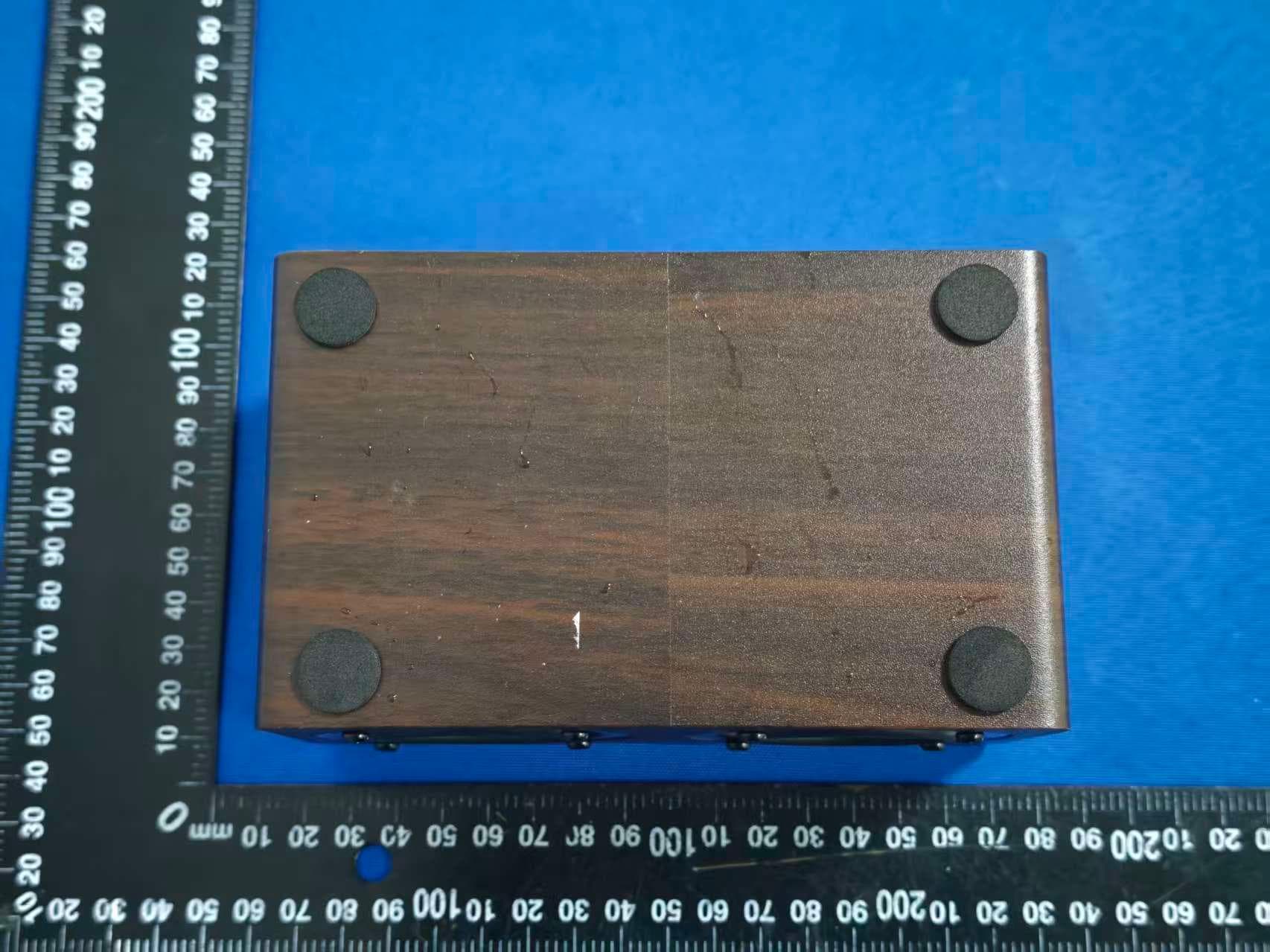
FSUGG0AM
Aug 20, 2026Wireless Speaker
Equipment Class
DSS - Part 15 Spread Spectrum Transmitter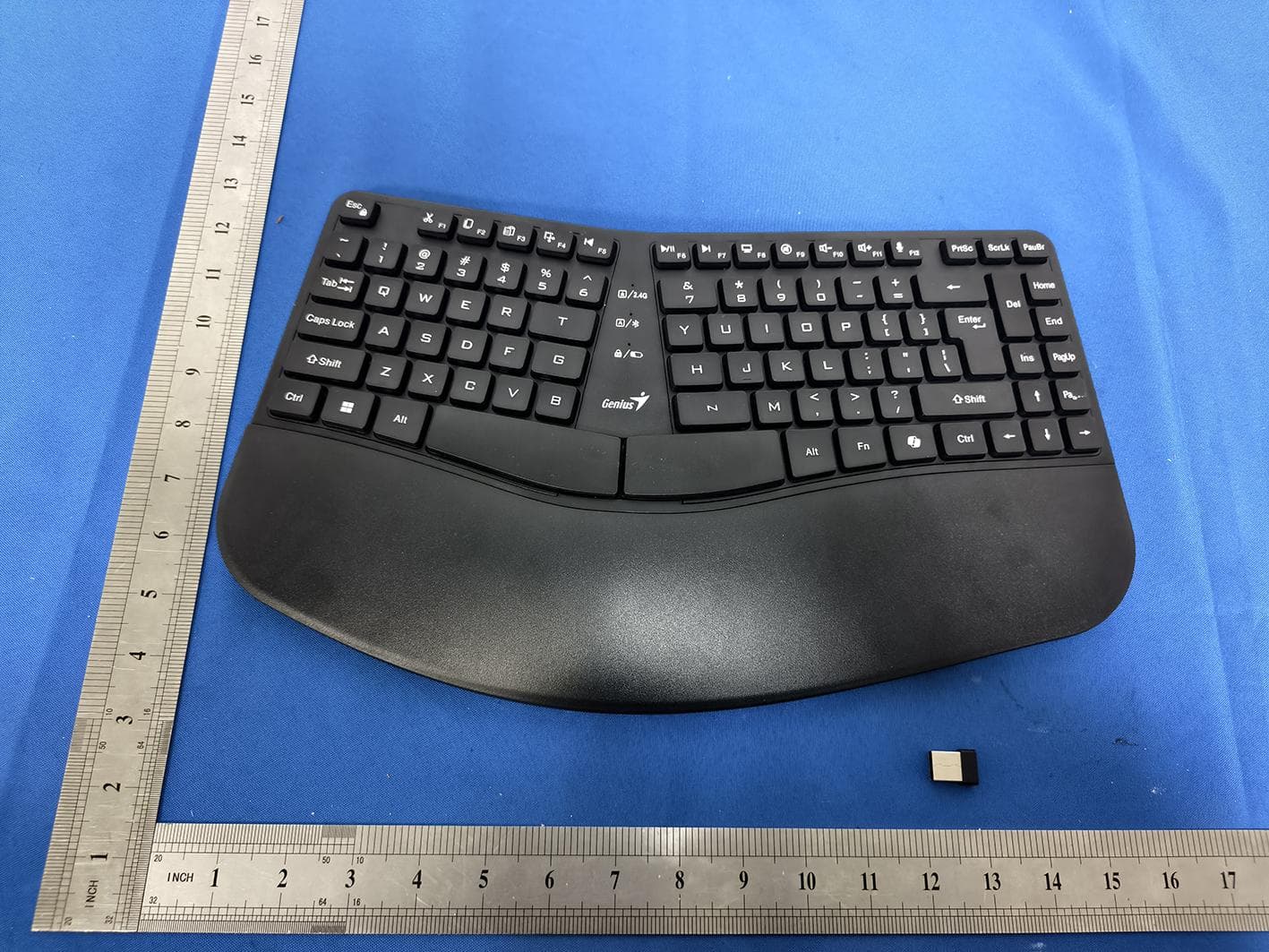
FSUGKZI2
May 23, 2026Wireless Keyboard
Equipment Class
DXX - Part 15 Low Power Communication Device TransmitterFSUGMZN6
Apr 20, 2026Wireless Mouse
Equipment Class
DTS - Digital Transmission SystemFSUGMZN4
Apr 03, 2026Wireless Mouse
Equipment Class
DXX - Part 15 Low Power Communication Device TransmitterFSUGMZN7
Apr 01, 2026Wireless Mouse
Equipment Class
DTS - Digital Transmission System