FSUGMZGQWireless Mouse
KYE SYSTEMS CORP.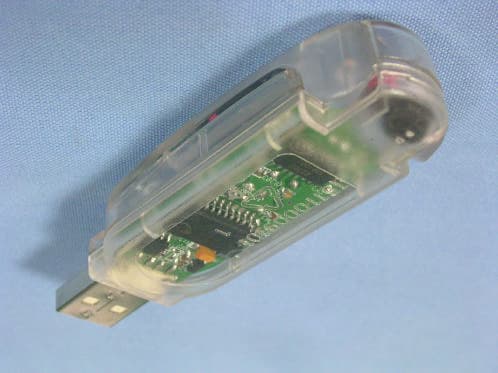
Click to zoom
Application Details
- Equipment Class
- DXX - Part 15 Low Power Communication Device Transmitter
- Date of Grant
- Apr 25, 2004
- Application Purpose
- Original Equipment
- Date of Application
- Apr 25, 2004
- Equipment Note
- Wireless Mouse
- Frequency Range
- 27.04500000 - 27.04500000
- Company
- KYE SYSTEMS CORP.
- Country
- Taiwan
Documents & Files
Document Text
Text extracted from the exhibit documents filed with the FCC. Open a document above to read the original.
Users Manual
Wireless Mouse Model : GM-03018U/T, GM-03018U/R Hardware Installation 1. You can connect the receiver to a USB port of a PC 2. Install two AAA batteries in the mouse. 3. Turn on your computer. 4. After you open Windows, please press the button on the receiver first and then press the button under the mouse for channel setting. Important: Remember do not put the batteries in the wrong direction, use the same types of batteries. Also, keep all drinks away! If any spill occurs on the receiver, unplug the USB connector first and clean the receiver immediately. Please remove the batteries if you do not use this device for at least two weeks. Warning: (Troubleshooting) 1. Please do not use Wireless Mini Navigator on a desk which is made of glass, mirror, iron, or black velvet. Also, a flat surface is necessary or the Optical Sensor will error easily. When you use Wireless Mini Navigator on a desk that is made of metal, try using a pad and reduce the receiving distance. 2. Before the first installation is completed (channel setting ready), the mouse will not work in DOS. 3. The Wireless Mini Navigator channel provides 256 ID-codes, and it automatically selects the ID # for your mouse. You can only set up one Wireless Mini Navigator at a time. But if you have additional Wireless Mini Navigator sets in an area of 10 square meters, more interference will occur between the receiver and your mouse. 4. If you feel the mouse does not move smooth as usual, then the batteries have lost their charge, so please replace them. Also, the wireless icon will be blinking “red” when there is a battery-low situation. The LED on the receiver shows the battery-recharging status (from shining to LED completely “on” for battery full). You should set up the channel every time you replace the batteries. 5. The Wireless Mini Navigator with radio frequency gives you free movement and an enjoyable experience. For optimal performance, place the receiver at least 8 inches (about 20 cm) away from the mouse and other electrical devices, such as the computer, monitor, and etc. Software Installation 1. Make sure the mouse is connected to the computer. 2. Put the Setup disk (or CD) into the disk drive. 3. Follow the instructions on the screen to finish the software installation. Factory Setting/ faceplates changng Button Assignments The Button Assignment feature lets you work in a more efficient way because you can assign the most frequently used commands in Windows to the mouse buttons. Magic-Roller Press the “Magic-Roller” to surf the Internet and Windows documents Left Button Provides traditional mouse functions such as click, double click and drag. Right Button You can assign this button frequently used keyboard and mouse functions in addition to features like EasyJump, Auto-Panning, Zoom, etc. Roller Button You can assign this button frequently used keyboard and mouse functions in addition to features like EasyJump, Auto-Panning, Zoom, etc. Side Buttons You can assign certain functions to the upper or lower side button with the roller. MouseMate Software Features Browsing Speed You can adjust the browsing speed when you surf the Internet or Windows documents. Browsing Direction Move the “Magic-Roller” forward and the screen will browse to the top of the document. Move it in reverse and the document will go in the opposite direction Button Find Automatically positions the cursor on the default button, usually the OK button, when the dialog box appears on your screen. Trails This option makes it easier to find the cursor when using an LCD monitor. This option cannot be used if your monitor does not support it. Loop When you move the cursor to the top (or bottom) of the screen, it will automatically move the cursor to the bottom (or top) of the screen. Mouse Speed This function lets you adjust the speed at which the pointer moves across the screen. Double Click Speed Use this function to set the double click speed of the mouse. Swap Left/Right Select this option if you want to have the mouse operate with the right mouse button as the primary button. Pointers Folders This lets you change the shape of the cursor. Office Mode Only supports Microsoft Office along with some new applications. Features include zoom, scrolling and Auto-scrolling features. It’s similar to Microsoft’s IntelliMouse. Genius Mode Supports all applications that use scrollbars, including Office, with zoom, Auto-panning, and scrolling functions. About Click here to open the Genius Homepage “www.geniusnet.com.tw” Orientation This function lets you set the angle when you move the mouse upward. It gives you a more comfortable angle when holding the mouse. This function works best with a portable trackball. EasyJump “EasyJump” now has two working modes: Office EasyJump mode and Traditional EasyJump mode. “Office EasyJump” lets you use eight commonly used applications and 16 Cyber functions more easily and quickly. Once you press the button you assigned, “Office EasyJump” will be displayed on a Frisbee. Note that the functions are only available in the applications they belong to. Click this application button to show the mouse control panel. You can check or modify the mouse properties. Click this function and the pan icon appears. You can move the mouse in any direction in a document or a spreadsheet. The farther you move the pointer from the pan icon, the faster you can pan in that direction. Click this function and Office EasyJump Frisbee will always be on the screen and the button will change to . Click it again to cancel this effect. This is a programmable application button. Press the right button on this icon and a dialog box will display for you to select an executable program. Click on this button to launch your specific application. Click this function to implement the “replace” function in the current application. Click on this application to launch Microsoft Word. Click this function to perform the “cut” function in Word. Click this function to implem…
Text truncated - open the document above for the full version.
External Photos
PHOTOS OF EUT (TX) PHOTOS OF EUT (RX) PHOTOS OF EUT (RX CABLE)
ID Label/Location Info
Sample of FCC ID Label FCC ID: FSUGMZGQ The device is so small that the Two-Part warning statement does not have to go on the device. It will be really hard to read. We remove the Two-Part statement from the device since we already have it in the manual. Sample of FCC DoC Label The device is so small that the Two-Part warning statement does not have to go on the device. It will be really hard to read. We remove the Two-Part statement from the device since we already have it in the manual.
Internal Photos
PHOTOS OF EUT (TX) PHOTOS OF EUT (TX) PHOTOS OF EUT (RX) PHOTOS OF EUT (RX)
Operational Description
FCC ID:FSUGMZGQ Operational Description of the equipment The EUT is an excellent tool for mobile professionals. This mouse features 800 dpi resolution, meaning it offers twice the acuracy of typical mouse movement, which is ideal for graphic designing or any other type of computing where precision matters. This unit is USB ready, Plug-n-Play and hot pluggable. PRODUCT Wireless Mouse MODEL NO. GM-03018U/T, GM-03018U/R POWER SUPPLY 3Vdc from battery (1.5V x 2) for transmitter part 5Vdc from PC system for receiver part CABLE 0.5m shielded USB cable CARRIER FREQUENCY 27.045 MHz NUMBER OF CHANNEL 1 RATED RF OUTPUT POWER -9dBm I.F. & L.O. I.F.: 0, L.O.: 27.045MHz MODULATION TYPE FSK BIT RATE OF TRANSMISSION 4.8 kbps ANTENNA TYPE Loop antenna NOTE : The product is a wireless mouse which includes transmitter part (TX) and receiver part (RX). EUT Model No. Transmitter part (TX) GM-03018U/T Receiver part (RX) GM-03018U/R For more detailed features, please refer to the manufacturer’s specification or User’s Manual.
Test Report
Spectrum Research & Testing Lab., Inc. No. 101-10, Ling 8, Shan-Tong Li, Chung-Li City, Taoyuan, Taiwan, R.O.C. TEST REPORT Reference No.:A04031703 Report No.:FCCA04031703 Page:2 of 20 Date:Apr. 12, 2004 FCC ID:FSUGMZGQ Table of Contents 1. DOCUMENT POLICY AND TEST STATEMENT......................................................3 1.1 DOCUMENT POLICY....................................................................................................3 1.2 TEST STATEMENT........................................................................................................3 2. DESCRIPTION OF EUT AND TEST MODE.............................................................4 2.1 GENERAL DESCRIPTION OF EUT............................................................................4 2.2 DESCRIPTION OF EUT INTERNAL DEVICE...........................................................4 2.3 DESCRIPTION OF TEST MODE.................................................................................4 2.4 DESCRIPTION OF SUPPORT UNIT..........................................................................5 3. DESCRIPTION OF APPLIED STANDARDS.............................................................5 4. CONDUCTED EMISSION TEST.................................................................................6 4.1 CONDUCTED EMISSION LIMIT.................................................................................6 4.2 TEST EQUIPMENT........................................................................................................6 4.3 TEST SETUP..................................................................................................................7 4.4 TEST PROCEDURE......................................................................................................7 4.5 EUT OPERATING CONDITION...................................................................................7 4.6 TEST RESULT................................................................................................................8 5. RADIATED EMISSION TEST......................................................................................9 5.1 RADIATED EMISSION LIMIT.......................................................................................9 5.2 TEST EQUIPMENT.....................................................................................................10 5.3 TEST SET-UP...............................................................................................................11 5.4 TEST PROCEDURE...................................................................................................12 5.5 EUT OPERATING CONDITION................................................................................12 5.6 RADIATED EMISSION TEST RESULT...................................................................13 6. BAND EDGE.................................................................................................................15 6.1 BAND EDGE LIMIT.....................................................................................................15 6.2 TEST EQUIPMENT.....................................................................................................15 6.3 TEST SET-UP..............................................................................................................15 6.4 TEST PROCEDURE...................................................................................................15 6.5 EUT OPERATING CONDITION................................................................................15 6.6 BAND EDGE TEST RESULT.....................................................................................16 7. PHOTOS OF TESTING..............................................................................................17 8. TERMS OF ABRIVATION...........................................................................................20 Spectrum Research & Testing Lab., Inc. No. 101-10, Ling 8, Shan-Tong Li, Chung-Li City, Taoyuan, Taiwan, R.O.C. TEST REPORT Reference No.:A04031703 Report No.:FCCA04031703 Page:3 of 20 Date:Apr. 12, 2004 FCC ID:FSUGMZGQ 1. DOCUMENT POLICY AND TEST STATEMENT 1.1 DOCUMENT POLICY - The report shall not be reproduced except in full, without the written approval of SRT Lab, Inc. - The report must not be used by the applicant to claim that the product is endorsed by NVLAP, TÜV, NEMKO and SRT. - The NVLAP logo applies only to the applicable standards specified in this report. 1.2 TEST STATEMENT - The test results in the report apply only to the unit tested by SRT Lab. - There was no deviation from the requirements of test standards during the test. - AC power source, 120 Vac/60 Hz, was used during the test. Spectrum Research & Testing Lab., Inc. No. 101-10, Ling 8, Shan-Tong Li, Chung-Li City, Taoyuan, Taiwan, R.O.C. TEST REPORT Reference No.:A04031703 Report No.:FCCA04031703 Page:4 of 20 Date:Apr. 12, 2004 FCC ID:FSUGMZGQ 2. DESCRIPTION OF EUT AND TEST MODE 2.1 GENERAL DESCRIPTION OF EUT PRODUCT Wireless Mouse MODEL NO. GM-03018U/T POWER SUPPLY 3Vdc from battery (1.5V x 2) for transmitter part 5Vdc from PC system for receiver part CABLE 0.5m shielded USB cable CARRIER FREQUENCY 27.045 MHz NUMBER OF CHANNEL 1 RATED RF OUTPUT POWER -9dBm I.F. & L.O. I.F.: 0, L.O.: 27.045MHz MODULATION TYPE FSK BIT RATE OF TRANSMISSION 4.8 kbps ANTENNA TYPE Loop antenna NOTE : The product is a wireless mouse which includes transmitter part (TX) and receiver part (RX). EUT Model No. Transmitter part (TX) GM-03018U/T Receiver part (RX) GM-03018U/R For more detailed features, please refer to the manufacturer’s specification or User’s Manual. 2.2 DESCRIPTION OF EUT INTERNAL DEVICE DEVICE BRAND / MAKER MODEL # FCC ID/DOC REMARK N/A 2.3 DESCRIPTION OF TEST MODE N/A (It is only applicable to more than one test mode.) Spectrum Research & Testing Lab., Inc. No. 101-10, Ling 8, Shan-Tong Li, Chung-Li City, Taoyuan, Taiwan, R.O.C. TEST REPORT Reference No.:A04031703 Report No.…
Text truncated - open the document above for the full version.
Test Setup Photos
PHOTOS OF TESTING - Conducted test - Radiated test (TX) - Radiated test (RX)
Contact Information
Applicant
Ricky Chen(Section Supervisor)
Test Firm
Spectrum Research & Testing Lab.Linda Chiang
Technical Specifications
| # | Rule Parts | Frequency Range | Power Output |
|---|---|---|---|
| 1 | 15C | 27.045 MHz - 27.045 MHz | - |
Other Applications from KYE SYSTEMS CORP.
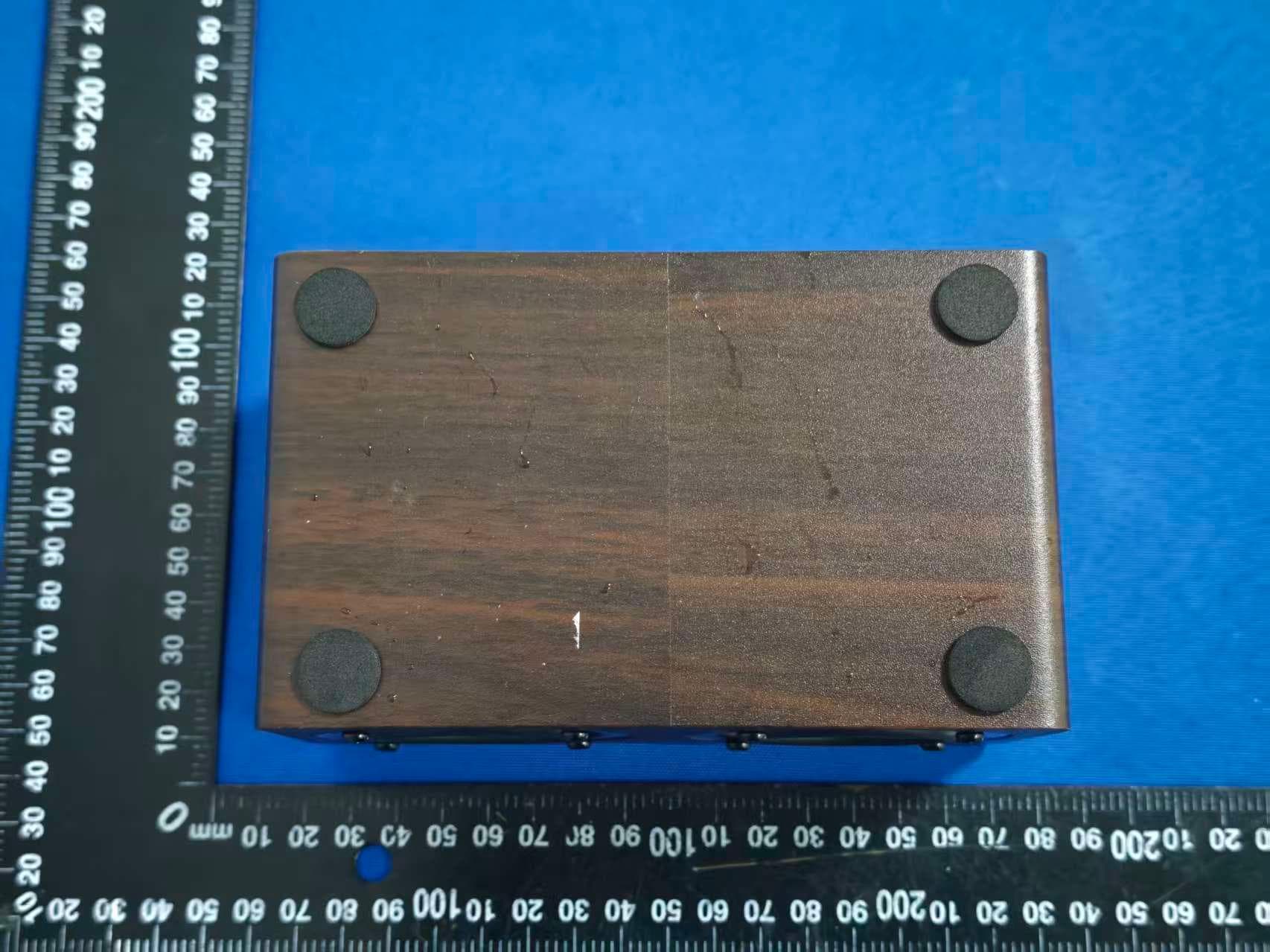
FSUGG0AM
Aug 20, 2026Wireless Speaker
Equipment Class
DSS - Part 15 Spread Spectrum Transmitter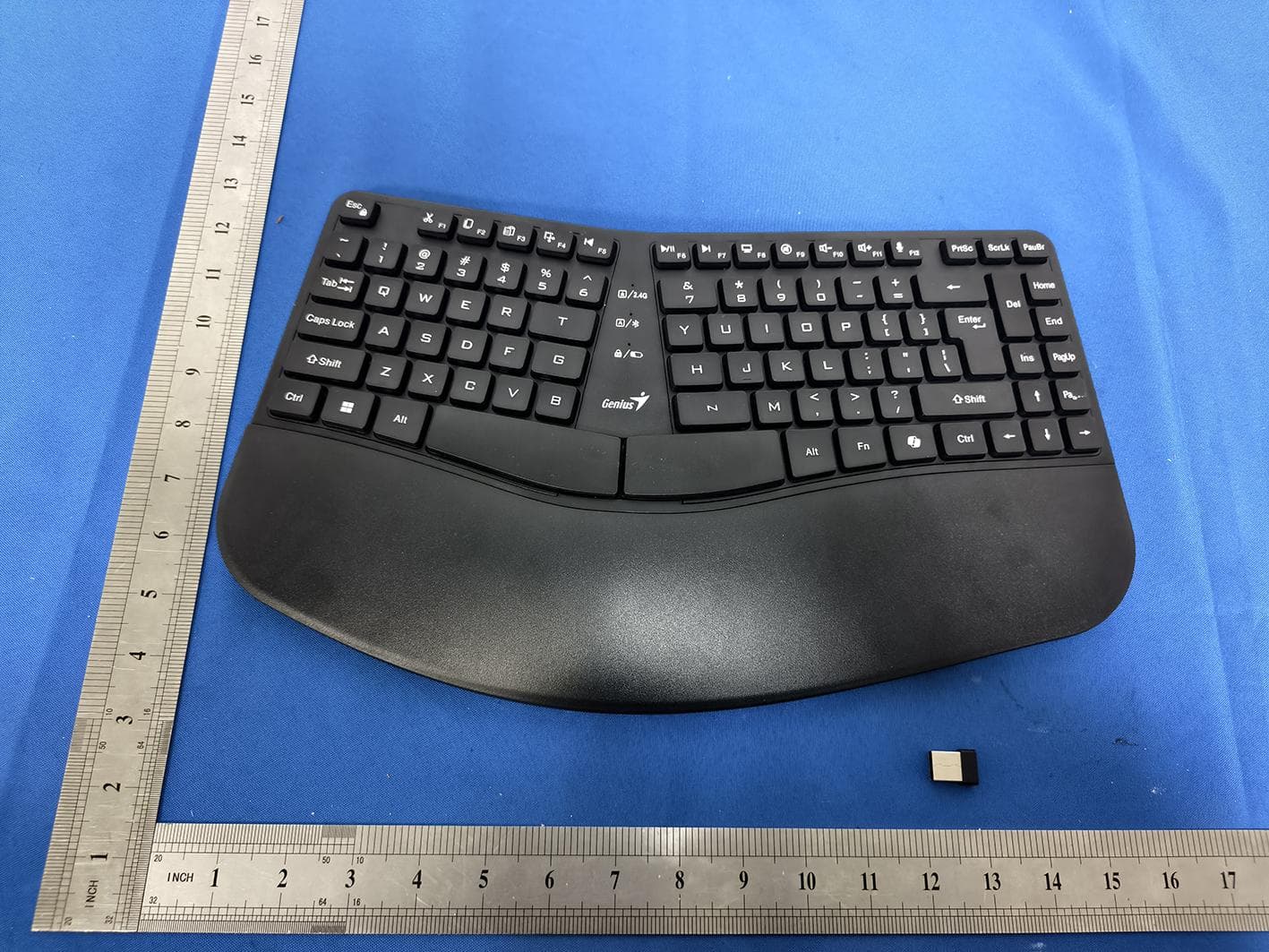
FSUGKZI2
May 23, 2026Wireless Keyboard
Equipment Class
DXX - Part 15 Low Power Communication Device TransmitterFSUGMZN6
Apr 20, 2026Wireless Mouse
Equipment Class
DTS - Digital Transmission SystemFSUGMZN4
Apr 03, 2026Wireless Mouse
Equipment Class
DXX - Part 15 Low Power Communication Device TransmitterFSUGMZN7
Apr 01, 2026Wireless Mouse
Equipment Class
DTS - Digital Transmission System