GV364385PilotBoard Laser Wireless Desktop Set
ACCO Brands, Inc.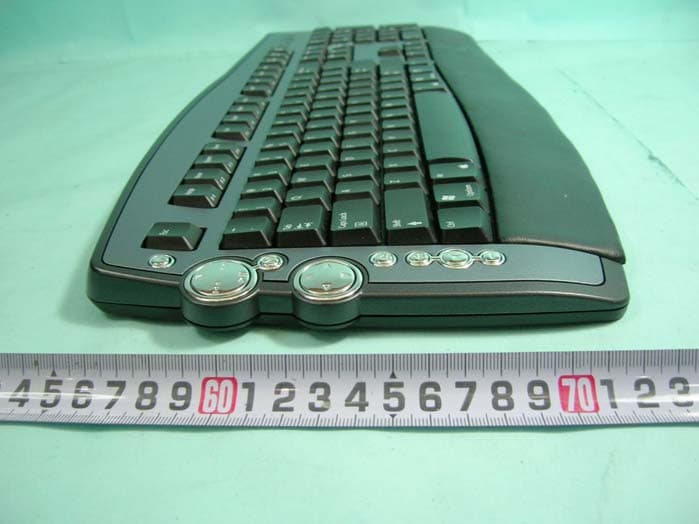
Click to zoom
Application Details
- Equipment Class
- DXX - Part 15 Low Power Communication Device Transmitter
- Date of Grant
- Feb 19, 2006
- Application Purpose
- Original Equipment
- Date of Application
- Feb 19, 2006
- Equipment Note
- PilotBoard Laser Wireless Desktop Set
- Frequency Range
- 2450.00000000 - 2450.00000000
- Company
- ACCO Brands, Inc.
- Country
- United States
Documents & Files
Document Text
Text extracted from the exhibit documents filed with the FCC. Open a document above to read the original.
Users Manual
PilotBoard Laser Wireless Desktop Set Instruction Guide Comfort Guidelines Important: Computer User Health Information In recent years, medical attention on occupational injuries has identifi ed normal, seemingly harmless activities as a potential cause of a wide range of problems collectively known as Repetitive Stress Injuries (RSI) or Cumulative Trauma Disorders (CTD). It is now recognized that any repetitive motion my contribute to these health problems. As a computer user, you might also be at risk. By paying attention to the way you perform your work, use your computer and phone, play sports, and work around the house, you can identify the behaviors that may be putting you at risk. If you experience pain, swelling, numbness, or weakness in your wrists or hands (especially during sleep), see your physician immediately. These symptoms could mean that you are developing a repetitive stress injury that requires prompt medical attention. For more detailed information, consult your doctor. For free information on computer ergonomics visit HealthyComputing.com. Registration Be sure to register your new PilotBoard Laser Wireless Desktop online at www.register.kensington.com. Registration offers you benefi ts including free access to technical support (other than app licable long-distance phone charges). System Requirements Windows 2000 or XP Mac OS X v. 2.8 or higher Getting Started Your Kensington PilotBoard Laser Wireless Keyboard and Mouse are confi gured to use out of the box. To use the basic functions, all you need to do is install the batteries and plug the wireless receiver into your computer. NOTE: You can install software from the CD to use additional features of the keyboard and mouse, such as one-touch access to media and Internet functions. See “Installing the Optional Software” for details. 1. Install the batteries in the keyboard and mouse according to the images shown in the battery compartment on each device. Installing the Optional Software You can install the KeyboardWorks™ for Desktops software drivers to use additional features of your keyboard and mouse. The software is included on the CD; however, if you want to make sure you are using the most current version, download the software from www.kensington.com. Installing this software enables you to do the following on your keyboard: • Use the Media and Internet/Task buttons • Use the F-Lock functions • View an onscreen alert when the keyboard or mouse battery is low • View an onscreen display of Caps Lock, Num Lock, and F-Lock • Customize your keyboard buttons and functions This software also enables you to customize your mouse’s buttons and functions, as well as to use the mouse tilt-wheel function on the center-click button. The Media Buttons These buttons let you quickly access functions when you are viewing photos or videos or listening to music using a media player on your computer. The Media buttons work with popular media players such as the following: Windows • Windows Media Player • iTunes • RealPlayer Mac • iTunes as well as other popular multimedia applications. The buttons may not work with all media players. The Internet/Task Buttons These buttons let you quickly perform tasks when viewing web pages in a browser or using an email application. They also perform common tasks such as opening the My Computer folder or using your computer’s calculator. The Internet buttons work with most popular web browsers including: Windows • Microsoft Internet Explorer • Netscape Navigator Mac • Microsoft Internet Explorer for Macintosh • Safari as well as other popular web browser applications. The buttons may not work with all web browsers and email applications. Sleep Mail Web|Home My Computer Search Refresh Calculator Keyboard Components G) Media Buttons. See “The Media Buttons” for details. H) Internet/Task Buttons. See “The Internet/Task Buttons” for details . I) Function Keys. See “The Function Keys” for details. � � � � ��� ���� ��� ���� ���� ��� ���� ����� ���������� ���� ������������ ����� ������ ������ ���� ����� ����� �� �� ���� �� �� �� �� �������� ��� ��� ��� ��� G I H 2. Plug the USB connector of the wireless receiver into an active USB port on your computer. On a Windows computer, the computer will display a Found New Hardware wizard the fi rst time you plug in the receiver. The keyboard and mouse work within about 10 meters (30 feet) of the receiver. If the keyboard or mouse is not working properly: • Make sure that there are no obstructions between the device and the receiver. • Try plugging the receiver into a different USB port on your computer. �� Instruction Guide Instructions Bedienungsanleitung Instructies Istruzioni Instrucciones A B C DEF Contents A) Wireless Keyboard B) 6-Button Mouse C) USB Wireless Receiver D) 4 AA Batteries E) CD F) Instruction Guide � � � � ��� ���� ��� ���� ���� ��� ���� ����� ���������� ���� ������������ ����� ������ ������ ���� ����� ����� �� �� ���� �� �� �� �� �������� ��� ��� ��� ��� About the Battery • Battery life for your PilotBoard Wireless Laser Mouse can be up to 9 months based on 8 hours per day, 5 days per week usage. • Your mouse includes an optional battery saving feature. To preserve battery life when not using the mouse for long periods of time, slide the switch to off. • Erratic mouse or keyboard behavior may indicate low battery power. Replace the batteries to solve this issue. • Always replace the batteries in sets, using the same age and brand of batteries. Always dispose of batteries properly. Switch Media Player dial pad Contains four functions: StopPressto stop the media player. Play/PausePressto play or pause the media player. NextPressto skip to the next item or track. PreviousPressto skip to the previous item or track. Media Starts your computer’s default media player. Scroll dial pad Press up, down, left, or right to scroll in that direction. Eject Ejects the media device (such as a CD) that is playing. Volume controls : Pressto increase the volume…
Text truncated - open the document above for the full version.
External Photos
SPORTON International Inc. PAGE NUMBER : A1 OF A9 TEL : 886-2-2696-2468 ISSUED DATE : Feb. 8, 2006 FAX : 886-2-2696-2255 APPENDIX A. Photographs of EUT SPORTON International Inc. PAGE NUMBER : A2 OF A9 TEL : 886-2-2696-2468 ISSUED DATE : Feb. 8, 2006 FAX : 886-2-2696-2255 SPORTON International Inc. PAGE NUMBER : A3 OF A9 TEL : 886-2-2696-2468 ISSUED DATE : Feb. 8, 2006 FAX : 886-2-2696-2255
Internal Photos
SPORTON International Inc. PAGE NUMBER : A4 OF A9 TEL : 886-2-2696-2468 ISSUED DATE : Feb. 8, 2006 FAX : 886-2-2696-2255 SPORTON International Inc. PAGE NUMBER : A5 OF A9 TEL : 886-2-2696-2468 ISSUED DATE : Feb. 8, 2006 FAX : 886-2-2696-2255 SPORTON International Inc. PAGE NUMBER : A6 OF A9 TEL : 886-2-2696-2468 ISSUED DATE : Feb. 8, 2006 FAX : 886-2-2696-2255 SPORTON International Inc. PAGE NUMBER : A7 OF A9 TEL : 886-2-2696-2468 ISSUED DATE : Feb. 8, 2006 FAX : 886-2-2696-2255 SPORTON International Inc. PAGE NUMBER : A8 OF A9 TEL : 886-2-2696-2468 ISSUED DATE : Feb. 8, 2006 FAX : 886-2-2696-2255 SPORTON International Inc. PAGE NUMBER : A9 OF A9 TEL : 886-2-2696-2468 ISSUED DATE : Feb. 8, 2006 FAX : 886-2-2696-2255
Operational Description
業盛科技股份有限公司 Transmitter 01. MCU will scan the button and optical sensor signal. If any signal change come from above mention. It will turn convert the data package With checking the low battery status data, and prepares turn on the RF power, Touch link button link to receiver.. then firmware will be setting the channel is ch1, if user want to use ch2, just need to touch link button link to receiver again, so, the channel is arrange in proper sequence, On this account to set up use same method. 02. When MCU received the signal of any key. Firstly, MCU will turn on the RF power, transmitter button or optical sensor data. 03. When the application MCU has data to send, set CE high. This activates RF2402 on-board data processing. 04.The address of the receiving node(RX address) and payload data is clocked into the nRF2402. The application protocol or MCU sets the speed(ex : 10kbps). 05.MCU sets CE low, this activates a nRF2402 ShockBurst transmission. 06.nRF2402 ShockBurst : . RF front end is powered up . RF package is completed(preamble added, CRC calculated) . Data is transmitted at high speed (250kbps or 1 Mbps configured by user) . nRF2402 returns to stand-by when finished 07.Power amplifier is to support enough current to drive the antenna. 08. . Matching circuit is to match the impedance between PA and antenna.. Receiver 01.When the PC power on, the receiver will start the PnP process. No-matter the interface is USB. 02. MCU will program power, If IC will perform the exact frequency, touch link button lock channel Frequency.. 03.When the RF signal comes, the low noise amplifier (LNA) will amplify the signal about 14 dB. 04.Correct address and size of payload of incoming RF package are set when nRF2401 is configured to Shock Burst RX. 05.To activate RX, set CE high. 06.After 200us setting. NRF2401 is monitoring the air for incoming communication. 07.When a valid package has been received(correct address and CRC found), nRF2401 removes the preamble, address and CRC bits. 08.nRF2401 then notifies(interrupts)the MCU by setting the DR1 pin high. 09.MCU may(or may not)set the CE low to disable the RF front end (low current mode). 10.The MCU clock out just the payload data at a suitable rate(ex.20kbps). 11.When all payload data is retrieved nRF2401 sets DR1 low again, and is ready for new incoming data package if CE is kept high during data download. If the CE was set low, a new start up sequence can begin. USB let PC to do their exact activity. 一、 Frequency scheme (I) Channel Keyboard frequency 1 2450MHz
Test Setup Photos
Report No.: FR592016-01 FCC ID: GV364385 Page No. : 1 of 3 Appendix B. Test Photos Report No.: FR592016-01 FCC ID: GV364385 Page No. : 3 of 3 Keyboard FRONT VIEW REAR VIEW
Contact Information
Applicant
Benjamin Hsu(Compliance Manager)
Technical Contact
Sporton International IncWayne Hsu
No 52, Hwa Ya 1st Rd., Hwa Ya Technology Park · Tao Yuan · Taiwan
Test Firm
Sporton International Inc.Kathy Lin
Technical Specifications
| # | Rule Parts | Frequency Range | Power Output |
|---|---|---|---|
| 1 | 15C | 2.45 GHz - 2.45 GHz | - |
Other Applications from ACCO Brands, Inc.
GV3M01709-K
Nov 28, 2024KB270 EQ Rechargeable Keyboard
Equipment Class
DTS - Digital Transmission SystemGV3M01500-MA
Jan 28, 2024Kensington Vertical Wireless Mouse
Equipment Class
DSS - Part 15 Spread Spectrum Transmitter
GV3M01687-M
Sep 17, 2023MY430 Rechargeable Mouse
Equipment Class
DTS - Digital Transmission System
GV3M01702-P
Sep 17, 2023Wireless Presenter with Red Laser-Nano Receiver
Equipment Class
DSS - Part 15 Spread Spectrum Transmitter
GV3M01440-KB
Aug 24, 2023Pro Fit Ergo Wireless Keyboard
Equipment Class
DSS - Part 15 Spread Spectrum Transmitter