HLZA1409Tablet Computer
Acer Incorporated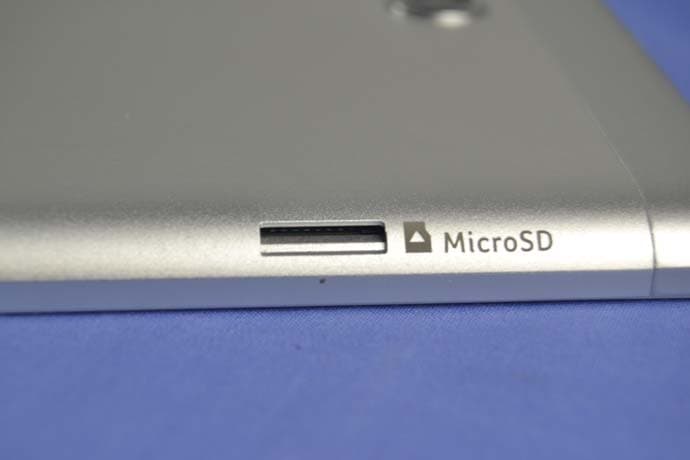
Click to zoom
Application Details
- Equipment Class
- DTS - Digital Transmission System
- Date of Grant
- Aug 24, 2014
- Application Purpose
- Original Equipment
- Date of Application
- Aug 24, 2014
- Equipment Note
- Tablet Computer
- Frequency Range
- 2402.00000000 - 2480.00000000
- Company
- Acer Incorporated
- Country
- Taiwan
Documents & Files
Document Text
Text extracted from the exhibit documents filed with the FCC. Open a document above to read the original.
Users Manual
Product overview 123 9 10 7 8 6 5 4 1. Audio jack 2. HDMI port 3. Micro USB port 4. Front camera 5. microSD card slot 6. Touchscreen 7. Power button 8. Volume button 9. Rear camera 10. Speaker * Components may vary. Home screen 1 2 3 4 5 5 6 Note: Your tablet may have a different wallpaper to the one shown. 1. Notification bar 2. Search 3. Widgets 4. Application menu (also known as "Apps") 5. App shortcuts 6. Navigation (Back, Home, Recent) Getting started Using your tablet 1. Connect the power adapter Charge your tablet for at least four hours. Note: It is normal for the device surface to become warm during charging or long periods of use. 2. Press the power button Hold until you see the Acer logo. Connecting to the Internet via Wi-Fi To connect to a Wi-Fi network, tap the Application menu, then tap Settings. Under Wireless & networks, ensure Wi-Fi is ON. Tap Wi-Fi and then tap a wireless network; if necessary enter a security password to access the network. How to register To register your Acer product, visit our website at registration.acer.com. After we receive your product registration, you will be sent a confirmation email with important data that you should keep in a safe place. Your tablet's User's Manual To download the User's Manual, go to www.acer.com and click Support > DRIVERS AND MANUALS. Select the appropriate items from Group > Series > Products. In the Documents tab, click Download next to the User's Manual. Connecting a Bluetooth device To connect to a bluetooth device, tap the Application menu, then tap Settings. Under Wireless & networks, ensure Bluetooth is ON. Tap Bluetooth and then SEARCH FOR DEVICES to scan for available devices. Then tap an available device to select a device. Note: A2DP stereo headsets are supported for playback only. Please check for updates to the tablet's software that may add support for additional Bluetooth devices. Restoring to factory settings Tap the Application menu, then tap Settings. Tap Backup & reset > Factory data reset; tap Reset tablet and then Erase everything to format your tablet. Updating your tablet’s operating system To check for updates, tap the Application menu, then tap Settings. Then tap About tablet > System updates > Check now. Safety and comfort SAFETY INSTRUCTIONS Read these instructions carefully. Keep this document for future reference. Follow all warnings and instructions marked on the product. Turning the product off before cleaning Unplug this product from the wall outlet before cleaning. Do not use liquid cleaners or aerosol cleaners. Use a damp cloth for cleaning. WARNINGS Accessing the power plug Be sure that the power outlet you plug the power cord into is easily accessible and located as close to the equipment operator as possible. When you need to disconnect power to the equipment, be sure to unplug the power plug from the electrical outlet. Mark sure the power plug is fixed at right position with the adaptor before plugging to the socket on the wall. Input rating: Refer to the rating label on the bottom of the computer and ensure that your power adapter complies with the specified rating. Under no circumstances should the user attempt to disassemble the power supply. The power supply has no user-replaceable parts. Inside the power supply are hazardous voltages that can cause serious personal injury. A defective power supply must be returned to your dealer. Using electrical power - If an extension cord is used with this product, make sure that the total ampere rating of the equipment plugged into the extension cord does not exceed the extension cord ampere rating. Also, make sure that the total rating of all products plugged into the wall outlet does not exceed the fuse rating. - Do not overload a power outlet, strip or receptacle by plugging in too many devices. The overall system load must not exceed 80% of the branch circuit rating. If power strips are used, the load should not exceed 80% of the power strip's input rating. General - Do not use this product near water. - Do not place this product on an unstable cart, stand or table. If the product falls, it could be seriously damaged. - Slots and openings are provided for ventilation to ensure reliable operation of the product and to protect it from overheating. These openings must not be blocked or covered. The openings should never be blocked by placing the product on a bed, sofa, rug or other similar surface. This product should never be placed near or over a radiator or heat register, or in a built-in installation unless proper ventilation is provided. - Never push objects of any kind into this product through cabinet slots as they may touch dangerous voltage points or shortout parts that could result in a fire or electric shock. Never spill liquid of any kind onto or into the product. - To avoid damage of internal components and to prevent battery leakage, do not place the product on a vibrating surface. - Your device and its enhancements may contain small parts. Keep them out of the reach of small children. Product servicing Do not attempt to service this product yourself, as opening or removing covers may expose you to dangerous voltage points or other risks. Refer all servicing to qualified service personnel. Unplug this product from the wall outlet and refer servicing to qualified service personnel when: - The power cord or plug is damaged, cut or frayed. - Liquid was spilled into the product. - The product was exposed to rain or water. - The product has been dropped or the case has been damaged. - The product exhibits a distinct change in performance, indicating a need for service. - The product does not operate normally after following the operating instructions. Note: Adjust only those controls that are covered by the operating instructions, since improper adjustment of other controls may result in damage and will often require extensive work by a qualified technician to restore the product to normal condition. DISPOSAL INSTRUCTIONS Do not t…
Text truncated - open the document above for the full version.
Users Manual
Product overview 123 9 10 7 8 6 5 4 1. Audio jack 2. HDMI port 3. Micro USB port 4. Front camera 5. microSD card slot 6. Touchscreen 7. Power button 8. Volume button 9. Rear camera 10. Speaker * Components may vary. Home screen 1 2 3 4 5 5 6 Note: Your tablet may have a different wallpaper to the one shown. 1. Notification bar 2. Search 3. Widgets 4. Application menu (also known as "Apps") 5. App shortcuts 6. Navigation (Back, Home, Recent) Getting started Using your tablet 1. Connect the power adapter Charge your tablet for at least four hours. Note: It is normal for the device surface to become warm during charging or long periods of use. 2. Press the power button Hold until you see the Acer logo. Connecting to the Internet via Wi-Fi To connect to a Wi-Fi network, tap the Application menu, then tap Settings. Under Wireless & networks, ensure Wi-Fi is ON. Tap Wi-Fi and then tap a wireless network; if necessary enter a security password to access the network. How to register To register your Acer product, visit our website at registration.acer.com. After we receive your product registration, you will be sent a confirmation email with important data that you should keep in a safe place. Your tablet's User's Manual To download the User's Manual, go to www.acer.com and click Support > DRIVERS AND MANUALS. Select the appropriate items from Group > Series > Products. In the Documents tab, click Download next to the User's Manual. Connecting a Bluetooth device To connect to a bluetooth device, tap the Application menu, then tap Settings. Under Wireless & networks, ensure Bluetooth is ON. Tap Bluetooth and then SEARCH FOR DEVICES to scan for available devices. Then tap an available device to select a device. Note: A2DP stereo headsets are supported for playback only. Please check for updates to the tablet's software that may add support for additional Bluetooth devices. Restoring to factory settings Tap the Application menu, then tap Settings. Tap Backup & reset > Factory data reset; tap Reset tablet and then Erase everything to format your tablet. Updating your tablet’s operating system To check for updates, tap the Application menu, then tap Settings. Then tap About tablet > System updates > Check now. Safety and comfort SAFETY INSTRUCTIONS Read these instructions carefully. Keep this document for future reference. Follow all warnings and instructions marked on the product. Turning the product off before cleaning Unplug this product from the wall outlet before cleaning. Do not use liquid cleaners or aerosol cleaners. Use a damp cloth for cleaning. WARNINGS Accessing the power plug Be sure that the power outlet you plug the power cord into is easily accessible and located as close to the equipment operator as possible. When you need to disconnect power to the equipment, be sure to unplug the power plug from the electrical outlet. Mark sure the power plug is fixed at right position with the adaptor before plugging to the socket on the wall. Input rating: Refer to the rating label on the bottom of the computer and ensure that your power adapter complies with the specified rating. Under no circumstances should the user attempt to disassemble the power supply. The power supply has no user-replaceable parts. Inside the power supply are hazardous voltages that can cause serious personal injury. A defective power supply must be returned to your dealer. Using electrical power - If an extension cord is used with this product, make sure that the total ampere rating of the equipment plugged into the extension cord does not exceed the extension cord ampere rating. Also, make sure that the total rating of all products plugged into the wall outlet does not exceed the fuse rating. - Do not overload a power outlet, strip or receptacle by plugging in too many devices. The overall system load must not exceed 80% of the branch circuit rating. If power strips are used, the load should not exceed 80% of the power strip's input rating. General - Do not use this product near water. - Do not place this product on an unstable cart, stand or table. If the product falls, it could be seriously damaged. - Slots and openings are provided for ventilation to ensure reliable operation of the product and to protect it from overheating. These openings must not be blocked or covered. The openings should never be blocked by placing the product on a bed, sofa, rug or other similar surface. This product should never be placed near or over a radiator or heat register, or in a built-in installation unless proper ventilation is provided. - Never push objects of any kind into this product through cabinet slots as they may touch dangerous voltage points or shortout parts that could result in a fire or electric shock. Never spill liquid of any kind onto or into the product. - To avoid damage of internal components and to prevent battery leakage, do not place the product on a vibrating surface. - Your device and its enhancements may contain small parts. Keep them out of the reach of small children. Product servicing Do not attempt to service this product yourself, as opening or removing covers may expose you to dangerous voltage points or other risks. Refer all servicing to qualified service personnel. Unplug this product from the wall outlet and refer servicing to qualified service personnel when: - The power cord or plug is damaged, cut or frayed. - Liquid was spilled into the product. - The product was exposed to rain or water. - The product has been dropped or the case has been damaged. - The product exhibits a distinct change in performance, indicating a need for service. - The product does not operate normally after following the operating instructions. Note: Adjust only those controls that are covered by the operating instructions, since improper adjustment of other controls may result in damage and will often require extensive work by a qualified technician to restore the product to normal condition. DISPOSAL INSTRUCTIONS Do not t…
Text truncated - open the document above for the full version.
Users Manual
Product overview 123 9 10 7 8 6 5 4 1. Audio jack 2. HDMI port 3. Micro USB port 4. Front camera 5. microSD card slot 6. Touchscreen 7. Power button 8. Volume button 9. Rear camera 10. Speaker * Components may vary. Home screen 1 2 3 4 5 5 6 Note: Your tablet may have a different wallpaper to the one shown. 1. Notification bar 2. Search 3. Widgets 4. Application menu (also known as "Apps") 5. App shortcuts 6. Navigation (Back, Home, Recent) Getting started Using your tablet 1. Connect the power adapter Charge your tablet for at least four hours. Note: It is normal for the device surface to become warm during charging or long periods of use. 2. Press the power button Hold until you see the Acer logo. Connecting to the Internet via Wi-Fi To connect to a Wi-Fi network, tap the Application menu, then tap Settings. Under Wireless & networks, ensure Wi-Fi is ON. Tap Wi-Fi and then tap a wireless network; if necessary enter a security password to access the network. How to register To register your Acer product, visit our website at registration.acer.com. After we receive your product registration, you will be sent a confirmation email with important data that you should keep in a safe place. Your tablet's User's Manual To download the User's Manual, go to www.acer.com and click Support > DRIVERS AND MANUALS. Select the appropriate items from Group > Series > Products. In the Documents tab, click Download next to the User's Manual. Connecting a Bluetooth device To connect to a bluetooth device, tap the Application menu, then tap Settings. Under Wireless & networks, ensure Bluetooth is ON. Tap Bluetooth and then SEARCH FOR DEVICES to scan for available devices. Then tap an available device to select a device. Note: A2DP stereo headsets are supported for playback only. Please check for updates to the tablet's software that may add support for additional Bluetooth devices. Restoring to factory settings Tap the Application menu, then tap Settings. Tap Backup & reset > Factory data reset; tap Reset tablet and then Erase everything to format your tablet. Updating your tablet’s operating system To check for updates, tap the Application menu, then tap Settings. Then tap About tablet > System updates > Check now. Safety and comfort SAFETY INSTRUCTIONS Read these instructions carefully. Keep this document for future reference. Follow all warnings and instructions marked on the product. Turning the product off before cleaning Unplug this product from the wall outlet before cleaning. Do not use liquid cleaners or aerosol cleaners. Use a damp cloth for cleaning. WARNINGS Accessing the power plug Be sure that the power outlet you plug the power cord into is easily accessible and located as close to the equipment operator as possible. When you need to disconnect power to the equipment, be sure to unplug the power plug from the electrical outlet. Mark sure the power plug is fixed at right position with the adaptor before plugging to the socket on the wall. Input rating: Refer to the rating label on the bottom of the computer and ensure that your power adapter complies with the specified rating. Under no circumstances should the user attempt to disassemble the power supply. The power supply has no user-replaceable parts. Inside the power supply are hazardous voltages that can cause serious personal injury. A defective power supply must be returned to your dealer. Using electrical power - If an extension cord is used with this product, make sure that the total ampere rating of the equipment plugged into the extension cord does not exceed the extension cord ampere rating. Also, make sure that the total rating of all products plugged into the wall outlet does not exceed the fuse rating. - Do not overload a power outlet, strip or receptacle by plugging in too many devices. The overall system load must not exceed 80% of the branch circuit rating. If power strips are used, the load should not exceed 80% of the power strip's input rating. General - Do not use this product near water. - Do not place this product on an unstable cart, stand or table. If the product falls, it could be seriously damaged. - Slots and openings are provided for ventilation to ensure reliable operation of the product and to protect it from overheating. These openings must not be blocked or covered. The openings should never be blocked by placing the product on a bed, sofa, rug or other similar surface. This product should never be placed near or over a radiator or heat register, or in a built-in installation unless proper ventilation is provided. - Never push objects of any kind into this product through cabinet slots as they may touch dangerous voltage points or shortout parts that could result in a fire or electric shock. Never spill liquid of any kind onto or into the product. - To avoid damage of internal components and to prevent battery leakage, do not place the product on a vibrating surface. - Your device and its enhancements may contain small parts. Keep them out of the reach of small children. Product servicing Do not attempt to service this product yourself, as opening or removing covers may expose you to dangerous voltage points or other risks. Refer all servicing to qualified service personnel. Unplug this product from the wall outlet and refer servicing to qualified service personnel when: - The power cord or plug is damaged, cut or frayed. - Liquid was spilled into the product. - The product was exposed to rain or water. - The product has been dropped or the case has been damaged. - The product exhibits a distinct change in performance, indicating a need for service. - The product does not operate normally after following the operating instructions. Note: Adjust only those controls that are covered by the operating instructions, since improper adjustment of other controls may result in damage and will often require extensive work by a qualified technician to restore the product to normal condition. DISPOSAL INSTRUCTIONS Do not t…
Text truncated - open the document above for the full version.
Users Manual
FCC INFORMATION (additional) Note: This equipment has been tested and found to comply with the limits for a Class B digital device, pursuant to part 15 of the FCC Rules. These limits are designed to provide reasonable protection against harmful interference in a residential installation. This equipment generates, uses and can radiate radio frequency energy and, if not installed and used in accordance with the instructions, may cause harmful interference to radio communications. However, there is no guarantee that interference will not occur in a particular installation. If this equipment does cause harmful interference to radio or television reception, which can be determined by turning the equipment off and on, the user is encouraged to try to correct the interference by one or more of the following measures: —Reorient or relocate the receiving antenna. —Increase the separation between the equipment and receiver. —Connect the equipment into an outlet on a circuit different from that to which the receiver is connected. —Consult the dealer or an experienced radio/TV technician for help. Caution: Any changes or modifications not expressly approved by the party responsible for compliance could void the user's authority to operate this equipment. RF Exposure: The maximum measured Body SAR value for this device is 0.781 W/kg.
Cover Letter(s)
Acer Incorporated 8F, 88, Sec. 1, Hsin Tai Wu Rd., Hsichih New Taipei City 22181, Taiwan, R.O.C. TEL: +886-2-2696-3131 ext.3089 Fax : 886-2-8691-3120 www.acer.com Date:2011/8/22 To who may concern, I, the undersigned, responsible for the designated person in FCC grant communicator / IC company code contactor, hereby authorized RU Jan to sign the FCC / IC application form for certification process. Thank you, Sincerely Yours, Contact Person: Harriot S.L. Lee Company Name: Acer Incorporated E-Mail: [email protected]
Cover Letter(s)
Acer Incorporated 8F, 88, Sec 1, Hsin Tai Wu Rd Hsichih, Taipei Hsien, 221Taiwan FCC Authorization Letter Number:CF304 Version:V01 Date: 01-02-2010 We, (the approval holder) Company name Acer Incorporated Address 8F, 88, Sec 1, Hsin Tai Wu Rd Hsichih, Taipei Hsien, 221Taiwan City Taiwan Country declare that the following representative (agent): Name (person) Ruby zhang Function Supervisor Company name Compliance Certification Services (Shenzhen) Inc. Addresss No10-1, Mingkeda Logistics Park, No.18 Huanguan South RD. Guan lan Town, Baoan District, Shenzhen China City Shenzhen Country China is hereby authorized to apply the following equipment for certification on our behalf: Product Description Tablet Computer Type or Model(s) A1409 Tradename or Brand(s) acer We also authorize Teleconformity, Mr. M. Koop, (address: Rietven 31, 7534NH Enschede, Netherlands) to process this application. Attestation: City and Country: Date:Name: (this must be a person) Function:Signature: (or official company stamp) Taipei Taiwan RU JanSr. Manager
External Photos
Report No: C140707Z04 Page 1 / 8 External Photos of EUT Report No: C140707Z04 Page 2 / 8 Report No: C140707Z04 Page 3 / 8 Report No: C140707Z04 Page 4 / 8 Report No: C140707Z04 Page 5 / 8 Adapter 1: Chicony / W12-010N3A Report No: C140707Z04 Page 6 / 8 Report No: C140707Z04 Page 7 / 8 Adapter 2: Delta / ADP-10HW A Report No: C140707Z04 Page 8 / 8
Internal Photos
Report No: C140707Z04 Page 1 / 12 Internal Photos of EUT Report No: C140707Z04 Page 2 / 12 Report No: C140707Z04 Page 3 / 12 Report No: C140707Z04 Page 4 / 12 Report No: C140707Z04 Page 5 / 12 Report No: C140707Z04 Page 6 / 12 Report No: C140707Z04 Page 7 / 12 GPS Module: BCM4752 BT & WIFI Antenna RF Module: BCM43340 Report No: C140707Z04 Page 8 / 12 Report No: C140707Z04 Page 9 / 12 Report No: C140707Z04 Page 10 / 12 Panel 1: KD080D10-31NA-A7 Report No: C140707Z04 Page 11 / 12 GPS Antenna Report No: C140707Z04 Page 12 / 12 Panel 2: FL080XW001
RF Exposure Info
Compliance Certification Services Inc. Report No: C140714S10-SF FCC ID: HLZA1409 Date of Issue :August 5, 2014 IC: 1754F-A1409 Page 1 of 66 This report shall not be reproduced except in full, without the written approval of Compliance Certification Services. ANSI/IEEE Std. C95.1-1992 In accordance with the requirements of FCC Report and Order: ET Docket 93-62;FCC 47 CFR Part 2 ( 2.1093) IC RSS-102 Issue 4, March 2010 IEC 62209-2:2010 FCC SAR TEST REPORT For Product Name: Tablet Computer Brand Name: Acer Model No.: A1409 Series Model: N/A Test Report Number: C140714S10-SF Issued for Acer Incorporated 8F, 88, Sec 1, Xintai 5th Rd. Xizhi, New Taipei City 221 Taiwan, R.O.C Issued by Compliance Certification Services Inc. Kun shan Laboratory No.10 Weiye Rd., Innovation park, Eco&Tec, Development Zone, Kunshan City, Jiangsu, China TEL: 86-512-57355888 FAX: 86-512-57370818 Note: This report shall not be reproduced except in full, without the written approval of Compliance Certification Services Inc. This document may be altered or revised by Compliance Certification Services Inc. personnel only, and shall be noted in the revision section of the document. The client should not use it to claim product endorsement by A2LA or any government agencies. The test results in the report only apply to the tested sample. Compliance Certification Services Inc. Report No: C140714S10-SF FCC ID: HLZA1409 Date of Issue :August 5, 2014 IC: 1754F-A1409 Page 2 of 66 This report shall not be reproduced except in full, without the written approval of Compliance Certification Services. Revision History Revision REPORT NO. Date Page Revised Contents Original C140714S10-SF August 5, 2014 N/A N/A Compliance Certification Services Inc. Report No: C140714S10-SF FCC ID: HLZA1409 Date of Issue :August 5, 2014 IC: 1754F-A1409 Page 3 of 66 This report shall not be reproduced except in full, without the written approval of Compliance Certification Services. TABLE OF CONTENTS 1. CERTIFICATE OF COMPLIANCE (SAR EVALUATION) ........................................................... 4 2. EUT DESCRIPTION....................................................................................................................5 3. REQUIREMENTS FOR COMPLIANCE TESTING DEFINED BY THE FCC................................ 6 4. TEST METHODOLOGY.............................................................................................................. 6 5. TEST CONFIGURATION ............................................................................................................ 6 6. DOSIMETRIC ASSESSMENT SETUP........................................................................................ 7 6.1 MEASUREMENT SYSTEM DIAGRAM ...........................................................................................................8 6.2 SYSTEM COMPONENTS...............................................................................................................................9 7. EVALUATION PROCEDURES ................................................................................................. 12 8. MEASUREMENT UNCERTAINTY............................................................................................ 16 9. EXPOSURE LIMIT .................................................................................................................... 17 10. MEASUREMENT RESULTS..................................................................................................... 18 10.1 TEST LIQUIDS CONFIRMATION ...............................................................................................................18 10.2 LIQUID MEASUREMENT RESULTS ..........................................................................................................19 10.3 SYSTEM PERFORMANCE CHECK...........................................................................................................20 10.4 EUT TUNE-UP PROCEDURES AND TEST MODE....................................................................................22 10.5 STANDALONE SAR TEST EXCLUSION ....................................................................................................23 10.6 SAR TEST CONFIGURATIONS..................................................................................................................25 10.7 ANTENNA LOCATION ................................................................................................................................26 10.8 BODY TEST EXCLUSION THRESHOLDS .................................................................................................27 10.9 EUT SETUP PHOTOS ................................................................................................................................28 10.10 SAR MEASUREMENT RESULTS..........................................................................................................29 10.11 REPEATED SAR MEASUREMENT .......................................................................................................29 10.12 ESTIMATED SAR ..................................................................................................................................29 11. EUT PHOTO ............................................................................................................................. 30 12. EQUIPMENT LIST & CALIBRATION STATUS........................................................................ 35 13. FACILITIES............................................................................................................................... 36 14. REFERENCES.......................................................................................................................... 36 15. ATTACHMENTS ....................................................................................................................... 37 Appendix A: Plots of Performance Check..............................................................................…
Text truncated - open the document above for the full version.
RF Exposure Info
Compliance Certification Services Inc. Report No: C140714S10-SF FCC ID: HLZA1409 Date of Issue :August 5, 2014 IC: 1754F-A1409 Page 1 of 7 WIFI-Body Low Rear Low CH1 battery 1......................................................................................... 2 WIFI-Body Middle Rear Middle CH6 battery 1............................................................................... 3 WIFI-Body Rear High CH11 with battery 1...................................................................................... 4 WIFI-Body-Edge 1 High CH11 with battery 1................................................................................. 5 WIFI-Body-Edge 2 High CH11 with battery 1................................................................................. 6 WIFI-Body- Rear Middle CH6 with battery 2................................................................................... 7 Compliance Certification Services Inc. Report No: C140714S10-SF FCC ID: HLZA1409 Date of Issue :August 5, 2014 IC: 1754F-A1409 Page 2 of 7 Test Laboratory: Compliance Certification Services Inc. Date: 7/21/2014 WIFI-Body Low Rear Low CH1 battery 1 DUT: Tablet Computer; Type: A1409; Serial: N/A Communication System: IEEE 802.11b; Communication System Band: ISM 2.4GHz Band; Frequency: 2412 MHz;Duty Cycle: 1:1 Medium parameters used: f = 2412 MHz; σ = 1.901 S/m; ε r = 52.544; ρ = 1000 kg/m 3 Room Ambient Temperature: 22°C; Liquid Temperature: 21.5°C Phantom section: Flat Section Measurement Standard: DASY5 (IEEE/IEC/ANSI C63.19-2007) DASY Configuration: • Probe: EX3DV4 - SN3753; ConvF(7.31, 7.31, 7.31); Calibrated: 3/26/2014; • Sensor-Surface: 1.4mm (Mechanical Surface Detection) • Electronics: DAE4 Sn914; Calibrated: 12/18/2013 • Phantom: ELI v4.0; Type: QDOVA001BB; Serial: TP:xxxx • DASY52 52.8.8(1222); • SEMCAD X Version 14.6.10 (7331) WIFI/IEEE802.11b Body Rear Low CH1/Area Scan (8x8x1): Measurement grid: dx=12mm, dy=12mm Maximum value of SAR (measured) = 1.29 W/kg WIFI/IEEE802.11b Body Rear Low CH1/Zoom Scan (7x7x7)/Cube 0: Measurement grid: dx=5mm, dy=5mm, dz=5mm Reference Value = 0 V/m; Power Drift = 0.00 dB Peak SAR (extrapolated) = 1.78 W/kg SAR(1 g) = 0.625 W/kg; SAR(10 …
Text truncated - open the document above for the full version.
Contact Information
Applicant
RU Jan(Sr. Manager)
Technical Contact
Test Firm
Compliance Certification Services (Shenzhen) Inc.Harry Li
Technical Specifications
| # | Rule Parts | Frequency Range | Power Output |
|---|---|---|---|
| 3 | 15C | 2.40 GHz - 2.48 GHz | 2.70 mW |
Other Applications from Acer Incorporated
HLZA26007
Aug 07, 2026Tablet PC
Equipment Class
DTS - Digital Transmission SystemHLZA26003
Jul 28, 2026Tablet PC
Equipment Class
6XD - 15E 6 GHz Low Power Indoor ClientHLZAMR570
Apr 21, 2026Acer Wireless Mouse
Equipment Class
DTS - Digital Transmission SystemHLZ-NSK510
Apr 09, 2026Gaming sound bar
Equipment Class
DSS - Part 15 Spread Spectrum TransmitterHLZA26002
Apr 01, 2026Tablet PC
Equipment Class
NII - Unlicensed National Information Infrastructure TX