HLZDA241HLAndroid All-in-One
Acer Incorporated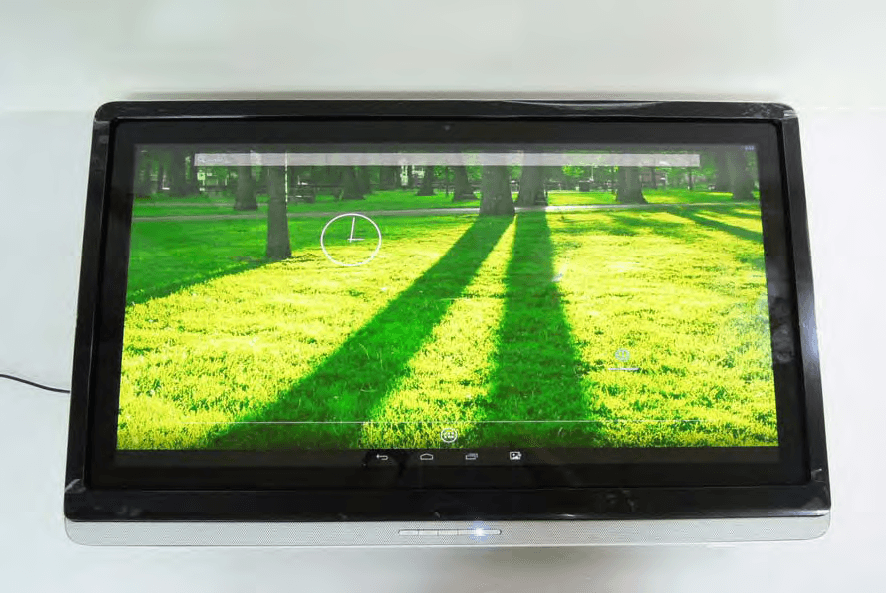
Click to zoom
Application Details
- Equipment Class
- DTS - Digital Transmission System
- Date of Grant
- Aug 07, 2013
- Application Purpose
- Original Equipment
- Date of Application
- Jul 31, 2013
- Equipment Note
- Android All-in-One
- Frequency Range
- 2412.00000000 - 2462.00000000
- Company
- Acer Incorporated
- Country
- Taiwan
Documents & Files
Document Text
Text extracted from the exhibit documents filed with the FCC. Open a document above to read the original.
Users Manual
1 English DA241HL Quick Start Guide Important safety instructions Please read the following instructions carefully. 1To clean the DA241HL screen: •Turn off the DA241HL and unplug the power cord. •Spray a non-solvent cleaning solution onto a rag and clean the screen gently. 2Do not place the DA241HL near a window. Exposing the monitor to rain, moisture or sunlight can severely damage it. 3Do not apply pressure to the LCD screen. Excessive pressure may cause permanent damage to the display. 4Do not remove the cover or attempt to service this unit yourself. An authorized technician should perform servicing of any nature. 5Store the DA241HL in a room with a temperature of -20° to 60° C (-4° to140° F). Storing the DA241HL outside this range may result in permanent damage. 6Immediately unplug your monitor and call an authorized technician if any of the following circumstances occur: •Monitor-to-PC signal cable is frayed or damaged. •Liquid spills onto the DA241HL or the monitor is exposed to rain. •The DA241HL or case is damaged. Package contents * : Optional Connecting your monitor to a computer 1Turn off your computer and unplug your computer's power cord. 2Connect the HDMI cable to the HDMI input socket of the monitor, and the HDMI output socket of the graphics card on the computer. 3Optional: Connect the micro USB port of the DA241HL and the USB-out port on the computer with the USB cable. 4Plug the DA241HL’s power adapter into the power port at the back of the monitor. 5Plug the power cords of your computer and your monitor into a nearby electrical outlet. 6Press the power button and the DA241HL turns on. 7To switch to HDMI display, press the function keys to select or adjust an option. Please refer to the User Guide for information about setting up your DA241HL. Turning on for the first time You will be asked some questions before you can use your monitor as a DA241HL. To set up or access a Google account, connect your DA241HL to an Ethernet or Wi-Fi access point. External controls To change the volume, press the right function button to view the OSD. Slide the volume bar left or right. DA241HLPower cord and adapter * Keyboard and Mouse * Mini USB cable * HDMI cable (with MHL support) Quick start guide and setup guide * User manual Power button Turns the display on/off. White indicates power on. When using the HDMI input, press the left function button to select or adjust an option. 2 English Regulations and safety notices FCC notices This device has been tested and found to comply with the limits for a Class B digital device pursuant to Part 15 of the FCC rules. These limits are designed to provide reasonable protection against harmful interference in a residential installation. This device generates, uses, and can radiate radio frequency energy and, if not installed and used in accordance with the instructions, may cause harmful interference to radio communications. However, there is no guarantee that interference will not occur in a particular installation. If this device does cause harmful interference to radio or television reception, which can be determined by turning the device off and on, the user is encouraged to try to correct the interference by one or more of the following measures: •Reorient or relocate the receiving antenna. •Increase the separation between the device and receiver. •Connect the device into an outlet on a circuit different from that to which the receiver is connected. •Consult the dealer or an experienced radio/television technician for help. CE declaration of conformity Hereby, Acer Inc., declares that this LCD monitor is in compliance with the essential requirements and other relevant provisions of EMC Directive 2004/108/EC, Low Voltage Directive 2006/95/EC, R&TTE Directive 1999/5/ EC and RoHS Directive 2002/95/EC, and Directive 2009/125/EC with regard to establishing a framework for the setting of ecodesign requirements for energy-related product. Notice: Shielded cables All connections to other computing devices must be made using shielded cables to maintain compliance with EMC regulations. Notice: Peripheral devices Only peripherals (input/output devices, terminals, printers, etc.) certified to comply with the Class B limits may be attached to this equipment. Operation with non-certified peripherals is likely to result in interference to radio and TV reception. Caution Changes or modifications not expressly approved by the manufacturer could void the user authority, which is granted by the Federal Communications Commission, to operate this product. Operation conditions This device complies with Part 15 of the FCC Rules. Operation is subject to the following two conditions: (1) this device may not cause harmful interference, and (2) this device must accept any interference received, including interference that may cause undesired operation. Notice: Canadian users This Class B digital apparatus complies with Canadian ICES-003. Cet appareil numérique de la classe B est conforme a la norme NMB-003 du Canada. This device complies with Industry Canada licence-exempt RSS standard(s). Operation is subject to the following two conditions: (1) This device may not cause interference, and (2) this device must accept any interference, including interference that may cause undesired operation of the device. Le present appareil est conforme aux CNR d'Industrie Canada applicables aux appareils radio exempts de licence. L'exploitation est autorisee aux deux conditions suivantes: (1) l'appareil ne doit pas produire de brouillage, et (2) l'utilisateur de l'appareil doit accepter tout brouillage radioelectrique subi, meme si le brouillage est susceptible d'en. RF exposure warning This equipment must be installed and operated in accordance with provided instructions and the antenna(s) used for this transmitter must be installed to provide a separation distance of at least 20 cm from all persons and must not be co-located or operating in conjunction with any other antenna or…
Text truncated - open the document above for the full version.
Users Manual
1 Français Guide de mise en route rapide DA241HL Consignes de sécurité importantes Veuillez lire attentivement les instructions suivantes. 1Pour nettoyer l’écran du DA241HL : •Éteignez le DA241HL et débranchez le cordon d’alimentation. •Vaporisez une solution de nettoyage sans solvant sur un chiffon et nettoyez doucement l’écran. 2Ne placez pas le DA241HL près d’une fenêtre. Exposer le moniteur à la pluie, à l’humidité ou à la lumière du soleil peut l’endommager sérieusement. 3N’appliquez pas de pression sur l’écran LCD. Une pression excessive peut causer des dommages permanents à l’affichage. 4Ne retirez pas le couvercle ou n’essayez pas de réparer cet appareil vous-même. Un technicien agréé doit effectuer la maintenance de toute nature. 5Stockez le DA241HL dans une pièce dont la température est comprise entre -20° à 60°C (-4° à 140°F). Si vous stockez le DA241HL à une température hors de ces limites, vous risquez de lui causer des dommages permanents. 6Débranchez immédiatement le moniteur et appelez un technicien agréé si l’une des circonstances suivantes se produit : •Le câble de signal du moniteur au PC est dénudé ou endommagé. •Du liquide a été renversé sur le DA241HL, ou bien il a été exposé à la pluie. •Le DA241HL ou le boîtier est endommagé. Contenu de l’emballage * : Optionnel Connecter votre moniteur à un ordinateur 1Mettez votre ordinateur hors tension et débranchez le cordon d’alimentation de votre ordinateur. 2Connectez le câble HDMI à la prise d’entrée HDMI du moniteur et à la prise de sortie HDMI de la carte graphique de l’ordinateur. 3Optionnel : Connectez le port micro USB du DA241HL et le port USB sur l’ordinateur avec le câble USB. 4Branchez l’adaptateur secteur du DA241HL dans le port d’alimentation à l’arrière du moniteur. 5Branchez les cordons d’alimentation de votre ordinateur et de votre moniteur dans une prise électrique à proximité. 6Appuyez sur le bouton d’alimentation et le DA241HL s’allume. 7Pour passer à l’affichage HDMI, appuyez les touches de fonction pour sélectionner ou ajuster une option. Veuillez consulter le Guide utilisateur pour obtenir des informations sur la configuration de votre DA241HL. Allumer l’appareil pour la première fois Vous devrez répondre à quelques questions avant de pouvoir utiliser votre moniteur en tant que DA241HL. Pour configurer ou accéder à un compte Google, connectez votre DA241HL à un réseau Ethernet ou point d’accès Wi-Fi. Contrôles externes Pour changer le volume, appuyez la touche de fonction droite pour afficher l’OSD. Faites glisser la barre de volume vers la gauche ou la droite. DA241HL Cordon d’alimentation et adaptateur * Câble micro USB Câble mini USB * Câble HDMI (avec prise en charge de MHL) Guide de démarrage rapide et guide de configuration * Manuel d’utilisation Bouton d’alimentation Allume et éteint l’affichage. Blanc indique qu’il est allumé. Lors de l’utilisation de l’entrée HDMI, appuyez le bouton de fonction gauche pour sélectionner ou ajuster une option. 2 Français Avis réglementaires et de sécurité Avis FCC Cet appareil a été testé et reconnu conforme aux normes applicables au matériel informatique de Classe B, en vertu de l’article 15 des Réglementations de la FCC. Ces normes visent à fournir aux installations résidantes une protection raisonnable contre les interférences. Cet appareil génère, utilise et peut diffuser des signaux radioélectriques. En outre, s’il n’est pas installé et employé conformément aux instructions, il peut provoquer des interférences nuisibles aux communications radio. Quoi qu’il en soit, on ne peut pas garantir que des interférences ne se produiront pas dans certaines installations. Si l’appareil est à l’origine de nuisances vis-à-vis de la réception de la radio ou de la télévision, ce que l’on peut déterminer en l’allumant puis en l’éteignant, il est recommandé à l’utilisateur de prendre l’une des mesures suivantes pour tenter de remédier à ces interférences: •Réorientez ou changez l’antenne réceptrice de place. •Éloignez l’appareil du récepteur. •Branchez l’appareil à une prise appartenant à un circuit différent de celui du récepteur. •Consultez le fournisseur ou un technicien radiotélévision expérimenté. Déclaration de conformité CE Par la présente Acer Inc, déclare que ce moniteur LCD est conforme aux exigences essentielles et aux autres dispositions pertinentes de la Directive CEM 2004/108/CE, directive Basse Tension 2006/95/CE, Directive R&TTE 1999/5/CE et la directive RoHS 2002/95/CE et la directive 2009/125/CE en ce qui concerne l’établissement d’un cadre pour la fixation d’exigences en matière d’écoconception applicables aux produits liés à l’énergie. Avis : Câbles blindés Des câbles blindés doivent être utilisés pour la connexion avec d’autres appareils informatiques afin de conserver la conformité aux normes CEM. Avis : Appareils périphériques Seuls des périphériques (appareils entrée/sortie, terminaux, imprimantes) certifiés comme étant conformes aux limites de la classe B peuvent être connectés à cet appareil. Le fonctionnement avec des périphériques non certifiés causera probablement nuisances vis-à-vis de la réception de la radio ou de la télévision. Attention Les changements ou modifications qui ne seraient pas expressément approuvés par le fabricant, pourraient faire perdre à l’utilisateur le droit à faire fonctionner ce produit qui est décerné par la Federal Communications Commission. Conditions de fonctionnement Cet appareil est conforme à l’article 15 des Réglementations de la FCC. Le fonctionnement est subordonné aux deux conditions suivantes : (1) cet appareil ne doit pas provoquer d’interférences nuisibles, et (2) cet appareil doit accepter toute interférence reçue, y compris des interférences qui peuvent provoquer un fonctionnement non désiré. Avis : Canadian users This Class B digital apparatus complies with Canadian ICES-003. Cet appareil numérique de la classe B est conforme à la norme NMB-003 du Canada. Le fonctionnement est subordonné aux deux conditi…
Text truncated - open the document above for the full version.
Users Manual
1 English N1-2400 Quick Start Guide Important safety instructions Please read the following instructions carefully. 1To clean the N1-2400 screen: •Turn off the N1-2400 and unplug the power cord. •Spray a non-solvent cleaning solution onto a rag and clean the screen gently. 2Do not place the N1-2400 near a window. Exposing the monitor to rain, moisture or sunlight can severely damage it. 3Do not apply pressure to the LCD screen. Excessive pressure may cause permanent damage to the display. 4Do not remove the cover or attempt to service this unit yourself. An authorized technician should perform servicing of any nature. 5Store the N1-2400 in a room with a temperature of -20° to 60° C (-4° to140° F). Storing the N1-2400 outside this range may result in permanent damage. 6Immediately unplug your monitor and call an authorized technician if any of the following circumstances occur: •Monitor-to-PC signal cable is frayed or damaged. •Liquid spills onto the N1-2400 or the monitor is exposed to rain. •The N1-2400 or case is damaged. Package contents * : Optional Connecting your monitor to a computer 1Turn off your computer and unplug your computer's power cord. 2Connect the HDMI cable to the HDMI input socket of the monitor, and the HDMI output socket of the graphics card on the computer. 3Optional: Connect the micro USB port of the N1-2400 and the USB-out port on the computer with the USB cable. 4Plug the N1-2400’s power adapter into the power port at the back of the monitor. 5Plug the power cords of your computer and your monitor into a nearby electrical outlet. 6Press the power button and the N1-2400 turns on. 7To switch to HDMI display, press the function keys to select or adjust an option. Please refer to the User Guide for information about setting up your N1-2400. Turning on for the first time You will be asked some questions before you can use your monitor as a N1-2400. To set up or access a Google account, connect your N1-2400 to an Ethernet or Wi-Fi access point. External controls To change the volume, press the right function button to view the OSD. Slide the volume bar left or right. N1-2400Power cord and adapter * Keyboard and Mouse * Mini USB cable * HDMI cable (with MHL support) Quick start guide and setup guide * User manual Power button Turns the display on/off. White indicates power on. When using the HDMI input, press the left function button to select or adjust an option. 2 English Regulations and safety notices FCC notices This device has been tested and found to comply with the limits for a Class B digital device pursuant to Part 15 of the FCC rules. These limits are designed to provide reasonable protection against harmful interference in a residential installation. This device generates, uses, and can radiate radio frequency energy and, if not installed and used in accordance with the instructions, may cause harmful interference to radio communications. However, there is no guarantee that interference will not occur in a particular installation. If this device does cause harmful interference to radio or television reception, which can be determined by turning the device off and on, the user is encouraged to try to correct the interference by one or more of the following measures: •Reorient or relocate the receiving antenna. •Increase the separation between the device and receiver. •Connect the device into an outlet on a circuit different from that to which the receiver is connected. •Consult the dealer or an experienced radio/television technician for help. CE declaration of conformity Hereby, Acer Inc., declares that this LCD monitor is in compliance with the essential requirements and other relevant provisions of EMC Directive 2004/108/EC, Low Voltage Directive 2006/95/EC, R&TTE Directive 1999/5/ EC and RoHS Directive 2002/95/EC, and Directive 2009/125/EC with regard to establishing a framework for the setting of ecodesign requirements for energy-related product. Notice: Shielded cables All connections to other computing devices must be made using shielded cables to maintain compliance with EMC regulations. Notice: Peripheral devices Only peripherals (input/output devices, terminals, printers, etc.) certified to comply with the Class B limits may be attached to this equipment. Operation with non-certified peripherals is likely to result in interference to radio and TV reception. Caution Changes or modifications not expressly approved by the manufacturer could void the user authority, which is granted by the Federal Communications Commission, to operate this product. Operation conditions This device complies with Part 15 of the FCC Rules. Operation is subject to the following two conditions: (1) this device may not cause harmful interference, and (2) this device must accept any interference received, including interference that may cause undesired operation. Notice: Canadian users This Class B digital apparatus complies with Canadian ICES-003. Cet appareil numérique de la classe B est conforme a la norme NMB-003 du Canada. This device complies with Industry Canada licence-exempt RSS standard(s). Operation is subject to the following two conditions: (1) This device may not cause interference, and (2) this device must accept any interference, including interference that may cause undesired operation of the device. Le present appareil est conforme aux CNR d'Industrie Canada applicables aux appareils radio exempts de licence. L'exploitation est autorisee aux deux conditions suivantes: (1) l'appareil ne doit pas produire de brouillage, et (2) l'utilisateur de l'appareil doit accepter tout brouillage radioelectrique subi, meme si le brouillage est susceptible d'en. RF exposure warning This equipment must be installed and operated in accordance with provided instructions and the antenna(s) used for this transmitter must be installed to provide a separation distance of at least 20 cm from all persons and must not be co-located or operating in conjunction with any other antenna or…
Text truncated - open the document above for the full version.
Users Manual
1 Français Guide de mise en route rapide N1-2400 Consignes de sécurité importantes Veuillez lire attentivement les instructions suivantes. 1Pour nettoyer l’écran du N1-2400 : •Éteignez le N1-2400 et débranchez le cordon d’alimentation. •Vaporisez une solution de nettoyage sans solvant sur un chiffon et nettoyez doucement l’écran. 2Ne placez pas le N1-2400 près d’une fenêtre. Exposer le moniteur à la pluie, à l’humidité ou à la lumière du soleil peut l’endommager sérieusement. 3N’appliquez pas de pression sur l’écran LCD. Une pression excessive peut causer des dommages permanents à l’affichage. 4Ne retirez pas le couvercle ou n’essayez pas de réparer cet appareil vous-même. Un technicien agréé doit effectuer la maintenance de toute nature. 5Stockez le N1-2400 dans une pièce dont la température est comprise entre -20° à 60°C (-4° à 140°F). Si vous stockez le N1-2400 à une température hors de ces limites, vous risquez de lui causer des dommages permanents. 6Débranchez immédiatement le moniteur et appelez un technicien agréé si l’une des circonstances suivantes se produit : •Le câble de signal du moniteur au PC est dénudé ou endommagé. •Du liquide a été renversé sur le N1-2400, ou bien il a été exposé à la pluie. •Le N1-2400 ou le boîtier est endommagé. Contenu de l’emballage * : Optionnel Connecter votre moniteur à un ordinateur 1Mettez votre ordinateur hors tension et débranchez le cordon d’alimentation de votre ordinateur. 2Connectez le câble HDMI à la prise d’entrée HDMI du moniteur et à la prise de sortie HDMI de la carte graphique de l’ordinateur. 3Optionnel : Connectez le port micro USB du N1-2400 et le port USB sur l’ordinateur avec le câble USB. 4Branchez l’adaptateur secteur du N1-2400 dans le port d’alimentation à l’arrière du moniteur. 5Branchez les cordons d’alimentation de votre ordinateur et de votre moniteur dans une prise électrique à proximité. 6Appuyez sur le bouton d’alimentation et le N1-2400 s’allume. 7Pour passer à l’affichage HDMI, appuyez les touches de fonction pour sélectionner ou ajuster une option. Veuillez consulter le Guide utilisateur pour obtenir des informations sur la configuration de votre N1-2400. Allumer l’appareil pour la première fois Vous devrez répondre à quelques questions avant de pouvoir utiliser votre moniteur en tant que N1-2400. Pour configurer ou accéder à un compte Google, connectez votre N1-2400 à un réseau Ethernet ou point d’accès Wi-Fi. Contrôles externes Pour changer le volume, appuyez la touche de fonction droite pour afficher l’OSD. Faites glisser la barre de volume vers la gauche ou la droite. N1-2400 Cordon d’alimentation et adaptateur * Câble micro USB Câble mini USB * Câble HDMI (avec prise en charge de MHL) Guide de démarrage rapide et guide de configuration * Manuel d’utilisation Bouton d’alimentation Allume et éteint l’affichage. Blanc indique qu’il est allumé. Lors de l’utilisation de l’entrée HDMI, appuyez le bouton de fonction gauche pour sélectionner ou ajuster une option. 2 Français Avis réglementaires et de sécurité Avis FCC Cet appareil a été testé et reconnu conforme aux normes applicables au matériel informatique de Classe B, en vertu de l’article 15 des Réglementations de la FCC. Ces normes visent à fournir aux installations résidantes une protection raisonnable contre les interférences. Cet appareil génère, utilise et peut diffuser des signaux radioélectriques. En outre, s’il n’est pas installé et employé conformément aux instructions, il peut provoquer des interférences nuisibles aux communications radio. Quoi qu’il en soit, on ne peut pas garantir que des interférences ne se produiront pas dans certaines installations. Si l’appareil est à l’origine de nuisances vis-à-vis de la réception de la radio ou de la télévision, ce que l’on peut déterminer en l’allumant puis en l’éteignant, il est recommandé à l’utilisateur de prendre l’une des mesures suivantes pour tenter de remédier à ces interférences: •Réorientez ou changez l’antenne réceptrice de place. •Éloignez l’appareil du récepteur. •Branchez l’appareil à une prise appartenant à un circuit différent de celui du récepteur. •Consultez le fournisseur ou un technicien radiotélévision expérimenté. Déclaration de conformité CE Par la présente Acer Inc, déclare que ce moniteur LCD est conforme aux exigences essentielles et aux autres dispositions pertinentes de la Directive CEM 2004/108/CE, directive Basse Tension 2006/95/CE, Directive R&TTE 1999/5/CE et la directive RoHS 2002/95/CE et la directive 2009/125/CE en ce qui concerne l’établissement d’un cadre pour la fixation d’exigences en matière d’écoconception applicables aux produits liés à l’énergie. Avis : Câbles blindés Des câbles blindés doivent être utilisés pour la connexion avec d’autres appareils informatiques afin de conserver la conformité aux normes CEM. Avis : Appareils périphériques Seuls des périphériques (appareils entrée/sortie, terminaux, imprimantes) certifiés comme étant conformes aux limites de la classe B peuvent être connectés à cet appareil. Le fonctionnement avec des périphériques non certifiés causera probablement nuisances vis-à-vis de la réception de la radio ou de la télévision. Attention Les changements ou modifications qui ne seraient pas expressément approuvés par le fabricant, pourraient faire perdre à l’utilisateur le droit à faire fonctionner ce produit qui est décerné par la Federal Communications Commission. Conditions de fonctionnement Cet appareil est conforme à l’article 15 des Réglementations de la FCC. Le fonctionnement est subordonné aux deux conditions suivantes : (1) cet appareil ne doit pas provoquer d’interférences nuisibles, et (2) cet appareil doit accepter toute interférence reçue, y compris des interférences qui peuvent provoquer un fonctionnement non désiré. Avis : Canadian users This Class B digital apparatus complies with Canadian ICES-003. Cet appareil numérique de la classe B est conforme à la norme NMB-003 du Canada. Le fonctionnement est subordonné aux deux conditi…
Text truncated - open the document above for the full version.
Cover Letter(s)
UI1 XZ-plane Frequency PEAK 2G 2400MHz -3.16 48.30% -1.76 dB2450MHz -2.94 50.77% -1.55 dB2500MHz -2.70 53.66% -1.37 dB +X +Y +Z
Cover Letter(s)
RF_160, Issue 03 Declaration of Authorization We Name: Acer Incorporated Address: 8F, 88, Sec 1, Hsin Tai Wu Rd, New Taipei City, Taiwan City: New Taipei City Country: Taiwan Declare that: Name Representative of agent: Willis Chen Agent Company name: SGS Taiwan Ltd. ) Address: 134, Wu Kung Rd, Wuku Industrial Zone City: New Taipei City Country Taiwan is authorized to apply for Certification of the following product(s): Product description: Android All-in-One Type designation: DA241HL, N1-2400 Trademark: Acer / Gateway on our behalf. Date: July 26, 2013.. City: New Taipei City.. Name: RU Jan.. (2) Function: .........Sr. Manager...................... Signature: . Notes: (1): Required for FCC application (2): For FCC it must be the Grantee Code “owner” or the authorized agent.
Cover Letter(s)
Acer Incorporated 8F., No. 88, Sec. 1, Xintai 5th Rd., Xizhi, New Taipei City 22181, Taiwan (R.O.C) Tel : 886-2-2696-1234 Fax : 886-2-2696-3535 www.acer.com Date: Jul 26, 2013 Federal Communications Commission Authorization and Evaluation Division Subject: Request for Confidentiality FCC ID: HLZDA241HL To Whom It May Concern: Pursuant to the provisions of Sections 0.457 and 0.459 of the Commission’s Rules ( 47 CFR §§ 0.457,0.459),we are requesting the Commission to withhold the following attachments as confidential document from public disclosure indefinitely. Schematic Diagram Block Diagram Operational Description BOM list Above mentioned document contains detailed system and equipment description are considered as proprietary information in operation of the equipment. The public disclosure of above documents might be harmful to our company and would give competitor an unfair advantage in the market. In additional to above mentioned documents, pursuant to Public Notice DA 04-1705 of the Commission’s policy, in oder to comply with the marketing regulations in 47CFR §2.803 and the importation rules in 47 CFR §2.1204, while ensuring that business sensitive information remains confidential until the actual marketing of newly authorized devices. We are requesting the commission to grant short-term confidentiality request on the following attachments 180 days. External Photos Internal Photos Test Setup Photos User Manual It is our understanding that all measurement test reports, FCC ID label format and correspondent during certification review process cannot be granted as confidential documents and those information will be available for public review once the grant of equipment authorization is issued. Sincerely, _____________________________________ RU Jan / Sr. Manager Acer Incorporated
Cover Letter(s)
Acer Incorporated 8F, 88, Sec. 1, Hsin Tai Wu Rd., Hsichih New Taipei City 22181, Taiwan, R.O.C. TEL: +886-2-2696-3131 ext.3089 Fax : 886-2-8691-3120 www.acer.com Date:2011/8/22 To who may concern, I, the undersigned, responsible for the designated person in FCC grant communicator / IC company code contactor, hereby authorized RU Jan to sign the FCC / IC application form for certification process. Thank you, Sincerely Yours, Contact Person: Harriot S.L. Lee Company Name: Acer Incorporated E-Mail: [email protected]
Cover Letter(s)
Equipment: Android All-in-One Trademark(s) and Model(s): Acer/DA240HL, Gateway/N1-2400 Manufacturer: Tech-Full Computer (Changshu) Co., Ltd. FCC ID in case other parts of this equipment are subject to certification: HLZDA241HL This device complies with Part 15 of the FCC Rules. Operation is subject to the following two conditions: (1) this device may not cause harmful interference, and (2) this device must accept any interference received, including interference that may cause undesired operation. The following test reports are subject to this declaration: Test report number: Issue date: FD130621D13 June 21,2013 Company name: Acer Incorporated Name/Title (legal representative): RU Jan Address: 8F, 88, Sec 1, Hsin Tai Wu Rd, New Taipei City, Taiwan Phone: +886-2-2696-3131 Fax: +886-2-2696-3535 E-mail: [email protected] Date: 2013/08/02 Signature:
External Photos
Report No.: EF/2013/70004 FCC ID: HLZDA241HL Issue Date: Jul. 30, 2013 IC: 1754F-DA241HL Unless otherwise stated the results shown in this test report refer only to the sample(s) tested and such sample(s) are retained for 90 days only. 除非另有說明,此報告結果僅對測試之樣品負責,同時此樣品僅保留90天。本報告未經本公司書面許可,不可部份複製。 This document is issued by the Company subject to its General Conditions of Service printed overleaf, available on request or accessible at www.sgs.com/terms_and_conditions.htm and, for elec- tronic format documents, subject to Terms and Conditions for Electronic Documents at www.sgs.com/terms_e-document.htm. Attention is drawn to the limitation of liability, indemnification and jurisdiction issues defined therein. Any holder of this document is advised that information contained hereon reflects the Company’s findings at the time of its intervention only and within the limits of Client’s instructions, if any. The Company’s sole responsibility is to its Client and this document does not exonerate parties to a transaction from exercising all their rights and obligations under the transaction documents. This document cannot be reproduced except in full, without prior written approval of the Company. Any unauthorized alteration, forgery or falsification of the content or ap- pearance of this document is unlawful and offenders may be prosecuted to the fullest extent of the law. SGS Taiwan Ltd. No.134,WuKungRoad,NewTaipeiIndustrialPark,WukuDistrict,NewTaipeiCity,Taiwan24803/新北市五股區新北產業園區五工路134號 台灣檢驗科技股份有限公司 t (886-2) 2299-3279 f (886-2) 2298-0488 www.tw.sgs.com Member of SGS Group All View of EUT Front View of EUT Report No.: EF/2013/70004 FCC ID: HLZDA241HL Issue Date: Jul. 30, 2013 IC: 1754F-DA241HL Unless otherwise stated the results shown in this test report refer only to the sample(s) tested and such sample(s) are retained for 90 days on…
Text truncated - open the document above for the full version.
Contact Information
Applicant
RU Jan(Sr. Manager)
Technical Contact
SGS Taiwan Ltd.Willis Chen
886-2-22993279
134, Wu Kung Road,Wuku Industrial · Taiwan
Test Firm
SGS Taiwan Ltd.Jason Lin
Technical Specifications
| # | Rule Parts | Frequency Range | Power Output |
|---|---|---|---|
| 1 | 15C | 2.41 GHz - 2.46 GHz | 150.00 mW |
Other Applications from Acer Incorporated
HLZA26007
Aug 07, 2026Tablet PC
Equipment Class
DTS - Digital Transmission SystemHLZA26003
Jul 28, 2026Tablet PC
Equipment Class
6XD - 15E 6 GHz Low Power Indoor ClientHLZAMR570
Apr 21, 2026Acer Wireless Mouse
Equipment Class
DTS - Digital Transmission SystemHLZ-NSK510
Apr 09, 2026Gaming sound bar
Equipment Class
DSS - Part 15 Spread Spectrum TransmitterHLZA26002
Apr 01, 2026Tablet PC
Equipment Class
NII - Unlicensed National Information Infrastructure TX