HLZTMDMA501ATablet Computer
Acer Incorporated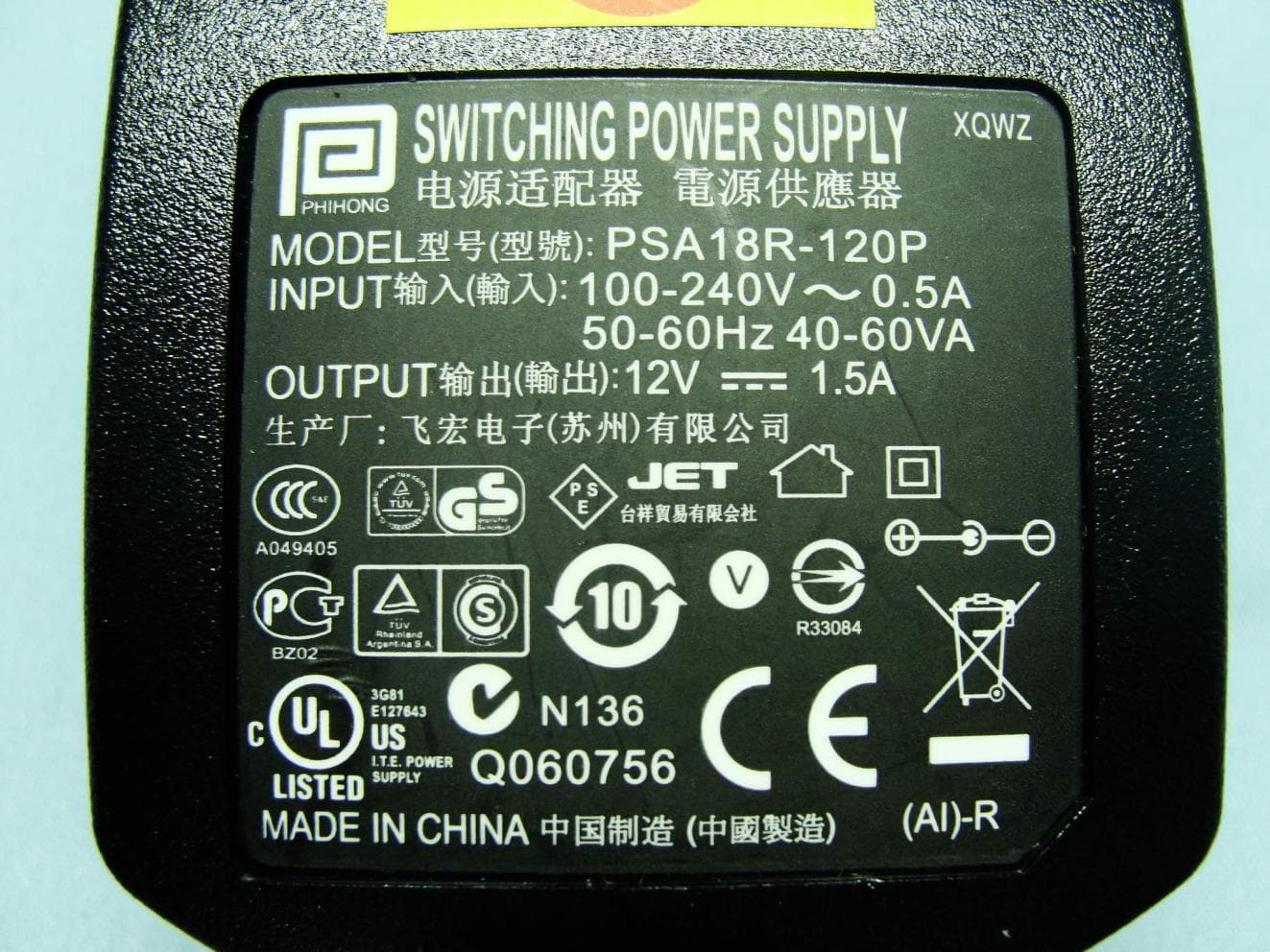
Click to zoom
Application Details
- Equipment Class
- PCB - PCS Licensed Transmitter
- Date of Grant
- Jun 11, 2011
- Application Purpose
- Original Equipment
- Date of Application
- May 12, 2011
- Equipment Note
- Tablet Computer
- Frequency Range
- 1852.40000000 - 1907.60000000
- Company
- Acer Incorporated
- Country
- Taiwan
Documents & Files
Document Text
Text extracted from the exhibit documents filed with the FCC. Open a document above to read the original.
Users Manual
1 User Guide 2 © 2011 All Rights Reserved Acer ICONIA TAB User Guide Model: A500 (Wi-Fi only models) and A501 (Wi-Fi+3G models) First issue: 03/2011 Acer ICONIA TAB Model number: __________________________________ Serial number: ___________________________________ Date of purchase: ________________________________ Place of purchase: ________________________________ 3 Table of contents End user license agreement Getting to know your tablet Features and functions . . . . . . . . . . . . . . . . . . . . . . . . . . . . . . . . . . . . . . . . . . . 8 Product registration . . . . . . . . . . . . . . . . . . . . . . . . . . . . . . . . . . . . . . . . . . . . . 8 Setting up Unpacking your tablet . . . . . . . . . . . . . . . . . . . . . . . . . . . . . . . . . . . . . . . . . . . 9 Getting to know your tablet . . . . . . . . . . . . . . . . . . . . . . . . . . . . . . . . . . . . . . 9 Using the SIM card slot (only for Wi-Fi+3G models) . . . . . . . . . . . . . . . . . . . 12 Charging your tablet . . . . . . . . . . . . . . . . . . . . . . . . . . . . . . . . . . . . . . . . . . . . 12 Using your tablet Using the SIM card slot (only for Wi-Fi+3G models) . . . . . . . . . . . . . . . . . . . 13 Charging your tablet . . . . . . . . . . . . . . . . . . . . . . . . . . . . . . . . . . . . . . . . . . . . 13 Turning on for the first time . . . . . . . . . . . . . . . . . . . . . . . . . . . . . . . . . . . . . 14 Locking your tablet . . . . . . . . . . . . . . . . . . . . . . . . . . . . . . . . . . . . . . . . . . . . . 14 Using the touchscreen . . . . . . . . . . . . . . . . . . . . . . . . . . . . . . . . . . . . . . . . . . 15 The Home screen . . . . . . . . . . . . . . . . . . . . . . . . . . . . . . . . . . . . . . . . . . . . . . . 16 The onscreen keyboard . . . . . . . . . . . . . . . . . . . . . . . . . . . . . . . . . . . . . . . . . . 22 Editing text . . . . . . . . . . . . . . . . . . . . . . . . . . . . . . . . . . . . . . . . . . . . . . . . . . . 24 Connecting devices to your tablet Connecting to AC power . . . . . . . . . . . . . . . . . . . . . . . . . . . . . . . . . . . . . . . . 26 Inserting a micro SD card (optional) . . . . . . . . . . . . . . . . . . . . . . . . . . . . . . . 26 Connecting to a PC as a USB storage device . . . . . . . . . . . . . . . . . . . . . . . . . 26 Connecting a USB device to your tablet . . . . . . . . . . . . . . . . . . . . . . . . . . . . 27 Connecting a Bluetooth device . . . . . . . . . . . . . . . . . . . . . . . . . . . . . . . . . . . 27 Connecting to a television with HDMI . . . . . . . . . . . . . . . . . . . . . . . . . . . . . . 28 Connecting to the dock (optional) . . . . . . . . . . . . . . . . . . . . . . . . . . . . . . . . . 28 Going online Managing Wi-Fi connections . . . . . . . . . . . . . . . . . . . . . . . . . . . . . . . . . . . . . 29 Browsing the Internet . . . . . . . . . . . . . . . . . . . . . . . . . . . . . . . . . . . . . . . . . . . 29 Setting up Gmail (Google mail) . . . . . . . . . . . . . . . . . . . . . . . . . . . . . . . . . . . 30 Composing an email . . . . . . . . . . . . . . . . . . . . . . . . . . . . . . . . . . . . . . . . . . . . 30 Setting up the Email application . . . . . . . . . . . . . . . . . . . . . . . . . . . . . . . . . . 31 4 Online applications . . . . . . . . . . . . . . . . . . . . . . . . . . . . . . . . . . . . . . . . . . . . . 31 Acer content folders Using the content folders . . . . . . . . . . . . . . . . . . . . . . . . . . . . . . . . . . . . . . . . 35 Playing music and video Multimedia playback . . . . . . . . . . . . . . . . . . . . . . . . . . . . . . . . . . . . . . . . . . . 37 Media server . . . . . . . . . . . . . . . . . . . . . . . . . . . . . . . . . . . . . . . . . . . . . . . . . . 40 Dolby Mobile . . . . . . . . . . . . . . . . . . . . . . . . . . . . . . . . . . . . . . . . . . . . . . . . . . 40 Managing contacts Using the camera Camera icons and indicators . . . . . . . . . . . . . . . . . . . . . . . . . . . . . . . . . . . . . . 44 Taking a photo . . . . . . . . . . . . . . . . . . . . . . . . . . . . . . . . . . . . . . . . . . . . . . . . 45 Shooting a video . . . . . . . . . . . . . . . . . . . . . . . . . . . . . . . . . . . . . . . . . . . . . . . 46 Reading an eBook LumiRead . . . . . . . . . . . . . . . . . . . . . . . . . . . . . . . . . . . . . . . . . . . . . . . . . . . . . 48 Using a cellular data network (only for Wi-Fi+3G models) Installing a SIM card (only for Wi-Fi+3G models) . . . . . . . . . . . . . . . . . . . . . 52 Adjusting connection settings . . . . . . . . . . . . . . . . . . . . . . . . . . . . . . . . . . . . 53 Internet sharing . . . . . . . . . . . . . . . . . . . . . . . . . . . . . . . . . . . . . . . . . . . . . . . . 54 Advanced settings Sound . . . . . . . . . . . . . . . . . . . . . . . . . . . . . . . . . . . . . . . . . . . . . . . . . . . . . . . . 56 Screen . . . . . . . . . . . . . . . . . . . . . . . . . . . . . . . . . . . . . . . . . . . . . . . . . . . . . . . . 56 Putting your tablet in Airplane mode . . . . . . . . . . . . . . . . . . . . . . . . . . . . . . 57 Activating or deactivating connections . . . . . . . . . . . . . . . . . . . . . . . . . . . . . 57 Adjusting Bluetooth settings . . . . . . . . . . . . . . . . . . . . . . . . . . . . . . . . . . . . . 58 Connecting to a PC . . . . . . . . . . . . . . . . . . . . . . . . . . . . . . . . . . . . . . . . . . . . . 58 Synchronization . . . . . . . . . . . . . . . . . . . . . . . . . . . . . . . . . . . . . . . . . . . . . . . . 58 Setting the date and time . . . . . . . . . . . . . . . . . . . . . . . . . . . . . . . . . . . . . . . 59 Setting alarms . . . . . . . . . . . . . . . . . . . . . . . . . . . . . . . . . . . . . . . . . . . . . . . . . 59 Changing language and text options . . . . . . . . . . . . . . . . . . . . . . . . . . . . . . 60 Managing applications . . . . . . . . . . . . . . . . . . . . . . . . . . . . . . . . . . . . . . . . . . 60 Updating you…
Text truncated - open the document above for the full version.
Users Manual
28 Tap Find nearby devices to scan for available devices. Note: Please check for updates to the tablet's software that may add support for additional Bluetooth devices. Visit www.acer.com/support. Connecting to a television with HDMI Connect a micro HDMI (Type D) cable to your tablet then plug the other end of the HDMI cable into a TV or monitor with an HDMI port. Connecting to the dock (optional) The optional dock holds your tablet and allows you to easily charge the battery with a single connection. The dock provides extra connectors that replace your tablet's built-in connectors while it is docked. Please check the dock’s specifications for the exact features provided. 29Managing Wi-Fi connections Going online Managing Wi-Fi connections If you did not connect to a Wi-Fi network when you first started your tablet, or want to connect to a new network, tap Apps > Settings > Wireless & networks to manage your connection settings. Alternatively, tap the Wi-Fi status icon in the bottom-right corner of the screen. If Wi-Fi is not on, tap Tu rn on Wi-Fi, and wait for your tablet to detect nearby networks. Tap the name of your network and enter a security password, if needed. Browsing the Internet In order to browse the Internet with your tablet, you must be connected to a the Internet. Using the browser To start browsing, tap a bookmark from the bookmark widget on the Home screen, or open the Application menu and select Browser. To enter a website address, tap the address box at the top of the page. Enter the address using the keyboard and tap Enter or the Go arrow. To view your browsing history, bookmarks or frequently visited sites, open the browser then tap the bookmark icon in the top-right corner. 30 You may open multiple tabs. When a page is open, press the small tab with a plus sign. Simply tap one of the tabs across the top of the screen to switch pages. New tab Pinch to zoom in or out of pages. Tap and hold an item on a page to open a contextual menu. Voice Search With voice actions, you can send emails, find directions to locations, search the Internet and even send a note to yourself using your voice. Tap the microphone on the Home screen or open Voice Search from the applications tab. When the Speak now prompt is displayed, state your command or query. Note: Voice search is available only in some regions. Setting up Gmail (Google mail) 1. Make sure your tablet is connected to the Internet. 2. From the Applications menu tap Gmai l. If you did not enter an Gmail account addr ess and password when you first started your tablet, follow the on screen instructions. Note: You need to activate a Google account before you can use Gmail. Composing an email 1. Make sure your tablet is connected to the Internet. 2. Open the applicatio n menu and tap Gmail. 3. Press the Menu button and then tap Compose. 4. Enter the recipient's email address, t he subject and message. 5. When you are finished composing your message, tap Send. 31Setting up the Email application Setting up the Email application The Email application enables you to access email from most popular email providers. Most accounts can be set up in two steps. Open the application menu and then tap Email to start setting up your email access. If necessary, enter your email address and tap Manual setup to enter the parameters manually. Tap Next to finish the setup process. The combined inbox feature of your tabl et allows you to view emails from multiple accounts in a single inbox. Online applications Your tablet provides a variety of preinstalled applications. Many of these require some form of Internet access. These applications may include: •Acer Sync: Sync your data between your tablet, your computer and the Google servers. •So cialJogger: View updates to your social networks in one location. •Ma ps: Get easy-to-follow directions using Google Maps. •Talk *: Chat with your friends, with text, sound and video. •Navigati on*: Turn-by-turn navigation with live traffic, multiple visible layers and text-to-speech take you where you want to go. • Latitude: View where your friends are on Google Maps. •Places: Vi ew places of interest and local businesses on Google Maps. •Yo uTube*: View the Most viewed and Most discussed video clips on YouTube. •LumiRead: Download books from featured bookstores, and setup convenient links to your favorite ebook sites. •Mu sicA: Let your tablet listen to music and access the MusicA database to find the track name and artist. * Note: Applications installed may vary according to your region. 32 Acer SocialJogger Acer SocialJogger combines your social network updates in one lo cation, allowing you to quickly follow what your friends are doing across several platforms. From the application menu, tap Acer SocialJogger to l a unch the program. Select Sign in to enter your account i nformation. When you are finished press Start. Slide the disc, located on the right, u p and down to cycle through the status updates. Tap on a status to view more details and make a comment. Tap the left and right arrows, located on the top, t o cycle between the categories: My Page, Photos, Link and any added pages. Tap the Me nu bu tton to access account settings, refresh the page, auto play, and add or remove custom pages. Adobe Flash Player Adobe Flash Player is not installed on your tablet. If you want to use Flash content on in your browser, you can visit the Android Market (see below) to easily download and install Adobe Flash Player. Android Market Note: The Android Market may not be available in all countries and regions. Note: You need to activate a Google account before you can use the Android Market. Tap Market from the home screen or application menu to open the Android Market. Here you can obtain a variety of add-on programs and applications to enhance the functionality of your tablet. You may also browse for books that you may rea d with LumiRead or another reader application. The first time you access the Android Market,…
Text truncated - open the document above for the full version.
Users Manual
55Internet sharing Wi-Fi hotspot You can turn your tablet into a portable Wi-Fi hotspot to share your mobile Internet connection with up to eight clients. 1. Tap Apps > Settings > Wire less & networks > Tethering & portable hotspot. 2. Tap Po rtable Wi-fi hotspot and Portable Wi-Fi hotspot settings. 3. Tap Con figure Wi-Fi hotspot to set the Network SSID and adjust security settings (such as adding a password). 4. Tap Save t o finish. 56 Advanced settings Access Settings from the Application menu. Tap Apps, then Settings. Sound Adjust the volume of your tablet using the volume buttons on the side of the tablet. Alternatively, you can adjust your tablet sound settings by tapping Apps > Settings > Sound. Screen You can adjust your tablet screen settings by tapping Apps > Settings > Screen. ItemDescription VibrateSets vibration options. VolumeSets volume for Media, Alarm, and Notifications. Notification ringtone Sets a ringtone for notifications. Audible selectionPlays a sound whenever a screen selection is made. Screen lock sounds Plays a sound when locking and unlocking the screen. Haptic feedbackVibrates when pressing soft keys and on certain UI interactions. ItemDescription BrightnessAdjust screen brightness. AnimationEnable window animations. TimeoutSet a delay before the screen will be turned off. 57Putting your tablet in Airplane mode Putting your tablet in Airplane mode You can enter Airplane mode (also known as flight mode) to turn off network and Bluetooth functions and use your tablet during a flight. Check with your airline to make sure this is permitted onboard. Switch your tablet off during takeoff an d landing as it may interfere with aircraft electronic systems. Note: When Airplane mode is active, the icon is displayed in the status area. Turn Airplane mode on or off by tapping Settings > Wireless & Networks > Airplane mode. Activating or deactivating connections Open the Application menu and tap Apps > Settings > Wireless & networks to manage your connection settings. Each connection will have a gree n check when turned on. Alternatively, you can tap on the right side of the status bar to manage connection settings. Adjusting connection settings This section will show you how to adjust detailed settings for your data, Wi-Fi and Bluetooth connections. If your tablet includes 3G features, some additional options are available: ItemDescription Airplane modeDisables all wireless connections so you can safely use this device onboard an aircraft. Wi-FiTurns the Wi-Fi function on or off. Wi-Fi settingsSets up and manages your wireless access points. BluetoothTurns the Bluetooth function on or off. Bluetooth settings Manages your Bluetooth connections, sets a device name and discoverability. VPN settingsSets up and manages Virtual Private Networks. ItemDescription Tethering & portable hotspot Shares your tablet’s mobile data connection via USB or as a portable Wi-Fi hotspot. Mobile networksSets your options for connecting to mobile networks. Internet sharingShares your mobile data connection with the connected computer. 58 Adjusting Bluetooth settings You can use Bluetooth to exchange information between your tablet and other mobile devices. Bluetooth connections For all Bluetooth settings, tap Apps > Settings > Wireless & networks > Bluetooth settings. Here you can switch Bluetooth on or off, set a device name and discoverability. Tap Find nearby devices to scan for available devices. To connect to a device, tap the device in the list of available devices. You may be asked to enter a PIN on both devices to establish the connection. Note: Only A2DP stereo headsets (without microphone) are supported. Please check for updates to the tablet's software which may add support for additional Bluetooth devices. Connecting to a PC If you wish to transfer information between your tablet and your computer, you can connect your tablet to a PC using the supplied USB cable. Plug the USB sync cable into the micro USB connector on your tablet. Plug the USB client connector into an available USB port on your computer. Note: You may need to install drivers on your computer before your tablet can be used with your computer. You will now be able to see your tablet’s internal memory as a drive in your computer’s file explorer. Synchronization You can configure synchronization options for many applications on your tablet. You can also configure what types of data you synchronize for each account. Some applications, such as Contacts, Gma il, and Calendar, can sync data from multiple accounts. Others sync data only from the first Google Account you sign into on your tablet, or from an account associated specifically with that application. For some application s, such as Contacts or Calendar, all changes that you make on your tablet are made to the synchronised copy on the Internet. Other applications only copy information from account on the Internet; the information on your tablet cannot be changed directly, you must change the information stored in the Internet account. Tap Apps > Settings > Ac counts & sync to access the synchronization settings. To manage synchronization of individual accounts, tap an account name. 59Setting the date and time Some applications, such as Gmail and Calendar, have their own synchronization settings. Open the application and tap the Menu button (four bars) and then tap Accounts. Auto-sync To have your tablet auto-sync, make sure Background data and Auto-sync are enabled. •If Background data is enabled, applications can transmit and receive data when you are not using them. •If Auto-sync is enabled, all changes are automatically transferred between your tablet and Internet accounts. Acer Sync Acer Sync allows you to easily synchronize your contacts, calendar, photos and videos between your tablet, PC and corresponding Google services. You must install the Acer Sync program on your computer; download and install Acer Sync and Acer PIM for the PC from the mobile.acer.com webs…
Text truncated - open the document above for the full version.
Users Manual
82 Acer Incorporated Date: March 2, 2011 Declaration of Conformity We, Acer Incorporated, of 8F., No. 88, Sec. 1, Xintai 5th Rd., Xizhi Dist, New Taipei City, 22181, Taiwan Declare under sole responsibility that the product: Model: A501 Description: Tablet Computer To which this declaration relates, is in conformity with the following standards and/or other normative documents: • EN 301 511 V9.0.2 • EN 301 908-1 V4.2.1 ; EN 301908-2 V4.2.1 • EN 300 328 V1.7.1 • EN 300 440-1 V1.6.1 ; EN300 440-2 V1.4.1 • EN 301 489-1 V1.8.1 ; EN 301489-3 V1.4.1 ; EN 301489-17 V2.1.1 • EN 55022:2006/A1:2007 Class B ; EN 55024:1998/A1:2001/A2:2003 • EN 60950-1: 2006+A11:2009 • EN 50332-2: 2003 • EN62311:2008; EN62209-2:2010 We hereby declare that the above named prod uc t is in conformance to all the essential requirements of the R&TTE Directive (99/5/EC) issued by the Commission of the European Community. The conformity assessment procedure referred to in Article 10 and detailed in Annex [IV] of directive 1999/5/EC has been followed related to Articles: • R&TTE Article 3.1 (a) Health and Safety • R&TTE Article 3.1 (b) EMC • R&TTE Article 3.2 Spectrum Usage with the involvement of the following Notified Body: CET ECOM, Untertuerkheimer Str. 6 – 10 66117 Saarbruecken Identification mark: 0682 (Notified Body) CE The technical documentation relevant to the above equipment will be held at: Acer Incorporated 8F., No. 88, Sec. 1, Xintai 5th Rd., Xizhi Dist, New T aipei City, 22181, Taiwan (R.O.C.) Authorized person: Name: Harriot SL Lee 0682
Cover Letter(s)
Rev. 1/1/03 Date: April 14, 2011 Federal Communications Commission Authorization and Evaluation Division Confidentiality Request regarding application for certification of FCC ID: HLZTMDMA501A Pursuant to Sections 0.457 and 0.459 of the Commission’s Rules, we hereby request confidential treatment of information accompanying this application as outlined below: Schematics (file: A501_Schem.pdf) Block Diagram (file: A501_BlkDia.pdf) Parts List (file: A501_PartsLst.pdf) Operation Description (file: A501_OpDes.pdf) Tune up Procedure (file: A501_TunPro.pdf) The above materials contain trade secrets and proprietary information not customarily released to the public. The public disclosure of these materials may be harmful to the applicant and provide unjustified benefits to its competitors. The applicant understands that pursuant to Section 0.457 of the Rules, disclosure of this application and all accompanying documentation will not be made before the date of the Grant for this application. Sincerely, ___________________________ Harriot S.L. Lee Acer Inc Email: [email protected]
Cover Letter(s)
1/1 Date: April 14, 2011 Federal Communications Commission Authorization and Evaluation Division RE : Certification Application FCC ID : HLZTMDMA501A To Whom It May Concern, Pursuant to sections 0.457 and 0.459 of CFR 47 and to avoid premature release of sensitive information prior to marketing or release of the product to the public, the applicant requests the following documents contained in this certification application be 180 days withheld from public disclosure for an initial period of 180 days: External Photos (file: A501_ExtPho.pdf) Internal Photos (file: A501_IntPho.pdf) Test Setup Photos (file: A501_Tsup.pdf) User Manual (file: A501_UserMan.pdf) The application contains technical information, which Acer Incorporated deems to be trade secrets and proprietary. If made public, the information might be used to the disadvantage of the applicant in the market place. The Applicant understands that pursuant to Rule 0.457, disclosure of this Application and all accompanying documentation will not be made before the date of the Grant for this application Sincerely, Harriot S.L. Lee
Cover Letter(s)
Acer Incorporated 8F, 88, Sec. 1, Hsin Tai Wu Rd., Hsichih Taipei Hsien 221, Taiwan, R.O.C. Tel : 886-2-2696-1234 Fax : 886-2-2696-3535 www.acer.com Power of Attorney To whom it may concern, I, the undersigned, Easy Lai , hereby authorize the person listed below to act in behalf of me to sign all related documents for Acer FCC application. Name : Harriot Lee Company : Acer Incorporated Company Address : 8F, No. 88, Sec. 1, Hsin Tai Wu Rd., Hsichih, Taipei Hsien 221, Taiwan Tel : 886-2-6606-3131 ext. 3811 FAX : 886-2-6606-5353 Authorization period : Jan. 1 st , 2011 ~ Dec. 31th, 2011 Sh ould you have any question regarding this power of attorney, please don’t hesitate to contact me. Sincerely, _______________ Easy Lai/ Acer Incorporated Tel : +886-2 86913089 FAX : +886-2 86913120 E-Mail: [email protected]
Cover Letter(s)
Date: April 15, 2011 Power of Attorney To whom it may concern, Please be notified that I, Harriot S.L. Lee, have designated Roy Wu in Sporton International Inc. as the person being responsible for this project and to sign the form 731 and other documentation. Any and all acts carried out by Roy Wu in Sporton International Inc. on the matters of relating to all processes required in the FCC approval and any communication needed with the national authority, shall have the same legal authority as acts on our own behalf. We further certifies that neither the applicant nor any party to this application, as defined in 47 CFR Ch. 1.2002 (b), is subject to a denial to Federal benefits, that include FCC benefits, pursuant to section 5301 of the Anti-Drug Abuse Act of 1998, 21 U.S.C. 835(a). This authorization is limited to the product of as following: FCC ID: HLZTMDMA501A If you have any acknowledgement and response, please send it to Sporton International Inc. directly. Should you have any questions or comments regarding this matter, please have my best attention. Sincerely yours, Contact Person: Harriot S.L. Lee Company: Acer Incorporated TEL: 886-2-8691-3904 FAX: 886-2-8691-3120 E-mail: [email protected]
External Photos
Photographs of EUT Report No.: EP132604 Brand Name: Acer / Model Name: A501 SPORTON INTERNATIONAL INC. Page Number : 1 of 14 TEL : 886-3-327-3456 Report Issued Date : Apr. 25, 2011 FAX : 886-3-328-4978 Report Version : Rev. 01 FCC ID : HLZTMDMA501A IC : 1754F-TMDMA501A 1. External Photograph of EUT Photographs of EUT Report No.: EP132604 Brand Name: Acer / Model Name: A501 SPORTON INTERNATIONAL INC. Page Number : 2 of 14 TEL : 886-3-327-3456 Report Issued Date : Apr. 25, 2011 FAX : 886-3-328-4978 Report Version : Rev. 01 FCC ID : HLZTMDMA501A IC : 1754F-TMDMA501A 720510 Photographs of EUT Report No.: EP132604 Brand Name: Acer / Model Name: A501 SPORTON INTERNATIONAL INC. Page Number : 3 of 14 TEL : 886-3-327-3456 Report Issued Date : Apr. 25, 2011 FAX : 886-3-328-4978 Report Version : Rev. 01 FCC ID : HLZTMDMA501A IC : 1754F-TMDMA501A List of Accessory: Specification of Accessory AC Adapter Brand Name PHIHONG Model Name PSA18R-120P Battery Brand Name SIMPLO Model Name BAT-1010 (Cell : ICP486790L1) (P/N : 934TA001F) USB Cable Brand Name MEC Model Name 75-14782-200-Y HDMI Cable Brand Name Molex Model Name 687860013 LCD Panel Brand Name AUO Model Name B101EW05 WWAN Module Brand Name Ericsson Model Name F5521gw Docking Brand Name Acer (Manuf. : Foreshot) Model Name ADT-002 Remark: For accessories equipped with this EUT, please refer to the following photos. 2. Photograph of Accessory Photographs of EUT Report No.: EP132604 Brand Name: Acer / Model Name: A501 SPORTON INTERNATIONAL INC. Page Number : 4 of 14 TEL : 886-3-327-3456 Report Issued Date : Apr. 25, 2011 FAX : 886-3-328-4978 Report Version : Rev. 01 FCC ID : HLZTMDMA501A IC : 1754F-TMDMA501A Photographs of EUT Report No.: EP132604 Brand Name: Acer / Model Name: A501 SPORTON INTERNATIONAL INC. Page Number : 5 of 14 TEL : 886-3-327-3456 Report Issued Date : Apr. 25, 2011 FAX : 886-3-328-4978 Report Version : Rev. 01 FCC ID : HLZTMDMA501A IC : 1754F-TMDMA501A Photographs of EUT Report No.: EP132604 Brand Name: Acer / Model Name: A501 SPORTON INTERNATIONAL INC. Page Number : 6 of 14 TEL : 886-3-327-3456 Report Issued Date : Apr. 25, 2011 FAX : 886-3-328-4978 Report Version : Rev. 01 FCC ID : HLZTMDMA501A IC : 1754F-TMDMA501A Photographs of EUT Report No.: EP132604 Brand Name: Acer / Model Name: A501 SPORTON INTERNATIONAL INC. Page Number : 7 of 14 TEL : 886-3-327-3456 Report Issued Date : Apr. 25, 2011 FAX : 886-3-328-4978 Report Version : Rev. 01 FCC ID : HLZTMDMA501A IC : 1754F-TMDMA501A 720510
Internal Photos
Photographs of EUT Report No.: EP132604 Brand Name: Acer / Model Name: A501 SPORTON INTERNATIONAL INC. Page Number : 8 of 14 TEL : 886-3-327-3456 Report Issued Date : Apr. 25, 2011 FAX : 886-3-328-4978 Report Version : Rev. 01 FCC ID : HLZTMDMA501A IC : 1754F-TMDMA501A 3. Internal Photograph of EUT Photographs of EUT Report No.: EP132604 Brand Name: Acer / Model Name: A501 SPORTON INTERNATIONAL INC. Page Number : 9 of 14 TEL : 886-3-327-3456 Report Issued Date : Apr. 25, 2011 FAX : 886-3-328-4978 Report Version : Rev. 01 FCC ID : HLZTMDMA501A IC : 1754F-TMDMA501A 720510 Photographs of EUT Report No.: EP132604 Brand Name: Acer / Model Name: A501 SPORTON INTERNATIONAL INC. Page Number : 10 of 14 TEL : 886-3-327-3456 Report Issued Date : Apr. 25, 2011 FAX : 886-3-328-4978 Report Version : Rev. 01 FCC ID : HLZTMDMA501A IC : 1754F-TMDMA501A WWAN Module Photographs of EUT Report No.: EP132604 Brand Name: Acer / Model Name: A501 SPORTON INTERNATIONAL INC. Page Number : 11 of 14 TEL : 886-3-327-3456 Report Issued Date : Apr. 25, 2011 FAX : 886-3-328-4978 Report Version : Rev. 01 FCC ID : HLZTMDMA501A IC : 1754F-TMDMA501A Photographs of EUT Report No.: EP132604 Brand Name: Acer / Model Name: A501 SPORTON INTERNATIONAL INC. Page Number : 12 of 14 TEL : 886-3-327-3456 Report Issued Date : Apr. 25, 2011 FAX : 886-3-328-4978 Report Version : Rev. 01 FCC ID : HLZTMDMA501A IC : 1754F-TMDMA501A WWAN Main Antenna (Tx / Rx) & GPS Antenna (Rx) Photographs of EUT Report No.: EP132604 Brand Name: Acer / Model Name: A501 SPORTON INTERNATIONAL INC. Page Number : 13 of 14 TEL : 886-3-327-3456 Report Issued Date : Apr. 25, 2011 FAX : 886-3-328-4978 Report Version : Rev. 01 FCC ID : HLZTMDMA501A IC : 1754F-TMDMA501A WWAN Aux. Antenna (Tx / Rx) Photographs of EUT Report No.: EP132604 Brand Name: Acer / Model Name: A501 SPORTON INTERNATIONAL INC. Page Number : 14 of 14 TEL : 886-3-327-3456 Report Issued Date : Apr. 25, 2011 FAX : 886-3-328-4978 Report Version : Rev. 01 FCC ID : HLZTMDMA501A IC : 1754F-TMDMA501A Bluetooth & WLAN Antenna (Tx / Rx)
RF Exposure Info
SPORTON INTERNATIONAL INC. Page Number : 1 of 41 TEL : 886-3-327-3456 Report Issued Date : May 31, 2011 FAX : 886-3-328-4978 Report Version : Rev. 02 FCC ID : HLZTMDMA501A FCC SAR Test Report Report No. : FA132604A FCC SAR Test Report APPLICANT : Acer Incorporated EQUIPMENT : Tablet Computer BRAND NAME : Acer MODEL NAME : A501 FCC ID : HLZTMDMA501A STANDARD : FCC 47 CFR Part 2 (2.1093) IEEE C95.1-1991 IEEE 1528-2003 FCC OET Bulletin 65 Supplement C (Edition 01-01) The product was received on Feb. 14, 2011 and completely tested on May. 30, 2011. We, SPORTON INTERNATIONAL INC., would like to declare that the tested sample has been evaluated in accordance with the procedures and shown the compliance with the applicable technical standards. The test results in this report apply exclusively to the tested model / sample. Without written approval of SPORTON INTERNATIONAL INC., the test report shall not be reproduced except in full. Reviewed by: Roy Wu / Manager SPORTON INTERNATIONAL INC. No. 52, Hwa Ya 1 st Rd., Hwa Ya Technology Park, Kwei-Shan Hsiang, Tao Yuan Hsien, Taiwan, R.O.C. SPORTON INTERNATIONAL INC. Page Number : 2 of 41 TEL : 886-3-327-3456 Report Issued Date : May 31, 2011 FAX : 886-3-328-4978 Report Version : Rev. 02 FCC ID : HLZTMDMA501A FCC SAR Test Report Report No. : FA132604A Table of Contents Revision History ......................................................................................................................................................... 3 1. Statement of Compliance .................................................................................................................................... 4 2. Administrat…
Text truncated - open the document above for the full version.
Contact Information
Applicant
RU Jan(Sr. Manager)
Technical Contact
Sporton InternationalRoy Wu
[email protected]+886 3 327 3456
No. 52, Hwa Ya 1st Rd · Kwei Shan Hsien, Tau Yuan Hsien · Taiwan
Test Firm
Sporton International IncKathy Lin
Technical Specifications
| # | Rule Parts | Frequency Range | Power Output | Emission | Tolerance |
|---|---|---|---|---|---|
| 6 | 24E | 1.85 GHz - 1.91 GHz | 60.00 mW | 4M20F9W | 2.5 ppm |
Other Applications from Acer Incorporated
HLZA26007
Aug 07, 2026Tablet PC
Equipment Class
DTS - Digital Transmission SystemHLZA26003
Jul 28, 2026Tablet PC
Equipment Class
6XD - 15E 6 GHz Low Power Indoor ClientHLZAMR570
Apr 21, 2026Acer Wireless Mouse
Equipment Class
DTS - Digital Transmission SystemHLZ-NSK510
Apr 09, 2026Gaming sound bar
Equipment Class
DSS - Part 15 Spread Spectrum TransmitterHLZA26002
Apr 01, 2026Tablet PC
Equipment Class
NII - Unlicensed National Information Infrastructure TX