IHDP56MA4GSM TRANSCEIVER WITH BT & WLAN
Motorola Mobility LLC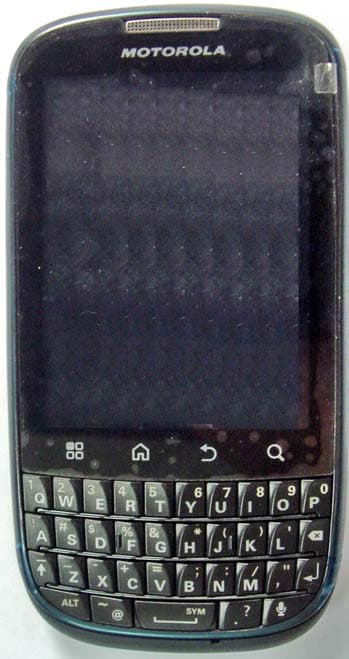
Click to zoom
Application Details
- Equipment Class
- DTS - Digital Transmission System
- Date of Grant
- Sep 13, 2011
- Application Purpose
- Original Equipment
- Date of Application
- Sep 12, 2011
- Equipment Note
- GSM TRANSCEIVER WITH BT & WLAN
- Frequency Range
- 2412.00000000 - 2462.00000000
- Company
- Motorola Mobility LLC
- Country
- United States
Documents & Files
Document Text
Text extracted from the exhibit documents filed with the FCC. Open a document above to read the original.
Users Manual
Applicant: Motorola Mobility FCC ID: IHDP56MA4 Draft Users Manual Exhibit 8 MOTOROLA PRO+ with MOTOBLUR TM 1 Congratulations CongratulationsMOTOROLA PRO+ with MOTOBLURPart business, part casual and all smartphone. Whether it's home, work or play, the MOTOROLA PRO+ with MOTOBLUR is fast, efficient and secure.•Fast —A 1Ghz processor for smooth browsing and super fast apps. • Personal —See what's important to you. News, Emails, Documents, Calendar, right on your home screen and laid out how you want. •Social —Sharp photos, HD videos, your music and your friends. Quick, simple and shared. • Business ready —Enterprise level security and business ready tools to help keep your work close. Note: Certain apps and features may not be available in all countries. This product meets the applicable limit for exposure to radio waves (known as SAR) of 2.0 W/kg (ICNIRP). The limits and guidelines include a substantial safety margin designed to assure the safety of all persons, regardless of age and health. Caution: Before assembling, charging, or using your phone for the first time, please read the important safety, regulatory and legal information in this guide. The highest SAR values measured for this device are listed in the legal and safety information packaged with your product.Note: When using the product while worn on your body, either use an approved accessory such as a holster or maintain a distance of 2.5 cm (1 inch) from the body to ensure compliance with SAR requirements. Note that the product may be transmitting even if you are not making a phone call.WaNT More?•Answers: Touch > Help Center . You can also flick your home screen left or right to see the Getting Started and Tips & Tricks widgets. • Support: Phone updates, PC software, user guides, online help and more at www.motorola.com/pro+ . •MOTOBLUR: After you create a MOTOBLUR account, open it at www.motorola.com/mymotoblur . • Accessories: Find accessories for your phone at www.motorola.com/products . 2 Congratulations Your phonethe important keys & connectors 11:35 929:29:2 2P2P2 P MMM Work week done! Dance floorhere I come! John RenaldiI have 1 extra ticket for the... 3m3m3 m inuinu testes mm inuinu testes naldi ext ra tic ket fo r t he. ... s ag o ss ag ag oo Menu Key Home Key M ic ro USB Conne c tor Charge or connect to PC. 3.5mm He a dset J ac k Sensor B ac k Key Volume Keys/ C a mer a Zoom M ic ro p hone Power Key Se a r c h Key Press=Sleep/W ake up. Hold=Turn on/off.Not i f ica t i on LEDOn=Charged.Flashing=New notification. Note: Your phone might look a little different. 11:35 929:29:2 2P2P2 P MMM Work week done! Dance floorhere I come! John RenaldiI have 1 extra ticket for the... 3m3m3 m iinu testes mm inuinu testes naldi ext ra tic ket fo r t he. ... ss ag o ss ag ag oo Delete Enter Sh i ft S pac e Altern a te Vo ic e Re c o g n i t i on Sym b ol 3 Let’s go ContentsLet’s go . . . . . . . . . . . . . . . . . . . . . . . . . . . . . . . . . . . . . . . . . . . . . . . . . . 3Touchscreen & keys. . . . . . . . . . . . . . . . . . . . . . . . . . . . . . . . . . . . . . 6Home screen . . . . . . . . . . . . . . . . . . . . . . . . . . . . . . . . . . . . . . . . . . . . . 8Social networking . . . . . . . . . . . . . . . . . . . . . . . . . . . . . . . . . . . . . . 11Calls . . . . . . . . . . . . . . . . . . . . . . . . . . . . . . . . . . . . . . . . . . . . . . . . . . . . 13Contacts. . . . . . . . . . . . . . . . . . . . . . . . . . . . . . . . . . . . . . . . . . . . . . . . . 16Messaging . . . . . . . . . . . . . . . . . . . . . . . . . . . . . . . . . . . . . . . . . . . . . . . 19Text entry . . . . . . . . . . . . . . . . . . . . . . . . . . . . . . . . . . . . . . . . . . . . . . 22Web. . . . . . . . . . . . . . . . . . . . . . . . . . . . . . . . . . . . . . . . . . . . . . . . . . . . . 24Location . . . . . . . . . . . . . . . . . . . . . . . . . . . . . . . . . . . . . . . . . . . . . . . . 26YouTube™ . . . . . . . . . . . . . . . . . . . . . . . . . . . . . . . . . . . . . . . . . . . . . . . 28Apps & UPDATES. . . . . . . . . . . . . . . . . . . . . . . . . . . . . . . . . . . . . . . . . . 30Bluetooth™ wireless . . . . . . . . . . . . . . . . . . . . . . . . . . . . . . . . . . . . 31Wi-Fi . . . . . . . . . . . . . . . . . . . . . . . . . . . . . . . . . . . . . . . . . . . . . . . . . . . . 33DLNA . . . . . . . . . . . . . . . . . . . . . . . . . . . . . . . . . . . . . . . . . . . . . . . . . . . . 35Tips & tricks . . . . . . . . . . . . . . . . . . . . . . . . . . . . . . . . . . . . . . . . . . . . 35Personalize . . . . . . . . . . . . . . . . . . . . . . . . . . . . . . . . . . . . . . . . . . . . 37Photos & videos. . . . . . . . . . . . . . . . . . . . . . . . . . . . . . . . . . . . . . . . . 39Music . . . . . . . . . . . . . . . . . . . . . . . . . . . . . . . . . . . . . . . . . . . . . . . . . . . 42Memory card & file transfer . . . . . . . . . . . . . . . . . . . . . . . . . . . 47Tools . . . . . . . . . . . . . . . . . . . . . . . . . . . . . . . . . . . . . . . . . . . . . . . . . . . 49Management . . . . . . . . . . . . . . . . . . . . . . . . . . . . . . . . . . . . . . . . . . . . 53Security . . . . . . . . . . . . . . . . . . . . . . . . . . . . . . . . . . . . . . . . . . . . . . . . 54Troubleshooting . . . . . . . . . . . . . . . . . . . . . . . . . . . . . . . . . . . . . . . 57Service & Repairs . . . . . . . . . . . . . . . . . . . . . . . . . . . . . . . . . . . . . . . 58Safety, Regulatory & Legal . . . . . . . . . . . . . . . . . . . . . . . . . . . . . 59 Let’s golet’s get you up and runningAssemble & charge Caution: Please read “ Battery Use & Safety ” on page 59. 1 SIM in 2 microSD in (may already be inserted) 3 Battery in 4 Cover on 5 Charge up 3 H 4 Let’s go Set up & goCreate or log into a MOTOBLUR account to get your contacts, email, messages, and status information, for all your accounts, all in one place. There’s more in “ Your MOTOBLUR account ” on page 11. Registration is secure, and sh…
Text truncated - open the document above for the full version.
Users Manual
8 Home screen Home screenquick access to the things you need mostQuick start: Home screenThe home screen gives you all your latest information in one place. It’s what you see when you turn on the phone or touch Home from a menu. It’s basically like this: Note: Your home screen might look a little different. Kristin CullenAre you going to core conditioning @ 5:30 tonight? 2 minutes ago Next Rugby match this Sun. @Park Dist. Field 3pm 9:22 PM 4 Keith Horak Opening night movie, special ... 3 minutes ago 11:35 3G Phone St a tus W i d g ets Touch to open. Touch & hold to m ove or delete. Short c ut Touch to open.Open the app m enu. Not i f ica t i ons Flick down to see details. Flick left or right to see m ore panels. Tip: From the home screen, touch Menu > Profiles to design different home screens for Work , Home , or Weekend . Your changes are stored in each profile. Use & change your home screenOn your home screen, shortcuts are icons that you touch to open your favorite apps, web bookmarks, contacts, or music playlists. Widgets show you news, weather, messages, and other updates.Flick the home screen left or right to open other panels of shortcuts and widgets.• To open something, touch it. Touch Home to return to the home screen. • To change a widget’s settings, open it and then touch Menu > Settings or touch it and then touch Widget settings . Tip: For each Messages or Social Networking widget, you can choose the accounts you want to show.There’s more about social networking widgets in “ View account updates & features ” on page 12 and “ Update your status ” on page 11. 9 Home screen • To resize a widget, touch and hold the widget until you feel a vibration, then drag to resize. Arrows appear in the corners of the widget. Drag the arrows to resize. • To add something or change your wallpaper, touch and hold an empty spot until you see the Add to Home screen menu. You can add a folder to organize your shortcuts. • To move or delete something, touch and hold it until you feel a vibration, then drag it to another spot, another panel, or the trash at the top of the screen. Running multiple appsNo need to close an app before opening another one. Your phone runs multiple apps, all at once. You can open a new app while already running another. Touch Home to return to the home screen. Touch and then touch the app you want. To switch from one running app to another, touch and hold Home to see what apps are already open, then touch the one you want. You can view Recent , All apps , Downloaded , or create a New group . Kristine KelleyNot even ready to go back to school 10 minutes ago Kristine Kelle y iti K ll Not even rea dy to go back to schoo l 110 m i nutes a go SearchTo search, touch Search . To change search settings, touch Menu > Search settings . Notifications & phone statusAt the top of the screen, icons on the left notify you about new messages or events. Icons on the right tell you about phone status. Text Se a r c h Type, then touch.Vo ic e Se a r c h Touch, then speak. Choose what you search. 10 Home screen NotificationsTo access a message, email, or meeting reminder directly from the status bar, drag the status bar down and touch the notification.Tip: To see today’s date, touch and hold the status bar at the top of the screen.Status indicatorsAt the top of the screen, icons on the left notify you about new messages or event s (flick the bar down for details). Icons on the right tell you about phone status: Bluetooth™ active Wi-Fi active GPS active airplane mode silent mode vibrate mode microphone mute speakerphone on alarm set network (full) Alex PicoMeeting What time are we going out? 10:3210:30 10:3210:30 Clear Notifications Notifications Alex PicoMeeting What time are we going out? 10:35 10 8 September 2010 8 September 2010 :35 App menuThe app menu shows you all of your applications. To open it from the home screen, touch . To close it, touch Home or Back You can view Recent , All apps , Downloaded or create a New group . Tip: To find an app in the menu, just touch Search and type the app name. 3G ready 3G transferring battery (charging) battery (full charge) 11 Social networking Social networkingmy life, your lifeYour MOTOBLUR accountThe first time you turned on your phone, you registered for a MOTOBLUR account that manages your messages, contacts, and more (“ Set up & go ” on page 4). You can log into this account from a PC to upload contacts, reset your password, get help, or even locate your phone: www.motorola.com/mymotoblur . What is MOTOBLUR?MOTOROLA PRO+ with MOTOBLUR is a phone with social skills.Now, the only service that can sync all your friends, emails, messages, and Facebook™, MySpace, Twitter feeds and happenings with continuous updates and back-ups, along with the ability to remotely locate and wipe your phone if it is ever lost or stolen, just got better. Introducing the latest MOTOBLUR. MOTOBLUR offers new features that give you more control, including customizable filters that let you view your messages and happenings any way you like, the ability to move and resize preloaded widgets, and new ways to manage your Battery Life and data consumption. Update your statusAfter you add a social networking account, you can update and see your current status in a Social Status widget on your home screen.To update your status, just touch your Social Status widget and enter text. If you have more than one account, you can use the pull-down menu to limit which accounts are updated. If you don’t see a Social Status widget, flick your home screen left or right to check all panels.To add a Social Status widget: 1 Touch and hold an empty spot on your home screen to open the Add to Home screen menu. 2 Touch Motorola widgets > Social Status . The widget appears in the empty spot, and will show your status the next time your phone updates from the network. Add accountIf you skipped setting up a MOTOBLUR account when you first turned on your phone, you’ll need to set up a MOTOBLUR acc…
Text truncated - open the document above for the full version.
Users Manual
15 Calls Enter numbers during a callTo enter numbers during a call, touch Dialpad . Conference callsTo start a conference call, touch Menu > Conference call and call the first number. After they answer, touch Add call and call the next number. When the next number answers, touch Merge . Your phone numberFind it: From the home screen, touch Menu > Settings > About phone > Status > My phone number Your caller IDTo hide your number from the people you call, from the home screen touch Menu > Settings > Call settings > Additional settings > Caller ID . Call forwarding & waitingYou can forward calls all the time or only when your phone is busy, unanswered, or unreachable (not on the network):Find it: From the home screen, touch Menu > Settings > Call settings > Call forwarding When you’re on a call and a second call comes in, Call waiting lets you answer it by touching Answer . You can turn off Call waiting to send second calls straight to your voicemail:Find it: From the home screen, touch Menu > Settings > Call settings > Additional settings > Call waiting Restrict outgoing callsTo restrict your phone so that it can only dial a few numbers: Find it: From the home screen, touch Menu > Settings > Call settings > Fixed dialing number • To turn fixed dialing on, touch FDN disabled . • To add or delete the allowed numbers, touch Manage FDN list . Emergency callsNote: Your service provider programs one or more emergency phone numbers that you can call under any circumstances, even when your phone is locked. Emergency numbers vary by country. Your pre-programmed emergency number(s) may not work in all locations, and sometimes an emergency call cannot be placed due to network, environmental, or interference issues. 16 Contacts 1 To u ch Dialer (if your phone is locked, touch Emergency call ). 2 Enter the emergency number. 3 To u ch to call the emergency number. Note: Your phone can use location based services (GPS and AGPS) to help emergency services find you. See “ GPS & AGPS ” on page 63) in your legal and safety information. Cool downIn very limited circumstances, such as where your phone has been exposed to extreme heat, you may see “Cool Down” messages. To avoid possible damage to your battery and phone, you should follow these instructions until the phone is within its recommended temperature range. When your phone is in “Cool Down” mode, only emergency calls can be made. Contactscontacts like you’ve never had beforeQuick start: ContactsFind it: > Contacts Tip: When you flick or drag this list, a scroll bar appears on the right. Drag the scroll button to move the list faster or touch a letter on the right (A - Z) to jump to entries. 11:30 Andrew LuisAndy FanningAnna FuiAmber Mathews Displaying 214 contacts A Favorites Contacts Recent Dialler u Cont ac ts L i st Touch a contact to call or text. Touch & hold to edit, delete, and m ore. Menu O p t i ons Touch Menu to add, display options, and m ore. Touch to group, search for or add contacts. #ABCDEFGHIJKLMNOPQRSTUVWXYZ 17 Contacts Transfer contactsYour MOTOBLUR™ account merges your contacts from your social networking and email accounts into one phonebook. All you need to do is add your accounts to MOTOBLUR, and it will handle the rest!• To add your social networking contacts, see “ Add account ” on page 11. • To add your email contacts, see “ Gmail™ ” on page 21. Tip: If you add a Corporate Sync account, you can send messages to your coworkers, even if you don’t have them stored in your contacts. • To import contacts from your SIM card (if it didn’t happen automatically), touch > Manage SIM card > Import SIM card or touch the Auto Contact Import notification. • To transfer contacts using a computer, export them into a .CSV file on your computer. Then, go to www.motorola.com/mymotoblur , log into your MOTOBLUR account, and upload the .CSV file. • To get more options and help, go to www.motorola.com/TransferContacts . Call, text, or email contactsFind it: > Contacts For View contact , Send email , or Delete contact touch and hold the contact. View & use contactsWith a MOTOROLA PRO+ with MOTOBLUR, you’ll know what everybody’s up to and when. Every time you pick up a call, check a message, or look up a friend’s contact info, sure, you’ll see their name and number, but you’ll see their social network status and smiling face, too.Find it: > Contacts • To filter the contacts by group ( All contacts , Facebook , and so on) touch Menu > Display options . Tip: To change which account provides the pictures for your Contacts , from the home screen touch Menu > Settings > Accounts > Menu > Picture source . • To find a contact, touch and type the name. Touch a contact to open their details. To start a call or message, just touch their phone number or other info. • To send a contact’s details in a message or over a Bluetooth connection, touch the contact. Then, touch Menu > Share . Edit or delete contactsFind it: > Contacts To edit or delete contacts, touch and hold the contact, then touch Edit contact or Delete contact . You can set a 18 Contacts ringer, address, and other det ails that will be saved on your phone and your MOTOBLUR account.Where are contacts edited or deleted? Your phone edits the contacts in its memory, and also updates your MOTOBLUR account. Your changes won’t affect your SIM card. Link contactsYou might have two Contacts for the same person, maybe a Facebook friend who is also stored on your SIM card, or one friend with two email addresses. To combine these two contacts:Find it: > Contacts Touch a contact to open it, then touch Menu > Link contact and touch the second entry. Your MOTOBLUR account remembers this connection. Create contactsFind it: > Contacts > Menu > Add contact Type the name and details.When you’re finished, touch Save . Where are contacts saved? Your phone saves new contacts in its memory, your MOTOBLUR account, and other accounts you select: In Contacts , touch Menu > More > Settings > Contact storage to choose which ac…
Text truncated - open the document above for the full version.
Users Manual
22 Text entry Instant messagesTo send and receive instant messages, you can use an instant messaging app or your browser.• To download and use an instant messaging app, touch > Market > Apps > Communication , then choose an app for your provider. Once you download the app, you’ll see it in your “ App menu ” on page 10. • If you don’t see an app for your IM provider, you can use your web browser. Touch > Browser , then enter your provider’s website. Once you’re there, follow the link to sign in. Note: To browse instant messaging apps from your PC, go to www.android.com/market . Text entrykeys when you need themDEVICE keypadYou can type using the phone’s keypad. Delete Enter Sh i ft S pac e Altern a te Vo ic e Re c o g n i t i on Sym b ol 23 Text entry Touchscreen keypadYou can open a touchscreen keypad by touching a text field. To close the keypad, touch Back . Multi-touchTo change the sounds, corrections, and other settings for your touchscreen keypad, touch Menu > Settings > Language & keyboard > Input method > Multi-touch keyboard . Done ?123 . QW Z XCVBNM ERT UIOP Y SFGHJKL A D C om p ose messa ge 12 7890 56 3 4 Sym b ols/Num b ers Sh i ft Delete Vo ic e Re c o g n i t i on Touch, then speak the recipient’s na m e or the text m essage. Next L i ne Typing tipsTo change your text entry settings and see the dictionary of terms you’ve used, from the home screen touch Menu > Settings > Language & keyboard . Text entry settingsWhen you use the touchscreen keypad, your phone suggests words from your dictionary and chosen language. Your phone also automatically enters apostrophes in some words, like “dont.”Find it: From the home screen, touch Menu > Settings > Language & keyboard To . . .Enter a capital letter Touch Shift . Cut, Copy or Paste text you selected Touch and hold the text box to open the editing menu. Delete a character(hold to delete more) Touch Delete . Enter symbols Press Alternate + Symbols . Start a new line Touch x 24 Web • To edit your dictionary, touch User dictionary . • To change the language and the style for your touchscreen keypad, touch Select locale . • To change built-in keypad settings, like Auto-correct errors or Auto-cap , touch Device keyboard . • To change the sounds, corrections, automatic correction settings, and other settings for your touchscreen keypad, touch Multi-touch keyboard . Websurf the web with your phoneQuick start: BrowserFind it: > Browser Note: If you can’t connect, contact your service provider. ConnectYour phone uses the mobile phone network (over the air) to automatically connect to the web. 11:35 hh tt tt pp :: // // ww ww ww . gg oo oo gg ll ee ... . Images Places News more Instant (beta) is off: Turn on Web New window Refresh Bookmarks Forward Windows More Connection: , , or W i-Fi Touch to open options. Bookm a rks Text Se a r c h 25 Web Note: Your service provider may charge to surf the web or download data. To use a wireless network, from the home screen touch Menu > Settings > Wireless & networks . Touch Wi-Fi to turn it on, then touch Wi-Fi settings to search for nearby wireless networks. Touch a network to connect. There’s more in “ Wi-Fi ” on page 33. Web touch tipsZoom & magnifyIn web pages, use double-touch to zoom in/out. You can also use pinch-to-zoom, see “ Pinch-to-zoom ” on page 7. Select linksWhen you touch a link, your phone outlines it. If you touch and hold the link, your phone shows options, like Open in new window or Bookmark link . Browser optionsTouch Menu to see browser options: Options New window Add a new browser window. source/android.com/ - Options Android Community - Tracking the Android Platform Download appsWarning: Apps downloaded from the web can be from unknown sources. To protect your phone and personal data, only download apps from sources you trust, like “ ANDROID MARKET™ ” on page 30. Note: All apps downloaded are stored in your phone memory.To download apps: Bookmarks Show your bookmarks. Touch Add to add the current page to your bookmarks. Windows View the browser windows that are currently open. Refresh Reloads the current page. Forward Navigate to a previously viewed page. More Shows browser options, like Find on page , Select text , Page info , Share page , Downloads , and Settings . Options 26 Location 1 If you want to download apps from any web page, from the home screen touch Menu > Settings > Applications > Unknown sources . 2 To open the browser, touch > Browser . 3 Find the app you want to download, and touch the download link. Manage your downloadsTo view files or applications you have downloaded, touch > Browser > > More > Downloads . To clear your download history, touch Menu > Clear list . To cancel, touch Menu > Cancel all downloads . Data saverUse less data by automatically turning off photo downloads, lowering image sizes, and more.Find it: Menu > Settings > Battery & data manager > Data delivery Locationtoss away your mapsGoogle Maps™Find it: > Maps Google Maps offers powerful, user-friendly mapping technology and local business information—including business locations, contact information, and driving directions.For help, just touch Menu > More > Help . Search Maps My LocationACcurate to 60 meters Tap to improve accuracy Search Clear Map Directions Latitude Starred Places More Coffinswell Daccombe Torquay Rd Footland Ln. Pitland Ln Great Hill Rd. Barton Hill Rd. 12:04 Drag or flick to scroll.Double-touch or pinch to zoo m in. Touch to open m enu. 27 Location Google Maps NavigationNavigation is an Internet-connected GPS navigation system with voice guidance.Find it: > Navigation Follow the prompts to speak or type your destination.For more, go to www.google.com/mobile/navigation . GOOGLE LATITUDE™Join LatitudeSee where your friends and family are on Google Maps™. Plan to meet up, check that your parents got home safely, or just stay in touch.Don’t worry, your location is not shared unless you agree to it. You need to join Google Latitude™, and then invite your friends to view your l…
Text truncated - open the document above for the full version.
Users Manual
33 Wi-Fi Wi-Fihome, office, or hotspotQuick start: Wi-FiUse a wireless network for fast Internet access and to download data.Find it: From the home screen, touch Menu > Settings > Wireless & networks > Wi-Fi settings Note: Your phone's Wi-Fi features and power levels are not allowed for outdoor operation in France. To avoid unlawful interference with radio signals, do not use the Wi-Fi features in France unless you are indoors. Device name Bluetooth devices 11:35 C onnecte d to Mot o Wi-Fi settingsNetwork notificationWifi Network Wi-FiN oti f y me when an open networ k i s avai l a ble Open NetworkN otif y me when a secure network i s availabl e Secure NetworkC onnecte d Your network Turn on & scan.Connect. Turn Wi-Fi on or offFind it: From the home screen, touch Menu > Settings > Wireless & networks > Wi-Fi Note: To extend battery life, turn off Wi-Fi power when not in use.Wi-Fi search & connectTo find networks in your range: 1 From the home screen, touch Menu > Settings > Wireless & networks > Wi-Fi settings . 2 Touch Wi-Fi to turn on and scan. If Wi-Fi is already on, touch Menu > Scan . Your phone lists the networks it finds within range.Tip: To see your phone’s MAC address or other Wi-Fi details, touch Menu > Advanced . 3 Touch a network to connect. 4 If necessary, enter Network SSID , Security , and Wireless password , and touch Connect . When your phone is connected to the network, the wireless indicator appears in the status bar. Tip: When you are in range and Wi-Fi is on, you will automatically reconnect to available networks you’ve connected to before. 34 Wi-Fi hotspotNote: You need to subscribe to Wi-Fi hotspot service to use this feature. Contact your service provider.You can set up your phone as a Wi-Fi hotspot to provide portable, convenient internet access to other Wi-Fi enabled devices. SetupNote: Risks can be associated with connecting to the public internet. Your phone allows you to create a 3G Mobile Hotspot, which may be accessible by unauthorized users. It is highly recommended that you use a password other possible steps to protect your computer from unauthorized access. To add security to your Wi-Fi hotspot:Find it: > Mobile Hotspot > Configure Mobile Hotspot Touch a setting to modify it:•SSID —Enter a unique name for your hotspot. •Security —Select the type of security you want: WEP , WPA , or WPA2 . Enter a uni que passw ord. Other users can access your Wi-Fi hotspot only if they enter the correct password.Note: Keep it secure. To protect your phone and hotspot from unauthorized access, it is strongly recommended that you set up hotspot Security ( WPA2 is the most secure), including password. • Channel —Select a channel that minimizes potential interference. You may need to try different channels after your hotspot is active for a time. To u ch Save when the settings are complete. Activate hotspotFind it: > Mobile Hotspot > Mobile Hotspot When your Wi-Fi hotspot is active, other Wi-Fi enabled devices can connect by entering your hotspot’s SSID , selecting a Security type, and entering the correct Wireless password . 35 DLNA DLNADLNA lets you expand the ways you can enjoy your photos and videos on a DLNA Certified HDTV or monitor, using your own Wi-Fi network.Make sure your phone is connected to an active Wi-Fi network and has access to a DLNA Certified device. 1 Touch > DLNA . 2 Touch Play media , Copy media to server , Copy media to phone , or Share media . Then follow the instructions you see on your phone. 11:35 Share media Copy media to phone Copy media to server Play media Tips & tricksa few handy hintsShortcuts To . . .Return to the home screen Touch Home . See recently dialed numbers Touch Dialer > Recent . Sleep/wake your phone To sleep, press Power . To wake, press Power again. Set screen lock From the home screen, touch Menu > Settings > Location & security > Set up screen lock . Perform a text serach Touch Search . Perform a voice search Press . Show recent apps From the home screen, touch and hold Home . 36 Tips & tricks Turn airplane mode on/off Press and hold Power > Airplane mode . View and control Bluetooth™, Wi-Fi, and GPS Touch and hold an empty spot on your home screen, then touch Motorola widgets > Bluetooth toggle , Wi-Fi toggle or GPS toggle . Sync media to your desktop / laptop Visit www.motorola.com/medialink Sync contacts from your desktop / laptop to your phone Use the MOTOBLUR portal: www.motorola.com/mymotoblur Change which messages appear in the Universal Inbox Open the Universal Inbox then touch Menu > Edit Universal Inbox to choose your accounts. Add a widget or shortcut on your home screen Touch and hold an open area on your home screen to open the Add to Home screen menu, then choose Shortcuts . To . . . Battery tipsYour phone is like a small computer, giving you a lot of information and apps, at 3G speed, with a touch display! Depending on what you use, that can take a lot of power.To start getting the most out of your battery, touch Menu > Settings > Battery & data manager > Battery mode . Choose Performance mode for constant data transfer and battery use, Maximum battery saver when your battery is low, or Nighttime saver if you want to limit your data and wireless connections during off-peak hours.To save even more battery life between charges, you could reduce:• Recording or watching videos, listening to music, or taking pictures. Move a widget or shortcut Touch and hold the widget or shortcut until you feel a vibration, then drag it where you want. Delete a widget or shortcut Touch and hold a widget or shortcut until you feel a vibration, then drag it to the trash can at the top of your screen. To . . . 37 Personalize • Widgets that stream information to your home screen, like news or weather (“ Use & change your home screen ” on page 8). • Unused online accounts that you registered with MOTOBLUR (“ Edit & delete accounts ” on page 12). • GPS, Wi-Fi, and Bluetooth™ use: Touch and hold an empty spot on your home screen, then to…
Text truncated - open the document above for the full version.
Contact Information
Applicant
Jeff Narducci(Director Product Compliance)
Test Firm
Motorola Inc.Albert Patapack
Technical Specifications
| # | Rule Parts | Frequency Range | Power Output |
|---|---|---|---|
| 1 | 15C | 2.41 GHz - 2.46 GHz | 330.00 mW |
Other Applications from Motorola Mobility LLC
IHDT56AW9
May 12, 2026Smart Watch
Equipment Class
NII - Unlicensed National Information Infrastructure TXIHDT56AW5
Apr 08, 2026Mobile Cellular Phone
Equipment Class
DTS - Digital Transmission SystemIHDT56AW6
Mar 18, 2026Smart Watch
Equipment Class
JBP - Part 15 Class B Computing Device PeripheralIHDT56AX4
Mar 17, 2026Mobile Cellular Phone
Equipment Class
PCE - PCS Licensed Transmitter held to earIHDT56AW3
Mar 03, 2026Mobile Cellular Phone
Equipment Class
6XD - 15E 6 GHz Low Power Indoor Client