IHDP56MD2Portable Cellular/ PCS WCDMA/ GSM/ EDGE and Cellular CDMA Transceiver with WLAN and Bluetooth
Motorola Mobility LLC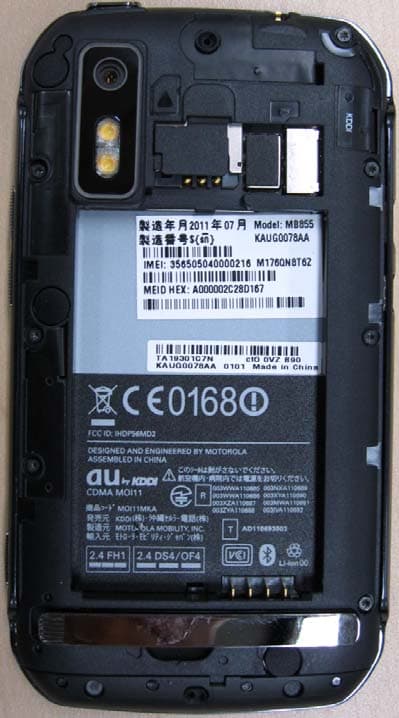
Click to zoom
Application Details
- Equipment Class
- DTS - Digital Transmission System
- Date of Grant
- Sep 22, 2011
- Application Purpose
- Original Equipment
- Date of Application
- Sep 20, 2011
- Equipment Note
- Portable Cellular/ PCS WCDMA/ GSM/ EDGE and Cellular CDMA Transceiver with WLAN and Bluetooth
- Frequency Range
- 2412.00000000 - 2462.00000000
- Company
- Motorola Mobility LLC
- Country
- United States
Documents & Files
Document Text
Text extracted from the exhibit documents filed with the FCC. Open a document above to read the original.
Users Manual
APPLICANT: MOTOROLA MOBILITY,INC. FCC ID: IHDP56MD2 INSTRUCTION MANUAL A preliminary draft of the User’s Manual follows this page. EXHIBIT 8 1 Congratulations CongratulationsMOTOROLA PHOTON™ 4GStay connected, organize your life, and absolutely own the web with MOTOROLA PHOTON 4G!• Surf the web with a blistering fast 1 GHz dual-core processor. 4G connectivity gives you download speeds up to 10x faster than before. • International roaming lets y ou make calls and stay in touch wherever you travel. • Watch streaming videos on your 4.3” qHD touchscreen, or use mirror mode to view your phone on your TV screen for gaming, videos, web browsing, and more. • Capture life’s moments in full 1080p HD video. Use the gallery to gather all your photos and your friends’ online albums in one place. Note: Certain apps and features may not be available in all countries. Caution: Before assembling, charging, or using your phone for the first time, please read the important legal and safety information packaged with your product. More• Answers: Touch > Help Center . • Updates: Smartphone updates, computer software, user guides, online help, and more at www.motorola.com/support . • Accessories: Find accessories for your smartphone at www.motorola.com/products . 2 Your phone Your phonethe important keys & connectorsNote: Your phone might look a little different. Front F aci n g C a mer a 3.5 mm He a d- M ic ro USB Conne c tor M ic ro HDMI Conne c tor Menu Key B ac k Key Home Key C a mer a Button Se a r c h Key To u c hs c reen Volume Button Power/S c reenlo c k Button ContentsLet’s go. . . . . . . . . . . . . . . . . . . . . . . . . . . . . . . . . . . . . . . . . . . . . . . . . 3Touchscreen & keys . . . . . . . . . . . . . . . . . . . . . . . . . . . . . . . . . . . . 5Home screen . . . . . . . . . . . . . . . . . . . . . . . . . . . . . . . . . . . . . . . . . . . 8Calls . . . . . . . . . . . . . . . . . . . . . . . . . . . . . . . . . . . . . . . . . . . . . . . . . . 11Contacts . . . . . . . . . . . . . . . . . . . . . . . . . . . . . . . . . . . . . . . . . . . . . . 14Messaging. . . . . . . . . . . . . . . . . . . . . . . . . . . . . . . . . . . . . . . . . . . . . 16Text entry . . . . . . . . . . . . . . . . . . . . . . . . . . . . . . . . . . . . . . . . . . . . 19Tips & tricks. . . . . . . . . . . . . . . . . . . . . . . . . . . . . . . . . . . . . . . . . . . 22Photos & videos . . . . . . . . . . . . . . . . . . . . . . . . . . . . . . . . . . . . . . . 23Music. . . . . . . . . . . . . . . . . . . . . . . . . . . . . . . . . . . . . . . . . . . . . . . . . . 27Social networking . . . . . . . . . . . . . . . . . . . . . . . . . . . . . . . . . . . . 29Web . . . . . . . . . . . . . . . . . . . . . . . . . . . . . . . . . . . . . . . . . . . . . . . . . . . 30Personalize. . . . . . . . . . . . . . . . . . . . . . . . . . . . . . . . . . . . . . . . . . . 32Location . . . . . . . . . . . . . . . . . . . . . . . . . . . . . . . . . . . . . . . . . . . . . . 34Apps for all . . . . . . . . . . . . . . . . . . . . . . . . . . . . . . . . . . . . . . . . . . . 36Connections . . . . . . . . . . . . . . . . . . . . . . . . . . . . . . . . . . . . . . . . . . 38Webtop application . . . . . . . . . . . . . . . . . . . . . . . . . . . . . . . . . . . 39Digital living. . . . . . . . . . . . . . . . . . . . . . . . . . . . . . . . . . . . . . . . . 40Bluetooth™ wireless . . . . . . . . . . . . . . . . . . . . . . . . . . . . . . . . . . 41Wi-Fi . . . . . . . . . . . . . . . . . . . . . . . . . . . . . . . . . . . . . . . . . . . . . . . . . . 43Memory card & file management . . . . . . . . . . . . . . . . . . . . . . 45Tools. . . . . . . . . . . . . . . . . . . . . . . . . . . . . . . . . . . . . . . . . . . . . . . . . . 47Management . . . . . . . . . . . . . . . . . . . . . . . . . . . . . . . . . . . . . . . . . . 49Security. . . . . . . . . . . . . . . . . . . . . . . . . . . . . . . . . . . . . . . . . . . . . . . 51Update my phone . . . . . . . . . . . . . . . . . . . . . . . . . . . . . . . . . . . . . . 53Troubleshooting. . . . . . . . . . . . . . . . . . . . . . . . . . . . . . . . . . . . . . 53Safety, Regulatory & Legal. . . . . . . . . . . . . . . . . . . . . . . . . . . . 54 3 Contents Let’s golet’s get you up and runningAssemble & charge 1 SIM in. 2 MicroSD in. 3 Battery in. 4 Cover on. 5 Charge up. HD VIDEO 3H Caution: Please read “ Battery Use & Safety ” on page 54.Note: GSM and UMTS-based global services work only with a SIM card supplied by your service provider or by another GSM or UMTS service provider. When you set your phone to use a GSM or UMTS network (see “ Manually switch network mode (International Roaming) ” on page 50), you may be prompted to enter a subsidy code. To get this code, contact your service provider.Tip: To save battery life, see “ Battery tips ” on page 22. Set up & goThe first time you turn on your phone, a setup wizard guides you through signing in to your Google™ Gmail™ account. If you don’t have one, don’t worry, the wizard will help you create one.After you log in to Gmail™, you can set up social networking, or you can do it later.Note: Your phone supports data-intensive apps and services. It is strongly recommended that you purchase a data plan that meets your needs. Contact your service provider for details. 4 Let’s go 1 Press and hold Power on top of your phone to turn it on. 2 Select a language. 3 Follow the setup wizard to create or log in to your Gmail account. Note: If you have an existing Google Gmail account, your contacts from that account are synced to your phone. Wi-Fi connectIf you want to use a Wi-Fi network for even faster Internet access, touch > Settings > Wireless & networks > Wi-Fi settings . Touch Wi-Fi to search for and connect to wireless networks. There’s more in “ Wi-Fi ” on page 43. Power/S c reenlo c k Button Cool content & moreBrowse and download thousands of the coolest apps on the planet from Android Market™. Download new apps with “ Browse…
Text truncated - open the document above for the full version.
Users Manual
6 Touchscreen & keys DragTo scroll through a list or move slowly, drag across the touchscreen. Try it: In the home screen, touch Contacts , then drag your Contacts list up or down. FlickTo scroll through a list or move quickly, flick across the touchscreen (drag quickly and release).Tip: When you flick a long list, touch the screen to stop it from scrolling. ZoomGet a closer look at Google Maps™ or web pages. To zoom in, double-touch (tap twice, quickly) the screen. To zoom out, double-touch the screen again. SCREEN NOT YET AVAILABLE You can also zoom in or out by pinching your fingers together or moving them apart on the screen.Key tipsMenu, home, back, & searchTouch Home to close any menu or app and return to the home screen. In the home screen, touch and hold Home to show the last eight apps you used, then touch an app to open it. Messaging Market N Clark St Wacker Dr M E Ohio St N Rush St N Park St N New St N Wabash Ave N Dearborn St E Grand Ave E Randolph St N Micigan Ave N Micigan Ave r D s u b m u l o C N W Lake St W Lake St E Wacker Pl State/Lake Grand Red Lake Randolph St Metra Randolph/ Wabash Washington-Blue E S WaterSt MMM M E Randolph St Ontario St E Ontario St pp hh rr a d o ee d o k E MM EEEE RRR aa nn ddd ooo lll ph hh pph SS ttt p hh Messaging a cker Dr M arborn St N Micigan Ave W Lake St W Lak e E Wacker Pl State/Lake Lake Randolph/ Wabash W ashington-Blue E S MM M R andolph St Pinch to zoom out. Menu Key B ac k Key Home Key Se a r c h Key 7 Touchscreen & keys Touch Search for text search, or touch and hold for voice search.Touch Menu to open menu options, or touch Back to go back. Power key menuPress and hold Power to open the power key menu, where you can turn off your phone ( Power off ), or turn Airplane mode or Silent mode on or off. Adjust volumePress the volume keys to change the ring volume (in the home screen) or the earpiece volume (during a call).When playing music or video files, press the volume keys to adjust media volume.Rotate the screenIn many apps, the touchscreen can rotate to stay right-side up when you turn your phone sideways:Find it: > Settings > Display > Auto-rotate screen Quick tipsIf you’re not sure what to do next, try one of these: To...Get the details —Open a text message, see details for a contact, or open items in other lists. Touch the message, contact, or item. See screen menu —Open a menu for the current screen. To u c h M e n u . See item options —Open an options menu (if available) for an item on the screen. Touch & hold the item. Start again —Go back to the home screen. To u c h H o m e . Wake up your smartphone —Turn on a sleeping touchscreen. Press Power . 8 Home screen Home screenquick access to the things you need mostQuick start: Home screenThe home screen gives you all your latest information in one place. It’s what you see when you turn on the phone or touch Home from a menu. It’s basically like this: SCREEN NOT YET AVAILABLE Note: Your home screen might look a little different. The home screen extends to give you room for adding shortcuts, widgets, and more. Flick the home screen left and right to see more panels or to add widgets or shortcuts.Use & change your home screenOn your home screen, shortcuts are icons that open your favorite apps, Web bookmarks, contacts, mail labels, or music playlists. Widgets show you news, weather, messages, and other updates right on your homescreen without having to open a separate application or web page.Flick the home screen left or right to open other panels of shortcuts and widgets.• To open something, touch it. Touch Home to return to the home screen. SCREEN NOT YET AVAILABLE 9 Home screen Tip: When you open a widget, touch Menu to see any options or settings (you can choose accounts for Messages , Social Networking , or Calendar widgets). There’s more about social networking widgets in “ Your social networking account ” on page 29. • To resize Motorola widgets, touch and hold a corner until you feel a vibration, then drag. • To add something or change your wallpaper, touch and hold an empty spot until you see the Add to Home screen menu. You can add a folder to organize your shortcuts.Tip: To choose apps for the “hot seat” row of apps along the bottom of the home screen, first add the app as a shortcut. Then, touch and hold the shortcut and drop it on top of one of the three hot seat spots. • To move or delete something, touch and hold it until you feel a vibration, then drag it to another spot, another panel, or the trash at the top of the screen. 8 3pmBudget Meeting THUJUL 3 p m Bu d g et Meetin g THUJUL SearchTouch Search , then use the window that appears. phone status & notificationsThe status bar at the top of the screen has icons that tell you about messages and phone status. To view your notifications, touch the status bar and drag it down. Touch a notification to select it. Touch here to enter text. Touch for m ore search options. Touch to searchby voice. 11:23 May 16, 2012 2:50 PM 2:47 PM2:45 PM2:41 PM Mary Morgan Copy Revisions Jim Somers Meet me outside the... New email [email protected](2) New voicemail Dial *86 Notifications Clear Ready 10 Home screen Tip: To see today’s date, touch the status bar at the top of the screen.Notification lightYour phone has a light that blinks whenever you receive voicemail, email, text message, have an appointment, or your battery is low. Bluetooth® active network (full signal) GPS active network (roaming) Wi-Fi active 3G (fastest data) downloading airplane modevibrate sync activesilent alarm set mute call battery (charging) speakerphone active battery (full charge) App menuYou can find all of your apps in one place. From the home screen, touch the app tab, to open the app menu.To close the app menu, press Home or Back . Recent appsIn the home screen, touch and hold Home to see the most recent apps you used. Touch an app to open it, or touch Home to return to the home screen.Tip: You can also open recent apps from the app menu. Touch the…
Text truncated - open the document above for the full version.
Users Manual
15 Contacts Call or email contactsFind it: > Contacts For View contact , Call contact, Text contact , or other options, touch and hold the contact. View & use contactsWhen you set up a social networking account (see “ Social networking ” on page 29), you’ll know what everybody’s up to and when. Every time you pick up a call, check a message, or look up a friend’s contact info, sure, you’ll see their name and number, but you can see their social network status and smiling face, too.Find it: > Contacts Touch a contact to open its details. While viewing details, you can start a call or message by touching a phone number or other info. SORT contactsTo sort contacts or set display options, touch Menu > Display options and touch: • Only contacts with phones : hide email-only contacts. • Sort list by : sort by first or last name. • View contact names as : view contacts as first name or last name first. • Choose contacts to display : select which source to use contacts from. Create contactsFind it: > Contacts >Menu > Add contact Touch any entry area to open the touchscreen keypad.When you’re finished, touch Save . Where are contacts saved? Your phone saves new contacts in its memory and on the Google Server or SaraWalker Contacts Phone Google contact from [email protected] Home Email Home Postal address Save Cancel More 16 Messaging Backup Assistant™, if you have a subscription. It also updates your social networking account.Edit or delete contactsFind it: > Contacts Touch the contact, then touch Menu > Edit contact or Delete contact . Synchronize contactsWhen you change one of your contacts, your phone automatically updates your other social networking accounts. Likewise, if you change a social networking friend, your phone updates your contacts.GroupsFind it: > Contacts > > You can put your Contacts into groups that you create (like “friends” , “family” , or “work”). Then, you can find contacts faster by showing one group at a time.Tip: Touch Menu to choose which groups to show (like All or Favorites ). Messagingsometimes it’s best to text, or IM, or email . . .Quick start: MessagingFind it: > Messaging > Universal Inbox Tip: To see more messages, flick or drag up. Read & reply to messagesFind it: > Messaging > Universal Inbox Note: Universal Inbox shows all of your messages together—text, email, and social networking 11:35 2:50 PM2:47 PM2:45 PM2:41 PM Copy RevisionsHi Paul, Please take a look at the ... Arthur BandoMeeting invitationMeeting is set for next Thursday at...Mary MorganfreelancersPaul, We’re going to need help w... Universal Inbox (1) Jim Somers Meet me outside the theater at 8and don’t forget your ID. Would yo... Anna Medina Cre a te Mess ag e Touch to open a m essage. Touch & hold to m ove, delete, & m ore. Che c k for Mess ag es Now Mess ag e Ty p e 17 Messaging messages. To show only one type of message, touch a message type instead of Universal Inbox . • To open a text message or social networking message and all of its replies, touch it. • To respond to a message, just open it and enter your response in the text box at the bottom.To forward a text message, touch and hold a message in the conversation, then touch Forward message . For email, touch to choose a reply or forward option. • To open options, touch and hold a message. Create messagesFind it: > Messaging > Choose a message type, such as Text Messaging or Facebook . Then, enter the recipient and message. In text messages and emails, touch Menu for options like Insert... or Attach Files . Send & receive attachmentsTo send a file in a message, open a new message and touch Menu > Insert . When you receive a message with an attachment, open the message and touch the file name to download it. Then, touch the name again to open it. Some file formats can be converted to HTML for faster viewing, and your phone will show Get HTML version . While viewing the attachment, touch it to save it, share it, and more.Tip: To send and receive large attachments faster, use a Wi-Fi connection (see“ Wi-Fi ” on page 43). Set up messagingTo add email accounts, touch > Accounts > Add account . • Corporate Sync is for Exchange server work email accounts. Enter details from your IT administrator.Tip: You might need to enter your domain name with your user name (like domain/username ). • Email is for most personal email accounts. For account details, contact the account provider.Note: To add other email accounts to your Messaging widget and Universal Inbox , touch > Messaging , then touch Menu > Manage accounts > Add account > Email . To change your settings, touch > Messaging > Menu , then touch: • Manage accounts to add or remove an account. Account Manager 18 Messaging • Edit Universal Inbox to choose which accounts show messages in the Universal Inbox . • Messaging Settings to set the notification for each account type (along with other preferences, for email). Gmail ™ Create a new emailFind it: > Gmail > Menu > Compose Enter the recipient email address and message, then touch Send . Tip: Press Menu for options, like Attach or Add Cc/Bcc . Featuressearch for emailPress Menu > Search in a messages list. choose email notificationsPress Menu > More > Settings > Email notifications . apply a label to a threadTouch and hold a message, then touch Change labels . Google Talk™Google Talk instant messaging lets you chat via instant message with other Google Talk users on phones or on the web.Find it: > Talk Press Menu to send invitations, add new friends, and more. Alex Sliveira AvailableBusyAwayAwayAway Colleen PhamDylan FosterJeff CookJulie Hay Kathy HouchinKKKKKKK a tttttt hhhhhhhhhh y HHHHHHH o u c hhhhhhhhhh iiiiiiiiii n SS tt aa tt uu ss mm ee ss ss aa gg ee 12:00 Friends list [email protected] Online status:AvailableIdleBusyOffline Touch to change your status. Touch a contact to chat with a friend. Friends list Touch to change your picture. Touch to change your online status m essage. 19 Text entry Tip: You can also download an instant me…
Text truncated - open the document above for the full version.
Users Manual
23 Photos & videos Photos & videossee it, capture it, share it!PhotosTake & share photosTake that family photo, and post it online for everyone to see.Note: To get the clearest photos, wipe the lens clean with a soft, dry cloth before you take a photo.Find it: Camera To take the photo, touch the viewfinder to focus the photo, then touch . 5555 333333333333333 PPPPPPPPPPPPPPPPPPPPPP 5555 33333333 66 333 8MP 536 5 3 6 333333333333 5555555555555555555555555555555555555555555555 3 55555 333 666666666666666666 333333333 6 33 66 33 66 555 3333333 5 33 555 333333333 5 3333333333333333333333 666 3 66666666666 333 666 3 6 33 6666 3 66 3333333 66 333 6666 333 666666666666666 33333333333333333333333 6666 33333333333333333333 666666666 333333333 6666 33333333 666 333333 6666666666666666666666666666666666666666 Scenes Flash Effects Switch to Chicago, Illinois WSW S WS 2989 Scenes Flash Effects Switch to A Chicago, Illinois Photo C ap ture Sett i n g s Adjust for greatercreative contol. Tag photos with your location. Go to your picture gallery. Zoo m in or out. Note: Photos are stored on your phone’s internal memory unless you switch it to a microSD memory card (sold separately). Picture Resolution is Widescreen or 6MP , unless you change it. Open your gallery and touch and hold a photo to view options:• To set the photo as a wallpaper, contact photo, or social network photo, touch Set as . • To upload the photo to an online photo album, touch Add to album . • To send the photo in a message or post it online, touch Share . For more info on sharing your photos, see “ Share photos & videos ” on page 26. • To delete the photo, touch Delete . Photo options You can make adjustments to optimize your shot. Touch the right side of the screen to see these options:• Scenes —Adjust in different environments: Auto , Portrait , Landscape , Sport , and more. Touch the screen when finished to return to the viewfinder. • Effects —Change photo look: Normal , Black and White , Negative , and more. • Flash —Set Flash On , Flash Off , or Auto Flash . 24 Photos & videos • Front/Back —Switch between the forward facing and rear facing Cameras. • Switch to —Toggle between photo and camcorder. Camera settingsIn the viewfinder, touch Menu > Settings to adjust these settings: • Picture Resolution —Adjust for optimal resolution. • Exposure —Increase or decrease the amount of aperture time. • Storage Location — Save photos to camera or memory card. Picture modesIn the viewfinder, touch Menu > Picture modes to change picture mode: • Single shot —Take one shot at a time. • Panorama —Take multiple shots of wide scenes and join them together to make one large image. Use Capture Direction to specify how shots will be joined: Move up , Move right , Move left , Move down . • Multi-shot —Take several shots in rapid succession when you touch and hold . Tagging photosTag your photos so you can group them in different folders.To c r e a t e a t a g : 1 In the viewfinder, touch Menu > Tags > Active Custom Tags . 2 Enter a tag name under Edit custom tags , touch Done , then touch Done again. 3 If necessary, activate the tag you created by touching Custom Tags . (A check box on the right turns green when activated.) 4 Touch Back to return to the camera viewfinder. The tag you created will be applied to any photo you take, until you deactivate the tag.Note: To add a location tag to your photo, touch Menu > Settings > Location & security and select a location service to turn on. VideosRecord & share videosFind it: > Camcorder Note: To get the clearest videos, wipe the lens clean with a soft, dry cloth before you record a video. wwwww 55555 44444 0000 66 - 777 -- 22222 0000000 8888888888 2222 44 5555 44444 5555 25 Photos & videos To record a video, touch . Touch to stop the recording.Open your gallery and touch and hold a video to view options:• To play the video, touch . • To upload the video to an online album, touch . • To send the video in a message or post it online, touch . For more info on sharing your video, see “ Share photos & videos ” on page 26. • To delete the video, press Menu > Delete . Chicago, Scenes Light Effects Switch to Chicago Illinois 02:54:34 V i deo C ap ture Sett i n g s Adjust for greatercreative contol. Tag videos with your location. Go to your gallery. Zoo m in or out. HD videosYou can capture HD-quality videos to watch on an HDTV or monitor.To record an HD quality video, be sure to select the correct Video resolution . From the active camcorder viewfinder, touch Menu > Settings > Video resolution > High Definition (720p) . To enhance the video quality, touch Scenes or Effects on the right side of the camcorder viewfinder. (You may need to touch the screen to see these options.) Video options You can make adjustments to optimize your video. Touch one of the buttons on the right side of the viewfinder to make changes (you may need to touch the screen to make the buttons appear): • Scenes —Adjust for better audio capture in different environments: Everyday , Outdoors , Concert , Narrative , or Subject . • Effects —Change video look: Normal , Black and White , Negative , and more. • Light —Turn a light on or off to adjust for the lighting where you are recording. • Front/Back —Switch between the forward facing and rear facing Cameras. • Switch to —Toggle between camcorder and camera. 26 Photos & videos Camcorder settingsIn the viewfinder, touch Menu > Settings to open the camcorder menu and adjust settings like Video Resolution , Focus Options , and more. View photos & videosFind it: > Gallery richi e Uploa d Yester d richieUploaded a photoYesterday i eeee aad dd eeed ddd aaaa pppp hhhh oo rrr ddda aaay yy Friends DLNA servers My library Online richieUploaded a photoYesterday 3 Camera roll 11:35 View your captured photos & videos. Sort your photos & videos. See your online albu m s (like Picasa, Flickr, or Facebook). Go to your friends’ online albu m s. See m edia fro m DNLA Connected devices on your W i-Fi network. Shar…
Text truncated - open the document above for the full version.
Users Manual
30 Web Twitter and MySpace messages will always appear as “read” on your phone, but your phone notifies you when you receive a new message. MySpace marks your messages as “read” online.Tip: To download updates faster, use “ Wi-Fi ” on page 43. Edit & delete accountsFind it: > Accounts Touch and hold an account, then touch Open account to edit it, or touch Remove account to remove it (along with its contacts and messages).Note: You can’t delete the Google™ account you used or created when you set up your phone. Account Manager Websurf the web with your phoneQuick start: BrowserFind it: Browser Tip: To zoom, touch the display with two fingers, then move them apart. http :// w ww . 11:35 Sign in New window Refresh Bookmarks Forward Windows More Web Images Local News more update Chicago - Google See places near: u pd at e Touch for browser options. Touch a link to select it. Touch and hold for m ore options. 31 Web ConnectYour phone uses the mobile phone network (over the air) or a Wi-Fi connection to automatically access the Web.Note: Your service provider may charge to surf the Web or download data.To use a wireless network, touch > Settings > Wireless & networks . Touch Wi-Fi to turn it on and touch Wi-Fi settings to search for nearby wireless networks. Touch a network to connect. Note: If you can’t connect, contact your service provider. Play web videosThe browser features the Adobe® Flash® Player, which adds animation, video, and interactivity to web pages. Touch to begin video playback. Double-tap the video during playback to enlarge it for better viewing. Browser optionsTouch Menu to see browser options: Options New Window Open a new browser window. Bookmarks See your bookmarks. YouTube™Share videos with YouTube users everywhere. You don’t need a YouTube account to browse and view videos.Find it: > YouTube Note: If you want a YouTube account, go to www.youtube.com . To create an account or sign in, touch Menu > My account . To Browse or Upload videos, touch Menu . Windows View the browser windows that are currently open. Refresh Reload the current page. Back/Forward Go to previously viewed pages. More View additional browser options. Options 32 Personalize Personalizeadd your personal touchWidgetsAdd widgets 1 Touch and hold an empty spot on your home screen.Tip: Flick left or right to open other panels. 2 Touch Motorola widgets or Android widgets and choose a widget. Set up widgetsYou can customize some widgets. Touch a widget to open it, then touch Menu . Your home screen may already have these widgets:• Messages : Change the widget name or choose how long it shows new messages. To add email accounts, “ Set up messaging ” on page 17. • Music : Set this widget to an artist, album, song, playlist, or just touch Menu > Shuffle all . There’s more about “ Music ” on page 27. • News : Change the widget name, choose how long it shows new stories, or choose a news source. To choose a source, touch , then choose preset Bundles or Channels , or choose Custom to enter a URL for a Webpage or an RSS feed . • Weather : Change temperature units or add locations. To add locations, touch , enter a city, and touch Search . When you open the weather widget, flick left to see other locations you added. ShortcutsTo add shortcuts for apps, bookmarks, and more to the home screen, touch and hold an empty spot on the home screen, touch Shortcuts , and select a shortcut. Tip: To change one of the docked shortcuts that always appears at the bottom of the home screen (no matter what panel you’re viewing), touch and hold the shortcut, then drop it on top of one of the three hot seat spots. RingtonesPersonalize your ringtones:Find it: > Settings > Sound > Phone ringtone or Notification ringtone To set your vibrate options:Find it: > Settings > Sound > Vibrate To set a song as a ringtone:Find it: > Music and play the song, then touch Menu > More > Use as ringtone 33 Personalize WallpaperApply a new wallpaper: 1 Touch and hold an empty spot on your home screen. 2 Touch Wallpapers . 3 Touch Gallery , Live wallpapers , or Wallpapers , and choose a wallpaper. Sounds• To play dial pad tones, touch > Settings > Sound > Audible touch tones . • To play sound on a screen selection, touch > Settings > Sound > Audible selection . • To customize the sound settings for media and videos, touch > Settings > Sound > Media audio effects . Display settings• To set display brightness, touch > Settings > Display > Brightness . • To set orientation, touch > Settings > Display > Auto-rotate screen . • To set animation, touch > Settings > Display > Animation . Note: Some apps are designed so that your phone can “animate” them by rotating, fading, moving, and stretching one or more images. Date & timeSet date, time, time zone, and formats:Find it: > Settings > Date & time Language & regionSet your menu language and region:Find it: > Settings > Language & keyboard > Select locale 34 Location Locationtoss away your mapsGoogle Maps™Find it: > Maps Google Maps offers powerful, user-friendly mapping technology and local business information—including Messaging N Clark St Wacker Dr M E Ohio St N Rush St N Wabash Ave N Dearborn St E Grand A v N Micigan Ave N Micigan Ave W Lake St W Lake St E Wacker Pl State/Lake Grand Red Lake Randolph St Metra Randolph/ Wabash Washington-Blue E S WaterSt MMM M E Randolph St Ontario St E Ontario St vvvvvvvvvvvvvvveeeeeeeeeeeeeeeeeeee WWWWWWWWWWWWWWWWWWWWWWWWWWWWWWW aaaaaaaaa sssssssss hhhhhhhhhhhhhhhh iiiiiiii nnnnnnnnnnnnnnnn ggggggggggggggggggggg tttttttttttttttttttt oooooooooooooooo nnnnnnnnnnnnnnnn --- BBBBBBBBBBBB llllllll uuuuuuuuuuuuu eeeeeeeee Search Clear Map Join Latitude More Directions Starred Places Search Maps Touch Menu for options.Find places.Change the view by adding layers.Center the m ap on your current location. business locations, contact information, and driving directions.For help, touch Menu > More > Help . Tip: Want to know what’s in your immediate area? Try Google Places™. Touch > Pla…
Text truncated - open the document above for the full version.
Contact Information
Applicant
Jeff Narducci(Director Product Compliance)
Technical Contact
PCTEST Engineering Laboratory, Inc.Randy Ortanez
[email protected]410-290-6652
6660-B Dobbin Road · Columbia, Maryland · United States
Test Firm
PCTEST Engineering Laboratory, Inc.Randy Ortanez
Technical Specifications
| # | Rule Parts | Frequency Range | Power Output |
|---|---|---|---|
| 1 | 15C | 2.41 GHz - 2.46 GHz | 61.00 mW |
Other Applications from Motorola Mobility LLC
IHDT56AW9
May 12, 2026Smart Watch
Equipment Class
NII - Unlicensed National Information Infrastructure TXIHDT56AW5
Apr 08, 2026Mobile Cellular Phone
Equipment Class
DTS - Digital Transmission SystemIHDT56AW6
Mar 18, 2026Smart Watch
Equipment Class
JBP - Part 15 Class B Computing Device PeripheralIHDT56AX4
Mar 17, 2026Mobile Cellular Phone
Equipment Class
PCE - PCS Licensed Transmitter held to earIHDT56AW3
Mar 03, 2026Mobile Cellular Phone
Equipment Class
6XD - 15E 6 GHz Low Power Indoor Client