IHDP56ME1CDMA/LTE TRANSCEIVER WITH BT & WLAN
Motorola Mobility LLC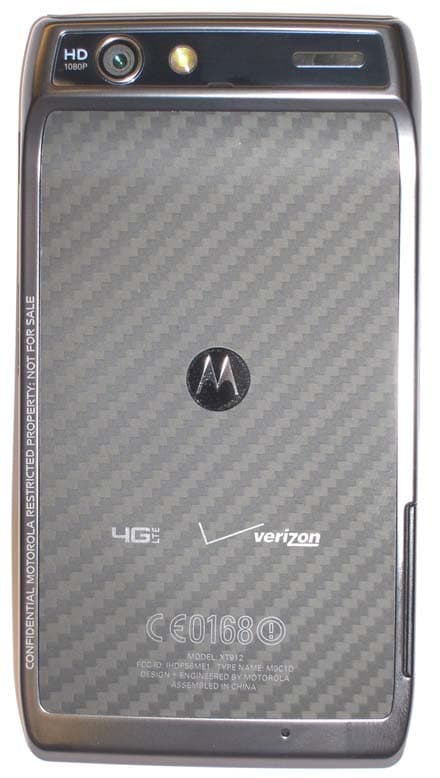
Click to zoom
Application Details
- Equipment Class
- PCE - PCS Licensed Transmitter held to ear
- Date of Grant
- Oct 17, 2011
- Application Purpose
- Original Equipment
- Date of Application
- Oct 13, 2011
- Equipment Note
- CDMA/LTE TRANSCEIVER WITH BT & WLAN
- Frequency Range
- 777.00000000 - 787.00000000
- Company
- Motorola Mobility LLC
- Country
- United States
Documents & Files
Document Text
Text extracted from the exhibit documents filed with the FCC. Open a document above to read the original.
Users Manual
APPLICANT: MOTOROLA MOBILITY, INC. FCC ID: IHDP56ME1 INSTRUCTION MANUAL A representative version of the user's manual follows: Exhibit 8 Dummy Page - To be discarded before printing Use this template with A6MotoLandscapeProduct1 StructApps. See the Reference Pages for template user instructions. MOTOROLA XT912 Verizon User’s Guide 9/13/11 1 Congratulations CongratulationsMOTOROLA XT912Introducing the powerful smartphone in a RAZR slim design! MOTOROLA XT912 has tons of advanced features for everything you want to do—video, web browsing, multimedia, and more.• A blistering fast dual-core 1.2 GHz processor lets you download web pages in under a second, and makes multi-tasking a snap. • Use MotoCast to stream or download music, videos, and documents to your smartphone, and upload photos and files to your computer. • Use your 8MP camera to capture life’s moments in full 1080p HD video. Your smartphone’s 4.3" qHD Super AMOLED Advanced display makes video playback crisper and more vivid than ever before. Note: Certain apps and features may not be available in all countries. Caution: Before assembling, charging, or using your phone for the first time, please read the important legal and safety information in this guide. This product meets the applicable limit for exposure to radio waves (known as SAR) of 1.6 W/kg (FCC). The limits and guidelines include a substantial safety margin designed to assure the safety of all persons, regardless of age and health. The highest SAR values measured for this device are listed in the regulatory information packaged with your product.Note: When using the product while worn on your body, either use an approved accessory such as a holster or maintain a distance of 2.5 cm (1 inch) from the body to ensure compliance with SAR requirements. Note that the product may be transmitting even if you are not making a phone call. More•Answers: Touch > Help Center . • Updates: Smartphone updates, computer software, user guides, online help, and more at www.motorola.com/support . • Accessories: Find accessories for your smartphone at www.motorola.com/products . 2 Your smartphone Notes:• All screens in this guide are simulated. Actual displays may vary. • Instructions to perform tasks in this guide may change depending on the software version on your smartphone. • Unless specified otherwise, all instructions to perform tasks in this guide assume that you are starting from the home screen. Your smartphonethe important keys & connectorsNote: Your smartphone might look a little different. 11:23 Arturo Roma n JP Jordan Tatia Torrey Kim Vonesh See all your apps. Touch the Launcher icon. 1 of 8 Market h ttp :// www . Browser Voicemail Email Phone Apps Text Camera M ic ro USB Conne c tor M ic ro HDMI Conne c tor We bca m M ic ro SIM Slot m ic roSD Slot 3.5mmHe a dset J ac k Volume Keys4.3" qHDAMOLED To u c hs c reen Power Key Press = sleep Hold = power B ac k Menu Se a r c h Home 3 Let’s go ContentsLet’s go . . . . . . . . . . . . . . . . . . . . . . . . . . . . . . . . . . . . . . . . . . . . . . . . . . 3Touchscreen & keys. . . . . . . . . . . . . . . . . . . . . . . . . . . . . . . . . . . . . . 5Home screen . . . . . . . . . . . . . . . . . . . . . . . . . . . . . . . . . . . . . . . . . . . . . 7Apps & updates. . . . . . . . . . . . . . . . . . . . . . . . . . . . . . . . . . . . . . . . . . 10Calls . . . . . . . . . . . . . . . . . . . . . . . . . . . . . . . . . . . . . . . . . . . . . . . . . . . . 13Contacts. . . . . . . . . . . . . . . . . . . . . . . . . . . . . . . . . . . . . . . . . . . . . . . . . 16Messaging . . . . . . . . . . . . . . . . . . . . . . . . . . . . . . . . . . . . . . . . . . . . . . . 19Text entry . . . . . . . . . . . . . . . . . . . . . . . . . . . . . . . . . . . . . . . . . . . . . . 21Social networking . . . . . . . . . . . . . . . . . . . . . . . . . . . . . . . . . . . . . 23Tips & tricks . . . . . . . . . . . . . . . . . . . . . . . . . . . . . . . . . . . . . . . . . . . . 24Webtop application. . . . . . . . . . . . . . . . . . . . . . . . . . . . . . . . . . . . . 25Digital living . . . . . . . . . . . . . . . . . . . . . . . . . . . . . . . . . . . . . . . . . . . 26Photos & videos. . . . . . . . . . . . . . . . . . . . . . . . . . . . . . . . . . . . . . . . . 27Music . . . . . . . . . . . . . . . . . . . . . . . . . . . . . . . . . . . . . . . . . . . . . . . . . . . 32Web. . . . . . . . . . . . . . . . . . . . . . . . . . . . . . . . . . . . . . . . . . . . . . . . . . . . . 36Personalize . . . . . . . . . . . . . . . . . . . . . . . . . . . . . . . . . . . . . . . . . . . . 37Location . . . . . . . . . . . . . . . . . . . . . . . . . . . . . . . . . . . . . . . . . . . . . . . . 39Wireless. . . . . . . . . . . . . . . . . . . . . . . . . . . . . . . . . . . . . . . . . . . . . . . . 41Memory card & file management . . . . . . . . . . . . . . . . . . . . . . . . 45Tools . . . . . . . . . . . . . . . . . . . . . . . . . . . . . . . . . . . . . . . . . . . . . . . . . . . 46Management . . . . . . . . . . . . . . . . . . . . . . . . . . . . . . . . . . . . . . . . . . . . . 51Security . . . . . . . . . . . . . . . . . . . . . . . . . . . . . . . . . . . . . . . . . . . . . . . . 52Troubleshooting . . . . . . . . . . . . . . . . . . . . . . . . . . . . . . . . . . . . . . . 54Safety, Regulatory & Legal . . . . . . . . . . . . . . . . . . . . . . . . . . . . . 55 Let’s golet’s get you up and runningAssemble & chargeNote: This product uses a non-removable battery. The battery should only be replaced by a Motorola-approved service facility. Any attempt to remove or replace your battery may damage the product.Tip: To save battery life, see “ Battery tips ” on page 24. 1 Micro SIM in. 2 m icroSD in. 3 Charge up. 3H 4 Let’s go Set up & goNote: Your phone supports data-intensive apps and services. It is strongly recommended that you purchase a data plan that meets your needs. Contact Verizon Wireless® for details. 11:23 Arturo Roma n JP Jordan Tati…
Text truncated - open the document above for the full version.
Users Manual
16 Contacts Contactscontacts like you’ve never had beforeQuick start: ContactsFind it: > Contacts Tip: To search the list, touch to open a touchscreen keypad, then type a name. When you flick or drag the list, a scroll bar appears that you can drag to move the list faster. Favorites Recent Contacts Dialer Displaying 297 contacts In case of emergency A Abe BaudoAllie SmythAnna MedinaAstrid Fanning # A B C D E F G H I J K L M N O P Q R ST U V W X G rou p Create & view groupsof contacts.Cont ac ts L i st Touch to view contact infor m ation. Touch & hold to call, send a text m essage, & m ore. Add contacts. Touch a letter to ju m p to contact na m es that start with the letter. Transfer contactsGet all your contacts, all in one place. Here’s a few helpful hints:• Use Gmail™All your Gmail contacts will automatically get synced to your phone. Various computer applications for mobile phones and email accounts allow you to export your contacts as a “ .CSV” file. You can then use Gmail to import the file. For more details, go to www.motorola.com/transfercontacts or log in to your Gmail account on your computer and select “Help” . • MoreThere are other methods and tools to help you at www.motorola.com/transfercontacts . Link contactsYou might have two or more contacts for the same person, maybe a Gmail contact who is also stored on your phone, or one friend with two email addresses. To combine these contacts:Find it: > Contacts Touch a contact to open it, touch Menu > Edit contact , touch Menu > Join , touch the second contact, then touch Save . 17 Contacts Call or email contactsFind it: > Contacts • To view contact information, touch the contact. • To call, text, send an email, or see other options, touch and hold the contact. • To add a contact to Favorites, touch the contact, then touch the star next to the contact’s name. The star turns green. View & use contactsWhen you set up a social networking account (see “ Social networking ” on page 23), you’ll know what everybody’s up to and when. Every time you pick up a call, check a message, or look up a friend’s contact info, you’ll see their name and number, but you can see their social network status and smiling face, too.Find it: > Contacts • To find a contact, touch in the Contacts screen and type the contact name.Touch a contact to open its details. While viewing details, you can start a call or message by touching icons next to the phone number, email address, or social network. To see your interactions with the person, touch Contact History . • To change which group of contacts is shown ( All , Facebook , and so on) touch the filter name at the top. • To change how you view the list of contacts, flick left or right at the bottom of the screen to select History (recently used), A-Z (list without status), or Status (list with status). Create contactsFind it: > Contacts > Touch any entry area to open the touchscreen keypad.When you’re finished, touch Save . SaraWalker Phone Google contact from [email protected] Home Email Home Postal address More Contacts Save Cancel Select a picturefor the contact.Set the nu m ber type. Add m ore na m e details. Re m ove this nu m ber. Add another nu m ber. 18 Contacts Where are contacts saved? Your smartphone saves new contacts in its memory and on the Google Server, if you have an account. It also updates your social networking account. Edit or delete contactsFind it: > Contacts Touch the contact, then touch Menu > Edit contact or Delete contact . Synchronize contactsWhen you change one of your contacts, your smartphone automatically updates your other social networking accounts. When you change a social networking friend, your smartphone updates your contacts.Personalize contactsFind it: > Contacts Add a photo: Touch the contact, touch Menu > Edit contact , then touch . Set a ringtone: Touch the contact, then touch Menu > Options > Ringtone . GroupsFind it: > Contacts > > group name You can put your contacts into groups that you create (like “friends” , “family” , or “work”). Then, you can find contacts faster by showing one group at a time.To create a new group, touch Contacts >, then touch Menu > New group . 19 Messaging Messagingsometimes it’s best to text, or IM, or email . . .Quick start: MessagingFind it: > Messaging > Universal Inbox Tip: To see more messages, flick or drag up. Read & reply to messagesFind it: > Messaging > Universal Inbox Note: Universal Inbox shows all of your messages together—text, email, and social networking messages. To show only one type of message, touch a message type instead of Universal Inbox . Universal Inbox (1) freelancersPaul, We’re going to need help w... 2:41 PM Mary MorganCopy RevisionsHi Paul, Please take a look at the ... 2:50 PM Anna MedinaMeet me outside the theater at 8and don’t forget your ID. Would yo... 2:47 PM Jim SomersMeeting invitationMeeting is set for next Thursday at ... 2:45 PM Arther Bando Create m essages. Check for m essages now. Mess ag e Ty p e Mess ag e L i st Touch to open a m essage. Touch & hold to m ove, delete, & m ore. • To open a text message or social networking message and all of its replies, touch it. • To respond to a message, just open it and enter your response in the text box at the bottom.To forward a text message, touch and hold a message in the conversation, then touch Forward message . For email, touch to choose a reply or forward option. • To open options, touch and hold a message. Create messagesFind it: > Messaging > Choose a message type, such as Text Message or Facebook . Then, enter the recipient and message. In text messages and emails, touch Menu for options like Insert... or Attach Files . Send & receive attachmentsTo send a file in a message, open a new message and touch Menu > Insert . When you receive a message with an attachment, open the message and touch the file name to download it. Then, touch the name again to open it. Some file formats can be converted to HTML for faster viewing, and your smartphone wil…
Text truncated - open the document above for the full version.
Users Manual
35 Music Music player controls To . . .Play/pause Touch / . Select previous/next song Touch / . Fast forward/rewind Touch and hold / . View playlist Touch . Shuffle on/off Touch > . Repeat all/current/off Touch > . Adjust volume Press side volume keys. View library Touch Menu > Library . Manage speakers Touch Menu > Audio effects . Add to playlist Touch Menu > Add to playlist . Use as ringtone Touch Menu > Use as ringtone . Use as notification Touch Menu > Use as notification . Delete Touch Menu > Delete . Hide, wake, turn offTouch Home to use another app. Your music continues to play.When you see in the status bar, a song is playing. Flick down to see details. Touch the song to return to the music controls.To turn off your music, touch . PlaylistsTo add a song from the music library to a playlist, touch and hold the song, then touch Add to playlist . Choose an existing playlist, or touch Create playlist to create one.To edit, delete and rename playlists, touch and hold the playlist in the music library. 36 Web Websurf the web with your smartphoneQuick start: BrowserFind it: Browser Tip: To zoom, touch the display with two fingers, then move them apart. htt p : //www . Sign in Settings iGoogle Help Turn on Instant (beta) is off: Restaurants Coffee Bars More http://www.google.com/... Web Images Places News more Forward Refresh Windows New window Bookmarks More Touch a link to select it. Touch & hold for m ore options. Touch Menu forbrowser options. ConnectYour smartphone uses the mobile phone network (over the air) or a Wi-Fi connection to automatically access the Web.Note: Your service provider may charge to surf the Web or download data.If you want to use a Wi-Fi network for faster Internet access, touch the status bar at the top of the home screen and drag it down. Touch the Wi-Fi networks available notification to select a preferred network. For more info, see “ Wi-Fi networks ” on page 42. Note: If you can’t connect, contact your service provider. Play web videosThe browser features the Adobe™ Flash™ Player, which adds animation, video, and interactivity to web pages. Touch to begin video playback. Double-tap the video during playback to enlarge it for better viewing. DownloadsTo download files in your browser, touch a file link or touch and hold a picture to choose Save image . To see the files you downloaded, touch > Downloads . Touch and hold an item to open it, see details, or remove it from the list.You can download “ Apps & updates ” on page 10. 37 Personalize Browser optionsTouch Menu to see browser options: YouTube™Share videos with YouTube users everywhere. You don’t need a YouTube account to browse and view videos.Find it: > YouTube Note: If you want a YouTube account, go to www.youtube.com . To create an account or sign in, touch Menu > My account . To Browse or Upload videos, touch Menu . Options New window Open a new browser window. Bookmarks See your bookmarks. Windows View open browser windows. Refresh Reload the current page. Forward Go forward through viewed pages (touch Back to go back). More View additional browser options. Personalizeadd your personal touchWidgetsAdd widgets 1 Touch and hold an empty spot on your home screen.Tip: Flick left or right to see other panels. 2 Touch Widgets and choose a widget. Set up widgetsYou can customize some widgets. Touch a widget to open it, then touch Menu . Your home screen may already have these widgets:• Universal Inbox : Change the widget name or choose how long it shows new messages. To add email accounts, “ Set up messaging ” on page 20. • Music : Set this widget to an artist, album, song, playlist, genre, or just touch Menu > Shuffle all . There’s more about “ Music ” on page 32. • News : Change the widget name, choose how long it shows new stories, or choose a news source. To choose a source, touch , then choose preset Bundles or Channels , or choose Custom to enter a URL for a Webpage or an RSS feed . 38 Personalize • Weather : Change temperature units or add locations. To add locations, touch , enter a city, and touch Search . When you open the weather widget, flick left to see other locations you added. ShortcutsTo add shortcuts for apps, bookmarks, and more to the home screen, touch and hold an empty spot on the home screen, touch Shortcuts , and select a shortcut. Tip: To change one of the dock shortcuts at the bottom of the home screen, touch and hold the shortcut, then select the shortcut you want to replace it. RingtonesPersonalize your ringtones:Find it: Menu > Settings > Sound > Phone ringtone or Notification ringtone To set your vibrate options:Find it: Menu > Settings > Sound > Vibrate To set a song as a ringtone:Find it: > Music and play the song, then touch Menu > Use as ringtone Note: To choose from thousands more songs, visit verizonwireless.com/ringtones . WallpaperApply a new wallpaper: 1 Touch and hold an empty spot on your home screen. 2 Touch Wallpapers . 3 Touch Gallery , Live wallpapers , or Wallpapers , and choose a wallpaper. Sounds• To set volume for ringtones, media, and alarms, touch Menu > Settings > Sound > Volume . • To play dial pad tones, touch Menu > Settings > Sound > Audible touch tones . • To play sound on a screen selection, touch Menu > Settings > Sound > Audible selection . • To customize the sound settings for media and videos, touch Menu > Settings > Sound > Media audio effects > Phone speaker . Display settings• To set display brightness, touch Menu > Settings > Display > Brightness . • To set orientation, touch Menu > Settings > Display > Auto-rotate screen . 39 Location • To set animation, touch Menu > Settings > Display > Animation . Note: Some apps are designed so that your smartphone can “animate” them by rotating, fading, moving, and stretching one or more images. Date & timeSet date, time, time zone, and formats:Find it: Menu > Settings > Date & time Language & regionSet your menu language and region:Find it: Menu > Settings > Language & keyboard > Select locale Locatio…
Text truncated - open the document above for the full version.
Attestation Statements
APPLICANT: MOTOROLA MOBILITY, INC. FCC ID: IHDP56ME1 Motorola Mobility, Inc.; 8000 W. Sunrise Blvd, Suite A; Plantation, FL 33322, USA www.motorola.com Exhibit 2. Statements of Certification -- Pursuant to 47 CFR 2.907 2.1. Specification Compliance Transceiver type described herein (IHDP56ME1) has been tested in accordance with the requirements contained in the appropriate Commission regulations. To the best of my knowledge, these tests were performed using measurement procedures consistent with industry or Commission standards, and demonstrate that this equipment complies with the appropriate standards. Each unit manufactured, imported, or marketed will conform to the samples tested herein, within the statistical variations that can be expected due to high volume production and test measurement error. NAME: Carl Chin SIGNATURE: /s/ Carl Chin DATE: 12 September 2001 TITLE: Engineering Manager 2.2. Statement of Certification I hereby certify that the above application was prepared under my direction and that to the best of my knowledge and belief, the facts set forth in this application and accompanying technical data are true and correct. The technical data supplied with this application was taken under my supervision and is hereby duly certified. I also certify that this transmit equipment (IHDP56ME1) is in compliance with all applicable parts of the FCC Rules. NAME: John Lewczak SIGNATURE: DATE 12 September 2011 TITLE: Engineering Manager, Product Safety and Compliance Page 2 - 1 APPLICANT: MOTOROLA MOBILITY, INC. FCC ID: IHDP56ME1 Motorola Mobility, Inc.; 8000 W. Sunrise Blvd, Suite A; Plantation, FL 33322, USA www.motorola.com Page 2 - 2 2.3. Attestation Statement (Equipment Class DTS and DSS - Bluetooth/Wi-Fi) This device contains an embedded Bluetooth device, Wi-Fi device, and MOTOtalk capabilities that Motorola Mobility confirms are compliant with the applicable Part 15C regulations. 15.247(a)(1) • The hopping sequence must be pseudorandom. • All Channels are used equally on average. • The receiver input bandwidth is approximately equal to the transmit bandwidth. • The receiver hops in sequence with the transmitted signal. 15.247(g) The system is designed to comply with all of the regulations in Section 15.247 when the transmitter is presented with a continuous data (or information). 15.247(h) The system does not coordinate its channel selection/hopping sequence with other frequency hopping systems for the express purpose of avoiding the simultaneous occupancy of individual hopping frequencies by multiple transmitters. NAME: Carl Chin SIGNATURE: /s/ Carl Chin DATE: 12 September 2001 TITLE: Engineering Manager 2.4. Attestation Statement (Equipment Class PCE – CDMA 850/1900 MHz Hearing Aid Compatibility) Motorola Mobility hereby declares that typical production units were evaluated for Hearing Aid Compatibility (HAC) compliance. NAME: Carl Chin SIGNATURE: /s/ Carl Chin DATE: 12 September 2001 TITLE: Engineering Manager APPLICANT: MOTOROLA MOBILITY, INC. FCC ID: IHDP56ME1 Motorola Mobility, Inc.; 8000 W. Sunrise Blvd, Suite A; Plantation, FL 33322, USA www.motorola.com Page 2 - 3 2.5. Declaration of Available Operating Bands and Modes We, Motorola Mobility, Inc. declare that CDMA and LTE are the main networks used in the US territory for this product. The WCDMA/GSM network functions have been disabled by the firmware and are SIM locked by all US operators on this product. NAME: Carl Chin SIGNATURE: /s/ Carl Chin DATE: 12 September 2001 TITLE: Engineering Manager
Cover Letter(s)
FCC ID: IHDP56ME1 Motorola Mobility, Inc.; 8000 W. Sunrise Blvd, Suite A; Plantation, FL 33322, USA www.motorola.com Page 13b - 1 CONFIDENTIALITY REQUEST 8 Auguest 2011 Federal Communications Commission Laboratory Authorization & Evaluation Division 7435 Oakland Mills Road Columbia, MD 21046 Subject: Confidentiality Request Regarding Application for Certification of FCC ID: IHDP56ME1. Dear Sir or Madam: Pursuant to Sections 0.457 and 0.459 of the Commission’s Rules, we hereby respectfully request confidential treatment of information accompanying this application as outlined below: Exhibit Type File Name Block Diagrams. IHDP56ME1_Ex_04 (Block Diagrams).pdf Schematic Diagrams. IHDP56ME1_Ex_05 (Schematic Diagrams).pdf Parts List and Tune Up Procedures. IHDP56ME1_Ex_10 (Parts List and Tune Up).pdf Transmitter Characteristics. IHDP56ME1_Ex_12 (TX Characteristics).pdf Motorola Mobility, Inc. requests that these exhibits be held as Permanently Confidential, and not be made routinely available for public inspection. Motorola considers that the information in these exhibits should be classified as trade secrets, pursuant to 47 CFR Section 0.457(d) and Section 552(b)(4) of the Freedom of Information Act. The public disclosure of these materials may be harmful to the applicant and provide unjustified benefits to its competitors. Motorola Mobility, Inc. understands that, pursuant to Section 0.457 of the Rules, disclosure of this application and all accompanying documentation will not be made before the date of the Grant for this application. FCC ID: IHDP56ME1 Motorola Mobility, Inc.; 8000 W. Sunrise Blvd, Suite A; Plantation, FL 33322, USA www.motorola.com SHORT TERM ONFIDENTIALITY REQUEST – 180 DAYS Pursuant to the Commission’s public notice DA 04-1705 (June 15, 2004), Motorola Mobility, Inc. is also requesting Temporary Confidentiality treatment of information accompanying this application as outlined below. This provision will give Motorola Mobility, Inc. temporary confidentiality prior to product launch. Exhibit Type File Name External product photographs. IHDP56ME1_Ex_03 (External_Photos).pdf Test set-up photographs. IHDP56ME1_Ex_07b (SAR Test Set- up_Details).pdf IHDP56ME1_Ex_07c (Part 15 Test Set- up_Details).pdf IHDP56ME1_Ex_07d (HAC Test Set- up_Details).pdf User’s Manual. IHDP56ME1_Ex_08 (User Guide).pdf Internal product photographs. IHDP56ME1_Ex_09 (Internal Photos).pdf Please contact me if you require any additional information. Regards, FCC Liaison Motorola Mobility, Inc. 600 N. U.S. Highway 45 Libertyville, IL 60048-5343 E-mail: [email protected] Page 13b - 2
Cover Letter(s)
APPLICANT: MOTOROLA MOBILITY, INC. FCC ID: IHDP56ME1 Motorola Mobility, Inc.; 8000 W. Sunrise Blvd, Suite A; Plantation, FL 33322, USA www.motorola.com September 12, 2011 Authorization & Evaluation Division Federal Communications Commission Laboratory 7435 Oakland Mills Road Columbia, MD 21046 Subject: Application for Certification of transmitter with FCC ID: IHDP56ME1, PCS Handset with LTE, Wi-Fi, and Bluetooth. Gentlemen; Motorola Mobility, Inc.; 8000 W. Sunrise Blvd.; Plantation, FL 33322 herein submits its application for certification of the multi-mode handset with FCC ID: IHDP56ME1. The primary transceiver in this composite device operates in the 850 MHz Public Mobile Service (PMS) and the 1900 MHz Personal Communications Service (PCS). It supports CDMA signaling, and employs CDMA 1X and EV-DO operating capabilities. Note: This device also contains functions, and operates within frequency bands, that are not authorized within the United States or its territories. This filing is only applicable to supported US operations. This mobile device is also equipped with an LTE transceiver. LTE supports high-speed wireless data communications. This device is a Band 13 LTE transceiver, operating between 777.0 and 787.0 MHz, with channels up to 10 MHz in bandwidth. The LTE device complies Part 27 (Subpart C), 15.205 and 15.209 (b). This radio product is also equipped with a Wi-Fi (802.11b/g/n) transceiver. Wi-Fi supports both voice and data for short range wireless communications. The Wi-Fi Band of Operation is 2.412 - 2.462 GHz, with channels up to 17 MHz in bandwidth for 802.11g operation and 80 mW of output power. The Wi-Fi device complies 15.247 (c), 15.205 and 15.209 (b). This radio product is equipped with a Bluetooth (BT) transceiver. BT supports both voice and data for short range wireless communications. The Bluetooth Band of Operation is 2.4 - 2.4835 GHz (1 MHz channel bandwidth). The BT device also complies with requirements of FCC Rule Part 15.247 (c), 15.205 and 15.209 (b). Page 13a - 1 APPLICANT: MOTOROLA MOBILITY, INC. FCC ID: IHDP56MF1 Motorola Mobility, Inc.; 8000 W. Sunrise Blvd, Suite A; Plantation, FL 33322, USA www.motorola.com All transmitters contained in this radio product have been subjected to routine environmental evaluation (as applicable) according to 47 CFR Part 2.1093 (c) for RF exposure and found to be compliant with the limits specified in 47 CFR 2.1093(d)(2). This radio product features an integrated GPS receiver, and is designed to function as a computer peripheral device when functioning as an RF modem, while connected to a computer via a data cable, as described in 47 CFR Part 15.3(r). A Part 15B test report is included for certification. Enclosed is a complete Certification Application. Contact me at (954) 723-6272 if you require any additional information. Regards, FCC Liaison Motorola Mobility, Inc. 8000 W. Sunrise Blvd.; Suite A Mail Stop 52-5JJ Plantation, FL 33322 E-mail: [email protected] Page 13a - 2
External Photos
APPLICANT: MOTOROLA MOBILITY, I NC. FCC ID: IHDP56ME1 FRONT OF PHONE BACK OF PHONE EXHIBIT 3 1 of 2 APPLICANT: MOTOROLA MOBILITY, I NC. FCC ID: IHDP56ME1 EXHIBIT 3 2 of 2 BOTTOM OF PHONE TOP OF PHONE SIDE OF PHONE
ID Label/Location Info
APPLICANT: MOTOROLA MOBILITY, INC. FCC ID: IHDP56ME1 Motorola Mobility, Inc.; 8000 W. Sunrise Blvd, Suite A; Plantation, FL 33322, USA www.motorola.com Exhibit 1: Identification Label -- Pursuant to 47 CFR 2.925 and 2.1033(c)(11) 1.1 Location On the rear (back) side of the radio product chassis, beneath the battery (see also Exhibit 3). 1.2 Type The label will be laser etched into the rear housing of the device. 1.3 Markings (Text) The FCC label shown is representative of the label that will appear on the radio when in production. Figure 1.3.1. Representation of FCC Label information. This label information will be etched onto the equipment as shown below. Other information may also be included on this label, and other labels may also be present. FCC ID: IHDP56ME1 Figure 1.3.2. Location of FCC Label (position, orientation, and other information shown may vary). Back of Device FCC Label Rear Housing Page 1 - 1 APPLICANT: MOTOROLA MOBILITY, INC. FCC ID: IHDP56ME1 Motorola Mobility, Inc.; 8000 W. Sunrise Blvd, Suite A; Plantation, FL 33322, USA www.motorola.com Page 1 - 2 Please note that this label and its placement complies with the requirement of FCC Rule 47 CFR 2.925(d) that the label be permanently affixed to the product, and be readily visible to the purchaser at the time of purchase.. The product’s Market or Trade Name is indelibly printed on the face of the product, as shown in Exhibit 3. Exhibit 1A: General Information 1A.1 Production Plans Quantity production is planned. 1A.2 Data Submittal Procedure Performance data located in Exhibit 6 are supplied in accordance with the Commission’s rules: 47 CFR Part 2, Subpart J. The intended use of this transceiver includes applications covered in the Code of Federal Regulations Title 47, Part 15, Subparts A, B, C, and E; Part 22 Subpart H, Part 24 Subparts B and D; and Part 27, Subpart C. 1A.3 Similar, currently Certified Transceiver FCC ID: IHDP56LU1 and IHDP56LU2 1A.4 Additional Considerations In addition to the radio receivers associated with the services authorized within this application, this device integrates a receiver designed to process signals from Global Positioning System satellites. Compliance with FCC requirements was done via the Verification process (47 CFR 2.902). This device may be considered to be a digital device, per47 CFR 15.3(k), and can function as a computer peripheral device when functioning as an RF modem, as described in 47 CFR 15.3(r). For this reason, a Part 15B test report is included with this application.
Internal Photos
APPLICANT: MOTOROLA MOBILITY, INC. FCC ID: IHDP56ME1 Main Board Top Without Shields Main Board Top With Shields…
Text truncated - open the document above for the full version.
Contact Information
Applicant
Jeff Narducci(Director Product Compliance)
Test Firm
Motorola Inc.Albert Patapack
Technical Specifications
| # | Rule Parts | Frequency Range | Power Output | Emission | Tolerance |
|---|---|---|---|---|---|
| 3 | 27 | 777 MHz - 787 MHz | 389.00 mW | 9M91G7D | 0.012 ppm |
Other Applications from Motorola Mobility LLC
IHDT56AW9
May 12, 2026Smart Watch
Equipment Class
NII - Unlicensed National Information Infrastructure TXIHDT56AW5
Apr 08, 2026Mobile Cellular Phone
Equipment Class
DTS - Digital Transmission SystemIHDT56AW6
Mar 18, 2026Smart Watch
Equipment Class
JBP - Part 15 Class B Computing Device PeripheralIHDT56AX4
Mar 17, 2026Mobile Cellular Phone
Equipment Class
PCE - PCS Licensed Transmitter held to earIHDT56AW3
Mar 03, 2026Mobile Cellular Phone
Equipment Class
6XD - 15E 6 GHz Low Power Indoor Client