IHDP56MJ2CDMA/LTE TRANSCEIVER WITH BT & WLAN
Motorola Mobility LLC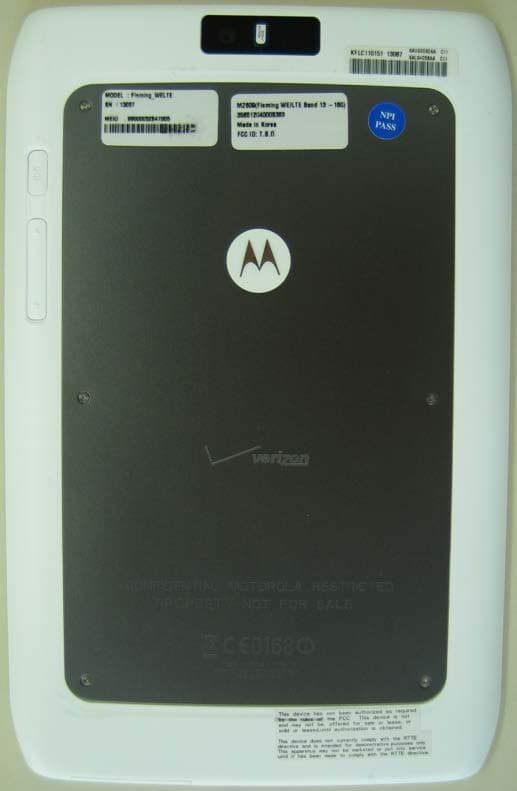
Click to zoom
Application Details
- Equipment Class
- NII - Unlicensed National Information Infrastructure TX
- Date of Grant
- Dec 01, 2011
- Application Purpose
- Original Equipment
- Date of Application
- Dec 01, 2011
- Equipment Note
- CDMA/LTE TRANSCEIVER WITH BT & WLAN
- Frequency Range
- 5180.00000000 - 5240.00000000
- Company
- Motorola Mobility LLC
- Country
- United States
Documents & Files
Document Text
Text extracted from the exhibit documents filed with the FCC. Open a document above to read the original.
Users Manual
APPLICANT: MOTOROLA MOBILITY, INC. FCC ID: IHDP56MJ2 INSTRUCTION MANUAL A representative version of the user's manual follows: Exhibit 8 2011.10.20 CONGRATULATIONS 1 CONGRATULATIONS CONGRATULATIONS MOTOROLA XOOM™ 2 Media Edition with 4G The MOTOROLA XOOM 2 Media Edition is an ultra-portable 8.2” tablet with the power to control your connected devices and extract their precious content, remotely, at ferocious Verizon 4G LTE speed. It’s packed with power to help you devour cinema-style videos, concert-like music, and serious gaming. Virtual surround sound and booming bass are just part of the amazement. Whenever you see the see the 4G LTE indicator, you know you're connected to the most advanced and reliable 4G mobile network in America. Download speeds up to ten times faster than 3G networks. Movies in minutes, photos in seconds. Stream your favorite video without annoying buffering. Download and view full-length HD quality movies. Entertainment: Pull files from your computer like a digital telepath at ferocious Verizon 4G LTE speed. Performance: Ferocious 4G LTE speed and a blazing-fast dual-core 1.2 GHz processor, mixed with outstanding battery life, let you conquer movies, games, and music. Amped-up processing speed also means serious graphics rendering and richer gaming, not to mention swift switching between it all. Endurance: Your tablet weighs less than a pound, with a magnesium-reinforced body, aluminum housing, splash-guard coating, and Corning® Gorilla® glass display that take resilience to the next level. Not all features, applications, or services may be available with your plan. Please contact your wireless service provider for more information. 2011.10.20 CONTENTS 2 CONTENTS MY VERIZON . . . . . . . . . . . . . . . . . . . . . . . . . . . . . . . . . . . . . . . . . . . . . . . . . . . . . . . . . . . . . . . . . . . . . . . . . . . . . . . . . . . . . . . . 3 YOUR MOTOROLA XOOM 2 MEDIA EDITION . . . . . . . . . . . . . . . . . . . . . . . . . . . . . . . . . . . . . . . . . . . . . . . . . . . . . . . . 5 FIRST STEPS. . . . . . . . . . . . . . . . . . . . . . . . . . . . . . . . . . . . . . . . . . . . . . . . . . . . . . . . . . . . . . . . . . . . . . . . . . . . . . . . . . . . . . . . . 6 BASICS . . . . . . . . . . . . . . . . . . . . . . . . . . . . . . . . . . . . . . . . . . . . . . . . . . . . . . . . . . . . . . . . . . . . . . . . . . . . . . . . . . . . . . . . . . . . . . 9 MANAGE CONTENT . . . . . . . . . . . . . . . . . . . . . . . . . . . . . . . . . . . . . . . . . . . . . . . . . . . . . . . . . . . . . . . . . . . . . . . . . . . . . . . . 15 APPS & FEATURES . . . . . . . . . . . . . . . . . . . . . . . . . . . . . . . . . . . . . . . . . . . . . . . . . . . . . . . . . . . . . . . . . . . . . . . . . . . . . . . . 18 TROUBLESHOOTING. . . . . . . . . . . . . . . . . . . . . . . . . . . . . . . . . . . . . . . . . . . . . . . . . . . . . . . . . . . . . . . . . . . . . . . . . . . . . . . 20 2011.10.20 MY VERIZON 3 MY VERIZON MY VERIZON THANK YOU FOR CHOOSING VERIZON WIRELESS You’re now connected to the power of America’s largest and most reliable wireless network. This guide will introduce you to the features of your new tablet. For assistance, please go to verizonwireless.com . You can also contact Customer Service at 1-800-922-0204 or speak with a Customer Service Representative at your local Verizon Wireless Store. Note: Screen images and icons are simulated. Actual display may vary. Instructions in this guide may change depending on the software version on your device. IMPORTANT CUSTOMER INFORMATION Please be advised that many services and applications offered through this unique device are provided by various device, operating system, software and application developers (e.g., Google™, Motorola, Microsoft®, Palm®, Research In Motion® Limited). If you use, link to or download such a service, or an application such as a non-Verizon Wireless location-based GPS type service, chat room, marketplace or social network from this device, you should carefully review the terms of such service or application. If you use any of these non-Verizon Wireless services or applications, personal information you submit may be read, collected, or used by the service or application provider and/or other users of those forums. Verizon Wireless is not responsible for your use of those applications or information you choose to submit or share with others. Specific terms and conditions, terms of use, and privacy policies apply to those applications and services. Please review carefully any and all terms and conditions applicable to those applications and services including those related to any location-based services for any particular privacy policies, risks or waivers. Your Verizon Wireless customer agreement terms and conditions and certain other specially identified terms govern your use of any Verizon Wireless products and services. 2011.10.20 MY VERIZON 4 REGISTER NOW Save time. Save money. Register now at verizonwireless.com/myverizon. Manage your account. Quickly check your voice, text and data usage or make adjustments to your plan at any time. Get personalized support. My Support answers your questions quickly. Pay bills your way. Go green and set up paperless billing, make a one-time payment, or use auto pay and never worry about missing a payment. 2011.10.20 YOUR MOTOROLA XOOM 2 MEDIA EDITION 5 YOUR MOTOROLA XOOM 2 MEDIA EDITION YOUR MOTOROLA XOOM 2 MEDIA EDITION Note: All screen shots in this guide are simulated. Actual displays and instructions may vary depending on the software version in your MOTOROLA XOOM 2 Media Edition. Note: Certain apps and features may not be available in all countries. Tomorrow, Apr 9 Laura’s Birthday Executive Review Call 3:00pm – 4:00pm Dial in number: 1-888-55 Fri APRRRRRRRR 8 D Project Mgr Interview 4:00pm – 5:00pm 6:00pm – 7:00pm My Office [wire] bar Happy Hour [ 6:00pm – 7:00pm [wire] bar Happy Hour InboxInboxxxxoxoobbbnnnII d…
Text truncated - open the document above for the full version.
Users Manual
BASICS 11 USE & CHANGE YOUR HOME SCREEN On your home screen, shortcuts are icons that open your favorite apps, Web bookmarks, music playlists, and more. Widgets show you the date, updates, and more. The Calendar widget is an example of a scrollable widget—you can scroll through your calendar within the widget itself, on the home page, without opening the calendar app. The Books widget is an example of a stacked widget—you can flick through your content within the widget itself, on the home screen, without opening the Books app. Flick left and right to see more home screen panels of shortcuts and widgets. Customize: To add widgets, app shortcuts, wallpapers, and more to your home screen, touch at the top of the screen. Resize a widget: Touch and hold the widget until it vibrates, then let go. A highlighted frame appears around the widget—drag a corner to resize. NOTIFICATIONS The notification panel at the bottom of the home screen contains icons that tell you about new messages, available app downloads, network signal strength, and other tablet status 11:35 1 11:35 2 Tomorrow, Apr 9 Laura’s Birthday Executive Review Call 3:00pm – 4:00pm Dial in number: 1-888-55 Fri APR 8 Project Mgr Interview 4:00pm – 5:00pm 6:00pm – 7:00pm My Office [wire] bar Happy Hour 6:00pm – 7:00pm [wire] bar Happy Hour InboxInboxxxxoxoobbbnnnII [email protected] 5 Google Calendar2:55pm Reminder: Executive Review Call @ Apr 8 3:00pm - 4:00pm (David’s Calendar@moto Justin Younger2:52pm Budget Updates ― Hi Everyone, I’ve updated all of the budget information for today’s call Me, Paul, Kim 32:50pm content updates for marketing materials ― Sounds like a plan. Let’s move forward for now Julie Demler2:45pm Content Approvals ― All of this is approved by me. Please forward along to the rest of the Greg Poulimas2:47pm Site you should check out ― Thought that this was relevant to your current project. Also, Apps 11:35 GmailBrowserTalkMapsGallery YouTube Market Camera Wi-Fi Airplane mode Auto-rotate screen Notifications Settings AUTO ON ON OFF 3 Add widgets, wallpaper, and more to your home screen. Touch the status indicators, then touch twice to change your screen, sound, or other settings. Touch & hold, then drag widgets or shortcuts to a new spot or the trash can in the top right. 2011.10.20 BASICS 12 indicators. Touch an individual icon to see that email, meeting reminder, or other notification. Or, touch the digital time display to open the entire notification panel to see all new message notifications, status icons, and other useful data. SEARCH The search window on your home screen gives you two search options. For a text search, touch the search window, enter your keyword(s), then touch . To search by voice, touch and speak your keyword(s) when prompted. SETTINGS Open the Quick Settings Menu to change settings for brightness, sound, screen orientation, airplane mode, network, and notifications. 1Touch the clock at the bottom of the home screen. 2Touch . 3Change a quick setting, or touch Settings to see all tablet settings. Tip: You can also go to tablet settings by touching Apps >Settings. APP MENU Touch Apps from the home screen to see your tablet’s apps. To close the app tray, touch Home or Back. Wi-Fi Airplane mode Auto-rotate screen Notifications Settings AUTO ON ON OFF Friday Dec 10, 2012 100%Wi-Fi 11:35 11:35 Connect Wi-Fi. Change quick settings. Change any settings. 2011.10.20 BASICS 13 KEY TIPS SLEEP & WAKE UP Put the touchscreen to sleep by pressing Power/Lock. To wake up the touchscreen, just press the Power/Lock again, then drag across the screen. CHANGE VOLUME Press the volume keys to adjust the volume. SET UP EMAIL The first time you turned on your tablet (see page 6), you may have logged in to your Google Account. You can add other email accounts: If you want to set up additional Google Accounts, touch Apps >Settings > Accounts & sync >Add account. If you want to set up other email accounts, touch Apps >Email, then follow the step-by-step instructions to set up a POP3, IMAP, or corporate account. WANT MORE? More help, more accessories, more free stuff. We’re here to help. Answers: To download a Help Center app for your tablet, go to www.motorola.com/xoom2help and follow the on-screen instructions. Support: Software updates, PC software, user guides, online help, and more at www.motorola.com/myxoom2 . Accessories: Find accessories for your tablet at www.motorola.com/products. Volume Keys On the back: Power/Sleep Key Hold=power, Press=sleep 2011.10.20 BASICS 14 Join us: Get the latest news, apps, tips & tricks, videos and so much more—join us on: YouTube™ www.youtube.com/motorola Facebook www.facebook.com/motorola Twitter www.twitter.com/motomobile 2011.10.20 MANAGE CONTENT 15 MANAGE CONTENT MANAGE CONTENT CONNECTIONS MOTOROLA XOOM 2 Media Edition gives you many ways to connect with your world. 4G LTE CONNECTION YourMOTOROLA XOOM 2 Media Edition uses the 4G LTE mobile network wherever it's available. You'll know you're connected when you see on the screen. WI-FI It's easy to connect to a Wi-Fi network. Newly added proxy support makes sure you stay connected. 1Touch the clock at the bottom of the screen. 2To u c h.Settings 3To u c h Wi-Fi. 4In Wireless & networks, select Wi-Fi. Your tablet scans for and shows all available Wi-Fi networks. Wireless & networks Turn on Bluetooth Wi-Fi settings Set up & manage wireless access points Bluetooth Sound Screen Location & security Applications Accounts & sync Privacy Settings Wireless & networks Airplane mode Disable all wireless connections Wi-Fi Connected to ShySycamore 2011.10.20 MANAGE CONTENT 16 USB CONNECTION You can transfer HD video, music, pictures, photos and other media content between your tablet and a computer. A USB connection makes it easy. Use the USB cable that came with your tablet to make the connection and do the following: Microsoft™ Windows™ XP, Windows Vista, and Windows 7—On your computer, press Start, open your list of program…
Text truncated - open the document above for the full version.
Users Manual
APPLICANT: MOTOROLA MOBILITY, INC. FCC ID: IHDP56MJ2 INSTRUCTION MANUAL A representative version of the user's manual follows: Exhibit 8 LIFE. POWERED. B ac k Next More Su pp ort + MOTOROLA Your tabletStartWant More?TroubleshootingSafety, Regulatory & Legal Your tablet Your tabletMOTOROLA [Fleming] has the latest tablet innovations, with access to Android Market™ to get even more.At a glance —When you’re up and running, be sure to explore what your tablet can do:• Customize: “ Personalize ” your tablet, then “ Surf ” and bookmark your favorite websites. • Create: Check and send your “ Email ”, and even create and edit documents and calendar events for “ Work ”. • Enjoy: “ Load up ” your tablet’s apps and games, or “ Play & record ” video, music, and more. Tips & tricks• Power/Sleep: To turn your tablet on or off, press and hold Power/Sleep on the back. To make the screen sleep or wake up, press but don’t hold. Note: Certain apps and features may not be available in all countries. This product meets the applicable limit for exposure to radio waves (known as SAR) of 1.6 W/kg (FCC). The limits and guidelines include a substantial safety margin designed to assure the safety of all persons, regardless of age and health. The highest SAR values measured for this device are listed in the regulatory information packaged with your product. LIFE. POWERED. B ac k Next More Su pp ort + MOTOROLA Your tabletStartWant More?TroubleshootingSafety, Regulatory & Legal Start StartSet upLet’s get you up and running.Note: This product uses a non-removable battery. The battery should only be replaced by a Motorola-approved service facility. Any attempt to remove or replace your battery may damage the product.Note: This device supports apps and services that use a lot of data, so make sure your data plan meets your needs. Contact your service provider for details. 1 Insert the charger into the MicroUSB port on the bottom of your tablet, then wait for the battery charging indicator to show a steady white light (fully charged). 2 Press and hold Power/Sleep on the back of your tablet to turn it on. 3 Choose a language and touch Start . In the WiFi setup screen, touch the network you want to connect, then enter a password if you need to.Choose location settings and touch Next (for the most accurate location features, check both services).Follow the setup wizard to set your time zone, and confirm the time and date.Note: To change your Wi-Fi settings or time zone later, touch Apps > Settings > Wireless & networks , or Date & Time . 4 Follow the setup wizard to create or log into your Google Account and go to the home screen. Record your Google Account information for future reference.Check the Motorola Mobile Services approval and touch Next . Note: You can use your Google account to back up your contacts, bookmarks, user dictionary, Wi-Fi passwords, some app information, and other settings, in case you lose your tablet or reinstall an app. To set up sync later, touch Apps > Settings > Accounts & sync . Tip: In the unlikely event that your tablet becomes unresponsive, try a forced reboot—press and hold both Power/Sleep and the up volume key for three seconds. LIFE. POWERED. B ac k Next More Su pp ort + MOTOROLA Your tabletStartWant More?TroubleshootingSafety, Regulatory & Legal Want More? Want More?More informationYou can get more information, more help, more free stuff. We’re here to help. • Answers: Check out the help center on your tablet—touch Apps > Help Center . If your device does not have Help Center , you can download it from www.motorola.com /[Fleming]help . • Support: Tablet software updates, PC software, user guides, online help, and more at www.motorola.com /my[Fleming] or www.motorola.com/my[Fleming]wifi . You can call us with warranty and support questions at 1-800-734-5870 (United States), 1-888-390-6456 (TTY/TDD United States for hearing impaired), or 1-800-461-4575 (Canada). • Updates: To keep your tablet current, software updates may be available. Touch Apps > Settings > About tablet > System updates to see if your tablet is up to date. If it isn’t, touch Update . • Join us: Get the latest news, apps, tips & tricks, videos and so much more—join us on: YouTube ™ www.youtube. com/motorola Facebook™ www.facebo ok.com/motorola Twitter www.twitter.co m/motomobile AccessoriesYou can find accessories for your phone at www.motorola.c om/products . LIFE. POWERED. B ac k Next More Su pp ort + MOTOROLA Your tabletStartWant More?TroubleshootingSafety, Regulatory & Legal Troubleshooting TroubleshootingForce a rebootIn the unlikely event that your tablet becomes unresponsive, try a forced reboot: Press and hold both Power/Sleep and the volume up key for three seconds. Reset your tabletIf you forget your unlock pattern or password, your tablet should prompt you to reset it after five tries. If it doesn't, you can do a factory data reset to restore your tablet to its factory settings:Warning: This deletes all of your data on the tablet. This includes pictures, videos, documents, and other files that you have not backed up online or on a PC. 1 Turn on your tablet and, when the Motorola logo appears, press and hold the volume down key. Keep holding the volume down key until Android recovery text appears in top left corner. 2 Press the volume up key to put device in Android recovery mode. 3 When the Android recovery screen appears, press and hold Power/Sleep . While holding Power/Sleep , press and release the volume up key. 4 Your tablet should show a wipe data/factory reset option. Press Power/Sleep to select the reset option. 5 Use the volume keys to select Yes , then press Power/Sleep to confirm the reset. 6 After your tablet resets, press Power/Sleep to select reboot system now . Service & repairsIf you have questions or need assistance, go to http://www.motoro la.com/support , where you can select from a number of customer care options. You can also contact the Motorola Customer Support Center at 1-800-734-5870 (…
Text truncated - open the document above for the full version.
Attestation Statements
APPLICANT: MOTOROLA MOBILITY, INC. FCC ID: IHDP56MJ2 Motorola Mobility, Inc.; 8000 W. Sunrise Blvd, Suite A; Plantation, FL 33322, USA www.motorola.com Exhibit 2. Statements of Certification -- Pursuant to 47 CFR 2.907 2.1. Specification Compliance Transceiver type described herein (IHDP56MJ2) has been tested in accordance with the requirements contained in the appropriate Commission regulations. To the best of my knowledge, these tests were performed using measurement procedures consistent with industry or Commission standards, and demonstrate that this equipment complies with the appropriate standards. Each unit manufactured, imported, or marketed will conform to the samples tested herein, within the statistical variations that can be expected due to high volume production and test measurement error. NAME: Frank.Hyochang Kim SIGNATURE: /s/ Frank.Hochang Kim DATE: 10/12/2011 TITLE: Engineering Manager 2.2. Statement of Certification I hereby certify that the above application was prepared under my direction and that to the best of my knowledge and belief, the facts set forth in this application and accompanying technical data are true and correct. The technical data supplied with this application was taken under my supervision and is hereby duly certified. I also certify that this transmit equipment (IHDP56MJ2) is in compliance with all applicable parts of the FCC Rules. NAME: John Lewczak SIGNATURE: DATE: 10/12/2011 TITLE: Engineering Manager, Product Safety and Compliance Page 2 - 1 APPLICANT: MOTOROLA MOBILITY, INC. FCC ID: IHDP56MJ2 Motorola Mobility, Inc.; 8000 W. Sunrise Blvd, Suite A; Plantation, FL 33322, USA www.motorola.com Page 2 - 2 2.3. Attestation Statement (Equipment Class DTS and DSS - Bluetooth/Wi-Fi) This device contains an embedded Bluetooth device, Wi-Fi device, and MOTOtalk capabilities that Motorola Mobility confirms are compliant with the applicable Part 15C regulations. 15.247(a)(1) • The hopping sequence must be pseudorandom. • All Channels are used equally on average. • The receiver input bandwidth is approximately equal to the transmit bandwidth. • The receiver hops in sequence with the transmitted signal. 15.247(g) The system is designed to comply with all of the regulations in Section 15.247 when the transmitter is presented with a continuous data (or information). 15.247(h) The system does not coordinate its channel selection/hopping sequence with other frequency hopping systems for the express purpose of avoiding the simultaneous occupancy of individual hopping frequencies by multiple transmitters. NAME: Frank.Hyochang Kim SIGNATURE: /s/ Frank.Hochang Kim DATE: 10/12/2011 TITLE: Engineering Manager APPLICANT: MOTOROLA MOBILITY, INC. FCC ID: IHDP56MJ2 Motorola Mobility, Inc.; 8000 W. Sunrise Blvd, Suite A; Plantation, FL 33322, USA www.motorola.com Page 2 - 3 2.4. Attestation Statement (Equipment Class NII - U-NII Wi-Fi) This device contains an embedded U-NII Wi-Fi device that Motorola Mobility confirms to be compliant with the applicable Part 15E regulations. 15.407(c) The device will automatically discontinue transmission in case of either the absence of information to transmit or operational failure. Details of how this is implemented can be found in Exhibit 12. 15.407(h)(1) This device does not operate in the bands between 5.25 – 5.35 GHz and 5.47 – 5.725 GHz, and as such Transmit Power Control (TPC) is not required. 15.407(h)(2) This device does not operate in the bands between 5.25 – 5.35 GHz and 5.47 – 5.725 GHz, and as such Radar Detection Function of Dynamic Frequency Selection (DFS) is not required. NAME: Frank.Hyochang Kim SIGNATURE: /s/ Frank.Hochang Kim DATE: 10/12/2011 TITLE: Engineering Manager 2.5. Declaration of Available Operating Bands and Modes (Equipment Class PCE – CDMA 850/1900 MHz and LTE Band 13) Motorola Mobility hereby declares that, while this product features WCDMA/GSM capabilities that operate within frequency bands regulated by the FCC, these modes are locked out for use within the territories of the United States. These modes have been disabled in the product’s firmware, and are SIM locked by all US operators. This application, therefore, does not seek certification for these modes. NAME: Frank.Hyochang Kim SIGNATURE: /s/ Frank.Hochang Kim DATE: 10/12/2011 TITLE: Engineering Manager
Cover Letter(s)
APPLICANT: MOTOROLA MOBILITY, INC. FCC ID: IHDP56MJ2 Motorola Mobility, Inc.; 8000 W. Sunrise Blvd, Suite A; Plantation, FL 33322, USA www.motorola.com September 8, 2011 Authorization & Evaluation Division Federal Communications Commission Laboratory 7435 Oakland Mills Road Columbia, MD 21046 Subject: Application for Certification of transmitter with FCC ID: IHDP56MJ2, PCS Tablet, with LTE, Wi-Fi and Bluetooth. Gentlemen; Motorola Mobility, Inc.; 8000 W. Sunrise Blvd.; Plantation, FL 33322 herein submits its application for certification of the multi-mode tablet with FCC ID: IHDP56MJ2. The primary transceiver in this composite device operates in the 850 MHz and 1900 MHz bands as a GSM/CDMA portable transceiver and employs EDGE/EVDO data transmission capabilities. In addition this device operates in LTE Band 13 as well. Note: This device also contains functions, and operates within frequency bands, that are not authorized within the United States or its territories. This filing is only applicable to supported US operations. This radio product is also equipped with a Wi-Fi (802.11a/b/g/n) transceiver. The Wi-Fi Band of operation is 2.412 - 2.462 GHz, as well as 5 GHz U-NII sub-bands I & IV (non-DFS) Wi-Fi function, with channels up to 17 MHz in bandwidth for 802.11g operation. The Wi-Fi device complies 15.247 (c), 15.205, 15.209 (b) and 15.407. This radio product is equipped with a Bluetooth (BT) transceiver. BT supports both voice and data for short range wireless communications. The Bluetooth Band of Operation is 2.4 - 2.4835 GHz (1 MHz channel bandwidth). The BT device also complies with the requirements of FCC Rule Parts 15.247 (c), 15.205 and 15.209 (b). All transmitters contained in this radio product have been subjected to routine environmental evaluation (as applicable) according to 47 CFR Part 2.1093 (c) for RF exposure and found to be compliant with the limits specified in 47 CFR 2.1093(d)(2). This radio product features an integrated GPS receiver, and is designed to function as a computer peripheral device when functioning as an RF modem, while connected to a computer via a data cable, as described in 47 CFR Part 15.3(r). A Part 15B test report is included for certification. Page 13a - 1 APPLICANT: MOTOROLA MOBILITY, INC. FCC ID: IHDP56MJ2 Motorola Mobility, Inc.; 8000 W. Sunrise Blvd, Suite A; Plantation, FL 33322, USA www.motorola.com Enclosed is a complete Certification Application. Contact me at (954) 723-6272 if you require any additional information. Regards, FCC Liaison Motorola Mobility, Inc. 8000 W. Sunrise Blvd.; Suite A Mail Stop 52-5JJ Plantation, FL 33322 E-mail: [email protected] Page 13a - 2
Cover Letter(s)
FCC ID: IHDP56MJ2 Motorola Mobility, Inc.; 8000 W. Sunrise Blvd, Suite A; Plantation, FL 33322, USA www.motorola.com Page 13b - 1 CONFIDENTIALITY REQUEST 17 August 2011 Federal Communications Commission Laboratory Authorization & Evaluation Division 7435 Oakland Mills Road Columbia, MD 21046 Subject: Confidentiality Request Regarding Application for Certification of FCC ID: IHDP56MJ2. Dear Sir or Madam: Pursuant to Sections 0.457 and 0.459 of the Commission’s Rules, we hereby respectfully request confidential treatment of information accompanying this application as outlined below: Exhibit Type File Name Block Diagrams. IHDP56MJ2_Ex_04 (Block Diagrams).pdf Schematic Diagrams. IHDP56MJ2_Ex_05 (Schematic Diagrams).pdf Parts List and Tune Up Procedures. IHDP56MJ2_Ex_10 (Active Components).pdf Transmitter Characteristics. IHDP56MJ2_Ex_12 (TX Characteristics).pdf Motorola Mobility, Inc. requests that these exhibits be held as Permanently Confidential, and not be made routinely available for public inspection. Motorola considers that the information in these exhibits should be classified as trade secrets, pursuant to 47 CFR Section 0.457(d) and Section 552(b)(4) of the Freedom of Information Act. The public disclosure of these materials may be harmful to the applicant and provide unjustified benefits to its competitors. Motorola Mobility, Inc. understands that, pursuant to Section 0.457 of the Rules, disclosure of this application and all accompanying documentation will not be made before the date of the Grant for this application. FCC ID: IHDP56MJ2 Motorola Mobility, Inc.; 8000 W. Sunrise Blvd, Suite A; Plantation, FL 33322, USA www.motorola.com SHORT TERM ONFIDENTIALITY REQUEST – 180 DAYS Pursuant to the Commission’s public notice DA 04-1705 (June 15, 2004), Motorola Mobility, Inc. is also requesting Temporary Confidentiality treatment of information accompanying this application as outlined below. This provision will give Motorola Mobility, Inc. temporary confidentiality prior to product launch. Exhibit Type File Name External product photographs. IHDP56MJ2_Ex_03 (External_Photos).pdf Test set-up photographs. IHDP56MJ2_Ex_07b (SAR Test Set- up_Details).pdf IHDP56MJ2_Ex_07c (Part 15 Test Set- up_Details).pdf User’s Manual. IHDP56MJ2_Ex_08 (User Guide).pdf Internal product photographs. IHDP56MJ2_Ex_09 (Internal Photos).pdf Please contact me if you require any additional information. Regards, FCC Liaison Motorola Mobility, Inc. 600 N. U.S. Highway 45 Libertyville, IL 60048-5343 E-mail: [email protected] Page 13b - 2
External Photos
APPLICANT: MOTOROLA MOBILITY, INC. FCC ID: IHDP56MJ2 EXHIBIT 3 2 of 2 FRONT VIEW BACK VIEW APPLICANT: MOTOROLA MOBILITY, INC. FCC ID: IHDP56MJ2 EXHIBIT 3 2 of 2 SIDE VIEW TOP BOTTOM
ID Label/Location Info
APPLICANT: MOTOROLA MOBILITY, INC. FCC ID: IHDP56MJ2 Motorola Mobility, Inc.; 8000 W. Sunrise Blvd, Suite A; Plantation, FL 33322, USA www.motorola.com Exhibit 1: Identification Label -- Pursuant to 47 CFR 2.925 and 2.1033(c)(11) 1.1 Location On the rear (back) side of the radio product chassis, beneath the battery (see also Exhibit 3). 1.2 Type The label is of a white polyester film laminate with a pressure sensitive adhesive backing. The adhesive is a permanent type acrylic with minimum peel strength of 5 lbs/in. 1.3 Markings (Text) The FCC label shown is representative of the label that will appear on the radio when in production. Figure 1.3.1. Representation of FCC Label information. This label will be placed on the equipment (rear housing) as shown below. Other information may also be included on this label, and other labels may also be present. FCC ID: IHDP56MJ2 IC: 109O-P56MJ2 Page 1 - 1 APPLICANT: MOTOROLA MOBILITY, INC. FCC ID: IHDP56MJ2 Motorola Mobility, Inc.; 8000 W. Sunrise Blvd, Suite A; Plantation, FL 33322, USA www.motorola.com Figure 1.3.2. Location of FCC Label (position, orientation, and other information shown may vary). Back of Device FCCLabel Please note that this label and its placement complies with the requirement of FCC Rule 47 CFR 2.925(d) that the label be permanently etched or otherwise affixed to the product, and be readily visible to the purchaser at the time of purchase.. The product’s Market or Trade Name is indelibly printed on the face of the product, as shown in Exhibit 3. Exhibit 1A: General Information 1A.1 Production Plans Quantity production is planned. 1A.2 Data Submittal Procedure Performance data located in Exhibit 6 are supplied in accordance with the Commission’s rules: 47 CFR Part 2, Subpart J. The intended use of this transceiver includes applications covered in the Code of Federal Regulations Title 47, Part 15, Subparts A, B, and C; Part 22 Subpart H; Part 24 Subparts B, D and E; and Part 27, Subpart M,. 1A.3 Similar, currently Certified Transceiver FCC ID: IHDP56LU1 Page 1 - 2 APPLICANT: MOTOROLA MOBILITY, INC. FCC ID: IHDP56MJ2 Motorola Mobility, Inc.; 8000 W. Sunrise Blvd, Suite A; Plantation, FL 33322, USA www.motorola.com Page 1 - 3 1A.4 Additional Considerations In addi…
Text truncated - open the document above for the full version.
Contact Information
Applicant
Jeff Narducci(Director Product Compliance)
Test Firm
Motorola Inc.Albert Patapack
Technical Specifications
| # | Rule Parts | Frequency Range | Power Output |
|---|---|---|---|
| 1 | 15E | 5.18 GHz - 5.24 GHz | 43.00 mW |
Other Applications from Motorola Mobility LLC
IHDT56AW9
May 12, 2026Smart Watch
Equipment Class
NII - Unlicensed National Information Infrastructure TXIHDT56AW5
Apr 08, 2026Mobile Cellular Phone
Equipment Class
DTS - Digital Transmission SystemIHDT56AW6
Mar 18, 2026Smart Watch
Equipment Class
JBP - Part 15 Class B Computing Device PeripheralIHDT56AX4
Mar 17, 2026Mobile Cellular Phone
Equipment Class
PCE - PCS Licensed Transmitter held to earIHDT56AW3
Mar 03, 2026Mobile Cellular Phone
Equipment Class
6XD - 15E 6 GHz Low Power Indoor Client