IHDP56MM5MOBILE PHONE
Motorola Mobility LLC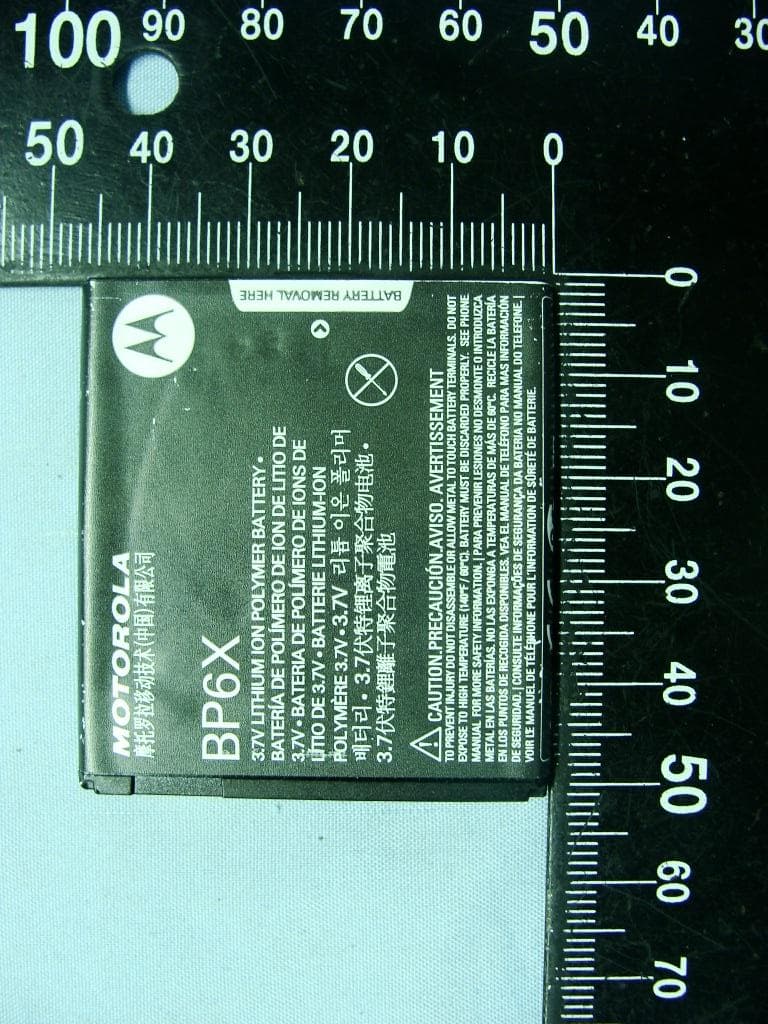
Click to zoom
Application Details
- Equipment Class
- DTS - Digital Transmission System
- Date of Grant
- Nov 22, 2011
- Application Purpose
- Original Equipment
- Date of Application
- Nov 22, 2011
- Equipment Note
- MOBILE PHONE
- Frequency Range
- 2412.00000000 - 2462.00000000
- Company
- Motorola Mobility LLC
- Country
- United States
Documents & Files
Document Text
Text extracted from the exhibit documents filed with the FCC. Open a document above to read the original.
Users Manual
Dummy Page - To be discarded before printing Use this template with A6MotoLandscapeProduct1 StructApps. See the Reference Pages for template user instructions. MOTOROLA IRON MAX XT615 User Guide November 15, 2011 15th.Nov, 2011 15th.Nov, 2011 1 Congratulations CongratulationsMOTOROLA IRON MAXYo u r M O TO R O L A IRON MAX phone delivers more for your work and play!•Search: Touch Search to search across your apps, contacts, web, and maps—or just enter the address for a place or a web page. • Apps: Open Market to download games for fun, social networking apps to keep in touch (like Facebook™ or Twitter), or find something else you like with “ Apps ” on page 6. • Touchscreen: Browse the web and pinch-to-zoom on the touch display in “ Web ” on page 18. • Camera: Capture photos and videos with the 8MP auto-focus camera in “ Photos & videos ” on page 20. • Moto Switch: Moto Switch is a dynamic interface that gives you seamless access to content that is relevant to you. For deatils, see “ moto switch ” on page 6. Note: Some apps and features might not be available in all countries.More• Support: Phone updates, PC software, online help and more at www.motorola.com/support . • Accessories: Find accessories for your phone at www.motorola.com/products . Caution: Before assembling, charging, or using your phone for the first time, please read the important legal and safety information packaged with your product. 15th.Nov, 2011 2 Your phone Your phonethe important keys & connectors Press = sleep. Hold = turn off. 3.5mm He a dset J ac k B ac k Key Menu Key Home Key To u c hs c reen Power/Lo c k Key Volume Keys Touch to open m enu options. C a mer a Key Se a r c h Key M ic ro USB Conne c tor M ic ro p hone Front C a mer a Not i f ica t i on L ig ht Flash= m issed call, new m essage, or other notification. ContentsLet’s go . . . . . . . . . . . . . . . . . . . . . . . . . . . . . . . . . . . . . . . . . . . . . . . . . . 3Home screen & apps . . . . . . . . . . . . . . . . . . . . . . . . . . . . . . . . . . . . . . 5Personalize. . . . . . . . . . . . . . . . . . . . . . . . . . . . . . . . . . . . . . . . . . . . . . 8Calls . . . . . . . . . . . . . . . . . . . . . . . . . . . . . . . . . . . . . . . . . . . . . . . . . . . . . 9Contacts . . . . . . . . . . . . . . . . . . . . . . . . . . . . . . . . . . . . . . . . . . . . . . . . 12Messaging. . . . . . . . . . . . . . . . . . . . . . . . . . . . . . . . . . . . . . . . . . . . . . . 13Text entry . . . . . . . . . . . . . . . . . . . . . . . . . . . . . . . . . . . . . . . . . . . . . . 15Schedule . . . . . . . . . . . . . . . . . . . . . . . . . . . . . . . . . . . . . . . . . . . . . . . . 17Web . . . . . . . . . . . . . . . . . . . . . . . . . . . . . . . . . . . . . . . . . . . . . . . . . . . . . 18Location . . . . . . . . . . . . . . . . . . . . . . . . . . . . . . . . . . . . . . . . . . . . . . . . 19Photos & videos . . . . . . . . . . . . . . . . . . . . . . . . . . . . . . . . . . . . . . . . . 20Music . . . . . . . . . . . . . . . . . . . . . . . . . . . . . . . . . . . . . . . . . . . . . . . . . . . 22Bluetooth™, Wi-Fi, & cable connections. . . . . . . . . . . . . . . . . . 23Security . . . . . . . . . . . . . . . . . . . . . . . . . . . . . . . . . . . . . . . . . . . . . . . . 26Tips & tricks. . . . . . . . . . . . . . . . . . . . . . . . . . . . . . . . . . . . . . . . . . . . . 27Troubleshooting . . . . . . . . . . . . . . . . . . . . . . . . . . . . . . . . . . . . . . . 30Safety, Regulatory & Legal. . . . . . . . . . . . . . . . . . . . . . . . . . . . . . 31 15th.Nov, 2011 3 Let’s go Let’s golet’s get you up and runningAssemble & charge 1 Cover off 2 SIM in 3 microSD in (may already be inserted) 4 Battery in 5 Cover on 6 Charge up 3H Caution: Please read “ Battery Use & Safety ” on page 31. Tip: To save battery life, see “ Battery tips ” on page 28. Set up & goNote: This phone supports data-intensive apps and services. It is strongly recommended that you purchase a data plan that meets your needs. Contact your service provider for details.When you turn on your new phone, you can create or enter a Google™ account so that you can download apps, use Gmail™, and much more: 1 Press and hold Power/Lock Key to turn on your phone. 2 Touch the Android™ image to begin setup. 3 Touch a button to Create a Google account, Sign in with one you have, or Skip . You can log into your account from a computer at accounts.google.com . 4 Enter details to create or sign into your account. When your phone confirms the account, it shows account sync options. Press = sleep. Hold = turn off. Power/Lo c k Key 15th.Nov, 2011 4 Let’s go • To change whether your phone shows the Google account’s contacts, Gmail™, and calendar, touch the Google account name. • To add another account, touch Add account . For details, see “ Email ” on page 14. • To exit setup touch Home . If your phone cannot connect, you can touch Menu > Settings > Wireless & networks to change mobile network settings. sleep & wake upYour screen sleeps when you hold it to your ear during a call, or when it is inactive. To change the sleep delay, touch Menu > Settings > Display > Screen timeout . To unlock the screen, drag to the outer circle.Tip: To access all your favorite apps from a lock screen, see “ moto switch ” on page 6. KeysUse your phone’s keys to navigate and open options at any time.Press the volume keys to change the ringer volume (in the home screen), or the earpiece volume (during a call).From any screen, press the camera key on the right side of the phone to open the camera.Touch Home to return to the home screen. Touch and hold Home to see your recent apps. Volume KeysC a mer a Key 15th.Nov, 2011 5 Home screen & apps Home screen & appsa few essentialsUse your home screen for quick access to apps, search, and more. Download social networking apps (like Facebook™ or Twitter) to keep in touch!Quick start: Home screenYou’ll see the home screen when you turn on the phone or touch Home f…
Text truncated - open the document above for the full version.
Users Manual
9 Calls > G-Sensor Calibration (movement) or E-Compass Calibration (direction). Language & regionTo set your menu language and region, touch Menu > Settings > Language & keyboard > Select language Callsit’s good to talkDial numbers, see recent calls, combine calls, or set up forwarding, restrictions, and more.Quick start: CallsFrom the home screen, touch . Search for a contact by entering one of the following: First letter(s) of name, name or phone number Contacts Favorites Phone Call log 11:19 Dial Pad Add call Speaker Mute Bluetooth End Christine Fanning Home 222-333-4444 Dialling 05:32 ABC DEF MNOWXYZ JKLTUV GHIPQRS + Open a list, then touch an entry to call. Send a text m essage. Use a connected Bluetooth™ device. Hang up. Start a conference call. Call. 15th.Nov, 2011 10 Calls • To make a call, touch , enter a number, then touch . When dialing, touch Menu to add a pause (pauses two seconds), or wait (waits for your confirmation). To enter the international dialing code, touch and hold . • To answer a call, drag to the right. •During a call, touch Menu to switch to a Bluetooth headset (see “ Bluetooth™, Wi-Fi, & cable connections ” on page 23). Touch Home or Back to hide the active call display (to reopen it, touch ).Note: Using a mobile device or accessory while driving may cause distra ction and may be illegal. Always obey the laws and drive safely. • To use the speakerphone during a call, touch Speaker . • To enter numbers during a call, touch Dialling Pad . • To mute or unmute a call, touch Mute . • To end a call, touch . • To ignore an incoming call, drag to the left. Tip: For quick access to contacts, see “ Favorites ” on page 12. 0 + End call Recent callsTo show recent calls, touch > Call log . • To call, text, open, or save an entry, touch and hold it. • To clear the list, touch Menu > Clear call log . Conference callsTo start a conference call, call the first number. After they answer, touch Add call and call the next number. When the next number answers, touch Merge calls . To remove individual callers, touch Manage . Call waitingIf you are on a call and a new call arrives:• With call waiting on, you can drag to the right to answer the new call and put the old call on hold. Then, touch Swap to switch between calls, or Merge calls to combine them. • With call waiting off, the new call goes straight to your voicemail. To turn on call waiting, touch Menu > Settings > Call settings > Additional settings > Call waiting . Call forwardingTo forward calls, touch Menu > Settings > Call settings > Call forwarding . You can forward calls all the 15th.Nov, 2011 11 Calls time, or only when your phone is busy, unanswered, or unreachable (not on the network)Restricted callsTo restrict your phone so that it can only dial a few numbers, touch Menu > Settings > Call settings > Fixed dialling numbers . • To turn fixed dialing on, touch FDN activation . • To add or delete the allowed numbers, touch FDN list . Your phone numberTo show your phone number, touch Menu > Settings > About phone > Status > My phone number . Your caller IDTo hide your number from the people you call, touch Menu > Settings > Call settings > Additional settings > Caller ID . Cool downIn very limited circumstances, such as where your phone has been exposed to extreme heat, you may see “Cool Down” messages. To avoid possible damage to your battery and phone, you should follow these instructions until the phone is within its recommended temperature range. When your phone is in “Cool Down” mode, only emergency calls can be made.Emergency callsNote: Your service provider programs one or more emergency phone numbers that you can call under any circumstances, even when your phone is locked. Emergency numbers vary by country. Your pre-programmed emergency number(s) may not work in all locations, and sometimes an emergency call cannot be placed due to network, environmental, or interference issues. 1 Open the phone, then touch (if your phone is locked, touch Emergency Call ). 2 Enter the emergency number. 3 To u ch Call to call the emergency number. Note: Your mobile device can use AGPS satellite signals to help emergency services find you (“ Location Services ” on page 36). 15th.Nov, 2011 12 Contacts Contactscontacts like you’ve never had beforeKeep each friend’s email, phone number, and even address all in your Contacts for quick access. Quick start: ContactsFrom the home screen, touch Dialer > Contacts • To create a contact, touch Dialer > Contacts > Menu > New contact , choose where you want to Phone Displaying 20 contacts Contacts Favorites Call log AB C Arthur Baudo Barry Smyth Cheyenne Medina Christine Fanning Search New contact Accounts Import/Export More Display options Drag or flick to scroll.Switch to the dialer, recent calls, or favorites. Touch to search, create, and m ore. store the contact, then enter details (to close the display keyboard, touch Back ). Contacts shows the contacts from your Google™ account, which you can open from any computer at contacts.google.com (or open your contacts within mail.google.com ). To stop synchronizing with your account, touch Dialer > Contacts > Menu > Accounts , touch your Google account, then uncheck Sync Contacts . • To call , text , or email a contact, touch Dialer > Contacts , touch the contact, then touch (call), (text), or (email). • To edit or delete a contact, touch Dialer > Contacts , touch the contact, then touch Menu . FavoritesFor quick access to a favorite contact, open the contact, then touch the star next to their name. To show your favorites, touch Dialer and touch Favorites at the top. To add a shortcut to your favorites, touch and hold a blank spot on your home screen, then touch Folders > Starred contacts . You can also add a shortcut for an individual contact: Touch and hold a blank spot on your home screen, then choose Shortcuts > Contacts . 15th.Nov, 2011 13 Messaging Storage & transferWhen you create a new contact, your phone asks if you want to store it in…
Text truncated - open the document above for the full version.
Users Manual
16 Text entry • To copy and paste , double-tap a word to highlight it (if needed, drag the ends of the highlight). Then touch and hold a blank spot for the copy and paste menu. • To add a word to your dictionary , double-tap the word to highlight it. Then touch and hold a blank spot to open the menu where you can add the word. • To enter the small number or symbol at the top of a key, touch and hold the key.To enter several numbers or symbols, touch SYM . • If Swype doesn’t know a word, touch individual letters to enter it. Swype remembers, so next time you can just drag over the letters. Multi-touch keyboard lets you enter letters by touching them one at a time. Send :-) ASDFGHJKL QW E R T Y U I OP Z XCVBNM 123 7890 456 ?123 . Touch and hold an e m pty spot to open a m enu. Delete Sym b ols/Num b ers Text entry dictionaryYour phone’s dictionary stores special words or names to recognize when you enter them.To open your dictionary, from the home screen touch Menu > Settings > Language & keyboard > User dictionary . • To add a word, touch Menu > Add . • To edit or delete a word, touch and hold it. 15th.Nov, 2011 17 Schedule Schedulehelping you stay in controlYo u r Calendar events can synchronize with your Google™ account, and the Clock can wake you up! Quick start: ScheduleFrom the home screen, touch > Calendar . • To create an event, touch > Calendar > Menu > More > New event , then enter details (to close the display keyboard, touch Back ). Calendar synchronizes with your Google account calendar, which you can open from any computer at Sun Mon Tue Wed Thu Sat Fri 28 29 30 31 123 456 8910 11 12 13 15 16 17 18 19 20 22 23 24 25 26 27 29 30 31 123 567 7 14 2128 4 June 2012 Day Week Agenda Today More Month Drag or flick to scroll.Color indicates events. Touch to choose the calendar view. Choose More to create an event or change settings. calendar.google.com (or open your calendar within mail.google.com ). To stop synchronizing with your account, touch Menu > Settings > Accounts & sync , touch your Google account, then uncheck Sync Calendar . • To edit or delete an event, touch > Calendar , touch the event to open it, then touch Menu > Edit event or Delete event . Alarm clockTo set an alarm (like to wake up), touch > Clock , then touch the alarm.• To turn an alarm on or off , touch next to it. • To add an alarm, touch Add alarm , then enter alarm details. • To change an alarm, touch the time. • To set a snooze period, in the Alarm Clock list touch Menu > Settings > Snooze duration . When an alarm sounds, touch Dismiss to turn it off or Snooze to delay it. To cancel a snoozed alarm, drag down the status bar bar and touch the alarm name. Date & timeTo set the date, time, time zone, and formats, touch Menu > Settings > Date & time . 15th.Nov, 2011 18 Web Websurf the web with your phoneOpen Browser or just touch Search to find a page, then bookmark it, send it, or just explore. Quick start: WebFrom the home screen, touch > Browser . • To e n t e r a website address in the browser or your home screen, just touch Search . New window Refresh Bookmarks Exit Windows More Web Images Local News more Google Drag or flick to scroll. Enter a web page URL. Touch to open book m arks, windows, and m ore. Conne c t i on Mobile Network: W i-Fi: • To zoom in or out, pinch two fingers together or apart. • To send the website address in a message, touch Menu > More > Share page . Note: Your phone automatically uses your mobile phone network to connect to the web. Your service provider may charge to surf the web or download data. If you can’t connect, contact your service provider.Tip: You can connect to the web with “ Wi-Fi networks ” on page 25. DownloadsTo download files in your browser, touch a file link or touch and hold a picture to choose Save image . To show the files you downloaded, touch > Downloads . Touch and hold an item to open it, see details, or remove it from the list.You can download “ Apps ” on page 6. www.google.com: Google www.google.com: Google Android | Official Website Official site for the development of the open source project. Provides a directory of applications and links to download ..www.android.com/ - Options More from www.android.com » 15th.Nov, 2011 19 Location Locationwhere you are, and where you’re goingOpen Maps or just touch Search to find an address, then get directions, check in, or save the location. Quick start: LocationFrom the home screen, touch > Maps . Google Maps™ offers powerful, user-friendly mapping technology and local business information—including business locations, contact information, and driving directions.• To find an address , enter it in the search box at the top. The map moves to show the address. Chicago, IL N Clark St Wacker Dr M E Ontario St E Ohio St N Rush St N Park St N New St N Wabash Ave N Dearborn St E Grand Ave E Randolph St N Micigan Ave N Micigan Ave rD submuloC N W Lake St W Lake St E Wacker Pl State/Lake Grand Red Lake Randolph St Metra Randolph/ Wabash Washington-Blue E S WaterSt MMM M Ontario St DDDeeeeeaaarrbbboorrnnn SSSt 44 West Street A Search Clear Map Directions Join Latitude My Places More Touch to open, then touch to add to St a rred Pl ac es . Drag or flick to scroll. Find nearby places.Show your location.Show layers on the m ap. Touch to get directions, open your starred places, windows, and m ore. Tip: You can touch and hold a spot on the map to show the nearest address. • To find stores, restaurants, and other places near you, touch at the top. • To g e t directions , find an address on the map, touch it, then touch . • To save an address for later, touch it, then touch the star by its name to add it to your Starred Places . • For help , touch Menu > More > Help . Google Maps™ NavigationGoogle Maps Navigation is an Internet-connected GPS navigation system with voice guidance.To open navigation, touch > Navigation . Follow the prompts to speak or type your destination.For more, go to www.google.com/mobile/navigation . Google La…
Text truncated - open the document above for the full version.
Users Manual
21 Photos & videos Tip: For the clearest photos and videos, clean the lens with a soft, dry cloth.View & share photos & videosFrom the home screen, touch > My gallery . Flick left and right to show folders. Touch a folder to show its photos or videos, then touch a thumbnail image to open, share, or delete it.Tip: From the viewfinder, you can touch the thumbnail in the top right to open your last photo or video.• To zoom in, touch the screen with two fingers and then drag them apart. To zoom out, drag your fingers together. • To send or post the photo or video, touch Menu > Share . To use a Bluetooth or cable connection, see “ Bluetooth™, Wi-Fi, & cable connections ” on page 23. • To delete the photo or video, touch Menu > Delete . • To set a photo as your wallpaper, touch Menu > More > Set as wallpaper . • To play a video, touch . Tip: Turn the phone sideways for a widescreen view. YouTube™The YouTube user-generated content website lets you share videos with YouTube users everywhere. You don’t need a YouTube account to browse and view videos.From the home screen, touch > YouTube . • To watch videos, touch Search to find a video. Touch a video to watch it.For more video categories, touch Menu > Browse . To watch a video in high quality, touch Menu > Settings > High quality on mobile . • To share a video, touch it to open it, touch More at the top, choose Share , then choose how you want to share it. • To upload a video from your phone to your YouTube account, touch > YouTube > Menu > Upload . Touch the video, then touch Upload . To sign into your YouTube account, touch > YouTube > Menu > My Channel . Note: If you don’t have an account, touch the link to create one. For more, visit www.youtube.com . 15th.Nov, 2011 22 Music Musicwhen music is what you need...Keep your music with you! Put music on your phone so you can listen and create playlists anytime.Quick start: MusicFrom the home screen, touch > Music , then choose a song to play it:• To adjust volume , use the volume keys. 0:26 1:35 Music Artist Album TitleSong Title 11:19 Open PlaylistShuffle On/OffRepeat Off/All/CurrentMusic ControlsTotal Song Ti m e Progress Bar • When a song is playing, you touch Menu to add it to a playlist or use it as a ringtone . To edit, delete, or rename playlists, touch > Music touch the Playlists tab, then touch and hold the playlist name. • To hide the player and use other apps, touch Home . Your music keeps playing. To return to the player, flick down the status bar and touch . Tip: For quick music player controls, touch and hold an empty spot in your home screen, then choose Widget > Music . • To stop the player, touch . • Before a flight , turn off network and wireless connections so that you can keep listening to music: Press and hold Power/Lock key > Airplane mode . Note: When you select airplane mode, all wireless services are disabled. You can then turn Wi-Fi and/or Bluetooth back on, if permitted by your airline. Other wireless voice and data services (such as calls and text messages) remain off in airplane mode. Emergency calls to your region's emergency number can still be made. You can use your phone’s 3.5mm headset jack to connect wired headphones, or go wireless with a Bluetooth headset in “ Bluetooth™, Wi-Fi, & cable connections ” on page 23. 15th.Nov, 2011 23 Bluetooth™, Wi-Fi, & cable connections To listen to FM radio stations, Plug in a 3.5mm headset and touch > FM Radio . Your phone uses the headset wire as the radio antenna. Music filesTo get songs for your music player, you can download them from online services or copy them from your computer. Your music player can play these file formats: MP3, AAC, ACC+, eACC+, MIDI, WAV, or OGG Vorbis.Note: Your phone does not support any DRM protected files.Note: Copyright—do you have the right? Always follow the rules. See “Content Copyright” in your legal and safety information.To copy files from your computer to your phone, you can use “ Cable connections ” on page 25 or “ Bluetooth™ devices ” on page 24. To save a CD on your computer (“rip” the CD), you can use a program like Microsoft™ Windows™ Media Player. First, make sure you change the format to MP3 (under Rip > Format in Windows Media Player). Bluetooth™, Wi-Fi, & cable connectionshome, office, or hotspotConnect your phone to Bluetooth headsets, fast Wi-Fi networks, or right to your computer.Quick start: connectionsFrom the home screen, touch Menu > Settings > Wireless & networks , then Bluetooth settings or Wi-Fi settings . Wi-Fi networks Wi-Fi settings Notify me when an open network is availableNetwork notificationWi-Fi(Your network) Bluetooth devices Bluetooth settings (Your Phone)Device nameScan for devicesMake device discoverableDiscoverableBluetooth Pair with this device(Nearby Bluetooth Device) Turn Bluetooth power on & scan, or turn off.Change your phone’s Bluetooth device na m e. Turn W i-Fi power on & scan, or turn off. Re-scan.Connect a device found by the scan. Connect a network found by the scan. 15th.Nov, 2011 24 Bluetooth™, Wi-Fi, & cable connections • To connect Bluetooth devices , touch Menu > Settings > Wireless & networks > Bluetooth settings > Scan for devices (or Bluetooth , if it is off). Touch a device that your phone found, to connect it. • To connect Wi-Fi networks , touch Menu > Settings > Wireless & networks > Wi-Fi settings (then touch Wi-Fi , if it is off). Touch a network that your phone found, to connect it. • To use a cable connection , connect your phone’s micro USB port to a standard USB port on your computer, then use a computer program to transfer files to and from your phone’s memory card. Your phone supports microSD cards up to 32GB.On your phone, flick down the status bar and touch to enable your phone’s memory card.You can download your phone’s driver files from www.motorola.com/support . • To make your phone a hotspot that other devices can use to connect to the Internet, touch Menu > Settings > Wireless & networks > Tethering & portable hotspot . …
Text truncated - open the document above for the full version.
Cover Letter(s)
Sporton International Inc. No.52, HwaYa 1st Rd., Kwei-Shan Hsiang, Taoyuan Hsien 333, Taiwan, R.O.C. Tel: 886-3-327-3456 ; Fax: 886-3-328-4978 Date: November 11, 2011 Statement We, Sporton International Inc., states that our device, FCC ID: IHDP56MM5, has no space to put the label except the battery compartment of this device. The label will be put under the battery inside the battery compartment and it is visible to the users as they purchase the products and install the battery. Sincerely yours, _______________ Jones Tsai
Cover Letter(s)
Rev. 1/1/03 Sporton International Inc. No.52, HwaYa 1st Rd., Kwei-Shan Hsiang, Taoyuan Hsien 333, Taiwan, R.O.C. Tel: 886-3-327-3456 ; Fax: 886-3-328-4978 Date: October 27, 2011 Federal Communications Commission Authorization and Evaluation Division Confidentiality Request regarding application for certification of FCC ID: IHDP56MM5 Pursuant to Sections 0.457 and 0.459 of the Commission’s Rules, we hereby request confidential treatment of information accompanying this application as outlined below: Schematics (file: XT615_Schem.pdf) Block Diagram (file: XT615_BlkDia.pdf) Parts List (file: XT615_PartsLst.pdf) Operation Description (file: XT615_OpDes.pdf) Tune up Procedure (file: XT615_TunPro.pdf) The above materials contain trade secrets and proprietary information not customarily released to the public. The public disclosure of these materials may be harmful to the applicant and provide unjustified benefits to its competitors. Sincerely, ________________________ Jones Tsai
Cover Letter(s)
FCC ID: IHDP56MM5 Motorola Mobility, Inc., 8000 W. Sunrise Blvd, Suite A; Plantation, FL 33022, USA Pag e 13A - 1 5 October 2011 Power of Attorney RE: Power of Attorney. We, the undersigned Motorola Mobility, Inc. hereby authorize Sporton International, Inc. to act on our behalf in all matters relating to any and all processes required in obtaining FCC Part 15 approval for FCC ID: IHDP56MM5, and any communication required with the national authority. Any and all acts carried out by Sporton International, Inc. on our behalf shall have the same effects as acts of our own, subject to this Power of Attorney. This Power of Attorney will be effective between 5 October 2011 and 31 December 2011, and will expire thereafter. If you have any questions regarding this authorization, please don’t hesitate to contact us. Sincerely yours, FCC Liaison Motorola Mobility, Inc. 8000 W. Sunrise Blvd, Suite A Plantation, FL 33022 Phone: (954) 723-6272 FAX: (954) 337-2377 Mail: [email protected]
Cover Letter(s)
1/1 Sporton International Inc. No.52, HwaYa 1st Rd., Kwei-Shan Hsiang, Taoyuan Hsien 333, Taiwan, R.O.C. Tel: 886-3-327-3456 ; Fax: 886-3-328-4978 Date: October 27, 2011 Federal Communications Commission Authorization and Evaluation Division RE : Certification Application FCC ID : IHDP56MM5 To Whom It May Concern, Pursuant to sections 0.457 and 0.459 of CFR 47 and to avoid premature release of sensitive information prior to marketing or release of the product to the public, the applicant requests the following documents contained in this certification application be temporarily withheld from public disclosure for an initial period of 180 days: External Photos (file: XT615_ExtPho.pdf) Internal Photos (file: XT615_IntPho.pdf) Test Setup Photos (file: XT615_Tsup.pdf) User Manual (file: XT615_UserMan.pdf) The application contains technical information, which Sporton International Inc. deems to be trade secrets and proprietary. If made public, the information might be used to the disadvantage of the applicant in the market place. Sincerely, Jones Tsai
External Photos
Photographs of EUT Report No.: EP1O0527 Brand Name: MOTOROLA / Model Name: XT615 SPORTON INTERNATIONAL INC. Page Number : 1 of 13 TEL : 886-3-327-3456 Report Issued Date : Nov. 01, 2011 FAX : 886-3-328-4978 Report Version : Rev. 01 FCC ID : IHDP56MM5 720510 1. External Photograph of EUT Photographs of EUT Report No.: EP1O0527 Brand Name: MOTOROLA / Model Name: XT615 SPORTON INTERNATIONAL INC. Page Number : 2 of 13 TEL : 886-3-327-3456 Report Issued Date : Nov. 01, 2011 FAX : 886-3-328-4978 Report Version : Rev. 01 FCC ID : IHDP56MM5 Photographs of EUT Report No.: EP1O0527 Brand Name: MOTOROLA / Model Name: XT615 SPORTON INTERNATIONAL INC. Page Number : 3 of 13 TEL : 886-3-327-3456 Report Issued Date : Nov. 01, 2011 FAX : 886-3-328-4978 Report Version : Rev. 01 FCC ID : IHDP56MM5 List of Accessory: Specification of Accessory AC Adapter Brand Name Motorola Model Name SPN5513B Battery Brand Name Motorola Model Name SNN5843A Earphone Brand Name Motorola Model Name SJYN0760A USB Cable Brand Name Motorola Model Name SKN6378A LCD Panel Brand Name TOSHIBA Model Name LT040MDT9000 Camera 1 Brand Name Lite-on Model Name 11P1BA811 Camera 2 Brand Name FIH(SZ) Model Name 66-202F-RW04010 Remark: For accessories equipped with this EUT, please refer to the following photos. 2. Photograph of Accessory Photographs of EUT Report No.: EP1O0527 Brand Name: MOTOROLA / Model Name: XT615 SPORTON INTERNATIONAL INC. Page Number : 4 of 13 TEL : 886-3-327-3456 Report Issued Date : Nov. 01, 2011 FAX : 886-3-328-4978 Report Version : Rev. 01 FCC ID : IHDP56MM5 720510 Photographs of EUT Report No.: EP1O0527 Brand Name: MOTOROLA / Model Name: XT615 SPORTON INTERNATIONAL INC. Page Number : 5 of 13 TEL : 886-3-327-3456 Report Issued Date : Nov. 01, 2011 FAX : 886-3-328-4978 Report Version : Rev. 01 FCC ID : IHDP56MM5 Photographs of EUT Report No.: EP1O0527 Brand Name: MOTOROLA / Model Name: XT615 SPORTON INTERNATIONAL INC. Page Number : 6 of 13 TEL : 886-3-327-3456 Report Issued Date : Nov. 01, 2011 FAX : 886-3-328-4978 Report Version : Rev. 01 FCC ID : IHDP56MM5 Photographs of EUT Report No.: EP1O0527 Brand Name: MOTOROLA / Model Name: XT615 SPORTON INTERNATIONAL INC. Page Number : 7 of 13 TEL : 886-3-327-3456 Report Issued Date : Nov. 01, 2011 FAX : 886-3-328-4978 Report Version : Rev. 01 FCC ID : IHDP56MM5
ID Label/Location Info
XT615 Label
Internal Photos
Photographs of EUT Report No.: EP1O0527 Brand Name: MOTOROLA / Model Name: XT615 SPORTON INT…
Text truncated - open the document above for the full version.
Contact Information
Applicant
Jeff Narducci(Director Product Compliance)
Test Firm
SPORTON International Inc.Alex Chen
Technical Specifications
| # | Rule Parts | Frequency Range | Power Output |
|---|---|---|---|
| 1 | 15C | 2.41 GHz - 2.46 GHz | 178.70 mW |
Other Applications from Motorola Mobility LLC
IHDT56AW9
May 12, 2026Smart Watch
Equipment Class
NII - Unlicensed National Information Infrastructure TXIHDT56AW5
Apr 08, 2026Mobile Cellular Phone
Equipment Class
DTS - Digital Transmission SystemIHDT56AW6
Mar 18, 2026Smart Watch
Equipment Class
JBP - Part 15 Class B Computing Device PeripheralIHDT56AX4
Mar 17, 2026Mobile Cellular Phone
Equipment Class
PCE - PCS Licensed Transmitter held to earIHDT56AW3
Mar 03, 2026Mobile Cellular Phone
Equipment Class
6XD - 15E 6 GHz Low Power Indoor Client