IHDT56AS1Portable Cellular Transceiver
Motorola Mobility LLC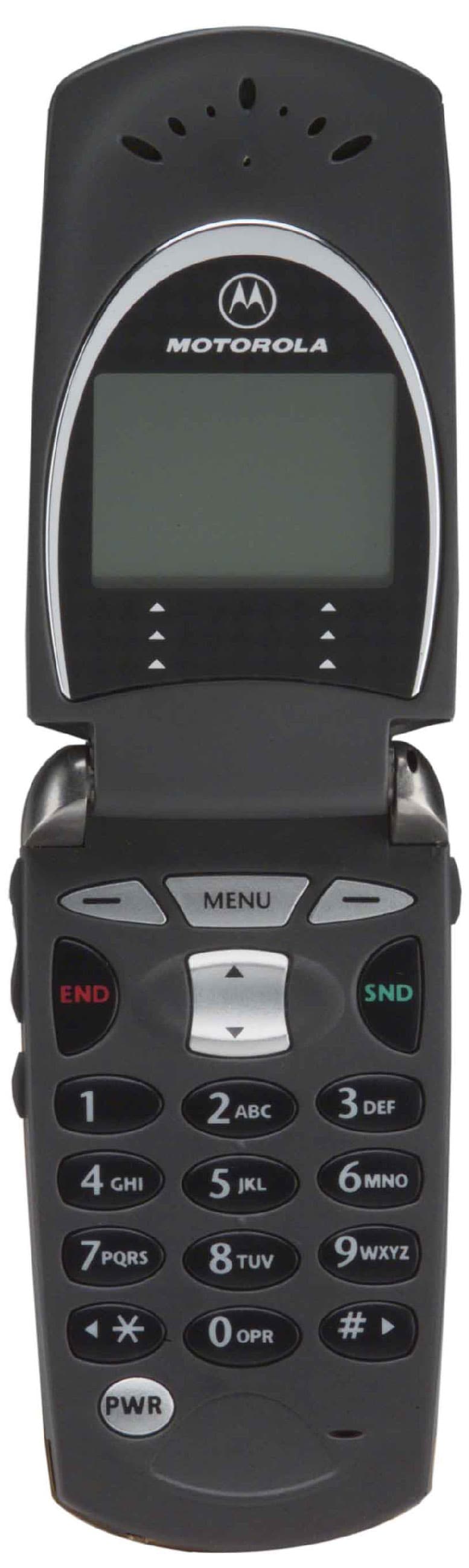
Click to zoom
Application Details
- Equipment Class
- TNE - Licensed Non-Broadcast Transmitter Held to Ear
- Date of Grant
- May 23, 2001
- Application Purpose
- Original Equipment
- Date of Application
- Dec 07, 2000
- Equipment Note
- Portable Cellular Transceiver
- Frequency Range
- 1850.01000000 - 1909.95000000
- Company
- Motorola Mobility LLC
- Country
- United States
Documents & Files
Document Text
Text extracted from the exhibit documents filed with the FCC. Open a document above to read the original.
Users Manual
APPLICANT: MOTOROLAFCC ID: IHDT56AS1 EXHIBIT 8 INSTRUCTION MANUAL A preliminary draft copy of the Users Manual follows: Phoenix TDMA Wireless Telephone Basic User’s Guide Second Formal Review October 6, 2000 Menu Map •Recent Calls • Received Calls (p. 66) • Dialed Calls (p. 65) • Notepad (p. 66) • Call Times (p. 65) •Phonebook (p. 64) •Datebook (p. 58) •Quick Dial (p. 64) •Radio (p. 65) •Messages (p. 59) •Shortcuts (p. 68) •VoiceNotes (p. 68) •mymotorola.com (p. 59) •Browser (p. 57) •Settings •Ring/Vibrate • Alert (p. 66) • Alert Detail (p. 66) •Phone Status • My Tel. Number (p. 63) • Battery Meter (p. 63) • Phone: Line 1/2 (p. 64) • Other Information (p. 63) •Settings (continued) •Connection • Incoming Call (p. 57) •In-Call Setup • In-Call Timer (p. 59) • Answer Options (p. 58) • Call Waiting (p. 58) •Security • Phone Lock (p. 67) • Lock Keypad (p. 67) • Lock Application (p. 67) • Talk Secure (p. 68) • Restrict Calls (p. 67) • New Passwords (p. 67) •Other Settings • Personalize (p. 62) • Initial Setup (p. 60) • Network (p. 62) • Car Settings (p. 60) • Headset (p. 60) Note: This is the standard menu layout. You or your service provider may have modified the menu structure or changed some feature names. Not all features may be available for all users. (Menu Map expansion to come) i Welcome Welcome to the world of Motorola digital wireless communications! Motorola is a global leader in communications technology. We are pleased that you have chosen the Motorola V wireless phone to keep you connected with ease. All Motorola phones are designed and manufactured to meet Motorola’s rigorous specifications and world-class quality standards. During development, our testing team took the Motorola V through rigorous durability tests including temperature, humidity, shock, dust, vibration, and drop tests—and the phone still worked! We are confident that you and your callers will find your wireless phone to be a convenient and reliable way to stay in touch. Thank you for choosing Motorola V , and enjoy your new phone! ii Personal Communications Sector 600 North U.S. Highway 45 Libertyville, Illinois 60048 1-800-331-6456 (United States) 1-888-390-6456 (TTY/TDD United States) 1-800-461-4575 (Canada) www.motorola.com This product may be powered by a Nickel Metal Hydride or Lithium Ion rechargeable battery which must be recycled or disposed of properly. Refer to the battery label for battery type. Contact your local recycling center for a battery recycler near you. , MOTOROLA, and all other trademarks indicated as such herein are trademarks of Motorola, Inc.‚ Reg. U.S. Pat. & Tm. Off. All other product or service names are the property of their trademark owner respective owners. © 2000 Motorola, Inc. All rights reserved. Printed in the U.S.A. iii Phone Diagram Earpiece Headset Jack Insert headset accessory for hands-free use. Status Light See incoming call and service status. Volume Keys Adjust earpiece and ringer volume. Smart Key Select menu items, send and end calls. Voice Key Record voice notes, phonebook and datebook entries. Display Microphone Accessory Connector Port Insert charger, radio FM stereo headset. Power Key Right Soft Key Perform functions identified by right display prompt. Menu Key End Key End phone calls, exit menu system. Scroll Key Move through menus and lists. Left Soft Key Perform functions identified by left display prompt. Send Key Send and answer calls, view recent dialed calls list. iv About This Guide Using Your Phone’s Features Your Motorola V phone offers more features than ever before! This guide introduces you to many of these features. All features are noted, and many features are described in more depth. If you would like more detailed information, see the Motorola Web site at: http://www.motorola.com/ or contact the Motorola Customer Call Center at 800-XXX-XXXX. Navigating to a Menu Feature You can access many of your phone’s features through the menu system. This guide shows you how to navigate to a specific menu feature as follows: The > symbol means that you should scroll to and select the feature. This example shows that you must press M , scroll to and select Recent Calls , then scroll to and select Dialed Calls to view the dialed calls list. Find the FeatureM > Recent Calls > Dialed Calls v Optional Features Features marked with this label are optional network and subscription-dependent features. Contact your service provider for information about availability. vi Contents Safety and General Information . . . . . . . . . . . . . 11 Getting Started . . . . . . . . . . . . . . . . . . . . . . . . . . . 20 What’s in the Box? . . . . . . . . . . . . . . . . . . . . . . . . 20 Installing the Battery . . . . . . . . . . . . . . . . . . . . . . . 21 Charging the Battery . . . . . . . . . . . . . . . . . . . . . . . 23 Turning Your Phone On . . . . . . . . . . . . . . . . . . . . . 24 Sending a Call . . . . . . . . . . . . . . . . . . . . . . . . . . . . 24 Ending a Call . . . . . . . . . . . . . . . . . . . . . . . . . . . . . 25 Receiving a Call . . . . . . . . . . . . . . . . . . . . . . . . . . . 25 Displaying Your Phone Number . . . . . . . . . . . . . . . 26 About Your Phone . . . . . . . . . . . . . . . . . . . . . . . . . 27 Display . . . . . . . . . . . . . . . . . . . . . . . . . . . . . . . . . 27 Status Light . . . . . . . . . . . . . . . . . . . . . . . . . . . . . . 30 Volume Keys . . . . . . . . . . . . . . . . . . . . . . . . . . . . . 31 Smart Key . . . . . . . . . . . . . . . . . . . . . . . . . . . . . . . 32 External Display . . . . . . . . . . . . . . . . . . . . . . . . . . . 33 Battery Use . . . . . . . . . . . . . . . . . . . . . . . . . . . . . . 34 Sending and Receiving Calls . . . . . . . . . . . . . . . . 36 Redialing a Number . . . . . . . . . . . . . . . . . . . . . . . . 36 Using Automatic Redial . . . . . . . . . . . . . . . . . . . . . 36 Caller ID . . . . . . . . . . . . . . . . . . . . . . . . . . . . . . . . 37 Returning an Unanswered …
Text truncated - open the document above for the full version.
Users Manual
APPLICANT: MOTOROLA, INC. FCC ID: IHDT56AS1 EXHIBIT 8A INSTRUCTION MANUAL A preliminary draft copy of the Users Manual follows: Note: Correspondence Reference Number: 17917 requested a change in user manual text. (FYI - For future filings, please indicate in the users manual "the phone and its antenna" instead of "the antenna" for instructions that require users to maintain a separation distance.) The next two pages contains the text which will be incorporated into the final version of the manual. 15 Safety and General Information Portable Phone Operation and EME Exposure Antenna Care Use only the supplied or an approved replacement antenna. Unauthorized antennas, modifications, or attachments could damage the phone and may violate FCC regulations. Do NOT hold the antenna when the phone is in use. Holding the antenna affects call quality and may cause the phone to operate at a higher power level than needed. Phone Operation When placing or receiving a phone call, hold your phone as you would a wireline telephone. Speak directly into the microphone. Body-Worn Operation To maintain compliance with FCC RF exposure guidelines, if you wear a phone on your body when transmitting, always place the phone in a Motorola-supplied or approved clip, holder, holster, case, or body harness. Use of non-Motorola-approved accessories may exceed FCC RF exposure guidelines. If you do not use a body-worn accessory, and are not holding the phone in the normal use position at the ear, ensure the phone and its antenna are at least one inch (2.5 centimeters) from your body when transmitting. Safety and General Information 16 Data Operation When using any data feature of the phone, with or without an accessory cable, position the phone and its antenna at least one inch (2.5 centimeters) from your body. Approved Accessories For a list of approved Motorola accessories, visit our website at www.motorola.com. Electromagnetic Interference/ Compatibility Note: Nearly every electronic device is susceptible to electromagnetic interference (EMI) if inadequately shielded, designed, or otherwise configured for electromagnetic compatibility. Facilities To avoid electromagnetic interference and/or compatibility conflicts, turn off your phone in any facility where posted notices instruct you to do so. Hospitals or health care facilities may be using equipment that is sensitive to external RF energy. Aircraft When instructed to do so, turn off your phone when on board an aircraft. Any use of a phone must be in accordance with applicable regulations per airline crew instructions. Phoenix TDMA Wireless Telephone Basic User’s Guide Draft December 21, 2000 Menu Map Main Menu • Recent Calls • Received Calls • Dialed Calls • Notepad • Call Times • Phonebook • Datebook • Quick Dial • Radio • Messages • Voicemail • Text Msgs • Browser Alerts • Quick Notes • Outbox • Drafts • Shortcuts • Voice Notes • Browser • Settings (see reverse) Note: This is the standard menu layout. You or your service provider may have modified the menu structure or changed some feature names. Not all features may be available for all users. For example, the Radio feature is displayed only when the FM radio headset accessory is plugged into the accessory connector port on your phone. Shortcuts Change display zoom: Press M, then press and hold M Lock/unlock keypad: Press M * Display my phone number: Press M # Go to dialed calls list: Press N Settings Menu • Ring/Vibrate • Alert • Alert Detail • Phone Status • My Tel. Number • Battery Meter • Other Information • Connection • Incoming Call • In-Call Setup • In-Call Timer • Answer Options • Security • Phone Lock • Lock Keypad • Lock Application • Restrict Calls • New Passwords • Other Settings • Personalize • Main Menu • Keys • Greeting • Banner • Quick Dial • Initial Setup • Time and Date • Auto PIN Dial • Auto Redial • Backlight • Status Light • Zoom • Scroll • Animation • Language • Battery Save • Contrast Setting • DTMF • Master Reset • Master Clear • Network • Car Settings • Headset 1 Welcome Welcome to the world of Motorola digital wireless communications! Motorola is a global leader in communications technology. We are pleased that you have chosen the Motorola V Series 60t wireless phone to keep you connected with ease. All Motorola phones are designed and manufactured to meet Motorola’s rigorous specifications and world-class quality standards. During development, our testing team took the Motorola V through rigorous durability tests including temperature, humidity, shock, dust, vibration, and drop tests. We are confident that you and your callers will find your wireless phone to be a convenient and reliable way to stay in touch. Thank you for choosing Motorola V , and enjoy your new phone! 2 Personal Communications Sector 600 North U.S. Highway 45 Libertyville, Illinois 60048 1-800-331-6456 (United States) 1-888-390-6456 (TTY/TDD United States) 1-800-461-4575 (Canada) www.motorola.com MOTOROLA, the Stylized M Logo and all other trademarks indicated as such herein are trademarks of Motorola, Inc. ® Reg. U.S. Pat. & Tm. Off. TrueSync is a trademark of Starfish, Inc., a wholly owned independent subsidiary of Motorola, Inc. All other product or service names are the property of their respective owners. © 2000 Motorola, Inc. All rights reserved. Printed in the U.S.A. Manual number: 6809435A45-O Cover number: 8988485L07 3 Phone Diagram Earpiece Headset Jack Insert headset accessory for hands-free use. Status Light See incoming call and service status. Volume Keys Adjust earpiece and ringer volume. Smart Key Select menu items, send and end calls. Voice Key Record voice notes, phonebook and shortcut names. Display Microphone Accessory Connector Port Insert charger and phone accessories. Power Key Right Soft Key Perform functions identified by right display prompt. Menu Key End Key End phone calls, exit menu system. Scroll Key Move through menus and lists. Left Soft Key Perform functions identified by left display p…
Text truncated - open the document above for the full version.
Users Manual
55 Using the Menu through available characters (see “Character Chart” on page 56): • If you do not press a key for two seconds, the character in the block cursor is accepted, and the cursor moves to the next position. Msg: CANCEL) )BROWSE Move flashing cursor to the left or right. Move flashing cursor up or down one line, or change character in block cursor to uppercase or lowercase. Press a number key to enter text at flashing cursor location. Press a number key as many times as necessary to enter the desired character. Press and hold a number key to cycle between uppercase and lowercase characters. Using the Menu 56 • The first character of every sentence is capitalized unless you manually override it. (Hold the number key or press S down to force the character to lowercase while it is highlighted by the block cursor.) Character Chart Use this chart as a guide for entering spaces, numbers, letters, and other characters. Press and hold a key to cycle between uppercase and lowercase characters. 1 space . 1 ? ! , @ & : ; " - ( ) '¿ ¡ % £ $ ¥ 2 a b c 2 ä å à α β ç 3 d e f 3 ∆ é è Φ 4 g h i 4 Γ 5 j k l 5 Λ 6 m n o 6 ñ ö ø ò Ω 7 p q r s 7 Π ß ∑ 8 t u v 8 Θ ü ù 9 w x y z 9 Ξ Ψ 0 + - 0 x * / = > < # § 57 Using the Menu Predictive Text Entry with iTAP Software iTAP™ software provides a predictive text entry method that lets you enter the letters of a word using only one keypress per letter. Activating iTAP Software You must activate iTAP software prior to entering letters. You can do this from any text entry screen by pressing M and selecting the iTAP menu option. Entering Words To enter a word: Do ThisTo 1 Press a keypad key once enter the first letter of the word The letters associated with the key you pressed are shown at the bottom of the display. 2Press keypad keys (one per letter) enter the rest of the word Alternative words and letter combinations are shown at the bottom of the display based on the keys you press. These word choices are updated with each keypress. Using the Menu 58 For example, to spell the word “act,” press 2 2 8. The display shows: 3When you have entered all the letters of the word, press * and # locate and highlight the word you want 4Press SELECT (+) add the highlighted word to the text area at the top of the display A space is automatically inserted after the word. Do ThisTo Press SELECT (+) to insert the highlighted word at the insertion point. Press DELETE (-) to clear the last letter entered. Flashing cursor indicates insertion point. Press * and # to scroll and see additional word choices. Cat Act Bat Abu } DELETESELECT 59 Using the Menu Entering Novel Words You may enter a word that is not in the iTAP software dictionary. If you enter all the letters of a word but the word is not displayed: Do ThisTo 1 Press DELETE (-) one or more times delete one or more letters until you see a letter combination that matches the start of the word 2Press * and # highlight the letter or letter combination 3Press SELECT (+), then press * shift the text entry cursor to the left and “lock” the selected portion of the word 4Continue entering letters and highlighting letter combinations spell the word Using the Menu 60 Punctuation The iTAP software automatically adds a space after each word. When you enter punctuation, this space is removed. To use punctuation: Capitalization The first word of a sentence is automatically capitalized, with following words in lowercase. To set or adjust character capitalization: PressTo 1 or 0enter punctuation or other characters as shown in the “Character Chart” on page 56 PressTo S change the words to initial character capitalized, all uppercase characters, or all lowercase characters 61 Using the Menu Entering Numbers To enter a number: Deleting Letters and Words Place the cursor to the right of the text that you want to delete, and then do the following: Do ThisTo 1 Enter the first digit and then highlight it put the iTAP software in number entry mode 2Press keypad keys add digits to the number 3Press SELECT (+) enter the number at the insertion point Do ThisTo Press DELETE (-)delete one letter at a time Press and hold DELETE (-) delete the entire word Continue to hold DELETE (-) delete the entire message 62 Menu Feature Descriptions This chapter describes all of your phone’s features in alphabetical order. Some descriptions also include page numbers where you can find more detailed information. If you would like to learn more about a specific feature, see the Motorola Web site at: http://motorola.com/consumer/manuals or contact the Motorola Customer Call Center at 1-800-331-6456. BROWSER M> Browser Access Web pages and run Web-based applications. The micro-browser delivers WAP (Wireless Application Protocol) pages from your service provider directly to your phone. See “Micro-Browser” on page 125. CONNECTION Connect your phone to a computer or hand-held device to send and receive data and fax calls on the connected device. Connect your phone using a serial cable or USB cable. See “Connecting Your Phone to an External Device” on page 135. 63 Menu Feature Descriptions Incoming Call M> Settings > Connection > Incoming Call Specify the format for the next incoming call. You can select Fax In Only, Data In Only, or Normal. DATEBOOK M> Datebook Use the datebook calendar to schedule and review your appointments. See “Datebook” on page 92. IN-CALL SETUP Use the in-call setup menu to set the features that are active during a call, such as the in-call timer and call answering options. Answer Options M> Settings > In-Call Setup > Answer Options Turn call answering options on or off: In-Call Timer M> Settings > In-Call Setup > In-Call Timer Adjust call timer display and beep settings. You can set your timer to beep at a selected interval during Multi-Key Answer by pressing any key Open to Answer Answer by opening the flip Menu Feature Descriptions 64 your calls. (60 seconds is the default.) You can also turn on or off a display timer during calls as follows: …
Text truncated - open the document above for the full version.
Users Manual
APPLICANT: MOTOROLAFCC ID: IHDT56AS1 EXHIBIT 8C INSTRUCTION MANUAL A preliminary draft copy of the Users Manual follows: Note: This updated manual includes responses to FCC Correspondence Reference Number: 18898. PRELIMINARY This is a preliminary version of the Phoenix TDMA user guide. In particular, color-coded text describes new R1.1 features that have not been reviewed with the software. Please use this draft as reference only. It is not yet ready for review. If you want to provide feedback, contact John Weidner. Phoenix TDMA (R1.1) Wireless Telephone User’s Guide Draft April 11, 2001 PRELIMINARY 1 PRELIMINARY Welcome Welcome to the world of Motorola digital wireless communications! We are pleased that you have chosen the Motorola V Series 60t wireless phone. Earpiece Headset Jack Insert headset accessory for hands-free use. Status Light See incoming call and service status. Volume Keys Adjust earpiece and ringer volume. Smart Key Select menu items, send and end calls. Voice Key Record voice notes, phonebook and shortcut names. Display Microphone Accessory Connector Port Insert charger and phone accessories. Power Key Right Soft Key Perform functions identified by right display prompt. Menu Key End Key End phone calls, exit menu system. Scroll Key Move through menus and lists. Left Soft Key Perform functions identified by left display prompt. Send Key Send and answer calls, view recent dialed calls list. 2 PRELIMINARY Personal Communications Sector 600 North U.S. Highway 45 Libertyville, Illinois 60048 1-800-331-6456 (United States) 1-888-390-6456 (TTY/TDD United States) 1-800-461-4575 (Canada) www.motorola.com MOTOROLA, the Stylized M Logo and all other trademarks indicated as such herein are trademarks of Motorola, Inc. ® Reg. U.S. Pat. & Tm. Off. TrueSync is a trademark of Starfish, Inc., a wholly owned independent subsidiary of Motorola, Inc. All other product or service names are the property of their respective owners. © 2001 Motorola, Inc. All rights reserved. Printed in the U.S.A. Computer Program Copyrights The Motorola products described in this manual may include Motorola computer programs stored in semiconductor memories or other media that are copyrighted with all rights reserved worldwide to Motorola. Laws in the United States and other countries preserve for Motorola, Inc. certain exclusive rights to the copyrighted computer progr ams, including the exclusive right to copy, reproduce, modify, decompile, disassemble, and reverse-engineer the Motorola computer progr ams in any manner or form without Motorola's prior written consent. Furthermore, the purchase of Motorola products shall not be deemed to grant either directly or by implication, estoppel, or otherwise, any license or rights under the copyrights, patents, or patent applications of Motorola, except for a nonexclusive license to use the Motorola product and the Motorola computer programs with the Motorola product. Manual number: 6809435A45-O Cover number: 8988485L07-O 3 PRELIMINARY ✂ Menu Map Main Menu • Recent Calls • Received Calls • Dialed Calls • Notepad • Call Times • Phonebook • Datebook • Quick Dial • Radio • Messages • Voicemail • Text Msgs • Browser Alerts • Quick Notes • Outbox • Drafts • Shortcuts • Voice Notes • Browser • Settings (see next page) Note: This is the standard phone menu layout. You or your service provider may have changed the menu layout or changed some feature names. Not all features may be available for all users. For example, the Radio feature on the main menu (left) is displayed only when the FM Stereo Radio Headset accessory is plugged into the accessory connector port on your phone (see phone illustration, page 1). Shortcuts Change display zoom: Press M, then press and hold M Lock/unlock keypad: Press M * Display my phone number: Press M # Go to dialed calls list: Press N 4 PRELIMINARY ✂ Settings Menu •Ring/Vibrate • Alert • Alert Detail •Phone Status • My Tel. Number • Battery Meter • Other Information • Connection • Incoming Call • In-Call Setup • In-Call Timer • Answer Options • Security • Phone Lock • Lock Keypad • Lock Application • Talk Secure • Restrict Calls • New Passwords • Other Settings • Personalize • Main Menu • Keys • Greeting • Banner • Quick Dial • Initial Setup • Time and Date • Auto PIN Dial • Auto Redial • Backlight • Status Light • Zoom • Scroll • Animation • Language • Battery Save • Contrast Setting • DTMF • Master Reset • Master Clear • Network • Car Settings • Headset 5 PRELIMINARY Contents Menu Map. . . . . . . . . . . . . . . . . . . . . . . . . . . . . . . . . . . . . . 3 About This Guide . . . . . . . . . . . . . . . . . . . . . . . . . . . . . . . 10 Safety and General Information. . . . . . . . . . . . . . . . . . . 12 Getting Started . . . . . . . . . . . . . . . . . . . . . . . . . . . . . . . . 19 What’s in the Box? . . . . . . . . . . . . . . . . . . . . . . . . . . . . . 19 Installing the Battery . . . . . . . . . . . . . . . . . . . . . . . . . . . . 19 Charging the Battery . . . . . . . . . . . . . . . . . . . . . . . . . . . . 20 Turning Your Phone On . . . . . . . . . . . . . . . . . . . . . . . . . . 21 Sending a Call . . . . . . . . . . . . . . . . . . . . . . . . . . . . . . . . . 22 Ending a Call . . . . . . . . . . . . . . . . . . . . . . . . . . . . . . . . . . 22 Receiving a Call . . . . . . . . . . . . . . . . . . . . . . . . . . . . . . . . 23 Displaying Your Phone Number . . . . . . . . . . . . . . . . . . . . 23 About Your Phone . . . . . . . . . . . . . . . . . . . . . . . . . . . . . . 24 Display . . . . . . . . . . . . . . . . . . . . . . . . . . . . . . . . . . . . . . 24 Changing the Zoom Setting . . . . . . . . . . . . . . . . . . . . . . . 27 Status Light . . . . . . . . . . . . . . . . . . . . . . . . . . . . . . . . . . . 27 Volume Keys . . . . . . . . . . . . . . . . . . . . . . . . . . . . . . . . . . 28 Smart Key . . . . . . . . . . . . . . . . . . . . . . . . . . . . . . . . . . . . 29 External Display . . . . . . . …
Text truncated - open the document above for the full version.
Attestation Statements
Applicant: MotorolaFCC ID: IHDT56AS1 Exhibit 2 STATEMENT OF CERTIFICATION The technical data supplied with this application, having been taken under my supervision is hereby duly certified. The following is a statement of my qualifications: BSEE 1970 Shinshu University 6 years Cellular Design Experience Signature: (signed) Tash Yamada Name: Tash Yamada Date: November 14, 2000 Position: Engineering Section Manager MSEE 1977 Gdansk Polytechnic Institute 4 years Cellular design experience Signature: (signed) Voytek Andron Name: Voytek Andron Date: November 14, 2000 Position: Engineering Section Manager I hereby certify that the above application was prepared under my direction and that to the best of my knowledge and belief, the facts set forth in the application and accompanying technical data are true and correct. Signature: (signed) Robert Cosbey Name: Bob Cosbey Date: November 14, 2000
Cover Letter(s)
APPLICANT: MOTOROLAFCC ID: IHDT56AS1 Exhibit 13 December 15, 2000 CONFIDENTIALITY REQUEST CONTAINED WITHIN Federal Communications Commission Authorization and Evaluation Division 7435 Oakland Mills Road Columbia, Maryland 21046 Re: Application for Cellular/PCS Transceiver Certification Gentlemen: Application: Motorola, Inc., Personal Communications Sector, 600 N. U.S. Highway 45, Libertyville, Illinois 60048-1286 herein submits: Application for Equipment Authorization (FCC Form 731 with integrated Fee Processing Form, Fee Codes EFT and EBC), application fee in the amount of $640, and Exhibits; for Certification of a Cellular Transceiver, FCC ID: IHDT56AS1. Motorola is also the manufacturer of this equipment. Confidentiality: Pursuant to Section 0.459 of the Commission's rules (CFR 47), Motorola requests confidentiality for portions of the material contained in this application and that the identified material be withheld from public inspection following the grant of this authorization. This material contains Motorola's trade secrets and confidential information that Motorola does not customarily release to the public and which is otherwise not generally available to the public. Confidentiality is requested for the following exhibits: • Exhibit 4 Block Diagrams • Exhibit 5 Schematics • Exhibit 12 Operational Description Description: This equipment has the capability to operate in the conventional Analog Cellular standard in the 800 MHz band and the Digital TDMA standard in both the cellular and PCS bands, as outlined in EIA/TIA IS136 "Dual-Mode Mobile Station Compatibility Standard", dated December 1995. Technical details for this alternate cellular technology (permitted under the cellular service option provisions in Section 22.933 of the Commission's rules) related to Type Acceptance of this equipment, as noted in paragraphs 31 and 32 of the Report and Order in FCC GEN. Docket No. 87-390, are detailed in Exhibit 12. Contact Information: Please contact me by telephone at (847) 523-6167,or by e-mail ([email protected]), if there are questions or additional information needed concerning this filing. Regards, Andrew J. Bachler FCC Liaison Cellular Subscriber Sector 600 N. U.S. Highway 45 Libertyville, IL 60048-5343
Cover Letter(s)
APPLICANT: MOTOROLAFCC ID: IHDT56AS1 Exhibit 13A April 9, 2001 Amendments to Pending Application Federal Communications Commission Authorization and Evaluation Division 7435 Oakland Mills Road Columbia, Maryland 21046 Re: Application for Cellular/PCS Transceiver Certification Application: On December 8, 2000; Motorola submitted an equipment certification application and exhibits for FCC ID: IHDT56AS1 (EA99465). This is a dual band “TNE” device. Changes to Equipment: The equipment changes are: • The maximum conducted power output is increased 0.5 dB in the 800 MHz CDMA mode. • The maximum power output is reduced 0.5 dB in 800 MHz analog body worn configuration. • Improvements have been made to the PCB grounding. • Minor part value changes for improved optimization and performance. Changes to 731 Form: Item 12 Rated RF power output in Watts on the application should be updated to: FROMTO 0.430.45 0.430.45 0.690.74 1.251.25 (no change) Amended Exhibits: In addition to this explanatory cover letter, the following replacement exhibits were submitted on April 9, 2001: • Exhibit 11- SAR Report (Replacement report reflects minor power changes and grounding differences) • Exhibit 6- Test Report (Replacement report reflects power changes and grounding differences) • Exhibit 5 Schematic Diagrams (Minor changes, including some part value updates) • Exhibit 8A & 8B User Manual (Updated version) Note: The updated manual addresses the issues in Correspondence Reference Number 17976. Contact Information: Please contact me by telephone at (847) 523-6167,or by e-mail ([email protected]), if there are questions or additional information needed concerning this filing. Regards, Andrew J. Bachler FCC Liaison Cellular Subscriber Sector 600 N. U.S. Highway 45 Libertyville, IL 60048-5343
External Photos
APPLICANT: MOTOROLA, INC. FCC ID: IHDT56AS1 EXHIBIT 3 Front View with Flip Opened Rear View, Flip Opened with Battery Removed to Show Equipment ID Label
ID Label/Location Info
APPLICANT: MOTOROLA FCC ID: IHDT56AS1 EXHIBIT 1 FCC IDENTIFICATION (NAMEPLATE) INFORMATION The FCC label shown is the label that will appear on the radio when in production. It will be placed on the outside of the radio telephone. FCC ID: IHDT56AS1
Internal Photos
APPLICANT: MOTOROLA, INC. FCC ID: IHDT56AS1 EXHIBIT 9 Front View (Shields Removed) Rear View (Shields Removed)
Parts List/Tune Up Info
Applicant: MotorolaFCC ID: IHDT56AS1 Exhibit 10 Transceiver Adjustments/Tune-Up Procedure There are no user accessible adjustments or tuning in this portable cellular transceiver. All necessary adjustments and tuning are performed during manufacture of the product. Any adjustments or tuning after service or repair are done as part of that process as special equipment is required to perform such adjustments.
RF Exposure Info
APPLICANT: MOTOROLA, INC. FCC ID: IHDT56AS1 E E x x h h i i b b i i t t 1 1 1 1 Exhibit 11: SAR Test Report: IHDT56AS1 Date of …
Text truncated - open the document above for the full version.
Contact Information
Applicant
Jeff Narducci(Director Product Compliance)
Technical Specifications
| # | Rule Parts | Frequency Range | Power Output | Emission | Tolerance |
|---|---|---|---|---|---|
| 4 | 24 | 1.85 GHz - 1.91 GHz | 1.25 W | 30K0DXW | 400 Hz |
Other Applications from Motorola Mobility LLC
IHDT56AW9
May 12, 2026Smart Watch
Equipment Class
NII - Unlicensed National Information Infrastructure TXIHDT56AW5
Apr 08, 2026Mobile Cellular Phone
Equipment Class
DTS - Digital Transmission SystemIHDT56AW6
Mar 18, 2026Smart Watch
Equipment Class
JBP - Part 15 Class B Computing Device PeripheralIHDT56AX4
Mar 17, 2026Mobile Cellular Phone
Equipment Class
PCE - PCS Licensed Transmitter held to earIHDT56AW3
Mar 03, 2026Mobile Cellular Phone
Equipment Class
6XD - 15E 6 GHz Low Power Indoor Client