IHDT56MY2MOBILE PHONE
Motorola Mobility LLC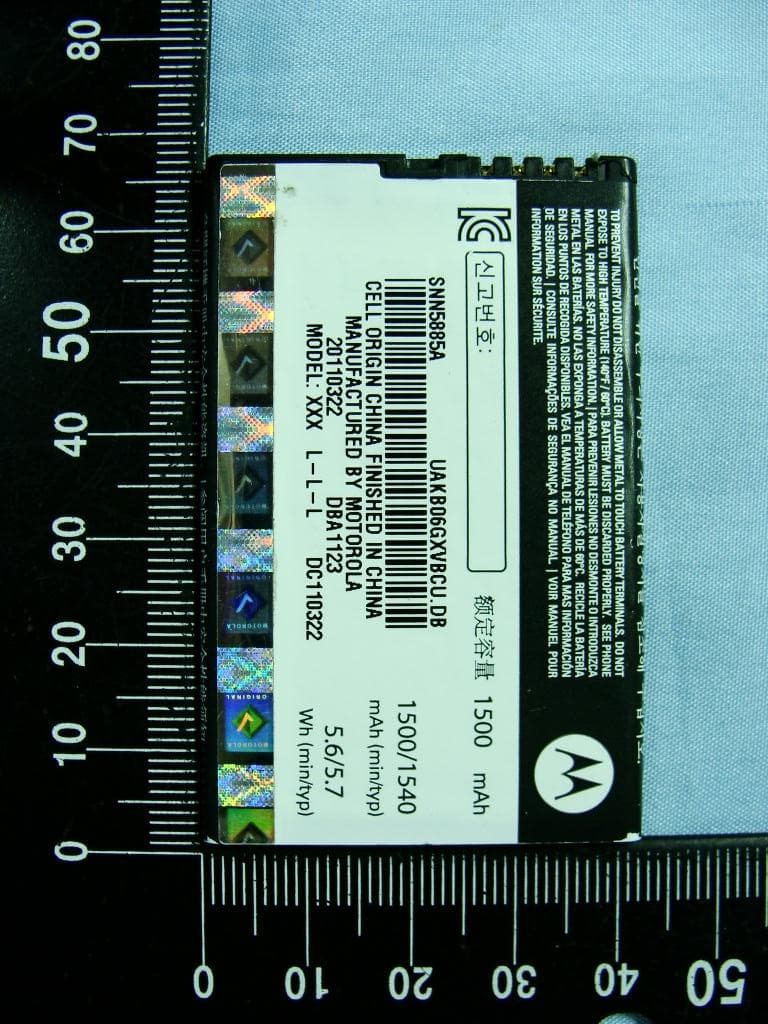
Click to zoom
Application Details
- Equipment Class
- PCE - PCS Licensed Transmitter held to ear
- Date of Grant
- Aug 17, 2011
- Application Purpose
- Original Equipment
- Date of Application
- Aug 16, 2011
- Equipment Note
- MOBILE PHONE
- Frequency Range
- 1852.40000000 - 1907.60000000
- Company
- Motorola Mobility LLC
- Country
- United States
Documents & Files
Document Text
Text extracted from the exhibit documents filed with the FCC. Open a document above to read the original.
Users Manual
MOTOROLA SPICE TM XT 1Congratulations Congratulations MOTOROLA Spice™ XT Your MOTOROLASPiCE XT phone delivers more for your work and play! • Search: Touch Search to search across your apps, contacts, web, and maps—or just enter the address for a place or a web page. • Apps: Open Market to download games for fun, social networking apps to keep in touch (like Facebook™ or Twitter), or find something else you like with “Apps” on page 10! • Touch Display: Browse the web and pinch to zoom on the 8.9cm HVGA touch display in “Web” on page 27. • Camera: Capture photos and videos with the 5MP auto-focus camera with flash in “Photos & videos” on page 30. Note: Some apps and features might not be available in all countries. Caution: Before assembling, charging, or using your phone for the first time, please read the important legal and safety information packaged with your product. 2Congratulations More • Support: Phone updates, PC software, online help and more at www.motorola.com/support . • Accessories: Find accessories for your phone at www.motorola.com/products . 3Your phone Your phone the important keys & connectors Note: Your phone might look a little different. 11:19 BrowserCameraCamcorderameraCamcorderCd 11:19 BrowserrCaC 11 3.5mm Headset Jack Front Camera Notification Light Flash=missed call, new message, or other notification Micro USB Microphone Volume Keys Light Sensor Camera Key Power/Sleep Key Hold=power Press=sleep Menu Open options. Home Touch= home screen Hold= recent apps Search Touch=text Hold=voice Back Go back one screen. 4Contents Contents Let’s go . . . . . . . . . . . . . . . . . . . . . . . . . . . . . . . . . . . . . . . . . . . . . . . . 5 Home screen & apps . . . . . . . . . . . . . . . . . . . . . . . . . . . . . . . . . . . . 9 Personalize . . . . . . . . . . . . . . . . . . . . . . . . . . . . . . . . . . . . . . . . . . . 13 Calls . . . . . . . . . . . . . . . . . . . . . . . . . . . . . . . . . . . . . . . . . . . . . . . . . . 15 Contacts. . . . . . . . . . . . . . . . . . . . . . . . . . . . . . . . . . . . . . . . . . . . . . . 17 Messaging . . . . . . . . . . . . . . . . . . . . . . . . . . . . . . . . . . . . . . . . . . . . . 19 Text entry . . . . . . . . . . . . . . . . . . . . . . . . . . . . . . . . . . . . . . . . . . . . 22 Schedule. . . . . . . . . . . . . . . . . . . . . . . . . . . . . . . . . . . . . . . . . . . . . . 25 Web . . . . . . . . . . . . . . . . . . . . . . . . . . . . . . . . . . . . . . . . . . . . . . . . . . . 27 Location . . . . . . . . . . . . . . . . . . . . . . . . . . . . . . . . . . . . . . . . . . . . . . 29 Photos & videos . . . . . . . . . . . . . . . . . . . . . . . . . . . . . . . . . . . . . . . 30 Music . . . . . . . . . . . . . . . . . . . . . . . . . . . . . . . . . . . . . . . . . . . . . . . . . 32 Bluetooth™, Wi-Fi, & cable connections . . . . . . . . . . . . . . . 34 Security . . . . . . . . . . . . . . . . . . . . . . . . . . . . . . . . . . . . . . . . . . . . . . 36 Troubleshooting . . . . . . . . . . . . . . . . . . . . . . . . . . . . . . . . . . . . . 38 Safety, Regulatory & Legal . . . . . . . . . . . . . . . . . . . . . . . . . . . 39 5Let’s go Let’s go let’s get you up and running Assemble & charge Caution: Please read “Battery Use & Safety” on page 39. 1Cover off2SIM in 3microSD in (may already be inserted) 4Battery in 5Cover on6Charge up 3-6H 6Let’s go Set up & go Note: This phone supports data-intensive apps and services. It is strongly recommended that you purchase a data plan that meets your needs. Contact your service provider for details. When you turn on your new phone, you can create or enter a Google™ account so that you can download apps, use Gmail™, and much more: 1Press and hold Power to turn on your phone. 2Touch the Android™ image to begin setup. 3Touch a button to Create a Google account, Sign in with one you have, or Skip. 4Enter details to create or sign into your account. When your phone confirms the account, it shows account sync options. •To change whether your phone shows the Google account’s contacts, Gmail™, and calendar, touch the Google account name. •To add another account, touch Add account. For details, see “Email” on page 20. •To exit setup touch Home. Power Key 7Let’s go If your phone cannot connect, you can touch Menu > Wireless settings to change mobile network settings. Power & sleep Your screen sleeps when you hold it to your ear during a call, or when it is inactive. To change the sleep delay, touch Menu > Settings > Display >Screen timeout . Keys Use your phone’s keys to navigate and open options at any time. Press the volume keys to change the ringer volume (in the home screen), or the earpiece volume (during a call). Silence Unlock Power/Sleep Key Hold=power Press=sleep or wake up 11:19 Camcorder 11:19 CamcorderCd 11 Camera Key Volume Keys 8Let’s go From any screen, press the camera key on the right side of the phone to open the camera. Touch Home to return to the home screen. Touch and hold Home to see your recent apps. Menu Open options. Home Touch= home screen Hold= recent apps Search Touch=text Hold=voice Back Go back one screen. 9Home screen & apps Home screen & apps a few essentials Use your home screen for quick access to apps, search, and more. Download social networking apps (like Facebook™ or Twitter) to keep in touch! Quick start: Home screen You’ll see the home screen when you turn on the phone or touch Home from a menu: 11:19 BrowserCameraCamcorder Notifications Flick down for details. Status Indicators Shortcuts Open the app menu. Widgets To uch to open. To uch & hold to move or delete. Drag or flick to open panels (or scroll in lists). 10Home screen & apps •To open shortcuts or widgets, touch them. Touch Home to return to the home screen. When you open shortcuts or widgets, touch Menu for options. •To move or delete shortcuts or widgets, touch and hold them until you feel a vibration, then drag it to another spot, another panel, or at the bottom. In lists…
Text truncated - open the document above for the full version.
Users Manual
12Home screen & apps Phone status & notifications In the status bar at the top of your screen, the right side shows phone status. The left side shows new messages or events (for details, flick the bar down). network strengthbattery strength new voicemailnew text message Bluetooth™ onBluetooth connected Wi-Fi connectedairplane mode USB connectedalarm set silent ringersilent ringer, vibrate on mute callspeakerphone Clear Notifications 10:32 New voicemail Dial (Your Voicemail Number) 11:19 13Personalize Personalize add your personal touch Customize your phone’s sounds and appearance to make it unique to you! Quick start: Personalize From the home screen, touch Menu >Settings > Sound or Display. •To choose a ringtone or vibration for calls and messages, touch Menu > Settings >Sound, then choose Phone ringtone, Notification ringtone, or Vibrate. •To change the volume, touch Menu > Settings > Sound >Volume. •To t u r n dialpad sounds on or off, touch Menu > Settings >Sound >Audible touch tones. •To turn menu selection sounds on or off, touch Menu > Settings >Sound >Audible selection. •To change your wallpaper, touch and hold an empty spot on the home screen, then touch Wallpapers. •To change shortcuts and widgets on your home screen, touch and hold them. For details, see “Home screen & apps” on page 9. 14Personalize •To set display brightness, touch Menu > Settings >Display >Brightness. •To control whether some apps rotate the screen when you rotate your phone, touch Menu > Settings >Display>Auto-rotate screen. •To turn on or off animations that make your menus look smoother, touch Menu > Settings > Display >Animation. •To calibrate the sensors used by some games or navigation apps, touch Menu > Settings > Display >G-Sensor Calibration (movement) or E-Compass Calibration (direction). Language & region To set your menu language and region, touch Menu > Settings >Language & keyboard >Select language 15Calls Calls it’s good to talk To make a call from the home screen, touch . Tip: For quick access to contacts, see “Favorites” on page 17. Conference calls To start a conference call, call the first number. After they answer, touch Add call and call the next number. When the next number answers, touch Merge calls. To remove individual callers, touch Manage. Call waiting If you are on a call and a new call arrives: •With call waiting on, you can drag to the right to answer the new call and put the old call on hold. Then, touch Swap to switch between calls, or Merge calls to combine them. •With call waiting off, the new call goes straight to your voicemail. To turn on call waiting, touch Menu> Settings > Call settings >Additional settings >Call waiting. 16Calls Emergency calls Note: Your service provider programs one or more emergency phone numbers that you can call under any circumstances, even when your phone is locked. Emergency numbers vary by country. Your pre-programmed emergency number(s) may not work in all locations, and sometimes an emergency call cannot be placed due to network, environmental, or interference issues. 1Open the phone, then touch (if your phone is locked, touch Emergency Call). 2Enter the emergency number. 3Touch Call to call the emergency number. Note: Your mobile device can use AGPS satellite signals to help emergency services find you (“Location Services (GPS & AGPS)” on page 50). Cool down In very limited circumstances, such as where your phone has been exposed to extreme heat, you may see “Cool Down” messages. To avoid possible damage to your battery and phone, you should follow these instructions until the phone is within its recommended temperature range. When your phone is in “Cool Down” mode, only emergency calls can be made. 17Contacts Contacts contacts like you’ve never had before Keep each friend’s email, phone number, and even address all in your Contacts for quick access. Quick start: Contacts From the home screen, touch >Contacts. Favorites For quick access to a favorite contact, open the contact, then touch the star next to their name. To Phone Displaying 20 contacts Contacts Favorites Call log A B C Arthur Baudo Barry Smyth Cheyenne Medina Christine Fanning Search New contact Accounts Import/Export More Display options To uch to open and call or text. To uch & hold for options. Drag or flick to scroll. Switch to the dialer, recent calls, or favorites. Touch to search, create, & more. 18Contacts show your favorites, touch and touch Favorites at the top. To add a shortcut to your favorites, touch and hold a blank spot on your home screen, then touch Folders > Starred contacts. You can also add a shortcut for an individual contact: Touch and hold a blank spot on your home screen, then choose Shortcuts >Contacts. Storage & transfer When you create a new contact, your phone asks if you want to store it in your Google™ account, phone memory, or SIM card. Contacts in all three places appear in your Contacts list, but if you change phones: •Contacts in your Google™ account can download when you log into your Google account on a new Android™ device. You can open these contacts from any computer at contacts.google.com . •Contacts on your SIM card can load to a new device when you insert your SIM card. •Contacts in your phone memory stay in your old phone, unless you export them. To import or export contacts between your phone memory and a SIM or memory card, touch > Contacts, then touch Menu >Import/Export. 19Messaging Messaging sometimes it’s best to text or email... Send and receive text with photos or other attachments, in quick text messages or full emails. Quick start: Text messaging From the home screen, touch >Messaging. Tip: To see more messages, flick or drag up. Messaging New message Compose new message 12254558787 14447772222 You had 1 missed call from 122545458787 ... 17 Aug Wanna catch something to eat tonight? How about ... 17 Aug 12223334545 Ha! Thanks. 16 Aug Settings Delete threads Search Compose To uch to open. To uch & hold to open options. Drag or f…
Text truncated - open the document above for the full version.
Users Manual
27Web Web surf the web with your phone Open Browser or just touch Search to find a page, then bookmark it, send it, or just explore. Quick start: Web From the home screen, touch >Browser. Note: Your phone automatically uses your mobile phone network to connect to the web. Your service provider may charge to surf the web or download data. If you can’t connect, contact your service provider. WebImagesLocalNewsmore Near me now Chicago Google 11:19 New windowBookmarks More Windows Refresh Forward To uch to open. To uch & hold to open options. Drag or flick to scroll. Enter a web page URL. Touch to open bookmarks, windows, & more. Connection Mobile Network: Wi-Fi: 28Web Tip: You can connect to the web with a fast Wi-Fi network connection (“Bluetooth™, Wi-Fi, & cable connections” on page 34). Downloads To download files in your browser, touch a file link or touch and hold a picture to choose Save image. To show the files you downloaded, touch Browser > Menu > More >Downloads. Touch and hold an item to open it, see details, or remove it from the list. You can download “Apps” on page 10. 29Location Location where you are, and where you’re going Open Maps or just touch Search to find an address and get directions, check in, or save the location. Quick start: Location From the home screen, touch >Maps. Google Maps™ offers powerful, user-friendly mapping technology and local business information—including business locations, contact information, and driving directions. Chicago, IL N Clark St Wacker Dr M E Ontario St E Ohio St N Rush St N Park St N New St N Wabash Ave N Dearborn St E Grand Ave E Randolph St N Micigan Ave N Micigan Ave r D s u b m u l o C N W Lake StW Lake St E Wacker Pl State/Lake Grand Red Lake Randolph St Metra Randolph/ Wabash Washington-Blue E S WaterSt M M M M Ontario St DDD eeeee aaa rr bbb oo rr nn SSS t 44 West Street A Search Clear Map Directions Join Latitude Starred Places More Drag or flick to scroll. Find nearby places. Show your location. Show layers on the map. Touch to get directions, open your starred places, open windows, & more. Touch to open, then touch to add to Starred Places. 30Photos & videos Photos & videos see it, capture it, share it! Capture photos and videos to send them to friends or save them for later. Quick start: Photos & videos From any screen, press the Camera Key on the right side of the phone to open the camera. Tip: For the clearest photos and videos, clean the lens with a soft, dry cloth. Open your last photo or video. Switch resolution & more. Store photo location. Set white balance for your lighting. Set flash for photos. Zoom. Choose front or back camera. Choose camera or camcorder. Capture. 31Photos & videos View & share photos & videos From the home screen, touch >My Gallery. Flick left and right to show folders. Touch a folder to show its photos or videos, then touch a thumbnail image to open, share, or delete it. Tip: From the viewfinder, you can touch the thumbnail in the top right to open your last photo or video. •To zoom in, touch the screen with two fingers and then drag them apart. To zoom out, drag your fingers together. •To send or post the photo or video, touch Share. To use a Bluetooth™ or cable connection, see “Bluetooth™, Wi-Fi, & cable connections” on page 34. •To delete the photo or video, touch Delete. •To set a photo as your wallpaper or a contact photo, touch More >Set as. •To crop or rotate a photo, touch More. •To play a video, touch . Tip: Turn the phone sideways for a widescreen view. 32Music Music when music is what you need... Keep your music with you! Put music on your phone so you can listen and create playlists anytime. Quick start: Music From the home screen, touch >Music, then choose a song to play it: Music Artist Album Title Song Title 0:263:27 11:19 Open Playlist Shuffle On/Off Repeat Off/All/Current Music Controls To tal Song Time Progress Bar 33Music You can use your phone’s 3.5mm headset jack to connect wired headphones, or go wireless with Bluetooth™ stereo headphones or speakers. To listen to FM radio stations, Plug in a 3.5mm headset and touch > FM Radio. Your phone uses the headset wire as the radio antenna. Music files To get songs for your music player, you can download them from online services or copy them from your computer. Your music player can play these file formats: MP3, M4A, AAC, ACC+, MIDI, WAV, or OGG Vo r b is . Note: Your phone does not support any DRM protected files. Note: Copyright—do you have the right? Always follow the rules. See “Content Copyright” in your legal and safety information. To save a CD on your computer (“rip” the CD), you can use a program like Microsoft™ Windows™ Media Player. First, make sure you change the format to MP3 (under Rip > Format in Windows Media Player). 34Bluetooth™, Wi-Fi, & cable connections Bluetooth™, Wi-Fi, & cable connections home, office, or hotspot Connect your phone to Bluetooth headsets, fast Wi-Fi networks, or right to your computer. Quick start: connections From the home screen, touch Menu >Settings > Wireless & networks, then Bluetooth settings or Wi-Fi settings. Wi-Fi networks Wi-Fi settings Notify me when an open network is available Network notification (Your network) Wi-Fi Bluetooth devices Bluetooth settings (Your Phone) Device name Scan for devices Make device discoverable Discoverable Bluetooth Pair with this device (Nearby Bluetooth Device) Turn Bluetooth power on & scan, or turn off. Change your phone’s Bluetooth device name. Turn Wi-Fi power on & scan, or turn off. Re-scan. Connect a device found by the scan. Connect a network found by the scan. 35Bluetooth™, Wi-Fi, & cable connections •To connect Bluetooth devices, touch Menu > Settings >Wireless & networks >Bluetooth settings >Scan for devices (or Bluetooth, if it is off). Touch a device that your phone found, to connect it. •To connect Wi-Fi networks, touch Menu > Settings >Wireless & networks >Wi-Fi settings (then touch Wi-Fi, if it is off). Touch a network that your phone …
Text truncated - open the document above for the full version.
Cover Letter(s)
Rev. 1/1/03 Sporton International Inc. No. 52, Hwa Ya 1st Rd., Hwa Ya Technology Park, Kwei-Shan Hsiang, Tao Yuan Hsien, Taiwan, R.O.C. Tel: 886-3-327-3456 ; Fax: 886-3-328-4978 Date: July 22, 2011 Federal Communications Commission Authorization and Evaluation Division Confidentiality Request regarding application for certification of FCC ID: IHDT56MY2 Pursuant to Sections 0.457 and 0.459 of the Commission’s Rules, we hereby request confidential treatment of information accompanying this application as outlined below: Schematics (file: XT531(GPPD Number:3058)_Schem.pdf) Block Diagram (file: XT531(GPPD Number:3058)_BlkDia.pdf) Parts List (file: XT531(GPPD Number:3058)_PartsLst.pdf) Operation Description (file: XT531(GPPD Number:3058)_OpDes.pdf) Tune up Procedure (file: XT531(GPPD Number:3058)_TunPro.pdf) The above materials contain trade secrets and proprietary information not customarily released to the public. The public disclosure of these materials may be harmful to the applicant and provide unjustified benefits to its competitors. Sincerely, ________________________ Jones Tsai
Cover Letter(s)
FCC ID: IHDT56MY2 Motorola Mobility, Inc., 8000 W. Sunrise Blvd., Suite A; Plantation FL, USA Pag e 13a - 1 19 July 2011 Authorization of Agent Federal Communications Commission Authorization and Evaluation Division 7435 Oakland Mills Road Columbia, Maryland 21046 RE: Grantee Code IHD . Authorization: I, John Lewczak, the FCC contact for Grantee Code “IHD,” hereby authorize the following company (agent) to act on behalf of Motorola Mobility, Inc. for the application specified below. This includes: • Form 731, Attestation Statement Exhibit, and Confidentiality Request Signatures. • Technical Contact. • Non-Technical Contact. • Test Firm Contact Information. The grant should still be mailed to the applicant of record for Grantee Code “IHD,” and any audit requests should also be directed to the applicant of record. Authorized Agent: Jones Tsai Sporton International, Inc. No. 52, Hwa Ya 1st Rd., Hwa Ya Technology Park, Kwei-Shan Hsiang, Tao Yuan Hsien, Taiwan, R.O.C. Specific Application: FCC ID: IHDT56MY2 Contact Information: Please contact me by telephone at (954) 723-6272, or by e-mail ([email protected] ), if there are questions or additional information needed concerning this authorization Regards, FCC Liaison Motorola Mobility, Inc. 8000 W. Sunrise Blvd.; Suite A Plantation, FL 33322
Cover Letter(s)
1/1 Sporton International Inc. No. 52, Hwa Ya 1st Rd., Hwa Ya Technology Park, Kwei-Shan Hsiang, Tao Yuan Hsien, Taiwan, R.O.C. Tel: 886-3-327-3456 ; Fax: 886-3-328-4978 Date: July 22, 2011 Federal Communications Commission Authorization and Evaluation Division RE : Certification Application FCC ID : IHDT56MY2 To Whom It May Concern, Pursuant to sections 0.457 and 0.459 of CFR 47 and to avoid premature release of sensitive information prior to marketing or release of the product to the public, the applicant requests the following documents contained in this certification application be temporarily withheld from public disclosure for an initial period of 180 days: External Photos (file: XT531(GPPD Number:3058)_ExtPho.pdf) Internal Photos (file: XT531(GPPD Number:3058)_IntPho.pdf) Test Setup Photos (file: XT531(GPPD Number:3058)_Tsup.pdf) User Manual (file: XT531(GPPD Number:3058)_UserMan.pdf) The application contains technical information, which Sporton International Inc. deems to be trade secrets and proprietary. If made public, the information might be used to the disadvantage of the applicant in the market place. Sincerely, Jones Tsai
External Photos
Photographs of EUT Report No.: EP142113-03 Brand Name: MOTOROLA / Model Name: XT531 SPORTON INTERNATIONAL INC. Page Number : 1 of 13 TEL : 886-3-327-3456 Report Issued Date : Jul. 11, 2011 FAX : 886-3-328-4978 Report Version : Rev. 01 FCC ID : IHDT56MY2 720510 1. External Photograph of EUT Photographs of EUT Report No.: EP142113-03 Brand Name: MOTOROLA / Model Name: XT531 SPORTON INTERNATIONAL INC. Page Number : 2 of 13 TEL : 886-3-327-3456 Report Issued Date : Jul. 11, 2011 FAX : 886-3-328-4978 Report Version : Rev. 01 FCC ID : IHDT56MY2 Photographs of EUT Report No.: EP142113-03 Brand Name: MOTOROLA / Model Name: XT531 SPORTON INTERNATIONAL INC. Page Number : 3 of 13 TEL : 886-3-327-3456 Report Issued Date : Jul. 11, 2011 FAX : 886-3-328-4978 Report Version : Rev. 01 FCC ID : IHDT56MY2 List of Accessory: Specification of Accessory AC Adapter Brand Name Motorola Model Name SPN5334A Battery Brand Name Motorola Model Name SNN5885A Earphone Brand Name Motorola Model Name SJYN0760A USB Cable Brand Name Motorola Model Name SKN6238A LCD Panel Brand Name Chi Mei Innolux Model Name 76040JW00-531-G Camera 1 Brand Name MCNEX Model Name 930108L00-06V-G Camera 2 Brand Name Hong Fu Jin Precision Industry (Shenzhen) Co., Ltd. Model Name TC1113 Remark: For accessories equipped with this EUT, please refer to the following photos. 2. Photograph of Accessory Photographs of EUT Report No.: EP142113-03 Brand Name: MOTOROLA / Model Name: XT531 SPORTON INTERNATIONAL INC. Page Number : 4 of 13 TEL : 886-3-327-3456 Report Issued Date : Jul. 11, 2011 FAX : 886-3-328-4978 Report Version : Rev. 01 FCC ID : IHDT56MY2 720510 Photographs of EUT Report No.: EP142113-03 Brand Name: MOTOROLA / Model Name: XT531 SPORTON INTERNATIONAL INC. Page Number : 5 of 13 TEL : 886-3-327-3456 Report Issued Date : Jul. 11, 2011 FAX : 886-3-328-4978 Report Version : Rev. 01 FCC ID : IHDT56MY2 Photographs of EUT Report No.: EP142113-03 Brand Name: MOTOROLA / Model Name: XT531 SPORTON INTERNATIONAL INC. Page Number : 6 of 13 TEL : 886-3-327-3456 Report Issued Date : Jul. 11, 2011 FAX : 886-3-328-4978 Report Version : Rev. 01 FCC ID : IHDT56MY2 Photographs of EUT Report No.: EP142113-03 Brand Name: MOTOROLA / Model Name: XT531 SPORTON INTERNATIONAL INC. Page Number : 7 of 13 TEL : 886-3-327-3456 Report Issued Date : Jul. 11, 2011 FAX : 886-3-328-4978 Report Version : Rev. 01 FCC ID : IHDT56MY2
ID Label/Location Info
1 XT531 Label Location
ID Label/Location Info
1 XT531 Label
Internal Photos
Photographs of EUT Report No.: EP142113-03 Brand Name: MOTOROLA / Model Name: XT531 SPORTON INTERNATIONAL INC. Page Number : 8 of 13 TEL : 886-3-327-3456 Report Issued Date : Jul. 11, 2011 FAX : 886-3-328-4978 Report Version : Rev. 01 FCC ID : IHDT56MY2 720510 3. Internal Photograph of EUT Photographs of EUT Report No.: EP142113-03 Brand Name: MOTOROLA / Model Name: XT531 SPORTON INTERNATIONAL INC. Page Number : 9 of 13 TEL : 886-3-327-3456 Report Issued Date : Jul. 11, 2011 FAX : 886-3-328-4978 Report Version : Rev. 01 FCC ID : IHDT56MY2 Photographs of EUT Report No.: EP142113-03 Brand Name: MOTOROLA / Model Name: XT531 SPORTON INTERNATIONAL INC. Page Number : 10 of 13 TEL : 886-3-327-3456 Report Issued Date : Jul. 11, 2011 FAX : 886-3-328-4978 Report Version : Rev. 01 FCC ID : IHDT56MY2 WWAN Antenna Photographs of EUT Report No.: EP142113-03 Brand Name: MOTOROLA / Model Name: XT531 SPORTON INTERNATIONAL INC. Page Number : 11 of 13 TEL : 886-3-327-3456 Report Issued Date : Jul. 11, 2011 FAX : 886-3-328-4978 Report Version : Rev. 01 FCC ID : IHDT56MY2 WWAN Antenna Photographs of EUT Report No.: EP142113-03 Brand Name: MOTOROLA / Model Name: XT531 SPORTON INTERNATIONAL INC. Page Number : 12 of 13 TEL : 886-3-327-3456 Report Issued Date : Jul. 11, 2011 FAX : 886-3-328-4978 Report Version : Rev. 01 FCC ID : IHDT56MY2 Bluetooth & WLAN Antenna Photographs of EUT Report No.: EP142113-03 Brand Name: MOTOROLA / Model Name: XT531 SPORTON INTERNATIONAL INC. Page Number : 13 of 13 TEL : 886-3-327-3456 Report Issued Date : Jul. 11, 2011 FAX : 886-3-328-4978 Report Version : Rev. 01 FCC ID : IHDT56MY2 GPS Antenna
Internal Photos
Photographs of EUT Report No.: EP142113-03 Brand Name: MOTOROLA / Model Name: XT531 SPORTON INTERNATIONAL INC. Page Number : 1 of 1 TEL : 886-3-327-3456 Issued Date : Jul. 11, 2011 FAX : 886-3-328-4978 Report Version : Rev. 01 FCC ID : IHDT56MY2 Antenna location Length Width WWAN Antenna(TX/RX) 5.7cm 1.2cm Bluetooth & WLAN Antenna(TX/RX) 4.5cm 3.6cm GPS Antenna(RX) 1.9cm 1.7cm WLAN and Bluetooth Antenna <Tx/Rx> WWAN Antenna (Tx Rx) 0.25cm 0.3cm 0.1cm 0.1cm 0.1cm 0.35cm 8.5cm 5.3cm 0.25cm 0.4cm GPS Antenna (RX)
RF Exposure Info
SPORTON INTERNATIONAL INC. Page Number : 1 of 41 TEL : 886-3-327-3456 Report Issued Date : Jul. 11, 2011 FAX : 886-3-328-4978 Report Version : Rev. 01 FCC ID : IHDT56MY2 FCC SAR Test Report Report No. : FA142113-03A FCC SAR Test Report APPLICANT : Motorola Mobility, Inc. EQUIPMENT : Mobile Phone BRAND NAME : MOTOROLA MODEL NAME : XT531 GPPD NUMBER : 3058 FCC ID : IHDT56MY2 STANDARD : FCC 47 CFR Part 2 (2.1093) IEEE C95.1-1991 IEEE 1528-2003 FCC OET Bulletin 65 Supplement C (Edition 01-01) The product was received on Jun. 22, 2011 and completely tested on Jul. 02, 2011. We, SPORTON INTERNATIONAL INC., would like to declare that the tested sample has been evaluated in accordance with the procedures and shown the compliance with the applicable technical standards. The test results in this report apply exclusively to the tested model / sample. Without written approval of SPORTON INTERNATIONAL INC., the test report shall not be reproduced except in full. Reviewed by: Jones Tsai / Manager SPORTON INTERNATIONAL INC. No. 52, Hwa Ya 1 st Rd., Hwa Ya Technology Park, Kwei-Shan Hsiang, Tao Yuan Hsien, Taiwan, R.O.C. SPORTON INTERNATIONAL INC. Page Number : 2 of 41 TEL : 886-3-327-3456 Report Issued Date : Jul. 11, 2011 FAX : 886-3-328-4978 Report Version : Rev. 01 FCC ID : IHDT56MY2 FCC SAR Test Report Report No. : FA142113-03A Table of Contents Revision History ................................................................................................................................................................ 3 1. Statement of Compliance .......................................................................................................................................... 4 2. Administration Data ................................................................................................................................................... 5 2.1 Testing Laboratory ............................................................................................................................................ 5 2.2 Applicant ........................................................................................................................................................... 5 2.3 Manufacturer .................................................................................................................................................... 5 2.4 Application Details ............................................................................................................................................ 5 3. General Information ................................................................................................................................................... 6 3.1 Description of Device Under Test (DUT) ........................................................................................................... 6 3.2 Product Photos ................................................................................................................................................. 6 3.3 Applied Standards ............................................................................................................................................ 7 3.4 Device Category and SAR Limits ..................................................................................................................... 7 3.5 Test Conditions ................................................................................................................................................. 7 3.5.1 Ambient Condition .................................................................................................................................. 7 3.5.2 Test Configuration ................................................................................................................................... 7 4. Specific Abso…
Text truncated - open the document above for the full version.
Contact Information
Applicant
Jeff Narducci(Director Product Compliance)
Test Firm
Sporton International Inc.Alex Chen
Technical Specifications
| # | Rule Parts | Frequency Range | Power Output | Emission | Tolerance |
|---|---|---|---|---|---|
| 6 | 24E | 1.85 GHz - 1.91 GHz | 110.00 mW | 4M18F9W | 0.02 ppm |
Other Applications from Motorola Mobility LLC
IHDT56AW9
May 12, 2026Smart Watch
Equipment Class
NII - Unlicensed National Information Infrastructure TXIHDT56AW5
Apr 08, 2026Mobile Cellular Phone
Equipment Class
DTS - Digital Transmission SystemIHDT56AW6
Mar 18, 2026Smart Watch
Equipment Class
JBP - Part 15 Class B Computing Device PeripheralIHDT56AX4
Mar 17, 2026Mobile Cellular Phone
Equipment Class
PCE - PCS Licensed Transmitter held to earIHDT56AW3
Mar 03, 2026Mobile Cellular Phone
Equipment Class
6XD - 15E 6 GHz Low Power Indoor Client