IHDT56NN7ARGON MINI
Motorola Mobility LLC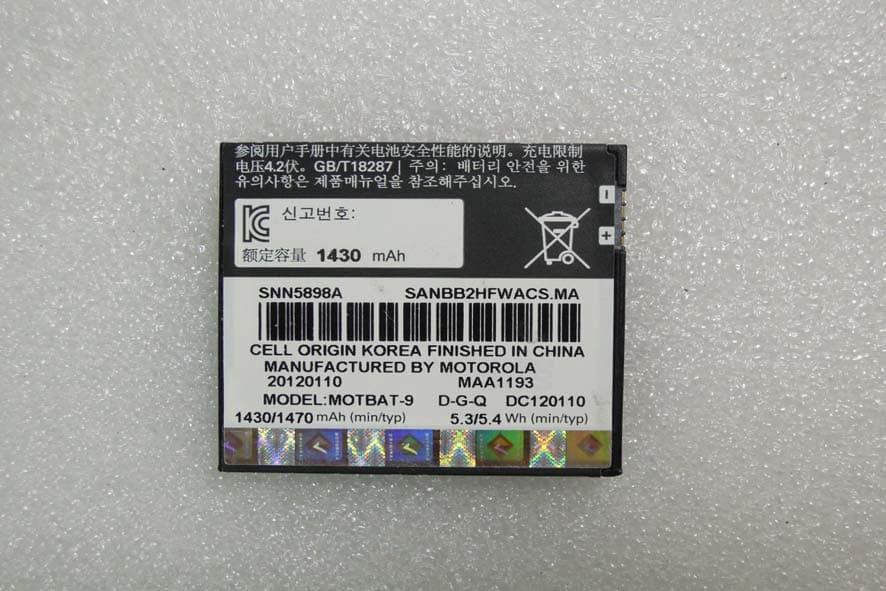
Click to zoom
Application Details
- Equipment Class
- DTS - Digital Transmission System
- Date of Grant
- Aug 02, 2012
- Application Purpose
- Original Equipment
- Date of Application
- Aug 02, 2012
- Equipment Note
- ARGON MINI
- Frequency Range
- 2412.00000000 - 2462.00000000
- Company
- Motorola Mobility LLC
- Country
- United States
Documents & Files
Document Text
Text extracted from the exhibit documents filed with the FCC. Open a document above to read the original.
Users Manual
MOTOSMART TM EN ArgonMini.GSG.EMEA.fm Page 0 Thursday, July 26, 2012 12:27 PM 1Congratulations Congratulations MOTOSMART™ Yo u r M OT OSMART phone gives you music and the Internet in your pocket. • Music dashboard: Easy access to all your favourite music, see "Music" on page 35. • High-speed Internet: Browse the web and pinch-to-zoom on the high resolution touch display in "Web" on page 29. Note: Certain apps and features may not be available in all countries. This product meets the applicable limit for exposure to radio waves (known as SAR) of 2.0 W/kg (ICNIRP). The limits and guidelines include a substantial safety margin designed to assure the safety of all persons, regardless of age and health. The highest SAR values measured for this device are listed in the regulatory information packaged with your product. Caution: Before assembling, charging or using your phone for the first time, please read the important safety, regulatory and legal information provided with your product. ArgonMini.GSG.EMEA.fm Page 1 Thursday, July 26, 2012 12:27 PM 2Congratulations Note: When using the product while worn on your body, either use an approved accessory, such as a holster, or maintain a distance of 2.5 cm (1 inch) from the body to ensure compliance with SAR requirements. Note that the product may be transmitting even if you are not making a phone call. Want more? More help, more accessories, more free stuff. We're here to help. • Updates: Smartphone updates, PC software, user guides, online help and more at www.motorola.com/mymotosmart. • Accessories: Find more for your phone at www.motorola.com/products. •Social: The latest news, tips & tricks, videos and so much more—join us on: YouTube™ www.youtube.com/motorola Facebook™ www.facebook.com/motorola Twitter www.twitter.com/motomobile ArgonMini.GSG.EMEA.fm Page 2 Thursday, July 26, 2012 12:27 PM 3Your phone Your phone the important keys & connectors Press = sleep. Hold = turn off. 3.5 mm headset jack Back key Menu key Home key To uchscreen Power/ Lock key Volume keys Search key Micro USB connector Microphone Notification light ArgonMini.GSG.EMEA.fm Page 3 Thursday, July 26, 2012 12:27 PM 4Contents Contents Contents . . . . . . . . . . . . . . . . . . . . . . . . . . . . . . . . . . . . . . . . . . . . . . . . 4 Let's go . . . . . . . . . . . . . . . . . . . . . . . . . . . . . . . . . . . . . . . . . . . . . . . . . . 5 Touchscreen & keys. . . . . . . . . . . . . . . . . . . . . . . . . . . . . . . . . . . . . . 7 Home screen . . . . . . . . . . . . . . . . . . . . . . . . . . . . . . . . . . . . . . . . . . . . 10 Apps & updates. . . . . . . . . . . . . . . . . . . . . . . . . . . . . . . . . . . . . . . . . . 14 Personalise . . . . . . . . . . . . . . . . . . . . . . . . . . . . . . . . . . . . . . . . . . . . . 17 Calls . . . . . . . . . . . . . . . . . . . . . . . . . . . . . . . . . . . . . . . . . . . . . . . . . . . . 19 Contacts. . . . . . . . . . . . . . . . . . . . . . . . . . . . . . . . . . . . . . . . . . . . . . . . 22 Messaging . . . . . . . . . . . . . . . . . . . . . . . . . . . . . . . . . . . . . . . . . . . . . . 24 Text entry . . . . . . . . . . . . . . . . . . . . . . . . . . . . . . . . . . . . . . . . . . . . . . 27 Web. . . . . . . . . . . . . . . . . . . . . . . . . . . . . . . . . . . . . . . . . . . . . . . . . . . . . 29 Location . . . . . . . . . . . . . . . . . . . . . . . . . . . . . . . . . . . . . . . . . . . . . . . . . 31 Photos & videos. . . . . . . . . . . . . . . . . . . . . . . . . . . . . . . . . . . . . . . . . 33 Music . . . . . . . . . . . . . . . . . . . . . . . . . . . . . . . . . . . . . . . . . . . . . . . . . . . 35 connections . . . . . . . . . . . . . . . . . . . . . . . . . . . . . . . . . . . . . . . . . . . . 39 Security . . . . . . . . . . . . . . . . . . . . . . . . . . . . . . . . . . . . . . . . . . . . . . . . 43 Troubleshooting . . . . . . . . . . . . . . . . . . . . . . . . . . . . . . . . . . . . . . . 45 Safety, regulatory & legal . . . . . . . . . . . . . . . . . . . . . . . . . . . . . 46 ArgonMini.GSG.EMEA.fm Page 4 Thursday, July 26, 2012 12:27 PM 5Let's go Let's go let's get you up and running Assemble & charge Caution: Please read "Battery use & safety" on page 46. micro SIMmicro SIM + adapter SIM Insert battery.In 4 SIM in.S 2 microSD in. m 3 Replace cover. R 5 Remove cover.R 1 Charge up.C 6 3H ArgonMini.GSG.EMEA.fm Page 5 Thursday, July 26, 2012 12:27 PM 6Let's go Set up & go Note: This phone supports apps and services that use a lot of data, so make sure your data plan meets your needs. Contact your service provider for details. Turn on.Tu 1 Select a language.S 2 Welcome to MOTOROLA Please choose a language English (United Kingdom) Complete initial setup steps. C se 3 Data settings Flat-rate data plan Non-flat-rate data plan The phone settings will be adapted to the data plan you have subscribed to. Add accounts.A 4 Set up accounts If you use any of the services below, tap the icon to set it up. Corporate SyncGoogle ArgonMini.GSG.EMEA.fm Page 6 Thursday, July 26, 2012 12:27 PM 7Touchscreen & keys Touchscreen & keys a few essentials sleep & wake up Your screen sleeps when you hold it to your ear during a call or when it is inactive. To change the sleep delay, touch Menu > Settings > Display > Screen timeout. To turn phone sounds on or off from a locked screen, flick the toggle switch . To unlock the screen, press the Power/Lock key then touch and flick to . ArgonMini.GSG.EMEA.fm Page 7 Thursday, July 26, 2012 12:27 PM 8Touchscreen & keys Touch tips It's all in the touch: •Touch: Choose an icon or option. • Touch & hold: Show options. •Drag: Scroll or move slowly. •Flick: Scroll or move quickly. • Zoom: Slide fingers apart or together to zoom in or out on Google Maps™, webpages and photos. Displaying 297 contacts In case of emergency A Abe Baudo Allie Smyth Anna Medina Astrid Fanning Abe Baudo View contact Call contact Text contact lark St Wacker Dr M born St N Michiga n W Lake …
Text truncated - open the document above for the full version.
Users Manual
14Apps & updates Apps & updates get the app you want Quick start: Apps & updates You can find all of your apps in one place. From the home screen, touch to open the app menu. To see all of your apps, flick up and down. From the app menu, touch All apps to view or create app groups. To close the app menu, touch Home or Back . Browse & install apps Get all the fun games and cool apps you want! Google Play™ provides direct access to apps, games and books that you can download and install on your phone. Find it: > Play Store All apps New group All appsAll appsRecentRecentDownloadedDownloaded Open the app groups menu. Choose which app group you want to see. Create a new app group. Find new apps on Google Play™. ArgonMini.GSG.EMEA.fm Page 14 Thursday, July 26, 2012 12:27 PM 15Apps & updates Scroll to and touch the app you want to install. Then, touch Install (if app is free) or Buy. New apps that you install are added to the app menu. Note: When installing an app, make sure you read the alerts that tell you what information the app will access. If you don’t want the app to have access to this information, don’t install it. Recent apps Your phone remembers the apps that you used most recently. From the home screen, touch and hold Home to show the most recent apps. Or, touch > Recent. Update my phone You can check, download and install phone software updates using your phone or your computer: •Using your phone: You may get an automatic notification of an available update on your phone. Simply follow the instructions to download and install. To manually check for updates, touch Menu > Settings > About phone > System updates. Your phone downloads any updates over your mobile network. Remember, these updates can be quite large (25 MB or more) and may not be available in all countries. If you don't have an unlimited data plan, or ArgonMini.GSG.EMEA.fm Page 15 Thursday, July 26, 2012 12:27 PM 16Apps & updates mobile network updates are not available in your country, you can update using a computer. •Using your computer: On your computer, go to www.motorola.com/support and check the "Software" links. If an update is available, follow the installation instructions. ArgonMini.GSG.EMEA.fm Page 16 Thursday, July 26, 2012 12:27 PM 17Personalise Personalise add your personal touch Quick start: Personalise Customise your phone’s sounds and appearance to make it unique to you: Find it: Menu > Settings > Audio profiles or Display. To show quick settings from the home screen, touch Menu > Settings > Menu > Quick settings: Display settings Font style Screen timeout Set font Font size Overall size of fonts All window animations are shown Brightness General profile settings General Incoming calls Set volume for ringtone, alarm and notification Set your default incoming calls ringtone Set your default notifications ringtone Volume Vibrate Vibrate phones for incoming calls Phone ringtone Notifications Feedback Notification ringtone Auto-rotate screen Animation Adjust the delay before the screen automatically turns off Screen timeout Choose separate volume settings for incoming calls, media, alarms and notifications. Call & message notifications Set screen brightness ArgonMini.GSG.EMEA.fm Page 17 Thursday, July 26, 2012 12:27 PM 18Personalise •To change your quick settings, touch Menu > Edit. •To return to advance settings, touch Menu > Advance settings. Language & region Set your menu language and region: Find it: Menu > Settings > Language & keyboard > Select language. ArgonMini.GSG.EMEA.fm Page 18 Thursday, July 26, 2012 12:27 PM 19Calls Calls it's good to talk Quick start: Calls From the home screen, touch . Contacts Favourites DiallerCall log Dial pad Mute Speaker Add callContacts Hold Christine Fanning Home 222-333-4444 Dialling End ABCDEF MNO WXYZ JKL TUV GHI PQRS Open a list, then touch an entry to call. Start a conference call. Hang up. Call. ArgonMini.GSG.EMEA.fm Page 19 Thursday, July 26, 2012 12:27 PM 20Calls •To make a call, touch , enter a number, then touch . When dialling, touch Menu to add a pause (pauses two seconds), or wait (waits for your confirmation). To enter the international dialling code, touch and hold . Note: Using a mobile device or accessory while driving may cause distraction and may be illegal. Always obey the laws and drive safely. •To answer a call, touch and flick to . •During a call, touch Menu to switch to a Bluetooth headset (see "connections" on page 39). Touch Home or Back to hide the active call display (to reopen it, touch ). •To use the speakerphone during a call, touch Speaker. •To enter numbers during a call, touch Dial pad. •To mute or unmute a call, touch Mute. •To put a call on hold, touch Menu > Hold. •To end a call, touch End. •To ignore an incoming call, touch and flick to . 0 + ArgonMini.GSG.EMEA.fm Page 20 Thursday, July 26, 2012 12:27 PM 21Calls Emergency calls Note: Your service provider programs one or more emergency phone numbers that you can call under any circumstances, even when your phone is locked. Emergency numbers vary by country. Your pre-programmed emergency number(s) may not work in all locations, and sometimes an emergency call cannot be placed due to network, environmental or interference issues. 1Open the phone, then touch (if your phone is locked, touch Emergency call). 2Enter the emergency number. 3Touch Call to call the emergency number. Note: Your phone can use location based services (GPS and AGPS) to help the emergency services find you. See "Location services" in your legal and safety information. Cool down In very limited circumstances, such as where your phone has been exposed to extreme heat, you may see "Cool down" messages. To avoid possible damage to your battery and phone, you should follow these instructions until the phone is within its recommended temperature range. When your phone is in "Cool down" mode, only emergency calls can be made. ArgonMini.GSG.EMEA.fm Page 21 Thursday, July 26, 2012 12:27 PM 22Contacts Contacts contacts l…
Text truncated - open the document above for the full version.
Users Manual
26Messaging •To create an email, touch > Email or Gmail, then touch Menu > Compose. Tip: Touch Menu for options, like Attach or Add Cc/Bcc . Gmail synchronises with your Google™ account mail, which you can open from any computer at mail.google.com. To stop synchronising with your account, touch Menu > Settings > Accounts & sync, touch your Google account, then deselect Sync Gmail. Voicemail When you have a new voicemail, shows in the status bar at the top of your screen. To listen to voicemails, touch Phone then touch and hold 1. If you need to change your voicemail number, on the home screen touch Menu > Settings > Call settings > Voice call > Voicemail. For your voicemail number or other details, contact your service provider. ArgonMini.GSG.EMEA.fm Page 26 Thursday, July 26, 2012 12:27 PM 27Text entry Text entry keys when you need them Touchscreen keypad You can open a keypad on your screen by touching a text box. To close the keypad, touch Back . You can choose to change the keyboard, touch and hold a blank spot in a text box. A menu opens, where you can choose Input method > Android keyboard. Send ?123 :-) Z MNBVCX KLJHGFDSA WE R T Y UI OPQ 11223344556677889900 !?,"':( . Touch and hold an empty spot to open a menu. Delete Symbols/numbers ArgonMini.GSG.EMEA.fm Page 27 Thursday, July 26, 2012 12:27 PM 28Text entry Input methods To select an input method, touch and hold a text entry area on the screen to open the Edit text menu. Touch Input method, then touch the method you want. Android keyboard Enter text a letter at a time. As you type, your phone suggests words from your dictionary and chosen language. The phone also automatically enters apostrophes in some words, like "dont". To add a word to your dictionary, touch and hold the word, then select Add "word" to dictionary. ArgonMini.GSG.EMEA.fm Page 28 Thursday, July 26, 2012 12:27 PM 29Web Web surf the web with your phone Quick start: Web From the home screen, touch > Browser. •To enter a website address in the browser or on your home screen, just touch Search . Backwards Bookmarks Forward Exit Windows More Instant (beta) is off: turn on http://www.google Drag or flick to scroll. Enter a webpage URL. Touch to open bookmarks, windows and more. Connection Mobile network: Wi-Fi: ArgonMini.GSG.EMEA.fm Page 29 Thursday, July 26, 2012 12:27 PM 30Web •To zoom in or out, pinch two fingers together or apart. •To send the website address in a message, touch Menu > More > Share page. Note: Your phone automatically uses your mobile phone network to connect to the web. Your service provider may charge to surf the web or download data. If you can't connect, contact your service provider. Downloads To download files in your browser, touch a file link or touch and hold a picture to choose Save image. To show the files you downloaded, touch > Downloads. Touch and hold an item to open it, see details or remove it from the list. You can download "Apps & updates" on page 14. www.google.com: Google www.google.com: Google Official site for the development of the open source project. Provides a directory of applications and links to download ... Android | Official website www.android.com/ - Options More from www.android.com » ArgonMini.GSG.EMEA.fm Page 30 Thursday, July 26, 2012 12:27 PM 31Location Location where you are, where you're going Open Maps or just touch Search to find an address, then get directions, check in or save the location. Quick start: Location From the home screen, touch > Maps. Google Maps™ offers powerful, user-friendly mapping technology and local business information—including business locations, contact information and driving directions. •To find an address, enter it in the search box at the top. The map moves to show the address. Chicago, IL N Clark St Wacker Dr M E Ontario St E Ohio St N Rush St N Park St N New St N Wabash Ave N Dearborn St E Grand Ave E Randolph St N Michigan Ave N Michigan Ave r D s u b m u l o C N W Lake StW Lake St E Wacker Pl State/lake Grand Red Lake Randolph St Metra Randolph/ Wabash Washington-Blue E S WaterSt M M M M Ontario St bo DDD eeeee aaar rb bo o rrn n SSS t 44 West Street A Search More Directions Settings Clear Map Help Touch to open, then touch to add to My Places. Drag or flick to scroll. Find nearby places. Show your location. Show layers on the map. Touch to get directions, open your Starred Places, windows and more. ArgonMini.GSG.EMEA.fm Page 31 Thursday, July 26, 2012 12:27 PM 32Location Tip: You can touch and hold a spot on the map to show the nearest address. •To find shops, restaurants and other places near you, touch at the top. •To g e t directions, find an address on the map, touch it, then touch . •To save an address for later, touch it, then touch the star by its name to add it to your Starred Places. •For help, touch Menu > More > Help. Google Maps™ with navigation (beta) Google Maps™ with Navigation (Beta) is an Internet-connected GPS navigation system with voice guidance. To open navigation, touch > Navigation. Follow the prompts to speak or type your destination. For more, go to www.google.com/mobile/navigation. ArgonMini.GSG.EMEA.fm Page 32 Thursday, July 26, 2012 12:27 PM 33Photos & videos Photos & videos see it, capture it, share it! Quick start: Photos & videos From the home screen, touch > Camera. •To t a k e a photo, touch . •To record a video, open the camera, then touch > Camcorder to switch to the camcorder. Touch to start and stop recording. •To open photos and videos, touch > Gallery, then touch Menu for options, like Share. Tip: For the clearest photos and videos, clean the lens with a soft, dry cloth. 1442 Open your last photo or video. Choose camera or camcorder. Take photo. Zoom in/out. Open options. ArgonMini.GSG.EMEA.fm Page 33 Thursday, July 26, 2012 12:27 PM 34Photos & videos View & share photos & videos From the home screen, touch > Gallery. Flick left and right to show folders. Touch a folder, then touch a thumbnail image to open, share or delete it. Tip: …
Text truncated - open the document above for the full version.
Users Manual
48Safety, regulatory & legal may void your mobile device's warranty. For a list of Motorola accessories, visit www.motorola.com/products Driving precautions Responsible and safe driving is your primary responsibility when behind the wheel of a vehicle. Using a mobile device or accessory for a call or other application whilst driving may cause distraction, and may be prohibited or restricted in certain areas—always obey the laws and regulations on the use of these products. While driving, NEVER: • Type, read, enter or review texts, emails, or any other written data. •Surf the web. •Input navigation information. •Perform any other functions that divert your attention from driving. While driving, ALWAYS: •Keep your eyes on the road. •Use a hands-free device if available or required by law in your area. •Enter destination information into a navigation device before driving. •Use voice-activated features (such as voice dial) and speaking features (such as audible directions), if available. •Obey all local laws and regulations for the use of mobile devices and accessories in the vehicle. •End your call or other task if you cannot concentrate on driving. Remember to follow the "Smart practices whilst driving" at www.motorola.com/callsmart (in English only). Seizures, blackouts & eyestrain To reduce eyestrain and avoid headaches, it is always a good idea to hold the screen at a comfortable distance from your eyes, use in a well-lit area, and take frequent breaks. Some people may be susceptible to seizures or blackouts (even if they have never had one before) when exposed to flashing lights or light patterns, such as when playing video games, or watching videos with flashing-light effects. Discontinue use and consult a doctor if any of the following symptoms occur: seizures, blackout, convulsion, eye or muscle twitching, loss of awareness or disorientation. If you or someone in your family has experienced seizures or blackouts, please consult your doctor before using an application that produces flashing-light effects on your mobile device. ArgonMini.GSG.EMEA.fm Page 48 Thursday, July 26, 2012 12:27 PM 49Safety, regulatory & legal Caution about high volume usage Warning: Exposure to loud noise from any source for extended periods of time may affect your hearing. The louder the volume sound level, the less time is required before your hearing could be affected. To protect your hearing: •Limit the amount of time you use headsets or headphones at high volume. •Avoid turning up the volume to block out noisy surroundings. •Turn the volume down if you can't hear people speaking near you. If you experience hearing discomfort, including the sensation of pressure or fullness in your ears, ringing in your ears or muffled speech, you should stop listening to the device through your headset or headphones and get your hearing checked. For more information about hearing, see our website at direct.motorola.com/hellomoto/nss/AcousticSafety.asp (in English only). Repetitive motion When you repetitively perform actions such as pressing keys or entering finger-written characters, you may experience occasional discomfort in your hands, arms, shoulders, neck or other parts of your body. If you continue to have discomfort during or after such use, stop use and see a doctor. Children Keep your mobile device and its accessories away from small children. These products are not toys and may be hazardous to small children. For example: •A choking hazard may exist for small, detachable parts. •Improper use could result in loud sounds, possibly causing hearing injury. •Improperly handled batteries could overheat and cause a burn. Supervise access for older children. Similar to a computer, if an older child does use your mobile device, you may want to monitor their access to help prevent: •Exposure to inappropriate apps or content. •Improper use of apps or content. •Loss of data. Glass parts Some parts of your mobile device may be made of glass. This glass could break if the product receives a substantial impact. If glass breaks, do not touch or attempt to remove. Stop using your mobile device until the glass is replaced by a qualified service centre. ArgonMini.GSG.EMEA.fm Page 49 Thursday, July 26, 2012 12:27 PM 50Safety, regulatory & legal Operational warnings Obey all posted signs when using mobile devices in public areas. Potentially explosive areas Potentially explosive areas are often, but not always, posted and can include blasting areas, fuelling stations, fuelling areas (such as below decks on boats), fuel or chemical transfer or storage facilities, or areas where the air contains chemicals or particles, such as grain dust or metal powders. When you are in such an area, turn off your mobile device, and do not remove, install or charge batteries, unless it is a radio product type especially qualified for use in such areas and certified as "Intrinsically safe" (for example, Factory Mutual, CSA or UL approved). In such areas, sparks can occur and cause an explosion or fire. Symbol key Your battery, charger or mobile device may contain symbols, defined as follows: SymbolDefinition Important safety information follows. Do not dispose of your battery or mobile device in a fire. Your battery or mobile device may require recycling in accordance with local laws. Contact your local regulatory authorities for more information. Do not dispose of your battery or mobile device with your household waste. See "Recycling" for more information. Do not use tools. 032374o 032376o 032375o ArgonMini.GSG.EMEA.fm Page 50 Thursday, July 26, 2012 12:27 PM 51Safety, regulatory & legal Radio frequency (RF) energy Exposure to RF energy Your mobile device contains a transmitter and receiver. When it is ON, it receives and transmits RF energy. When you communicate using your mobile device, the system handling your call controls the power level at which your mobile device transmits. Your mobile device is designed to comply with local regulatory req…
Text truncated - open the document above for the full version.
Cover Letter(s)
FCC ID: IHDT56NN7 Motorola Mobility LLC., 8000 W. Sunrise Blvd, Suite A; Plantation, FL 33022, USA Pag e 13B - 1 23 July 2012 Authorization of Agent Federal Communications Commission Authorization and Evaluation Division 7435 Oakland Mills Road Columbia, Maryland 21046 RE: Grantee Code IHD. Authorization: I, John Lewczak, the FCC contact for Grantee Code “IHD,” hereby authorize the following company (agent) to act on behalf of Motorola Mobility, Inc. for the application specified below. This includes: • Form 731, Attestation Statement Exhibit, and Confidentiality Request Signatures. • Technical Contact. • Non-Technical Contact. • Test Firm Contact Information. Notifications of grant issuance should be routed to the applicant of record for Grantee Code “IHD,” as should any audit requests concerning this device. Authorized Agent: Willis Chen SGS 134, Wu Kung Road, Wuku Industrial Zone, Wuku Area, New Taipei City, Taiwan, R.O.C. Specific Application: FCC ID: IHDT56NN7 Contact Information: Please contact me by telephone at (954) 723-6272, or by e-mail ( [email protected]), if there are questions or additional information needed concerning this authorization Regards, FCC Liaison Motorola Mobility, Inc. 8000 W. Sunrise Blvd, Suite A Plantation, FL 33022
Cover Letter(s)
FCC, Request for non-disclosure Date: 16-Jul-10 RF_501, Issue 6 Page 1 of 1 Company Name: Motorola Mobility, Inc. Address : 8000 W. Sunrise Blvd Mail Stop 52-5JJ City: Plantation Country: United States To: Telefication B.V., Dept. FCC TCB Edisonstraat 12A 6902 PK ZEVENAAR The Netherlands Subject: Request for confidentiality FCC ID: IHDT56NN7 Reference number: ###### Dear FCC TCB, 1. Long-Term Confidentiality Pursuant to 47 CFR Section 0.459(a) & (b), we hereby requests non-disclosure and confidential treatment of the following materials submitted in support of FCC certification application: Bill(s) of Material Block Diagrams Operational Description Schematic Diagrams Tune-up Procedure Above materials contain secrets, proprietary and technical information, which would customarily be guarded from competitors under 47 CFR, section 0.457(d)(2). Disclosure or publication or any portion of this company confidential material to other parties could cause substantial competitive harm and provide unjustified benefits for competitors. 2. Short-Term Confidentiality (STC) Pursuant to Public Notice DA 04-1705 of the Commission’s policy, in order to comply with the marketing regulations in 47 CFR §2.803 and the importation rules in 47 CFR §2.1204, a pplicant hereby requests Short-Term Confidential treatment of the following materials (note 1): Internal Photos User’s Manual Test Set-up Photos External Photos Justification: Planned Release Date STC: (notes 2, 3, 4, 5) Date: 2012/7/27 Name and signature of applicant: Notes: 1) A document or type of document can only have ONE type of confidentiality! 2) Short-Term confidentiality is in principle for 45 days from date of grant; it can be extended max 3 times (total time 180 days max.)! 3) FCC must be informed when marketing begins earlier. 4) Release takes place automatically thus extension must be requested in time. Telefication does not remind you of this! 5) Request for extension or for release must be received by Telefication at least 7 days before date of actual marketing or before expiration of the STC period
External Photos
Unless otherwise stated the results shown in this test report refer only to the sample(s) tested and such sample(s) are retained for 90 days only. 除非另有說明,此報告結果僅對測試之樣品負責,同時此樣品僅保留90天。本報告未經本公司書面許可,不可部份複製。 This document is issued by the Company subject to its General Conditions of Service printed overleaf, available on request or accessible at www.sgs.com/terms_and_conditions.htm and, for electronic format documents, subject to Terms and Conditions for Electronic Documents at www.sgs.com/terms_e-document.htm. Attention is drawn to the limitation of liability, indemni- fication and jurisdiction issues defined therein. Any holder of this document is advised that information contained hereon reflects the Company’s findings at the time of its intervention only and within the limits of Client’s instructions, if any. The Company’s sole responsibility is to its Client and this document does not exonerate parties to a transaction from exercising all their rights and obligations under the transaction documents. This document cannot be reproduced except in full, without prior written approval of the Company. Any unauthorized alteration, forgery or falsification of the content or appearance of this document is unlawful and offenders may be prosecuted to the fullest extent of the law. SGS Taiwan Ltd. No.134, Wu Kung Road, Wuku Industrial Zone, Taipei County, Taiwan /台北縣五股工業區五工路134號 台灣檢驗科技股份有限公司 t (886-2) 2299-3279 f (886-2) 2298-0488 www.tw.sgs.com Member of SGS Group All View of EUT Front View of EUT Unless otherwise stated the results shown in this test report refer only to the sample(s) tested and such sample(s) are retained for 90 days only. 除非另有說明,此報告結果僅對測試之樣品負責,同時此樣品僅保留90天。本報告未經本公司書面許可,不可部份複製。 This document is issued by the Company subject to its General Conditions of Service printed overleaf, available on request or accessible at www.sgs.com/terms_and_conditions.htm and, for electronic format documents, subject to Terms and Conditions for Electronic Documents at www.sgs.com/terms_e-document.htm. Attention is drawn to the limitation of liability, indemni- fication and jurisdiction issues defined therein. Any holder of this document is advised that information contained hereon reflects the Company’s findings at the time of its intervention only and within the limits of Client’s instructions, if any. The Company’s sole responsibility is to its Client and this document does not exonerate parties to a transaction from exercising all their rights and obligations under the transaction documents. This document cannot be reproduced except in full, without prior written approval of the Company. Any unauthorized alte…
Text truncated - open the document above for the full version.
Contact Information
Applicant
Jeff Narducci(Director Product Compliance)
Technical Contact
Test Firm
SGS Taiwan Ltd.Jason LIN
Technical Specifications
| # | Rule Parts | Frequency Range | Power Output |
|---|---|---|---|
| 1 | 15C | 2.41 GHz - 2.46 GHz | 130.00 mW |
Other Applications from Motorola Mobility LLC
IHDT56AW9
May 12, 2026Smart Watch
Equipment Class
NII - Unlicensed National Information Infrastructure TXIHDT56AW5
Apr 08, 2026Mobile Cellular Phone
Equipment Class
DTS - Digital Transmission SystemIHDT56AW6
Mar 18, 2026Smart Watch
Equipment Class
JBP - Part 15 Class B Computing Device PeripheralIHDT56AX4
Mar 17, 2026Mobile Cellular Phone
Equipment Class
PCE - PCS Licensed Transmitter held to earIHDT56AW3
Mar 03, 2026Mobile Cellular Phone
Equipment Class
6XD - 15E 6 GHz Low Power Indoor Client