IHDT6EY1GSM Transceiver with WLAN and Bluetooth
Motorola Mobility LLC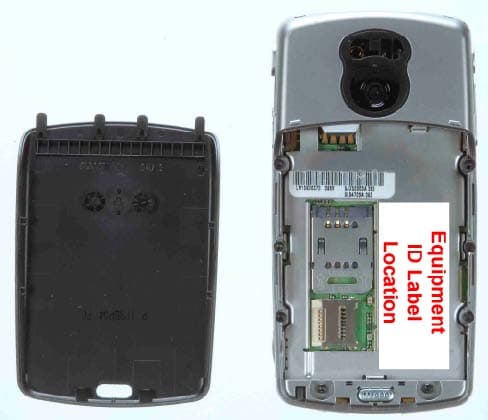
Click to zoom
Application Details
- Equipment Class
- PCE - PCS Licensed Transmitter held to ear
- Date of Grant
- Mar 17, 2005
- Application Purpose
- Original Equipment
- Date of Application
- Dec 19, 2004
- Equipment Note
- GSM Transceiver with WLAN and Bluetooth
- Frequency Range
- 1850.20000000 - 1909.80000000
- Company
- Motorola Mobility LLC
- Country
- United States
Documents & Files
Document Text
Text extracted from the exhibit documents filed with the FCC. Open a document above to read the original.
Users Manual
APPLICANT: MOTOROLA, INC. FCC ID: IHDT6EY1 INSTRUCTION MANUAL A preliminary draft copy of the Users Manual follows in four parts (Exhibit 8A through Exhibit 8D): EXHIBIT 8A DoCoMo W-CDMA and GSM/GPRS Systems Thank you for purchasing FOMA M1000 handset. Both before and during use of your FOMA M1000 handset, be sure to thoroughly read this manual and those supplied together with the individual devices such as the battery pack to ensure correct use of your FOMA M1000 handset. For more information, you may also contact us at the numbers shown in "Contact Information" on the back cover. Treated with care, your FOMA M1000 handset will be your able partner. Before Using Your FOMA Handset • Because your FOMA handset uses radio waves, it may not function in locations where it is difficult for radio waves to penetrate, such as tunnels, underground passages and some buildings, in areas where radio wave signals are weak, or when outside the service area. Even when you are high up in a tall building or condominium and nothing blocks your view outside, your FOMA handset may not be able to receive or transmit signals. Also, communication may be interrupted even when the signal meter on your FOMA handset indicates there is a strong signal and you are not moving (traveling). • Use your FOMA handset in a way that does not disturb others in public spaces, crowded locations or quiet places. • Because your FOMA handset uses radio waves to communicate, there is a possibility that third parties may attempt to listen in on your calls. The W-CDMA and GSM/GPRS systems automatically support a confidential communication function for all calls so even if someone should somehow be able to tap a call, the signals are modified so that the eavesdropping party will hear only noise. • Your FOMA handset encodes voice communication as digital data. When you are operating your FOMA handset while moving to a location subject to weaker radio wave signals, the transmitted digital data may not be correctly decoded and as a result the decoded voice may differ somewhat from the actual voice. • Maintain a separate record of the data you register in your FOMA handset. If the data should be erased, DoCoMo assumes no responsibility for the loss of any data. Using this Operation Manual Information of interest may be found in the following ways: • Refer to the Contents Select to look at intended applications. 3P2 • Refer to the Index Select to look at terms or application names of the Index. 3P000 • Refer to title pages and indexes Select to look at application names or titles. • Refer to the title page Select to look at titles. • Refer to features Select to look at FOMA handset features and operations. 3P4, P6 * Be sure to read "Safety Instructions" on P8 before using your FOMA handset. • In the FOMA M1000 Operation Manual text, FOMA M1000 is referred to as FOMA handset. • Reprinting all or part of this manual without approval by DoCoMo is prohibited. • Information contained in this manual is subject to change without prior notice. 00M1000EN.book 0 ページ 2004年11月24日 水曜日 午前7時56分 1 Quick Reference Manual 3 P000 How to Use this Manual In this manual, operations of your FOMA handset are explained in the structure as shown below: Description of Instructions In this manual, instructions are given as touch operations using a stylus. Touch operations are described in the manner as follows: <Example>: Tap $$ y $$ in the Application Selector bar, and tap the data in the Image screen • If operation of any of the FOMA handset keys is required, the operation is described using key symbols. 3P32 <Example>: Press 9 to select an image • If more than one operation is available, the simpler one is described. • For how to select an application from the menu, see "Selecting the Menu". 3P43 Overseas Use For how to use your FOMA handset outside Japan, see "Overseas Use". 3P505 NOTE • Illustrations of screens contained in this manual are for the purpose of simplifying description and may differ from the actual views. Title/application name Shows the title or application name. Index Shows the chapter title/title or application name. Default settings Function description Supplementary description of function Operation description Provides the operation numbers and instructions. Screen Shows the screen displayed in the process of or after an operation. Supplementary description of operation NOTE Gives necessary information, notes, and supplementary explanation. 00M1000EN.book 1 ページ 2004年11月24日 水曜日 午前7時56分 Contents 2 M1000 Format1 (PANTONE362U) Contents/Safety Instructions Before Using Your FOMA Handset . . . . . . . . . . . . . . . . . . . . . . . . . . . . Back of the cover Using this Operation Manual . . . . . . . . . . . . . . . . . . . . . . . . . . . . . . . . . Back of the cover How to Use this Manual . . . . . . . . . . . . . . . . . . . . . . . . . . . . . . . . . . . . . . . . . . . . . . . . . .1 FOMA M1000 Features . . . . . . . . . . . . . . . . . . . . . . . . . . . . . . . . . . . . . . . . . . . . . . . . . .5 Making Full Use of FOMA M1000 . . . . . . . . . . . . . . . . . . . . . . . . . . . . . . . . . . . . . . . . . .7 Safety Instructions (ALWAYS FOLLOW THESE DIRECTIONS) . . . . . . . . . . . . . . . . . . .9 Handling and Care . . . . . . . . . . . . . . . . . . . . . . . . . . . . . . . . . . . . . . . . . . . . . . . . . . . . .23 Intellectual Property Issues . . . . . . . . . . . . . . . . . . . . . . . . . . . . . . . . . . . . . . . . . . . . . .28 Checking Purchased Product . . . . . . . . . . . . . . . . . . . . . . . . . . . . . . . . . . . . . . . . . . . .30 •Names of Parts and Functions •The Stylus •Operating the Touch Screen •Viewing the Display •Selecting the Menu •Entering Text •Help Function •Using the UIM •Inserting/Removing the Battery Pack •Charging the Battery Pack •Battery Status •Power ON/OFF •Initialization •Language Selection •Date and time setup •Caller ID •Phone Number Display •Making a Voice Call •Redial •186/184 •WORL…
Text truncated - open the document above for the full version.
Users Manual
APPLICANT: MOTOROLA, INC. FCC ID: IHDT6EY1 INSTRUCTION MANUAL A preliminary draft copy of the Users Manual follows in four parts (Exhibit 8A through Exhibit 8D): EXHIBIT 8B 119 Tone/Screen/Light Settings Changing Ring Tones <Tone Settings>. . . . . . . . . . . . . . . . . . . . . . . . . . . . . . 120 Adjusting the Volume for Ring Tones <Adjust Volume> . . . . . . . . . . . . . . . . 123 Vibrating Your FOMA Handset for Incoming Calls or Alarm <Vibrator> . . . 124 Setting Keypad Tones <Keypad Tones> . . . . . . . . . . . . . . . . . . . . . . . . . . . . . 125 Sounding the Audible Timer during a Call <Audible Timer>. . . . . . . . . . . . . 126 Muting Sounds Made by Your FOMA Handset <Manner Mode> . . . . . . . . . . 126 Personalizing Manner Mode <Original Manner Mode> . . . . . . . . . . . . . . . . . 127 Personalizing Home Screen <Home Screen> . . . . . . . . . . . . . . . . . . . . . . . . . 127 Adjusting the Screen Brightness. . . . . . . . . . . . . . . . . . . . . . . . . . . . . . . . . . . 131 Adjusting the Touch Screen Calibration . . . . . . . . . . . . . . . . . . . . . . . . . . . . . 131 Displaying Call Duration <Call tracking> . . . . . . . . . . . . . . . . . . . . . . . . . . . . 132 Setting the Power Saving Options. . . . . . . . . . . . . . . . . . . . . . . . . . . . . . . . . . 132 Switching the Application Launcher View . . . . . . . . . . . . . . . . . . . . . . . . . . . 133 Changing the Phone Number Entry Screen Settings . . . . . . . . . . . . . . . . . . 135 Setting Display for Numerical Values . . . . . . . . . . . . . . . . . . . . . . . . . . . . . . . 136 Zooming in/out the Display . . . . . . . . . . . . . . . . . . . . . . . . . . . . . . . . . . . . . . . 137 Setting the Time and Date <Clock Settings> . . . . . . . . . . . . . . . . . . . . . . . . . 138 1Tone Settings 1Screen/Light Settings 00M1000EN.book 119 ページ 2004年11月24日 水曜日 午前7時56分 120 Tone/Screen/Light Settings Tone Settings Changing Ring Tones You can set ring tones for incoming voice/video calls and email messages. • You can also set ring tones individually for incoming calls/messages from contacts stored in FOMA handset (Handset) Contact.3 P102 Setting Ring Tones for Calls You can select a ring tone type for incoming voice/video calls as well as for new voicemails. a Tap $$ on the Application Selector bar, and tap Settings y To n e s on the Menu bar b Tap the field to set and select the ring tone • Tap $$ to hear the selected ring tone. c Tap [Done] The ring tone is set. • Tap [Cancel] to cancel the ring tone setting. NOTE • When an incoming voice/video call is received from a caller stored in FOMA handset (Handset Contacts), the ring tone assigned to the contact rings. However, if the caller does not send the Caller ID, the ring tone assigned in this section rings instead. • When you set Alert Mode to other than Audio, no ring tone rings. Default setting Voice call: Bells Video call: Harmonics Voicemail: Interlude Voice call: Select a ring tone for incoming voice calls. Video call : Select a ring tone for incoming video calls. Voicemail : Select a ring tone when new voice message is recorded. 00M1000EN.book 120 ページ 2004年11月24日 水曜日 午前7時56分 121 Tone/Screen/Light Settings Setting Ring Tones for Email You can select a type of ring tone for incoming SMS/email messages. a Tap $$ on the Application Selector bar, and tap Edit y Preferences on the Menu bar b Tap the field to set and select the ring tone • Tap $$ to hear the selected ring tone. c Tap [Done] The ring tone for incoming messages is set. • Tap [Cancel] to cancel the ring tone setting. NOTE • When an incoming email/SMS message is received from a caller stored in Contacts (FOMA handset), the ring tone assigned to the contact rings. • When you set Alert Mode to other than Audio, no ring tone rings. Ring Tone List In your FOMA handset, the following ring tones for incoming calls/messages are preinstalled. • You can install new ring tones for incoming calls/messages. • File names that are too long to display end in "...". Default setting Email: Random SMS: Bits_n_Bytes (Your subscribed email account ID) : Select a ring tone for incoming email messages. SMS: Select a ring tone for incoming SMS messages. • If you have stored multiple email accounts, all account IDs are displayed. 1812_Overture.midInterlude.mid Alert.midMandolin_Concerto.mid Also_Sprach_Zarathustra.midMoonlight_Sonata.mid Bells.midPolonaise_in_A_Flat.mid Big_Brass.midProvincial.mid Bits_n_Bytes.midRandom.mid Blues.midRondo_ala_Turca.mid Boogie_Swing.midSnaggle.mid Clair_de_Lune.mp3Sonata_in_C.mid Cosmic.midStandard.mid 00M1000EN.book 121 ページ 2004年11月24日 水曜日 午前7時56分 122 Tone/Screen/Light Settings Installing Melodies as Ring Tones To set downloaded melodies as ring tones for incoming calls/messages, you need to store the melodies in Ringtune Manager as ring tones. a Tap $$ y $$ on the Application Selector bar, and tap General tab y Ringtune Manager tab on the Control panel screen b Tap [Install] c Tap the melody to store The melody is selected. • Tap Folder to select a folder. • Tap a melody 3 $$ to hear the selected melody. Tap $$ to stop. d Tap [Select] The melody is stored. • Tap [Cancel] to cancel storing. Cumparsita.midSymphony_in_G_Minor.mid Ding.midThe_Islands.mp3 Door_Bell.midTriads.mid Flight_of_Bumblebee.midUp_and_Down.mid Harmonics.midWind_Chimes.mid Ring tone Ringtune Manager screen File size Available space Displays the name of the melody folder. Displays melodies available for ring tones. • Tap [Send] to send the ring tone via email or Bluetooth. 3 P235, P261, P384 00M1000EN.book 122 ページ 2004年11月24日 水曜日 午前7時56分 123 Tone/Screen/Light Settings Deleting Ring Tones You can delete a ring tone. a Tap the ring tone y [Delete] on the Ringtune Manager screen b Ta p [Ye s] Deletes the selected ring tone. • Tap [No] to cancel deleting. Muting Ring Tones When you set Alert Mode to Silent, your FOMA handset makes no ring tones for incoming calls/ messages. a Tap $$ on the Status bar, …
Text truncated - open the document above for the full version.
Users Manual
APPLICANT: MOTOROLA, INC. FCC ID: IHDT6EY1 INSTRUCTION MANUAL A preliminary draft copy of the Users Manual follows in four parts (Exhibit 8A through Exhibit 8D): EXHIBIT 8C 255 Displaying/Editing/ Managing Data Displaying a Stored Image . . . . . . . . . . . . . . . . . . . . . . . . . . . . . . . . . . . . . . . . 256 Editing an Image . . . . . . . . . . . . . . . . . . . . . . . . . . . . . . . . . . . . . . . . . . . . . . . . 260 Playing a Stored Video . . . . . . . . . . . . . . . . . . . . . . . . . . . . . . . . . . . . . . . . . . . 262 Playing a Stored Music . . . . . . . . . . . . . . . . . . . . . . . . . . . . . . . . . . . . . . . . . . . 266 Displaying Word, Excel and PDF Files . . . . . . . . . . . . . . . . . . . . . . . . . . . . . . 270 TransFlash Memory Card . . . . . . . . . . . . . . . . . . . . . . . . . . . . . . . . . . . . . . . . . 277 Using the TransFlash Memory Card . . . . . . . . . . . . . . . . . . . . . . . . . . . . . . . . 281 Managing Files . . . . . . . . . . . . . . . . . . . . . . . . . . . . . . . . . . . . . . . . . . . . . . . . . 282 Using the Voice Recorder . . . . . . . . . . . . . . . . . . . . . . . . . . . . . . . . . . . . . . . . . 290 1Utilizing a Still Image 1Utilizing a Video Clip 1Utilizing Music 1Utilizing the Document Viewer 1Utilizing the TransFlash Memory Card 1Managing Data 1Utilizing the Voice Recorder 00M1000EN.book 255 ページ 2004年11月24日 水曜日 午前7時56分 256 Displaying/Editing/Managing Data Displaying a Stored Image You can display a captured still image (3 P169), a downloaded still image (3 P203), an image received via email (3 P250), or an image saved in the TransFlash memory card (3 P303). • Displays the following files. a Tap $$ y $$ on the Application Selector bar b Tap the image to be displayed 1Operations from the Menu bar in the image list screen Tap Pictures and Settings on the Menu bar to display the following items: • Some functions cannot be performed depending on the operation. JPEG (.jpg, .jpeg, .jfif, .jpe, .pipeg, .pip)GIF (including animation GIF) bitmap (.bmp) w-bitmap (.XXX)png (.png) $$: Launches camera when tapped. • The display can be modified to a list display. 3 P275 $$: The camera is launched when tapped. $$ $$: The preceding image/subsequent image can be displayed when tapped. File name, saved date and time Pictures View Slide show . . . . . . . . . . . . . . . P276 Image infor . . . . . . . . . . . . . . . . . . . P275 Settings Slide show interval. . . . . . . . . . . . . .P276 List/Thumbnail . . . . . . . . . . . . . . . . .P275 Sort by name . . . . . . . . . . . . . . . . . .P309 Sort by date . . . . . . . . . . . . . . . . . . .P309 Sort by size . . . . . . . . . . . . . . . . . . .P309 00M1000EN.book 256 ページ 2004年11月24日 水曜日 午前7時56分 257 Displaying/Editing/Managing Data 1Operations from the Menu bar in the image display screen Tap Pictures and Edit on the Menu bar to display the following items: • Some functions cannot be performed depending on the operation. NOTE • When an image exceeding the display size 1280 x 1280 (dots), an incompatible file format ($$) or a corrupted file ($$) is tapped, the image cannot be displayed and instead, a message is displayed. Modifying the Display Method of the Image List Screen ] a Ta p Settings y List on the Menu bar in the image list screen • Tap Settings y Thumbnail on the Menu bar in the image list screen when displaying thumbnails. Displaying Image Information This operation displays the information of the displayed image. Pictures Send as. . . . . . . . . . . . . . . . . . . . . . P310 Delete . . . . . . . . . . . . . . . . . . . . . . . P308 Image info . . . . . . . . . . . . . . . . . . . . P275 Rename . . . . . . . . . . . . . . . . . . . . . P304 Fit to screen . . . . . . . . . . . . . . . . . . P277 Actual size view . . . . . . . . . . . . . . . P277 Edit Show title/Hide title. . . . . . . . . . . . . P277 Rotate. . . . . . . . . . . . . . . . . . . . . . . P278 Add frame. . . . . . . . . . . . . . . . . . . . P279 Free draw . . . . . . . . . . . . . . . . . . . . P279 Add stamp . . . . . . . . . . . . . . . . . . . P280 Default setting Thumbnail Thumbnail DisplayList Display 00M1000EN.book 257 ページ 2004年11月24日 水曜日 午前7時56分 258 Displaying/Editing/Managing Data a Select the image to display the image information from the image list screen with the 9 button and tap Pictures y Image info on the Menu bar Viewing a Slide show Displays images in the folder from the selected file. a Select the image to start the slide show from the image list screen with the 7 button y tap Pictures y View Slide show on the Menu bar Slide show launches. • When the slide show is played in Automatic mode, the slides are automatically switched at intervals set in Slideshow Intervals. • When the slide show is played in Manual mode, the slides are switched by pressing the 6 button. • When an any area on the screen is tapped, the slide show is canceled and reverted back to the list screen. NOTE • Images that cannot be displayed such as animation GIF files are skipped when the slide show is played. Setting up the Playback Method and Intervals of the Slide show Setting up the playback method (Automatic/Manual), and playback intervals when automatically playing the slide show. File name: Displays file name. Type: Displays file format. Size: Displays file size. Dimensions: Displays display size. Date: Displays saved date. Time: Displays saved time. Default setting Auto: $$ Manual: $$ Interval: 3 seconds 00M1000EN.book 258 ページ 2004年11月24日 水曜日 午前7時56分 259 Displaying/Editing/Managing Data a Ta p Settings y Slide show interval on the Menu bar in the image list screen, and then tap [Done] upon completing the setup procedure NOTE • Text entry method 3 P466 Modifying the Display Size of Images The display size of the displayed image is modified. a Ta p Picture y Fit to screen/Actuall size view on the Menu bar in the image display screen NOTE • A similar operation can be performed by tapping any area withi…
Text truncated - open the document above for the full version.
Users Manual
APPLICANT: MOTOROLA, INC. FCC ID: IHDT6EY1 INSTRUCTION MANUAL A preliminary draft copy of the Users Manual follows in four parts (Exhibit 8A through Exhibit 8D): EXHIBIT 8D 389 Using Data Communication Data Communication from FOMA Handsets . . . . . . . . . . . . . . . . . . . . . . . . . 390 Before Using Data Communication . . . . . . . . . . . . . . . . . . . . . . . . . . . . . . . . 391 Preparing for Data Communication . . . . . . . . . . . . . . . . . . . . . . . . . . . . . . . . 393 Installing Connection Setup File (Drivers) for M1000 . . . . . . . . . . . . . . . . . . 393 Checking Connection Setup Files (Drivers) . . . . . . . . . . . . . . . . . . . . . . . . . 394 Uninstalling M1000 Connection Setup Files (Drivers) . . . . . . . . . . . . . . . . . 395 Preparing for Bluetooth Connection . . . . . . . . . . . . . . . . . . . . . . . . . . . . . . . 396 FOMA PC Setup Software . . . . . . . . . . . . . . . . . . . . . . . . . . . . . . . . . . . . . . . . 397 Installing FOMA PC Setup Software. . . . . . . . . . . . . . . . . . . . . . . . . . . . . . . . 398 Setting up Data Communication. . . . . . . . . . . . . . . . . . . . . . . . . . . . . . . . . . . 399 Simple Setting "Packet Data Communication Setting Using Other ISP's" . 402 Executing the Set Connection . . . . . . . . . . . . . . . . . . . . . . . . . . . . . . . . . . . . 406 Uninstalling FOMA PC Setup Software . . . . . . . . . . . . . . . . . . . . . . . . . . . . . 407 W-TCP Setting . . . . . . . . . . . . . . . . . . . . . . . . . . . . . . . . . . . . . . . . . . . . . . . . . 408 Setting up APN . . . . . . . . . . . . . . . . . . . . . . . . . . . . . . . . . . . . . . . . . . . . . . . . . 410 Assigning COM Port . . . . . . . . . . . . . . . . . . . . . . . . . . . . . . . . . . . . . . . . . . . . 412 Displaying Dial-up Networking Type . . . . . . . . . . . . . . . . . . . . . . . . . . . . . . . 412 Setting up Dial-up Networking . . . . . . . . . . . . . . . . . . . . . . . . . . . . . . . . . . . . 413 Setting up Dial-up . . . . . . . . . . . . . . . . . . . . . . . . . . . . . . . . . . . . . . . . . . . . . . 419 Using Dial-up Networking . . . . . . . . . . . . . . . . . . . . . . . . . . . . . . . . . . . . . . . . 428 00M1000EN.book 389 ページ 2004年11月24日 水曜日 午前7時56分 390 Using Data Communication Data Communication from FOMA Handsets You can perform three types of data communication with your FOMA handset and your PC; namely, packet communication, 64K data communication and data transfer PC. Available Data Communication Types 2Packet communication Communication charges are based on the volume of exchanged data. Suitable when you wish to stay connected to the network and exchange data on an as needed basis. Data can be transmitted with maximum download speed of 384Kbps, maximum upload speed of 64Kbps via network supporting FOMA Packet communication such as "mopera" (DoCoMo's Internet provider service). The M1000 can also be used for data communications overseas by accessing GPRS access points. • Performing large volumes of data communication may result in high charges. 264K data communication Communication charges are based on the duration of time being connected to the network. Stable 64K bps data transmission can be performed via network supporting FOMA 64K data communication such as "mopera" (DoCoMo's Internet provider service) or synchronized ISDN 64K access points. The M1000 can also be used overseas by accessing CSD data communication supported access points. 2Data transfer Data can be transferred free of charge between a PC and FOMA handset. The FOMA handset can be connected directly using the accompanying USB cable or by connecting the desktop holder to a PC using the USB cable. To transfer data, install the Desktop Suite to the PC. 3P527 Connecting the FOMA Handset and PC To connect your FOMA handset to a PC or PDA either of the following methods can be used. USB Connection 2Connect with the accompanying-USB cable 3P414 • Separately sold FOMA USB cables can also be used. 2Connect with USB cable for PC via Desktop holder 3P415 Bluetooth Connection 2Connect via Bluetooth 3P419 • Device registration is required prior to use. 3P382 Cautions Internet Service Provider Charges You will be charged by your Internet Service Provider (ISP, hereafter) to connect to the Internet. FOMA Service does not include the ISP fee and it must be paid to the ISP directly. Contact your ISP for further details. "mopera", is DoCoMo's free Internet provider service that does not require you to register. Setting up ISP Connection ISP settings differ between Packet communication and 64K data communication. Select appropriate access points for Packet communication. For 64K data communication, select an access point which supports FOMA 64K data communication or synchronized ISDN 64K. • Connection to DoPa is not supported • Connection to PHS64K/32K Data Communication such as PIAFS is not supported. 00M1000EN.book 390 ページ 2004年11月24日 水曜日 午前7時56分 391 Using Data Communication User Authentication when Accessing the Network Connection may require authentication (ID and password). Enter the user ID and password in Dial-up Network when prompted. Contact the network administrator or the ISP to obtain the ID and password, and further details. Prerequisites to Packet Connection and 64K Data Communication Communication using FOMA handsets requires meeting the following conditions. The service, however, may be unavailable even if required conditions are met due to traffic conditions at base stations or radio wave conditions. • PC must support USB cables • For Bluetooth connection, devices such as PC has must comply with Bluetooth Ver1.1 Dial-up Networking Profile standards. • To be within the FOMA service area • For Packet communication, the access point must support FOMA Packet communication • For 64K data communication, the access point (the designated network) must support FOMA 64K data communication or 64K synchronized ISDN. 1Data communicati…
Text truncated - open the document above for the full version.
Users Manual
APPLICANT: MOTOROLA, INC. FCC ID: IHDT6EY1 INSTRUCTION MANUAL The following safety and compliance information will be formatted into the final version of the Users Manual. EXHIBIT 8E Specific Absorption Rate Data This model wireless phone meets the government’s requirements for exposure to radio waves. Your wireless phone is a radio transmitter and receiver. It is designed and manufactured not to exceed limits for exposure to radio frequency (RF) energy set by the Federal Communications Commission (FCC) of the U.S. Government and by the Canadian regulatory authorities. These limits are part of comprehensive guidelines and establish permitted levels of RF energy for the general population. The guidelines are based on standards that were developed by independent scientific organizations through periodic and thorough evaluation of scientific studies. The standards include a substantial safety margin designed to assure the safety of all persons, regardless of age or health. The exposure standard for wireless mobile phones employs a unit of measurement known as the Specific Absorption Rate, or SAR. The SAR limit set by the FCC and by the Canadian regulatory authorities is 1.6 W/ kg. 1 Tests for SAR are conducted using standard operating positions accepted by the FCC and by Industry Canada with the phone transmitting at its highest certified power level in all tested frequency bands. Although the SAR is determined at the highest certified power level, the actual SAR level of the phone while operating can be well below the maximum value. This is because the phone is designed to operate at multiple power levels so as to use only the power required to reach the network. In general, the closer you are to a wireless base station, the lower the power output. Before a phone model is available for sale to the public in the U.S. and Canada, it must be tested and certified to the FCC and Industry Canada that it does not exceed the limit established by each government for safe exposure. The tests are performed in positions and locations (e.g., at the ear and worn on the body) reported to the FCC and available for review by Industry Canada. The highest SAR value for this model phone when tested for use at the ear is 0.70W/kg , and when worn on the body, as described in this user guide, is 0.57W/kg. The SAR value for this product in its data transmission mode (body-worn use) is 0.28W/kg. (Body-worn measurements differ among phone models, depending upon available accessories and regulatory requirements). 2 While there may be differences between the SAR levels of various phones and at various positions, they all meet the governmental requirements for safe exposure. Please note that improvements to this product model could cause differences in the SAR value for later products; in all cases, products are designed to be within the guidelines. Additional information on Specific Absorption Rates (SAR) can be found on the Cellular Telecommunications & Internet Association (CTIA) Web site: http://www.phonefacts.net or the Canadian Wireless Telecommunications Association (CWTA) Web site: http://www.cwta.ca 1. In the United States and Canada, the SAR limit for mobile phones used by the public is 1.6 watts/kg (W/kg) averaged over one gram of tissue. The standard incorporates a substantial margin of safety to give additional protection for the public and to account for any variations in measurements. 2. The SAR information includes the Motorola testing protocol, assessment procedure, and measurement uncertainty range for this product. 2 Motorola, Inc. Consumer Advocacy Office 1307 East Algonquin Road Schaumburg, IL 60196 www.motorola.com 1-800-331-6456 (United States) 1-888-390-6456 (TTY/TDD United States for hearing impaired) 1-800-461-4575 (Canada) MOTOROLA and the Stylized M Logo are registered in the US Patent & Trademark Office. All other product or service names are the property of their respective owners. © Motorola, Inc., 2004. The Bluetooth trademarks are owned by their proprietor and used by Motorola, Inc. under license. Java and all other Java-based marks are trademarks or registered trademarks of Sun Microsystems, Inc. in the U.S. and other countries. The information contained in Motorola's user's guides is believed to be correct at the time of printing. Motorola reserves the right to change or modify any information or specifications without notice. The contents of Motorola’s user's guides are provided “as is.” Except as required by applicable law, no warranties of any kind, either express or implied, including, but not limited to, the implied warranties of merchantability and fitness for a particular purpose, are made in relation to the accuracy, reliability, or contents of this guide. Caution: Changes or modifications made in the radio phone, not expressly approved by Motorola, will void the user’s authority to operate the equipment. Manual Number: TBD IMPORTANT SAFETY AND LEGAL INFORMATION> 2 Software Copyright Notice The Motorola products described in this manual may include copyrighted Motorola and third party software stored in semiconductor memories or other media. Laws in the United States and other countries preserve for Motorola and third party software providers certain exclusive rights for copyrighted software, such as the exclusive rights to distribute or reproduce the copyrighted software. Accordingly, any copyrighted software contained in the Motorola products may not be modified, reverse-engineered, distributed, or reproduced in any manner to the extent allowed by law. Furthermore, the purchase of the Motorola products shall not be deemed to grant either directly or by implication, estoppel, or otherwise, any license under the copyrights, patents, or patent applications of Motorola or any third party software provider, except for the normal, non-exclusive, royalty-free license to use that arises by operation of law in the sale of a product. Part Number: 6809476A21-O 3 Contents Safety and Ge…
Text truncated - open the document above for the full version.
Contact Information
Applicant
Jeff Narducci(Director Product Compliance)
Technical Specifications
| # | Rule Parts | Frequency Range | Power Output | Emission | Tolerance |
|---|---|---|---|---|---|
| 1 | 24E | 1.85 GHz - 1.91 GHz | 1.76 W | 250KGXW | 0.1000000000 ppm |
Other Applications from Motorola Mobility LLC
IHDT56AW9
May 12, 2026Smart Watch
Equipment Class
NII - Unlicensed National Information Infrastructure TXIHDT56AW5
Apr 08, 2026Mobile Cellular Phone
Equipment Class
DTS - Digital Transmission SystemIHDT56AW6
Mar 18, 2026Smart Watch
Equipment Class
JBP - Part 15 Class B Computing Device PeripheralIHDT56AX4
Mar 17, 2026Mobile Cellular Phone
Equipment Class
PCE - PCS Licensed Transmitter held to earIHDT56AW3
Mar 03, 2026Mobile Cellular Phone
Equipment Class
6XD - 15E 6 GHz Low Power Indoor Client