JNZNR0008Remote controller
Logitech Far East Ltd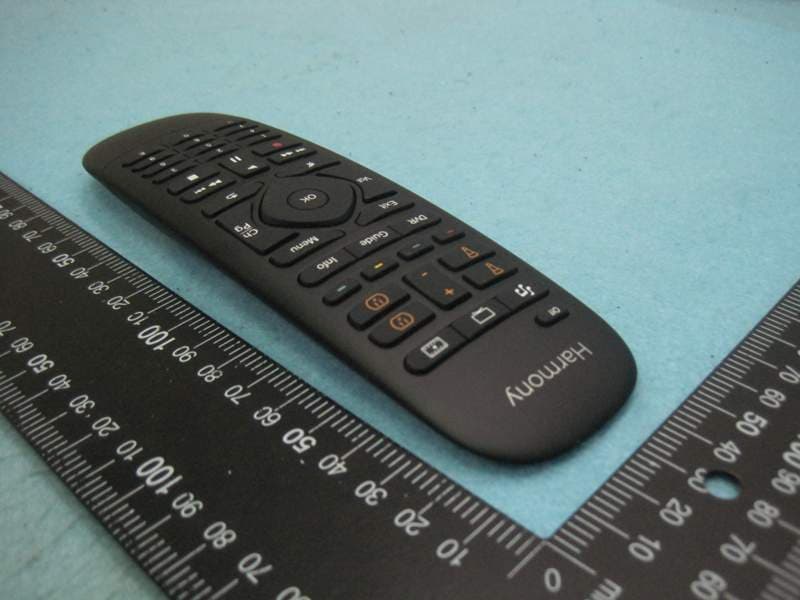
Click to zoom
Application Details
- Equipment Class
- DTS - Digital Transmission System
- Date of Grant
- Jul 17, 2014
- Application Purpose
- Original Equipment
- Date of Application
- Jul 17, 2014
- Equipment Note
- Remote controller
- Frequency Range
- 2405.00000000 - 2474.00000000
- Company
- Logitech Far East Ltd
- Country
- Taiwan
Documents & Files
Document Text
Text extracted from the exhibit documents filed with the FCC. Open a document above to read the original.
Users Manual
Setup Guide | Guide d’installation English 3 Package contents 1. Home Control remote 2. Home Hub Controls devices via IR, Bluetooth, or Wi-Fi 3. Power adapter Provides power to the Harmony Hub 4. IR mini blaster Extends IR coverage when used in combination with the Harmony Hub 5. USB cable Set up hub via PC or Mac if access to mobile device is not available. 12 5 3 4 English 54 English Congratulations on the purchase of Harmony Home Control The Harmony Hub is the center of your Harmony system—always keep it powered on! 1. The hub receives commands from the remote or mobile app. The remote itself does not send commands directly to your devices. 2. The hub sends commands to your audio video and home control devices in the form of Bluetooth®, Wi-Fi, and infrared signals (IR). 12 English 54 English Lets get started STEP 1 Position the Harmony Hub Place the Harmony Hub in an unobstructed location next to your entertainment devices. Or... If using closed cabinets, place the Hub inside the cabinet and the IR mini blaster outside the cabinet to control your TV. Harmony Home ControlIR mini blasterHarmony Hub English 76 English STEP 2 Power up your Harmony Hub Once plugged in, the hub takes approx. 30 seconds to power up. English 76 English STEP 3 Install the Harmony App • Visit the Apple App Store or Google Play and install the Harmony App. • Launch the app, select the Setup New Remote button, and follow setup instructions. Note: If you have an iPhone 4, iPad 1 or iPad 2, or an Android device that does not support Bluetooth, please visit setup.myharmony.com on a computer to connect the hub to your Wi-Fi network before beginning Step 3 of setup. For more detailed instructions and product info, please visit support.myharmony.com/home-control The remainder of setup will be done using your mobile device. See next section for an overview of what to expect. English 98 English Mobile App Setup Overview • Connect hub to Wi-Fi. Using your mobile device’s Bluetooth, connect your hub to your wireless network. • Create a Harmony account. • Scan your Wi-Fi network for devices that can be controlled by Harmony (e.g. Roku, Sonos, hue, Smart TVs). • Add home entertainment devices for additional devices not found during Wi-Fi scan (e.g. TV, cable box, AVR, game console, Blu-ray player). • Add home control devices. Harmony supports various devices such as select lights, locks, thermostats, and home control platforms. See Home Controls Explained section for further details. • Create Activities. You’ll be guided through creating Activities such as Watch TV, Listen to Music, and Play Xbox. See One-Touch Activities section for further details. English 98 English Home Controls Explained Your Harmony Home Control supports a variety of devices such as lights, light switches, locks, thermostats, and blinds. Harmony Home Control also connects to other home control platforms to access additional devices supported by these solutions. The list of supported devices includes:* Nest Learning Thermostats, Honeywell Thermostats Philips hue Lights, Lutron Caséta Wireless Lights Lutron Serena Window Shades August Smart Locks SmartThings, PĒQ *The list of Harmony-compatible devices is always growing. Visit myharmony.com/compatibility for the most up-to-date list of compatible brands, devices, and model numbers. Device compatibility is subject to change without notice. English 1110 English Activities Explained Create your own customized Activities. Here are some examples of what you can do. One-Touch Activities Watch Movie: One touch and your TV, surround sound system, and Blu-ray player are all powered on and switched to the right settings. English 1110 English One-Touch Activities with Home Control Devices Movie Time: Your One-touch “Watch Movie” Activity PLUS your lights automatically dim to your favorite setting. Get creative: Activities can be configured to automatically turn on lights, open blinds, adjust thermostat temperature, turn on music/TV, or unlock a door. English 1312 English How to use your remote Activity Buttons Map these buttons to your favorite Activities. (6 total activities supported using short and long presses) Home Control* Map these buttons to control devices such as lights and outlets. Use the +/- buttons to adjust brightness. * For a list of supported devices, visit myharmony.com/compatibility English 1312 English Troubleshooting Harmony Hub cannot connect to Wi-Fi or is not detected by the Harmony app. • Ensure the hub is within range of your router. • Ensure your phone and hub are connected to the same Wi-Fi network. • Restart your hub by disconnecting and reconnecting its power supply. It will take 30 seconds to restart. • Restart your router by disconnecting and reconnecting its power supply. Support Info There’s more information and support online for your product. Please visit support.myharmony.com/home-control where you can find: • Frequently asked questions • Troubleshooting • Support Community • Online Documentation • Warranty Information • Phone and email support info © 2014 Logitech. All rights reserved. Logitech, the Logitech logo, Harmony, the Harmony logo, and other Logitech marks are owned by Logitech and may be registered. All other trademarks are the property of their respective owners. Logitech assumes no responsibility for any errors that may appear in this manual. Information contained herein is subject to change without notice. © 2014 Logitech. All rights reserved. Logitech, the Logitech logo, Harmony, the Harmony logo, and other Logitech marks are owned by Logitech and may be registered. All other trademarks are the property of their respective owners. Logitech assumes no responsibility for any errors that may appear in this manual. Information contained herein is subject to change without notice. 620-006205.PB www.logitech.com support.myharmony.com/home-control
Users Manual
Logitech® Important Information Safety, Compliance and Warranty Sécurité, conformité et garantie English Additional compliance information: http://www.logitech.com/compliance. Safety information External Power Supply Warning • The power supply is for indoor use only. • Use the power supply that comes with your product; do not use any other power supply. • Do not use a damaged power supply or attempt to repair one that is damaged. • Do not immerse the power supply in water or subject it to physical abuse. • Inspect the power supply regularly for damage to its cable, plug, and casing. Caution: Battery Warning! There is a risk of explosion, fire, or chemical burns if a battery is replaced by incorrect type, mutilated, or exposed to conducting materials, liquid, fire, or heat (above 54° C or 130° F). When a battery is misused, it may explode or leak, causing burns and personal injury. If a battery leaks, use normal precaution and discard it immediately following the local laws and regulations in your area. FCC—United States. This equipment has been tested and found to comply with the limits for a Class B digital device, pursuant to Part 15 of the FCC Rules. These limits are designed to provide reasonable protection against harmful interference in a residential installation. This equipment generates, uses and can radiate radio frequency energy and, if not installed and used in accordance with the instructions, may cause harmful interference to radio communications. However, there is no guarantee that interference will not occur in a particular installation. If this equipment does cause harmful interference to radio or television reception, which can be determined by turning the equipment off and on, the user is encouraged to try to correct the interference by one of the following measures: • Reorient or relocate the receiving antenna. • Increase the separation between the equipment and receiver. • Connect the equipment into an outlet on a circuit different from that to which the receiver is connected. • Consult the dealer or an experienced radio/TV technician for help. FCC Caution: Any changes or modifications not expressly approved by the party responsible for compliance could void the user’s authority to operate this equipment. This device complies with Part 15 of the FCC Rules. Operation is subject to the following two conditions: (1) This device may not cause harmful interference, and (2) this device must accept any interference received, including interference that may cause undesired operation. Changes or Modifications to this product not authorized by Logitech, Inc could void your right to use or operate this product. Where shielded interface cables or accessories have been provided with the product or specified additional components or accessories elsewhere defined to be used with the installation of the product, they must be used in order to ensure compliance with FCC regulations. information. Canada: IC Statements CAN ICES-3 (B)/NMB-3(B) This digital device does not exceed the Class B limits for radio noise emissions from digital apparatus specified in the interference-causing equipment standard entitled “Digital Apparatus,” ICES-003 of the Department of Communications. RF Compliance and Advisory Statement: This device complies with Industry Canada license-exempt RSS standard(s). Operation is subject to the following two conditions: (1) this device may not cause interference, and (2) this device must accept any interference, including interference that may cause undesired IMPORTANT NOTE: Logitech hardware product limited warranty. Logitech warrants to the original purchaser that your Logitech hardware product shall be free from defects in material and workmanship for the period of time, identified on your product package and/or contained in the user documentation, from the date of purchase. You may also find this information by selecting your product in the Online Support section of our website at www.logitech.com/support. Except where prohibited by applicable law, this warranty is nontransferable and is limited to the original purchaser. This warranty gives you specific legal rights, and you may also have other rights that vary under local laws. Logitech’s entire liability and your exclusive remedy for any breach of warranty shall be, at Logitech’s option, (1) to repair or replace the hardware, or (2) to refund the price paid, provided that the hardware is returned to the point of purchase or such other place as Logitech may direct with a copy of the sales receipt or dated itemized receipt. Shipping and handling charges may apply, except where prohibited by applicable law. Logitech may, at its option, use new or refurbished or used parts in good working condition to repair or replace any hardware product. Any replacement hardware product will be warranted for the remainder of the original warranty period or thirty (30) days, whichever is longer or for any additional period of time that may be applicable in your jurisdiction. This warranty does not cover problems or damage resulting from (1) accident, abuse, misapplication, or any unauthorized repair, modification or disassembly; (2) improper operation or maintenance, usage not in accordance with product instructions or connection to improper voltage supply; or (3) use of consumables, such as replacement batteries, not supplied by Logitech except where such restriction is prohibited by applicable law. How to obtain warranty support. Before submitting a warranty claim, we recommend you visit the support section at www.logitech.com/support for technical assistance. Valid warranty claims are generally processed through the point of purchase during the first thirty (30) days after purchase; however, this period of time may vary depending on where you purchased your product - please check with Logitech or the retailer where you purchased your product for details. Warranty claims that cannot be processed through the point of purchase and …
Text truncated - open the document above for the full version.
External Photos
Report No.:460514 SPORTON International Inc. PAGE NUMBER : A1 OF A1 TEL : 886-3-327-3456 FAX : 886-3-327-0973 APPENDIX A. Photographs of EUT
Test Report
SPORTON International Inc. No. 52, Hwa Ya 1st Rd., Hwa Ya Technology Park, Kwei-Shan Hsiang, Tao Yuan Hsien, Taiwan, R.O.C. Ph: 886-3-327-3456 / FAX: 886-3-327-0973 / www.sporton.com.tw Report Format Version: Rev. 01 FCC RADIO TEST REPORT Applicant’s company LOGITECH FAR EAST LTD. Applicant Address No. 2, Creation Road IV Science-Based Industrial Park Hsin-Chu, Taiwan FCC ID JNZNR0008 Manufacturer’s company LOGITECH FAR EAST LTD. Manufacturer Address No. 2, Creation Road IV Science-Based Industrial Park Hsin-Chu, Taiwan Product Name Remote controller Brand Name Logitech Model No. N-R0008 Test Rule 47 CFR FCC Part 15 Subpart C § 15.247 Test Freq. Range 2400-2483.5MHz Received Date Jun. 05, 2014 Final Test Date Jun. 21, 2014 Submission Type Original Equipment Statement The test result in this report refers exclusively to the presented test model / sample. Without written approval of SPORTON International Inc., the test report shall not be reproduced except in full. The measurements and test results shown in this test report were made in accordance with the procedures and found in compliance with the limit given in ANSI C63.10-2009, 47 CFR FCC Part 15 Subpart C, KDB 558074 D01 v03r02. The test equipment used to perform the test is calibrated and traceable to NML/ROC. Report No.: FR460514 Report Format Version: Rev. 01 Page No. : i of ii FCC ID: JNZNR0008 Issued Date : Jul. 11, 2014 Table of Contents 1. CERTIFICATE OF COMPLIANCE ......................................................................................................................... 1 2. SUMMARY OF THE TEST RESULT .......................................................................................................................... 2 3. GENERAL INFORMATION .................................................................................................................................. 3 3.1. Product Details....................................................................................................................................................................................3 3.2. Accessories .........................................................................................................................................................................................3 3.3. Table for Filed Antenna.......................................................................................................................................................................4 3.4. Table for Carrier Frequencies .............................................................................................................................................................5 3.5. Table for Test Modes ...........................................................................................................................................................................5 3.6. Table for Testing Locations..................................................................................................................................................................6 3.7. Table for Supporting Units ...................................................................................................................................................................6 3.8. Table for Parameters of Test Software Setting .....................................................................................................................................6 3.9. EUT Operation during Test ...................................................................................................................................................................6 3.10. Duty Cycle ..........................................................................................................................................................................................7 3.11. Test Configurations .............................................................................................................................................................................8 4. TEST RESULT ..................................................................................................................................................... 9 4.1. Maximum Conducted Output Power Measurement ...........................................................................................................................9 4.2. Power Spectral Density Measurement ..............................................................................................................................................11 4.3. 6dB Spectrum Bandwidth Measurement ..........................................................................................................................................15 4.4. Radiated Emissions Measurement ....................................................................................................................................................18 4.5. Emissions Measurement ....................................................................................................................................................................28 4.6. Antenna Requirements .....................................................................................................................................................................34 5. LIST OF MEASURING EQUIPMENTS ................................................................................................................... 35 6. MEASUREMENT UNCERTAINTY.......................................................................................................................... 37 APPENDIX A. PHTOGRAPHSOF EUT..................................................................................................A1 ~ A5 APPENDIX B. TEST PHOTOS.......................................................................................................................... B1 ~ B4 Report No.: FR460514 Report Format Version: Rev. 01 Page No. : ii o…
Text truncated - open the document above for the full version.
Test Setup Photos
Report No.: FR460514 FCC ID: JNZNR0008 Page No. : B1 of B4 Appendix B. Test Photos Report No.: FR460514 FCC ID: JNZNR0008 Page No. : B2 of B4 1. Photographs of Radiated Emissions Test Configuration Test Configuration: 9kHz ~30MHz FRONT VIEW REAR VIEW Report No.: FR460514 FCC ID: JNZNR0008 Page No. : B3 of B4 Test Configuration: 30MHz~1GHz FRONT VIEW REAR VIEW Report No.: FR460514 FCC ID: JNZNR0008 Page No. : B4 of B4 Test Configuration: Above 1GHz FRONT VIEW REAR VIEW
Contact Information
Applicant
Rick Lien(Head of Product Compliance)
Test Firm
Sporton International Inc.Alex Chen
Technical Specifications
| # | Rule Parts | Frequency Range | Power Output |
|---|---|---|---|
| 1 | 15C | 2.40 GHz - 2.47 GHz | 1.30 mW |
Other Applications from Logitech Far East Ltd
JNZYR0126
Jul 30, 2026Wireless Keyboard
Equipment Class
DTS - Digital Transmission SystemJNZYR0116
Jul 30, 2026Wireless Keyboard
Equipment Class
DTS - Digital Transmission SystemJNZYR0115
Jul 30, 2026Wireless Keyboard
Equipment Class
DTS - Digital Transmission SystemJNZMR0143
Jul 21, 2026Wireless Mouse
Equipment Class
DTS - Digital Transmission SystemJNZMR0136
Jul 09, 2026Wireless Mouse
Equipment Class
DTS - Digital Transmission System