JNZYRAZ71Wireless Keyboard
Logitech Far East Ltd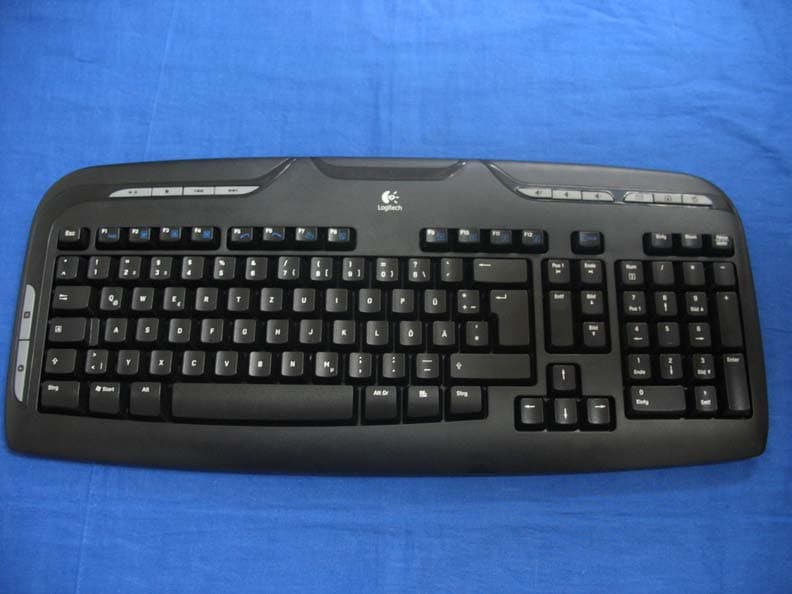
Click to zoom
Application Details
- Equipment Class
- DXX - Part 15 Low Power Communication Device Transmitter
- Date of Grant
- Oct 01, 2006
- Application Purpose
- Original Equipment
- Date of Application
- Sep 28, 2006
- Equipment Note
- Wireless Keyboard
- Frequency Range
- 27.09500000 - 27.14500000
- Company
- Logitech Far East Ltd
- Country
- Taiwan
Documents & Files
Document Text
Text extracted from the exhibit documents filed with the FCC. Open a document above to read the original.
Users Manual
English Turn OFF computer. Español Apague el ordenador. Français Mettez l’ordinateur hors tension. Português Desligue o computador. OFF Installation Guide English Package Contents: 1. Keyboard 2. Mouse 3. Receiver 4. Software 5. Four batteries Español Contenido de la caja: 1. Teclado 2. Ratón 3. Receptor 4. Software 5. Cuatro pilas Français Contenu: 1. Clavier 2. Souris 3. Récepteur 4. Logiciel 5. Quatre piles Português Conteúdo do pacote: 1. Teclado 2. Rato 3. Receptor 4. Software 5. Quatro pilhas 1 2 PS/2 English Plug receiver cables into computer: PC desktops with PS/2 port use keyboard connector (purple) plus mouse connector (green). PC desktops with USB port only and PC notebooks use black USB connector only. Español Conecte al ordenador los cables del receptor: Los PC de sobremesa con puerto PS/2 usan el conector de teclado (morado) y el conector de ratón (verde). Los PC de sobremesa con puerto USB y los portátiles usan sólo el conector USB negro. Français Branchez les câbles du récepteur dans l’ordinateur: les ordinateurs de bureau avec port PS/2 utilisent le connecteur du clavier (violet) et le connecteur de la souris (vert). Les ordinateurs de bureau avec ports USB uniquement et les ordinateurs portables utilisent le connecteur USB noir uniquement. Português Ligue os cabos do receptor ao computador: PC de secretária com porta PS/2 port utiliza conector de teclado (roxo) e conector de rato (verde). PC de secretária somente com porta USB e PC portátil utiliza somente conector preto USB. 3 4 English Place receiver away from electrical devices. Avoid metallic surfaces. Français Eloignez le récepteur de tout appareil électrique. Evitez tout contact avec une surface métallique. Español NO coloque el receptor cerca de dispositivos eléctricos. Evite las superficies metálicas. Português Coloque o receptor longe de aparelhos eléctricos. Evite superfícies metálicas. 5 English Install the batteries: the mouse uses 2 large AA batteries; the keyboard uses 2 small AAA batteries. Follow the diagram for battery orientation. Español Coloque las pilas: el ratón utiliza dos 2 pilas AA grandes; el teclado utiliza 2 pilas AAA pequeñas. El diagrama muestra la posición correcta. Français Insérez les piles: la souris utilise 2 grosses piles AA, le clavier utilise 2 petites piles AAA. Suivez le schéma pour la disposition des piles. Português Introduza as pilhas: o rato utiliza 2 pilhas AA; o teclado utiliza 2 pilhas AAA. Siga o diagrama para a posição das pilhas. ON English Turn ON computer. Español Encienda el ordenador. Français Mettez l’ordinateur sous tension. Português Ligue o computador. 6 7 8 English To enjoy all the features of the keyboard and mouse, you must install the software. Español Para disponer de todas las funciones del teclado y el ratón, debe instalar el software. Français Pour profiter pleinement de toutes les fonctions du clavier et de la souris, vous devez installer le logiciel. Português Para utilizar todos os recursos do teclado e do mouse, é necessário instalar o software. English Press Connect button on receiver, and then press Connect button under mouse. Wait 20 seconds. Press Connect button on receiver, and then press Connect button under keyboard. Español Pulse el botón Connect del receptor y luego el botón de conexión situado en la parte inferior del ratón. Espere 20 segundos. Pulse el botón de conexión del receptor y luego el botón de conexión situado en la parte inferior del teclado. Français Appuyez sur le bouton Connect du récepteur, puis sur le bouton Connect situé sous la souris. Patientez 20 secondes. Appuyez sur le bouton Connect du récepteur, puis sur le bouton Connect situé sous le clavier. Português Prima o botão Connect no receptor e, em seguida, prima o botão Connect em baixo do rato. Aguarde 20 segundos. Prima o botão Connect no receptor e, em seguida, prima o botão Connect em baixo do teclado. 20 sec.20 sec. 1 3 2 4 5 4 3 1 2 Logitech ® www.logitech.com USB
Users Manual
English Important Ergonomic Information. Read the Comfort Guidelines in the software help system or at http://www.logitech.com/comfort. Warning! Read the battery warning in the software help system. Warranty. Your product comes with a limited five-year warranty. For terms and conditions of your product's warranty, please refer to the software help system. Español Información sanitaria importante. Lea las recomendaciones para evitar el cansancio, en el sistema de ayuda del software o en la dirección http://www.logitech.com/comfort. ¡Advertencia! Lea la advertencia sobre las pilas en el sistema de ayuda del software. Garantía. Este producto tiene cinco años de garantía limitada. Para conocer los términos y condiciones de la garantía del producto, consulte el sistema de ayuda del software. Français Informations importantes relatives au confort. Veuillez lire le guide Logitech et votre confort dans l’Aide du logiciel ou sur le site Web http://www.logitech.com/comfort . Attention! Veuillez lire l’avertissement relatif aux piles dans l’Aide du logiciel. Garantie. Une garantie de cinq ans est fournie avec ce produit. Pour connaître les termes et conditions de cette garantie, consultez l'Aide du logiciel. Português Informações importantes sobre ergonomia. Leia as orientações de conforto no sistema de ajuda do software ou no endereço http://www.logitech.com/comfort. Atenção! Leia o aviso sobre pilhas no sistema de ajuda do software. Garantia. O produto tem uma garantia limitada de cinco anos. Para saber quais os termos e condições da garantia do produto, consulte o sistema de ajuda do software. English 1. Navigation keys. 2. F-Keys. 3. Media keys. 4. Volume controls. 5. E-mail/Internet Home/ On-screen calculator. 6. Mouse wheel and buttons. See the software help system and visit the QuickTour software. Also visit www.logitech.com/comfort for more information about using your products and for ergonomics. Español 1. Controles de navegación. 2. Teclas F. 3. Botones multimedia. 4. Controles de volumen. 5. Correo electrónico/Inicio de Internet/Calculadora en pantalla. 6. Botones y botón rueda del ratón. También puede consultar el sistema de ayuda del software o ejecutar el Recorrido rápido. En www.logitech.com/comfort encontrará más información sanitaria y sobre el uso de los productos. Français 1. Touches de navigation. 2. Touches F. 3. Touches Media. 4. Contrôles de volume. 5. Courrier électronique/Page d’accueil Internet/ Calculatrice à l’écran. 6. Roulette et boutons de la souris. Reportez-vous au système d’aide logiciel et le logiciel QuickTour. Pour en savoir plus sur l'utilisation des produits et leur confort, effectuez la visite guidée et accédez au site Web www.logitech.com/comfort. Português 1. Teclas de navegação. 2. Teclas F. 3. Teclas de multimédia. 4. Controlos do volume. 5. Correio electrónico/Home da Internet/Calculadora no ecrã. 6. Roda e botões do rato. Consulte o sistema de ajuda no software e visite o software QuickTour. Visite também www.logitech.com/comfort para obter mais informações sobre como utilizar os produtos e sobre ergonomia. English Solving Setup Problems. 1. Check cable connections. 2. Place receiver away from electrical devices, and avoid metallic surfaces. 3. Check battery installation. The mouse uses 2 AA batteries; the keyboard uses 2 AAA batteries. 4. Establish communications. Press Connect button on receiver, and then press Connect button under mouse. Wait 20 seconds. Press Connect button on receiver, and then press Connect button under keyboard. Español Resolución de problemas de instalación. 1. Compruebe las conexiones de los cables. 2. No coloque el receptor cerca de dispositivos eléctricos o sobre superficies metálicas. 3. Compruebe la colocación de las pilas. El ratón utiliza dos 2 pilas AA; el teclado utiliza 2 pilas AAA. 4. Establezca la comunicación. Pulse el botón Connect del receptor y luego el botón Connect situado en la parte inferior del ratón. Espere 20 segundos. Pulse el botón Connect del receptor y luego el botón Connect situado en la parte inferior del teclado. Français Résolutions des problèmes d’installation. 1. Vérifiez les connexions des câbles. 2. Eloignez le récepteur des autres appareils électriques et évitez les surfaces métalliques. 3. Vérifiez que les piles sont bien installées. La souris utilise 2 piles AA et le clavier 2 piles AAA. 4. Etablissez la communication. Appuyez sur le bouton Connect du récepteur, puis sur le bouton Connect situé sous la souris. Patientez 20 secondes. Appuyez sur le bouton Connect du récepteur, puis sur le bouton Connect situé sous le clavier. Português Resolvendo problemas de configuração. 1. Verifique as ligações dos cabos. 2. Coloque o receptor longe de aparelhos eléctricos e evite superfícies metálicas. 3. Verifique a instalação das pilhas. O rato utiliza 2 pilhas AA; o teclado utiliza 2 pilhas AAA. 4. Estabeleça comunicações. Prima o botão Connect no receptor e, em seguida, prima o botão Connect em baixo do rato. Aguarde 20 segundos. Prima o botão Connect no receptor e, em seguida, prima o botão Connect em baixo do teclado. 11 22 33 PS/2 20 sec.20 sec. 1 3 2 4 44 +1 702 269 3457 Hotline Technical HelpHotline (Aide Technique) www.logitech.com/support © 2005 Logitech. All rights reserved. Logitech, the Logitech logo, and other Logitech marks are owned by Logitech and may be registered. All other trademarks are the property of their respective owners. Logitech assumes no responsibility for any errors that may appear in this manual. Information contained herein is subject to change without notice. © 2005 Logitech. Tous droits réservés. Logitech, le logo Logitech et les autres marques Logitech sont la propriété exclusive de Logitech et sont susceptibles d’être des marques déposées. Toutes les autres marques sont la propriété exclusive de leurs détenteurs respectifs. Logitech décline toute responsabilité en cas d'erreurs dans ce manuel. Les informations énoncées dans le présent document peuvent faire l’objet d…
Text truncated - open the document above for the full version.
Block Diagram
方塊圖.jpg
Cover Letter(s)
American Telecommunications Certification Body Inc. 6731 Whittier Ave, McLean, VA 22101 September 28, 2006 RE: Logitech Far East Ltd. FCC ID: JNZYRAZ71 After a review of the submitted information, I have a few comments on the above referenced Application. 1) It can not be determined if the loop antenna was manipulated per ANSI C63.4: - For radiated measurements below 30 MHz, was the loop antenna rotated about the vertical axis? - Note: ANSI C63.4 suggests that for certain applications, the loop antenna may also need to be positioned horizontally at the specified distance from the EUT as well. Would this be deemed necessary in this case?. The center of the loop shall be 1 m above the ground. 2) FYI......The device does not connect via a cable to a computer and therefore does not meet the definition of a PC peripheral. Therefore the DoC label does not appear necessary. Please note that the FCC commonly requires removal of DoC labels from wireless Mice and wireless Keyboards. The only part of the system that should be DoC’d is the RX. Please correct. Timothy R. Johnson Examining Engineer mailto: [email protected] The items indicated above must be submitted before processing can continue on the above referenced application. Failure to provide the requested information may result in application termination. Correspondence should be considered part of the permanent submission and may be viewed from the Internet after a Grant of Equipment Authorization is issued. Please do not respond to this correspondence using the email reply button. In order for your response to be processed expeditiously, you must submit your documents through the AmericanTCB.com website. Also, please note that partial responses increase processing time and should not be submitted. Any questions about the content of this correspondence should be directed to the sender.
External Photos
Report No: 069H020-RF-US-P03V01 30 of 33 6. Attachment ¾ EUT Photograph (1) EUT Photo (2) EUT Photo
ID Label/Location Info
FCC ID.: JNZYRAZ71 FCC ID Label The FCC ID Label will be placed on the equipment as shown in the photograph below. Cordless Keyboard Model No.: Y-RAZ71 F F C C C C I I D D : : JNZYRAZ71 This device complies with Part 15 of the FCC Rules. Operation is subject to the following two conditions: (1) this device may not cause harmful interference and (2) this device must accept any interference received, including interference that may cause undesired operation. S/N: Made in Taiwan Trade name: Logitech Model number.: Y-RAZ71
Internal Photos
Report No: 069H020-RF-US-P03V01 31 of 33 (3) EUT Photo (4) EUT Photo Report No: 069H020-RF-US-P03V01 32 of 33 (5) EUT Photo (6) EUT Photo Report No: 069H020-RF-US-P03V01 33 of 33 (7) EUT Photo (8) EUT Photo
Test Report
Test Report Product Name : Cordless Keyboard Model No. : Y-RAZ71 FCC ID No. : JNZYRAZ71 Applicant : Logitech Far East Ltd. Address : #2 Creation Rd., 4, Science-Based Ind. Park, Hsinchu, Taiwan, R.O.C. Date of Receipt : 2006/09/11 Issued Date : 2006/09/22 Report No. : 069H020-RF-US-P03V01 The test results relate only to the samples tested. The test results shown in the test report are traceable to the national/international standard through the calibration of the equipment and evaluated measurement uncertainty herein. This report must not be used to claim product endorsement by CNLA, NVLAP or any agency of the Government. The test report shall not be reproduced except in full without the written approval of QuieTek Corporation. Report No: 069H020-RF-US-P03V01 2 of 33 Test Report Certification Issued Date : 2006/09/22 Report No. : 069H020-RF-US-P03V01 Product Name : Cordless Keyboard Applicant : Logitech Far East Ltd. Address : #2 Creation Rd., 4, Science-Based Ind. Park, Hsinchu, Taiwan, R.O.C. Manufacturer : Logitech Far East Ltd. Model No. : Y-RAZ71 FCC ID No. : JNZYRAZ71 Rated Voltage : AC 120V/60Hz EUT Voltage : Power by Battery 3V DC Trade Name : Logitech Applicable Standard : FCC Part 15 Subpart C: 2005 ANSI C63.4: 2003 Test Result : Complied Performed Location : SuZhou EMC Laboratory No.99 Hongye Rd., Suzhou Industrial Park Loufeng Hi-Tech Development Zone., SuZhou, China TEL:+86-512-6251-5088 / FAX:+86-512-6251-5098 Documented By : ( Mandy Liu ) Reviewed By : ( Dream Cao ) Approved By : ( Gene Chang ) Report No: 069H020-RF-US-P03V01 3 of 33 Laboratory Information We , QuieTek Corporation, are an independent EMC and safety consultancy that was established the whole facility in our laboratories. The test facility has been accredited by the following accreditation Bodies in compliance with ISO 17025, EN 45001 and Guide 25: The related certificate for our laboratories about the test site and management system can be downloaded from QuieTek Corporation’s Web Site : http://tw.quietek.com/modules/myalbum/ The address and introduction of QuieTek Corporation’s laboratories can be founded in our Web site : http://www.quietek.com/ If you have any comments, Please don’t hesitate to contact us. Our contact information is as below: HsinChu Testing Laboratory : No.75-2, 3rd Lin, Wangye Keng, Yonghxing Tsuen, Qionglin Shiang, Hsinchu County 307, Taiwan, R.O.C. TEL:+886-3-592-8858 / FAX:+886-3-592-8859 E-Mail : [email protected] LinKou Testing Laboratory : No. 5, Ruei-Shu Valley, Ruei-Ping Tsuen, Lin-Kou Shiang, Taipei, Taiwan, R.O.C. TEL : 886-2-8601-3788 / FAX : 886-2-8601-3789 E-Mail : [email protected] Suzhou Testing Laboratory : No.99 Hongye Rd., Suzhou Industrial Park Loufeng Hi-Tech Development Zone., SuZhou, China TEL : +86-512-6251-5088 / FAX : 86-512-6251-5098 E-Mail : [email protected] Taiwan R.O.C. : BSMI, DGT, CNLA Germany : TUV Rheinland Norway : Nemko, DNV USA : FCC, NVLAP Japan : VCCI 0914 1313 1596 Report No: 069H020-RF-US-P03V01 4 of 33 TABLE OF CONTENTS Description Page 1. General Information .................................................................................................... 5 1.1. EUT Description .....................................................................錯誤! 尚未定義書籤。 1.2. Mode of Operation .................................................................................................. 6 1.3. Tested System Details............................................................................................. 7 1.4. Configuration of Tested System .............................................................................. 8 1.5. EUT Exercise Software ........................................................................................... 9 2. Technical Test ........................................................................................................... 10 2.1. Summary of Test Result ........................................................................................ 10 2.2. List of Test Equipment ........................................................................................... 11 2.3. Measurement Uncertainty ..................................................................................... 12 2.4. Test Environment .................................................................................................. 13 3. Conducted Emission................................................................................................. 14 3.1. Test Specification .................................................................................................. 14 3.2. Test Setup ............................................................................................................. 14 3.3. Limit....................................................................................................................... 14 3.4. Test Procedure...................................................................................................... 15 3.5. Deviation from Test Standard ................................................................................ 15 3.6. Test Result............................................................................................................ 15 4. Radiated Emission .................................................................................................... 16 4.1. Test Specification .................................................................................................. 16 4.2. Test Setup ............................................................................................................. 16 4.3. Limit....................................................................................................................... 17 4.4. Test Procedure...................................................................................................... 18 4.5. Deviation from Test Standard ................................................................................…
Text truncated - open the document above for the full version.
Contact Information
Applicant
Rick Lien(Head of Product Compliance)
Technical Contact
QuiTek CorporationMicki Ho
[email protected]886 2 8792 6808
2F, No. 345, Xinhu 2nd Rd. NeiHu Disctrict · Taipei · Taiwan
Test Firm
DEKRA Testing and Certification (Suzhou) Co., Ltd.Jerry Pan
Technical Specifications
| # | Rule Parts | Frequency Range | Power Output |
|---|---|---|---|
| 1 | 15C | 27.095 MHz - 27.145 MHz | - |
Other Applications from Logitech Far East Ltd
JNZYR0126
Jul 30, 2026Wireless Keyboard
Equipment Class
DTS - Digital Transmission SystemJNZYR0116
Jul 30, 2026Wireless Keyboard
Equipment Class
DTS - Digital Transmission SystemJNZYR0115
Jul 30, 2026Wireless Keyboard
Equipment Class
DTS - Digital Transmission SystemJNZMR0143
Jul 21, 2026Wireless Mouse
Equipment Class
DTS - Digital Transmission SystemJNZMR0136
Jul 09, 2026Wireless Mouse
Equipment Class
DTS - Digital Transmission System