K7SF5D7051DWireless G Plus USB Network Adapter
Belkin International, Inc.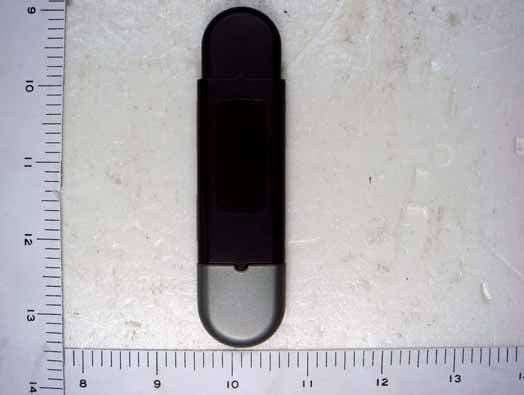
Click to zoom
Application Details
- Equipment Class
- DTS - Digital Transmission System
- Date of Grant
- Oct 14, 2007
- Application Purpose
- Original Equipment
- Date of Application
- Oct 14, 2007
- Equipment Note
- Wireless G Plus USB Network Adapter
- Frequency Range
- 2412.00000000 - 2462.00000000
- Company
- Belkin International, Inc.
- Country
- United States
Documents & Files
Document Text
Text extracted from the exhibit documents filed with the FCC. Open a document above to read the original.
Users Manual
DX-BUSB Manaul_20071012 Page 1 of 37 Dynex Wireless G USB Network Adapter Connect your desktop or notebook computer to a wireless network User Manual Table of Contents 1 Introduction . . . . . . . . . . . . . . . . . . . . . . . . . . . . . . . . . . . . . . . . . . . . 1 Benefits of a Home Network . . . . . . . . . . . . . . . . . . . . . . . . . . . . . . 1 Advantages of a Wireless Network . . . . . . . . . . . . . . . . . . . . . . . . . 1 Placement of your Wireless Networking Hardware for Optimal Performance . . . . . . . . . . . . . . . . . . . . . . . . 2 2 Overview . . . . . . . . . . . . . . . . . . . . . . . . . . . . . . . . . . . . . . . . . . . . . . . 6 Product Features . . . . . . . . . . . . . . . . . . . . . . . . . . . . . . . . . . . . . . 6 Applications and Advantages . . . . . . . . . . . . . . . . . . . . . . . . . . . . 7 Product Specifications . . . . . . . . . . . . . . . . . . . . . . . . . . . . . . . . . . 8 System Requirements . . . . . . . . . . . . . . . . . . . . . . . . . . . . . . . . . . 9 Package Contents . . . . . . . . . . . . . . . . . . . . . . . . . . . . . . . . . . . . . 9 3 Installing and Setting up the Adapter . . . . . . . . . . . . . . . . . . . . . . . . 10 Step 1: Install. . . . . . . . . . . . . . . . . . . . . . . . . . . . . . 10 Step 2: Connect. . . . . . 11 Step 3: Configure. . . . . . . . . . . . . . . . . 13 4 Using the Dynex Wireless Networking Utility. . . . . . . . . . . . . . . . . 15 Accessing the Dynex Wireless Networking Utility from the Windows System Tray.16 Setting Wireless Network Profiles Securing your Wi-Fi Network . . . . . . . . . . . . . . . . . . . . . . . . . . . 19 Configuring your Dynex Wireless G USB Network Adapter to use Security. . . . . . . . . . 28 5 Troubleshooting. . . . . . . . . . . . . . . . . . . . . . . . . . . . . . . . . . . . . . . . 41 6 Information . . . . . . . . . . . . . . . . . . . . . . . . . . . . . . . . . . . . . . . . . . . . 49 DX-BUSB Manaul_20071012 Page 2 of 37 Introduction Thank you for purchasing the Dynex Wireless G USB Network Adapter (the Adapter). Now you can take advantage of this great new technology and gain the freedom to network your home and office computers wirelessly. This Adapter allows you to connect a desktop or notebook computer to your network. The easy installation and setup will have you networking wirelessly in minutes. Please be sure to read through this User Manual completely, and pay special attention to the section entitled “Placement of your Wireless Networking Hardware for Optimal Performance” on page 2. Benefits of a Home Network Your Dynex Home Network will allow you to: • Share one high-speed Internet connection with all the computers in your home • Share resources, such as files, and hard drives among all the connected computers in your home • Share a single printer with the entire family • Share documents, music, video, and digital pictures • Store, retrieve, and copy files from one computer to another • Simultaneously play games online, check Internet email, and chat Advantages of a Wireless Network Here are some of the advantages of setting up a Dynex wireless network: • Mobility –you’ll no longer need a dedicated “computer room”— now you can work on a networked laptop or desktop computer anywhere within your wireless range • Easy installation – Dynex Easy Installation Wizards make setup simple • Flexibility – set up and access printers, computers, and other networking devices from anywhere in your home • Easy expansion – the wide range of Dynex networking products lets you expand your network to include devices such as printers and gaming consoles • No cabling required – you can spare the expense and hassle of retrofitting Ethernet cabling throughout the home or office • Widespread industry acceptance – choose from a wide range of interoperable networking products Placement of your Wireless Networking Hardware for Optimal Performance Your wireless connection will be stronger the closer your computer is to your wireless router (or access point). Typical indoor operating range for your wireless devices is between 100 and 200 feet. In the same way, your wireless connection and performance will degrade somewhat as the distance between your wireless router (or access point) and connected devices increases. This may or may not DX-BUSB Manaul_20071012 Page 3 of 37 be noticeable to you. As you move farther from your wireless router (or access point), connection speed may decrease. Factors that can weaken signals simply by getting in the way of your network’s radio waves are metal appliances or obstructions, and walls. If you have concerns about your network’s performance that might be related to range or obstruction factors, try moving the computer to a position between five and 10 feet from the wireless router (or access point) in order to see if distance is the problem. If difficulties persist even at close range, please contact Dynex Technical Support. Note: While some of the items listed below can affect network performance, they will not prohibit your wireless network from functioning; if you are concerned that your network is not operating at its maximum effectiveness, this checklist may help. 1. Placement of your Wireless Router (or Access Point) Place your wireless router (or access point), the central connection point of your network, as close as possible to the center of your wireless network devices. To achieve the best wireless network coverage for your “wireless clients,” (i.e. computers enabled by Dynex Wireless Notebook Cards, Wireless Desktop Cards, and Wireless USB Adapters): • Ensure that your wireless router’s (or access point’s) antennas are parallel to each other, and are positioned vertically (toward the ceiling). If your wireless router (or access point) itself is positioned vertically, point the antennas as much as possible in an upward direction. • In multistory homes, place the wireless router (or access point) on a floor that is …
Text truncated - open the document above for the full version.
Users Manual
DX-EBUSB Manaul_20071012 Page 1 of 30 Dynex Enhanced Wireless G USB Network Adapter Connect your desktop or notebook computer to a wireless network User Manual Table of Contents 1 Introduction . . . . . . . . . . . . . . . . . . . . . . . . . . . . . . . . . . . . . . . . . . . . x Benefits of a Home Network . . . . . . . . . . . . . . . . . . . . . . . . . . . . . . x Advantages of a Wireless Network . . . . . . . . . . . . . . . . . . . . . . . . . x Placement of your Wireless Networking Hardware for Optimal Performance . . . . . . . . . . . . . . . . . . . . . . . . x 2 Overview. . . . . . . . . . . . . . . . . . . . . . . . . . . . . . . . . . . . . . . . . . . . x Product Features . . . . . . . . . . . . . . . . . . . . . . . . . . . . . . . . . . . . . . x Applications and Advantages . . . . . . . . . . . . . . . . . . . . . . . . . . . x Product Specifications . . . . . . . . . . . . . . . . . . . . . . . . . . . . . . . . . . x System Requirements . . . . . . . . . . . . . . . . . . . . . . . . . . . . . . . . . . x Package Contents................................................................x 3 Knowing your Wireless Enhanced G USB Network Adapter....................x 4 Installing and Setting up the USB Network Adapter . . . . . . . . . . . x Step 1: Install the Software . . . . . . . . . . . . . . . . . . . . . . . . . . . . . . xx Step 2: Connect the USB Adapter to your PC . . . . . . . . . . . . . . . . xx Step 3: Let Windows Finish the Installation 5 Uninstalling the Software and Drivers.................................xx 6 Using the Dynex Wireless LAN Monitor Utility. . . . . . . . . . . . . . . . . . . . . xx 7 Securing your Wi-Fi Network . . . . . . . . . . . . . . . . . . . . . . . . . . . xx 8 Troubleshooting. . . . . . . . . . . . . . . . . . . . . . . . . . . . . . . . . . . . . . . xx 9 Information . . . . . . . . . . . . . . . . . . . . . . . . . . . . . . . . . . . . . . . . . . . . xx DX-EBUSB Manaul_20071012 Page 2 of 30 Introduction (header for section 1) Thank you for purchasing the Dynex Enhanced Wireless G USB Network Adapter (the Adapter). Now you can take advantage of this great new technology and gain the freedom to network your home and office computers wirelessly. This Adapter allows you to connect a desktop or notebook computer to your network. The easy installation and setup will have you networking wirelessly in minutes. Please be sure to read through this User Manual completely, and pay special attention to the section entitled “Placement of your Wireless Networking Hardware for Optimal Performance” on page 2. Benefits of a Home Network Your Dynex Home Network will allow you to: • Share one high-speed Internet connection with all the computers in your home • Share resources, such as files, and hard drives among all the connected computers in your home • Share a single printer with the entire family • Share documents, music, video, and digital pictures • Store, retrieve, and copy files from one computer to another • Simultaneously play games online, check Internet email, and chat Advantages of a Wireless Network Here are some of the advantages of setting up a Dynex wireless network: • Mobility –you’ll no longer need a dedicated “computer room”— now you can work on a networked laptop or desktop computer anywhere within your wireless range • Easy installation – Dynex Easy Installation Wizards make setup simple • Flexibility – set up and access printers, computers, and other networking devices from anywhere in your home • Easy expansion – the wide range of Dynex networking products let you expand your network to include devices such as printers and gaming consoles • No cabling required – you can spare the expense and hassle of retrofitting Ethernet cabling throughout the home or office • Widespread industry acceptance – choose from a wide range of interoperable networking products Placement of your Wireless Networking Hardware for Optimal Performance DX-EBUSB Manaul_20071012 Page 3 of 30 Your wireless connection will be stronger the closer your computer is to your wireless router (or access point). Typical indoor operating range for your wireless devices is between 300 and 400 feet. In the same way, your wireless connection and performance will degrade somewhat as the distance between your wireless router (or access point) and connected devices increases. This may or may not be noticeable to you. As you move farther from your wireless router (or access point), connection speed may decrease. Factors that can weaken signals simply by getting in the way of your network’s radio waves are metal appliances or obstructions, and walls. If you have concerns about your network’s performance that might be related to range or obstruction factors, try moving the computer to a position between five and 10 feet away from the wireless router (or access point) in order to see if distance is the problem. If difficulties persist even at close range, please contact Dynex Technical Support. Note: While some of the items listed below can affect network performance, they will not prohibit your wireless network from functioning; if you are concerned that your network is not operating at its maximum effectiveness, this checklist may help. 1. Placement of your Wireless Router (or Access Point) Place your wireless router (or access point), the central connection point of your network, as close as possible to the center of your wireless network devices. To achieve the best wireless network coverage for your “wireless clients,” (i.e. computers enabled by Dynex Wireless Notebook Cards, Wireless Desktop Cards, and Wireless USB Adapters): • Ensure that your wireless router’s (or access point’s) antennas are parallel to each other, and are positioned vertically (toward the ceiling). If your wireless router (or access point) itself is positioned vertically, point the antennas as much as possible in an upward direction. • In multistory homes, place the wireless router (or access point) …
Text truncated - open the document above for the full version.
Users Manual
F5D7051 Manual_20071012 Page 1 of 32 (Changes from P74471-D) Belkin Wireless G Plus USB Network Adapter Connect your desktop or notebook computer to a wireless network User Manual Table of Contents 1 Introduction . . . . . . . . . . . . . . . . . . . . . . . . . . . . . . . . . . . . . . . . . . . . x Benefits of a Home Network . . . . . . . . . . . . . . . . . . . . . . . . . . . . . . x Advantages of a Wireless Network . . . . . . . . . . . . . . . . . . . . . . . . . x Placement of your Wireless Networking Hardware for Optimal Performance . . . . . . . . . . . . . . . . . . . . . . . . x 2 Overview. . . . . . . . . . . . . . . . . . . . . . . . . . . . . . . . . . . . . . . . . . . . x Product Features . . . . . . . . . . . . . . . . . . . . . . . . . . . . . . . . . . . . . . x Applications and Advantages . . . . . . . . . . . . . . . . . . . . . . . . . . . x Product Specifications . . . . . . . . . . . . . . . . . . . . . . . . . . . . . . . . . . x System Requirements . . . . . . . . . . . . . . . . . . . . . . . . . . . . . . . . . . x Package Contents................................................................x 3 Knowing your Wireless G Plus USB Network Adapter....................x 4 Installing and Setting up the USB Network Adapter . . . . . . . . . . . x Step 1: Install the Software . . . . . . . . . . . . . . . . . . . . . . . . . . . . . . xx Step 2: Connect the USB Adapter to your PC . . . . . . . . . . . . . . . . xx Step 3: Let Windows Finish the Installation 5 Uninstalling the Software and Drivers.................................xx 6 Using the Belkin Wireless LAN Monitor Utility. . . . . . . . . . . . . . . . . . . . . xx 7 Securing your Wi-Fi Network . . . . . . . . . . . . . . . . . . . . . . . . . . . xx 8 Troubleshooting. . . . . . . . . . . . . . . . . . . . . . . . . . . . . . . . . . . . . . . xx 9 Information . . . . . . . . . . . . . . . . . . . . . . . . . . . . . . . . . . . . . . . . . . . . xx F5D7051 Manual_20071012 Page 2 of 32 Introduction (header for section 1) Thank you for purchasing the Belkin Wireless G Plus USB Network Adapter (the Adapter). Now you can take advantage of this great new technology and gain the freedom to network your home and office computers wirelessly. This Adapter allows you to connect a desktop or notebook computer to your network. The easy installation and setup will have you networking wirelessly in minutes. Please be sure to read through this User Manual completely, and pay special attention to the section entitled “Placement of your Wireless Networking Hardware for Optimal Performance” on page 2. Benefits of a Home Network Your Belkin Home Network will allow you to: • Share one high-speed Internet connection with all the computers in your home • Share resources, such as files, and hard drives among all the connected computers in your home • Share a single printer with the entire family • Share documents, music, video, and digital pictures • Store, retrieve, and copy files from one computer to another • Simultaneously play games online, check Internet email, and chat Advantages of a Wireless Network Here are some of the advantages of setting up a Belkin wireless network: • Mobility –you’ll no longer need a dedicated “computer room”— now you can work on a networked laptop or desktop computer anywhere within your wireless range • Easy installation – Belkin Easy Installation Wizards make setup simple • Flexibility – set up and access printers, computers, and other networking devices from anywhere in your home • Easy expansion – the wide range of Belkin networking products let you expand your network to include devices such as printers and gaming consoles • No cabling required – you can spare the expense and hassle of retrofitting Ethernet cabling throughout the home or office • Widespread industry acceptance – choose from a wide range of interoperable networking products Placement of your Wireless Networking Hardware for Optimal Performance F5D7051 Manual_20071012 Page 3 of 32 Your wireless connection will be stronger the closer your computer is to your wireless router (or access point). Typical indoor operating range for your wireless devices is between 300 and 400 feet. In the same way, your wireless connection and performance will degrade somewhat as the distance between your wireless router (or access point) and connected devices increases. This may or may not be noticeable to you. As you move farther from your wireless router (or access point), connection speed may decrease. Factors that can weaken signals simply by getting in the way of your network’s radio waves are metal appliances or obstructions, and walls. If you have concerns about your network’s performance that might be related to range or obstruction factors, try moving the computer to a position between five and 10 feet away from the wireless router (or access point) in order to see if distance is the problem. If difficulties persist even at close range, please contact Belkin Technical Support. Note: While some of the items listed below can affect network performance, they will not prohibit your wireless network from functioning; if you are concerned that your network is not operating at its maximum effectiveness, this checklist may help. 1. Placement of your Wireless Router (or Access Point) Place your wireless router (or access point), the central connection point of your network, as close as possible to the center of your wireless network devices. To achieve the best wireless network coverage for your “wireless clients,” (i.e. computers enabled by Belkin Wireless Notebook Cards, Wireless Desktop Cards, and Wireless USB Adapters): • Ensure that your wireless router’s (or access point’s) antennas are parallel to each other, and are positioned vertically (toward the ceiling). If your wireless router (or access point) itself is positioned vertically, point the antennas as much as possible in an upward direction. • In multistory homes, place the wireless router …
Text truncated - open the document above for the full version.
Attestation Statements
Declaration of Similarity We, Belkin International Inc., Hereby certify and declare that the following equipments are electrically the same; they are only difference from the plastic housing and model number DX-EBUSB and F5D7051 has G+ Function. *Product Description: Wireless G Plus USB Network Adapter Model Number: F5D7051 FCC ID: K7SF5D7051D IC ID: 3623A-F5D7051D *Product Description: Wireless G USB Network Adapter Model Number: DX-BUSB FCC ID: K7SF5D7051D IC ID: 3623A-F5D7050F *Product Description: Enhanced Wireless G USB Network Adapter Model Number: DX-EBUSB FCC ID: K7SF5D7051D IC ID: 3623A-F5D7051C Name: Marc Matejka Title: Engineering Service Manager Signature: Date: 2007/10/11
Cover Letter(s)
Request for non-disclosure RF_501_02 Belkin International Inc. 501 West Walnut Street, Compton, CA 90220 USA To: Telefication B.V. Attn: Dept. FCC TCB Edisonstraat 12A 6902 PK ZEVENAAR The Netherlands Subject: Request for non-disclosure (FCC ID: K7SF5D7051D) Reference number: DX-BUSB; DX-EBUSB; F5D7051 Date: 2007/09/19 Dear FCC TCB, Persuant to 47 CFR Section 0.459(a) & (b), Belkin International Inc. hereby requests non-disclosure and confidential treatment of the following materials submitted in support of FCC certification application for FCC ID: ( K7SF5D5051D) a. Schematic diagrams b. Operational description c. Block Diagram Above materials contain secrets, proprietary and technical information, which would customarily be quarded from competitors under 47 CFR, section 0.457(d)(2). Disclosure or publication or any portion of this company confidential material to other parties could cause substantial competitive harm and provide unjustified benefits for competitors. Belkin International Inc. understands that pursuant to 47 CFR section 0.457(d)(1)(ii) disclosure of the applicant and all accompanying documentation will not be made before the date of the grant. Name: Marc Matejka Signature:
Cover Letter(s)
RF_160, Issue 01 Declaration of Authorization We Name: Belkin International Inc. Address: 501 West Walnut Street, City: Compton, CA 90220 Country: USA Declare that: Name: Exclusive Certification Corporation Address: 4F-2, No.28 Lang 78, Xing-Ai Rd. City: Nei-hu Taipei City 114 Country Taiwan, R.O.C. is authorized to apply for Certification of the following product(s): Product Description: Wireless G USB Network Adapter; Enhanced Wireless G USB NetworkAdapter; Wireless G Plus USB Network Adapter Model: DX-BUSB; DX-EBUSB; F5D7051 Brand: Belkin on our behalf. Date: 2007/ 09/ 19 City: Compton Name: Marc Matejka Signature
External Photos
Exclusive Certification Corp. Tel:886-2-2792-3366 Fax:886-2-2792-1100 Issued date: Aug. 29, 2007 1 of 4 FCC Test Report: FI07080102-A Appendix A. Photographs of EUT 07080102-A 07080102-A
ID Label/Location Info
DX-BUSB Label & Location
ID Label/Location Info
DX-EBUSB Label & Location
ID Label/Location Info
F5D7051 Label & Location
Internal Photos
Exclusive Certification Corp. Tel:886-2-2792-3366 Fax:886-2-2792-1100 Issued date: Aug. 29, 2007 2 of 4 FCC Test Report: FI07080102-A 07080102-A 07080102-A Exclusive Certification Corp. Tel:886-2-2792-3366 Fax:886-2-2792-1100 Issued date: Aug. 29, 2007 3 of 4 FCC Test Report: FI07080102-A 07080102-A 07080102-A Exclusive Certification Corp. Tel:886-2-2792-3366 Fax:886-2-2792-1100 Issued date: Aug. 29, 2007 4 of 4 FCC Test Report: FI07080102-A 07080102-A
RF Exposure Info
Report No:07A173R-HPUSP09V01 Page: 1 of 22 Version:1.0 SAR Test Report Product Name : Wireless G Plus Adapter Model No. : F5D7051, DX-BUSB, DX-EBUSB Applicant :Belkin International Inc. Address :501 West Walnut Street, Compton CA 90220, USA Date of Receipt:2007/10/09 Issued Date :2007/10/11 Report No. :07A173R-HPUSP09V01 The test results relate only to the samples tested. The test report shall not be reproduced except in full without the written approval of QuieTek Corporation. Report No:07A173R-HPUSP09V01 Page: 2 of 22 Version:1.0 Test Report Certification Issued Date: 2007/10/11 Report No.:07A173R-HPUSP09V01 Product Name : Wireless G Plus Adapter Applicant : Belkin International Inc. Address : 501 West Walnut Street, Compton CA 90220, USA Manufacturer : SerComm Corporation Trade Name : Belkin Model No. : F5D7051, DX-BUSB, DX-EBUSB Applicable Standard : FCC Oet65 Supplement C June 2001 IEEE Std. 1528-2003 47CFR § 2.1093 Test Result : Max. SAR Measurement (1g) 802.11b: 0.825 W/kg 802.11g: 0.704 W/kg The test results relate only to the samples tested. The test report shall not be reproduced except in full without the written approval of QuieTek Corporation. Documented By : (Engineering Adm. Assistant / Nicole Huang) Tested By : (Senior Engineer / Shine Hsu) Approved By : (Deputy Manager /Vincent Lin) Report No:07A173R-HPUSP09V01 Page: 3 of 22 Version:1.0 TABLE OF CONTENTS Description Page 1. General Information.............................................................................. 5 1.1 EUT Description ............................................................................................................5 1.2 Test Environment ...........................................................................................................5 2. SAR Measurement System .................................................................. 6 2.1 ALSAS-10U System Description .................................................................................. 6 2.1.1 Applications ................................................................................................................ 6 2.1.2 Area Scans................................................................................................................... 6 2.1.3 Zoom Scan (Cube Scan Averaging)............................................................................ 7 2.1.4 ALSAS-10U Interpolation and Extrapolation Uncertainty......................................... 7 2.2 Isotropic E-Field Probe .................................................................................................. 7 2.2.1 Isotropic E-Field Probe Specification ......................................................................... 9 2.3 Boundary Detection Unit and Probe Mounting Device ................................................. 9 2.4 Daq-Paq (Analog to Digital Electronics) ..................................................................... 10 2.5 Axis Articulated Robot ................................................................................................ 10 2.6 ALSAS Universal Workstation.................................................................................... 11 2.7 Universal Device Positioner......................................................................................... 11 2.8 Phantom Types............................................................................................................. 11 2.8.1 APREL SAM Phantoms ........................................................................................... 12 2.8.2 APREL Laboratories Universal Phantom ................................................................. 12 3. Tissue Simulating Liquid ................................................................... 13 3.1 The composition of the tissue simulating liquid .......................................................... 13 3.2 Tissue Calibration Result ............................................................................................. 13 3.3 Tissue Dielectric Parameters for Head and Body Phantoms ....................................... 14 4. SAR Measurement Procedure ........................................................... 15 4.1 SAR System Validation................................................................................................ 15 4.1.1 Validation Dipoles..................................................................................................... 15 4.1.2 Validation Result ....................................................................................................... 15 4.2 SAR Measurement Procedure ...................................................................................... 16 5. SAR Exposure Limits ......................................................................... 17 6. Test Equipment List............................................................................ 18 7. Measurement Uncertainty .................................................................. 19 8. Test Results......................................................................................... 20 8.1 SAR Test Results Summary ......................................................................................... 20 Appendix ............................................................................................................................ 22 Report No:07A173R-HPUSP09V01 Page: 4 of 22 Version:1.0 Appendix A. SAR System Validation Data Appendix B. SAR measurement Data Appendix C. Test Setup Photographs & EUT Photographs Appendix D. Probe Calibration Data Appendix E. Dipole Calibration Data Report No:07A173R-HPUSP09V01 Page: 5 of 22 Version:1.0 1. General Information 1.1 EUT Description Product Name Wireless G Plus Adapter Model No. F5D7051, DX-BUSB, DX-EBUSB FCC ID K7SF5D7051D TX Frequency 2412 ~ 2462 MHz RX Frequency 2412 ~ 2462 MHz Antenna Type Fixed Device Category Portable RF Exposure Environment Uncontrolled Max. Output Power (Conducted) 802.1…
Text truncated - open the document above for the full version.
RF Exposure Info
Appendix - Dipole Calibration Validation Dipole 2450MHz P/N: ALS-D-2450-S-2 S/N: QTK-319
Test Report
Exclusive Certification Corp. Tel:886-2-2792-3366 Fax:886-2-2792-1100 Issued date: Aug. 29, 2007 1 of 55 FCC Test Report: FI07080102-A FCC TEST REPORT according to FCC Rules and Regulations Part 15 Subpart C Applicant : Belkin International Inc. Address : 501 West Walnut Street, Compton CA 90220, USA Equipment : Wireless G Plus USB Network Adapter Model No. : F5D7051 Series No. : DX-BUSB / DX-EBUSB FCC ID : K7SF5D7051D Trade Name : Belkin Laboratory Accreditation The test result refers exclusively to the test presented test model / sample., Without written approval of Exclusive Certification Corp. the test report shall not be reproduced except in full. The EUT is also considered as a kind of computer peripheral, because the connection to computer is necessary for typical use. It has been verified to comply with the requirements of FCC Part 15, Subpart B, Class B (DoC). The test report has been issued separately. Exclusive Certification Corp. Tel:886-2-2792-3366 Fax:886-2-2792-1100 Issued date: Aug. 29, 2007 2 of 55 FCC Test Report: FI07080102-A Contents 1. Report of Measurements and Examinations .................................................................................... 5 1.1 List of Measurements and Examinations ................................................................................... 5 2. Test Configuration of Equipment under Test ................................................................................... 6 2.1 Feature of Equipment under Test............................................................................................... 6 2.2 RF Specifications ....................................................................................................................... 6 2.3 Test Mode & Test Software ........................................................................................................ 7 2.4 Description of Test System......................................................................................................... 8 2.5 Connection Diagram of Test System.......................................................................................... 8 2.6 General Information of Test........................................................................................................ 9 2.7 Measurement Uncertainty .......................................................................................................... 9 2.8 Description of Series No. ........................................................................................................... 9 2.9 History of this test report ..............................................................................…
Text truncated - open the document above for the full version.
Contact Information
Applicant
Jay TU(Manager, Regulatory Compliance)
Test Firm
Cerpass Technology CorporationAnson Chou
Technical Specifications
| # | Rule Parts | Frequency Range | Power Output |
|---|---|---|---|
| 1 | 15C | 2.41 GHz - 2.46 GHz | 57.00 mW |
Other Applications from Belkin International, Inc.
K7S-CAB029
Aug 11, 2026SureFind Loop Cable Tag
Equipment Class
DTS - Digital Transmission SystemK7SBPD024
Aug 10, 2026UltraCharge Pro Slim Magnetic Power Bank 5K with BoostSolid Cell
Equipment Class
DCD - Part 15 Low Power Transmitter Below 1705 kHzK7SMMA016
Jul 22, 2026SureFind Wallet Stand
Equipment Class
DTS - Digital Transmission SystemK7SMMA015
Jul 10, 2026SureFind
Equipment Class
DTS - Digital Transmission SystemK7SAUC018
Jun 17, 2026SoundForm Dot ANC Earbuds, SoundForm Dot Earbuds
Equipment Class
DTS - Digital Transmission System