K7SF5D8013DN Wireless Notebook Card
Belkin International, Inc.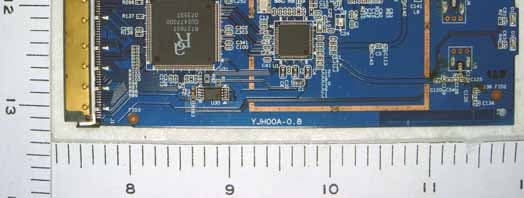
Click to zoom
Application Details
- Equipment Class
- DTS - Digital Transmission System
- Date of Grant
- Dec 19, 2007
- Application Purpose
- Original Equipment
- Date of Application
- Dec 19, 2007
- Equipment Note
- N Wireless Notebook Card
- Frequency Range
- 2422.00000000 - 2452.00000000
- Company
- Belkin International, Inc.
- Country
- United States
Documents & Files
Document Text
Text extracted from the exhibit documents filed with the FCC. Open a document above to read the original.
Users Manual
Belkin Ltd. Express Business Park, Shipton Way Rushden, NN10 6GL, United Kingdom +44 (0) 1933 35 2000 +44 (0) 1933 31 2000 fax Belkin Ltd. 4 Pioneer Avenue Tuggerah Business Park Tuggerah, NSW 2259, Australia +61 (0) 2 4350 4600 +61 (0) 2 4350 4700 fax Belkin B.V. Boeing Avenue 333 1119 PH Schiphol-Rijk, The Netherlands +31 (0) 20 654 7300 +31 (0) 20 654 7349 fax Belkin Tech Support US: 877-736-5771 800-223-5546 ext. 2263 310-898-1100 ext. 2263 UK: 0845 607 77 87 Australia: 1800 235 546 New Zealand: 0800 235 546 Singapore: 65 64857620 Europe: www.belkin.com/support Belkin International, Inc. 501 West Walnut Street Los Angeles, CA 90220-5221, USA 310-898-1100 310-898-1111 fax © 2007 Belkin International, Inc. All rights reserved. All trade names are registered trademarks of respective manufacturers listed. Windows and Windows Vista are either registered trademarks or trademarks of Microsoft Corporation in the United States and/or other countries. P75448-A N Wireless Notebook Card N Wireless Notebook Card v4 Table of Contents 1 Introduction1 Introduction. . . . . . . . . . . . . . . . . . . . . . . . . . . . . . . . . . . . . . . . . . . . . . . . . . . . . . 1 Benefits of a Home Network . . . . . . . . . . . . . . . . . . . . . . . . . . . . . . . . . . . . . .1 Advantages of a Wireless Network . . . . . . . . . . . . . . . . . . . . . . . . . . . . . . . . .1 Placement of your Wireless Networking Hardware forOptimal Performance. . . . . . . . . . . . . . . . . . . . . . . . . . . . . . . . . . . . . . . . .2 2 Overview. . . . . . . . . . . . . . . . . . . . . . . . . . . . . . . . . . . . . . . . . . . . . . . . . . . . . . . . 5 Product Features. . . . . . . . . . . . . . . . . . . . . . . . . . . . . . . . . . . . . . . . . . . . . . .5 Applications and Advantages . . . . . . . . . . . . . . . . . . . . . . . . . . . . . . . . . . . . .6 Product Specifications. . . . . . . . . . . . . . . . . . . . . . . . . . . . . . . . . . . . . . . . . . .6 System Requirements . . . . . . . . . . . . . . . . . . . . . . . . . . . . . . . . . . . . . . . . . .7 Package Contents . . . . . . . . . . . . . . . . . . . . . . . . . . . . . . . . . . . . . . . . . . . . .7 3 Installing and Setting up the Card. . . . . . . . . . . . . . . . . . . . . . . . . . . . . . . . . . . 8 A — Installation Process for Windows Vista . . . . . . . . . . . . . . . . . . . . . . . . .8 B — Installation Process for Windows Operating Systems other than Windows Vista . . . . . . . . . . . . . . . . . . . . . . . . . . . . . . . . . . . . . . . .other than Windows Vista . . . . . . . . . . . . . . . . . . . . . . . . . . . . . . . . . . . . . . . .other than Windows Vista12 C — Configuration. . . . . . . . . . . . . . . . . . . . . . . . . . . . . . . . . . . . . . . . . . . . .15 4 Using the Belkin Wireless Networking Utility . . . . . . . . . . . . . . . . . . . . . . . . 16 Accessing the Belkin Wireless Networking Utility from the Windows System Tray . . . . . . . . . . . . . . . . . . . . . . . . . . . . . . . . . .from the Windows System Tray . . . . . . . . . . . . . . . . . . . . . . . . . . . . . . . . . .from the Windows System Tray16 Network Status . . . . . . . . . . . . . . . . . . . . . . . . . . . . . . . . . . . . . . . . . . . . . . .17 Available Networks . . . . . . . . . . . . . . . . . . . . . . . . . . . . . . . . . . . . . . . . . . . .17 Setting Wireless Network Profiles. . . . . . . . . . . . . . . . . . . . . . . . . . . . . . . . .19 Securing your Wi-Fi Network . . . . . . . . . . . . . . . . . . . . . . . . . . . . . . . . . . . .Securing your Wi-Fi Network . . . . . . . . . . . . . . . . . . . . . . . . . . . . . . . . . . . .Securing your Wi-Fi Network19 Configuring your Card to use Security. . . . . . . . . . . . . . . . . . . . . . . . . . . . .23 5 Troubleshooting . . . . . . . . . . . . . . . . . . . . . . . . . . . . . . . . . . . . . . . . . . . . . . . . . 36 6 Information . . . . . . . . . . . . . . . . . . . . . . . . . . . . . . . . . . . . . . . . . . . . . . . . . . . . . 45 Introduction section 1 1 2 3 4 5 6 Thank you for purchasing the Belkin N Wireless Notebook Card. Now Thank you for purchasing the Belkin N Wireless Notebook Card. Now you can take advantage of this great new technology and gain the freedom to network your home and office computers wirelessly. This Card allows you to connect a notebook computer to your network. Please be sure to read through this User Manual completely, and pay special attention to the section entitled “Placement of your Wireless Networking Hardware for Optimal Performance”. Benefits of a Home Network Your Belkin Home Network will allow you to: • Share one high-speed Internet connection with all the computers in your home • Share resources, such as files, and hard drives among all the connected computers in your home • Share a single printer with the entire family • Share documents, music, video, and digital pictures • Store, retrieve, and copy files from one computer to another • Simultaneously play games online, check Internet email, and chat Advantages of a Wireless NetworkAdvantages of a Wireless Network • Mobility – you’ll no longer need a dedicated “computer room”— now you can work on a networked laptop or desktop computer anywhere within your wireless range • Easy installation – Belkin Easy Installation Wizards make setup simple • Flexibility – set up and access printers, computers, and other networking devices from anywhere in your home • Easy expansion – the wide range of Belkin networking products lets you expand your network to include devices such as printers and gaming consoles • No cabling required – you can spare the expense and hassle of retrofitting Ethernet cabling throughout the home or office • Widespread industry acceptance – choose from a wide range of interoperable networking products Introduction 2 Placement of your Wireless Networking Hardware forPlacement of your Wireless Networking Hardware for Optimal Performance Your wi…
Text truncated - open the document above for the full version.
Users Manual
Using the Belkin Wireless Networking Utility 28 If desired, you may connect manually to a WPS-enabled network. Click on the “Advanced” tab to open the following window: Enter in the encryption key and security method in order to join this network. The following section describes how to connect to a secure network that does not support WPS. Using the Belkin Wireless Networking Utility section 29 1 2 3 4 5 6 The Belkin N Wireless Notebook Card supports the latest WPA security feature as well as the legacy WEP security standard. By default, wireless security is disabled. To enable security, you will first need to determine which standard is used by the router (or access point). (See your wireless router’s or access point’s manual for directions on how to access the security settings.) To access the security settings on your Card, click the “My Connections” tab and point to the connection for which you want to change security settings. Click “Edit” to change settings. Using the Belkin Wireless Networking Utility 30 WEP Setup 64-Bit WEP Encryption 1. Select “WEP” from the “Data Encryption” drop-down menu. 2. After selecting your WEP encryption mode, you can enter your key by typing in the hex key manually. A hex (hexadecimal) key is a combination of numbers and letters from A–F and 0–9. For 64-bit WEP, you need to enter 10 hex keys. For instance: AF0F4BC3D4 = 64-bit WEP key 3. Click “Save” to finish. Encryption in the wireless router (or access point) is now set. Each of your computers on your wireless network will now need to be configured with the same security settings. Installing and Setting up the Card section 15 1 2 3 4 5 6 C. Configuration Using the Belkin Wireless Networking Utility C.1 After restarting your computer, double-click the Belkin Wireless Networking Utility icon on the desktop screen. Note: The Belkin Wireless Networking Utility icon can also be found on the system tray. C.2 The Belkin Wireless Networking Utility screen will appear. C.3 Select a network to which to connect from the “Available Networks” list and click “Connect”. Note: In order to see your available networks, you must be near a working wireless router or access point. Using the Belkin Wireless Networking Utility 16 After successfully installing the Belkin Wireless Networking Utility (WNU), configurations for wireless connection and security are just a few easy clicks away. Accessing the Belkin Wireless Networking Utility from the Windows System Tray To access the WNU, simply place your mouse pointer and right-click over the WNU icon on the Windows task tray. If the icon is not present, click on “Start > Programs > Belkin > Belkin Wireless Utility”. Using the Belkin Wireless Networking Utility section 17 1 2 3 4 5 6 The WNU’s default screen is the “Current Status” tab. The “Current Status” tab displays the current network status and available networks. Network Status This window displays the connectivity status of the current network. It even displays connectivity between the computer and router, and router and Internet. In the event of a connectivity problem, this window can be used to determine the problem’s source (e.g. computer, router, or Internet/modem). Available Networks This window displays the available networks at the current location as well as their SSID, Signal Strength, Security Type, Channel, and Network Type. Lost Wireless Connection If the current wireless connection is lost, a window will pop up and the WNU will attempt to reconnect. Using the Belkin Wireless Networking Utility 18 Connection Failure Other options will appear during attempts to reconnect. To stop connecting, click “Stop” and to reattempt connection, click “Retry”. Network Status and Solution Tips To further understand the current Network Status, click “Open Wireless Utility”. The default screen will be the “Current Status” tab and the “Network Status” section determines which connections are good and/or faulty. Using the Belkin Wireless Networking Utility section 19 1 2 3 4 5 6 The WNU also features a “Solution Tips” section that provides troubleshooting guidelines. Setting Wireless Network Profiles The “My Connections” tab on the WNU allows you to add, edit, and delete connection profiles. It also displays signal strength, security, and network type. Securing your Wi-Fi ® Network If you choose to connect to a secure network, determine the type of security (WPA or WEP*) and use the appropriate field in the dialog box. *Note: Types of security Using the Belkin Wireless Networking Utility 20 Note: When you select a network using encryption, you will first see the simple security screen. Click the “Advanced” button to see other security options (below). Wired Equivalent Privacy (WEP) is a less secure, but more widely adopted wireless security protocol. Depending on the security level (64- or 128-bit), the user will be asked to input a 10- or 26- character hex key. A hex key is a combination of letters, a–f, and numbers, 0–9. Using the Belkin Wireless Networking Utility section 21 1 2 3 4 5 6 Wireless Protected Access (WPA) is the new standard in the wireless security. However, not all wireless cards and adapters support this technology. Please check your wireless adapter’s user manual to check if it supports WPA. Instead of a hex key, WPA uses only passphrases, which are much easier to remember. The following section, intended for the home, home office, and small office user, presents a few different ways to maximize the security of your wireless network. At the time of publication, four Encryption Methods are available: Encryption Methods: Name64-Bit Wired Equivalent Privacy 128-Bit Encryption Wi-Fi Protected Access Wi-Fi Protected Access 2 Acronym64-bit WEP128-bitWPA-TKIP/AESWPA2-AES SecurityGoodBetterBestBest FeaturesStatic keys Static keys Dynamic key encryption and mutual authentication Dynamic key encryption and mutual authentication Encryption keys based on RC4 algorithm (typically 40-bit keys) Added security over 64-bit…
Text truncated - open the document above for the full version.
Users Manual
Using the Belkin Wireless Networking Utility section 31 1 2 3 4 5 6 WARNING:If you are using a wireless client to turn on the security settings in your wireless router (or access point), you will temporarily lose your wireless connection until you activate security on your wireless client. Please record the key prior to applying changes in the wireless router (or access point). If you don’t remember the hex key, your client will be locked out of the wireless router (or access point). 128-Bit WEP Encryption 1. Select “WEP” from the drop-down menu. 2. After selecting your WEP encryption mode, you can enter your key by typing in the hex key manually. A hex (hexadecimal) key is a combination of numbers and letters from A–F and 0–9. For 128-bit WEP, you need to enter 26 hex keys. For instance: C3030FAF0F4BB2C3D44BC3D4E7 = 128-bit WEP key Using the Belkin Wireless Networking Utility 32 3. Click “Save” to finish. Encryption in the wireless router (or access point) is now set. Each of the computers on your wireless network will now need to be configured with the same security settings. WARNING:If you are using a wireless client to turn on the security settings in your wireless router (or access point), you will temporarily lose your wireless connection until you activate security on your wireless client. Please record the key prior to applying changes in the wireless router (or access point). If you don’t remember the hex key, your client will be locked out of the wireless router (or access point). WPA-PSK (no server) Choose this setting if your network does not use a radius server. WPA-PSK (no server) is typically used in home and small office networking. 1. From the “Network Authentication” drop-down menu, select “WPA-PSK (no server)”. 2. Enter your network key. This can be from eight to 63 characters and can be letters, numbers, or symbols. This same key must be used on all of the clients (network cards) that you want to include in your wireless network. Using the Belkin Wireless Networking Utility section 33 1 2 3 4 5 6 3. Click “Save” to finish. You must now set all clients (network cards) to match these settings. Using the Belkin Wireless Networking Utility 34 Wireless Networking Utility Options The “Options” tab on the WNU provides the user the ability to customize his or her WNU settings. Wireless Networking Utility Help The WNU “Help” tab provides users with access to online and telephone support, as well as advanced diagnostic tools. Using the Belkin Wireless Networking Utility section 35 1 2 3 4 5 6 Advanced Diagnostic Tools The “Advanced Diagnostic Tools” section is the central control panel for all the settings of the hardware and software components of the wireless network. It provides an array of tests and connectivity services to ensure optimal network performance. Troubleshooting 36 I can’t connect to the Internet wirelessly. If you are unable to connect to the Internet from a wireless computer, please check the following items: 1. Look at the lights on your wireless router. If you’re using a Belkin Wireless Router, the lights should be as follows: • The “Power” light should be on. • The “Connected” light should be on, and not blinking. • The “WAN” light should be either on or blinking. If your Belkin Wireless Router’s lights have the above characteristics, go to number 2 below. If this is NOT the case, make sure: • The router’s power cord is plugged in. • All cables are connected between the router and the modem. • All the modem’s LEDs are functioning correctly. If not, see your modem’s user manual. • Reboot the router. • Reboot the modem. If you continue to have issues, please contact Belkin Technical Support. If you are not using a Belkin Wireless Router, consult that router manufacturer’s user guide. 2. Open your wireless utility software by clicking on the icon in the system tray at the bottom right-hand corner of the screen. If you’re using a Belkin Wireless Card, the tray icon should look like this (the icon may be red or green): Troubleshooting section 37 1 2 3 4 5 6 3. The exact window that opens will vary depending on the model of wireless card you have; however, any of the utilities should have a list of “Available Networks”. Available networks are wireless networks to which you can connect. If you are using a Belkin 802.11g (G Plus) Router, or Belkin 802.11g (54g) Router, “Belkin54g” is the default name. If you are using a Belkin 802.11b Router, the default name should be “WLAN”. If you are NOT using a Belkin Router, please consult your router manufacturer’s user manual for the default name. The name of your wireless network appears in “Available Networks”. If the correct network name is listed in the “Available Networks” list, please follow the steps below to connect wirelessly: 1.Click on the correct network name in the “Available Networks” list. 2. If the network has security (encryption) enabled, you will need to enter the network key. Click “Connect”. For more information regarding security, see the page entitled: “Securing your Wi-Fi Network” on page 19 of this User Manual. 3. Within a few seconds, the tray icon in the lower right-hand corner of your screen should turn green, indicating a successful connection to the network. If you are still unable to access the Internet after connecting to the wireless network, please contact Belkin Technical Support. Troubleshooting 38 The name of your wireless network DOES NOT appear in the list of “Available Networks”. If the correct network name is not listed, check the SSID settings to see if they match. The SSID is case-sensitive and the spelling on each computer must be exactly the same in order for the Card to connect to the wireless router (or access point). Note: To check the SSID settings or look for an available network, double-click the Signal Indicator icon to bring up the “Wireless Networks” screen. Click “Add” if you do not see the network you are trying to connect to and type in the SSID. For more information…
Text truncated - open the document above for the full version.
Cover Letter(s)
Request for non-disclosure RF_501_02 Belkin International Inc. 501 West Walnut Street, Compton, CA 90220 USA To: Telefication B.V. Attn: Dept. FCC TCB Edisonstraat 12A 6902 PK ZEVENAAR The Netherlands Subject: Request for non-disclosure (FCC ID: K7SF5D8013D) Reference number: F5D8013v4 Date: 2007/11/27 Dear FCC TCB, Persuant to 47 CFR Section 0.459(a) & (b), Belkin International Inc. hereby requests non-disclosure and confidential treatment of the following materials submitted in support of FCC certification application for FCC ID: ( K7SF5D8013D) a. Schematic diagrams b. Operational description c. Block Diagram Above materials contain secrets, proprietary and technical information, which would customarily be quarded from competitors under 47 CFR, section 0.457(d)(2). Disclosure or publication or any portion of this company confidential material to other parties could cause substantial competitive harm and provide unjustified benefits for competitors. Belkin International Inc. understands that pursuant to 47 CFR section 0.457(d)(1)(ii) disclosure of the applicant and all accompanying documentation will not be made before the date of the grant. Name/ Title: Marc Matejka/ Engineering Services Manager Signature:
Cover Letter(s)
RF_160, Issue 01 Declaration of Authorization We Name: Belkin International Inc. Address: 501 West Walnut Street, City: Compton, CA 90220 Country: USA Declare that: Name: Exclusive Certification Corporation Address: 4F-2, No.28 Lang 78, Xing-Ai Rd. City: Nei-hu Taipei City 114 Country Taiwan, R.O.C. is authorized to apply for Certification of the following product(s): Product Description: N Wireless Notebook Card Model: F5D8013v4 Brand: Belkin on our behalf. Date: 2007/ 11/ 27 City: Compton Name: Marc Matejka Signature
External Photos
Exclusive Certification Corp. Tel:886-2-2792-3366 Fax:886-2-2792-1100 Issued date: Nov. 22, 2007 1 of 3 FCC Test Report: FI07110604-A Appendix A. Photographs of EUT 07110604-A 07110604-A
ID Label/Location Info
Label & Location
Internal Photos
Exclusive Certification Corp. Tel:886-2-2792-3366 Fax:886-2-2792-1100 Issued date: Nov. 22, 2007 2 of 3 FCC Test Report: FI07110604-A 07110604-A Exclusive Certification Corp. Tel:886-2-2792-3366 Fax:886-2-2792-1100 Issued date: Nov. 22, 2007 3 of 3 FCC Test Report: FI07110604-A 07110604-A 07110604-A
RF Exposure Info
Report No:07C081R-HPUSP09V01 Page: 1 of 24 Version:1.0 SAR Test Report Product Name : N Wireless Notebook Card Model No. : F5D8013v4 Applicant :Belkin International Inc. Address :501 West Walnut Street, Compton CA 90220, U.S.A. Date of Receipt:2007/11/30 Issued Date :2007/12/17 Report No. :07C081R-HPUSP09V01 The test results relate only to the samples tested. The test report shall not be reproduced except in full without the written approval of QuieTek Corporation. Report No:07C081R-HPUSP09V01 Page: 2 of 24 Version:1.0 Test Report Certification Issued Date: 2007/12/17 Report No.:07C081R-HPUSP09V01 Product Name : N Wireless Notebook Card Applicant : Belkin International Inc. Address : 501 West Walnut Street, Compton CA 90220, U.S.A. Manufacturer : SerComm Corp. Trade Name : Belkin Model No. : F5D8013v4 Applicable Standard : FCC Oet65 Supplement C June 2001 IEEE Std. 1528-2003 47CFR § 2.1093 Test Result : Max. SAR Measurement (1g) 802.11b: 0.700 W/kg 802.11g: 0.549 W/kg 802.11n, 20MHz: 0.423 W/kg 802.11n, 40MHz: 0.266 W/kg The test results relate only to the samples tested. The test report shall not be reproduced except in full without the written approval of QuieTek Corporation. Documented By : (Engineering Adm. Assistant / Nicole Huang) Tested By : (Engineer / Jung Chang) Approved By : (Deputy Manager /Vincent Lin) Report No:07C081R-HPUSP09V01 Page: 3 of 24 Version:1.0 TABLE OF CONTENTS Description Page 1. General Information ................................................................................ 5 1.1 EUT Description ............................................................................................................5 1.2 Test Environment ...........................................................................................................5 2. SAR Measurement System .................................................................... 6 2.1 ALSAS-10U System Description .................................................................................. 6 2.1.1 Applications ................................................................................................................ 6 2.1.2 Area Scans................................................................................................................... 6 2.1.3 Zoom Scan (Cube Scan Averaging)............................................................................ 7 2.1.4 ALSAS-10U Interpolation and Extrapolation Uncertainty......................................... 7 2.2 Isotropic E-Field Probe .................................................................................................. 7 2.2.1 Isotropic E-Field Probe Specification ......................................................................... 9 2.3 Boundary Detection Unit and Probe Mounting Device ................................................. 9 2.4 Daq-Paq (Analog to Digital Electronics) ..................................................................... 10 2.5 Axis Articulated Robot ................................................................................................ 10 2.6 ALSAS Universal Workstation.................................................................................... 11 2.7 Universal Device Positioner......................................................................................... 11 2.8 Phantom Types............................................................................................................. 11 2.8.1 APREL SAM Phantoms ........................................................................................... 12 2.8.2 APREL Laboratories Universal Phantom ................................................................. 12 3. Tissue Simulating Liquid ....................................................................... 13 3.1 The composition of the tissue simulating liquid .......................................................... 13 3.2 Tissue Calibration Result ............................................................................................. 13 3.3 Tissue Dielectric Parameters for Head and Body Phantoms ....................................... 14 4. SAR Measurement Procedure.............................................................. 15 4.1 SAR System Validation................................................................................................ 15 4.1.1 Validation Dipoles..................................................................................................... 15 4.1.2 Validation Result ....................................................................................................... 15 4.2 SAR Measurement Procedure ...................................................................................... 16 5. SAR Exposure Limits............................................................................ 17 6. Test Equipment List .............................................................................. 18 7. Measurement Uncertainty..................................................................... 19 8. Test Results .......................................................................................... 20 Report No:07C081R-HPUSP09V01 Page: 4 of 24 Version:1.0 8.1 SAR Test Results Summary ......................................................................................... 20 Appendix ............................................................................................................................ 24 Appendix A. SAR System Validation Data Appendix B. SAR measurement Data Appendix C. Test Setup Photographs & EUT Photographs Appendix D. Probe Calibration Data Appendix E. Dipole Calibration Data Report No:07C081R-HPUSP09V01 Page: 5 of 24 Version:1.0 1. General Information 1.1 EUT Description Product Name N Wireless Notebook Card Model No. F5D8013v4 FCC ID K7SF5D8013D TX Frequency 2412 ~ 2462 MHz RX Frequency 2412 ~ 2462 MHz Antenna Type Fixed Device Category Portable RF Exposure Environment Uncontrolled Max. Output Pow…
Text truncated - open the document above for the full version.
RF Exposure Info
Appendix - Dipole Calibration Validation Dipole 2450MHz P/N: ALS-D-2450-S-2 S/N: QTK-319
Test Report
Exclusive Certification Corp. Tel:886-2-2792-3366 Fax:886-2-2792-1100 Issued date: Nov. 22, 2007 1 of 91 FCC Test Report: FI07110604-A FCC TEST REPORT according to FCC Rules and Regulations Part 15 Subpart C Applicant : Belkin International Inc. Address : 501 West Walnut Street, Compton CA 90220 Equipment : N Wireless Notebook Card Model No. : F5D8013v4 FCC ID : K7SF5D8013D Trade Name : Belkin Laboratory Accreditation The test result refers exclusively to the test presented test model / sample., Without written approval of Exclusive Certification Corp. the test report shall not be reproduced except in full. The EUT is also considered as a kind of computer peripheral, because the connection to computer is necessary for typical use. It has been verified to comply with the requirements of FCC Part 15, Subpart B, Class B (DoC). The test report has been issued separately. Exclusive Certification Corp. Tel:886-2-2792-3366 Fax:886-2-2792-1100 Issued date: Nov. 22, 2007 2 of 91 FCC Test Report: FI07110604-A Contents 1. Report of Measurements and Examinations .................................................................................... 5 1.1 List of Measurements and Examinations ................................................................................... 5 2. Test Configuration of Equipment under Test ................................................................................... 6 2.1 Feature of Equipment under Test............................................................................................... 6 2.2 RF Specifications ....................................................................................................................... 6 2.3 Test Mode & Test Software ........................................................................................................ 7 2.4 Description of Test System......................................................................................................... 7 2.5 Connection Diagram of Test System.......................................................................................... 7 2.6 General Information of Test........................................................................................................ 8 2.7 Measurement Uncertainty .......................................................................................................... 8 2.8 History of this test report ............................................................................................................ 9 3. Antenna Requirements.....................................................................................................................10 3.1 Standard Applicable .................................................................................................................10 3.2 Antenna Construction and Directional Gain............................................................................. 10 4. Test of Conducted Emission............................................................................................................ 11 4.1 Test Limit .................................................................................................................................. 11 4.2 Test Procedures ....................................................................................................................... 11 4.3 Typical Test Setup ....................................................................................................................12 4.4 Measurement equipment ......................................................................................................... 12 4.5 Test Result and …
Text truncated - open the document above for the full version.
Contact Information
Applicant
Jay TU(Manager, Regulatory Compliance)
Technical Contact
Exclusive Certfication CorporationDelia Feng
4F-2, No. 28, Lane 78, Xing-ai Rd. · Nei-hu, Taipei City · Taiwan
Test Firm
Cerpass Technology CorporationAnson Chou
Technical Specifications
| # | Rule Parts | Frequency Range | Power Output |
|---|---|---|---|
| 2 | 15C | 2.42 GHz - 2.45 GHz | 36.90 mW |
Other Applications from Belkin International, Inc.
K7S-CAB029
Aug 11, 2026SureFind Loop Cable Tag
Equipment Class
DTS - Digital Transmission SystemK7SBPD024
Aug 10, 2026UltraCharge Pro Slim Magnetic Power Bank 5K with BoostSolid Cell
Equipment Class
DCD - Part 15 Low Power Transmitter Below 1705 kHzK7SMMA016
Jul 22, 2026SureFind Wallet Stand
Equipment Class
DTS - Digital Transmission SystemK7SMMA015
Jul 10, 2026SureFind
Equipment Class
DTS - Digital Transmission SystemK7SAUC018
Jun 17, 2026SoundForm Dot ANC Earbuds, SoundForm Dot Earbuds
Equipment Class
DTS - Digital Transmission System