K7SF8U0500BLUETOOTH FOLDABLE KEYBOARD
Belkin International, Inc.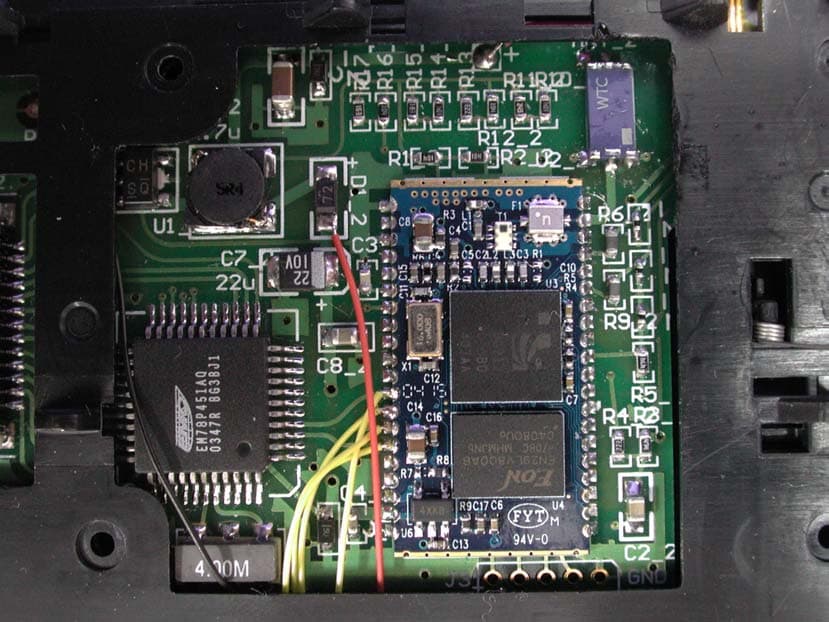
Click to zoom
Application Details
- Equipment Class
- DTS - Digital Transmission System
- Date of Grant
- Jul 15, 2004
- Application Purpose
- Original Equipment
- Date of Application
- Jul 15, 2004
- Equipment Note
- BLUETOOTH FOLDABLE KEYBOARD
- Frequency Range
- 2402.00000000 - 2480.00000000
- Company
- Belkin International, Inc.
- Country
- United States
Documents & Files
Document Text
Text extracted from the exhibit documents filed with the FCC. Open a document above to read the original.
Users Manual
User Manual Foldable Keyboard Issue Date: Apr. 26, 2004 Foldable Keyboard User Manual Page 1 Index Introduction Foldable Keyboard Specification .......................... 2 Open/Operating/Close Keyboard Open Foldable keyboard ....................................... 3 Use Foldable keyboard on laps ............................. 3 Close Foldable keyboard....................................... 4 Install the Keyboard Driver Install the Keyboard Driver ................................... 6 Customize your keyboard Configure the Keyboard........................................ 10 Combination Keys................................................. 12 Assign Hotkeys ..................................................... 11 Frequently Asked Questions........................... 15 Technical Support................................................. 16 Foldable Keyboard User Manual Page 2 Introduction Belkin Bluetooth Foldable Keyboard is a 2 fold type with PDA stand. It connects with PDA via wireless Bluetooth. Connection distance is up to 7M. Hope it can bring you convenience of typing. Foldable Keyboard Specification Opened: 300*105*13.5 mm Closed: 150*105*19.7 mm Weight: 175 grams Temperature Endurance: 65 。 C Power Consumption: Working: 10mA Sleeping: 1300μA You can get many benefits with the Foldable Keyboard : Wireless connect with your Pocket PC device. Fast type text into your Pocket PC device. Quickly access your favorite Pocket PC applications. Convenient Portability. Foldable Keyboard User Manual Page 3 Open Keyboard Open Foldable Keyboard Step 1. Open the keyboard by pressing the button. [ Photo (2) ] Step 2. Pull the PDA holder. [ Photo (3) ] Using Keyboard on lap Push Lock Pin to “Lock”, then you can use this foldable keyboard on your laps. Just like below photo. Foldable Keyboard User Manual Page 4 Close Keyboard Close Foldable Keyboard Step 1. Fold up the PDA Holder. [ Photo (1) ] Step 2. Push the holder back inside Keyboard and fold up Keyboard. [ Photo (2) ] Foldable Keyboard User Manual Page 5 Warning Before closing keyboard, please remember to pull Lock Pin to “ ” position. Or, keyboard will be broken. Foldable Keyboard User Manual Page 6 Install and Remove the Keyboard Driver Install the Keyboard Driver Please complete the following steps: 1).Check the part “ Before Installation “ first 2) Install the driver and then launch the software 3) Connect the keyboard to Palm device. Before Installation Please disable any other keyboard applications that you have installed on your Palm device to prevent conflicts Make sure there is at least 100 Kb of free memory to install the driver. Step1: Install the Driver 1. Connect the Palm device to a computer through the cradle or cable. 2. Establish connection between the computer and Palm device by using Palm HotSync. Foldable Keyboard User Manual Page 7 3. Insert the CD Disk into the CD-ROM/ Floppy drive. 4. Tap twice on the My Computer icon , and then choose your CD-ROM drive . 5. Choose the directory which contains the just language version of driver that you want to install. 6. Execute Setup.exe inside the directory. Please follow the on-screen procedure step by step. Step 2: Launch the Software 1. Turn on the Palm PDA. 2. Tap , see all applications . Foldable Keyboard User Manual Page 8 3. Tap theicon, and add a check mark in the check box in front of the ON. Step 3: Connect Keyboard to Palm Device 1. Now PDA will inquiry Bluetooth Keyboard. Foldable Keyboard User Manual Page 9 2. At first time, you need to key-in Bluetooth Passkey (default value: 0000.) by Palm graffiti. 3. Put the Palm PDA on the Holder of keyboard. Foldable Keyboard User Manual Page 10 Disconnect the Keyboard Tap the connect/disconnect Bottom, Keyboard has been disconnected. You will see orange light sparkle. Customize Your Keyboard Configuring the Keyboard You can have several kinds of typing feeling on your foldable Keyboard by customizing your keyboard: 1. On your Palm PDA, tap the BT KB icon and launch it. Foldable Keyboard User Manual Page 11 2. Select the Setting tab. 3. Tap t he Enable Sound check box to hear a click every time you press a key. Select the Delay until repeat indicator to lengthen or shorten the time the keyboard waits before repeating a pressed key. The right side of the scale specifies a shorter delay time. Select the Keyboard repeat rate indicator to speed up or slow down the rate at which the keyboard repeatedly displays a pressed key. The right side of the scale specifies a faster repeat rate. Tap in the Test string here: field to enter characters from the keyboard. Foldable Keyboard User Manual Page 12 Combination Keys The keys on the Foldable Keyboard perform additional functions when pressed in the combinations indicated in below table. For US/UK/Spanish/Chinese/Brazil/Italian versions Keystroke Combination Function Shift ()+ letter key Capital letter Shift () + number key Upper left character on key Fn+"1" Main Menu Fn+"2" Function Menu for individual program Fn+"3" Find Fn+"4" Date Book Fn+"5" Address book Fn+"6" To Do List Fn+"7" Memo Pad Fn+"8" Calculator Fn+"9" Preference setup Fn+";" Open new item Fn+" " Scroll up Foldable Keyboard User Manual Page 13 Fn+" " Scroll down Fn+" " Show item perenference setting Fn+" " Show detail information for items Fn+"Delete" Delete selected item Fn+"" Cancel this selection Assign Cmdkeys Through hotkey combinations Cmd+1 to Cmd +9, you can launch a variety of applications with just a few keystrokes by following the procedure below 1. On your Palm device, tap Darfon BT Keyboard application and launch it. 2. Select the Cmdkeys tab. 3. In the list, select the application you want to assign to the Foldable Keyboard User Manual Page 14 Cmdkey combination. Then, you have finished the assignment of Cmdkeys. Frequently Asked Questions A) How do I uninstall the driver? In Main Menu, select > Delete Select Darfon BT Keyboard from the list of applications. Then press the Delete button the Palm for several seconds s…
Text truncated - open the document above for the full version.
External Photos
Report No.: 046L070FI Page : 1 of 6 Version:1.0 Attachment 2 : EUT Detailed Photographs (1) EUT Photo (2) EUT Photo Report No.: 046L070FI Page : 2 of 6 Version:1.0 (3) EUT Photo (4) EUT Photo
ID Label/Location Info
Belkin Corporation 501 W. Walnut, Compton California 90220 TEL: 03-329-4141#3348 FCC ID.: K7SF8u0500 501 W. Walnut, Compton Califormia 90220 TEL: 03-329-4141#33348 FCC ID AND DoC Label The FCC ID and DoC Label will be placed on the equipment as shown in the photograph below. FCC ID Bluetooth Foldable Keyboard Model No.: G970,F8u0500 F F C C C C I I D D : : K K 7 7 S S F F 8 8 u u 0 0 5 5 0 0 0 0 This device complies with Part 15 of the FCC Rules. Operation is subject to the following two conditions: (1) this device may not cause harmful interference and (2) this device must accept any interference received, including interference that may cause undesired operation. S/N: Made in Taiwan FCC DoC: Bluetooth Foldable Keyboard Model No.: G970,F8u0500 TESTED TO COMPLY WITH FCC STANDARDS FOR HOME OR OFFICE USE S/N: Made in Taiwan
ID Label/Location Info
Belkin Corporation 501 W. Walnut, Compton California 90220 TEL: 03-329-4141#3348 FCC ID.: K7SF8u0500 501 W. Walnut, Compton Califormia 90220 TEL: 03-329-4141#33348 FCC ID AND DoC Label The FCC ID and DoC Label will be placed on the equipment as shown in the photograph below. FCC ID Bluetooth Foldable Keyboard Model No.: G970,F8u0500 F F C C C C I I D D : : K K 7 7 S S F F 8 8 u u 0 0 5 5 0 0 0 0 This device complies with Part 15 of the FCC Rules. Operation is subject to the following two conditions: (1) this device may not cause harmful interference and (2) this device must accept any interference received, including interference that may cause undesired operation. S/N: Made in Taiwan FCC DoC: Bluetooth Foldable Keyboard Model No.: G970,F8u0500 TESTED TO COMPLY WITH FCC STANDARDS FOR HOME OR OFFICE USE S/N: Made in Taiwan
Internal Photos
Report No.: 046L070FI Page : 3 of 6 Version:1.0 (5) EUT Photo (6) EUT Photo Report No.: 046L070FI Page : 4 of 6 Version:1.0 (7) EUT Photo (8) EUT Photo Report No.: 046L070FI Page : 5 of 6 Version:1.0 (9) EUT Photo (10) EUT Photo
Operational Description
1.2. Operational Description The EUT is an Bluetooth Foldable Keyboard with 79 channels. This device provides wireless technology that revolutionizes personal connectivity. It is the solution for the seamless integration of Bluetooth technology into personal computer enabling short-range wireless connections between desktop/laptop computers or PDA, Bluetooth-enabled peripherals, portable handheld devices.
Test Report
Report No. 046L070FI Page: 1 of 35 Version:1.0 Test Report Product Name : Bluetooth Foldable Keyboard Model No. : G970, F8u0500 FCC ID. : K7SF8u0500 Applicant : Belkin Corporation Address : 501 W. Walnut, Compton California 90220 Date of Receipt : May 14,2004 Date of Test : Jun. 07,2004 Report No. : 046L070FI The Test Results relate only to the samples tested. The test report shall not be reproduced except in full without the written approval of QuieTek Corporation. This report must not be used to claim product endorsement by NVLAP any agency of the U.S. Government Report No. 046L070FI Page: 2 of 35 Version:1.0 Test Report Certification Test Date : Jun. 07,2004 Report No. : 046L070FI Product Name : Bluetooth Foldable Keyboard Applicant : Belkin Corporation Address : 501 W. Walnut, Compton California 90220 Manufacturer : Darfon Electronics Corp Model No. : G970, F8u0500 FCC ID. : K7SF8u0500 Rated Voltage : DC 3V Trade Name : Belkin Measurement Standard : FCC CFR Title 47 Part 15 Subpart B: 2003, CISPR 22:1997 RSS210 Measurement Procedure : ANSI C63.4: 2001 Test Result : Complied The Test Results relate only to the samples tested. The test report shall not be reproduced except in full without the written approval of QuieTek Corporation. This report must not be used to claim product endorsement by NVLAP any agency of the U.S. Government Documented By : ( Rebaca CHi ) Tested By : ( Tom Hsieh ) Approved By : ( Gene Chang ) Accredited by NIST (NVLAP) NVLAP Lab Code: 200533-0 Report No. 046L070FI Page: 3 of 35 Version:1.0 TABLE OF CONTENTS Description Page 1. GENERAL INFORMATION ...............................................................................................................4 1.1. EUT Description......................................................................................................................................4 1.2. Operational Description...........................................................................................................................5 1.3. Tested System Details..............................................................................................................................6 1.4. Configuration of Tested System ..............................................................................................................6 1.5. EUT Exercise Software ...........................................................................................................................6 1.6. Test Facility .............................................................................................................................................7 2. CONDUCTED EMISSION ..................................................................................................................8 2.1. Test Equipment ........................................................................................................................................8 2.2. Test Setup ................................................................................................................................................8 2.3. Limits.......................................................................................................................................................8 2.4. Test Procedure .........................................................................................................................................9 2.5. Uncertainty ..............................................................................................................................................9 2.6. Test Result of Conducted Emission .......................................................................................................10 3. PEAK POWER OUTPUT .................................................................................................................. 11 3.1. Test Equipment ......................................................................................................................................11 3.2. Test Setup ..............................................................................................................................................11 3.3. Limit ......................................................................................................................................................11 3.4. Uncertainty ............................................................................................................................................11 3.5. Test Result of Peak Power Output .........................................................................................................12 4. RADIATED EMISSION .....................................................................................................................13 4.1. Test Equipment ......................................................................................................................................13 4.2. Test Setup ..............................................................................................................................................13 4.3. Limits.....................................................................................................................................................14 4.4. Test Procedure .......................................................................................................................................14 4.5. Uncertainty ............................................................................................................................................14 4.6. Test Result of Radiated Emission ..........................................................................................................15 5. BAND EDGE .......................................................................................................................................21 5.1. Test Equipment ...........................................................................................…
Text truncated - open the document above for the full version.
Test Setup Photos
Report No.: 046L070FI Page : 1 of 2 Version:1.0 Attachment 1: EUT Test Setup Photographs Front View of Radiated Test Back View of Radiated Test Report No.: 046L070FI Page : 2 of 2 Version:1.0 Front View of Radiated Test (Horn) Back View of Radiated Test (Horn)
Contact Information
Applicant
Jay TU(Manager, Regulatory Compliance)
Test Firm
DEKRA Testing and Certification Co., Ltd.Sky Hsu
Technical Specifications
| # | Rule Parts | Frequency Range | Power Output |
|---|---|---|---|
| 1 | 15C | 2.40 GHz - 2.48 GHz | 316.00 µW |
Other Applications from Belkin International, Inc.
K7S-CAB029
Aug 11, 2026SureFind Loop Cable Tag
Equipment Class
DTS - Digital Transmission SystemK7SBPD024
Aug 10, 2026UltraCharge Pro Slim Magnetic Power Bank 5K with BoostSolid Cell
Equipment Class
DCD - Part 15 Low Power Transmitter Below 1705 kHzK7SMMA016
Jul 22, 2026SureFind Wallet Stand
Equipment Class
DTS - Digital Transmission SystemK7SMMA015
Jul 10, 2026SureFind
Equipment Class
DTS - Digital Transmission SystemK7SAUC018
Jun 17, 2026SoundForm Dot ANC Earbuds, SoundForm Dot Earbuds
Equipment Class
DTS - Digital Transmission System