K7SF8Z061TuneFM for iPod nano - Model F8Z061
Belkin International, Inc.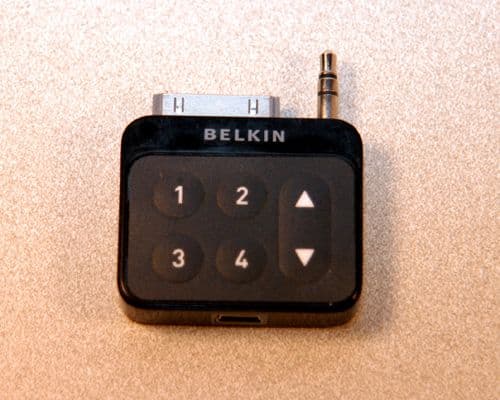
Click to zoom
Application Details
- Equipment Class
- DXT - Part 15 Low Power Transceiver, Rx Verified
- Date of Grant
- Feb 23, 2006
- Application Purpose
- Original Equipment
- Date of Application
- Feb 23, 2006
- Equipment Note
- TuneFM for iPod nano - Model F8Z061
- Frequency Range
- 88.10000000 - 107.90000000
- Company
- Belkin International, Inc.
- Country
- United States
Documents & Files
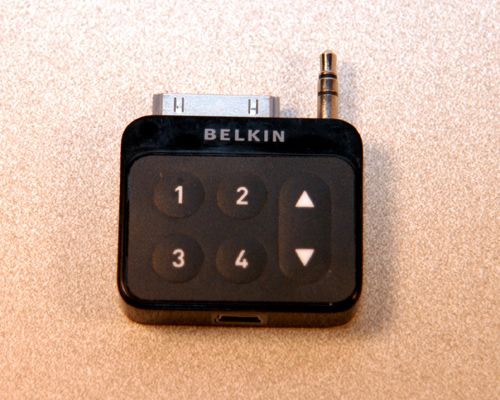
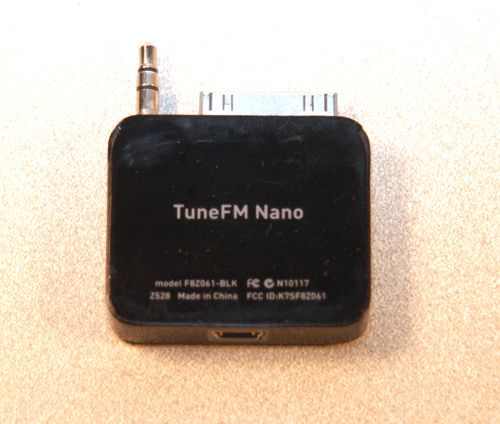
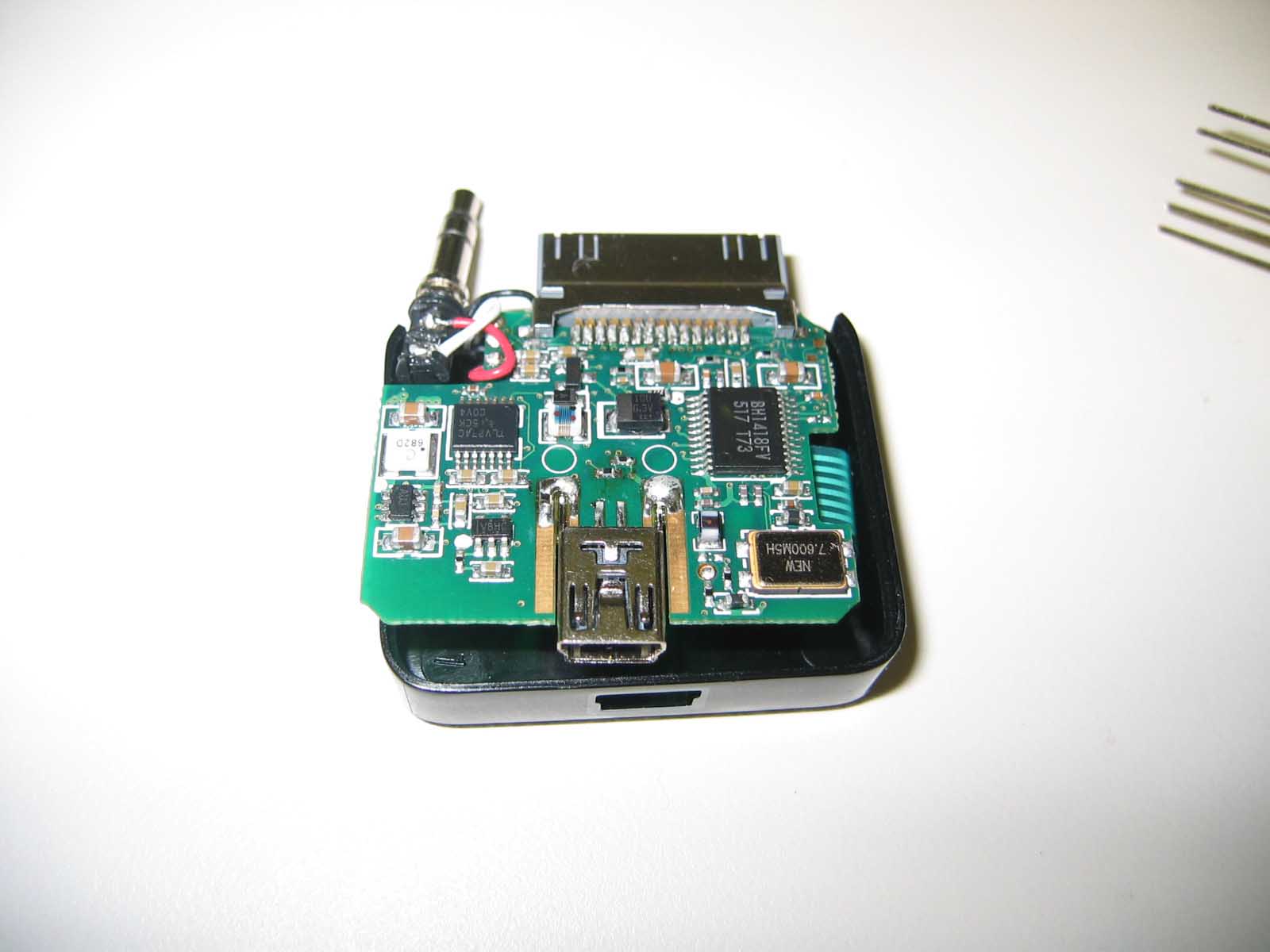
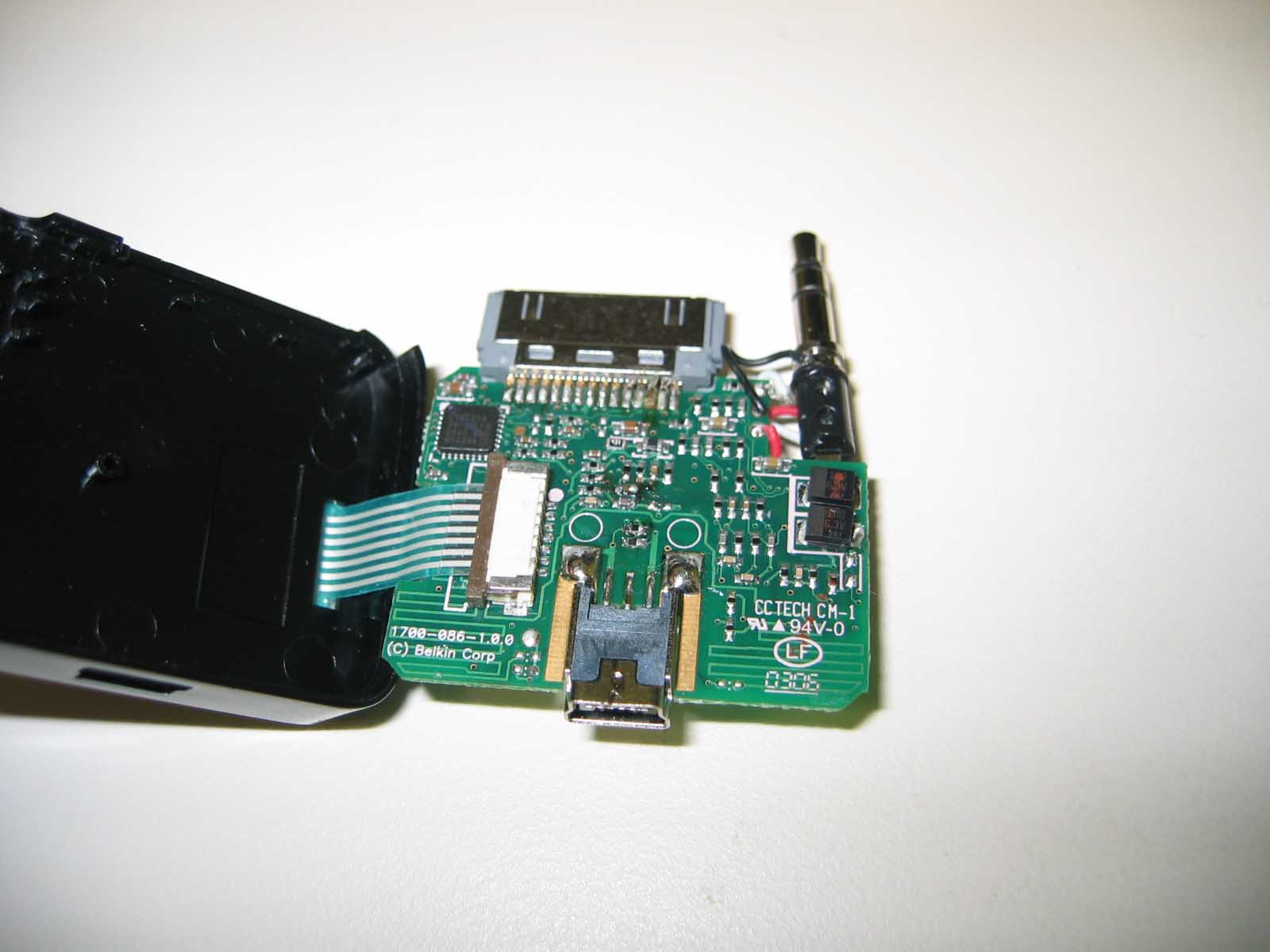
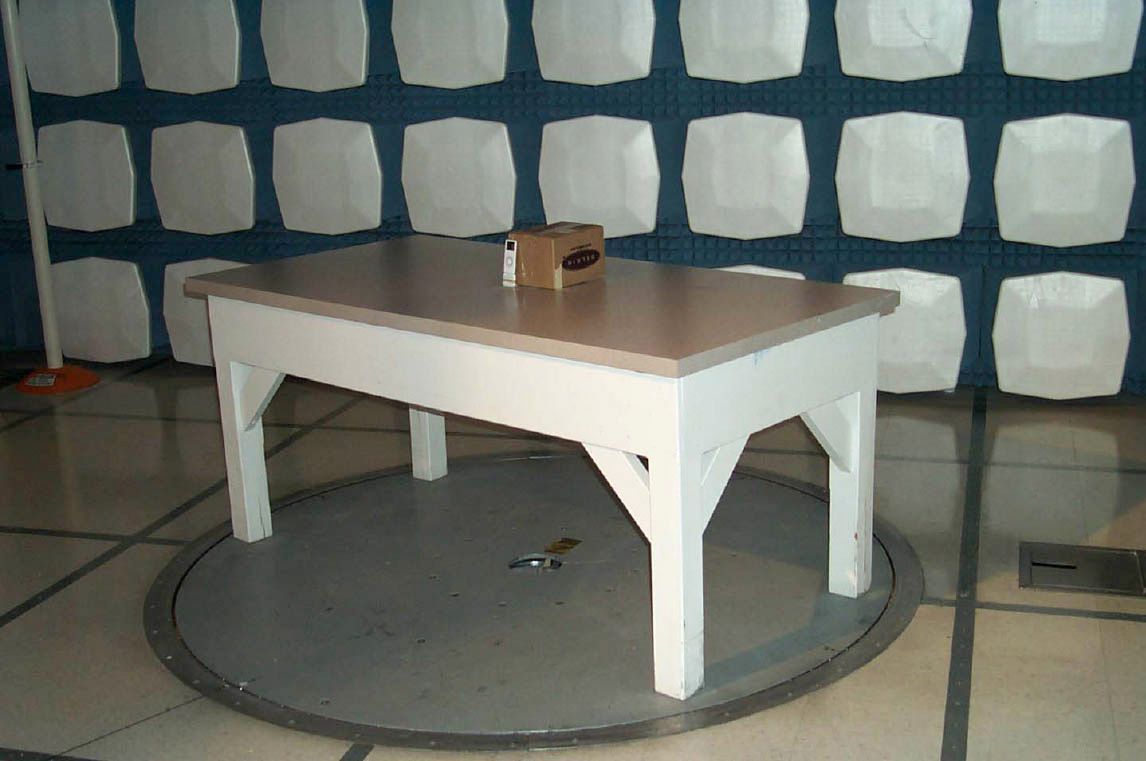
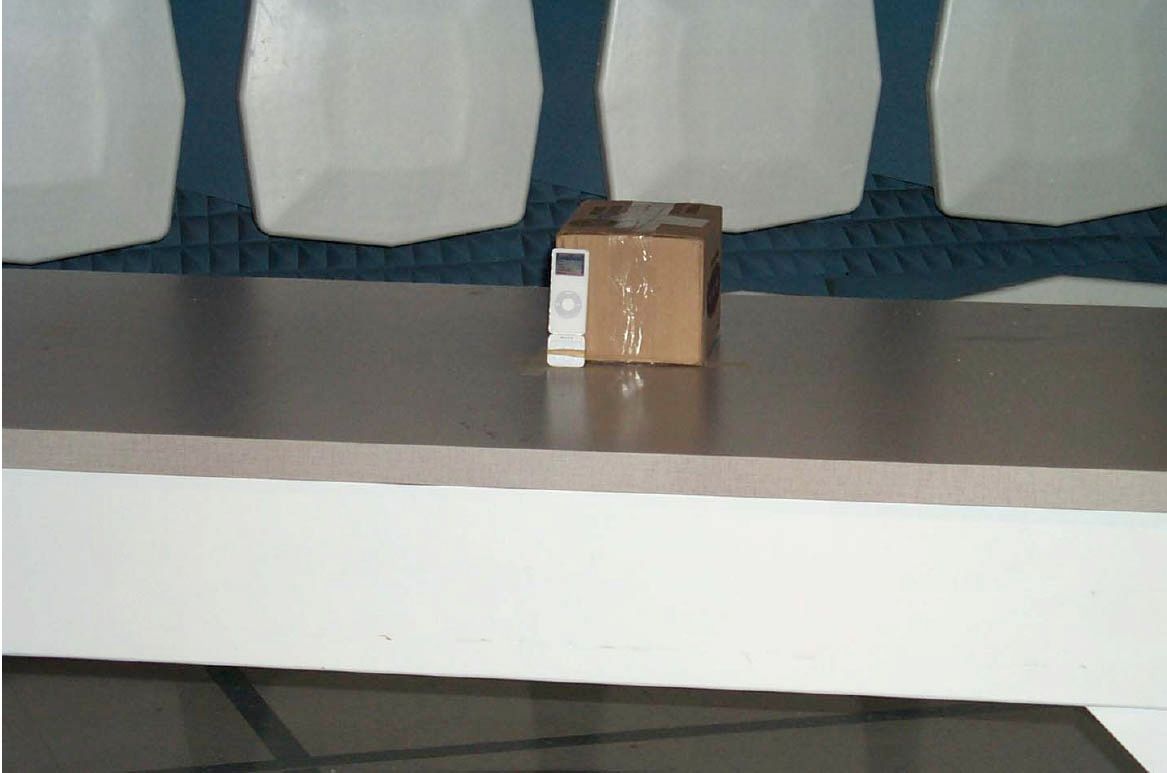
Document Text
Text extracted from the exhibit documents filed with the FCC. Open a document above to read the original.
Users Manual
Introduction User Manual TuneFM ™ for iPod ® nano Introduction | 01 Introduction Congratulations and thank you for purchasing the innovative TuneFM from Belkin. This product is designed to play your iPod nano through your car, home, or portable stereo. Please review this User Manual carefully so that you can be sure to get the most from your iPod nano, virtually anywhere you go. | 02 Car Setup Instructions Car Setup Instructions 1. Turn down your car stereo’s volume. 2. Connect the Belkin TuneFM to your iPod nano (at the bottom of the nano). 3. Connect the included Auto Power Cord to your cigarette-lighter outlet in your car and to the bottom of your TuneFM for optional powering and charging in the car. The TuneFM transmitter function automatically turns on when the iPod is connected. It automatically turns off when the iPod is removed. 1. Tune your stereo frequency to a channel with a weak broadcast signal. The ideal channel is one that is not broadcasting a radio program, or is doing so weakly. 2. Insert the TuneFM into your iPod nano. The iPod backlight will turn on and the current transmitter frequency will be displayed on the iPod screen. 3. Press the ▲ or ▼ button on the TuneFM to select the transmission frequency chosen in step 1. The frequency will be visible on the iPod nano’s screen. Pressing and holding either button will provide faster tuning. 4. After displaying the current frequency for five seconds, the iPod screen will return to the iPod Main Menu. This happens whenever you make changes to the TuneFM’s settings. All settings—including transmission frequency and stereo/mono control settings—are permanently stored in memory at this time. Note: iPod playback will pause momentarily when entering and exiting the TuneFM control menu. Playback will quickly resume. Using the TuneFM Transmitter Using the TuneFM Transmitter | 03 | 04 5. Adjust the iPod nano volume to about three-fourths of the maximum. Adjust the volume of your FM radio to the desired listening level. NOTE: We recommend that you remove the TuneFM from the iPod when not in use. Frequency display Frequency selector Memory station display Memory stations 1 – 4 Using the TuneFM Transmitter Using the TuneFM Transmitter ��������������������� ������������������������������������������������������������������������� ������������������������� ��������������������� ������������������������� ��������������������� ������������������������������������������������������������������������� ������������������������� ��������������������� ������������������������� 1. To store a preset, select the desired frequency using ▲ or ▼ buttons. Press and hold the desired preset button (1, 2, 3, or 4) for two seconds. An audible beep sounds in the transmitted audio when the new frequency is programmed*. The iPod nano display reflects the change when the memory button is released by showing which memory button was pressed followed by the frequency saved in that memory position. * Do NOT remove the TuneFM from the iPod nano until it returns to the Main Menu screen or new settings may not be saved. 2. To transmit over one of your preset frequencies, momentarily press “1”, “2”, ”3”, or “4”. This will instantly tune the FM transmitter to the frequency stored in that preset. Storing and Using Presets | 05 Storing and Using Presets | 06Stereo/Mono Selection Stereo/Mono Selection ���������������������������������������������������������������������������������� ������������������������������������������������������� ������������������������� ���������������������������������������������������������������������������������� ������������������������������������������������������� ������������������������� Transmitting music in stereo generally gives you the highest-quality listening experience. However, you may get better FM signal reception by changing the transmission to mono. The TuneFM transmits in stereo mode by default. We suggest that you switch from stereo to mono transmission only if your car stereo is NOT receiving a clear signal from the TuneFM, or if you are listening to mono recordings such as audio books. You can access the stereo/mono transmission menu by pressing the “1” and “3” buttons simultaneously for two seconds. The TuneFM then displays the current mode setting, which is represented by “MONO” or “ST”. You can change the mode by pressing the up or down arrows. Either arrow will change between the two modes. The new setting takes effect immediately. To accept your mode selection, press one of the memory preset buttons, or simply wait for the iPod screen to return to the iPod Main Menu. Issue – The audio is distorted. Solution 1 Decrease the volume of your iPod nano until you no longer hear distortion. Keeping the iPod nano volume level at or below three-fourths of the maximum should prevent audio distortion. Solution 2 Tune your car stereo and the TuneFM to a different frequency. Issue – I am unable to get clear FM reception. Solution 1 Tune your car stereo and the TuneFM to a different frequency. Solution 2 In some instances, lowering the car antenna (available in some cars) improves the clarity of the TuneFM’s signal. Solution 3 Change the stereo/mono setting to mono mode. This may improve signal reception, but the audio will be monaural instead of stereo. Solution 4 If used indoors, attach or reposition the antennae on the stereo receiver. Troubleshooting | 07 Troubleshooting | 08 Issue – iPod playback stays paused after I’ve changed a setting on the TuneFM. Solution Simply press the “Play/Pause” button on your iPod nano to resume playback. Issue – The TuneFM does not appear to be saving my settings. Solution Be sure NOT to remove the iPod from the cradle or remove power to the TuneFM while adjusting the TuneFM settings. Your settings are stored in memory when the iPod screen returns to the iPod Main Menu. Issue – When I attach a USB cable from my computer to the TuneFM, my computer does not recognize that the iPod nano is attac…
Text truncated - open the document above for the full version.
Users Manual
User Manual TuneFM ™ for iPod ® nano Introduction | 01 Introduction Congratulations and thank you for purchasing the innovative TuneFM from Belkin. This product is designed to play your iPod nano through your car, home, or portable stereo. Please review this User Manual carefully so that you can be sure to get the most from your iPod nano, virtually anywhere you go. | 02 Car Setup Instructions Car Setup Instructions 1. Turn down your car stereo’s volume. 2. Connect the Belkin TuneFM to your iPod nano (at the bottom of the nano). 3. Connect the included Auto Power Cord to your cigarette-lighter outlet in your car and to the bottom of your TuneFM for optional powering and charging in the car. The TuneFM transmitter function automatically turns on when the iPod is connected. It automatically turns off when the iPod is removed. 1. Tune your stereo frequency to a channel with a weak broadcast signal. The ideal channel is one that is not broadcasting a radio program, or is doing so weakly. 2. Insert the TuneFM into your iPod nano. The iPod backlight will turn on and the current transmitter frequency will be displayed on the iPod screen. 3. Press the ▲ or ▼ button on the TuneFM to select the transmission frequency chosen in step 1. The frequency will be visible on the iPod nano’s screen. Pressing and holding either button will provide faster tuning. 4. After displaying the current frequency for five seconds, the iPod screen will return to the iPod Main Menu. This happens whenever you make changes to the TuneFM’s settings. All settings—including transmission frequency and stereo/mono control settings—are permanently stored in memory at this time. Note: iPod playback will pause momentarily when entering and exiting the TuneFM control menu. Playback will quickly resume. Using the TuneFM Transmitter Using the TuneFM Transmitter | 03 | 04 5. Adjust the iPod nano volume to about three-fourths of the maximum. Adjust the volume of your FM radio to the desired listening level. NOTE: We recommend that you remove the TuneFM from the iPod when not in use. Frequency display Frequency selector Memory station display Memory stations 1 – 4 Using the TuneFM Transmitter Using the TuneFM Transmitter ��������������������� ������������������������������������������������������������������������� ������������������������� ��������������������� ������������������������� ��������������������� ������������������������������������������������������������������������� ������������������������� ��������������������� ������������������������� 1. To store a preset, select the desired frequency using ▲ or ▼ buttons. Press and hold the desired preset button (1, 2, 3, or 4) for two seconds. An audible beep sounds in the transmitted audio when the new frequency is programmed*. The iPod nano display reflects the change when the memory button is released by showing which memory button was pressed followed by the frequency saved in that memory position. * Do NOT remove the TuneFM from the iPod nano until it returns to the Main Menu screen or new settings may not be saved. 2. To transmit over one of your preset frequencies, momentarily press “1”, “2”, ”3”, or “4”. This will instantly tune the FM transmitter to the frequency stored in that preset. Storing and Using Presets | 05 Storing and Using Presets | 06Stereo/Mono Selection Stereo/Mono Selection ���������������������������������������������������������������������������������� ������������������������������������������������������� ������������������������� ���������������������������������������������������������������������������������� ������������������������������������������������������� ������������������������� Transmitting music in stereo generally gives you the highest-quality listening experience. However, you may get better FM signal reception by changing the transmission to mono. The TuneFM transmits in stereo mode by default. We suggest that you switch from stereo to mono transmission only if your car stereo is NOT receiving a clear signal from the TuneFM, or if you are listening to mono recordings such as audio books. You can access the stereo/mono transmission menu by pressing the “1” and “3” buttons simultaneously for two seconds. The TuneFM then displays the current mode setting, which is represented by “MONO” or “ST”. You can change the mode by pressing the up or down arrows. Either arrow will change between the two modes. The new setting takes effect immediately. To accept your mode selection, press one of the memory preset buttons, or simply wait for the iPod screen to return to the iPod Main Menu. Issue – The audio is distorted. Solution 1 Decrease the volume of your iPod nano until you no longer hear distortion. Keeping the iPod nano volume level at or below three-fourths of the maximum should prevent audio distortion. Solution 2 Tune your car stereo and the TuneFM to a different frequency. Issue – I am unable to get clear FM reception. Solution 1 Tune your car stereo and the TuneFM to a different frequency. Solution 2 In some instances, lowering the car antenna (available in some cars) improves the clarity of the TuneFM’s signal. Solution 3 Change the stereo/mono setting to mono mode. This may improve signal reception, but the audio will be monaural instead of stereo. Solution 4 If used indoors, attach or reposition the antennae on the stereo receiver. Troubleshooting | 07 Troubleshooting | 08 Issue – iPod playback stays paused after I’ve changed a setting on the TuneFM. Solution Simply press the “Play/Pause” button on your iPod nano to resume playback. Issue – The TuneFM does not appear to be saving my settings. Solution Be sure NOT to remove the iPod from the cradle or remove power to the TuneFM while adjusting the TuneFM settings. Your settings are stored in memory when the iPod screen returns to the iPod Main Menu. Issue – When I attach a USB cable from my computer to the TuneFM, my computer does not recognize that the iPod nano is attached. Solution…
Text truncated - open the document above for the full version.
Users Manual
User Manual TuneFM ™ for iPod ® nano Introduction | 01 Introduction Congratulations and thank you for purchasing the innovative TuneFM from Belkin. This product is designed to play your iPod nano through your car, home, or portable stereo. Please review this User Manual carefully so that you can be sure to get the most from your iPod nano, virtually anywhere you go. | 02 Car Setup Instructions Car Setup Instructions 1. Turn down your car stereo’s volume. 2. Connect the Belkin TuneFM to your iPod nano (at the bottom of the nano). 3. Connect the included Auto Power Cord to your cigarette-lighter outlet in your car and to the bottom of your TuneFM for optional powering and charging in the car. The TuneFM transmitter function automatically turns on when the iPod is connected. It automatically turns off when the iPod is removed. 1. Tune your stereo frequency to a channel with a weak broadcast signal. The ideal channel is one that is not broadcasting a radio program, or is doing so weakly. 2. Insert the TuneFM into your iPod nano. The iPod backlight will turn on and the current transmitter frequency will be displayed on the iPod screen. 3. Press the ▲ or ▼ button on the TuneFM to select the transmission frequency chosen in step 1. The frequency will be visible on the iPod nano’s screen. Pressing and holding either button will provide faster tuning. 4. After displaying the current frequency for five seconds, the iPod screen will return to the iPod Main Menu. This happens whenever you make changes to the TuneFM’s settings. All settings—including transmission frequency and stereo/mono control settings—are permanently stored in memory at this time. Note: iPod playback will pause momentarily when entering and exiting the TuneFM control menu. Playback will quickly resume. Using the TuneFM Transmitter Using the TuneFM Transmitter | 03 | 04 5. Adjust the iPod nano volume to about three-fourths of the maximum. Adjust the volume of your FM radio to the desired listening level. NOTE: We recommend that you remove the TuneFM from the iPod when not in use. Frequency display Frequency selector Memory station display Memory stations 1 – 4 Using the TuneFM Transmitter Using the TuneFM Transmitter ��������������������� ������������������������������������������������������������������������� ������������������������� ��������������������� ������������������������� ��������������������� ������������������������������������������������������������������������� ������������������������� ��������������������� ������������������������� 1. To store a preset, select the desired frequency using ▲ or ▼ buttons. Press and hold the desired preset button (1, 2, 3, or 4) for two seconds. An audible beep sounds in the transmitted audio when the new frequency is programmed*. The iPod nano display reflects the change when the memory button is released by showing which memory button was pressed followed by the frequency saved in that memory position. * Do NOT remove the TuneFM from the iPod nano until it returns to the Main Menu screen or new settings may not be saved. 2. To transmit over one of your preset frequencies, momentarily press “1”, “2”, ”3”, or “4”. This will instantly tune the FM transmitter to the frequency stored in that preset. Storing and Using Presets | 05 Storing and Using Presets | 06Stereo/Mono Selection Stereo/Mono Selection ���������������������������������������������������������������������������������� ������������������������������������������������������� ������������������������� ���������������������������������������������������������������������������������� ������������������������������������������������������� ������������������������� Transmitting music in stereo generally gives you the highest-quality listening experience. However, you may get better FM signal reception by changing the transmission to mono. The TuneFM transmits in stereo mode by default. We suggest that you switch from stereo to mono transmission only if your car stereo is NOT receiving a clear signal from the TuneFM, or if you are listening to mono recordings such as audio books. You can access the stereo/mono transmission menu by pressing the “1” and “3” buttons simultaneously for two seconds. The TuneFM then displays the current mode setting, which is represented by “MONO” or “ST”. You can change the mode by pressing the up or down arrows. Either arrow will change between the two modes. The new setting takes effect immediately. To accept your mode selection, press one of the memory preset buttons, or simply wait for the iPod screen to return to the iPod Main Menu. Issue – The audio is distorted. Solution 1 Decrease the volume of your iPod nano until you no longer hear distortion. Keeping the iPod nano volume level at or below three-fourths of the maximum should prevent audio distortion. Solution 2 Tune your car stereo and the TuneFM to a different frequency. Issue – I am unable to get clear FM reception. Solution 1 Tune your car stereo and the TuneFM to a different frequency. Solution 2 In some instances, lowering the car antenna (available in some cars) improves the clarity of the TuneFM’s signal. Solution 3 Change the stereo/mono setting to mono mode. This may improve signal reception, but the audio will be monaural instead of stereo. Solution 4 If used indoors, attach or reposition the antennae on the stereo receiver. Troubleshooting | 07 Troubleshooting | 08 Issue – iPod playback stays paused after I’ve changed a setting on the TuneFM. Solution Simply press the “Play/Pause” button on your iPod nano to resume playback. Issue – The TuneFM does not appear to be saving my settings. Solution Be sure NOT to remove the iPod from the cradle or remove power to the TuneFM while adjusting the TuneFM settings. Your settings are stored in memory when the iPod screen returns to the iPod Main Menu. Issue – When I attach a USB cable from my computer to the TuneFM, my computer does not recognize that the iPod nano is attached. Solution…
Text truncated - open the document above for the full version.
Cover Letter(s)
BelkinCorporation 501W.WalnutStreet Compton,California90220 February15,2006 FCCID:K7SF8Z061 ToWhomIt MayConcern: Werequestunder47CFR0.459thatmaterialssubmittedtotheTelecommunicationsCertification Bodybewithheldfrompublicinspection. Specifically,BelkinCorporationrequeststhatthefollowingmaterialsbewithheldfrompublic inspectionunder47CFR0.459becausetheyareconfidentialtradesecretsandtechnicaldatawhich wouldbeguardedfromcompetitors. (1)Detailedcircuitschematicofunitundertest (2)Blockdiagram Therefore,in accordancewith47CFR0.459werequestthattheabovelistedmaterials,copiesof whichareattachedhere,bewithheldfrompublicinspection. TacPham InternationalRegulatoryComplianceManager 501WestWalnutStreet -Compton- California90220-5221
Operational Description
501 W. Walnut Street – Compton – California 90220 USA Operation Description: The Belkin Corporation TuneFM model F8Z061 is a device that wirelessly transmits audio signals from an iPod to a FM receiver. It also allows the user to set the transmission frequency in the band 88.1MHz to 107.9MHz in 0.1MHz intervals. The TuneFM model F8Z061 is a battery powered device. It operates on 3.3Vdc supplied by the iPod. It receives both serial communication and audio signal from the iPod.
Test Report
TEST SERVICES EMC EVALUATION OF THE BELKIN CORPORATION TUNEFM FOR IPOD NANO - MODEL F8Z061 Date: JANUARY 16, 2006 Test Report Number: TRR0272.06 REVISION 1 IN ACCORDANCE WITH FCC PART 15 SUBPART C 15.239 Prepared For: BELKIN CORPORATION 1057 EAST HENRIETTA ROAD ROCHESTER, NEW YORK 14623 ATTENTION: JEFF MEYERS Prepared By: DWIGHT SIMPSON CHOMERICS TEST SERVICES ROCHESTER FACILITY 100 INDIGO CREEK DRIVE ROCHESTER, NEW YORK 14626 WOBURN FACILITY 77 DRAGON COURT WOBURN, MASSACHUSETTS 01801 This report shall not be reproduced except in full without the written approval of Chomerics Test Services. TEST SERVICES Belkin Corporation TuneFM for iPod Nano - Model F8Z061 Document #: TRR0272.06 Rev.1 Date: January 16, 2006 Page 2 of 30 TABLE OF CONTENTS 1.0 General 1.1 Introduction 1.1.1 Purpose 1.1.2 Requirements 1.2 Test Summary 1.2.1 Summary of Recommendations 1.3 Administrative Data 1.3.1 Test Facility 1.3.2 Equipment Calibration 1.3.3 Test Personnel 1.4 Test Set-up 1.4.1 Test Site Matrix 1.4.2 Test Site Descriptions 1.4.3 Equipment Under Test 1.4.4 Block Diagram 2.0 Tests Performed 2.1 20dB Bandwidth of Fundamental Emission 2.1.1 Equipment Used 2.1.2 Test Conditions 2.1.3 Test Method 2.1.4 Results 2.1.5 Test Data 2.2 FCC Part 15 Subpart C Field Strength (FCC 47 CFR 15.239) 2.2.1 Equipment Used 2.2.2 Test Conditions 2.2.3 Test Method 2.2.4 Results 2.2.5 Test Data 2.2.6 Photographic Documentation 2.3 FCC Class B Subpart B Radiated Emissions (FCC 47 CFR 15.209 Class B) 2.3.1 Equipment Used 2.3.2 Test Conditions 2.3.3 Test Method 2.3.4 Result 2.3.5 Test Data 2.3.6 Photographic Documentation Appendix A: Test Log TEST SERVICES Belkin Corporation TuneFM for iPod Nano - Model F8Z061 Document #: TRR0272.06 Rev.1 Date: January 16, 2006 Page 3 of 30 LIST OF DEFINITIONS/ABBREVIATIONS AC Alternating Current BB Broadband BW Bandwidth cm Centimeter CPU Calibrate Prior to Use dB Decibel DC Direct Current EMC Electromagnetic Compatibility EMI Electromagnetic Interference ER Electric Radiation EUT Equipment Under Test GHz GigaHertz Hz Hertz I-face Interface kHz KiloHertz m Meter MHz MegaHertz mm Millimeter mS Millisecond mV MilliVolt MR Magnetic Radiation NB Narrowband NCR No Calibration Required PLC Power Line Conduction PPS Pulses Per Second uF MicroFarad uH MicroHenry uS Microsecond uV MicroVolt UWC Use With Calibrated Equipment TEST SERVICES Belkin Corporation TuneFM for iPod Nano - Model F8Z061 Document #: TRR0272.06 Rev.1 Date: January 16, 2006 Page 4 of 30 1.0 GENERAL 1.1 Introduction 1.1.1 Purpose The purpose of this report is to document the performance of the Belkin Corporation TuneFM for iPod Nano - Model F8Z061 during an electromagnetic interference (EMI) test and record the test requirements and procedures used. At the request of Belkin Corporation, the tests were performed by Chomerics Test Services (CTS) of Woburn, Massachusetts at Chomerics’ test facility located in Rochester, New York. The assessment will determine the compliance or non-compliance with the requirements set up by the Electromagnetic Interference (EMI) Standard FCC Part 15 Subpart C 15.239. The Radiated and Conducted Emission Standard FCC Part 15 Subpart C 15.239, is designated for Information Technology Equipment (ITE) with intentional transmitters. Jeff Meyers from Belkin Corporation was present during testing. Testing was performed on January 4 through January 5, 2005 under purchase order number 119399. 1.1.2 Requirements The requirements for the sequence of tests performed on the TuneFM for iPod Nano - Model F8Z061 are as follows: FCC Part 15 Subpart C 15.239 Radiated Electromagnetic Emissions FCC Part 15 Subpart C 15.239, Emission requirements for Information Technology Equipment (ITE). Sec. 15.239: Operation in the band 88-108 MHz. - Emissions from the intentional radiator shall be confined within a band 200 kHz wide centered on the operating frequency. The 200 kHz band shall lie wholly within the frequency range of 88-108 MHz. The field strength of any emissions within the permitted 200 kHz band shall not exceed 250 microVolts/meter (47.95 dBuV) at 3 meters. The emission limit in this paragraph is based on measurement instrumentation employing an average detector. The field strength of any emissions radiated on any frequency outside of the specified 200 kHz band shall not exceed the general radiated emission limits in Sec. 15.209. Conducted Emissions is not required due to the fact that the device under test is DC powered. TEST SERVICES Belkin Corporation TuneFM for iPod Nano - Model F8Z061 Document #: TRR0272.06 Rev.1 Date: January 16, 2006 Page 5 of 30 1.2 TEST SUMMARY The terms "Passed" or "Failed" in this section are intended to guide the reader as to whether or not the EUT met the minimum requirements that can be interpreted from the FCC Part 15 Subpart C 15.239 Emissions Standard as defined in Section 1.5. The "Results" paragraph in each test section to follow and the test data sheets will outline specifically how the EUT performed during each test. 20dB Bandwidth of Fundamental Emission PASSED FCC Part 15 Subpart C Field Strength (FCC 47 CFR 15.239) PASSED FCC Class B Radiated Emissions (FCC 47 CFR 15.209 Class B) PASSED 1.2.1 Summary of Recommendations The Belkin Corporation TuneFM for iPod Nano - Model F8Z061 will require no modifications in order to ensure compliance with the Electromagnetic Interference Standard FCC Part 15 Subpart C 15.239. Please note that if any modifications and or fixes were implemented to the EUT to achieve compliance, other approaches to solving the problem may exist. In addition, any EMI/EMC shielding products listed in this report may be substituted with an equivalent. 1.3 Administrative Data 1.3.1 Test Facility Chomerics Test Services in Rochester, New York is an American Association for Laboratory Accreditation (A2LA) accredited facility as defined on Certification Number 1980-02. For Emissions and Immunity testing, the Scope of Accreditation is limited to the following tests: CFR 47, F…
Text truncated - open the document above for the full version.
Contact Information
Applicant
Jay TU(Manager, Regulatory Compliance)
Technical Contact
Belkin CorporationTac Pham
[email protected]310-604-2448
501 W. Walnut Street · Compton, California · United States
Test Firm
Ortho Clinical Diagnostics EMC LabMark Stefanik
Technical Specifications
| # | Rule Parts | Frequency Range | Power Output |
|---|---|---|---|
| 1 | 15C | 88.1 MHz - 107.9 MHz | - |
Other Applications from Belkin International, Inc.
K7S-CAB029
Aug 11, 2026SureFind Loop Cable Tag
Equipment Class
DTS - Digital Transmission SystemK7SBPD024
Aug 10, 2026UltraCharge Pro Slim Magnetic Power Bank 5K with BoostSolid Cell
Equipment Class
DCD - Part 15 Low Power Transmitter Below 1705 kHzK7SMMA016
Jul 22, 2026SureFind Wallet Stand
Equipment Class
DTS - Digital Transmission SystemK7SMMA015
Jul 10, 2026SureFind
Equipment Class
DTS - Digital Transmission SystemK7SAUC018
Jun 17, 2026SoundForm Dot ANC Earbuds, SoundForm Dot Earbuds
Equipment Class
DTS - Digital Transmission System