KA2AP2360B1AirPremier N PoE Access Point with Plenum-rated Chassis/Wireless N PoE Access Point with Plenum-rated Chassis
D-Link Corporation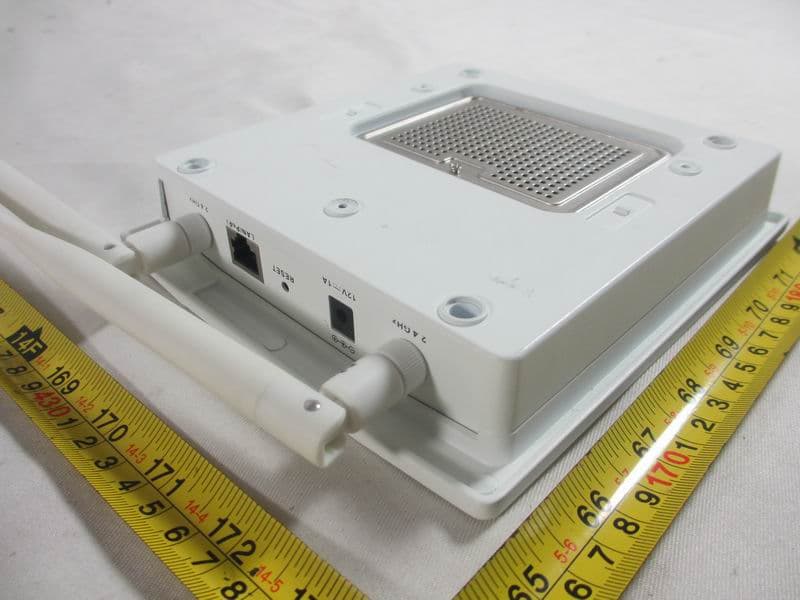
Click to zoom
Application Details
- Equipment Class
- DTS - Digital Transmission System
- Date of Grant
- May 18, 2014
- Application Purpose
- Original Equipment
- Date of Application
- May 18, 2014
- Equipment Note
- AirPremier N PoE Access Point with Plenum-rated Chassis/Wireless N PoE Access Point with Plenum-rated Chassis
- Frequency Range
- 2422.00000000 - 2452.00000000
- Company
- D-Link Corporation
- Country
- United States
Documents & Files
Document Text
Text extracted from the exhibit documents filed with the FCC. Open a document above to read the original.
Users Manual
無線基地台 2D-Link DAP-2360 User Manual Table of Contents Product Overview ..............................................................4 Package Contents .........................................................................4 S ystem Requirements .................................................................4 I ntroduction ...................................................................................5 Features ............................................................................................7 Wireless Basics ...................................................................8 S tandards-Based Technology ...................................................9 Wireless Installation Considerations ....................................10 Hardware Overview ...................................................................11 C onnect Power over Ethernet (PoE) .............................12 F our Operational Modes .................................................13 G etting Started ................................................................14 C onfiguration ...................................................................15 S ave and Activate Settings ......................................................16 Basic S ettings ...............................................................................17 Wireless .................................................................................17 Access Point mode ........................................................17 WDS with AP mode ......................................................19 WDS mode .......................................................................21 W ireless Client mode ....................................................23 Open S ystem/Shared Key Authentication ...........24 WP A/WPA2-Personal Authentication ......................25 WPA/WPA2-Enterprise Authentication ..................26 802.1x A uthentication ..................................................27 LAN .........................................................................................28 IPv6 .........................................................................................29 Advanced Settings .....................................................................30 P erformance .........................................................................30 Wireless Resource ...............................................................32 M ulti-SSID ............................................ ..................................34 VLAN ........................................................................................36 VLAN List ...........................................................................36 P ort List ..............................................................................37 A dd/Edit VLAN ................................................................38 PVID Setting .....................................................................39 Intrusion .................................................................................40 Schedule ................................................................................41 Internal RADIUS Server .....................................................42 ARP Spoofing P revention ............................................ ....43 Bandwidth Optimization ............................................ .....44 AP Array ..................................................................................46 AP Array Scan .......................................................................47 Configuration Settings......................................................48 Auto-RF ...................................................................................49 Load Balance ............................................ ............................50 Captive Portal ............................................. .........................51 Authentication Settings - Ticket ....................................51 A uthentication Settings - User/Password ..................52 A uthentication Settings - Remote RADIUS ...............53 Authentication Settings - LDAP .....................................54 A uthentication Settings - POP3 .....................................55 Table of Contents 3D-Link DAP-2360 User Manual Table of Contents Login Page Upload .............................................................56 Web Redirection ..................................................................57 DHCP Server ........................................................................58 Dynamic Pool Settings .................................................58 Static Pool Setting .........................................................60 C urrent IP Mapping List ...............................................62 Filters .......................................................................................63 Wireless MAC ACL ..........................................................63 WLAN Partition ...............................................................64 Traffic Control .......................................................................65 Uplink/Downlink Settings ..........................................65 Q oS ......................................................................................66 Traffic Manager ...............................................................67 Status .............................................................................................68 Device Information ............................................ ................68 Client Information ..............................................................69 WDS Information ................................................................70 Channel Analyze ............................................ .....................71 WDS Information ................................................................72 Stats ...............................................................…
Text truncated - open the document above for the full version.
Users Manual
51D-Link DAP-2360 User Manual Section 3 - Configuration Captive Portal Authentication Settings - Ticket The Captive Portal is a built-in web authentication server. When a station connects to an AP, the web brower will be redirected to a web authentication page. In this windows, user can view and configure the Captive Portal settings. Click the Add button to add a new entry. Click the Delete or Delete All button to remove a specific entry or all the entries configured. Select the captive portal encryption type here. Options to choose from are Ticket, User/ Password, Remote Radius, LDAP and POP3. In this section we’ll discuss the Ticket option. Enter the number of ticket that will be used here. Enter the duration value, in hours, for this ticket. Select the last active date for this ticket here. Year, Month and Day selections can be made. Enter the maximum amount of users that can use this ticket at the same time. Encryption Type: Ticket Quantity: Duration: Last Active Day: User Limit: 52D-Link DAP-2360 User Manual Section 3 - Configuration Authentication Settings - User/Password Select the captive portal encryption type here. Options to choose from are Ticket, User/Password, Remote Radius, LDAP and POP3. In this section we’ll discuss the User/Password option. Enter the restricted subnets here. Access to these subnets will denied to guest accounts. Up to four restricted subnet entries can be defined. Enter the username for the new account here. Enter the password for the new account here. Select the group for the new account here. Options to choose from are Manager and Guest. Guest accounts will have limited access. Encryption Type: Restricted Subnets: Username: Password: Group: 53D-Link DAP-2360 User Manual Section 3 - Configuration Authentication Settings - Remote RADIUS Select the captive portal encryption type here. Options to choose from are Ticket, User/Password, Remote Radius, LDAP and POP3. In this section we’ll discuss the Remote Radius option. Select the remote RADIUS server type here. Currently, only SPAP will be used. Enter the RADIUS server’s IP address here. Enter the RADIUS server’s port number here. Enter the RADIUS server’s shared secret here. Select to Enable or Disable the accounting mode here. Enter the accounting server’s IP address here. Enter the accounting server’s port number here. Enter the accounting server’s shared serect here. Encryption Type: Remote Radius Type: Radius Server: Radius Port: Radius Secret: Accounting Mode: Accounting Server: Accounting Port: Accounting Secret: 54D-Link DAP-2360 User Manual Section 3 - Configuration Authentication Settings - LDAP Select the captive portal encryption type here. Options to choose from are Ticket, User/Password, Remote Radius, LDAP and POP3. In this section we’ll discuss the LDAP option. Enter the LDAP server’s IP address or domain name here. Enter the LDAP server’s port number here. Select the authentication mode here. Options to choose from are Simple and TLS. Enter the LDAP server account’s username here. Enter the LDAP server account’s password here. Enter the administrator’s domain name here. Enter the LDAP account attribute string here. This string will be used to search for clients. Enter the identity’s full path string here. Alternatively, select the Auto Copy checkbox to automatically add the generic full path of the web page in the identity field. Encryption Type: Server: Port: Authenticate Mode: Username: Password: Base DN: Account Attribute: Identity: 55D-Link DAP-2360 User Manual Section 3 - Configuration Authentication Settings - POP3 Select the captive portal encryption type here. Options to choose from are Ticket, User/Password, Remote Radius, LDAP and POP3. In this section we’ll discuss the Ticket option. Enter the POP3 server’s IP address or domain name here. Enter the POP server’s port number here. Select the connection type here. Options to choose from are None and SSL/TLS. Encryption Type: Server: Port: Connection Type: 56D-Link DAP-2360 User Manual Section 3 - Configuration Login Page Upload In this window, users can upload a custom login page picture that will be used by the captive portal feature. Click the Browse button to navigate to the image file, located on the managing computer and then click the Upload button to initiate the upload. In this field the path to the image file, that will be uploaded, will be displayed. Alternatively, the path can be manually entered here. Upload picture from file: 57D-Link DAP-2360 User Manual Section 3 - Configuration Web Redirection In this windows, users can view and configure the Web redirection settings for the captive portal hosted by this access point. Wireless clients will be redirected to this web site prior and after authentication. Click the Save button to accept the changes made. Select this checkbox to enable the Web redirection feature. Enter the destination web site’s address here. Web Redirection: Web Site: 58D-Link DAP-2360 User Manual Section 3 - Configuration DHCP Server Dynamic Pool Settings The DHCP address pool defines the range of the IP address that can be assigned to stations in the network. A Dynamic Pool allows wireless stations to receive an available IP with lease time control. If needed or required in the network, the DAP-2360 is capable of acting as a DHCP server. Dynamic Host Configuration Protocol (DHCP) assigns dynamic IP addresses to devices on the network. This protocol simplifies network management and allows new wireless devices to receive IP addresses automatically without the need to manually assign new IP addresses. Select Enable to allow the DAP-2360 to function as a DHCP server. Input the first IP address available for assignment on your network. Enter the number of IP addresses available for assignment. IP addresses are increments of the IP address specified in the “IP Assigned From” field. All devices in the network must have the same subnet mask to communicate. Enter the submask for the network here. Enter the …
Text truncated - open the document above for the full version.
External Photos
Neutron Engineering Inc. Report No.: NEI-ICP-1-1404C050 Page 133 of 139 10. EUT PHOTOS Neutron Engineering Inc. Report No.: NEI-ICP-1-1404C050 Page 134 of 139 Neutron Engineering Inc. Report No.: NEI-ICP-1-1404C050 Page 135 of 139 Neutron Engineering Inc. Report No.: NEI-ICP-1-1404C050 Page 136 of 139 Adapter: YEOU DIANN / AMS9-1201000FU2 Neutron Engineering Inc. Report No.: NEI-ICP-1-1404C050 Page 137 of 139 Adapter: FRECOM / F12W3-120100SPAU Neutron Engineering Inc. Report No.: NEI-ICP-1-1404C050 Page 138 of 139 POE: METOUCH/SA06-20S48-V Neutron Engineering Inc. Report No.: NEI-ICP-1-1404C050 Page 139 of 139 POE: METOUCH/SA06-20S48-V
ID Label/Location Info
Label location
Internal Photos
Neutron Engineering Inc. Project No.: 1404C050 Page 1 of 6 ATTACHMENT PHOTOGRAPHS OF EUT Neutron Engineering Inc. Project No.: 1404C050 Page 2 of 6 Neutron Engineering Inc. Project No.: 1404C050 Page 3 of 6 Neutron Engineering Inc. Project No.: 1404C050 Page 4 of 6 Neutron Engineering Inc. Project No.: 1404C050 Page 5 of 6 Neutron Engineering Inc. Project No.: 1404C050 Page 6 of 6
RF Exposure Info
Neutron Engineering Inc. FCC RF EXPOSURE REPORT FCC ID: KA2AP2360B1 Project No. : 1404C050 Equipment : 1) AirPremier N PoE Access Point with Plenum-rated Chassis 2) Wireless N PoE Access Point with Plenum-rated Chassis Model : 1)DAP-2360; 2)DWP-2360 Applicant : D-LINK Corporation Address : 17595 Mt. Herrmann, Fountain Valle y California , United States According: : FCC Guidelines for Human Exposure IEEE C95.1 Neutron Engineering Inc. No.3, Jinshagang 1st Road, ShiXia, Dalang Town, Dong Guan, China. TEL : (0769) 8318-3000 FAX : (0769) 8319-6000 Neutron Engineering Inc. MPE CALCULATION METHOD: Calculation Method of RF Safety Distance: where: S = power density P = power input to the antenna G = power gain of the antenna in the direction of interest relative to an isotropic radiator R = distance to the center of radiation of the antenna Ant. Manufacturer Model Name Antenna Type Connector Gain (dBi) Note 1 WANSHIH ELECTRONIC CO., LTD. WSS007 Dipole RP-SMA 5 TX/RX 2 WANSHIH ELECTRONIC CO., LTD. WSS007 Dipole RP-SMA 5 TX/RX Neutron Engineering Inc. TEST RESULTS EUT: 1) AirPremier N PoE Access Point with Plenum-rated Chassis 2) Wireless N PoE Access Point with Plenum-rated Chassis Model Name : 1)DAP-2360; 2)DWP-2360 Temperature: 25°C Relative Humidity: 55 % Test Voltage : AC 120V/60Hz Test Mode : TX B Mode/CH01/CH06/CH11 Antenna Gain (dBi) Antenna Gain (numeric) Peak Output Power (dBm) Peak Output Power (mW) Power Density (S) (mW/cm 2 ) Limit of Power Density (S) (mW/cm 2 ) Te s t Result 5 3.1623 23.14 206.0630 0.129703101 Complies 5 3.1623 27.36 544.5027 0.342728621 Complies 5 3.1623 25.42 348.3373 0.219255441 Complies EUT: 1) AirPremier N PoE Access Point with Plenum-rated Chassis 2) Wireless N PoE Access Point with Plenum-rated Chassis Model Name : 1)DAP-2360; 2)DWP-2360 Temperature: 25°C Relative Humidity: 55 % Test Voltage : AC 120V/60Hz Test Mode : TX G Mode/CH01/CH06/CH11 Antenna Gain (dBi) Antenna Gain (numeric) Peak Output Power (dBm) Peak Output Power (mW) Power Density (S) (mW/cm 2 ) Limit of Power Density (S) (mW/cm 2 ) Te s t Result 5 3.1623 23.05 201.8366 0.127042891 Complies 5 3.1623 27.02 503.5006 0.316920531 Complies 5 3.1623 25.28 337.2873 0.212300181 Complies Neutron Engineering Inc. EUT: 1) AirPremier N PoE Access Point with Plenum-rated Chassis 2) Wireless N PoE Access Point with Plenum-rated Chassis Model Name : 1)DAP-2360; 2)DWP-2360 Temperature: 25°C Relative Humidity: 55 % Test Voltage : AC 120V/60Hz Test Mode : TX N-20M Mode_Total/CH01/CH06/CH11 Antenna Gain (dBi) Antenna Gain (numeric) Peak Output Power (dBm) Peak Output Power (mW) Power Density (S) (mW/cm 2 ) Limit of Power Density (S) (mW/cm 2 ) Te s t Result 5 3.1623 25.09 322.8494 0.203212481 Complies 5 3.1623 27.44 554.6257 0.349100421 Complies 5 3.1623 25.65 367.2823 0.231180061 Complies EUT: 1) AirPremier N PoE Access Point with Plenum-rated Chassis 2) Wireless N PoE Access Point with Plenum-rated Chassis Model Name : 1)DAP-2360; 2)DWP-2360 Temperature: 25°C Relative Humidity: 55 % Test Voltage : AC 120V/60Hz Test Mode : TX N-40M Mode_Total/CH03/CH06/CH09 Antenna Gain (dBi) Antenna Gain (numeric) Peak Output Power (dBm) Peak Output Power (mW) Power Density (S) (mW/cm 2 ) Limit of Power Density (S) (mW/cm 2 ) Te s t Result 5 3.1623 24.09 256.4484 0.161417411 Complies 5 3.1623 28.61 726.1060 0.457035961 Complies 5 3.1623 24.91 309.7419 0.194962181 Complies Note: the calculation distance is 20cm.
Test Setup Photos
Neutron Engineering Inc. Report No.: NEI-ICP-1-1404C050 Page 19 of 139 4.1.8 EUT TEST PHOTO Conducted Measurement Photos Neutron Engineering Inc. Report No.: NEI-ICP-1-1404C050 Page 63 of 139 Radiated Measurement Photos Above 1000MHz
Contact Information
Applicant
Brett Adair(General Counsel)
Test Firm
BTL Inc.Daisy Dai
Technical Specifications
| # | Rule Parts | Frequency Range | Power Output |
|---|---|---|---|
| 2 | 15C | 2.42 GHz - 2.45 GHz | 726.00 mW |
Other Applications from D-Link Corporation

KA2CS6012A1
Jul 07, 20262K Fixed Indoor Cloud Camera, 2K Fixed Indoor Wi-Fi Camera
Equipment Class
DTS - Digital Transmission SystemKA2AE65UA1
Mar 02, 2026Wi-Fi 7 BE6500 USB 3.0 Dongle
Equipment Class
NII - Unlicensed National Information Infrastructure TXKA2APE9560A1
Nov 17, 2025BE9500 Celling mount Access Point
Equipment Class
6ID - 15E 6 GHz Low Power Indoor Access PointKA2AX9UA1
Dec 04, 2024AX900 Wi-Fi 6 USB Adapter, Wi-Fi 6 AX900 USB 2.0 Dongle
Equipment Class
DSS - Part 15 Spread Spectrum TransmitterKA2AC13UA1
Dec 04, 2024AC1300 Wi-Fi 5 USB Adapter, Wi-Fi 5 AC1300 USB 2.0 Dongle
Equipment Class
DTS - Digital Transmission System