KA2CS932LA1Wireless N Day/Night Home Network Camera
D-Link Corporation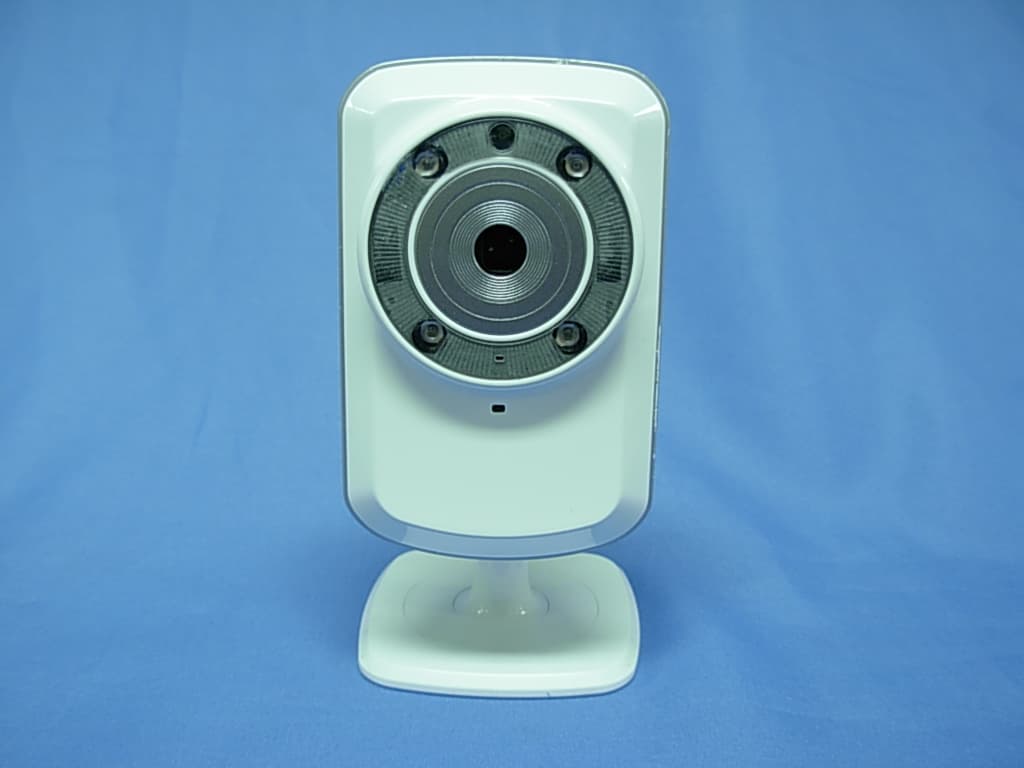
Click to zoom
Application Details
- Equipment Class
- DTS - Digital Transmission System
- Date of Grant
- Jan 30, 2011
- Application Purpose
- Original Equipment
- Date of Application
- Jan 11, 2011
- Equipment Note
- Wireless N Day/Night Home Network Camera
- Frequency Range
- 2422.00000000 - 2452.00000000
- Company
- D-Link Corporation
- Country
- United States
Documents & Files
Document Text
Text extracted from the exhibit documents filed with the FCC. Open a document above to read the original.
Users Manual
USER MANUAL DCS-930 VERSION 1.0 2D-Link DCS-930 User Manual Table of Contents Product Overview ........................................................4 Package Contents ...................................................4 System Requirements .............................................4 Introduction ..............................................................5 Features ..................................................................6 Hardware Overview .................................................7 Front View ..........................................................7 Rear View ..........................................................8 Installation ....................................................................9 Hardware Installation ...............................................9 Wireless Installation Considerations ......................10 Starting the Camera Installation Wizard ................11 WPS - Hardware Push Button Setup ...............12 Configuration .............................................................13 Using the Configuration Menu ...............................13 Live Video ........................................................15 Setup > Wizard ................................................15 Internet Connection Setup Wizard ..............16 Network Setup ............................................18 Setup > Wireless ..............................................19 Wireless Interface .......................................19 Setup > DDNS ................................................20 Setup > Image Setup .......................................21 Image Settings ............................................21 Setup > Video ..................................................22 Video Configuration ....................................22 Setup > Audio ..................................................23 Setup > Motion Detect .....................................24 Setup > Mail .....................................................25 Email Account .............................................25 Time Schedule ............................................26 Setup > FTP .....................................................27 FTP Server .................................................27 Time Schedule ............................................28 Setup > Time and Date ....................................29 Maintenance > Admin ......................................30 Maintenance > System ....................................31 Maintenance > Firmware Upgrade ..................32 Status > Device Info .........................................33 Status > Active User ........................................34 Using & Configuring the DCS-930 .........................35 Wireless Security.......................................................38 What is WEP? .......................................................38 What is WPA? .......................................................39 Using & Configuring the DCS-930 with a NAT Router ..............................................................40 Troubleshooting ........................................................47 Table of Contents 3D-Link DCS-930 User Manual Table of Contents Wireless Basics .........................................................49 Networking Basics ....................................................54 Check your IP address ..........................................54 Statically Assign an IP address .............................55 Technical Specifications...........................................56 4D-Link DCS-930 User Manual Section 1 - Product Overview • DCS-930 Network Camera • CAT5 Ethernet Cable • Power Adapter • Manual and Software on CD • Quick Install Guide • Camera Stand Note: Using a power supply with a different voltage than the one included with your product will cause damage and void the warranty for this product. If any of the above items are missing, please contact your reseller. System Requirements • Computer with Microsoft Windows ® 7, XP ® , or Vista ® • PC with 1.3GHz or above; at least 128MB RAM • Internet Explorer 6 or above , Firefox 3.5 or above, Safari 4 • Existing 10/100 Ethernet-based network or 802.11n wireless network Product Overview Package Contents 5D-Link DCS-930 User Manual Section 1 - Product Overview Introduction Congratulations on your purchase of the DCS-930 Network Camera. The DCS-930 is a versatile and unique solution for your small office or home. Unlike a webcam, the DCS-930 is a stand-alone system with a built-in CPU that transmits high quality video images for monitoring. The DCS-930 can be remotely accessed, and controlled using a Web browser over the Intranet or Internet. The simple installation procedure and intuitive Web-based interface offer easy integration with your Ethernet/Fast Ethernet or 802.11n wireless network. The DCS-930 also comes with remote monitoring capability for a complete and cost-effective home security solution. 6D-Link DCS-930 User Manual Section 1 - Product Overview Simple to Use The DCS-930 is a stand-alone system with a built-in CPU, requiring no special hardware or software such as PC frame grabber cards. The DCS-930 supports both ActiveX mode for Internet Explorer and Java mode for other browsers such as Firefox ® and Safari ® . Supports a Variety of Platforms Supporting TCP/IP networking, HTTP, and other Internet related protocols. The DCS-930 can also be integrated easily into other Internet/Intranet applications because of its standards-based features. 802.11n Wireless or Ethernet/Fast Ethernet Support The DCS-930 offers wireless 802.11n and Ethernet/Fast Ethernet connectivity, making the DCS-930 easy to integrate into your existing network environment. The DCS-930 works with a 10 Mbps Ethernet based network or 100 Mbps Fast Ethernet based network for traditional wired environments, and works with 802.11n routers or access points for added flexibility. The Site Survey feature also allows you to view and connec…
Text truncated - open the document above for the full version.
Users Manual
16D-Link DCS-930 User Manual Section 3 - Configuration Internet Connection Setup Wizard This wizard will guide you through a step-by-step process to configure your new D-Link Camera and connect the camera to the Internet. You may configure your camera using • DHCP Connection (by default), where your DHCP server will automatically assign dynamic IP to your device. • Static IP Address if your ISP has already assigned an IP address to you. • PPPoE connection, where your camera is directly connected to the Internet through a DSL modem. * Input the DNS information if you have chosen and assigned a Static IP Address for your camera. Click Next Click Next 17D-Link DCS-930 User Manual Section 3 - Configuration Enter a name for your camera. Configure the correct time to ensure that all events triggered, captured and scheduled at the right time. This page displays your configured settings. Click Apply to save and activate the setting, or Back to change your settings. If you have a Dynamic DNS account and would like the camera to update your IP address automatically, enable DDNS and enter your host information. Click Next Click Next Click Next Click Apply 18D-Link DCS-930 User Manual Section 3 - Configuration Network Setup Select this connection if you have a DHCP server running on your network and would like a dynamic IP address to be updated to your camera automatically. You may obtain a static or fixed IP address and other network information from your network administrator for your camera. A static IP address will ease you for accessing your camera in the future. IP Address: The fixed IP address Subnet Mask: The default value is “255.255.255.0.” Used to determine if the destination is the same subnet. Default Gateway: The gateway used to forward frames to destinations in a different subnet. Invalid gateway settings may cause the failure of transmissions to a different subnet. Primary DNS: Primary domain name server that translates names to IP addresses. Secondary DNS: Secondary domain name server to backup the Primary DNS. DHCP: Static IP Client: PPPoE Settings: Port Settings: UPnP Settings: This section allows you to configure your network settings. If you are using a PPPoE connection, enable it and enter the User Name and Password for your PPPoE account. You can get this information from your Internet service provider (ISP). You may configure a Second HTTP port that will allow you to connect to the camera via a standard web browser. The port can be set to a number other than the default TCP ports 80. A corresponding port must be opened on the router. For example, if the port is changed to 1010, users must type “http://192.168.0.100:1010” instead of only “http://192.168.0.100”. Enable this setting to configure your camera as an UPnP device in the network. 19D-Link DCS-930 User Manual Section 3 - Configuration Setup > Wireless Service Set Identifier, an identifier for your wireless network. The default setting is channel 6. Select the same channel that is using by other wireless devices within your network. When there is interference from the wireless networks that overlap with one another, you may change the channel to obtain maximum performance for your connection. Infrastructure is a wireless connection using an access point as a transmission point of all wireless devices. Ad-Hoc is a wireless connection used without an access point, where your DCS-930 is directly connecting to your PC. This is done using the on-board wireless adapter on the DCS-930 connected to a wireless adapter on the PC. This page will allow you to select a wireless network that the DCS-930 was able to detect. For security, there are three choices; None, WEP, and WPA-PSK / WPA2-PSK. Select the same encryption method that is being used by your wireless device/ router. An appropriate Preshared Key, which is needed in order to connect to the wireless network.. SSID: Channel: Connection Mode: Site Survey: Wireless Security Mode: WPA-PSK / WPA2PSK Settings: Wireless Interface This section allows you to setup and configure the wireless settings on your camera. 20D-Link DCS-930 User Manual Section 3 - Configuration (Dynamic Domain Name Server) will hold a DNS host name and synchronize the public IP address of the modem when it has been modified. The username and password are required when using the DDNS service. Click to enable the DDNS function. Select your Dynamic DNS Server from the pull down menu. Enter the host name of the DDNS server. Enter your username or e-mail used to connect to the DDNS. Enter your password used to connect to the DDNS server. DDNS: Enable: Server Address: Host Name: User Name: Password: Setup > DDNS This section allows you to configure the DDNS setting for your camera. DDNS will allow all users to access your camera using a domain name instead of an IP address. 21D-Link DCS-930 User Manual Section 3 - Configuration Setup > Image Setup Select this box to enable antiflicker. Select this box to vertically rotate the video. If the camera is installed upside down, Flip Image and Mirror should both be checked. Horizontally rotates the video. Allows you to adjust the brightness level. Allows you to adjust the contrast level. Allows you to adjust the saturation level. Enable Antiflicker: Flip Image: Mirror: Brightness Control: Contrast Control: Saturation Control: Image Settings This section allows you to configure the image settings for your camera. 22D-Link DCS-930 User Manual Section 3 - Configuration Setup > Video Video Profile: Light Frequency: Video Configuration Encode Type: Resolution: FPS: JPEG Quality: View Mode: The compression format used when viewing your camera. Select the desired video resolution from three formats: 640x480, 320x240, and 160x120. The higher setting can obtain better quality. However, it will use more resource within your network. Select the optimal setting depending on your network status. Please note that the higher setting can obtain better quality. However, it will use more…
Text truncated - open the document above for the full version.
Users Manual
USER MANUAL DCS-930 VERSION 1.0 2D-Link DCS-930 User Manual Table of Contents Product Overview ........................................................4 Package Contents ...................................................4 System Requirements .............................................4 Introduction ..............................................................5 Features ..................................................................6 Hardware Overview .................................................7 Front View ..........................................................7 Rear View ..........................................................8 Installation ....................................................................9 Hardware Installation ...............................................9 Wireless Installation Considerations ......................10 Starting the Camera Installation Wizard ................11 WPS - Hardware Push Button Setup ...............12 Configuration .............................................................13 Using the Configuration Menu ...............................13 Live Video ........................................................15 Setup > Wizard ................................................15 Internet Connection Setup Wizard ..............16 Network Setup ............................................18 Setup > Wireless ..............................................19 Wireless Interface .......................................19 Setup > DDNS ................................................20 Setup > Image Setup .......................................21 Image Settings ............................................21 Setup > Video ..................................................22 Video Configuration ....................................22 Setup > Audio ..................................................23 Setup > Motion Detect .....................................24 Setup > Mail .....................................................25 Email Account .............................................25 Time Schedule ............................................26 Setup > FTP .....................................................27 FTP Server .................................................27 Time Schedule ............................................28 Setup > Time and Date ....................................29 Maintenance > Admin ......................................30 Maintenance > System ....................................31 Maintenance > Firmware Upgrade ..................32 Status > Device Info .........................................33 Status > Active User ........................................34 Using & Configuring the DCS-930 .........................35 Wireless Security.......................................................38 What is WEP? .......................................................38 What is WPA? .......................................................39 Using & Configuring the DCS-930 with a NAT Router ..............................................................40 Troubleshooting ........................................................47 Table of Contents 3D-Link DCS-930 User Manual Table of Contents Wireless Basics .........................................................49 Networking Basics ....................................................54 Check your IP address ..........................................54 Statically Assign an IP address .............................55 Technical Specifications...........................................56 4D-Link DCS-930 User Manual Section 1 - Product Overview • DCS-930 Network Camera • CAT5 Ethernet Cable • Power Adapter • Manual and Software on CD • Quick Install Guide • Camera Stand Note: Using a power supply with a different voltage than the one included with your product will cause damage and void the warranty for this product. If any of the above items are missing, please contact your reseller. System Requirements • Computer with Microsoft Windows ® 7, XP ® , or Vista ® • PC with 1.3GHz or above; at least 128MB RAM • Internet Explorer 6 or above , Firefox 3.5 or above, Safari 4 • Existing 10/100 Ethernet-based network or 802.11n wireless network Product Overview Package Contents 5D-Link DCS-930 User Manual Section 1 - Product Overview Introduction Congratulations on your purchase of the DCS-930 Network Camera. The DCS-930 is a versatile and unique solution for your small office or home. Unlike a webcam, the DCS-930 is a stand-alone system with a built-in CPU that transmits high quality video images for monitoring. The DCS-930 can be remotely accessed, and controlled using a Web browser over the Intranet or Internet. The simple installation procedure and intuitive Web-based interface offer easy integration with your Ethernet/Fast Ethernet or 802.11n wireless network. The DCS-930 also comes with remote monitoring capability for a complete and cost-effective home security solution. 6D-Link DCS-930 User Manual Section 1 - Product Overview Simple to Use The DCS-930 is a stand-alone system with a built-in CPU, requiring no special hardware or software such as PC frame grabber cards. The DCS-930 supports both ActiveX mode for Internet Explorer and Java mode for other browsers such as Firefox ® and Safari ® . Supports a Variety of Platforms Supporting TCP/IP networking, HTTP, and other Internet related protocols. The DCS-930 can also be integrated easily into other Internet/Intranet applications because of its standards-based features. 802.11n Wireless or Ethernet/Fast Ethernet Support The DCS-930 offers wireless 802.11n and Ethernet/Fast Ethernet connectivity, making the DCS-930 easy to integrate into your existing network environment. The DCS-930 works with a 10 Mbps Ethernet based network or 100 Mbps Fast Ethernet based network for traditional wired environments, and works with 802.11n routers or access points for added flexibility. The Site Survey feature also allows you to view and connec…
Text truncated - open the document above for the full version.
Users Manual
16D-Link DCS-930 User Manual Section 3 - Configuration Internet Connection Setup Wizard This wizard will guide you through a step-by-step process to configure your new D-Link Camera and connect the camera to the Internet. You may configure your camera using • DHCP Connection (by default), where your DHCP server will automatically assign dynamic IP to your device. • Static IP Address if your ISP has already assigned an IP address to you. • PPPoE connection, where your camera is directly connected to the Internet through a DSL modem. * Input the DNS information if you have chosen and assigned a Static IP Address for your camera. Click Next Click Next 17D-Link DCS-930 User Manual Section 3 - Configuration Enter a name for your camera. Configure the correct time to ensure that all events triggered, captured and scheduled at the right time. This page displays your configured settings. Click Apply to save and activate the setting, or Back to change your settings. If you have a Dynamic DNS account and would like the camera to update your IP address automatically, enable DDNS and enter your host information. Click Next Click Next Click Next Click Apply 18D-Link DCS-930 User Manual Section 3 - Configuration Network Setup Select this connection if you have a DHCP server running on your network and would like a dynamic IP address to be updated to your camera automatically. You may obtain a static or fixed IP address and other network information from your network administrator for your camera. A static IP address will ease you for accessing your camera in the future. IP Address: The fixed IP address Subnet Mask: The default value is “255.255.255.0.” Used to determine if the destination is the same subnet. Default Gateway: The gateway used to forward frames to destinations in a different subnet. Invalid gateway settings may cause the failure of transmissions to a different subnet. Primary DNS: Primary domain name server that translates names to IP addresses. Secondary DNS: Secondary domain name server to backup the Primary DNS. DHCP: Static IP Client: PPPoE Settings: Port Settings: UPnP Settings: This section allows you to configure your network settings. If you are using a PPPoE connection, enable it and enter the User Name and Password for your PPPoE account. You can get this information from your Internet service provider (ISP). You may configure a Second HTTP port that will allow you to connect to the camera via a standard web browser. The port can be set to a number other than the default TCP ports 80. A corresponding port must be opened on the router. For example, if the port is changed to 1010, users must type “http://192.168.0.100:1010” instead of only “http://192.168.0.100”. Enable this setting to configure your camera as an UPnP device in the network. 19D-Link DCS-930 User Manual Section 3 - Configuration Setup > Wireless Service Set Identifier, an identifier for your wireless network. The default setting is channel 6. Select the same channel that is using by other wireless devices within your network. When there is interference from the wireless networks that overlap with one another, you may change the channel to obtain maximum performance for your connection. Infrastructure is a wireless connection using an access point as a transmission point of all wireless devices. Ad-Hoc is a wireless connection used without an access point, where your DCS-930 is directly connecting to your PC. This is done using the on-board wireless adapter on the DCS-930 connected to a wireless adapter on the PC. This page will allow you to select a wireless network that the DCS-930 was able to detect. For security, there are three choices; None, WEP, and WPA-PSK / WPA2-PSK. Select the same encryption method that is being used by your wireless device/ router. An appropriate Preshared Key, which is needed in order to connect to the wireless network.. SSID: Channel: Connection Mode: Site Survey: Wireless Security Mode: WPA-PSK / WPA2PSK Settings: Wireless Interface This section allows you to setup and configure the wireless settings on your camera. 20D-Link DCS-930 User Manual Section 3 - Configuration (Dynamic Domain Name Server) will hold a DNS host name and synchronize the public IP address of the modem when it has been modified. The username and password are required when using the DDNS service. Click to enable the DDNS function. Select your Dynamic DNS Server from the pull down menu. Enter the host name of the DDNS server. Enter your username or e-mail used to connect to the DDNS. Enter your password used to connect to the DDNS server. DDNS: Enable: Server Address: Host Name: User Name: Password: Setup > DDNS This section allows you to configure the DDNS setting for your camera. DDNS will allow all users to access your camera using a domain name instead of an IP address. 21D-Link DCS-930 User Manual Section 3 - Configuration Setup > Image Setup Select this box to enable antiflicker. Select this box to vertically rotate the video. If the camera is installed upside down, Flip Image and Mirror should both be checked. Horizontally rotates the video. Allows you to adjust the brightness level. Allows you to adjust the contrast level. Allows you to adjust the saturation level. Enable Antiflicker: Flip Image: Mirror: Brightness Control: Contrast Control: Saturation Control: Image Settings This section allows you to configure the image settings for your camera. 22D-Link DCS-930 User Manual Section 3 - Configuration Setup > Video Video Profile: Light Frequency: Video Configuration Encode Type: Resolution: FPS: JPEG Quality: View Mode: The compression format used when viewing your camera. Select the desired video resolution from three formats: 640x480, 320x240, and 160x120. The higher setting can obtain better quality. However, it will use more resource within your network. Select the optimal setting depending on your network status. Please note that the higher setting can obtain better quality. However, it will use more…
Text truncated - open the document above for the full version.
Users Manual
USER MANUAL DCS-932 VERSION 1.0 2D-Link DCS-932 User Manual Table of Contents Product Overview ........................................................4 Package Contents ...................................................4 System Requirements .............................................4 Introduction ..............................................................5 Features ..................................................................6 Hardware Overview .................................................7 Front View ..........................................................7 Rear View ..........................................................8 Installation ....................................................................9 Hardware Installation ...............................................9 Wireless Installation Considerations ......................10 Starting the Camera Installation Wizard ................11 WPS - Hardware Push Button Setup ...............12 Configuration .............................................................13 Using the Configuration Menu ...............................13 Live Video ........................................................15 Setup > Wizard ................................................15 Internet Connection Setup Wizard ..............16 Network Setup ............................................18 Setup > Wireless ..............................................19 Wireless Interface .......................................19 Setup > DDNS ................................................20 Setup > Image Setup .......................................21 Image Settings ............................................21 Setup > Video ..................................................22 Video Configuration ....................................22 Setup > Audio ..................................................23 Setup > Motion Detect .....................................24 Setup > Mail .....................................................25 Email Account .............................................25 Time Schedule ............................................26 Setup > FTP .....................................................27 FTP Server .................................................27 Time Schedule ............................................28 Setup > Time and Date ....................................29 Setup > Day/Night Mode ..................................30 Maintenance > Admin ......................................31 Maintenance > System ....................................32 Maintenance > Firmware Upgrade ..................33 Status > Device Info .........................................34 Status > Active User ........................................35 Using & Configuring the DCS-932 .........................36 Wireless Security.......................................................39 What is WEP? .......................................................39 What is WPA? .......................................................40 Using & Configuring the DCS-932 with a NAT Router ..............................................................41 Table of Contents 3D-Link DCS-932 User Manual Table of Contents Troubleshooting ........................................................48 Wireless Basics .........................................................50 Networking Basics ....................................................55 Check your IP address ..........................................55 Statically Assign an IP address .............................56 Technical Specifications...........................................57 4D-Link DCS-932 User Manual Section 1 - Product Overview • DCS-932 Network Camera • CAT5 Ethernet Cable • Power Adapter • Manual and Software on CD • Quick Install Guide • Camera Stand Note: Using a power supply with a different voltage than the one included with your product will cause damage and void the warranty for this product. If any of the above items are missing, please contact your reseller. System Requirements • Computer with Microsoft Windows ® 7, XP ® , or Vista ® • PC with 1.3GHz or above; at least 128MB RAM • Internet Explorer 6 or above , Firefox 3.5 or above, Safari 4 • Existing 10/100 Ethernet-based network or 802.11n wireless network Product Overview Package Contents 5D-Link DCS-932 User Manual Section 1 - Product Overview Introduction Congratulations on your purchase of the DCS-932 Network Camera. The DCS-932 is a versatile and unique solution for your small office or home. Unlike a webcam, the DCS-932 is a stand-alone system with a built-in CPU that transmits high quality video images for monitoring. The DCS-932 can be remotely accessed, and controlled using a Web browser over the Intranet or Internet. The simple installation procedure and intuitive Web-based interface offer easy integration with your Ethernet/Fast Ethernet or 802.11n wireless network. The DCS-932 also comes with remote monitoring capability for a complete and cost-effective home security solution. 6D-Link DCS-932 User Manual Section 1 - Product Overview Simple to Use The DCS-932 is a stand-alone system with a built-in CPU, requiring no special hardware or software such as PC frame grabber cards. The DCS-932 supports both ActiveX mode for Internet Explorer and Java mode for other browsers such as Firefox ® and Safari ® . Supports a Variety of Platforms Supporting TCP/IP networking, HTTP, and other Internet related protocols. The DCS-932 can also be integrated easily into other Internet/Intranet applications because of its standards-based features. 802.11n Wireless or Ethernet/Fast Ethernet Support The DCS-932 offers wireless 802.11n and Ethernet/Fast Ethernet connectivity, making the DCS-932 easy to integrate into your existing network environment. The DCS-932 works with a 10 Mbps Ethernet based network or 100 Mbps Fast Ethernet based network for traditional wired environments, and works with 802.11n routers or access points for added flexibility…
Text truncated - open the document above for the full version.
Contact Information
Applicant
Brett Adair(General Counsel)
Technical Contact
QuieTek CorporationNeil Yeh
[email protected]886-3-5928858
N0. 75-2, 3rd Lin, Wangye Keng Yonghxing Tsuen, · Hsinchu County · Taiwan
Test Firm
QuieTek CorporationWarren Lin
Technical Specifications
| # | Rule Parts | Frequency Range | Power Output |
|---|---|---|---|
| 2 | 15C | 2.42 GHz - 2.45 GHz | 373.00 mW |
Other Applications from D-Link Corporation

KA2CS6012A1
Jul 07, 20262K Fixed Indoor Cloud Camera, 2K Fixed Indoor Wi-Fi Camera
Equipment Class
DTS - Digital Transmission SystemKA2AE65UA1
Mar 02, 2026Wi-Fi 7 BE6500 USB 3.0 Dongle
Equipment Class
NII - Unlicensed National Information Infrastructure TXKA2APE9560A1
Nov 17, 2025BE9500 Celling mount Access Point
Equipment Class
6ID - 15E 6 GHz Low Power Indoor Access PointKA2AX9UA1
Dec 04, 2024AX900 Wi-Fi 6 USB Adapter, Wi-Fi 6 AX900 USB 2.0 Dongle
Equipment Class
DSS - Part 15 Spread Spectrum TransmitterKA2AC13UA1
Dec 04, 2024AC1300 Wi-Fi 5 USB Adapter, Wi-Fi 5 AC1300 USB 2.0 Dongle
Equipment Class
DTS - Digital Transmission System