KA2DWL8200APA1802.11a/g Dual Band Access Point
D-Link Corporation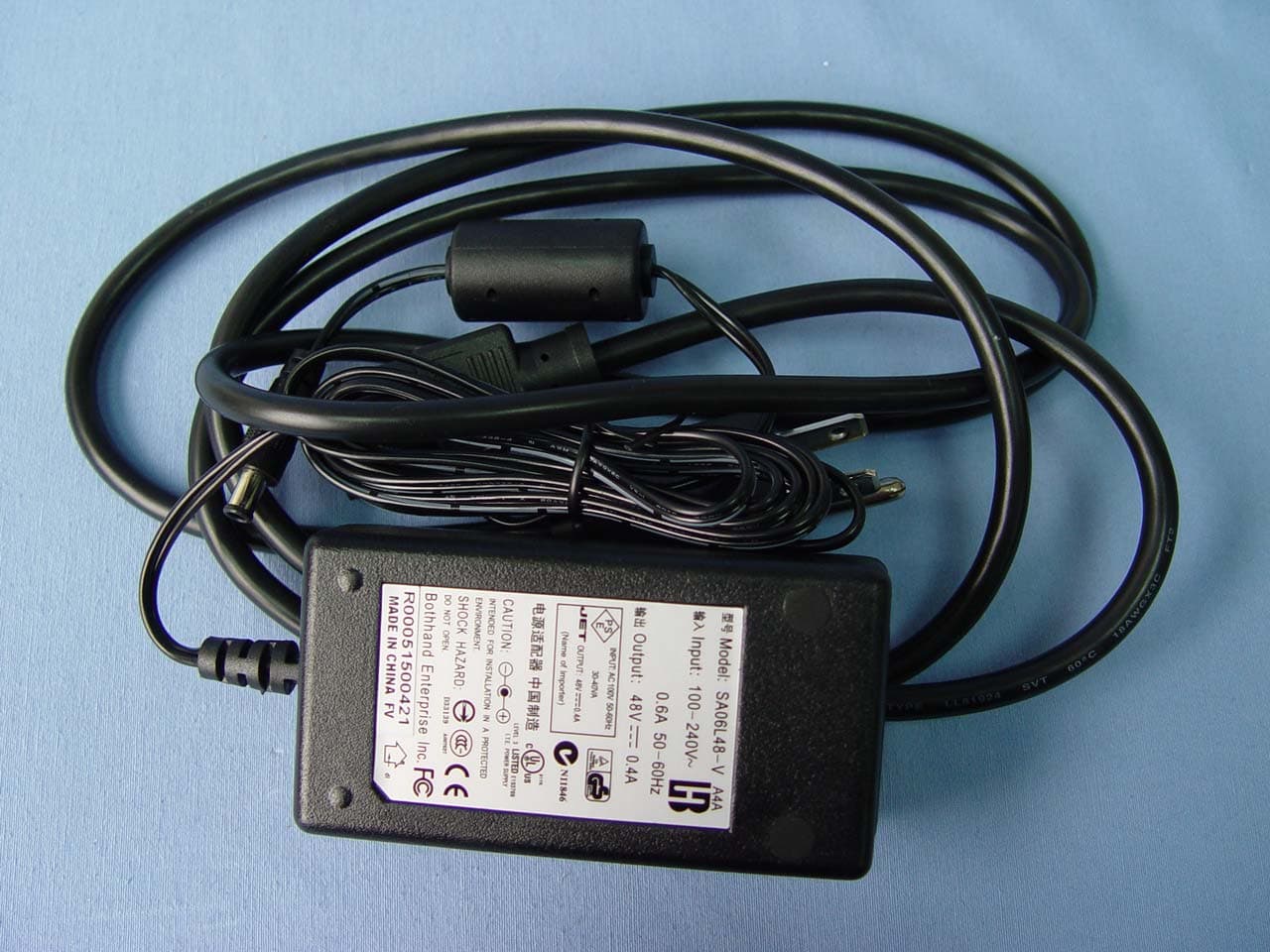
Click to zoom
Application Details
- Equipment Class
- NII - Unlicensed National Information Infrastructure TX
- Date of Grant
- Jun 26, 2005
- Application Purpose
- Original Equipment
- Date of Application
- Jun 26, 2005
- Equipment Note
- 802.11a/g Dual Band Access Point
- Frequency Range
- 5180.00000000 - 5320.00000000
- Company
- D-Link Corporation
- Country
- United States
Documents & Files
Document Text
Text extracted from the exhibit documents filed with the FCC. Open a document above to read the original.
Users Manual
DWL-8200AP manual new cover pending 2 DWL-8200AP User’s Manual D-Link Systems, Inc. Table of Contents Table of Contents .............................................................................2 Package Contents ............................................................................3 Introduction .....................................................................................4 Features and Benefits .......................................................................6 Wireless Basics ................................................................................7 Three Operational Modes ...............................................................10 Getting Started ...............................................................................11 Using the Configuration Menu .......................................................14 Using the AP Manager ...................................................................60 Networking Basics .......................................................................100 Troubleshooting ...........................................................................120 Technical Specifications ...............................................................122 Contacting Technical Support ......................................................125 Warranty ....................................................................................126 Registration .................................................................................130 Table of Contents 3 DWL-8200AP User’s Manual D-Link Systems, Inc. Package Contents D-Link Air Premier ® DWL-8200AP Managed Dualband Access Point Power over Ethernet base unit Power Adapter-DC 48V, 0.4A Power Cord Manual and Warranty on CD Quick Installation Guide Ethernet Cable Mounting Plate Note: Using a power supply with a different voltage than the one included with the DWL-8200AP will cause damage and void the warranty for this product. If any of the above items are missing, please contact your reseller. Computers with Windows, Macintosh, or Linux-based operating systems with an installed Ethernet Adapter Internet Explorer version 6.0 or Netscape Navigator version 7.0 and above At least 128MB of memory and a 500MHz processor Package Contents Minimum System Requirements 4 DWL-8200AP User’s Manual D-Link Systems, Inc. Introduction At up to fifteen times the speed of previous wireless devices (maximum wireless signal rate of up to 108Mbps* in Super A and Super G mode), you can work faster and more efficiently, increasing productivity. With the DWL-8200AP, bandwidth-intensive applications like graphics or multimedia will benefit significantly because large files are able to move across the network quickly. Inclusion of all three standards (802.11g; 802.11a; 802.11b) means that the DWL-8200AP is versatile enough to allow connection to almost any 802.11 network or device. The DWL-8200AP is capable of operating in one of 3 different modes to meet your wireless networking needs. The DWL-8200AP can operate as an access point, or in WDS (Wireless Distribution System) with AP, or in WDS mode. Use less wiring, enjoy increased flexibility, save time and money with PoE (Power over Ethernet). With PoE, the DWL-8200AP shares power and data over the CAT5 cable, making the setup of your network less expensive and more convenient. An ideal solution for quickly creating and extending a wireless local area network (WLAN) in offices or other workplaces, trade shows and special events, the DWL-8200AP provides data transfers at up to 108Mbps in Super AG mode when used with other D-Link Air Premier ® products (The 802.11g standard is backwards compatible with 802.11b devices). *Maximum wireless signal rate derived from IEEE Standard 802.11a and 802.11g specifications. Actual data throughput will vary. Network conditions and environmental factors, including volume of network traffic, building materials and construction, and network overhead lower actual data throughput rate. WPA is offered in two flavors: Enterprise (used for corporations), and Personal (used for home users). WPA-Personal and WPA2-Personal is directed at home users who do not have the server based equipment required for user authentication. The method of authentication is similar to WEP because you define a “Pre-Shared Key” on the wireless router/AP. Once the pre-shared key is confirmed and satisfied on both the client and access point, then access is granted. The encryption method used is referred to as the Temporal Key Integrity Protocol (TKIP), which offers per-packet dynamic hashing. It also includes an integrity checking feature which ensures that the packets were not tampered with during wireless transmission. WPA2-Personal is far superior to WPA-Personal, because the encryption of data is upgraded with the Advanced Encryption Standard (AES). Introduction 5 DWL-8200AP User’s Manual D-Link Systems, Inc. Introduction 802.1x: Authentication which is a first line of defense against intrusion. In the authentication process, the Authentication Server verifies the identity of the client attempting to connect to the network. Unfamiliar clients would be denied access. WPA-Enterprise and WPA2-Enterprise is ideal for businesses that have existing security infrastructures in place. Management and security implementation can now be centralized on a server participating on the network. Utilizing 802.1x with a RADIUS (Remote Authentication Dial-in User Service) server, a network adminstrator can define a list of authorized users who can access the wireless LAN. When attempting to access a wireless LAN with either WPA-Enterprise or WPA2-Enterprise configured, the new client will be challenged with a username and password. If the new client is authorized by the administration, and enters the correct username and password, then access is granted. In a scenario where an employee leaves the company, the network administrator can remove the employee…
Text truncated - open the document above for the full version.
Users Manual
60 DWL-8200AP User’s Manual D-Link Systems, Inc. Using the AP Manager The AP Manager is a convenient tool to manage the configuration of your network from a central computer. With AP Manager there is no need to configure devices individually. To launch the AP Manager: • Go to the Start Menu • Select Programs • Select D-Link TriMode Dualband AP Manager • Select DWL-8200AP Click on this button to discover the devices available on the network. Discovering Devices Using the AP Manager 61 DWL-8200AP User’s Manual D-Link Systems, Inc. Using the AP Manager Selecting Devices The AP Manager allows you to configure multiple devices all at once. To select a single device, simply click on the device you want to select. To select multiple devices, hold down the Ctrl key while clicking on each additional device. To select an entire list, hold the Shift key, click on the first AP on the list and then click on the last AP on the list. IP Configuration You can assign an IP address to an AP or assign IP addresses to multiple AP’s by clicking on this button after selecting the device(s). Select the AP that you want to assign an IP address to and click the IP button. Enter the IP address and IP netmask for the selected device and click OK. 62 DWL-8200AP User’s Manual D-Link Systems, Inc. Using the AP Manager IP Configuration (continued) You can configure multiple AP’s with IP addresses all at once. Click on the IP button after you’ve selected all of the AP’s you want to assign an IP address. Enter the IP address you want to assign the first unit and the AP manager will automatically assign sequential IP addresses. 63 DWL-8200AP User’s Manual D-Link Systems, Inc. Using the AP Manager Device Configuration Click on this button to access the configuration properties of the selected device(s). The device configuration window allows you to configure settings but does not actually apply the settings to the device unless you click the Apply button. You can also save and load configuration files from this window. When you load a configuration file, you must click Apply if you want the settings to be applied to the selected device(s). The save button allows you to save a configuration file of the selected device settings. Only settings that have a checkmark next to them are saved. You cannot save a configuration file if you selected more than one device in the device list. The Exit button will close the device configuration window. Any settings that haven’t been applied will be lost. The open button is used to load a previously saved configuration file. After opening a configuration file, you must click the Apply button to save the settings to the selected device(s). To save settings to the device, you must click the Apply button. Only settings that have a checkmark next to them will be applied. Refresh will revert to the actual device settings of the selected device(s). The Clear Checks button deselects all configurable options. This feature is useful if you only want to change a few settings. Deselect all items and only check the items that you want to modify. The Check All button will select all configurable options. Any setting that has a checkmark next to it is applied to the device or saved to the configuration file. You can configure a single device by highlighting one device in the list, or you can configure multiple devices by highlighting multiple devices before clicking on the Device Configuration icon pictured above. The examples in this section show single device configuration. When you select multiple devices for configuration the procedure will be similar. 64 DWL-8200AP User’s Manual D-Link Systems, Inc. Using the AP Manager This allows you to change the device name for the selected access point. You must place a checkmark in the Device Name box to change the name. This option should only be configured when one access point is selected for configuration. If you’ve selected one device for configuration and you want to change the IP address of the device, check the IP Address box. You can then enter an IP address and Subnet Mask for the selected access point. This option should only be configurable when one access point is selected for configuration. To configure multiple devices with an IP address at one time, please reference the previous page. Enter the IP address of your gateway, typically your router address. Device Configuration > General Device Name(*): IP address and Subnet Mask(*): Gateway: When selecting multiple devices for configuration, some options are unavailable for configuration by default as noted(*) below: 65 DWL-8200AP User’s Manual D-Link Systems, Inc. Using the AP Manager Device Configuration > General (continued) There is a pull-down menu to select enabled or disabled. When enabled, the selected device(s) will function as a DHCP client(s). This allows them to receive IP configuration information from a DHCP server. When disabled, the access point(s) must have a static IP address assigned to them. This pull-down selection enables or disables load balancing. When you enable load balance you allow several access points to balance wireless network traffic and wireless clients among the access points with the same SSID. All the APs that share Load Balancing must have the same SSID. Assign each access point a different non-overlapping channel (e.g., 1, 6, 11). Enter the number of the limit of load balancing users, from 0-64. From the pull-down selection, choose either Telnet or SSH for Console protocol. This pull-down selection defines the timeout period during a Telnet session with the selected device(s). Select Enable to set the SNMP setting. DHCP client: Load Balance: User Limit: Console Protocol: Telnet Timeout: Status: 66 DWL-8200AP User’s Manual D-Link Systems, Inc. Using the AP Manager Device Configuration > Wireless Check to enable wireless mode. The Service Set (network) Identifier of your wireless network. Allows you to select a channel. 52 is the default setting for 802.11a. A…
Text truncated - open the document above for the full version.
Users Manual
100 DWL-8200AP User’s Manual D-Link Systems, Inc. Networking Basics Using the Network Setup Wizard in Windows XP In this section you will learn how to establish a network at home or work, using Microsoft Windows XP. Note: Please refer to websites such as http://www.homenethelp.com and http://www.microsoft.com/windows2000 for information about networking computers using Windows 2000. Go to Start>Control Panel>Network Connections Select Set up a home or small office network When this screen appears, click Next. Networking Basics 101 DWL-8200AP User’s Manual D-Link Systems, Inc. Networking Basics Click Next. In the following window, select the best description of your computer. If your computer connects to the internet through a gateway/router, select the second option as shown. Click Next. Please follow all the instructions in this window: 102 DWL-8200AP User’s Manual D-Link Systems, Inc. Networking Basics Enter a Computer description and a Computer name (optional). Click Next. Enter a Workgroup name. All computers on your network should have the same Workgroup name. Click Next. 103 DWL-8200AP User’s Manual D-Link Systems, Inc. Networking Basics Please wait while the Network Setup Wizard applies the changes. When the changes are complete, click Next. Please wait while the Network Setup Wizard configures the computer. This may take a few minutes. 104 DWL-8200AP User’s Manual D-Link Systems, Inc. Networking Basics Insert a disk into the Floppy Disk Drive, in this case drive A. Click Next. In the window below, select the option that fits your needs. In this example, Create a Network Setup Disk has been selected. You will run this disk on each of the computers on your network. Click Next. 105 DWL-8200AP User’s Manual D-Link Systems, Inc. Networking Basics Please read the information under Here’s how in the screen below. After you complete the Network Setup Wizard you will use the Network Setup Disk to run the Network Setup Wizard once on each of the computers on your network. To continue click Next. 106 DWL-8200AP User’s Manual D-Link Systems, Inc. Networking Basics Please read the information on this screen, then click Finish to complete the Network Setup Wizard. The new settings will take effect when you restart the computer. Click Yes to restart the computer. You have completed configuring this computer. Next, you will need to run the Network Setup Disk on all the other computers on your network. After running the Network Setup Disk on all your computers, your new wireless network will be ready to use. 107 DWL-8200AP User’s Manual D-Link Systems, Inc. Networking Basics Naming Your Computer To name your computer n Windows XP, please follow these directions. Click Start (in the lower left corner of the screen). Right-click on My Computer. Select Properties and click. Select the Computer Name Tab in the System Properties window. You may enter a Computer Description if you wish; this field is optional. To rename the computer and join a domain, Click Change. 108 DWL-8200AP User’s Manual D-Link Systems, Inc. Networking Basics In this window, enter the Computer name. Select Workgroup and enter the name of the Workgroup. All computers on your network must have the same Workgroup name. Click OK. The wireless adapter-equipped computers in your network must be in the same IP Address range (see Getting Started in this manual for a definition of IP Address Range.) To check on the IP Address of the adapter, please do the following: Right-click on the Local Area Connection icon in the task bar. Click on Status. Checking the IP Address in Windows XP 109 DWL-8200AP User’s Manual D-Link Systems, Inc. Networking Basics This window will appear: Click the Support tab. Click Close. 110 DWL-8200AP User’s Manual D-Link Systems, Inc. Networking Basics Note: DHCP-enabled routers will automatically assign IP addresses to the computers on the network, using DHCP (Dynamic Host Configuration Protocol) technology. If you are using a DHCP-capable router you will not need to assign static IP addresses. If you are not using a DHCP capable router, or you need to assign a static IP address, please follow these instructions: Go to Start. Double-click on Control Panel. Assigning a Static IP Address in Windows XP/2000 Double-click on Network Connections. 111 DWL-8200AP User’s Manual D-Link Systems, Inc. Networking Basics Right-click on Local Area Connections. Double-click on Properties. Click on Internet Protocol (TCP/IP). Click Properties. Input your IP address and subnet mask. (The IP addresses on your network must be within the same range. For example, if one computer has an IP address of 192.168.0.2, the other computers should have IP addresses that are sequential, like 192.168.0.3 and 192.168.0.4. The subnet mask must be the same for all the computers on the network.) 112 DWL-8200AP User’s Manual D-Link Systems, Inc. Networking Basics Input your DNS server addresses. (Note: If you are entering a DNS server, you must enter the IP address of the default gateway.) The DNS server information will be supplied by your ISP (Internet Service Provider.) Click OK. Assigning a Static IP Address in Macintosh OSX Go to the Apple Menu and select System Preferences. Click on Network. 113 DWL-8200AP User’s Manual D-Link Systems, Inc. Networking Basics Select Built-in Ethernet in the Show pull-down menu. Select Manually in the Configure pull-down menu. Input the Static IP Address, the Subnet Mask and the Router IP Address in the appropriate fields. Click Apply Now. 114 DWL-8200AP User’s Manual D-Link Systems, Inc. Networking Basics Go to the Apple Menu and select System Preferences. Click on Network. Select Built-in Ethernet in the Show pull-down menu. Select Using DHCP in the Configure pull-down menu. 115 DWL-8200AP User’s Manual D-Link Systems, Inc. Networking Basics Click Apply Now. The IP Address, Subnet mask, and the Router’s IP Address will appear in a few seconds…
Text truncated - open the document above for the full version.
Cover Letter(s)
Helen Zhao Subject: FW: Re : FW: D-Link Corporation, FCC ID: KA2DWL8200APA1, Assessment NO.: AN05T4889/AN05T4890, Notice#1 6/24/2005 -----Original Message----- From: amanda.wu [mailto:[email protected]]On Behalf Of application Sent: Thursday, June 23, 2005 10:36 PM To: Helen Zhao Subject: Re : FW: D-Link Corporation, FCC ID: KA2DWL8200APA1, Assessment NO.: AN05T4889/AN05T4890, Notice#1 Dear Helen: Please refer our reply as below. Tks Best Regard Amanda Dear Amanda, Please answer the following questions. By the way, this is a composite device filing, please check composite device and complete that section when you fill out Form 731. Thank you, Helen -----Original Message----- From: Compliance Certification Services [mailto:[email protected]] Sent: Thursday, June 23, 2005 6:13 PM To: Helen Zhao Subject: D-Link Corporation, FCC ID: KA2DWL8200APA1, Assessment NO.: AN05T4889, Notice#1 Question #1: The manual indicates that Transmit Power Output is 18dBm@5GHz, 20dBm @2.4GHz, which does not agree with the measurements listed on the test report. Does it average value? Please explain. Ans: The output power on user manual is average value. Question #2: The manual indicates that "For operation within 5.15 ~ 5.25GHz frequency range, it is restricted to indoor environment, and the antenna of this device must be integral." Please note integral antenna is no longer required by FCC. You may want to update the user manual. Ans: The user manual (on P30) had revised as attachment. Best Regards, Helen Zhao The items indicated above must be submitted before processing can continue on the above "Helen Zhao" <[email protected]> 2005/06/24 09:20 AM ???: "Application \(CCS TW\) \(E-mail\)" <[email protected]> ????: ??: FW: D-Link Corporation, FCC ID: KA2DWL8200APA1, Assessment NO.: AN05T4889/AN05T4890, Notice#1 referenced application. Failure to provide the requested information within 30 days of the original e-mail date may result in application dismissal and forfeiture of the filing fee. Also, please note that partial responses increase processing time and should not be submitted. Any questions about the content of this correspondence should be directed to the e-mail address listed below the name of the sender. 6/24/2005
Cover Letter(s)
D-Link Corporation 2F, No.233-2, Pao-Chiao Road, Hsin-Tien Taipei, 231, Taiwan Phone: 886-2-29161600 Fax: 886-2-29146299 P O W E R O F A T T O R N E Y Date :June 15,2005 We, the undersigned, hereby authorize Compliance Certification Services Inc. to act on our behalf in all matters relating to all processes related to FCC & IC applications and communications issue. Any and all acts carried out by Compliance Certification Services Inc. on our behalf shall have the same effects as acts of our own. If you have any questions regarding this authorization, please don¡ƒt hesitate to contact us. Thank you. Sincerely yours, Leeming Li / Manager D-Link Corporation Phone: 886-2-29161600 Fax: 886-2-29146299 E-mail: [email protected]
Cover Letter(s)
D-LINK Corporation 2F, No.233-2, Pao-Chiao Road, Hsin-Tien Taipei, 231, Taiwan Phone: 886-2-29161600 Fax: 886-2-29146299 Date: June 15,2005 Federal Communications Commission Authorization and Evaluation Division FCC ID: KA2DWL8200APA1 Confidentiality Request Pursuant to Sections 0.457 and 0.459 of the Commissions Rules, the Applicant hereby requests confidential treatment of information accompanying this Application as outlined below: 1. Schematics 2. Operational Description 3. Block Diagram The above materials contain trade secrets and proprietary information not customarily released to the public. The public disclosure of these matters might be harmful to the Applicant and provide unjustified benefits to its competitors. The Applicant understands that pursuant to Rule 0.457, disclosure of this Application and all accompanying documentation will not be made before the date of the Grant for this application. Sincerely, Leeming Li / Manager D-Link Corporation Phone: 886-2-29161600 Fax: 886-2-29146299 E-mail: [email protected]
External Photos
Compliance Certification Services Inc. Report No: 50520007 Date of Issue: June 16, 2005 Page 1 Total Page: 6 Rev. 00 EXTERNAL PHOTOGRAPHS OF EUT Compliance Certification Services Inc. Report No: 50520007 Date of Issue: June 16, 2005 Page 2 Rev.00 Compliance Certification Services Inc. Report No: 50520007 Date of Issue: June 16, 2005 Page 3 Rev.00
Internal Photos
Compliance Certification Services Inc. Report No: 50520007 Date of Issue: June 16, 2005 Page 4 Rev.00 INTERNAL PHOTOGRAPHS OF EUT Compliance Certification Services Inc. Report No: 50520007 Date of Issue: June 16, 2005 Page 5 Rev.00 Compliance Certification Services Inc. Report No: 50520007 Date of Issue: June 16, 2005 Page 6 Rev.00 Model: SmartAnt / ALP05-220170 Model: WHA YU / C037-510589-A
Parts List/Tune Up Info
SmartAnt Telecom Documents for Approvals----------------------------------------------------------------------------------------- -------------------------------------------------------ᏣݢࣽמިҽԖज़ϦљSmartAnt Telecom Co., Ltd. ᏣݢࣽמިҽԖज़Ϧљ SmartAnt Telecom Co., Ltd. 6F, No. 12, Li-shing Road., Science-based Industrial Park 300 Hsin-chu, Taiwan R.O.C Tel. (03) 578-3188 Fax. (03) 578-3189 Documents For Approval Customer : Alpha Networkc Inc. 1. SmartAnt Product Name:Dual Band Omni-Directional Antenna 2. Part No: ALP05-220170 3. Document No: 4. Date:2005.5.26 5. Customer approved Product Number: Customer Evaluations: ϭ Approved ΰDate: ___________α ϭ Rejected ΰDate: ___________α ϭ Limited ΰDate: ___________α ϭ Conditional Approved ΰDate: ___________α ____________________________________________________ Ϩ SmartAnt Telecom Approved By: Dallas WuDate:05. 26. 2005 ϨʳSmartAnt Telecom Prepared By: Michael ChenDate:05. 26. 2005 Approval contents Item Descriptions Page Antenna detailed specifications and electronic test report 1 Antenna specification 1 2 Radiation Pattern 1 3 VSWR 1 Mechanical drawing specifications 1 Product drawing 1 Material certificates 1 Material approval - PCB 1 2 Material approval - connector 2 3 Material approval - Radome 5 Dual-Band Omni-Directional Antenna for2.4/5.0/5.2/5.6/5.8GHz ALP05-220170 Version 0.1 http:// www.smartant.comTEL: +886 (0)3 578-3188 FAX: +886 (0)3 578-3189E-mail: [email protected] All rights reserved by SmartAnt Telecom Co., Ltd. P1 Electrical Specification Frequency range2400 MHz - 2500 MHz 4900 MHz - 5875 MHz Peak Gain2.5 dBi5.5 dBi VSWR2.0 : 1 Max.2.0 : 1 Max. PolarizationLinear, verticalLinear, vertical Power handling2 W (cw)2 W (cw) Impedance50 Ohms50 Ohms ConnectorRP SMA Plug Environmental & Mechanical Characteristics Average Gain1.5 dBi3 dBi HPBW / horizontal 360360 O O Temperature- 10 C to + 55 C o Humidity95% @ 25 C o Radome colorGray Radome materialPC ABS Weight21 g Dimensions19 x 42 x 156 mm o HPBW / vertical5025 O O V-plane Co-polarization Pattern H-plane Co-polarization Pattern -25 -20 -15 -10 -5 0 5 0 30 60 90 120 150 180 210 240 270 300 330 -25 -20 -15 -10 -5 0 5 2.40GHz 2.45GHz 2.50GHz -25 -20 -15 -10 -5 0 5 0 30 60 90 120 150 180 210 240 270 300 330 -25 -20 -15 -10 -5 0 5 2.40GHz 2.45GHz 2.50GHz -25 -20 -15 -10 -5 0 5 0 30 60 90 120 150 180 210 240 270 300 330 -25 -20 -15 -10 -5 0 5 4.9GHz 5.1GHz 5.3GHz 5.5GHz 5.7GHz 5.9GHz -25 -20 -15 -10 -5 0 5 0 30 60 90 120 150 180 210 240 270 300 330 -25 -20 -15 -10 -5 0 5 4.9GHz 5.1GHz 5.3GHz 5.5GHz 5.7GHz 5.9GHz 127+0.5 153+0.5 14+0.2 19+0.2 39+0.5 5=5.5 Dual-Band Omni-Directional Antenna for 2.4 / 5.0 / 5.2 / 5.6 / 5.8 GHz ALP05-220170 Version0.1 http:// www.smartant.comTEL: +886 (0)3 578-3188 FAX: +886 (0)3 578-3189E-mail: [email protected] All rights reserved by SmartAnt Telecom Co., Ltd. P2 V-plane Co-polarization Pattern H-plane Co-polarization Pattern -25 -20 -15 -10 -5 0 5 0 30 60 90 120 150 180 210 240 270 300 330 -25 -20 -15 -10 -5 0 5 2.40GHz 2.45GHz 2.50GHz -25 -20 -15 -10 -5 0 5 0 30 60 90 120 150 180 210 240 270 300 330 -25 -20 -15 -10 -5 0 5 2.40GHz 2.45GHz 2.50GHz -25 -20 -15 -10 -5 0 5 0 30 60 90 120 150 180 210 240 270 300 330 -25 -20 -15 -10 -5 0 5 4.9GHz 5.1GHz 5.3GHz 5.5GHz 5.7GHz 5.9GHz -25 -20 -15 -10 -5 0 5 0 30 60 90 120 150 180 210 240 270 300 330 -25 -20 -15 -10 -5 0 5 4.9GHz 5.1GHz 5.3GHz 5.5GHz 5.7GHz 5.9GHz Radiation Pattern Dual-Band Omni-Directional Antenna for 2.4 / 5.0 / 5.2 / 5.6 / 5.8 GHz ALP05-220170 Version0.1 http:// www.smartant.comTEL: +886 (0)3 578-3188 FAX: +886 (0)3 578-3189E-mail: [email protected] All rights reserved by SmartAnt Telecom Co., Ltd. P3 VSWR Dual-Band Omni-Directional Antenna for 2.4 / 5.0 / 5.2 / 5.6 / 5.8 GHz ALP05-220170 Version0.1 http:// www.smartant.comTEL: +886 (0)3 578-3188 FAX: +886 (0)3 578-3189E-mail: [email protected] All rights reserved by SmartAnt Telecom Co., Ltd. P4 Product Drawing 127+0.5 153+0.5 14+0.2 19+0.2 39+0.5 Dual-Band Omni-Directional Antenna for 2.4 / 5.0 / 5.2 / 5.6 / 5.8 GHz ALP05-220170 Version 1 http:// www.smartant.comTEL: +886 (0)3 578-3188 FAX: +886 (0)3 578-3189E-mail: [email protected] All rights reserved by SmartAnt Telecom Co., Ltd. Material Approval - PCB Dual-Band Omni-Directional Antenna for 2.4 / 5.0 / 5.2 / 5.6 / 5.8 GHz ALP05-220170 Version0.1 http:// www.smartant.comTEL: +886 (0)3 578-3188 FAX: +886 (0)3 578-3189E-mail: [email protected] All rights reserved by SmartAnt Telecom Co., Ltd. Material Approval - Connector(1/2) Dual-Band Omni-Directional Antenna for 2.4 / 5.0 / 5.2 / 5.6 / 5.8 GHz ALP05-220170 Version0.1 http:// www.smartant.comTEL: +886 (0)3 578-3188 FAX: +886 (0)3 578-3189E-mail: [email protected] All rights reserved by SmartAnt Telecom Co., Ltd. Material Approval - Connector(2/2) Dual-Band Omni-Directional Antenna for 2.4 / 5.0 / 5.2 / 5.6 / 5.8 GHz ALP05-220170 Version0.1 http:// www.smartant.comTEL: +886 (0)3 578-3188 FAX: +886 (0)3 578-3189E-mail: [email protected] All rights reserved by SmartAnt Telecom Co., Ltd. Material Approval - Radome(1/5) Dual-Band Omni-Directional Antenna for 2.4 / 5.0 / 5.2 / 5.6 / 5.8 GHz ALP05-220170 Version0.1 http:// www.smartant.comTEL: +886 (0)3 578-3188 FAX: +886 (0)3 578-3189E-mail: [email protected] All rights reserved by SmartAnt Telecom Co., Ltd. Material Approval - Radome(2/5) Dual-Band Omni-Directional Antenna for 2.4 / 5.0 / 5.2 / 5.6 / 5.8 GHz ALP05-220170 Version0.1 http:// www.smartant.comTEL: +886 (0)3 578-3188 FAX: +886 (0)3 578-3189E-mail: [email protected] All rights reserved by SmartAnt Telecom Co., Ltd. Material Approval - Radome(3/5) Dual-Band Omni-Directional Antenna for 2.4 / 5.0 / 5.2 / 5.6 / 5.8 GHz ALP05-220170 Version0.1 http:// www.smartant.comTEL: +886 (0)3 578-3188 FAX: +886 (0)3 578-3189E-mail: [email protected] All rights reserved by SmartAnt Telecom Co., Ltd. Material Approval - Radome(4/5) Dual-Band Omni-Directional Antenna for 2.4 / 5.0 / 5.2 / 5.6 / 5.8 GHz ALP05-220170 Version0.1 http:// …
Text truncated - open the document above for the full version.
Parts List/Tune Up Info
RF Antenna Assembly P/NO :C037-510589-A SPEC : Dual Band 3/8/2005 3/8/2005 0 345 330 315 300 285 270 255 240 225 210 195 180 165 150 135 120 105 90 75 60 45 30 15 -20-100 dB Far-field amplitude of C068-510330-A-V.nsi 2.400000 GHz2.450000 GHz2.500000 GHz C037-51589-A-V(2.4GHz) 3/8/2005 0 345 330 315 300 285 270 255 240 225 210 195 180 165 150 135 120 105 90 75 60 45 30 15 -20-100 dB Far-field amplitude of C068-510330-A-H.nsi 2.400000 GHz2.450000 GHz2.500000 GHz C037-51589-A-H(2.4GHz) 3/8/2005 0 345 330 315 300 285 270 255 240 225 210 195 180 165 150 135 120 105 90 75 60 45 30 15 -20-100 dB Far-field amplitude of C068-510330-A-V.nsi 5.150000 GHz5.250000 GHz5.350000 GHz 5.725000 GHz5.825000 GHz C037-51589-A-V(5GHz) 3/8/2005 0 345 330 315 300 285 270 255 240 225 210 195 180 165 150 135 120 105 90 75 60 45 30 15 -20-100 dB Far-field amplitude of C068-510330-A-H.nsi 5.150000 GHz5.250000 GHz5.350000 GHz 5.725000 GHz5.825000 GHz C037-51589-A-H(5GHz)
RF Exposure Info
Compliance Certification Services Inc. Report No: 50520007-RP1 FCC ID: KA2DWL8200APA1 Date of Issue: June 16, 2005 Page 42 Rev. 00 7.6 RADIO FREQUENCY EXPOSURE LIMIT U-NII devices are subject to the radio frequency radiation exposure requirements specified in §1.1307…
Text truncated - open the document above for the full version.
Contact Information
Applicant
Brett Adair(General Counsel)
Test Firm
Compliance Certification Services Inc.Kurt Chen
Technical Specifications
| # | Rule Parts | Frequency Range | Power Output |
|---|---|---|---|
| 1 | 15E | 5.18 GHz - 5.32 GHz | 33.20 mW |
Other Applications from D-Link Corporation

KA2CS6012A1
Jul 07, 20262K Fixed Indoor Cloud Camera, 2K Fixed Indoor Wi-Fi Camera
Equipment Class
DTS - Digital Transmission SystemKA2AE65UA1
Mar 02, 2026Wi-Fi 7 BE6500 USB 3.0 Dongle
Equipment Class
NII - Unlicensed National Information Infrastructure TXKA2APE9560A1
Nov 17, 2025BE9500 Celling mount Access Point
Equipment Class
6ID - 15E 6 GHz Low Power Indoor Access PointKA2AX9UA1
Dec 04, 2024AX900 Wi-Fi 6 USB Adapter, Wi-Fi 6 AX900 USB 2.0 Dongle
Equipment Class
DSS - Part 15 Spread Spectrum TransmitterKA2AC13UA1
Dec 04, 2024AC1300 Wi-Fi 5 USB Adapter, Wi-Fi 5 AC1300 USB 2.0 Dongle
Equipment Class
DTS - Digital Transmission System